With Jotform, you can easily add a polished, interactive Timezone Picker to your forms, giving users a simple and intuitive way to share when—and where—they are. The widget lets people select their timezone from a world map, pick it from a dropdown, or detect it automatically with a click of a button, making the whole process feel natural and straightforward.
You can choose from a variety of premade timezone selection covers or style the widget with your own CSS to match your brand. No matter how you design it, the Timezone Picker makes it easy to gather accurate time details while keeping your forms clean, modern, and effortless to fill out.
Here are a few ways to use it:
- Let users quickly choose their timezone from a world map or a dropdown menu.
- Auto-detect a respondent’s timezone with a single click for faster, more accurate submissions.
- Improve scheduling-related forms by capturing each user’s actual local time.
- Make booking, appointment, or event registration forms clearer and easier to complete.
- Help customers provide time-specific details on order, request, or inquiry forms.
- Reduce confusion in multi-step workflows where timing matters, such as consultations or support requests.
- Keep feedback and survey responses consistent by aligning entries with each user’s correct timezone.
Whether you’re creating a new form or updating an existing one, you can add and set up the Timezone Picker widget in a few easy steps. Here’s how to do it:
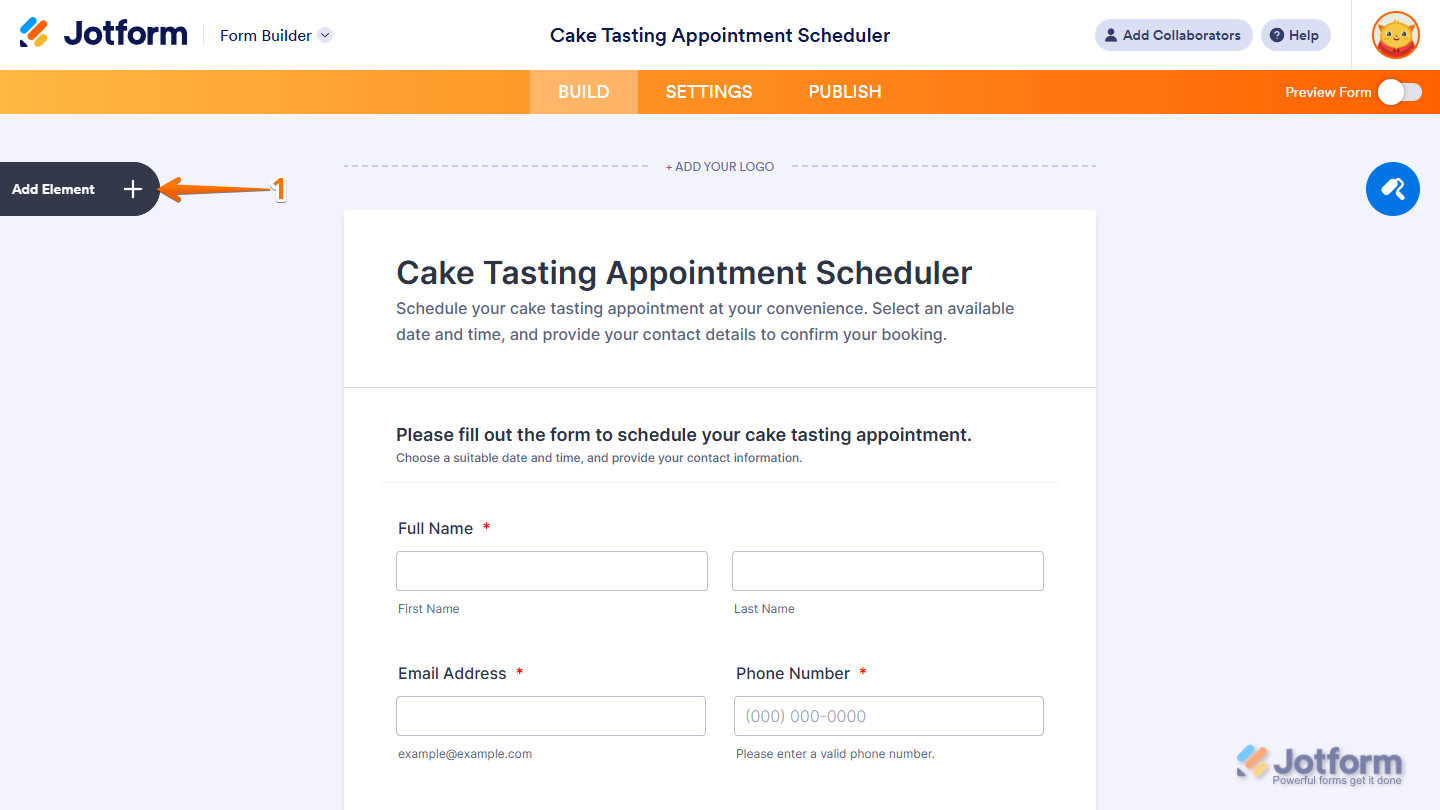
- In Form Builder, click on Add Element on the left side of the page.
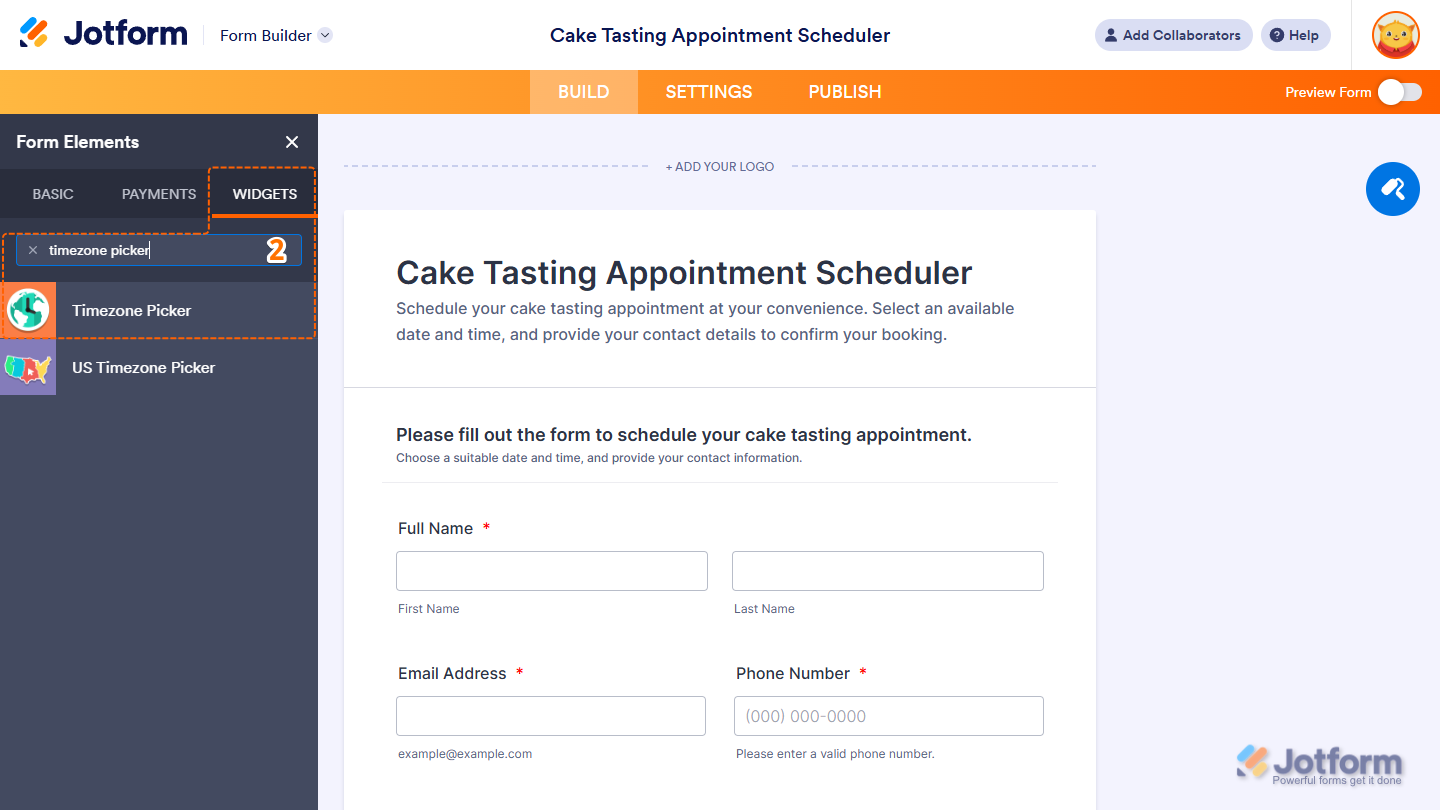
- Now, in the Form Elements menu, under the Widgets tab, search for Timezone Picker and click on it. Or, just drag and drop it to where you want it to be on your form.
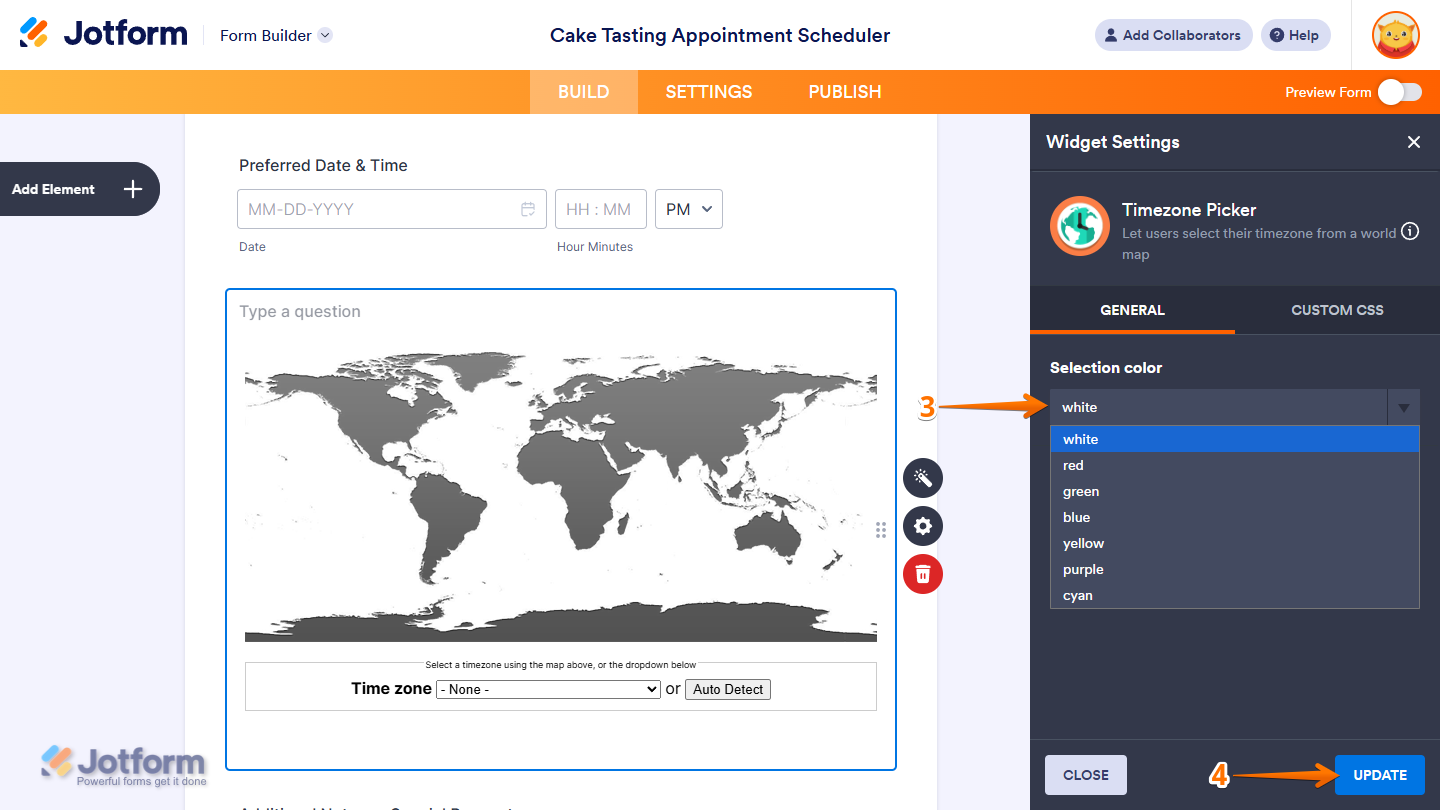
- Next, in the Widget Settings window that opens on the right side of the page, under the General tab, select an option in the Selection Color Dropdown menu to choose the highlight color that appears when a user selects a timezone on the map.
- Once you’re done, click on Update.
That’s it. Now you’ve added and set up the Timezone Picker widget on your form. Wondering how it looks in action? Check out this demo form.
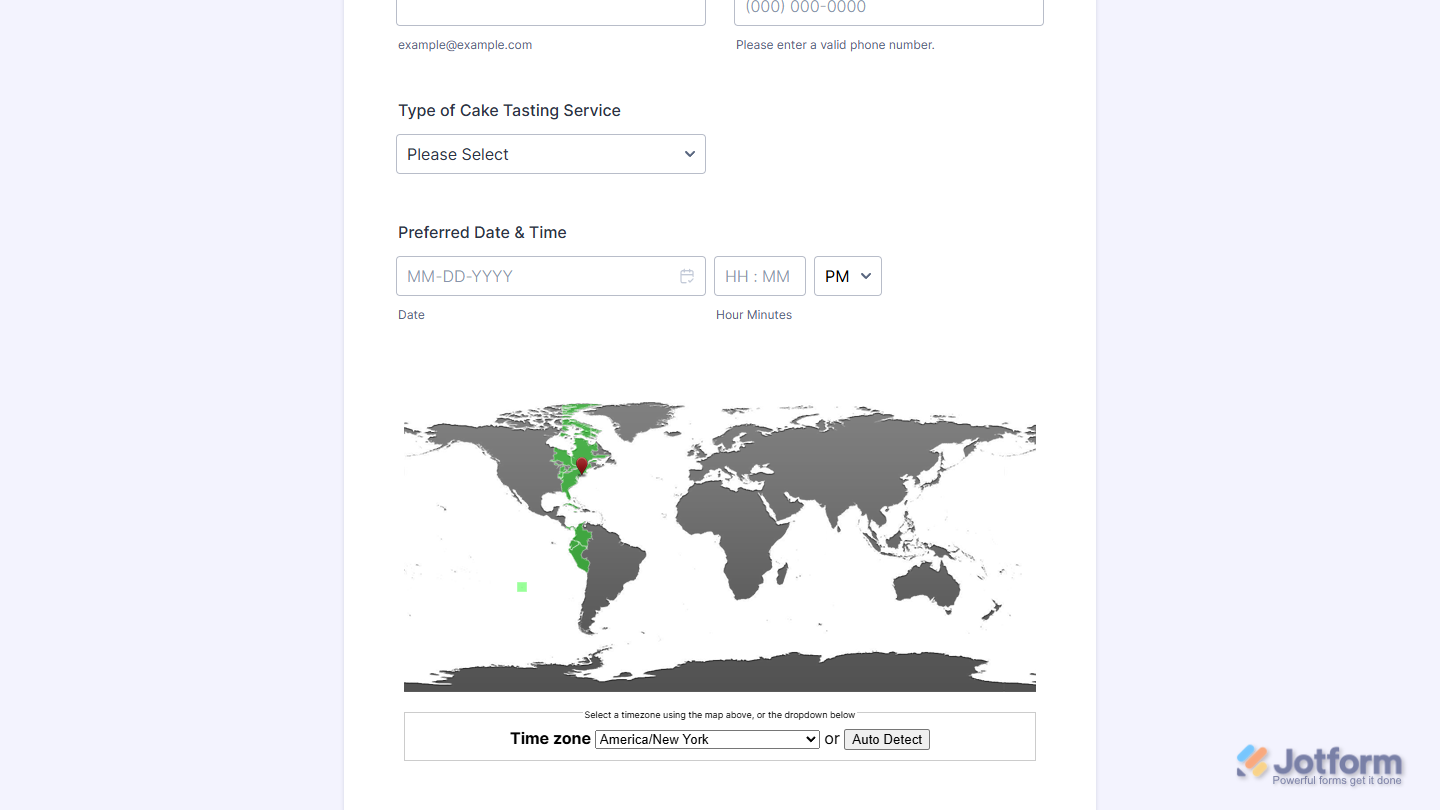
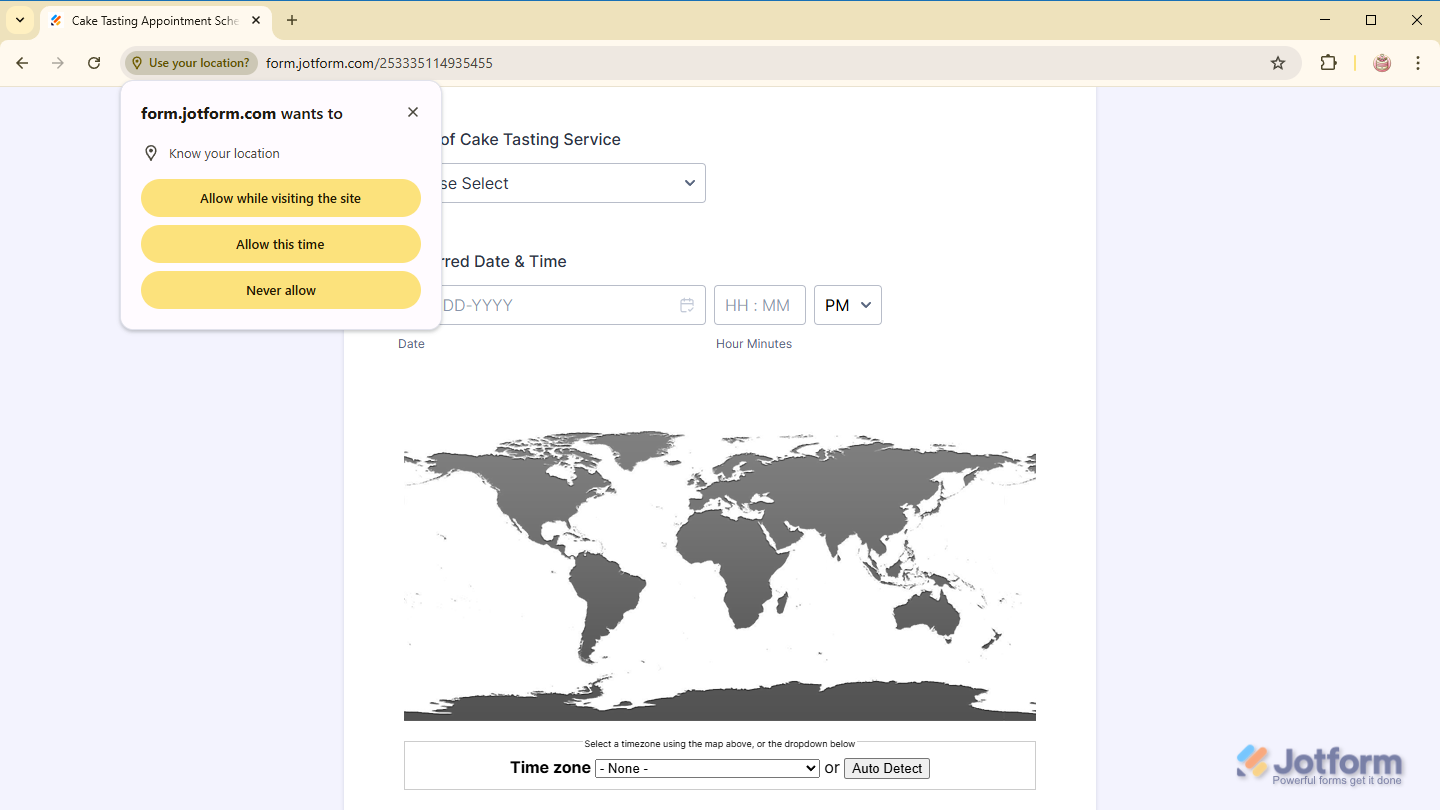
If it’s the first time anyone uses the Auto Detect button in the Timezone Picker widget, clicking on it prompts them to allow location access through their browser. Once permission is granted, the widget automatically identifies their timezone.
Notes
- For advanced styling of the Timezone Picker widget, you can add your own custom CSS code under the Custom CSS tab in the Widget Settings. Our guide on How to Inject CSS Codes to Widgets walks you through everything.
- You can also configure the widget properties, like alignment, labels, size, visibility, and more, to control how it looks and behaves on your form. Check out our guide on How to Access and Configure the Question Properties of a Widget to learn more.

Send Comment: