Jotform takes the hassle out of collecting digital signatures with the Topaz widget, which lets you capture signatures directly using a Topaz device with SigWeb installed. This helps you gather secure and accurate signatures as part of your form submission process.
Here are a few ways to use it:
- Collect signatures using a Topaz Signature Pad.
- Capture secure e-signatures for forms or agreements.
- Streamline signing for in-person or kiosk setups.
- Include signature collection in your workflow.
Whether you’re starting fresh or updating a form, adding and setting up the Topaz widget takes only a few steps. Here’s a quick how-to:
- In Form Builder, click on Add Element on the left side of the page.

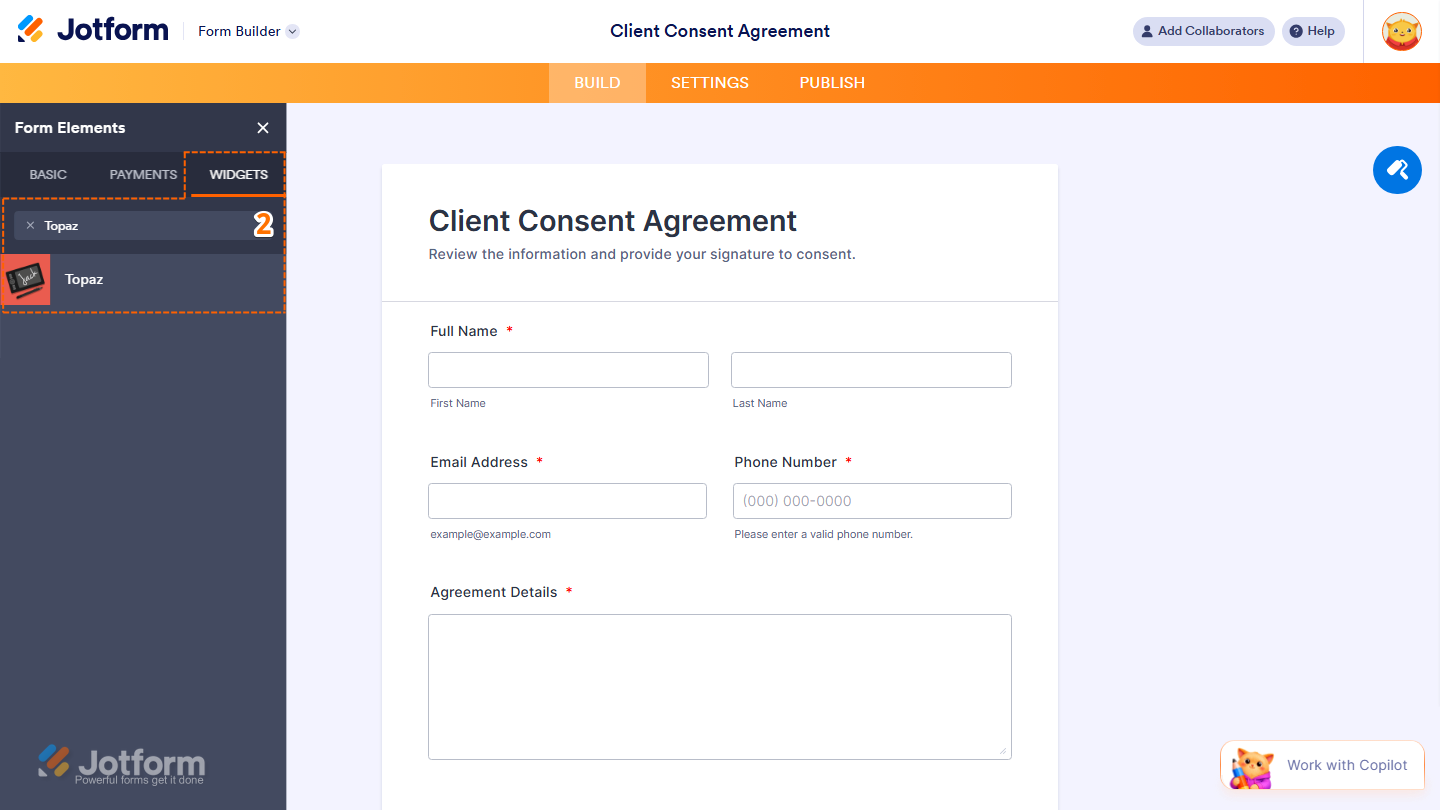
- Now, in the Form Elements menu, under the Widgets tab, search for Topaz and click on it. Or, just drag and drop it to where you want it to be on your form.
That’s it. You’ve successfully added and set up the Topaz widget on your form.
Note
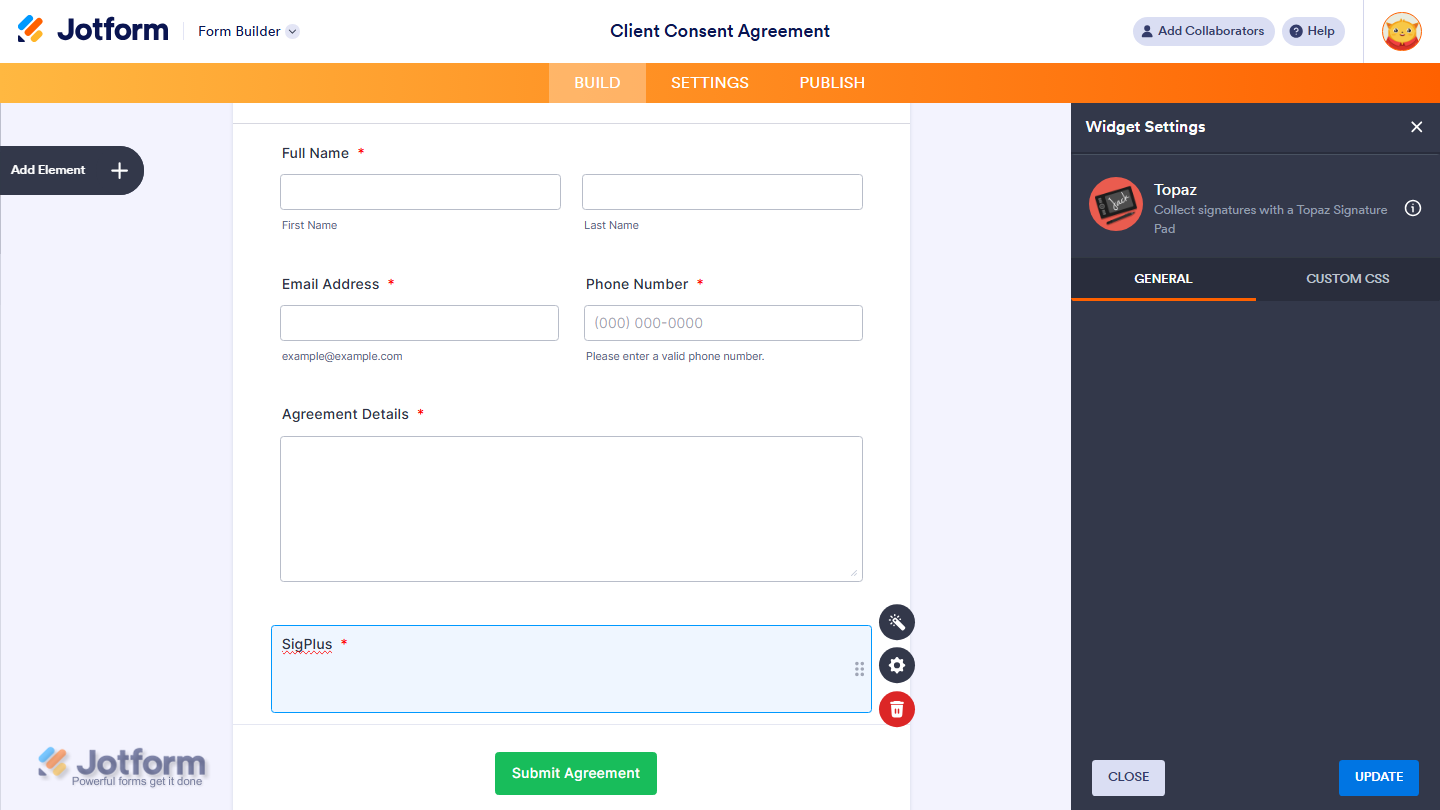
- For advanced styling of the Topaz widget, you can add your own custom CSS code under the Custom CSS tab in the Widget Settings. Our guide on How to Inject CSS Codes to Widgets walks you through everything.
- You can also configure the widget properties, like alignment, labels, size, visibility, and more, to control how it looks and behaves in your form. Check out our guide on How to Access and Configure the Question Properties of a Widget to learn more.

Send Comment: