Jotform makes it easy to let form respondents add their own options with the User Contributed Dropdown widget. This widget not only lets users choose from predefined choices but also gives them the flexibility to contribute their own entries, making your forms more interactive and engaging. It’s perfect for collecting ideas, suggestions, or custom responses, whether you’re gathering feedback, brainstorming, or just want to give people a voice.
With Jotform, you can keep your forms dynamic and user-friendly, giving every respondent the chance to participate fully. It’s a handy tool for anyone looking to create flexible forms that adapt to their audience’s needs.
Here are a few ways to use it:
- Use this widget on your surveys to let respondents suggest new options or ideas.
- Use it on registration forms so participants can add details that aren’t listed in the dropdown.
- Include it in contact forms to collect unique requests, preferences, or feedback.
- Add it to questionnaires to capture answers that go beyond predefined choices.
Configuring the Widget
Whether you’re building a new form or editing an existing one, you can configure the User Contributed Dropdown widget in just a few steps. This is how it’s done:
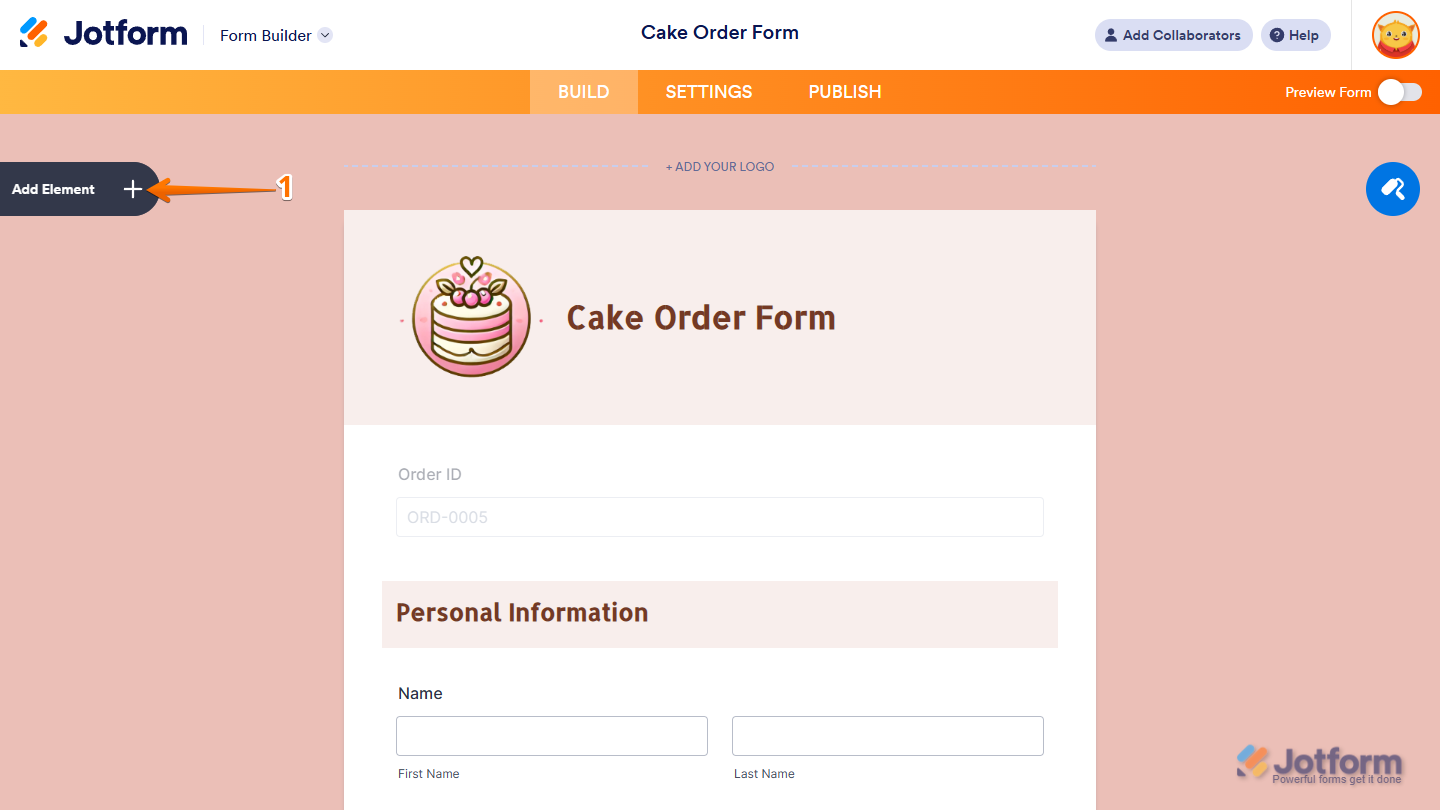
- In Form Builder, click on Add Element on the left side of the page.
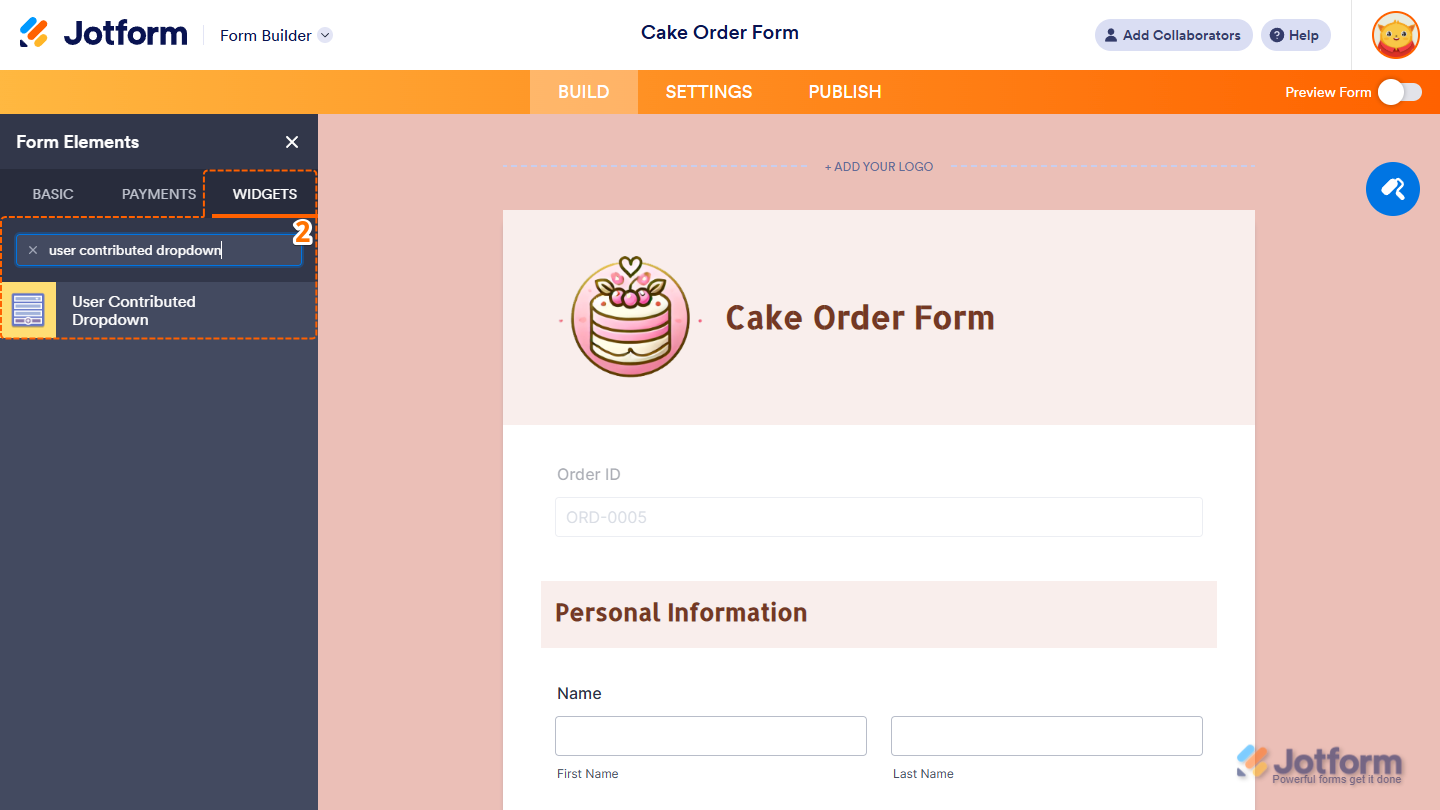
- Now, in the Form Elements menu, under the Widgets tab, search for User Contributed Dropdown and click on it. Or, just drag and drop it to where you want it to be on your form.
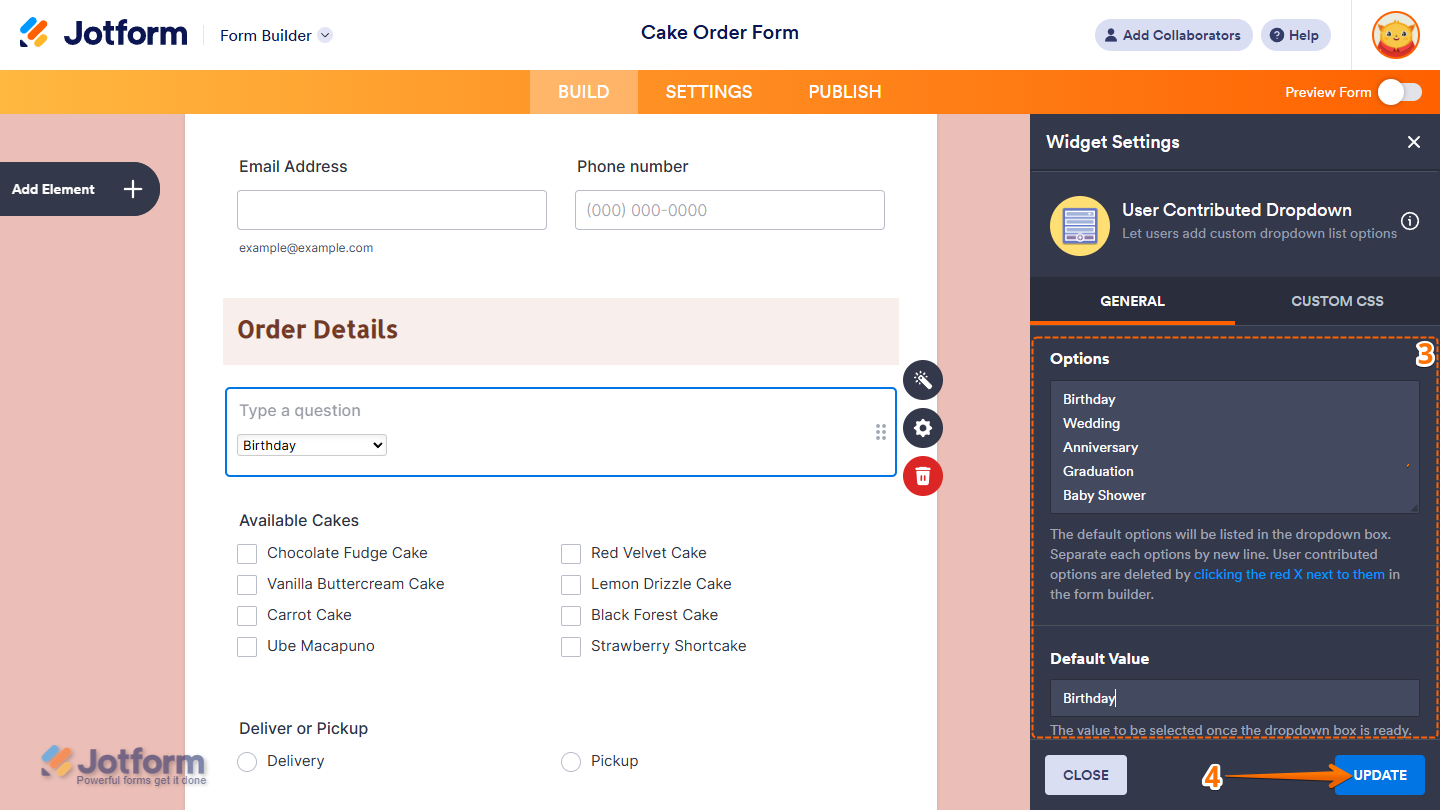
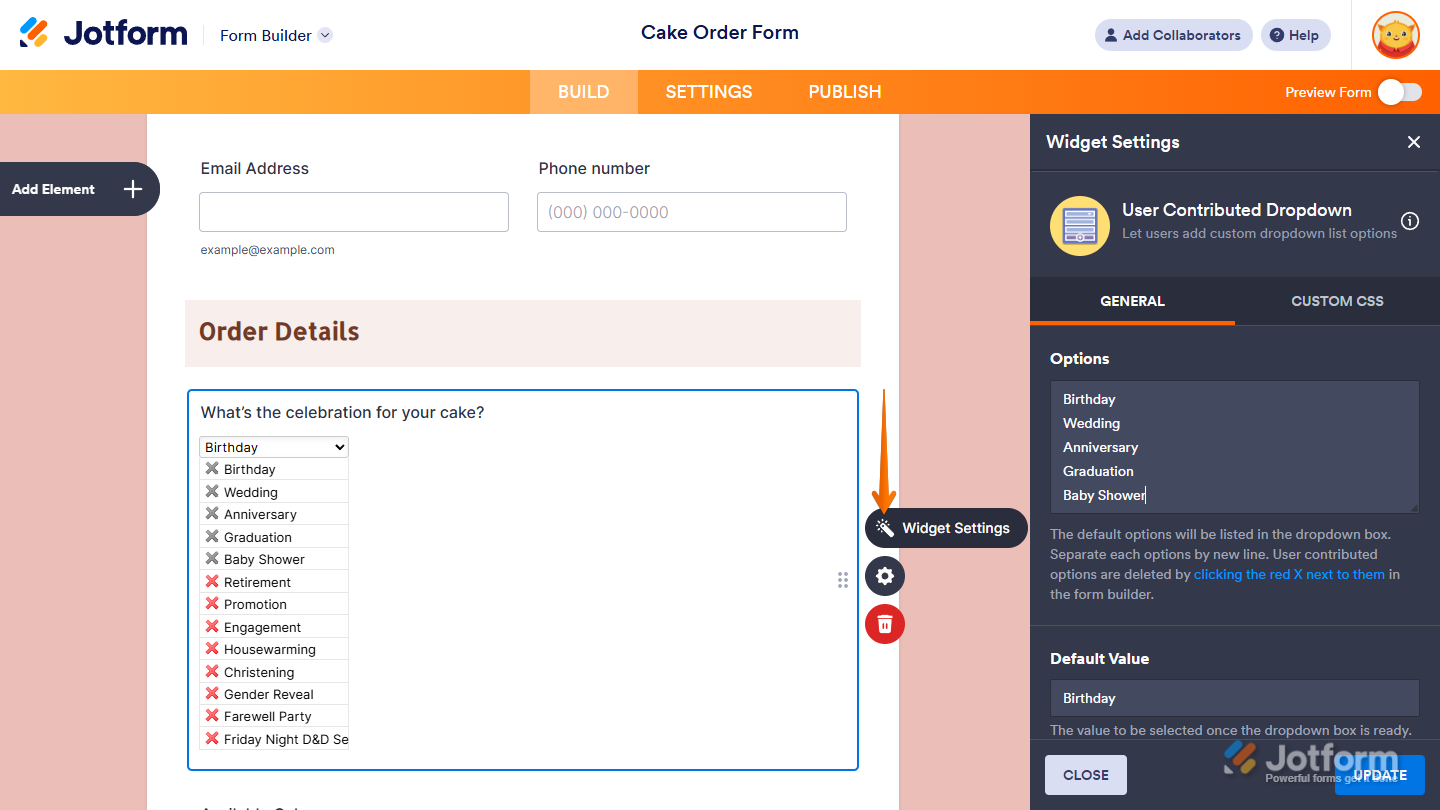
- Next, in the Widget Settings window that opens on the right side of the page, under the General tab, you’ll see this list of settings you can configure:
- Options — Enter the options you want to show in the widget’s dropdown menu. Separate each one on a new line.
- Default Value — Enter the option you want selected by default in the widget’s dropdown menu. This can be one of the default options you’ve set or an entry added by users. It’s case sensitive, so the text has to match exactly.
- Once you’re done, click on Update.
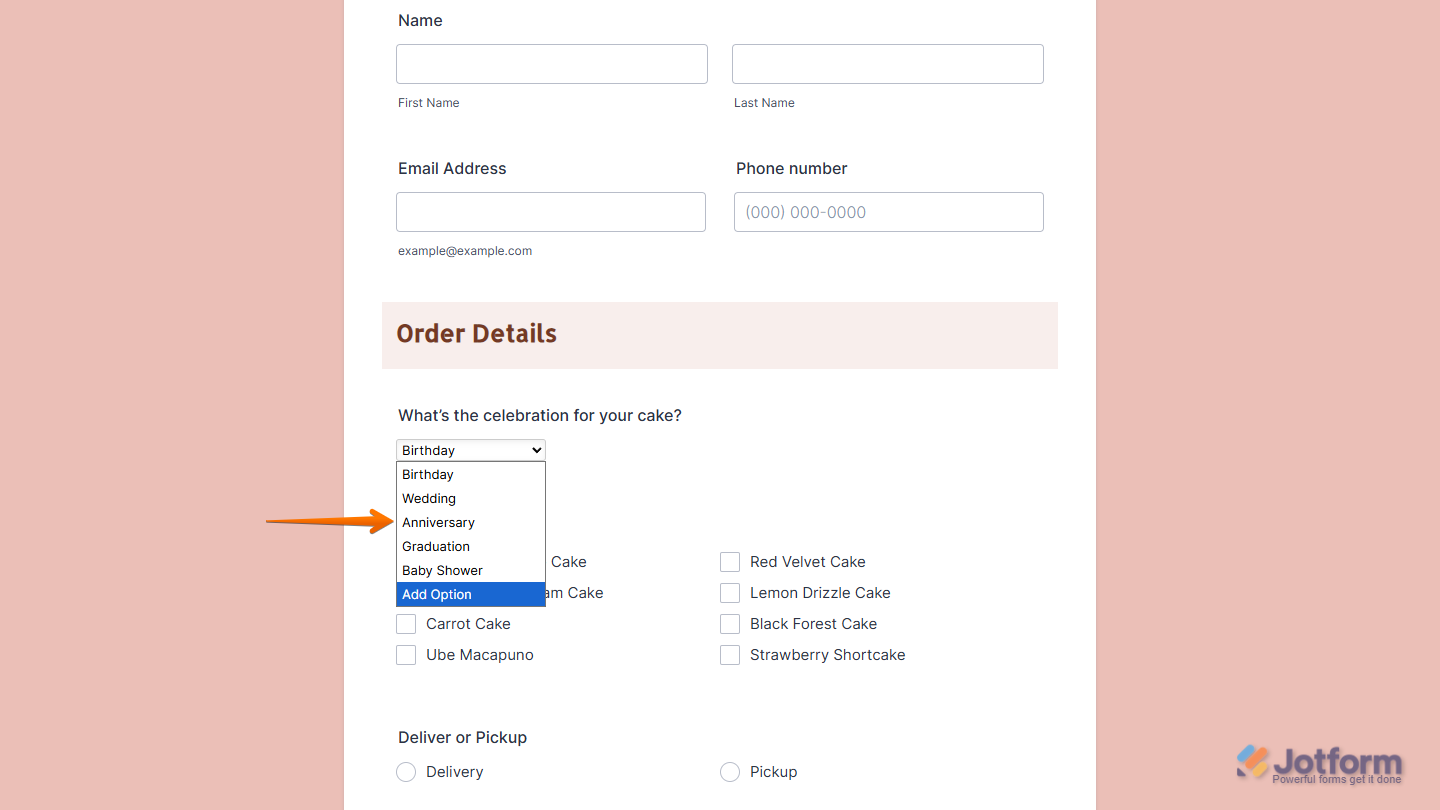
That’s it. You’ve successfully added the User Contributed Dropdown widget to your form. Users can now pick from the dropdown or add their own options to keep responses flexible and unique. Want to see how it works? Check out this live demo form.
Notes
- The User Contributed Dropdown widget lets users add options using letters, numbers, and symbols.
- Users can select Add Option in the widget’s dropdown menu and enter their option in the web browser prompt that appears to contribute a new option.
- Users can see the options added by others.
- Users can’t delete any options, including the ones they’ve added.
To update the widget’s default options, select the User Contributed Dropdown widget in Form Builder and, on the right side of it, click on the Wand icon to open the Widget Settings window:
Removing Contributed Options
You can remove options that users have contributed to the User Contributed Dropdown widget whenever you need to. Here’s how to do it:
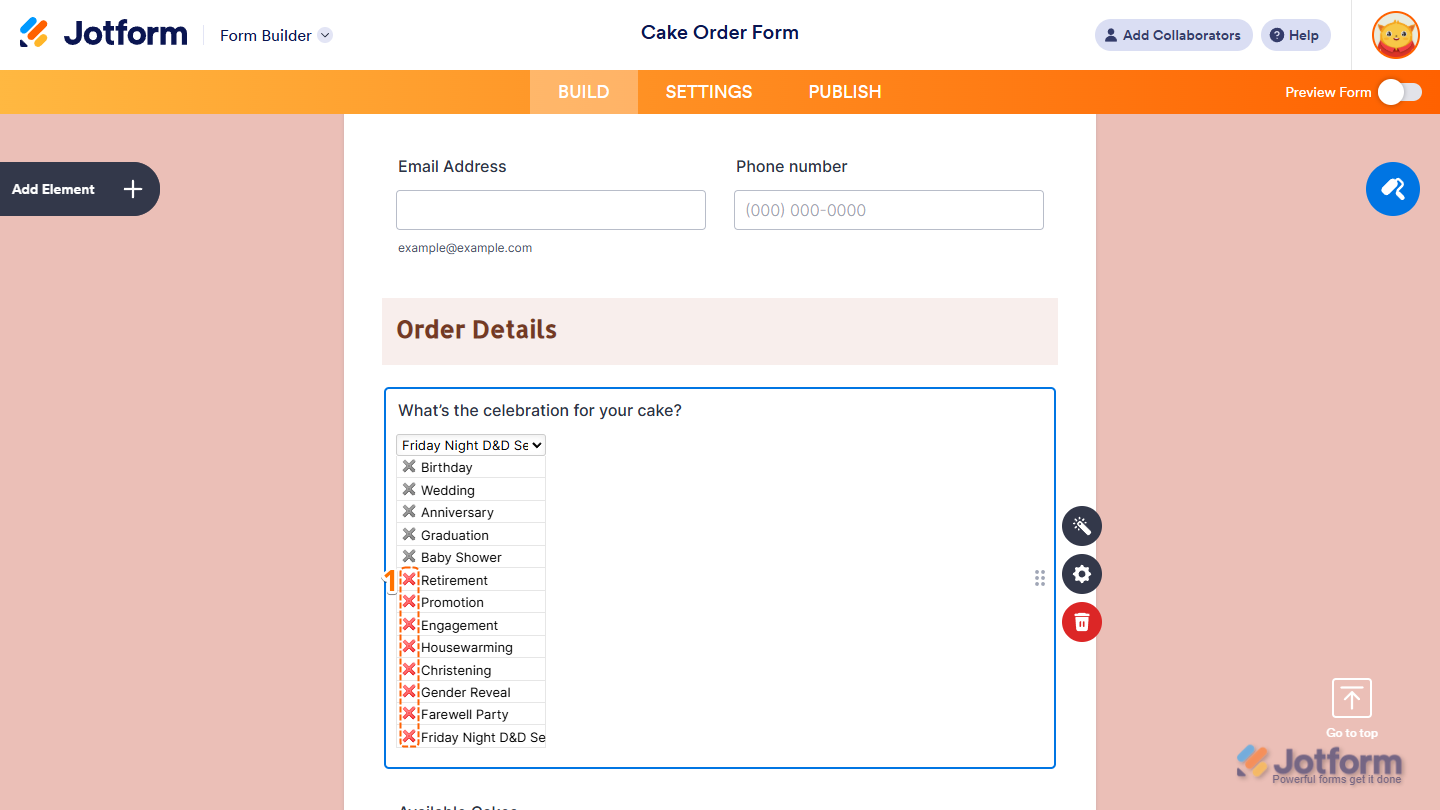
- In Form Builder, on the left side of the option you want to delete, click on the X button.
- Then, in the web browser prompt that appears, click on OK.
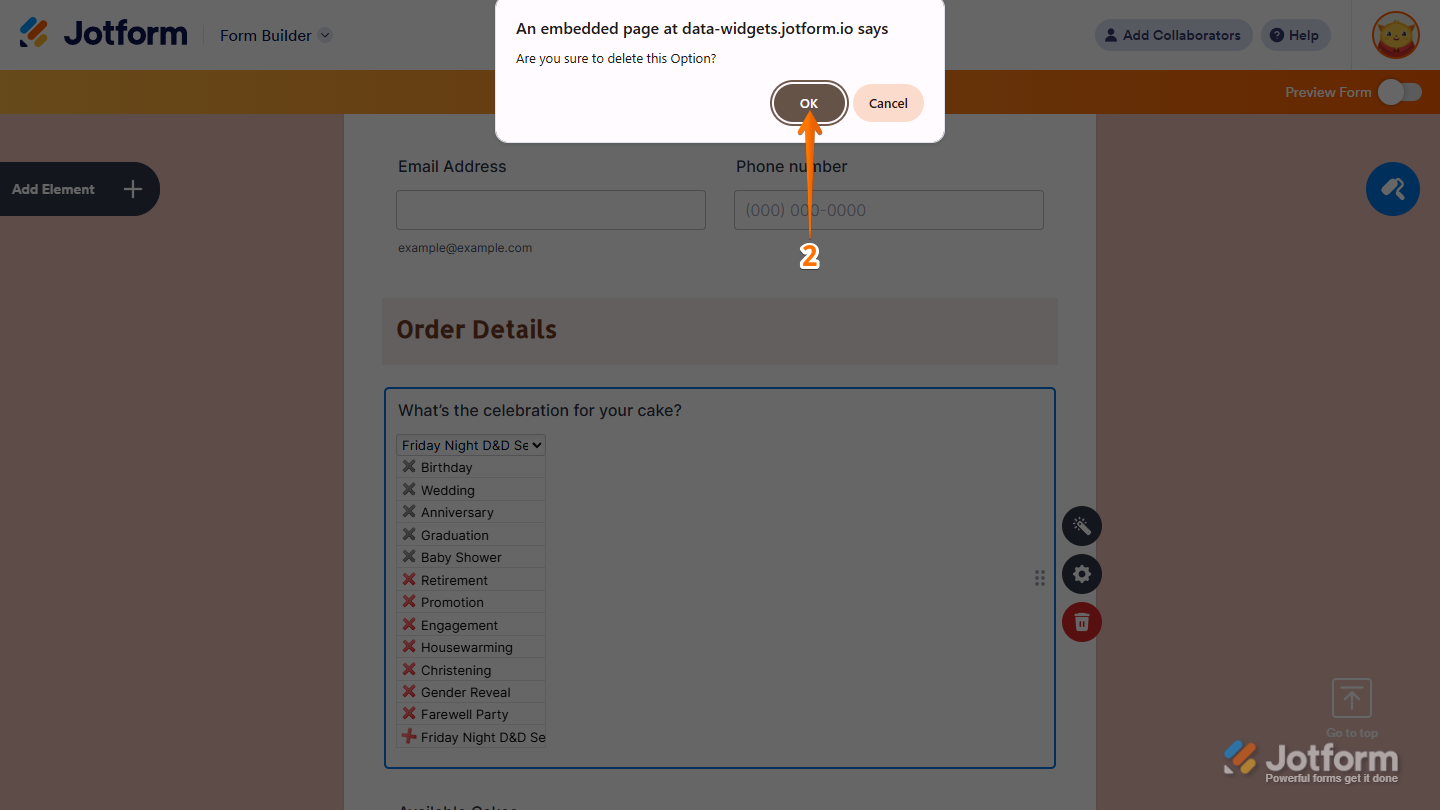
That’s it. The contributed option is now removed from the widget.
Notes
- Updating default options and removing user-contributed options won’t delete them from past submissions where they were selected, unless those submissions are edited.
- For advanced styling of the User Contributed Dropdown widget, you can add your own custom CSS code under the Custom CSS tab in the Widget Settings. Our guide on How to Inject CSS Codes to Widgets walks you through everything.
- You can also configure the widget properties, like alignment, labels, size, visibility, and more, to control how it looks and behaves on your form. Check out our guide on How to Access and Configure the Question Properties of a Widget to learn more.

Send Comment: