Jotform streamlines the way you collect single-choice responses with the User Contributed Radio Buttons widget, which lets users add their own option if the existing choices do not match what they need. They can click Add Option, enter their preferred answer, and submit the form as usual. You can review and remove contributed options anytime in the Form Builder.
Here are a few ways to use it:
- Let users add custom options when predefined choices are not enough.
- Make your forms more flexible with dynamic answer entries.
- Capture responses that reflect users’ actual preferences.
- Reduce friction when a desired option is not listed.
- Maintain control by removing contributed options in the Form Builder.
Whether you’re building a new form or editing an existing one, you can add and configure the User Contributed Radio Buttons in just a few steps. This is how it’s done:
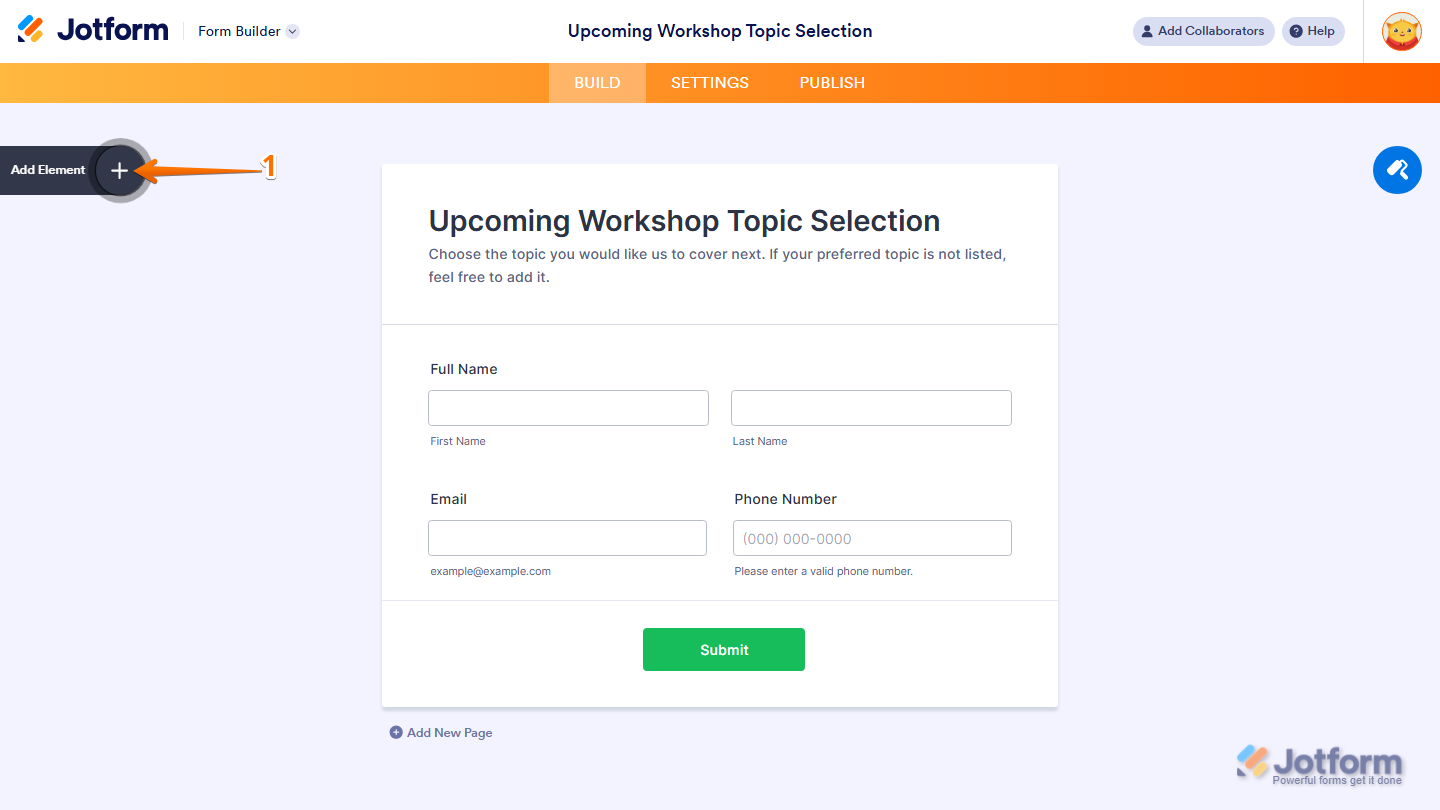
- In Form Builder, click on Add Element on the left side of the page.
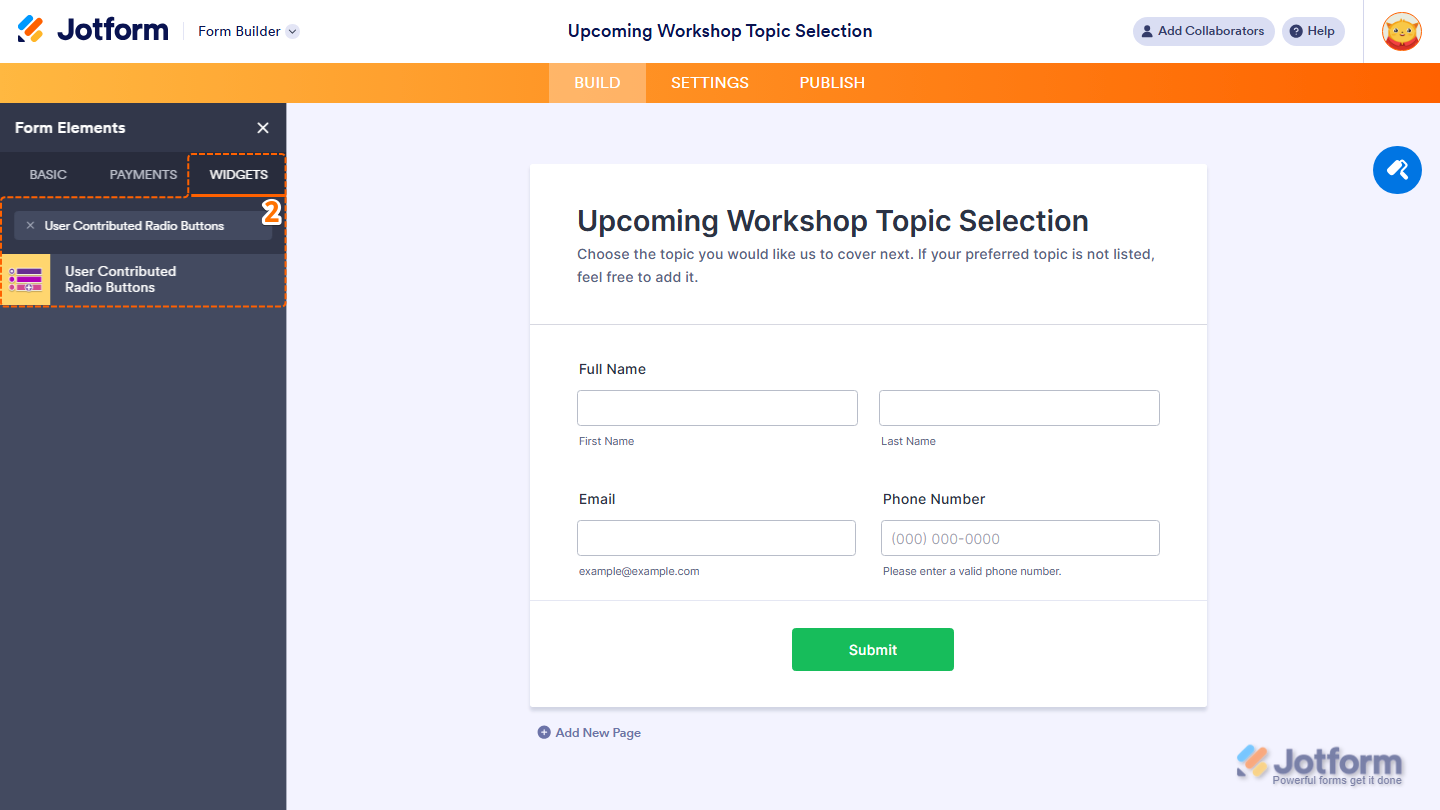
- Now, in the Form Elements menu, under the Widgets tab, search for User Contributed Radio Buttons and click on it. Or, just drag and drop it to where you want it to be on your form.
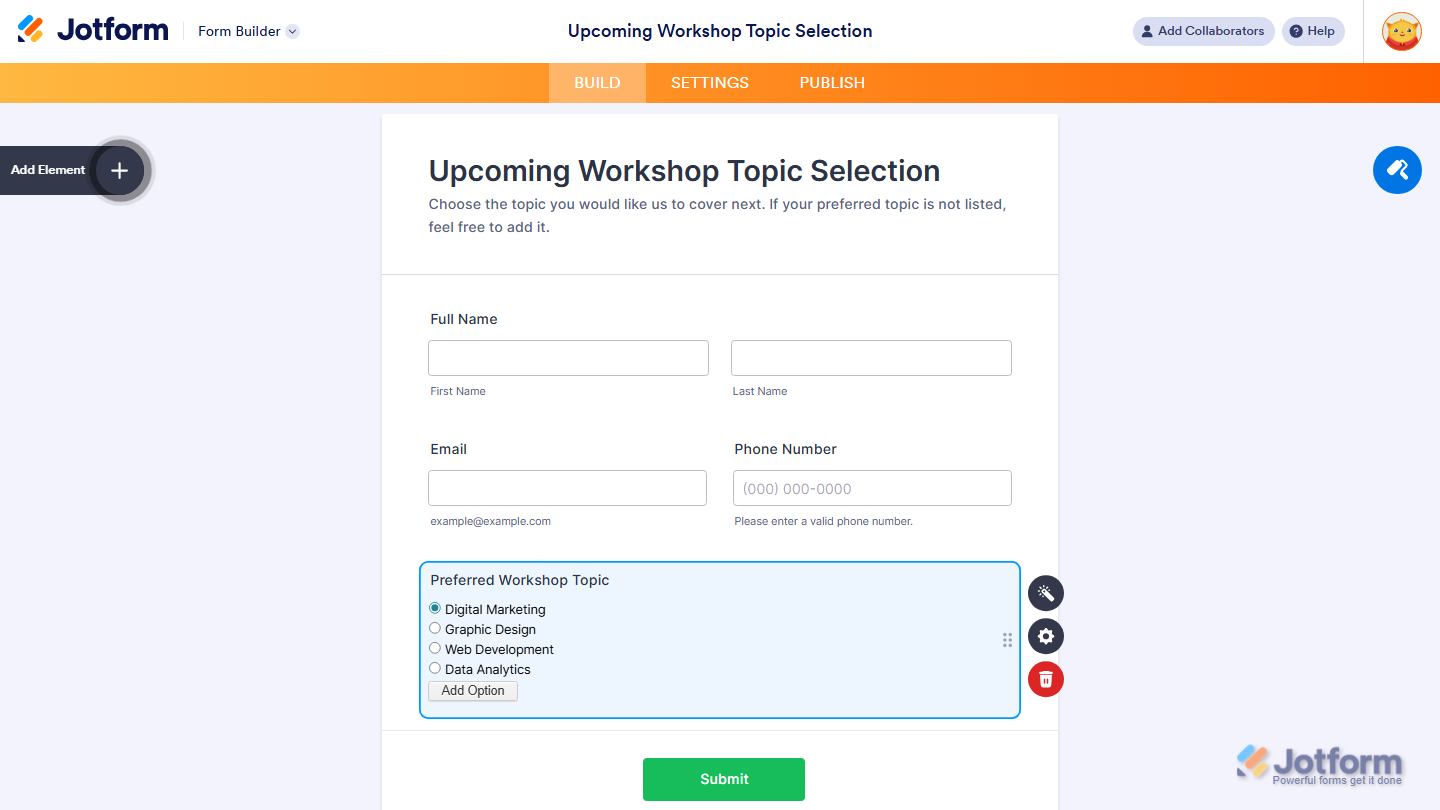
- Next, in the Widget Settings menu that opens on the right side of the page, under the General tab, you’ll see this list of settings you can configure:
- Options — These are the default choices that will appear in the radio button list. Enter each option on a new line.
- Default Value — Set the option that should appear preselected when the form loads.
- Once you’re done, click on Update.

That’s it. You’ve successfully added and set up the User Contributed Radio Buttons widget on your form. You can explore how it looks with this demo form.
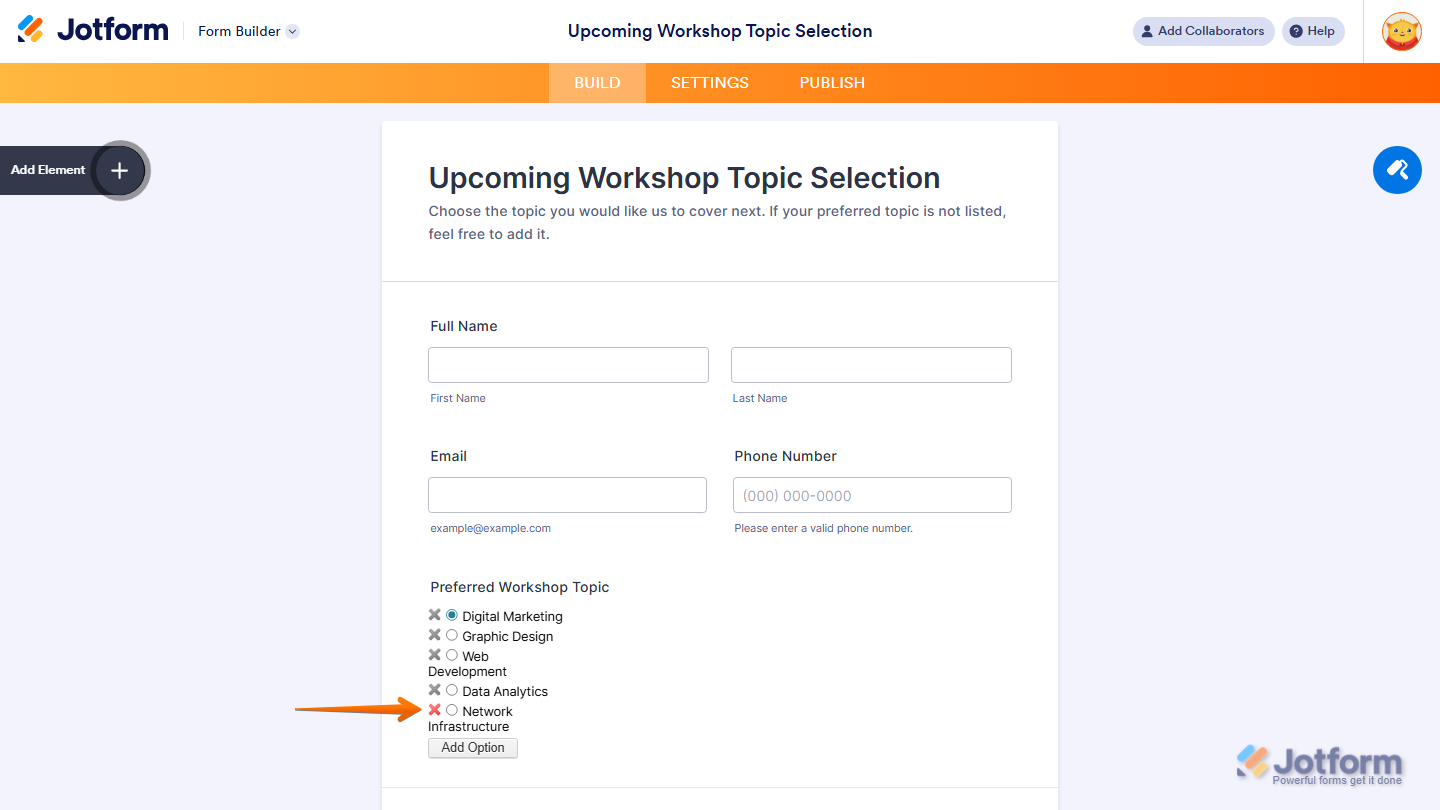
If users have added their own options, you can remove them in the Form Builder by clicking the red X next to each option.
Note
- For advanced styling of the User Contributed Dropdown widget, you can add your own custom CSS code under the Custom CSS tab in the Widget Settings. Our guide on How to Inject CSS Codes to Widgets walks you through everything.
- You can also configure the widget properties, like alignment, labels, size, visibility, and more, to control how it looks and behaves in your form. Check out our guide on How to Access and Configure the Question Properties of a Widget to learn more.

Send Comment: