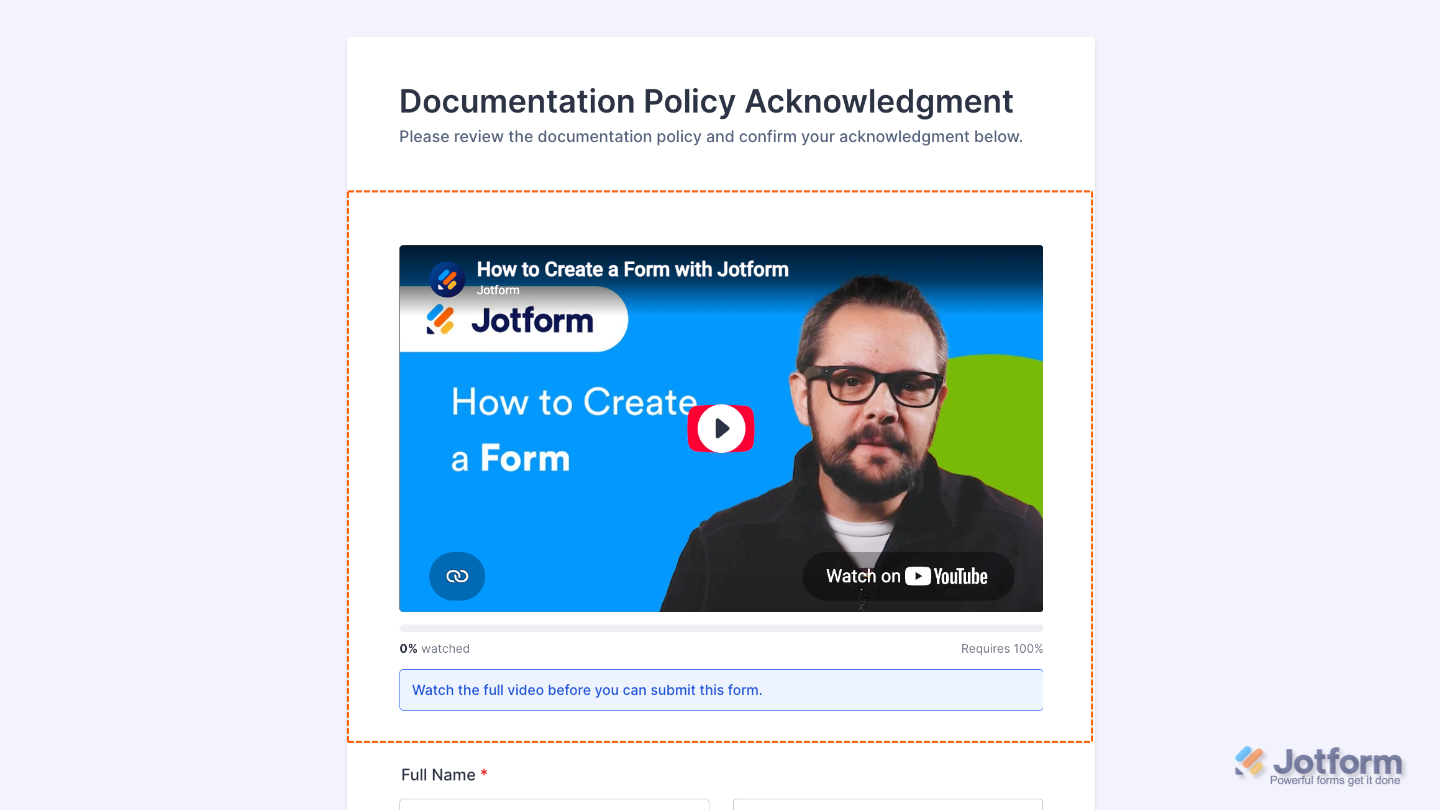
The Video Completion Gate widget makes it easy to ensure respondents watch important video content before submitting your form. You can require them to watch the entire video or reach a specific completion percentage, making it useful for training, onboarding, lessons, and compliance forms. With options to show video progress, prevent skipping, and display a completion message, you can create a smooth viewing experience while making sure the content is seen.
Here are a few ways to use it:
- Confirm Employee Onboarding Video Completion — Make sure employees watch required onboarding videos before completing an onboarding form.
- Collect Compliance Acknowledgements — Require respondents to watch important compliance briefings before submitting an acknowledgement.
- Require Students to Watch Lesson Content — Ensure students view required educational videos before completing a related form or activity.
- Verify Training Before Assessments — Make sure participants complete a training video before moving on to an assessment.
Adding and Setting Up the Video Completion Gate Widget
With just a few simple steps, you can add the Video Completion Gate widget to your form and require respondents to watch your video before submitting it. Here’s how to get started:
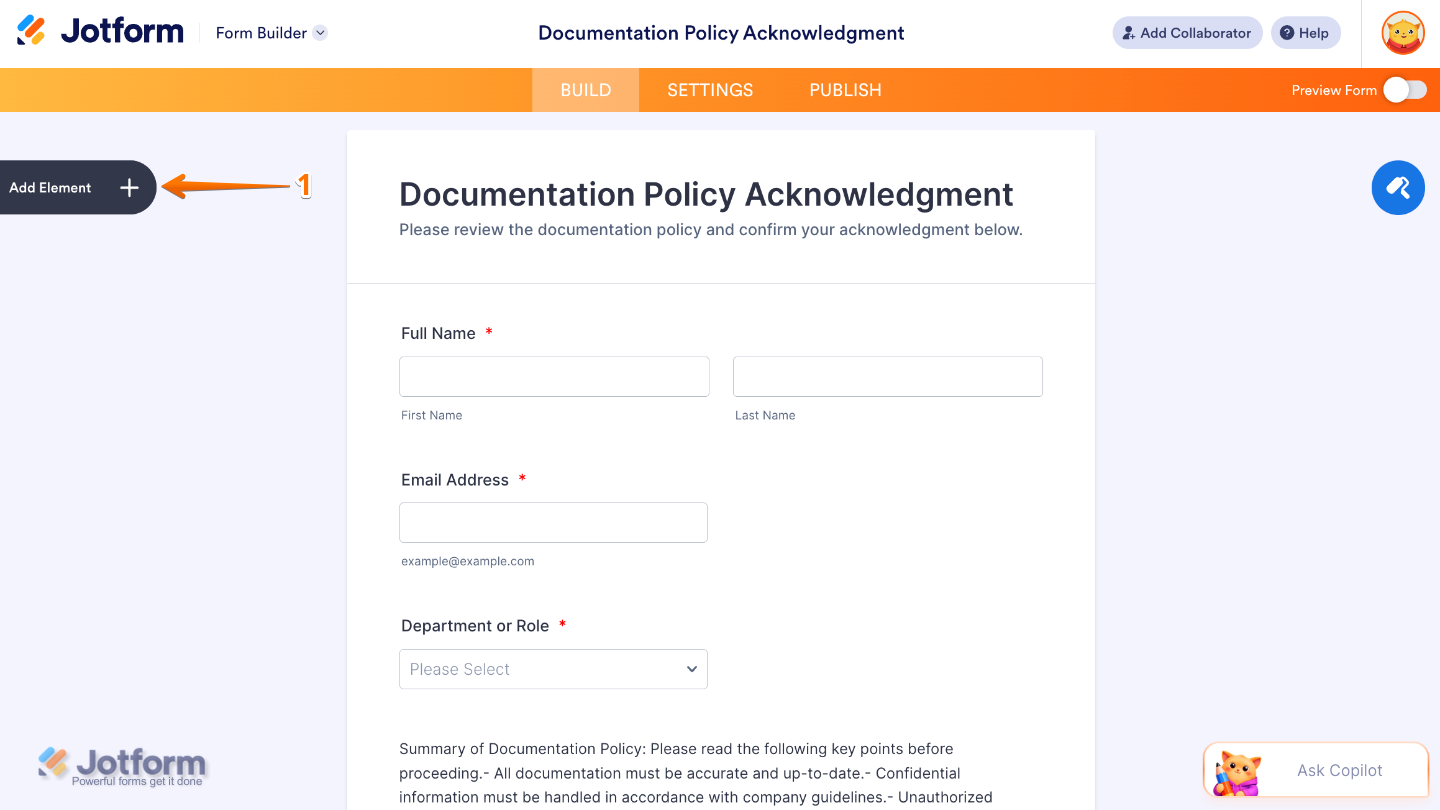
- In Form Builder, click on Add Element on the left side of the page.
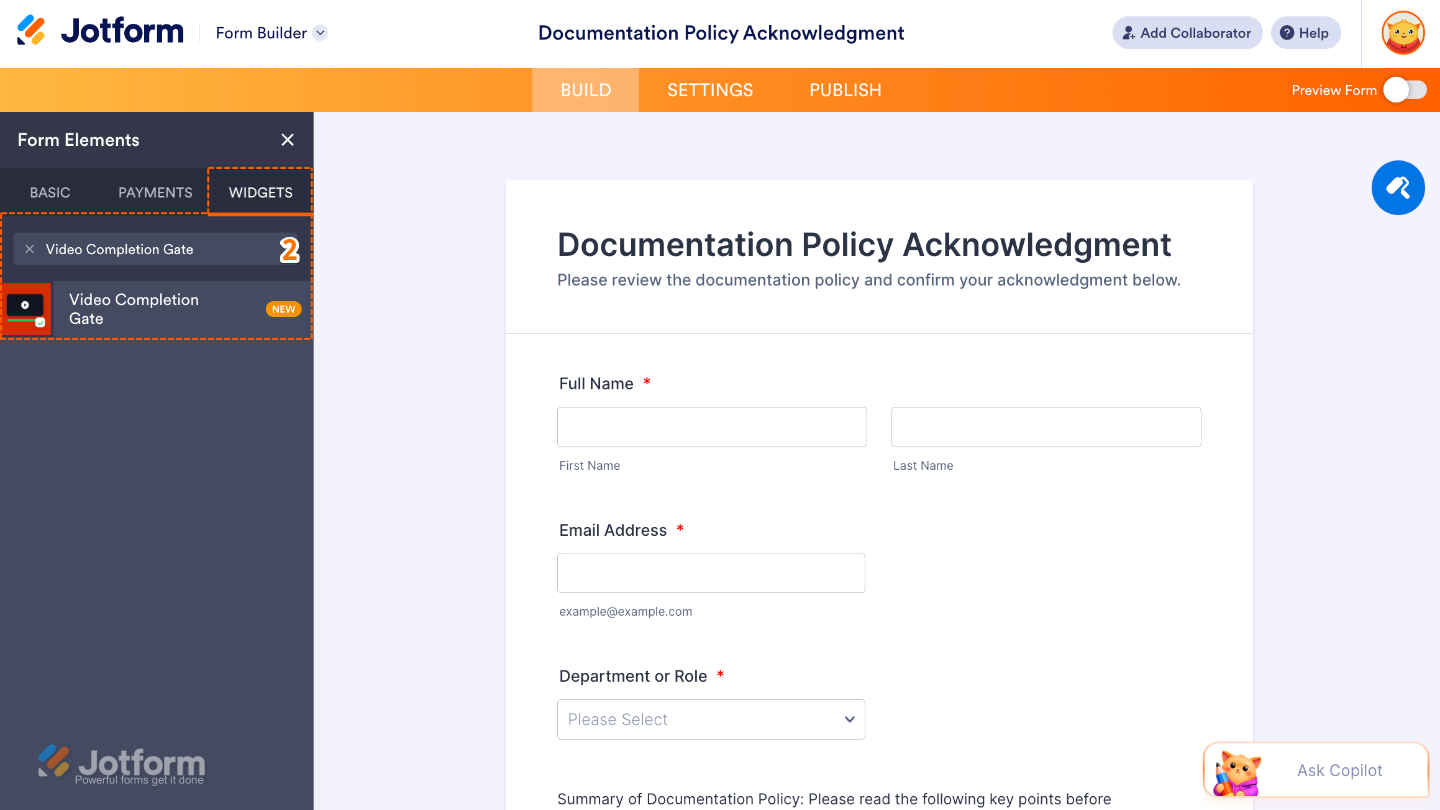
- Now, in the Form Elements menu, under the Widgets tab, search for Video Completion Gate and then click on it. Or, just drag and drop it to where you want it to be on your form.
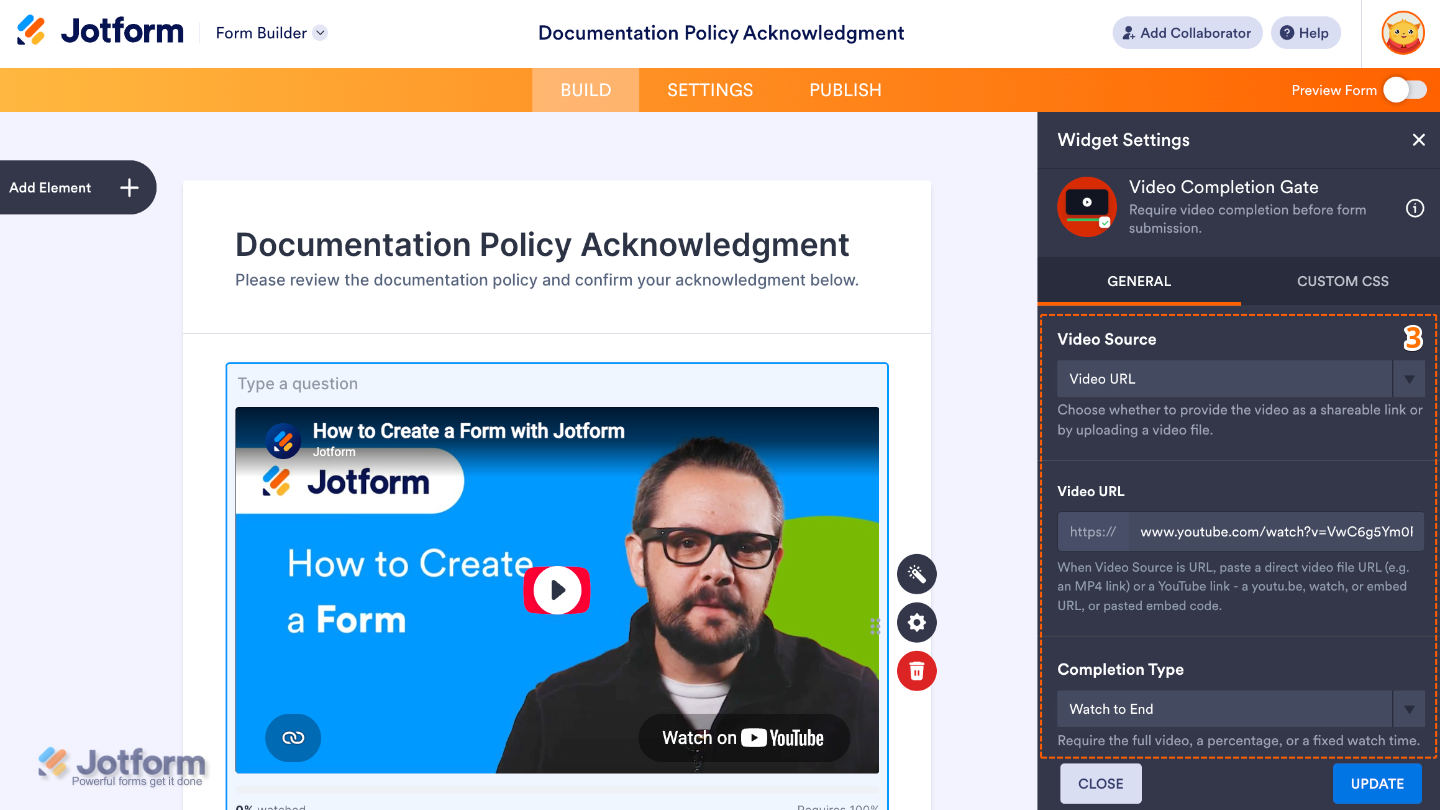
- Next, in the Widget Settings window that opens on the right side of the page, under the General tab, set up the following things:
- Video Source — Choose where the video you want respondents to watch is hosted.
- Video URL — Enter the URL of the video you want to display in the widget.
- Completion Type — Choose how much of the video respondents need to watch before it is considered complete.
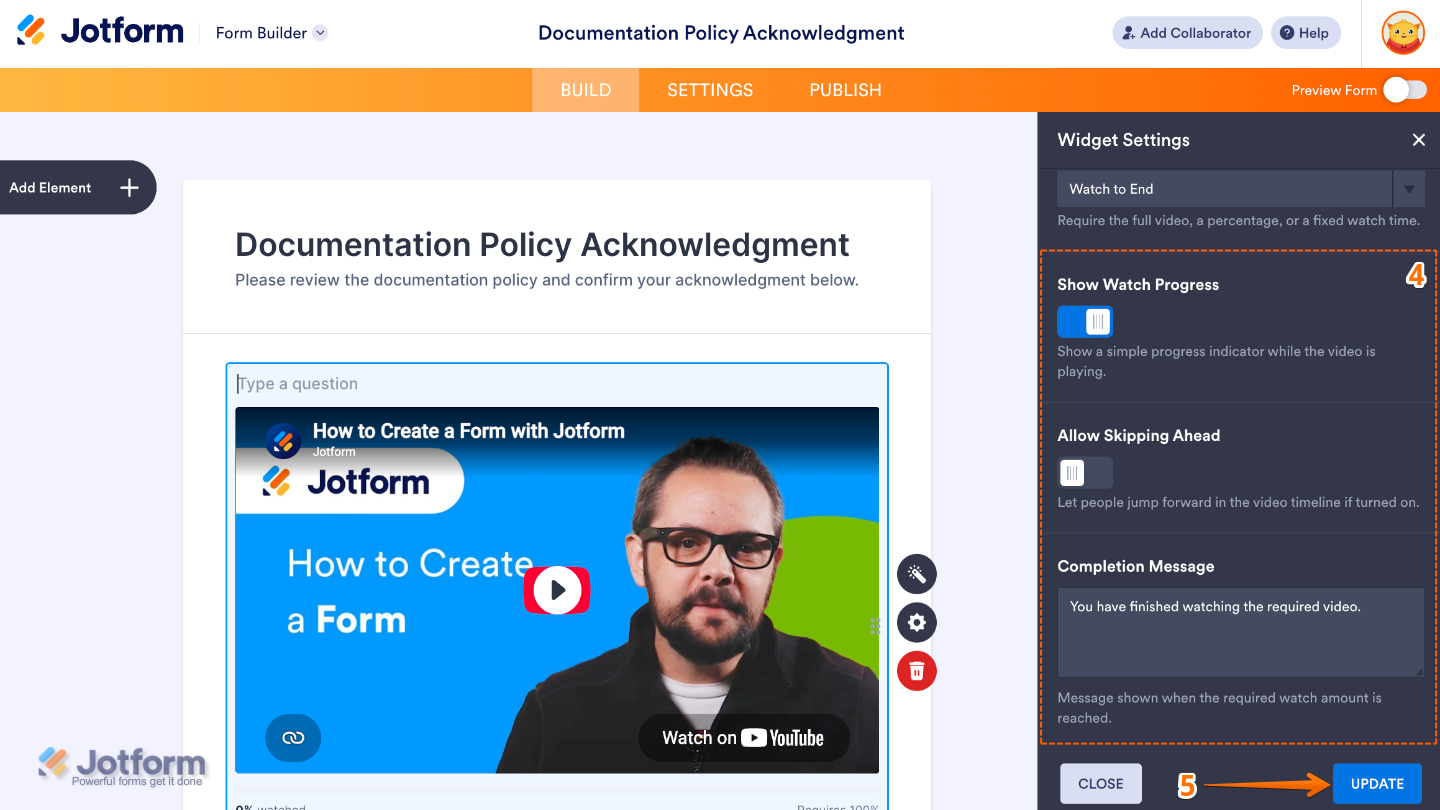
- Then, scroll down and continue to set up these options:
- Show Watch Progress — Show respondents their progress as they watch the video, making it easier for them to see how much they have watched.
- Allow Skipping Ahead — Allow or prevent respondents from jumping ahead to another part of the video before reaching the required completion point.
- Completion Message — Enter the message you want to display after the respondent has successfully completed the required portion of the video.
- Once you’re done, click on Update.
That’s it! You’ve successfully added and set up the Video Completion Gate widget on your form. Respondents can now watch the video before submitting the form, helping ensure they’ve viewed the content you want them to see. Ready to see it in action? Check out this demo form.
You can also configure the widget properties, like alignment, labels, size, visibility, and more, to control how it looks and behaves on your form. To learn how it’s done, see our guide on How to Access and Configure the Question Properties of a Widget.
Note
For advanced styling of the Video Completion Gate widget, you can add your own custom CSS code under the Custom CSS tab in the Widget Settings. Our guide on How to Inject CSS Codes to Widgets walks you through everything.
Pro Tips
- Keep your Completion Message short and encouraging so respondents know when they’ve successfully completed the required viewing.
- Disable Allow Skipping Ahead when it’s important for respondents to watch the video from beginning to end, such as for training, onboarding, or instructional content.

Send Comment:
1 Comment:
September 4, 2026
How can the end user pause the video, rewind and make full screen?