Jotform’s Visual Multi Select widget offers a more interactive way for users to pick items from a list. With its clean, dual-column layout, users can easily search, select, and unselect items before submitting the form; no checkboxes or dropdowns are needed. It’s perfect for forms with long lists and makes the selection process more intuitive and visually engaging.
Here are a few ways to use it:
- Simplify Multiple-Choice Questions — Perfect for surveys, quizzes, or forms where users need to pick more than one option. It feels smoother and more engaging than a standard checklist.
- Collect Preferences in Style — Whether it’s favorite activities, meal choices, or service options, users can select multiple answers quickly without feeling overwhelmed.
- Improve Mobile Experience — On phones or tablets, it’s much easier to tap a neat visual option than to deal with small checkboxes. The widget is designed with mobile users in mind.
- Organize Long Lists of Options — If you’ve got a long list of choices, this widget keeps everything tidy and easy to navigate, so users don’t feel lost.
Adding and Setting Up the Visual Multi Select Widget
If your form lets users choose multiple items from a long or organized list, adding the Visual Multi Select widget is a great fit, especially when you want to keep things clear and easy to navigate. To get going, here’s what you’ll do:
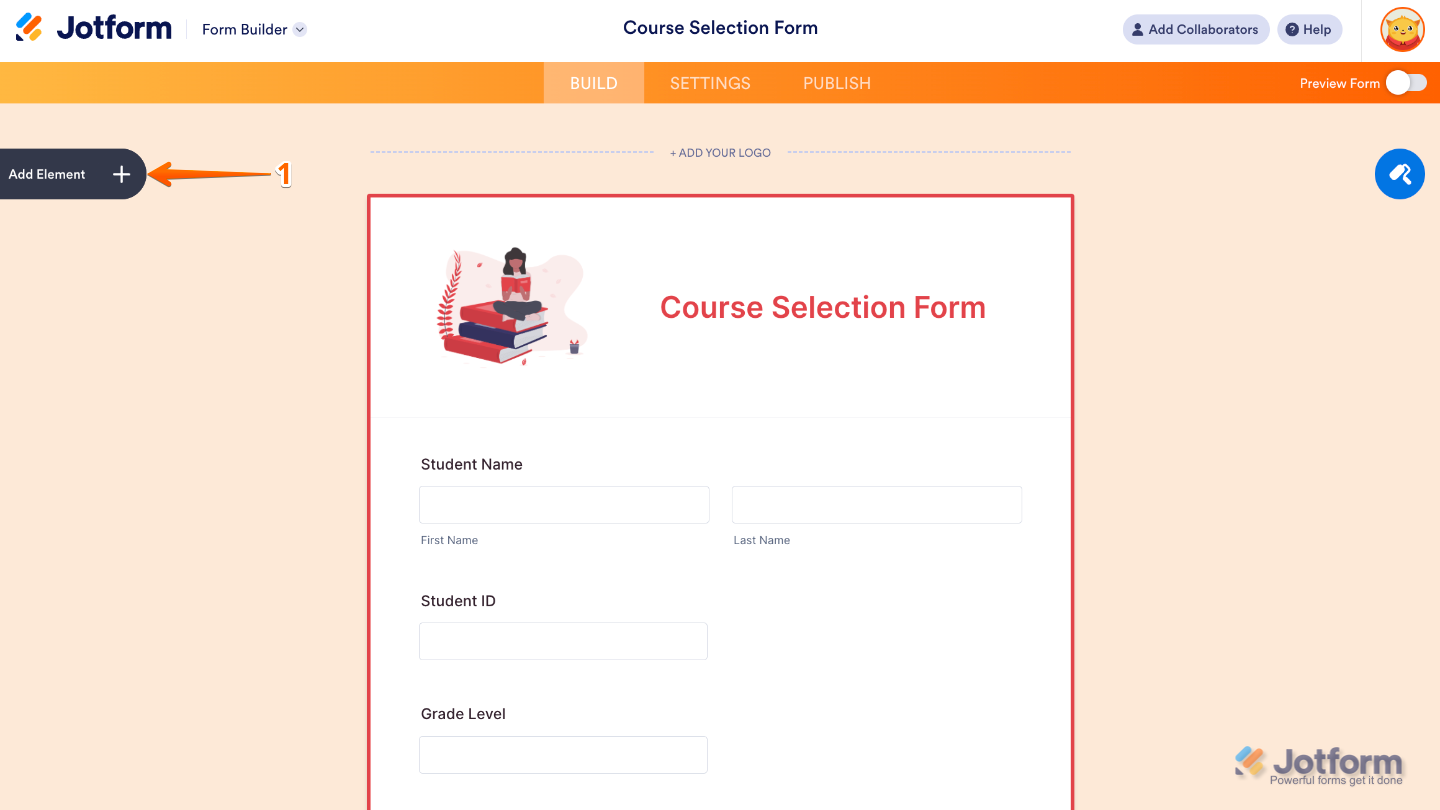
- In Form Builder, click on Add Element on the left side of the page.
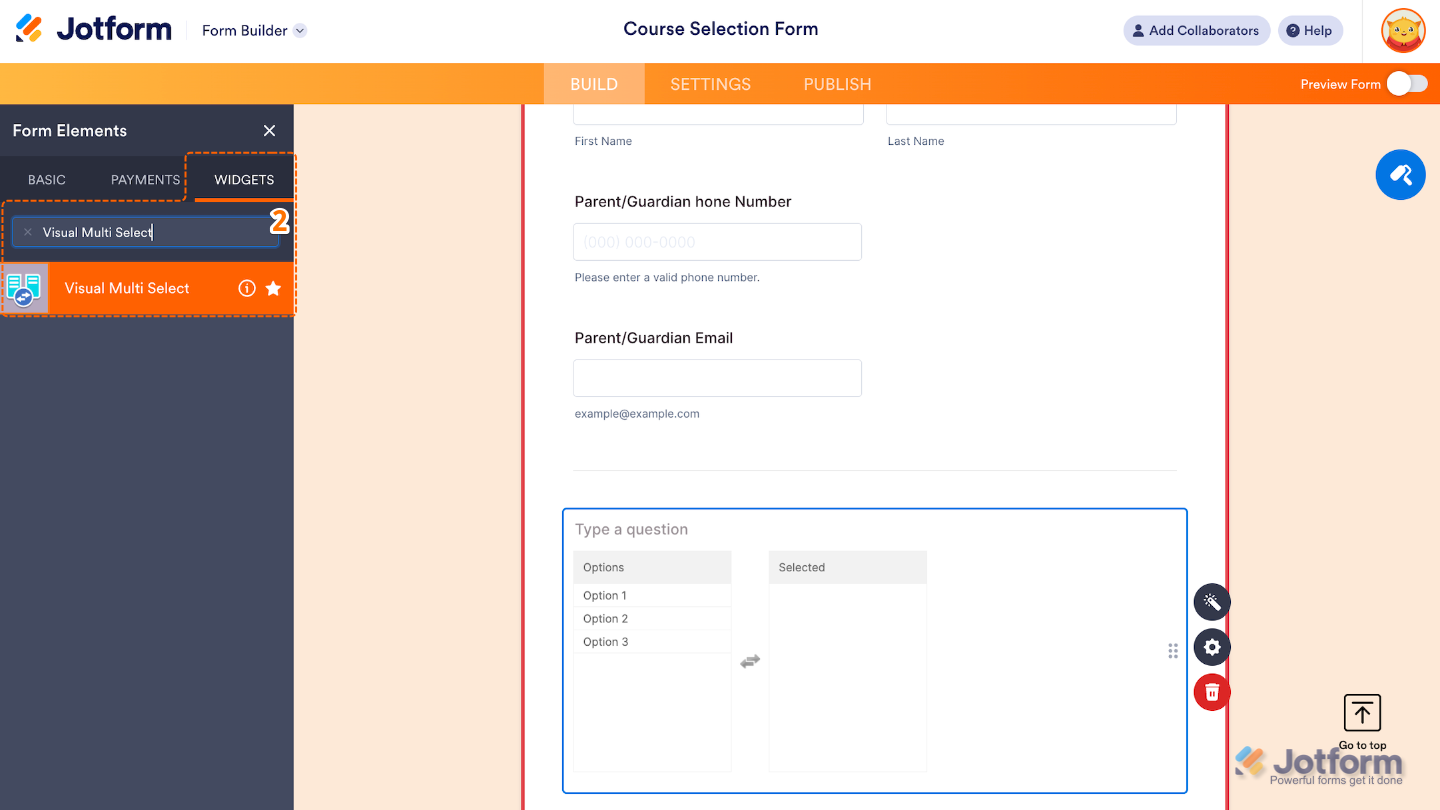
- Now, in the Form Elements menu, under the Widgets tab, search for Visual Multi Select and then click on it. Or, just drag and drop it to where you want it to be on your form.
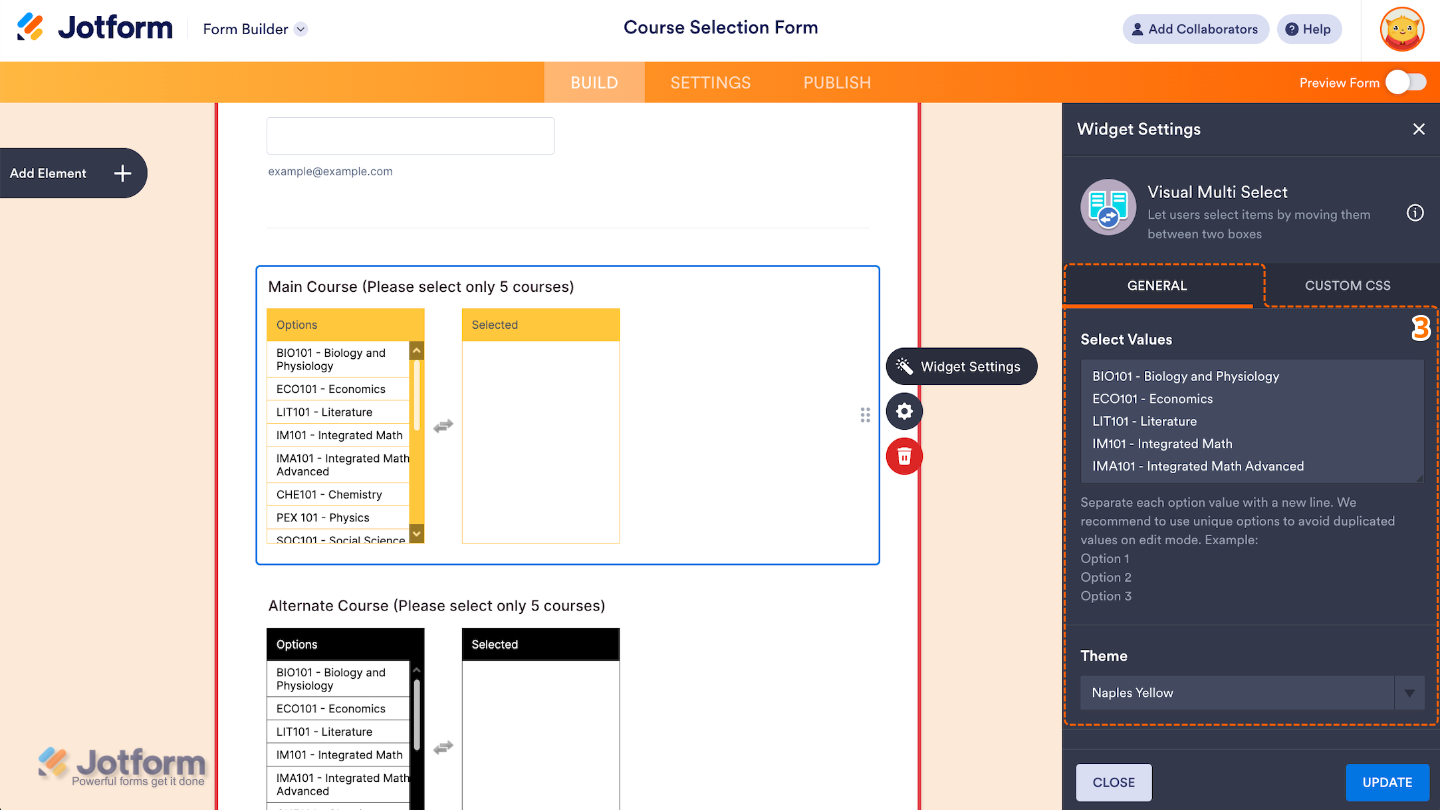
- Next, in the Widget Settings window that opens on the right side of the page, set up the following options:
- Select Values — Enter here the list of items users can choose from. Each item should be on a separate line, and these will appear in the left-hand (available) column.
- Theme — Choose a visual style for the widget to match your form’s design. Themes can adjust colors, borders, and spacing for a more personalized look.
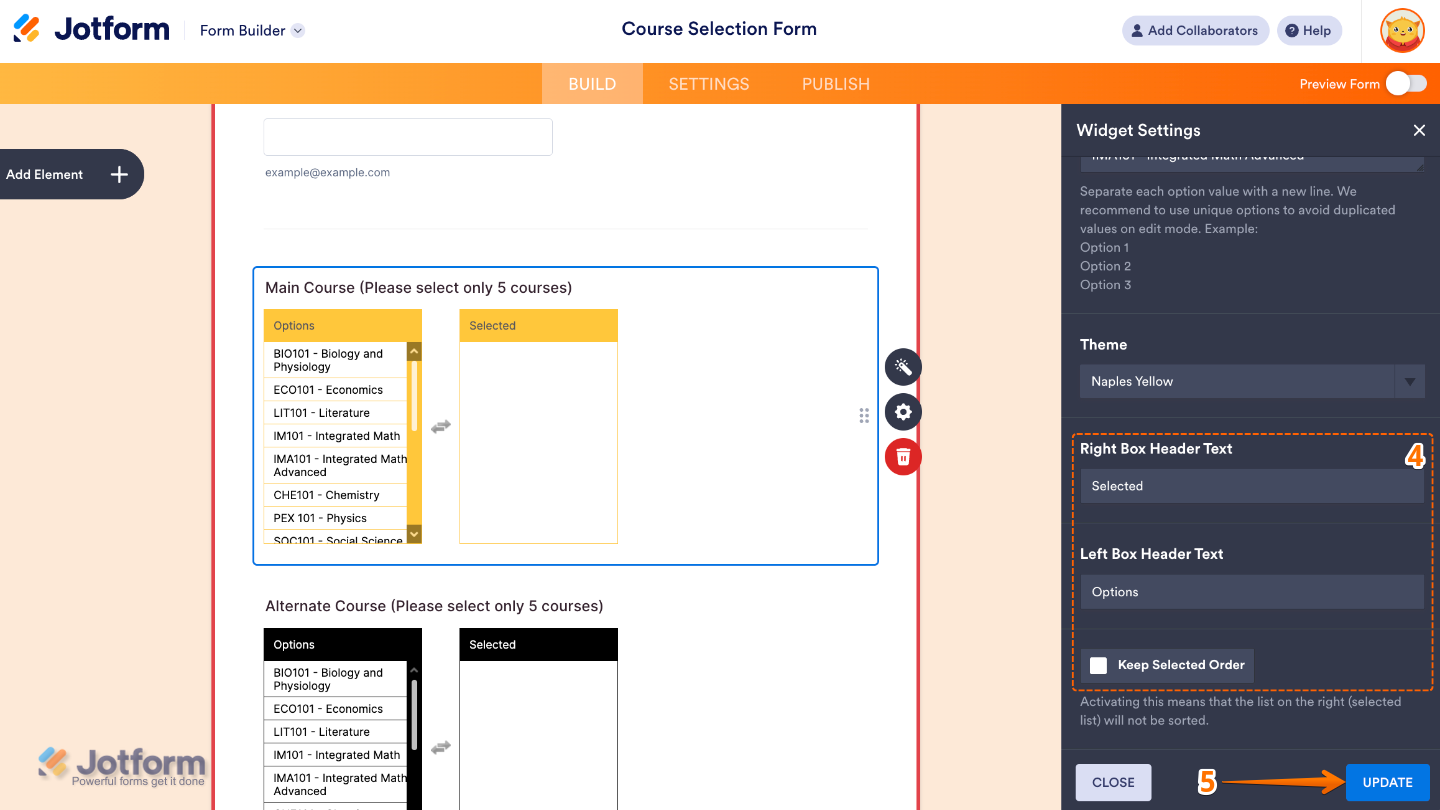
- Then, scroll down to the bottom and continue to set up these options:
- Right Box Header Text — Set this up to customize the header label for the box that shows the selected items.
- Left Box Header Text — Edit this to customize the header label for the box that shows the available items.
- Keep Selected Order — Turning this on keeps the selected list on the right in the same order users picked the items, no automatic sorting.
- Once you’re done, click on Update.
That’s it. You’ve successfully added and set up the Visual Multi Select widget to your form. Now, you have a field that lets users choose multiple items from a list using a dual-column layout: one for available items and one for selected ones. Curious how it works on a live form? Check out this Demo Form.
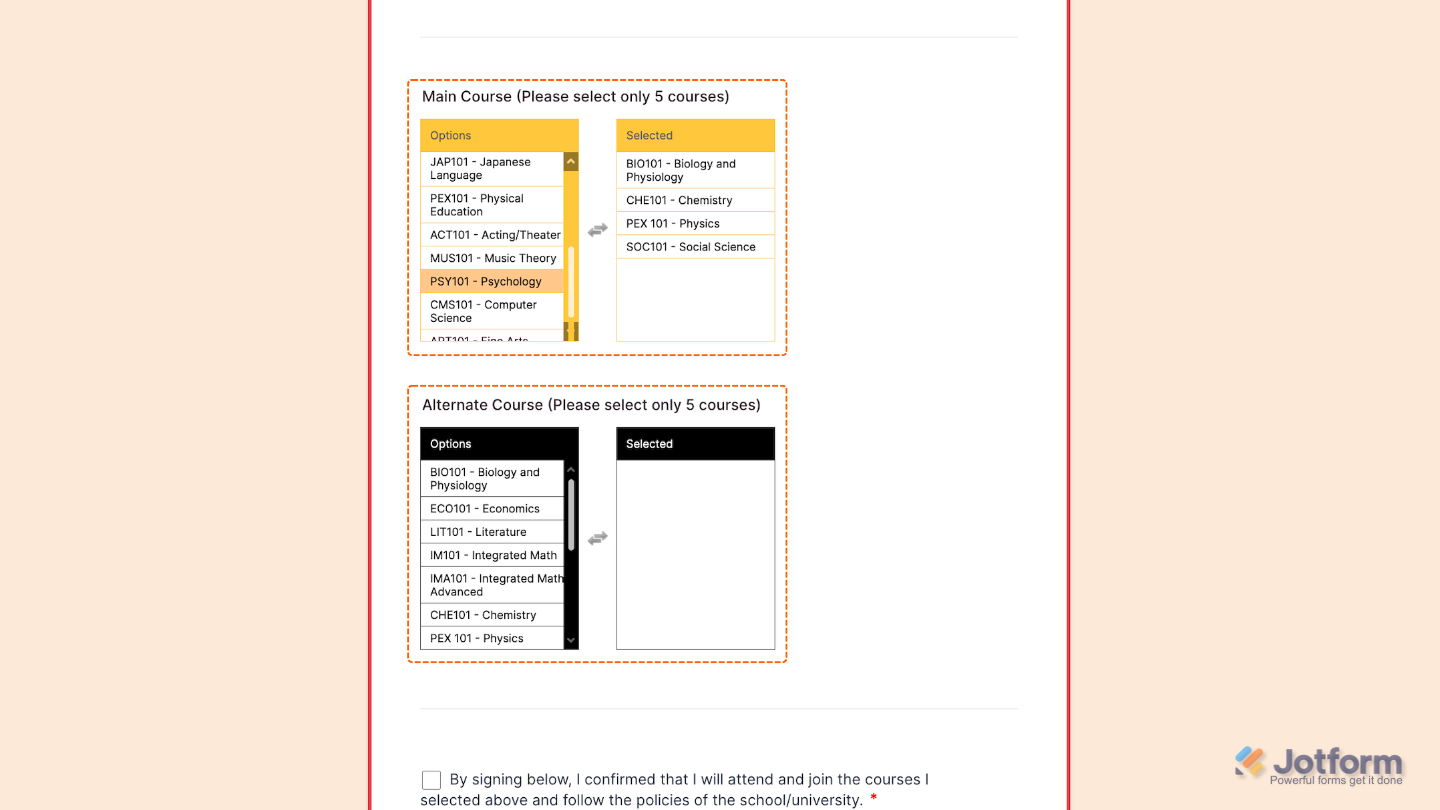
To further customize your Visual Multi Select field appearance, just click on the Gear icon to open its properties.
Note
For advanced styling, you can add your own custom CSS under the Custom CSS tab in the widget settings and style the Visual Multi Select field. Our guide on How to Inject CSS Codes to Widgets walks you through everything.

Send Comment: