The Voice Recorder is a free, user-friendly form widget that lets you collect audio submissions directly within your Jotform forms. Whether accessed via phone or computer, respondents can record themselves speaking into their microphone—perfect for capturing voice memos, speech tests, singing contests, remote podcast recordings, and more. You can set a recording time limit and even include an end-of-recording beep to streamline responses. It’s a simple yet powerful tool designed to enhance forms with audio capabilities.
Here are a few ways to use it:
- Allow users to submit verbal feedback instead of typing responses.
- Collect audio testimonials for products or services.
- Accept spoken assignments or language practice submissions from students.
- Enable applicants to introduce themselves with a short voice recording.
- Gather customer support explanations for complex issues.
- Record interview responses directly within an application form.
- Let users submit pronunciation samples for language evaluations.
- Capture creative entries like singing, storytelling, or voice acting.
- Allow field reporters or team members to send quick audio updates.
- Provide accessibility support for users who prefer speaking over typing.
Whether you’re creating a new form or updating an existing one, you can add and set up the Voice Recorder widget on your form in a few easy steps. Here’s how to do it:
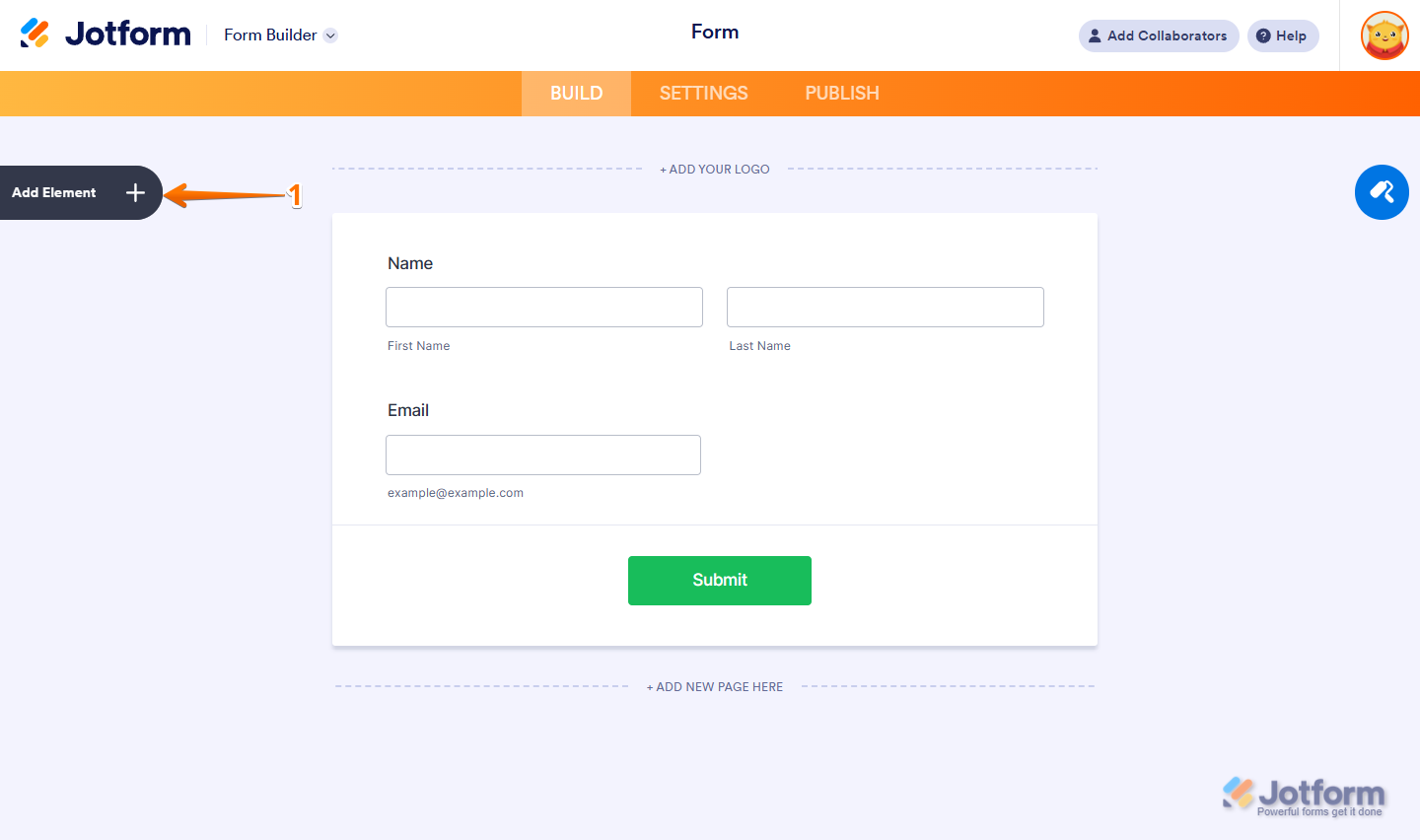
- In Form Builder, click on Add Element on the left side of the page.
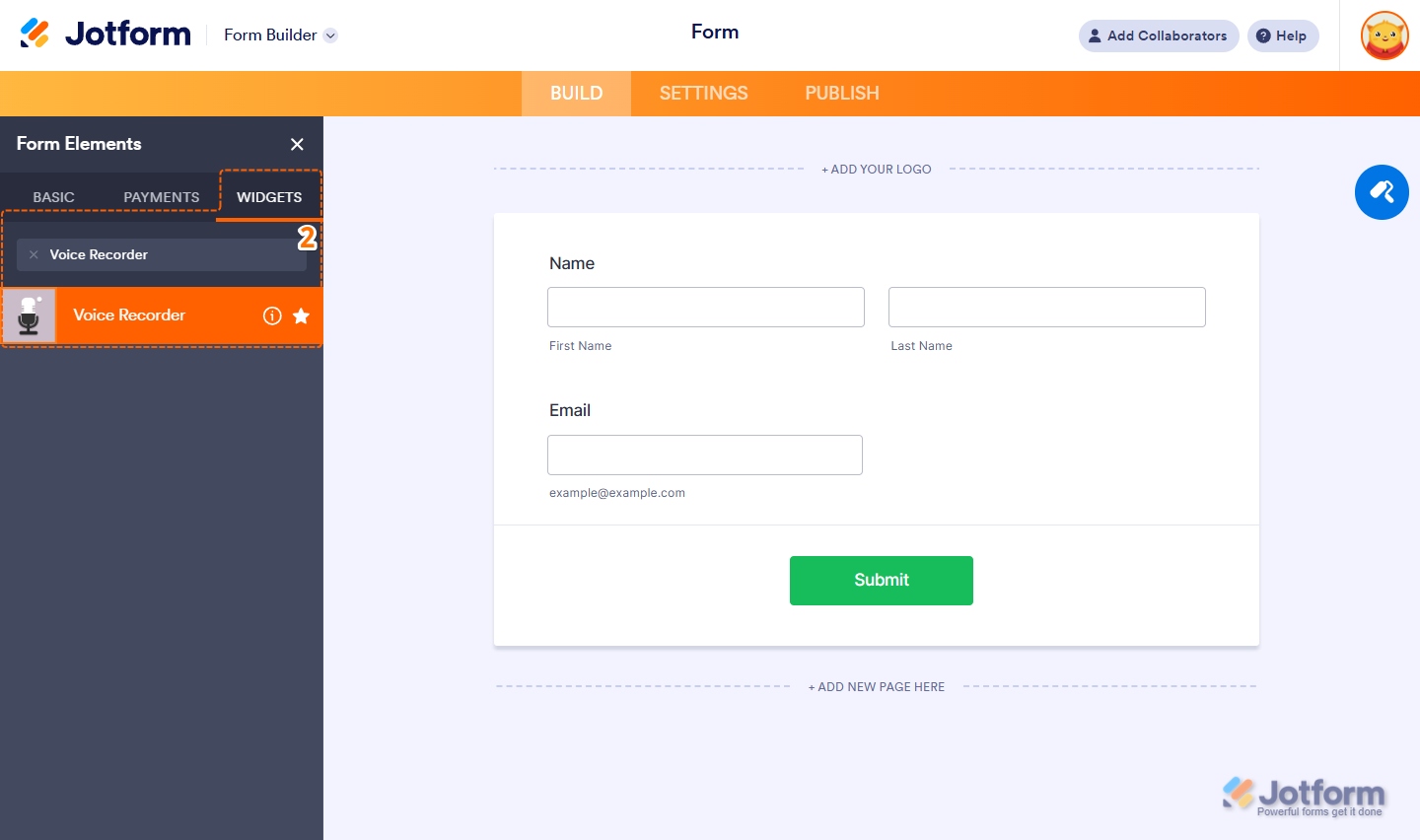
- Now, in the Form Elements menu, under the Widgets tab, search for Voice Recorder and click on it. Or just drag and drop it to where you want it on your form.
- Next, in the Voice Recorder Widget Settings menu that opens on the right side of the page, under the General tab, set up the following options:
- Recording Limit — Set a time limit for the recording. The maximum allowed is 180 seconds, which means you cannot go beyond this limit.
- Beep Sound — Keep this checked to notify form users with a beep when the time is up.
- Once you’re done, click on Update.

That’s it. You’ve successfully added and set up the Voice Recorder widget on your form. You can explore how it looks with this demo form.
Notes
- For advanced styling of the Voice Recorder widget, you can add your own custom CSS code under the Custom CSS tab in the Widget Settings. Our guide on How to Inject CSS Codes to Widgets walks you through everything.
- You can also configure the widget properties, like alignment, labels, size, visibility, and more, to control how it looks and behaves on your form. Check out our guide on How to Access and Configure the Question Properties of a Widget to learn more.

Send Comment: