Jotform makes it easy to add a WhatsApp Button to your form so visitors can quickly contact you, ask questions, or get support while filling out your form, helping you respond faster and improve communication without interrupting the form experience.
Here are a few ways to use it:
- Let users contact your team instantly for questions or support
- Help customers reach you quickly during registrations or bookings
- Provide direct assistance while users complete longer forms
- Make it easier for leads or clients to connect with your business in real time
Whether you’re creating a new form or updating an existing one, you can add and set up the WhatsApp Button in a few easy steps. Here’s how to do it:
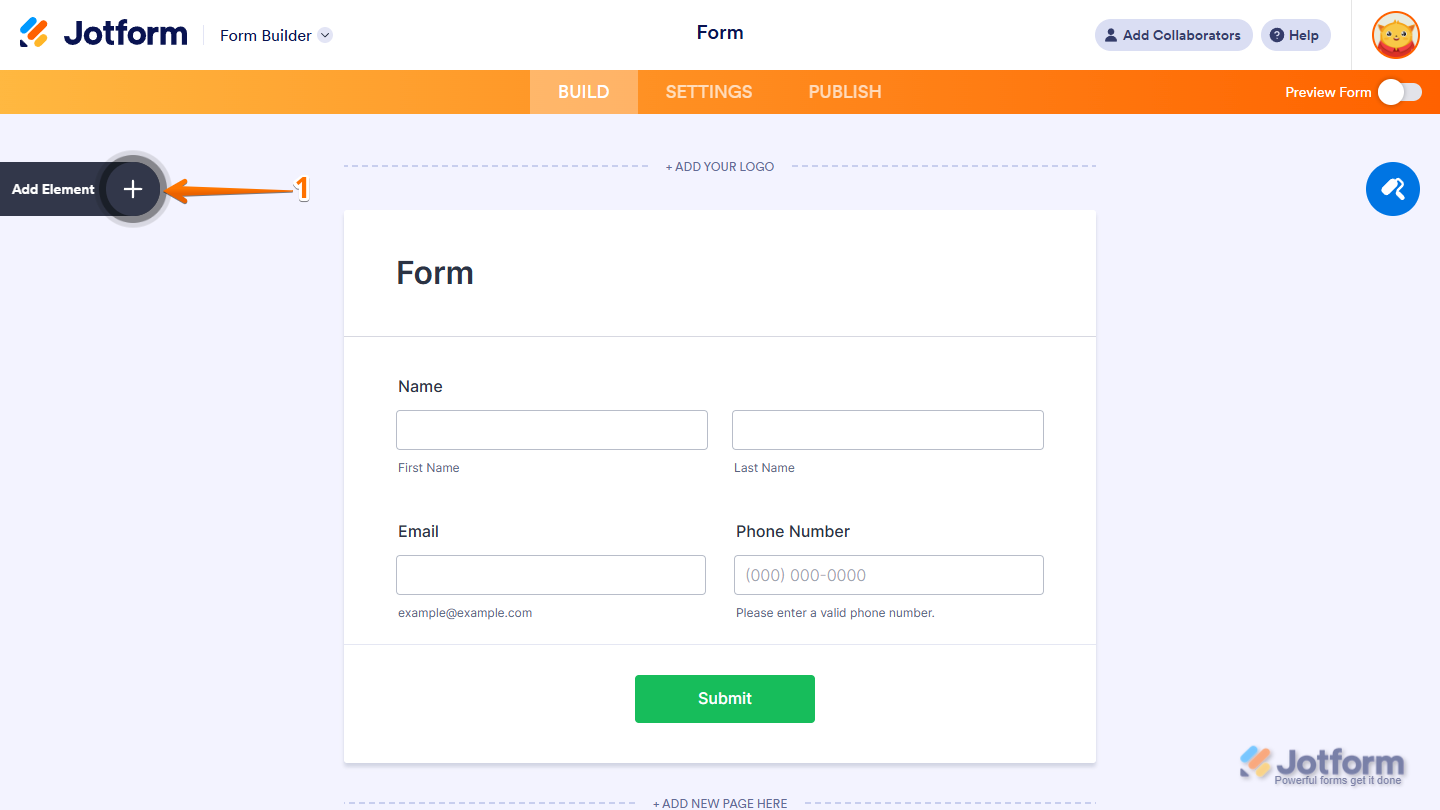
- In Form Builder, click on Add Element on the left side of the page.
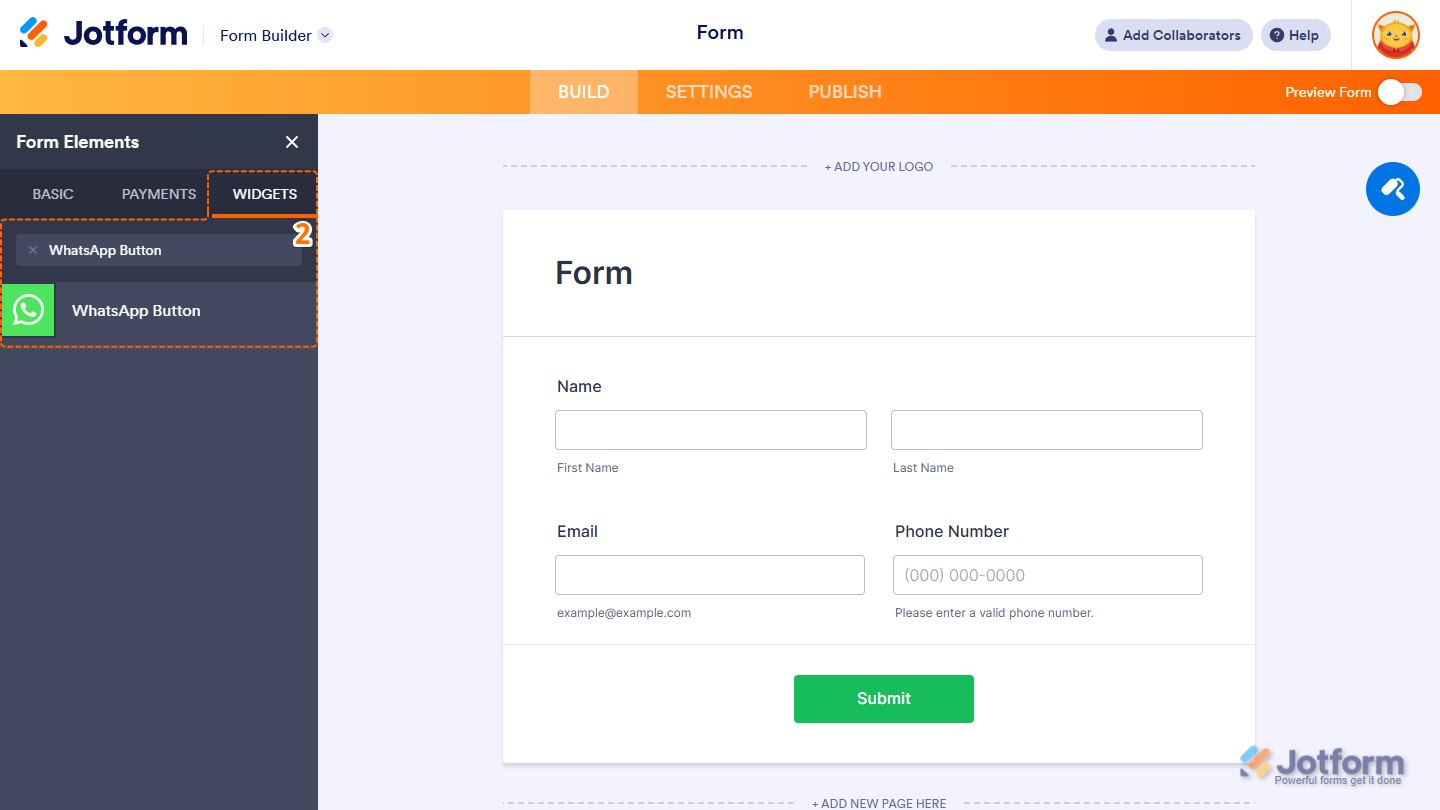
- Now, in the Form Elements menu, under the Widgets tab, search for WhatsApp Button, and then click on it. Or, just drag and then drop it to where you want it to be on your form.
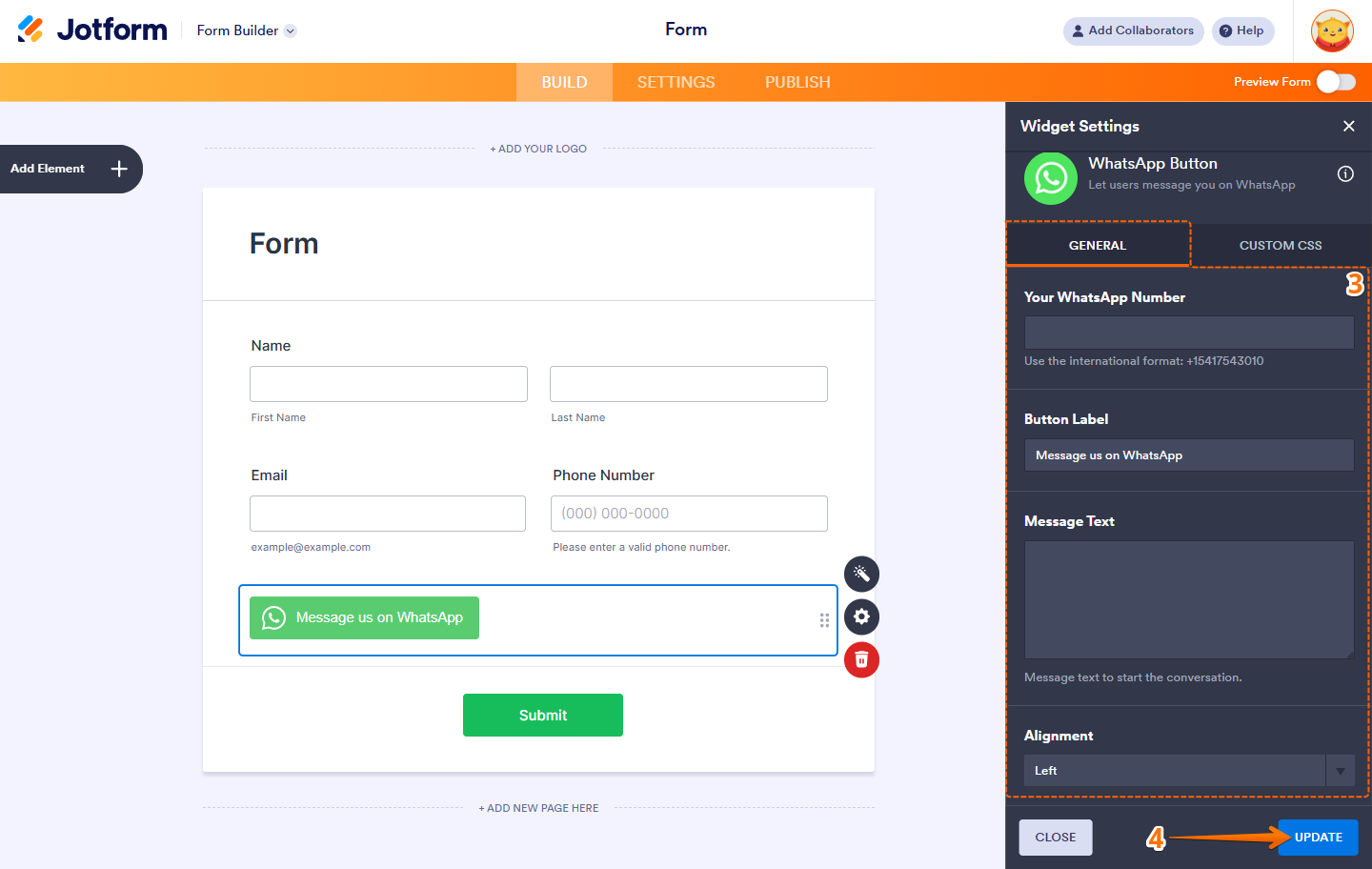
- Next, in the Widget Settings window that opens on the right side of the page, under the General tab, set up these options:
- Your WhatsApp number — Enter the phone number where you want to receive messages. Use the International Format.
- Button label — Type the text you want to show on the button.
- Message text — Add the default message users will send when they click the button.
- Alignment — Choose how you want the button aligned on the form (left, center, or right).
- Now, click on Update, and you’re all set.
That’s it! You’ve successfully added and set up the WhatsApp Button widget on your form. Wondering how it looks in action? Check out this Demo Form.
Note
- To style the fields and labels, you can inject custom CSS into the Custom CSS tab in the Widget Settings. To learn how it’s done, see our guide on How to Inject CSS Codes to Widgets.
- You can also configure the widget properties, like alignment, labels, size, visibility, and more, to control how it looks and behaves in your form. Check out our guide on How to Access and Configure the Question Properties of a Widget to learn more.

Send Comment: