Jotform makes it easy to bring your social presence directly into your forms with the X (Formerly Twitter) widget. Whether you want to show your latest posts or embed your profile, this feature lets you connect with your audience on a deeper level — no coding required.
With Jotform’s X widget, you can keep your forms dynamic and up to date, giving visitors a real‑time window into your social activity. It’s a simple way to boost engagement, encourage followers, and nurture a stronger community around your content.
Here are a few ways to use it:
- Share X posts directly on your form to keep users updated with your latest content.
- Embed X profiles so visitors can follow you or learn more about your brand.
- Highlight trending topics or key announcements relevant to your audience.
- Encourage engagement by showcasing conversations, polls, or community highlights from X.
- Make forms more dynamic and social by connecting real-time content from your X account.
Whether you’re creating a new form or updating an existing one, you can add and set up the X (Formerly Twitter) widget in a few easy steps. Here’s how to do it:
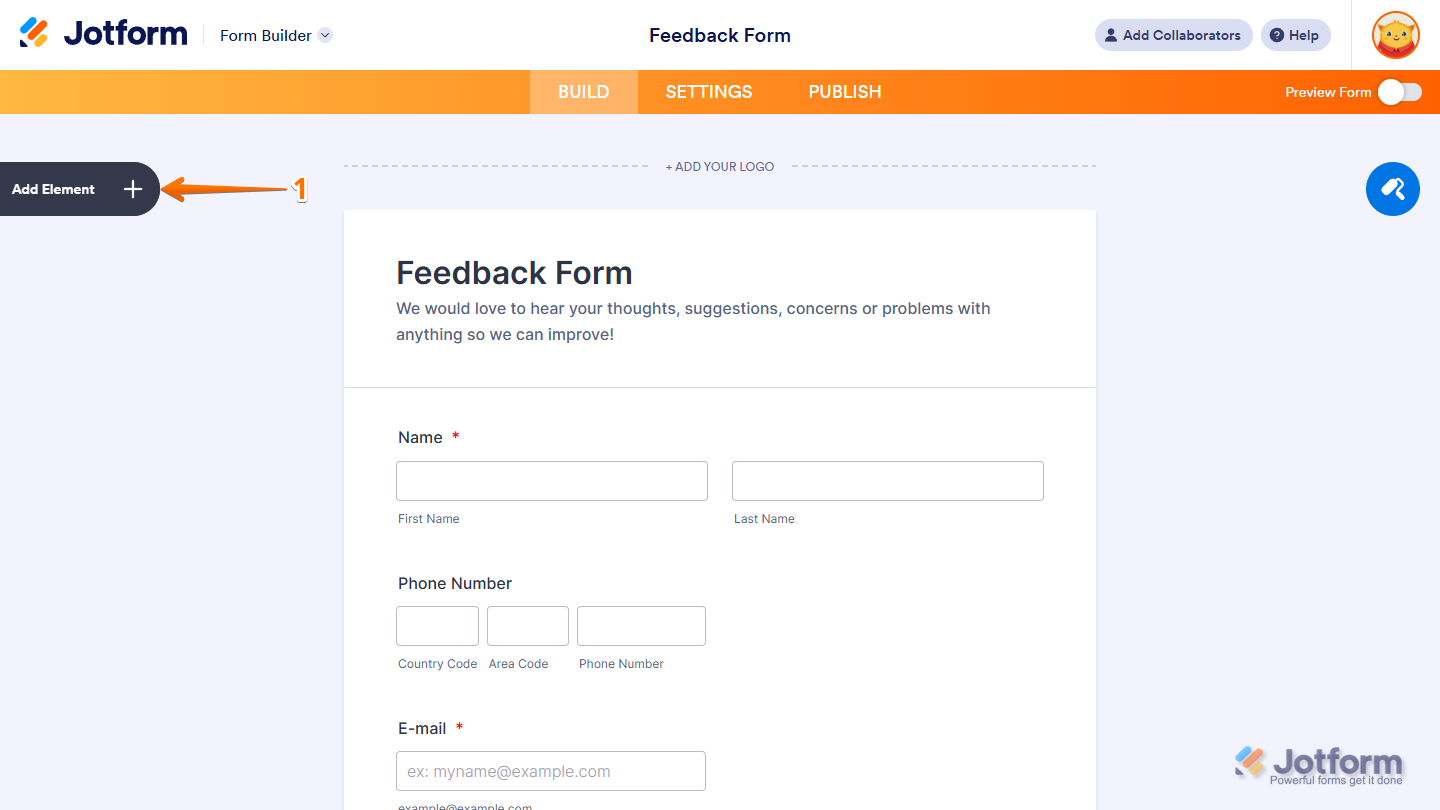
- In Form Builder, click on Add Element on the left side of the page.
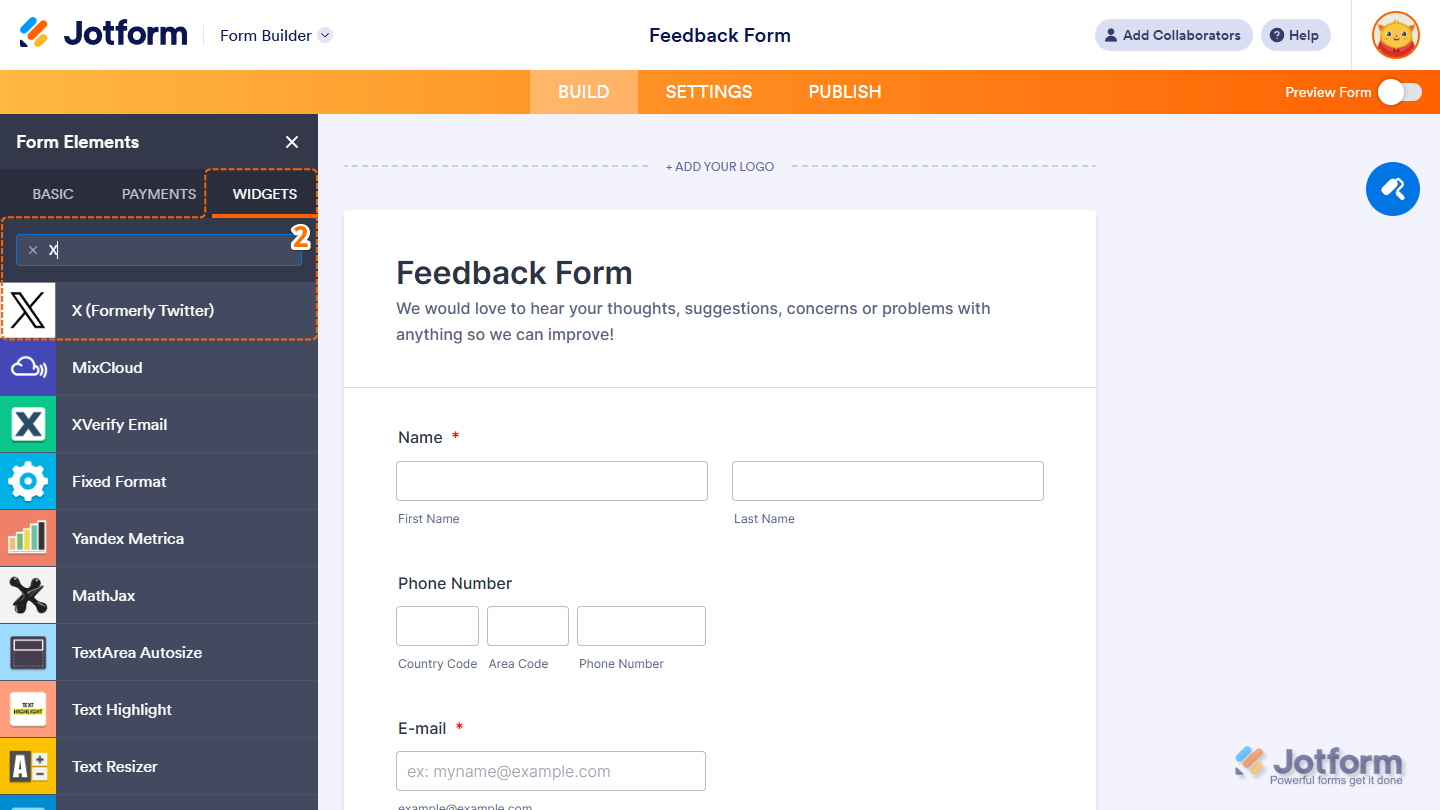
- Now, in the Form Elements menu, under the Widgets tab, search for X (Formerly Twitter) and click on it. Or, just drag and drop it to where you want it to be on your form.
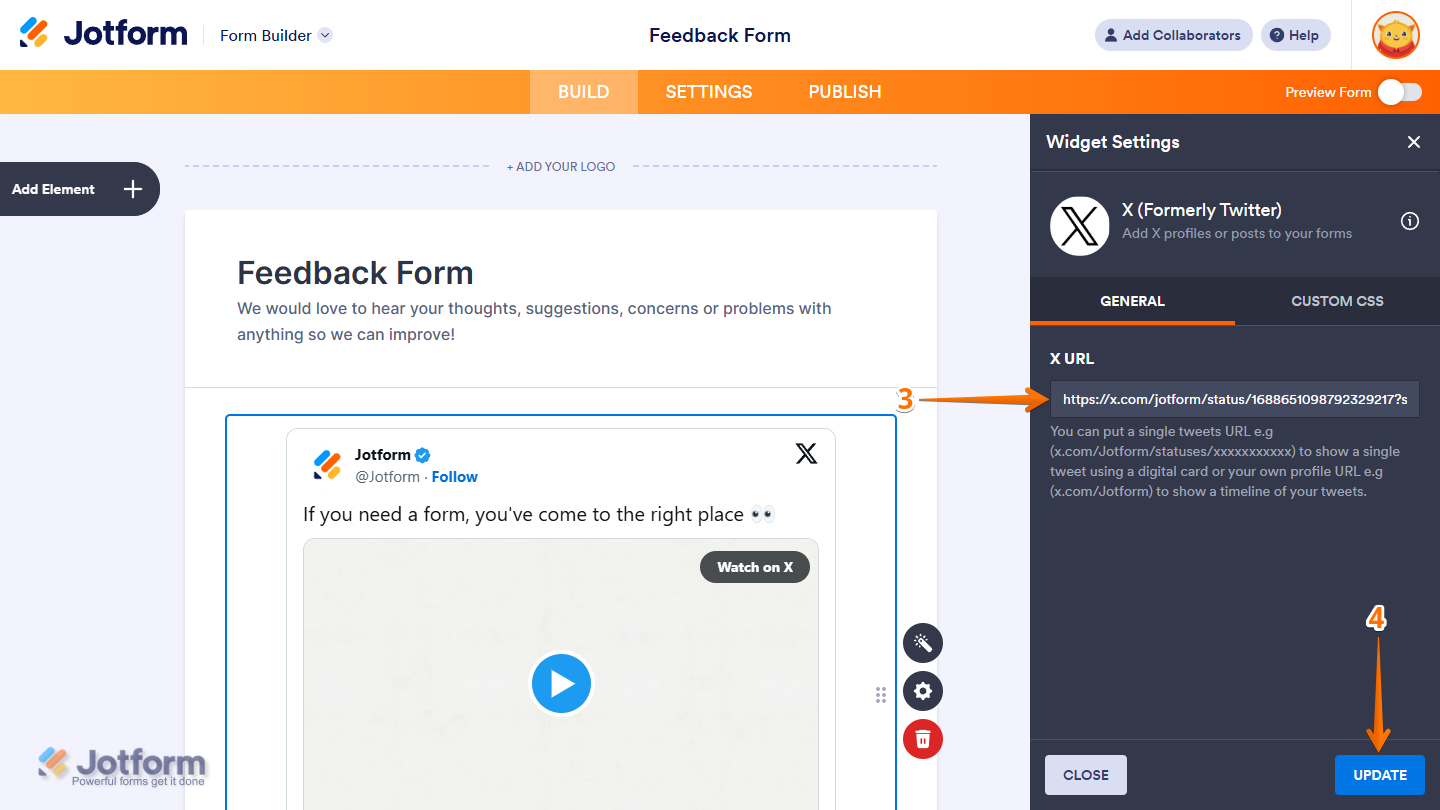
- Next, in the Widget Settings window that opens on the right side of the page, under the General tab, enter the Tweet or profile URL you want to display on your form in the X URL input box.
- Once you’re done, click on Update.
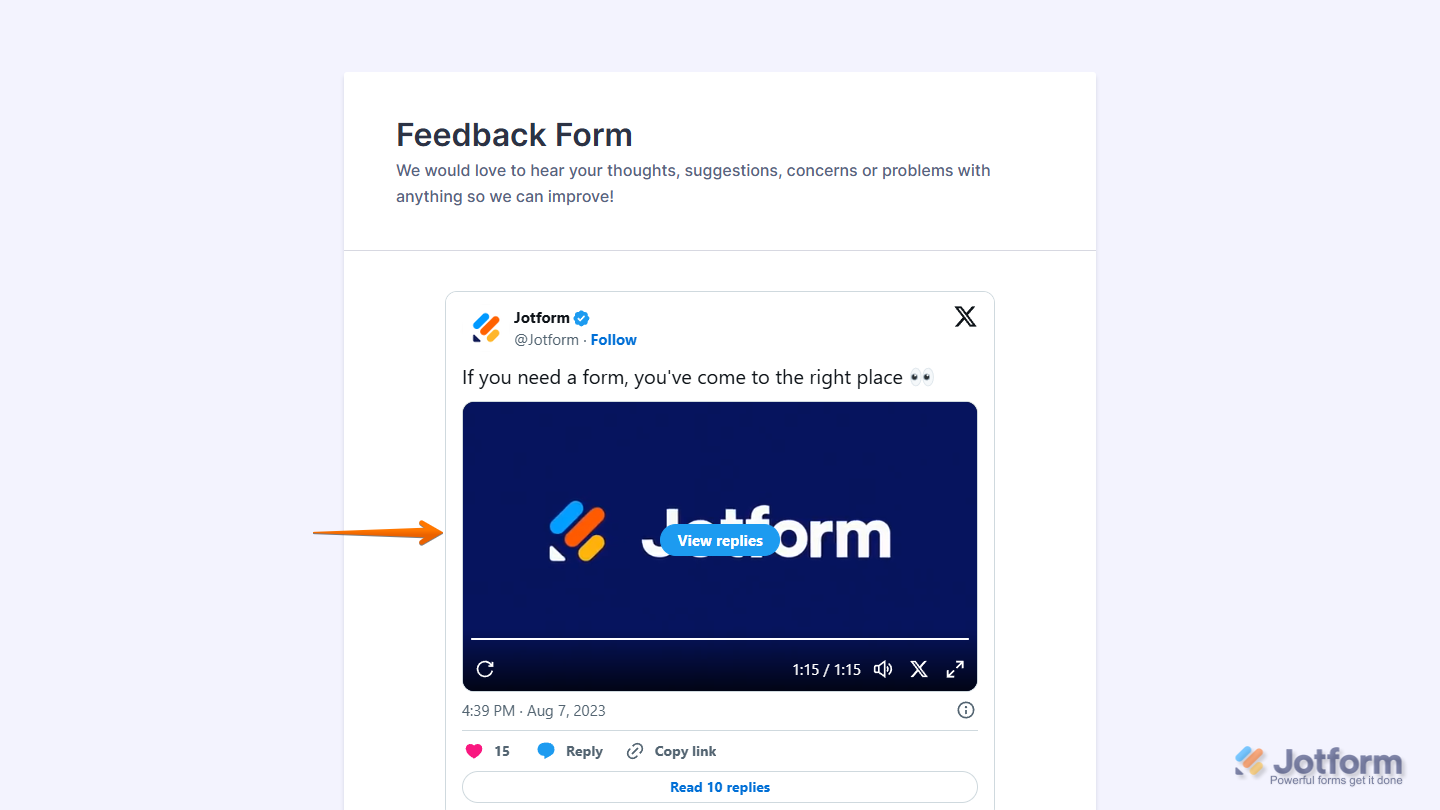
That’s it. Now you’ve added and set up the X (Formerly Twitter) widget on your form. Wondering how it looks in action? Check out this demo form.
Notes
- For advanced styling of the X (Formerly Twitter) widget, you can add your own custom CSS code under the Custom CSS tab in the Widget Settings. Our guide on How to Inject CSS Codes to Widgets walks you through everything.
- You can also configure the widget properties, like alignment, labels, size, visibility, and more, to control how it looks and behaves on your form. Check out our guide on How to Access and Configure the Question Properties of a Widget to learn more.

Send Comment: