With Jotform, you can easily understand how people interact with your forms and where they run into issues. The Zuko Form Analytics widget helps you track visitor behavior, spot points of friction, and see when, where, and why users abandon a form before completing it. This makes it easier to improve the form-filling experience, reduce drop-off, and create forms that are clearer and easier to complete. Whether you use forms for leads, registrations, requests, or applications, it gives you helpful insights you can use to make smarter improvements.
Here are a few ways to use it:
- Track where users drop off on lead generation, contact, and signup forms.
- Find fields that cause friction on registration, application, and request forms.
- See how long visitors take to complete your form and spot areas that may slow them down.
- Create funnels for multi-step forms to see which step users are most likely to leave.
- Improve long or detailed forms based on real visitor behavior.
- Make it easier for users to complete important forms with fewer points of friction.
What You Need for This Setup
You’ll need your Zuko Slug or Unique ID to set up the Zuko Form Analytics widget. If you’re not sure where to find it, check out Getting Your Zuko Slug below.
Configuring the Widget
Whether you’re creating a new form or updating an existing one, you can add and set up the Zuko Form Analytics widget in a few easy steps. Here’s how to do it:
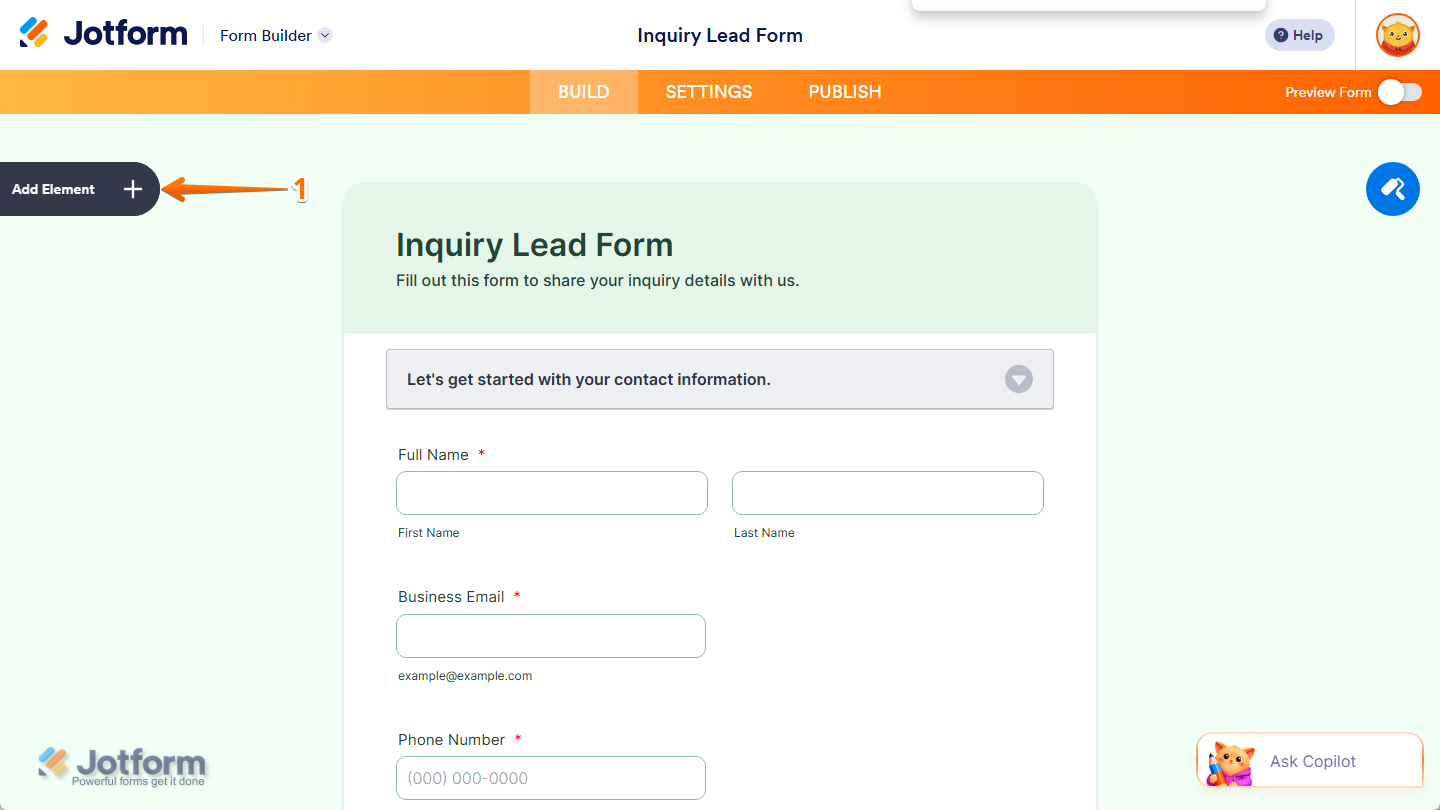
- In Form Builder, click on Add Element on the left side of the page.
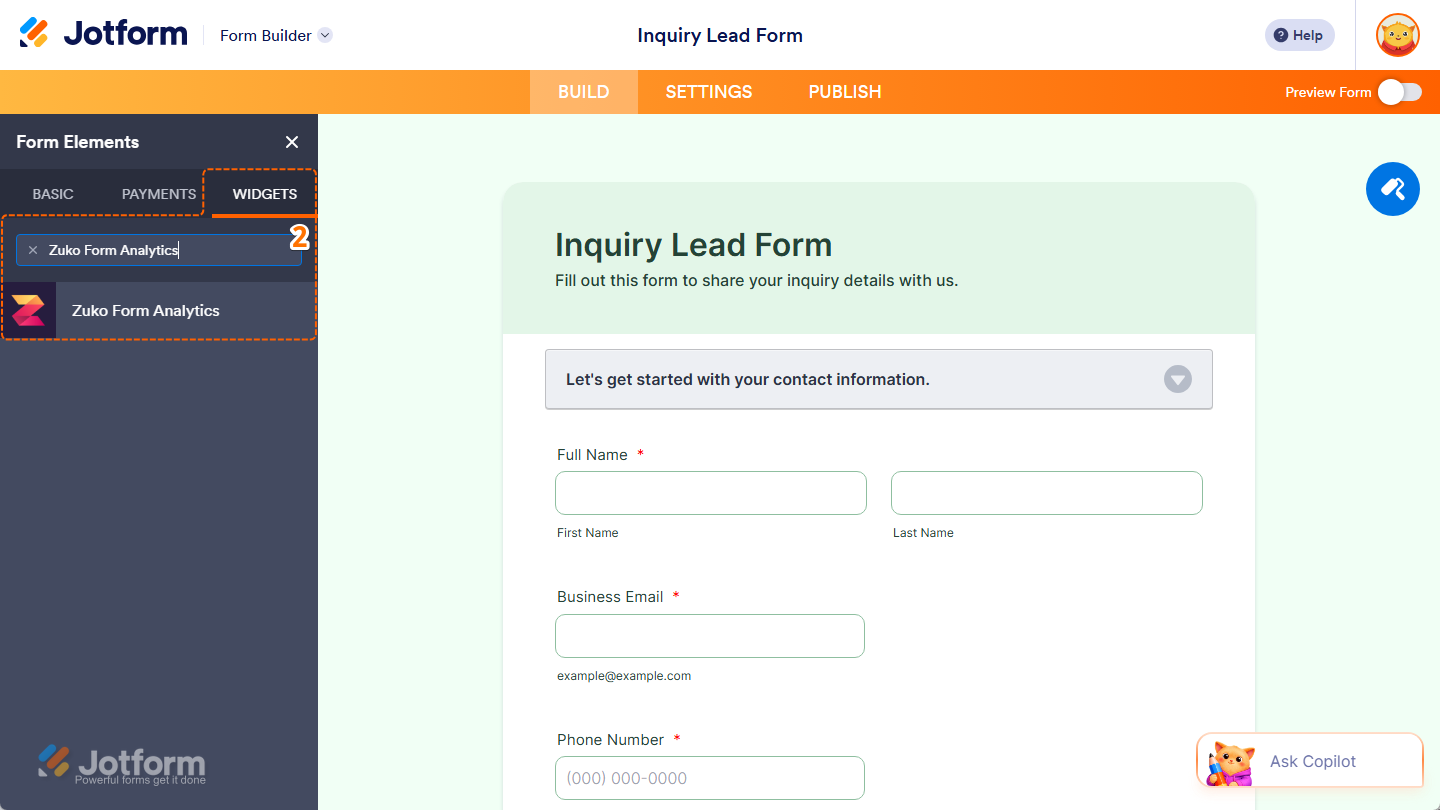
- Now, in the Form Elements menu, under the Widgets tab, search for Zuko Form Analytics and click on it. Or, just drag and drop it to where you want it to be on your form.
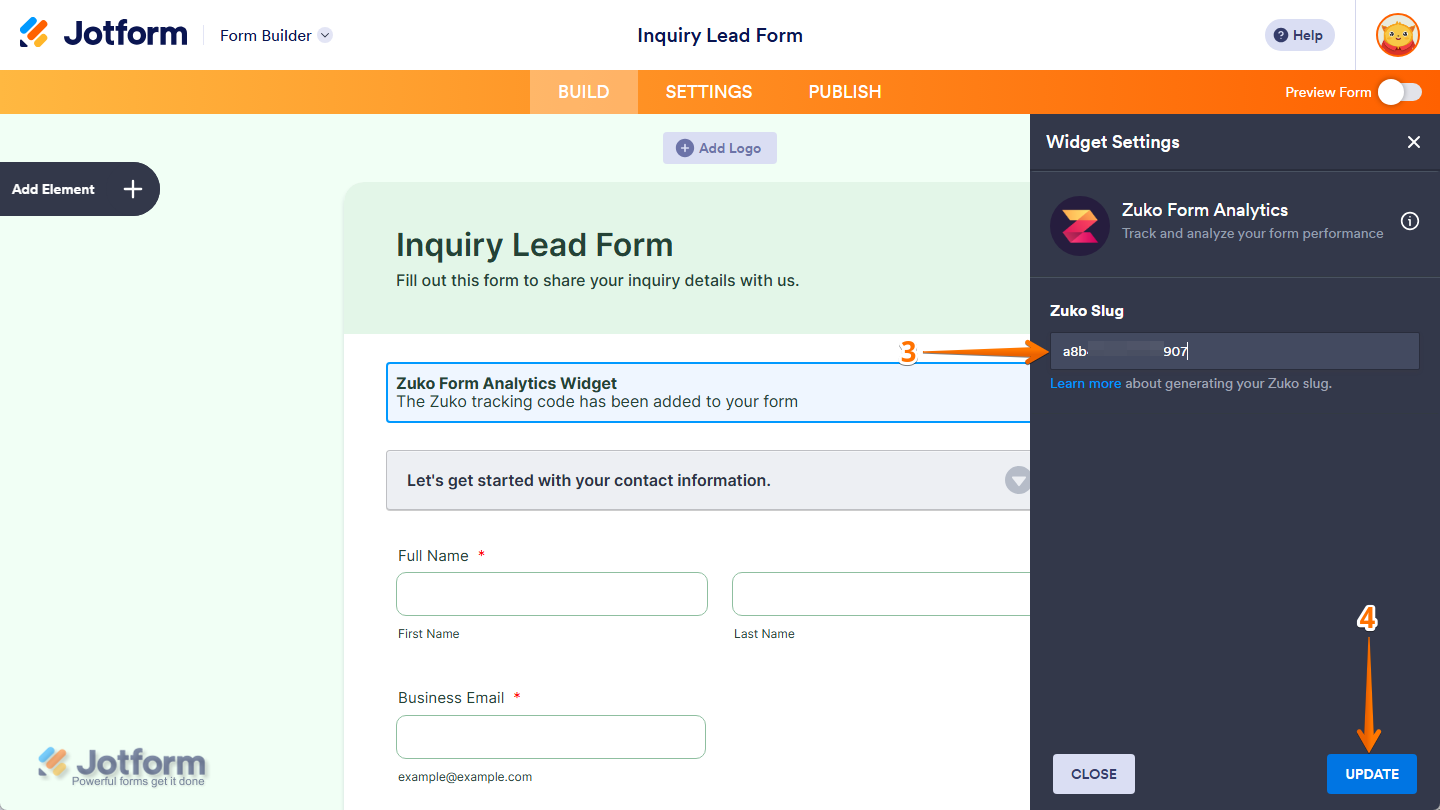
- Next, in the Widget Settings menu that opens on the right side of the page, in the Zuko Slug Input box, enter the Slug or Unique ID from your Zuko account.
- Once you’re done, click on Update.
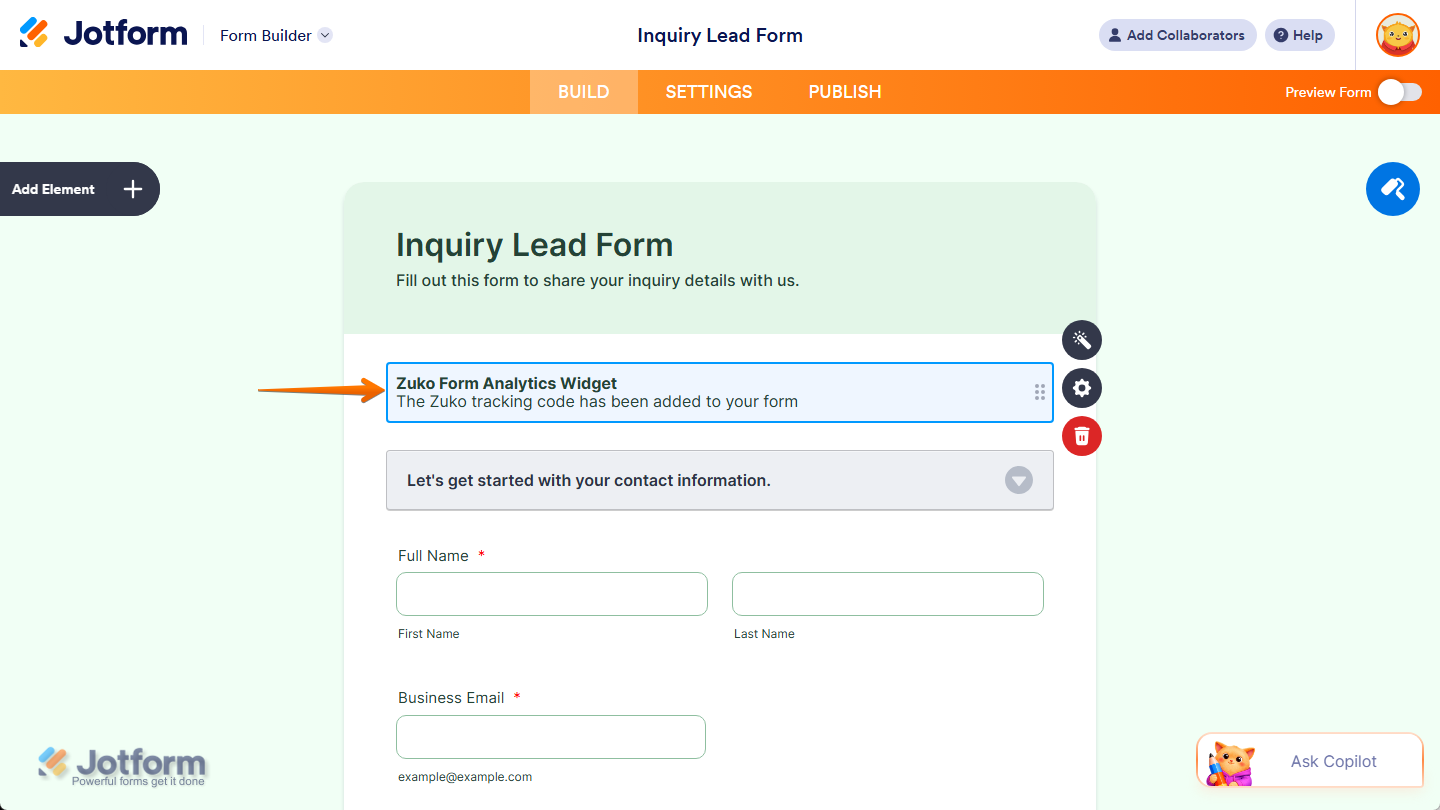
That’s it. You’ve successfully set up the Zuko Form Analytics widget and added your Zuko tracking code to your form.
Getting Your Zuko Slug
To set up the widget, you’ll need your Zuko Slug or Unique ID. Here’s how to get it:
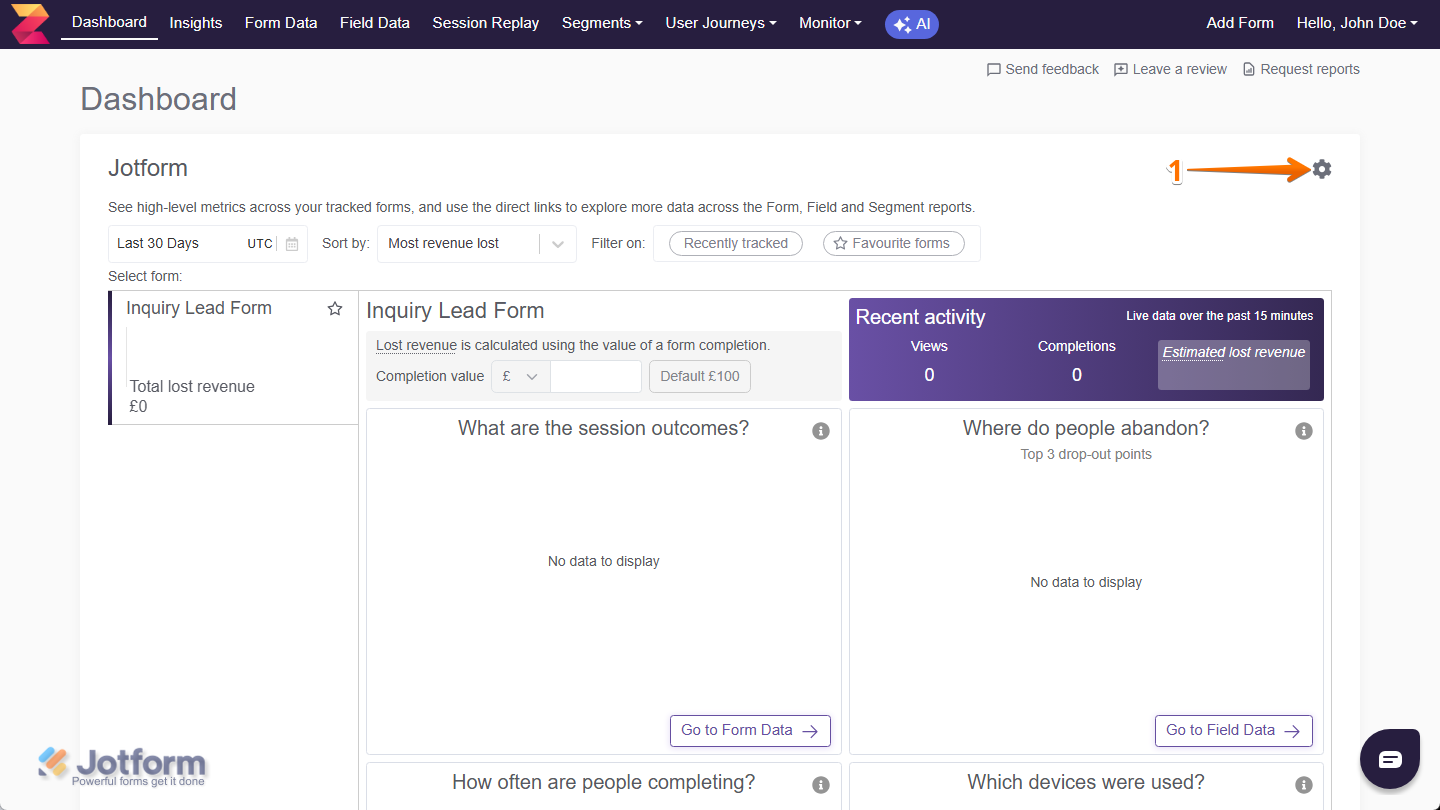
- Log in to Zuko and, on the right side of your Account Dashboard, click on the Gear icon.
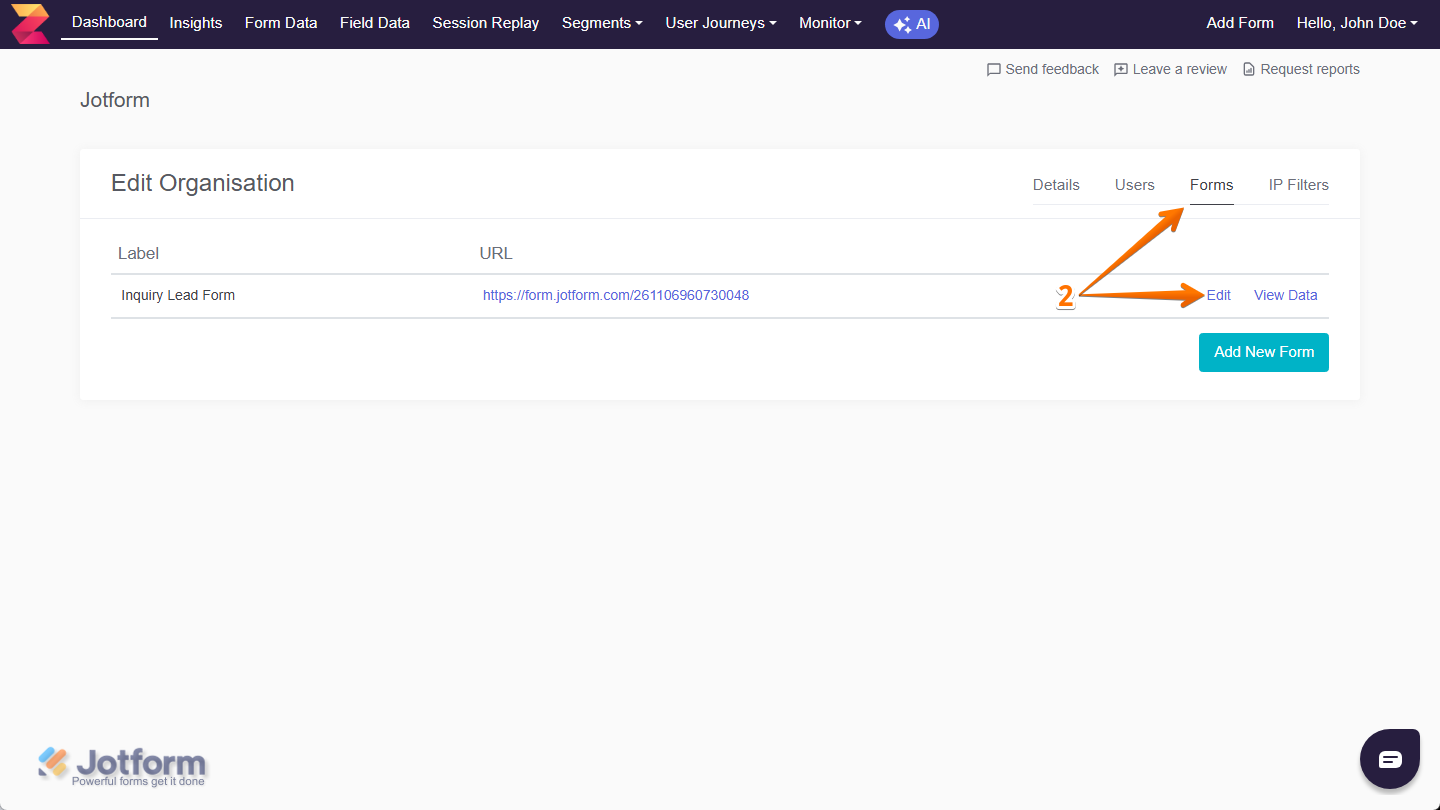
- Then, in Edit Organisation, go to the Forms tab, and on the right side of the form you want to track, click on Edit. If you don’t have a form yet and you’re not sure how to add one, check out these support articles from Zuko on Adding a form in Zuko to learn more.
- Now, in Edit Form, click on the Copy icon on the right side of your Form ID.
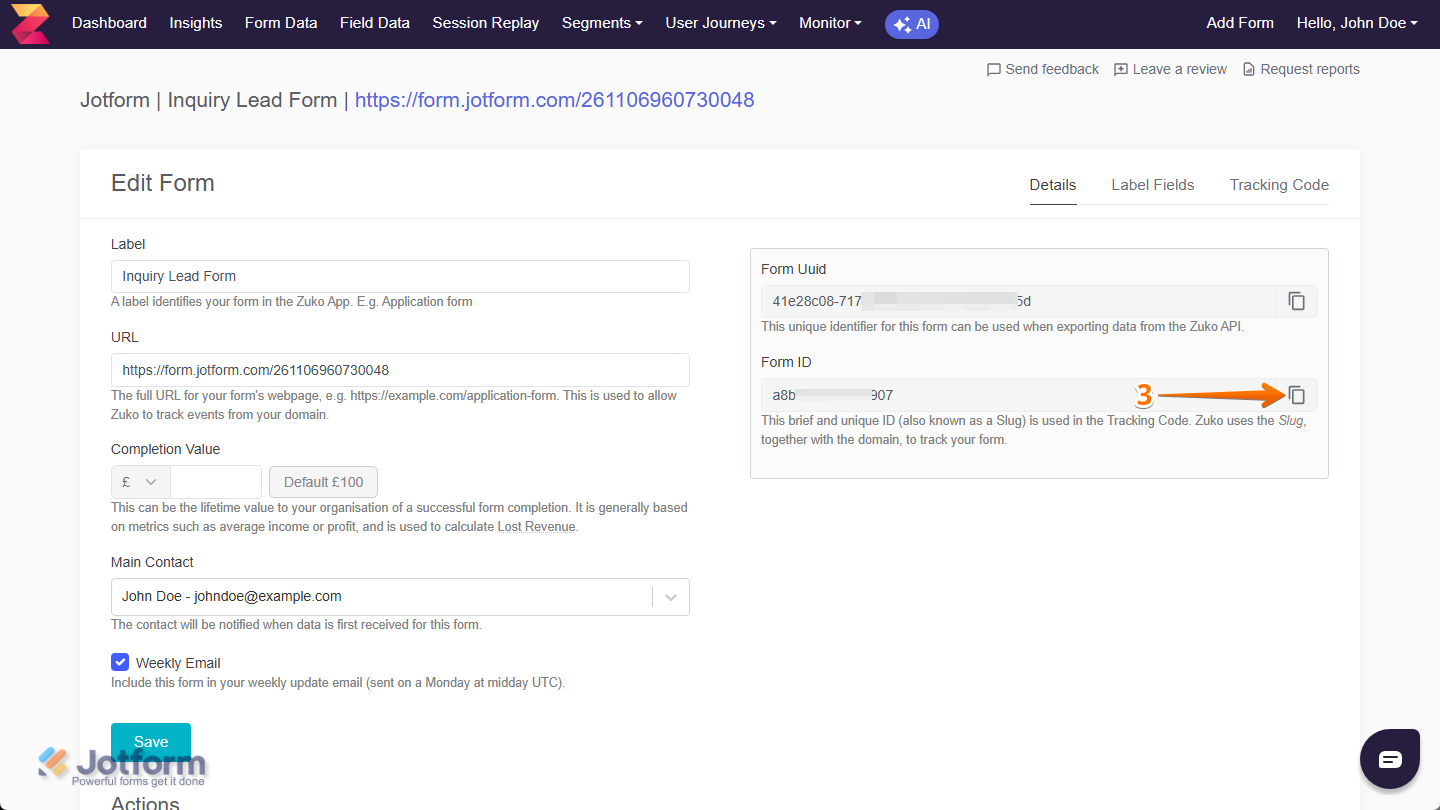
That’s all it takes to get your Zuko Slug or Unique ID. Now you’re ready to add and set up the widget.

Send Comment: