Jotform’s Youku widget helps you add videos from Youku directly into your form so users can watch content without leaving the page. This is useful for sharing tutorials, announcements, or other video content alongside your form.
Here are a few ways to use it:
- Add Youku videos directly to your form.
- Share video content with your audience.
- Provide instructions or context through video.
- Keep users engaged while completing your form.
Whether you’re creating a new form or updating an existing one, you can add and set up the Youku widgetin a few easy steps. Here’s how to do it:
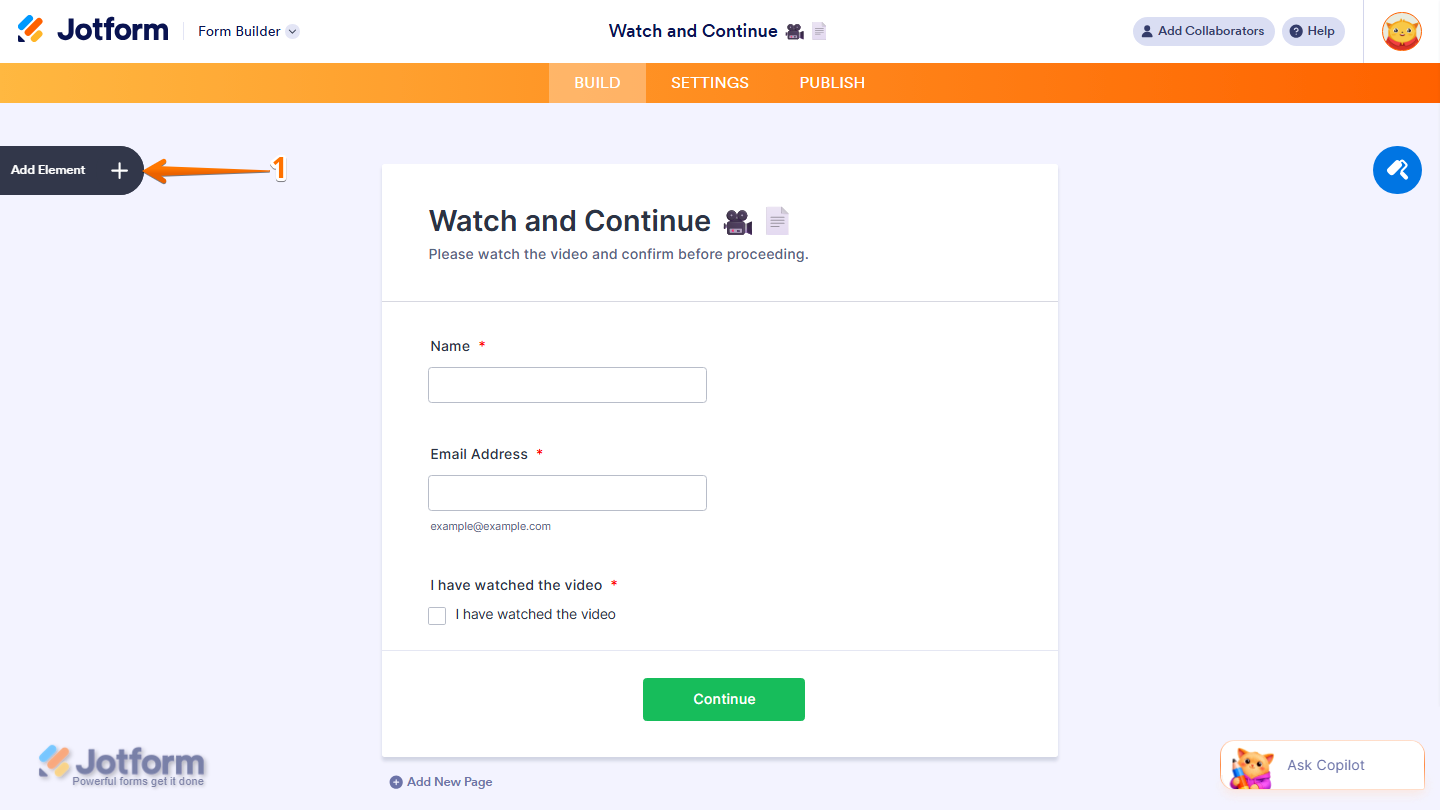
- In Form Builder, click on Add Element on the left side of the page.
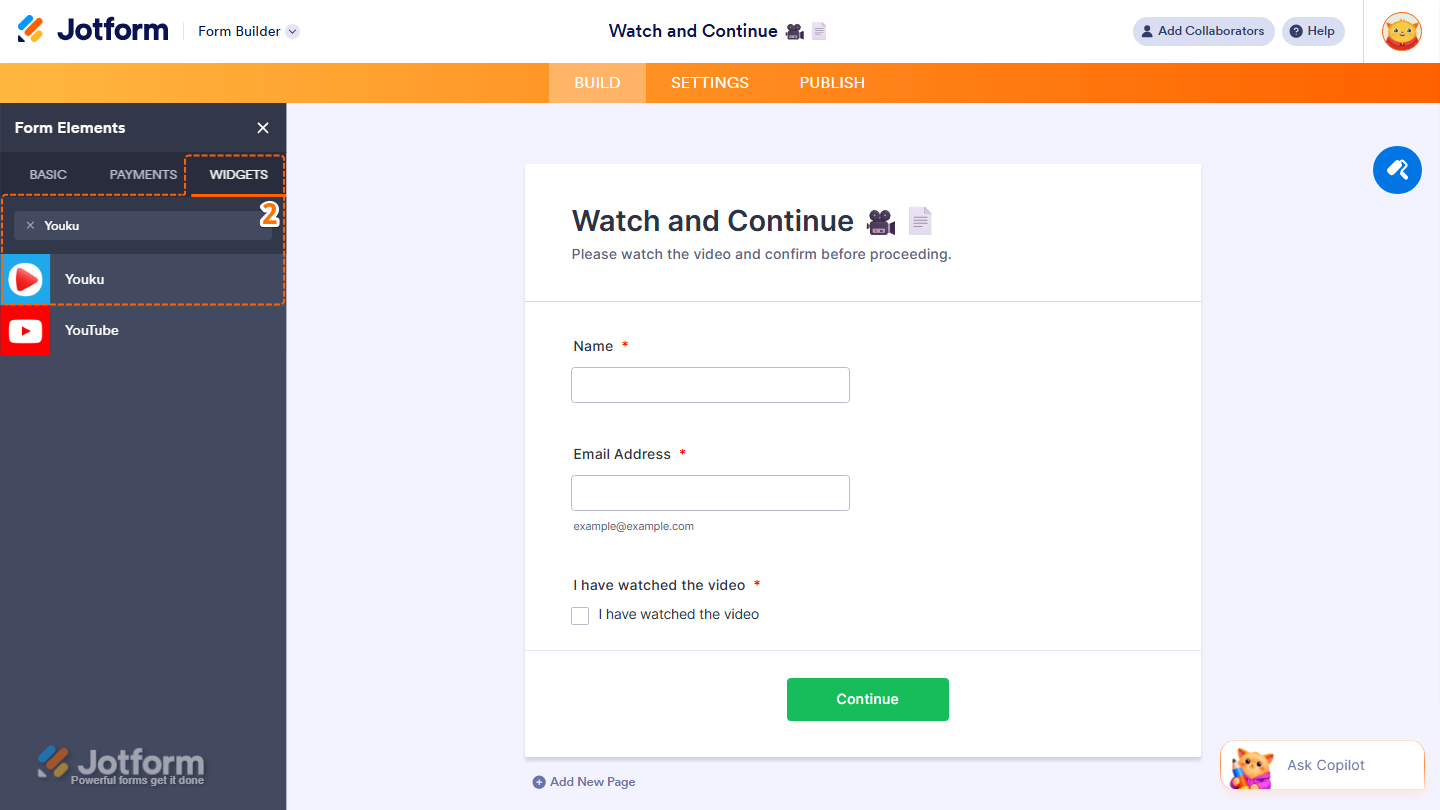
- Now, in the Form Elements menu, under the Widgets tab, search for Youku and click on it. Or, just drag and drop it to where you want it to be on your form.
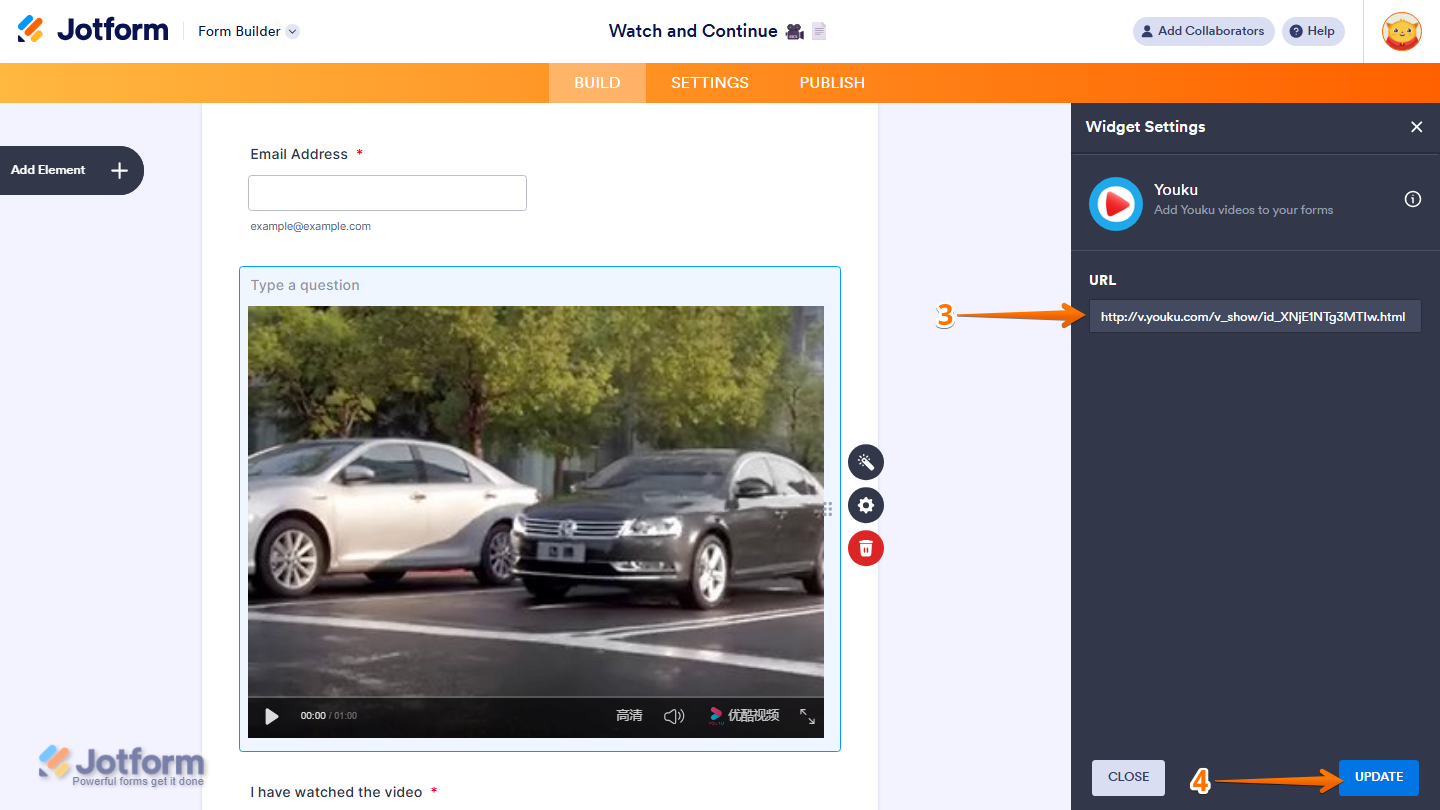
- Next, in the Widget Settings window that opens on the right side of the page, enter the Youko URL in the URL Input box.
- Once you’re done, click on Update.
That’s it. You’ve successfully added and set up the Youko widget on your form.
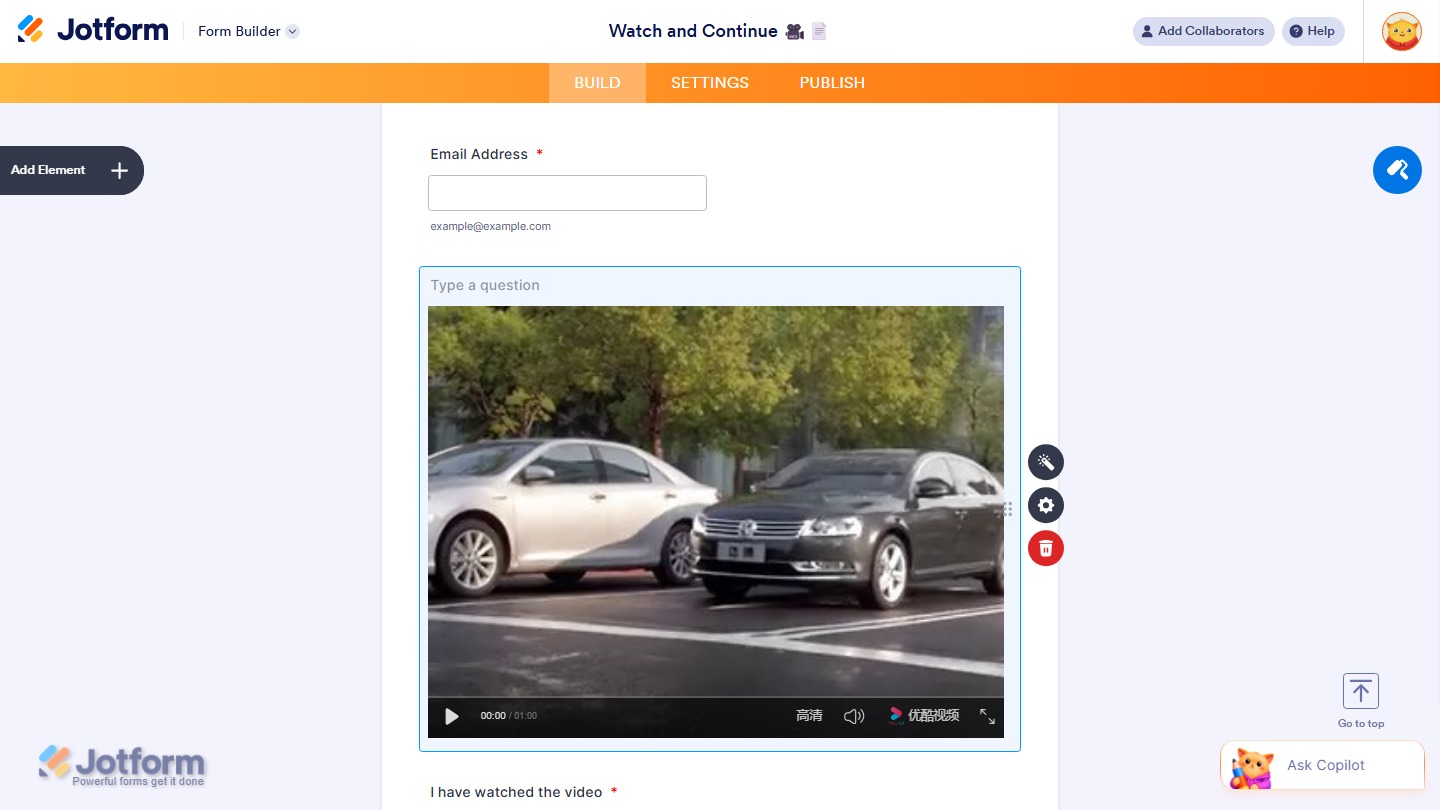
You can explore how it looks with this demo form.
Note
- You can also configure the widget properties, like alignment, labels, size, visibility, and more, to control how it looks and behaves in your form. Check out our guide on How to Access and Configure the Question Properties of a Widget to learn more.

Send Comment: