Jotform makes it easy to add a clean, Android-style time selector to any form with the free Android Time widget. This widget gives your users a familiar mobile-friendly interface for choosing a time, making it perfect for Android-themed forms, booking requests, scheduling workflows, and more.
With Jotform, you can easily offer a quick, intuitive way for users to submit a time without typing or guesswork — helping you create smoother, more convenient form experiences overall.
Here are a few ways to use it:
- Add an Android-style time picker to forms that require users to select a specific time
- Collect clear, accurate time inputs for appointments, bookings, or reservations
- Make scheduling tasks easier on mobile-friendly or Android-themed forms
- Improve the user experience on request forms, registration forms, or service workflows that rely on time selection
- Simplify time entry on surveys, feedback forms, or any form where typed time fields may slow users down
Whether you’re creating a new form or updating an existing one, you can add the Android Time widget in a few easy steps. Here’s how to do it:
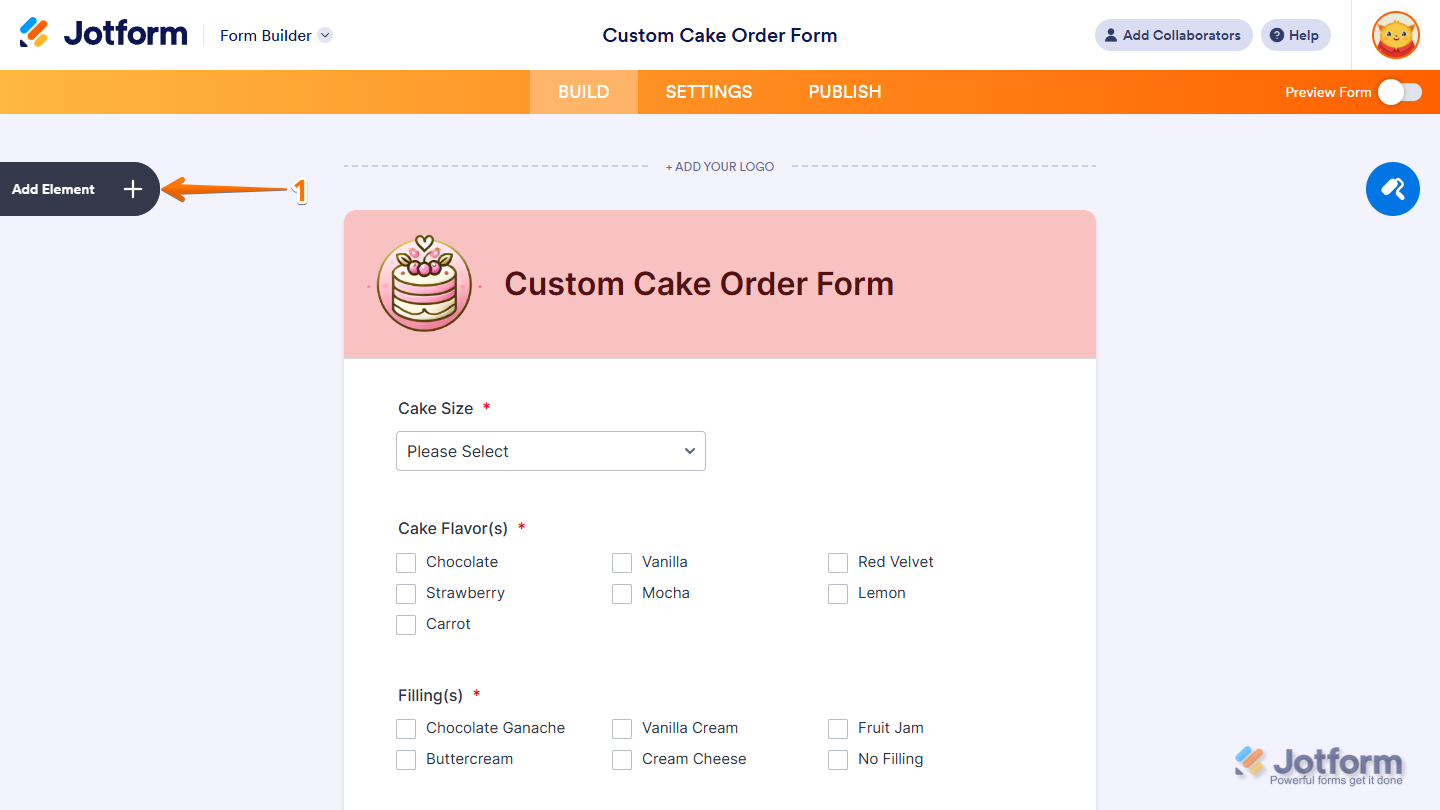
- In Form Builder, click on Add Element on the left side of the page.
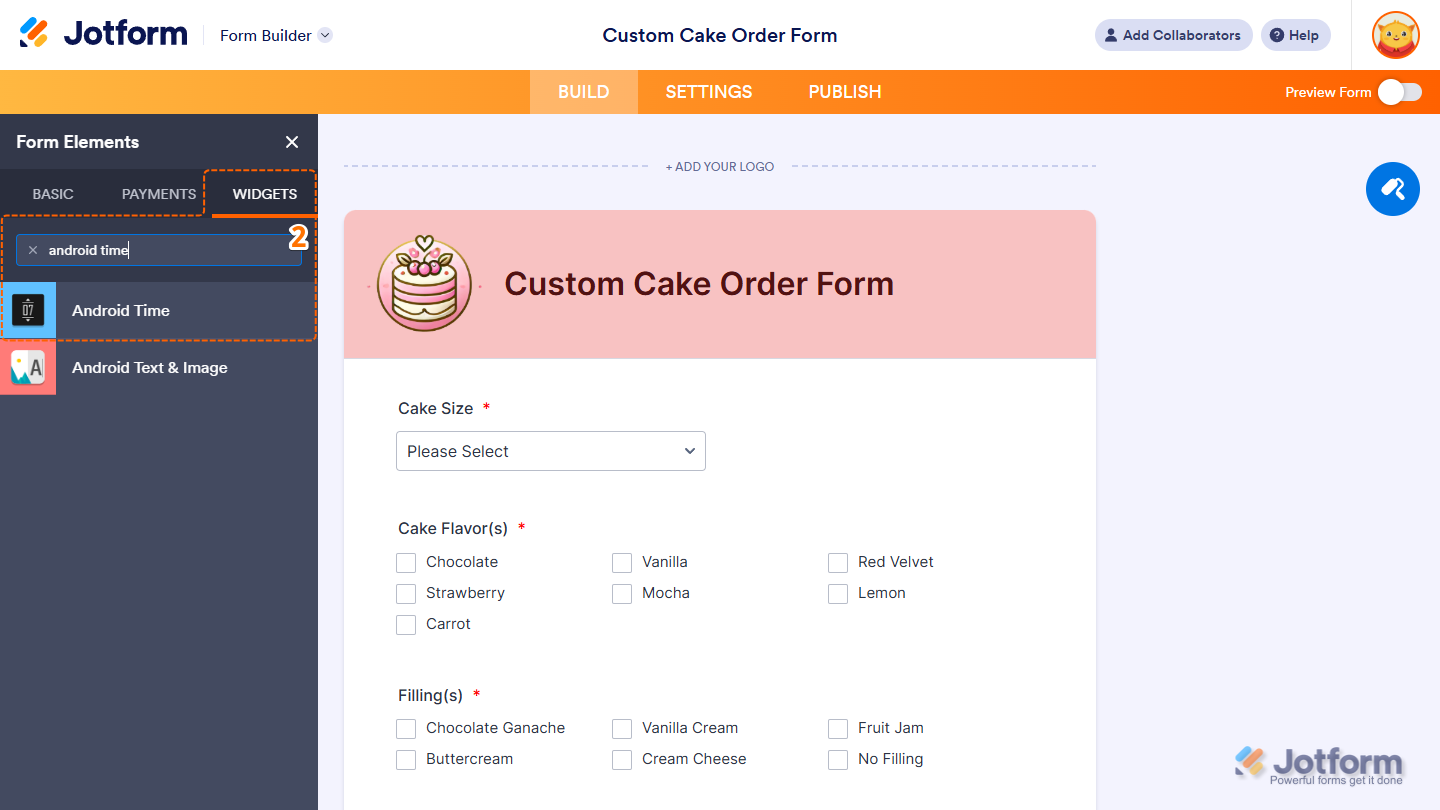
- Now, in the Form Elements menu, under the Widgets tab, search for Android Time and click on it. Or, just drag and drop it to where you want it to be on your form.
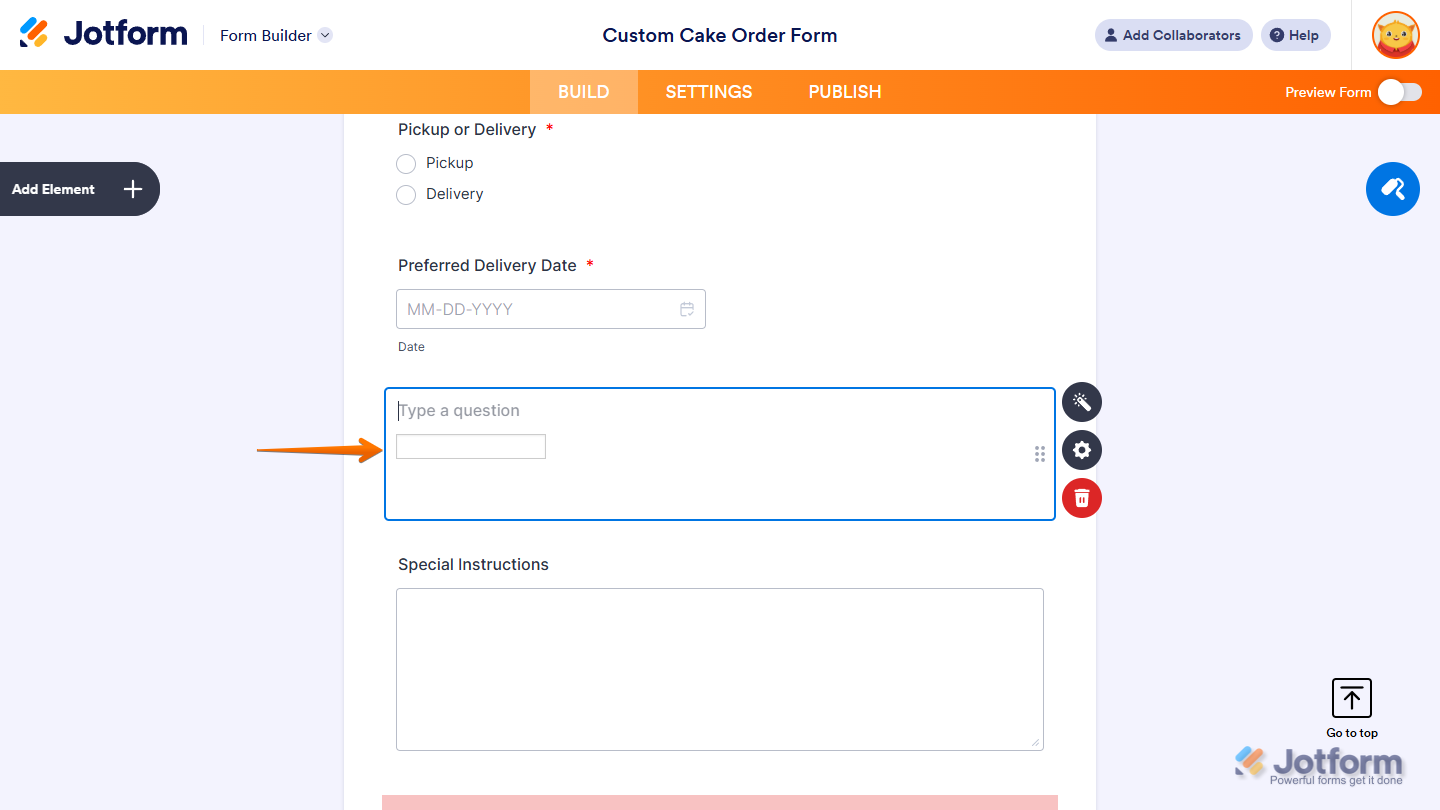
That’s it! You’ve successfully added the Android Time widget to your form.
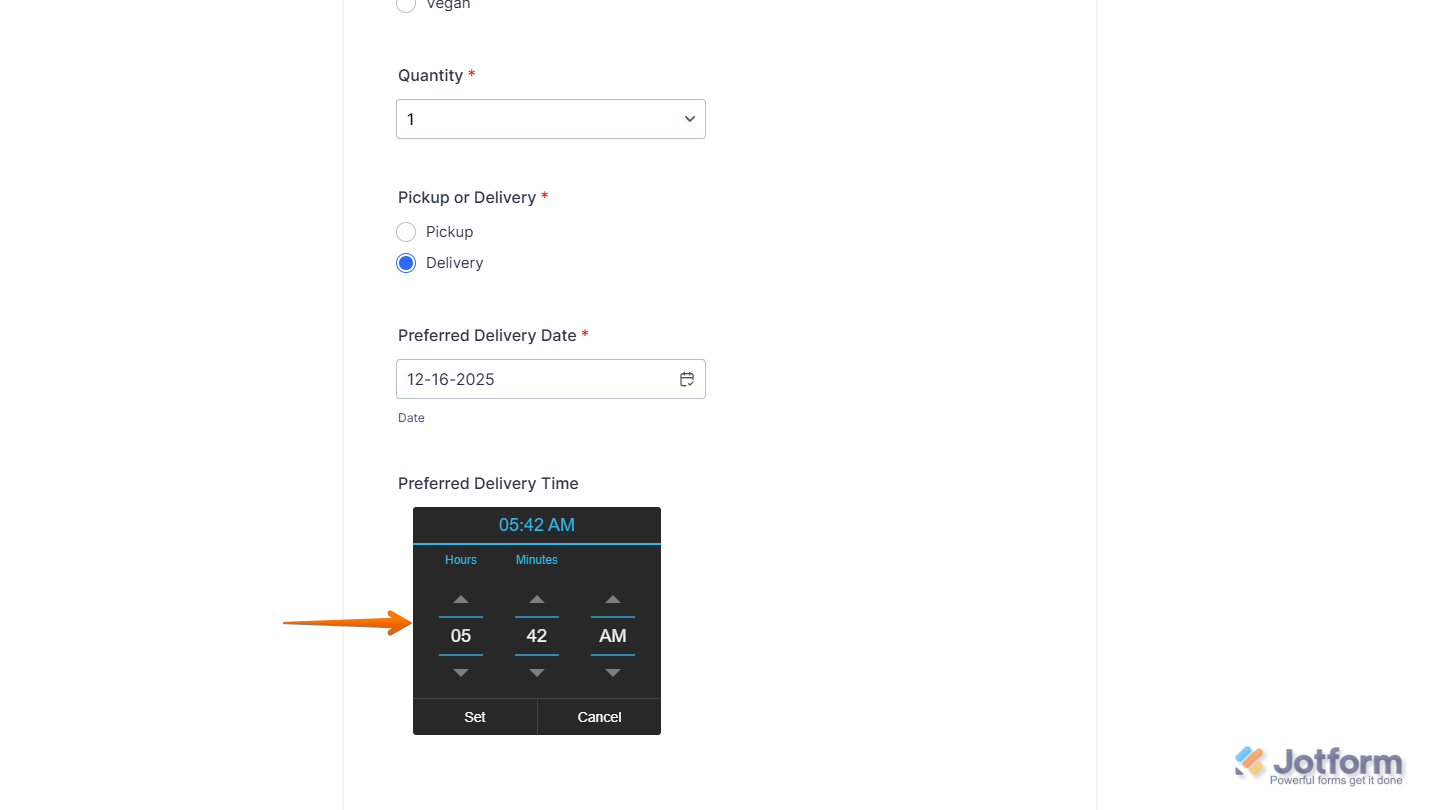
Now users can quickly choose their preferred time using a familiar Android-style selector, making it easier for them to provide accurate information and move through your form without confusion. Want to see how it works? Check out this live demo form.
Notes
- For advanced styling of the Android Time widget, you can add your own custom CSS code under the Custom CSS tab in the Widget Settings. Our guide on How to Inject CSS Codes to Widgets walks you through everything.
- You can also configure the widget properties, like alignment, labels, size, visibility, and more, to control how it looks and behaves on your form. Check out our guide on How to Access and Configure the Question Properties of a Widget to learn more.

Send Comment: