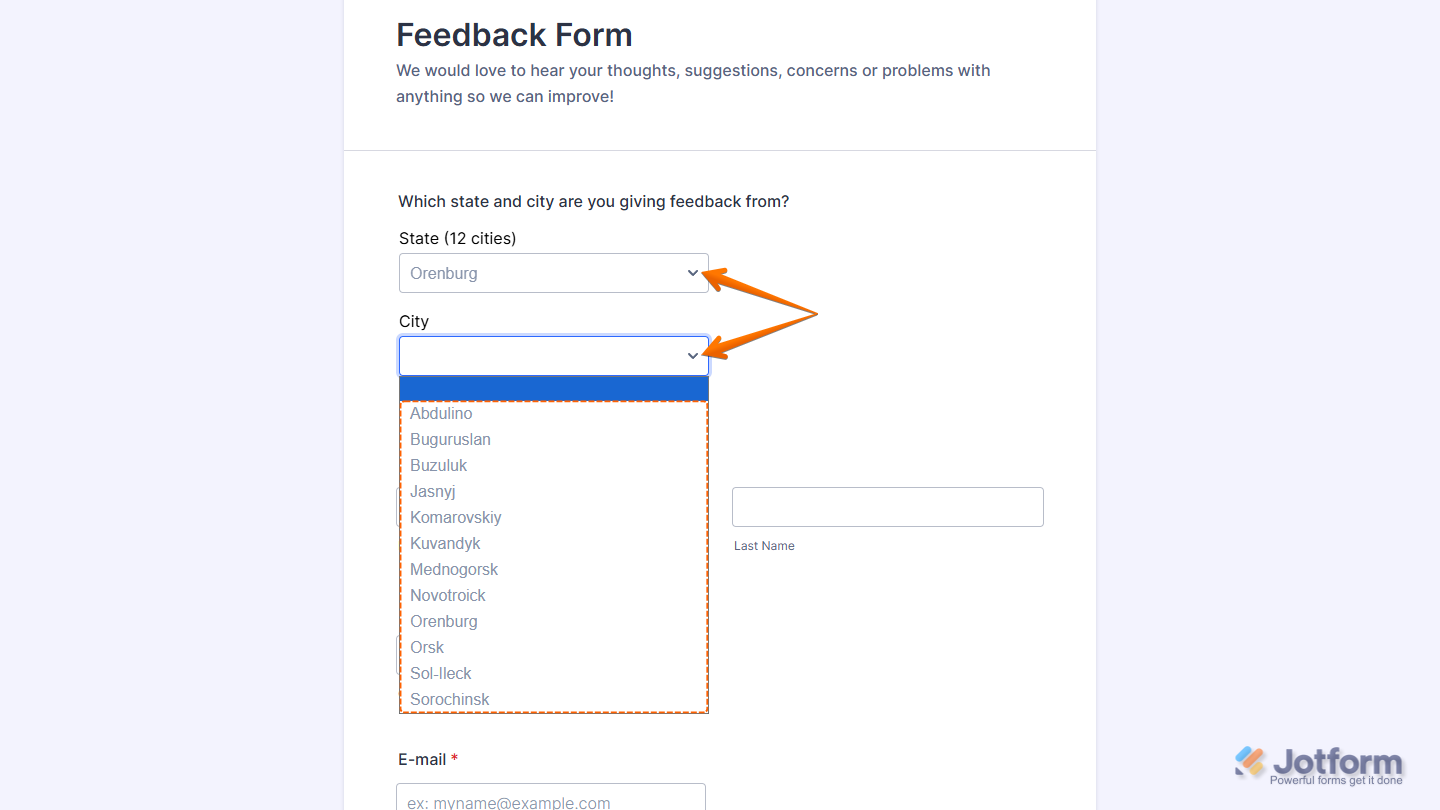
With Jotform, you can easily make sure your users select their city in Russia accurately every time. The Cities of Russia widget provides a smart two-level dropdown: first, users pick a federal subject (like a state or region), and then the city list automatically updates to show only the cities in that region. This keeps your forms clean, prevents errors, and makes filling them out faster and smoother for your respondents.
Whether you’re collecting addresses, registrations, or any information that requires location details, this widget streamlines the process and helps ensure you get valid, reliable responses without the hassle.
Here are a few ways to use it:
- Let users select their federal subject (region) first, then pick the correct city in Russia.
- Prevent mismatched city and region entries, keeping your data accurate and reliable.
- Simplify address fields on registration, contact, or order forms by replacing free-text city input.
- Make survey and feedback forms easier to complete with valid city options automatically filtered.
- Reduce typos and errors from manually typed city names, saving time on data cleanup.
- Guide respondents through multi-step or detailed forms with a smoother, more intuitive workflow.
- Improve consistency and make it easier to filter or segment responses by city.
- Give customers a clearer, more user-friendly experience when submitting requests, applications, or orders.
Whether you’re creating a new form or updating an existing one, you can add the Cities of Russia widget in a few easy steps. Here’s how to do it:
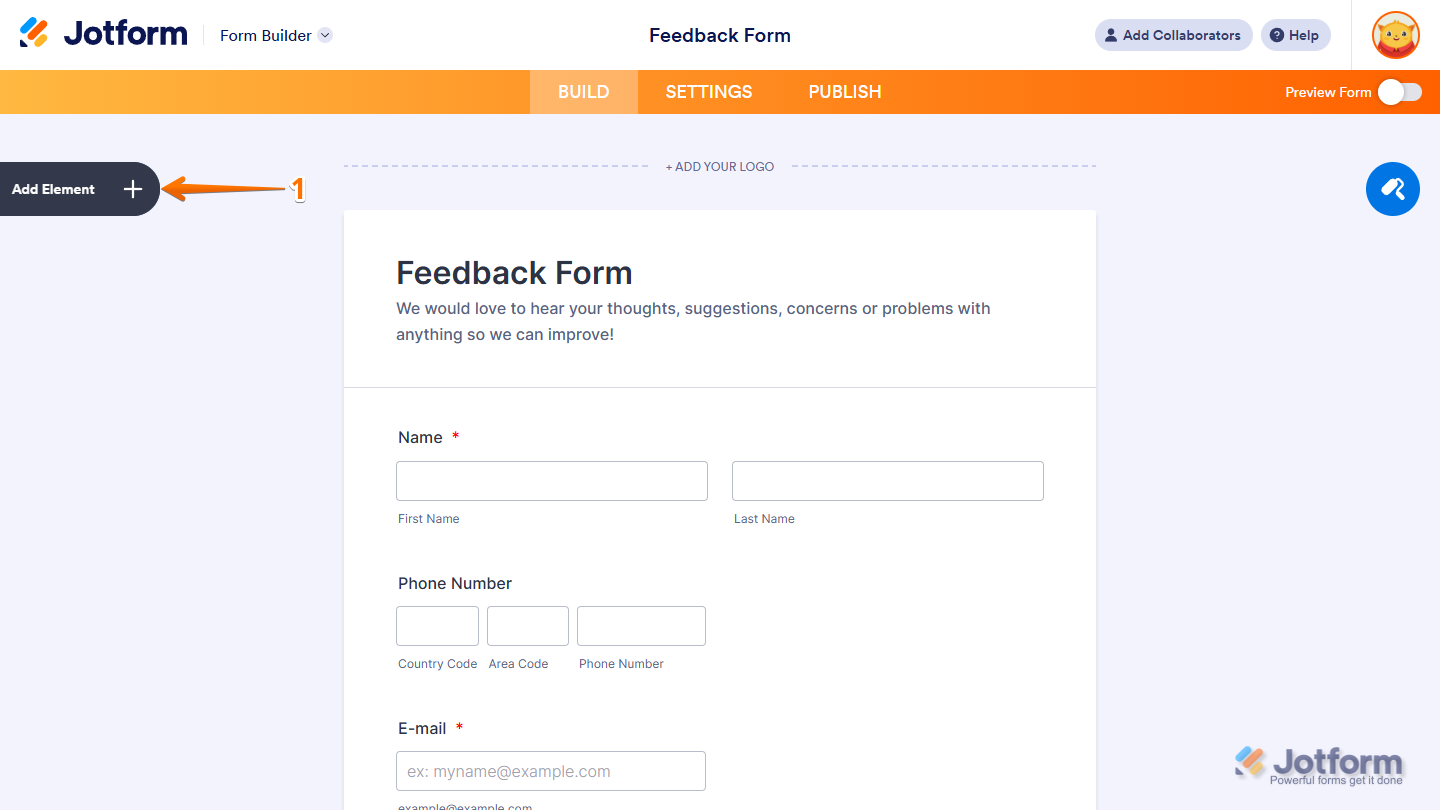
- In Form Builder, click on Add Element on the left side of the page.
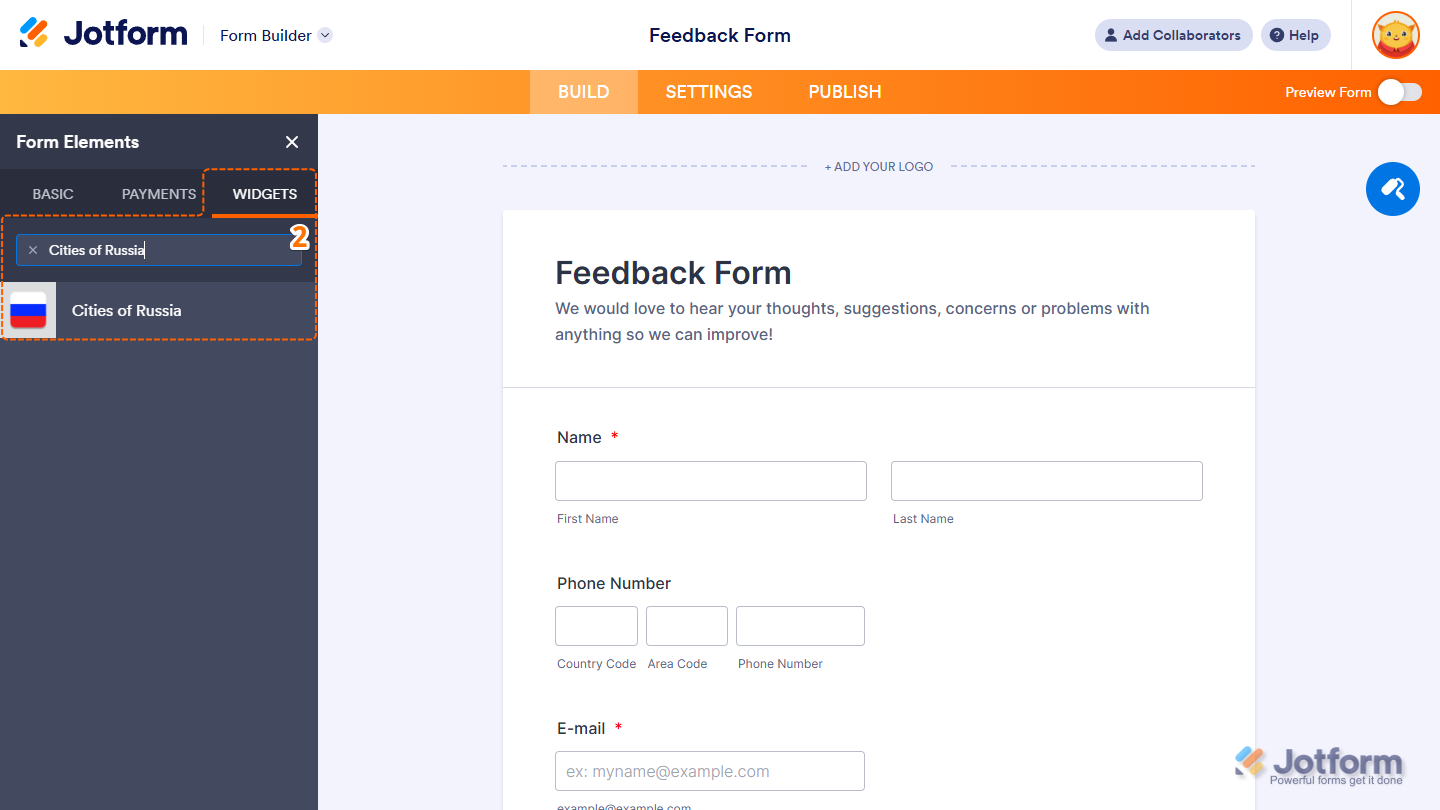
- Now, in the Form Elements menu, under the Widgets tab, search for Cities of Russia and click on it. Or, just drag and drop it to where you want it to be on your form.
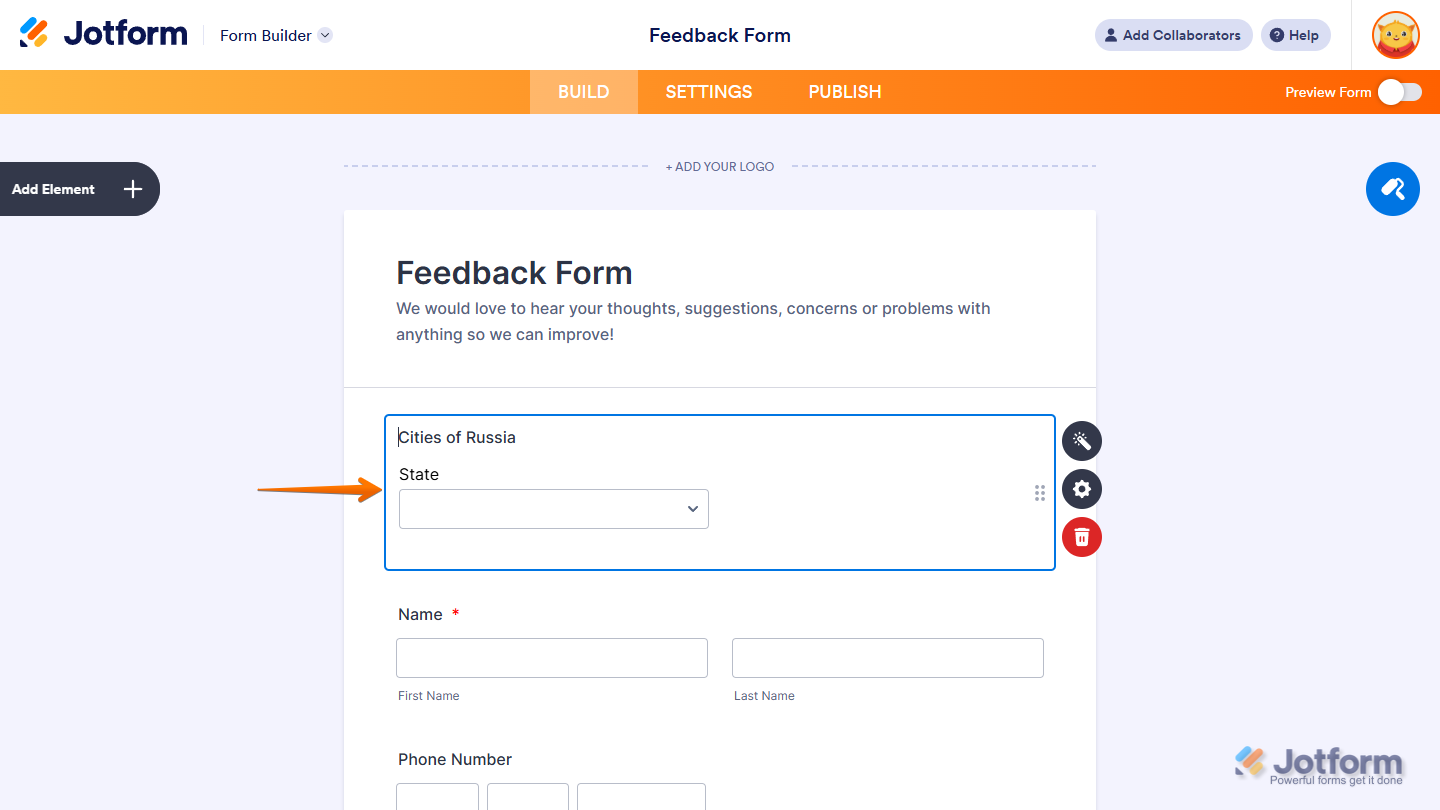
That’s it! You’ve successfully added the Cities of Russia widget to your form.
Now users can quickly choose their federal subject (region) and select the correct city from a filtered list, helping ensure accurate and consistent responses. Want to see how it works? Check out this live demo form.
Notes
- For advanced styling of the Cities of Russia widget, you can add your own custom CSS code under the Custom CSS tab in the Widget Settings. Our guide on How to Inject CSS Codes to Widgets walks you through everything.
- You can also configure the widget properties, like alignment, labels, size, visibility, and more, to control how it looks and behaves on your form. Check out our guide on How to Access and Configure the Question Properties of a Widget to learn more.

Send Comment: