With Jotform, you can easily give your forms a little more personality using the Fancy Large Input widget. It adds a spacious, eye-catching blue text box that encourages people to slow down, get creative, and share their thoughts more comfortably.
This widget is a great fit for forms that need answers with a bit more heart or style — whether you’re collecting stories, feedback, or anything that deserves more than a tiny text field. It’s a simple way to make your form feel more inviting while helping your users express themselves freely.
Here are a few ways to use it:
- Add a large, visually appealing input box for standout answers.
- Give your form a creative, modern feel that grabs attention.
- Encourage longer, more meaningful responses in surveys or questionnaires.
- Make feedback or comment sections easier and more enjoyable to fill out.
Whether you’re creating a new form or updating an existing one, you can add the Fancy Large Input widget in a few easy steps. Here’s how to do it:
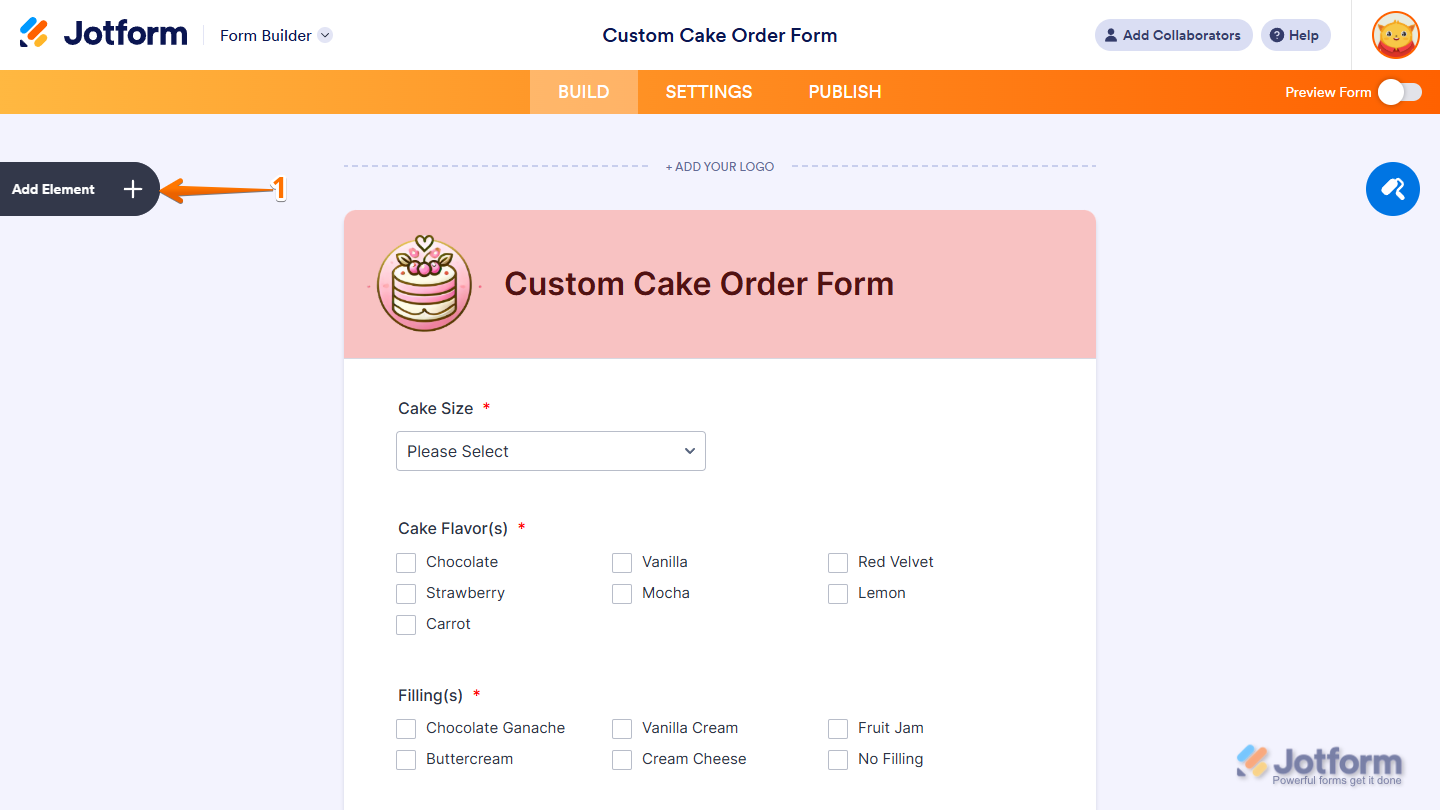
- In Form Builder, click on Add Element on the left side of the page.
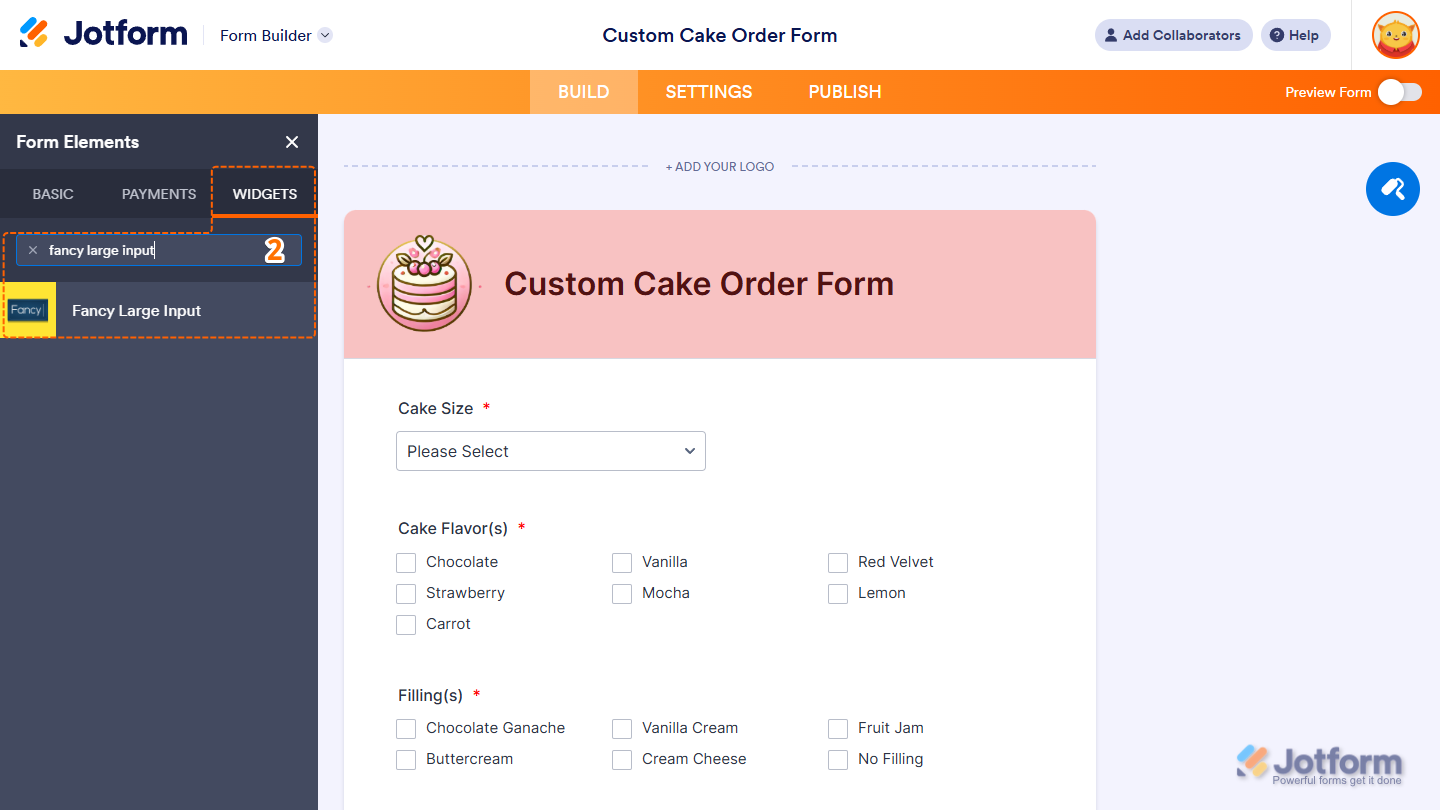
- Now, in the Form Elements menu, under the Widgets tab, search for Fancy Large Input and click on it. Or, just drag and drop it to where you want it to be on your form.
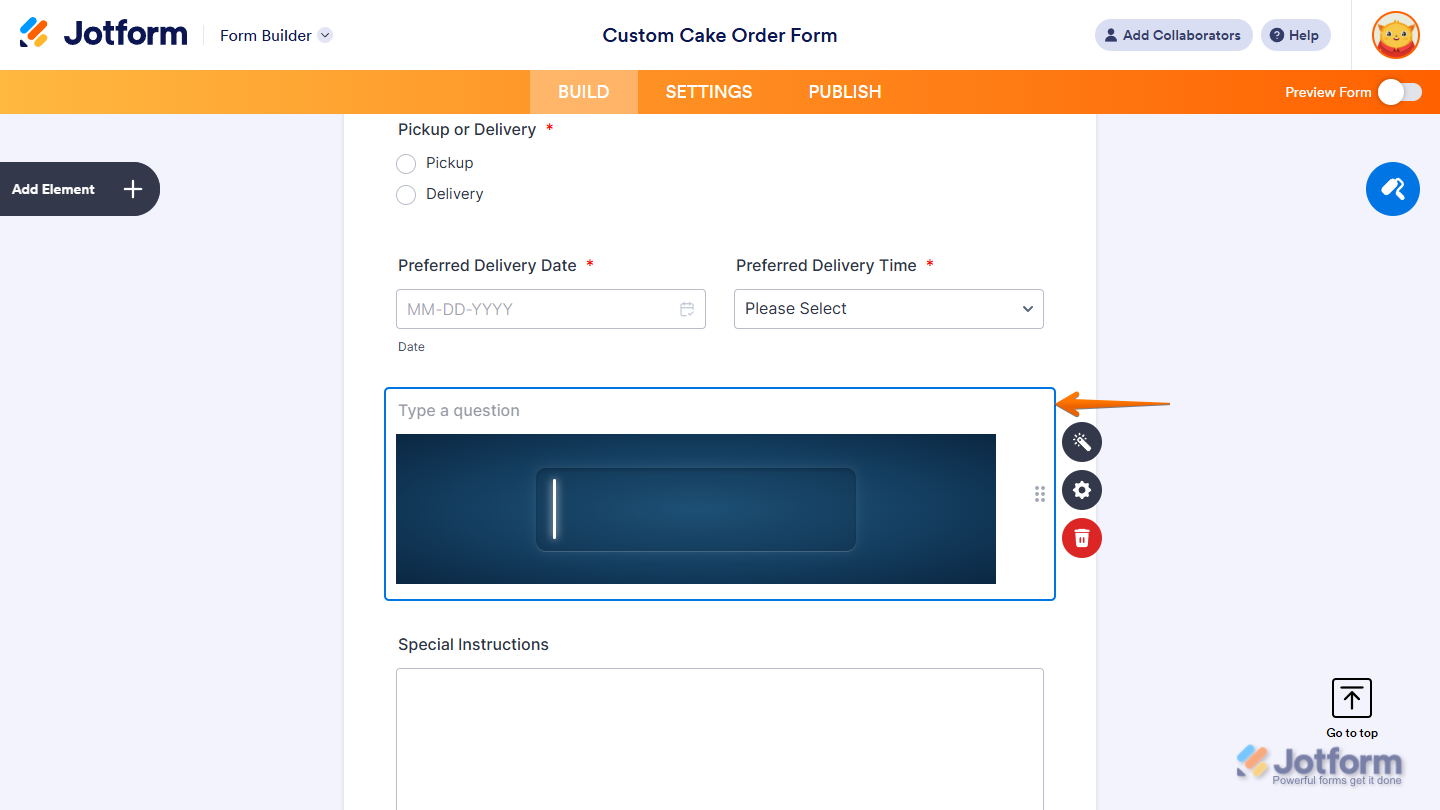
That’s it! You’ve successfully added the Fancy Large Input widget to your form.
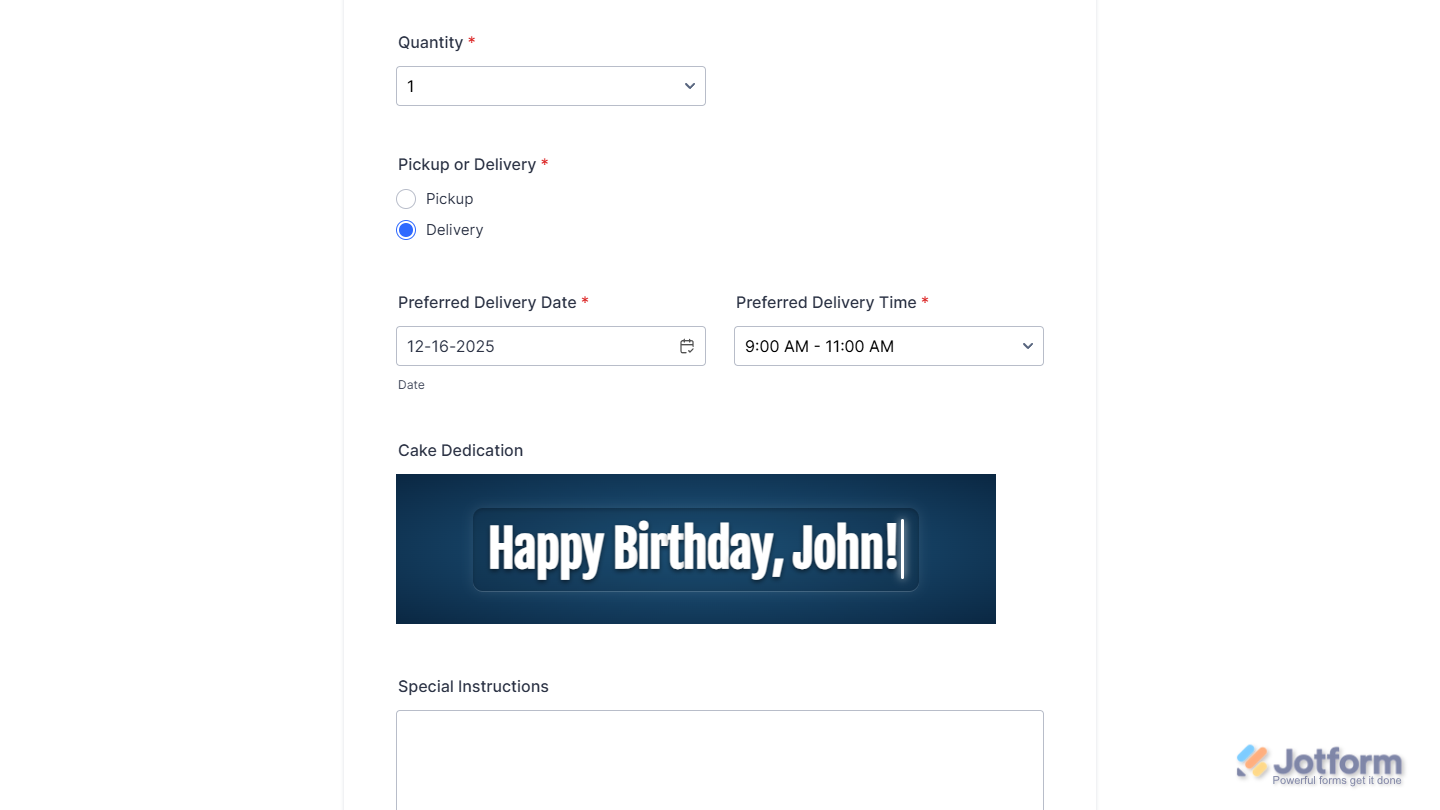
Now your users can enter their responses in a bold, spacious text box that stands out, making it easier for them to share detailed answers and complete their submission with a smoother, more engaging experience. Want to see how it works? Check out this live demo form.
Notes
- For advanced styling of the Fancy Large Input widget, you can add your own custom CSS code under the Custom CSS tab in the Widget Settings. Our guide on How to Inject CSS Codes to Widgets walks you through everything.
- You can also configure the widget properties, like alignment, labels, size, visibility, and more, to control how it looks and behaves on your form. Check out our guide on How to Access and Configure the Question Properties of a Widget to learn more.

Send Comment: