With Jotform, you can easily let your users choose the font they want to use for the content they submit—thanks to the Font Picker widget. Instead of typing their preferred font in a text box, respondents can simply select it from a clean, easy-to-use dropdown. It’s a simple way to give people more control over how their information is presented, whether they’re requesting printed materials, submitting creative work, or completing forms where formatting matters.
By adding the Font Picker to your form, Jotform helps you create a more personalized and user-friendly experience, all while keeping the process smooth and consistent for both you and your respondents.
Here are a few ways to use it:
- Let users choose the font style to apply to the content they provide.
- Collect font preferences for printed materials like business cards, IDs, badges, or labels.
- Allow customers to select a font for personalized items such as invitations, certificates, or merchandise.
- Gather font choices for creative projects, assignments, or design-related submissions.
- Use it in order or request forms where users need control over how their text will appear.
- Help teams standardize font options by offering a preset list instead of open-ended entries.
Whether you’re creating a new form or updating an existing one, you can add the Font Picker widget in a few easy steps. Here’s how to do it:
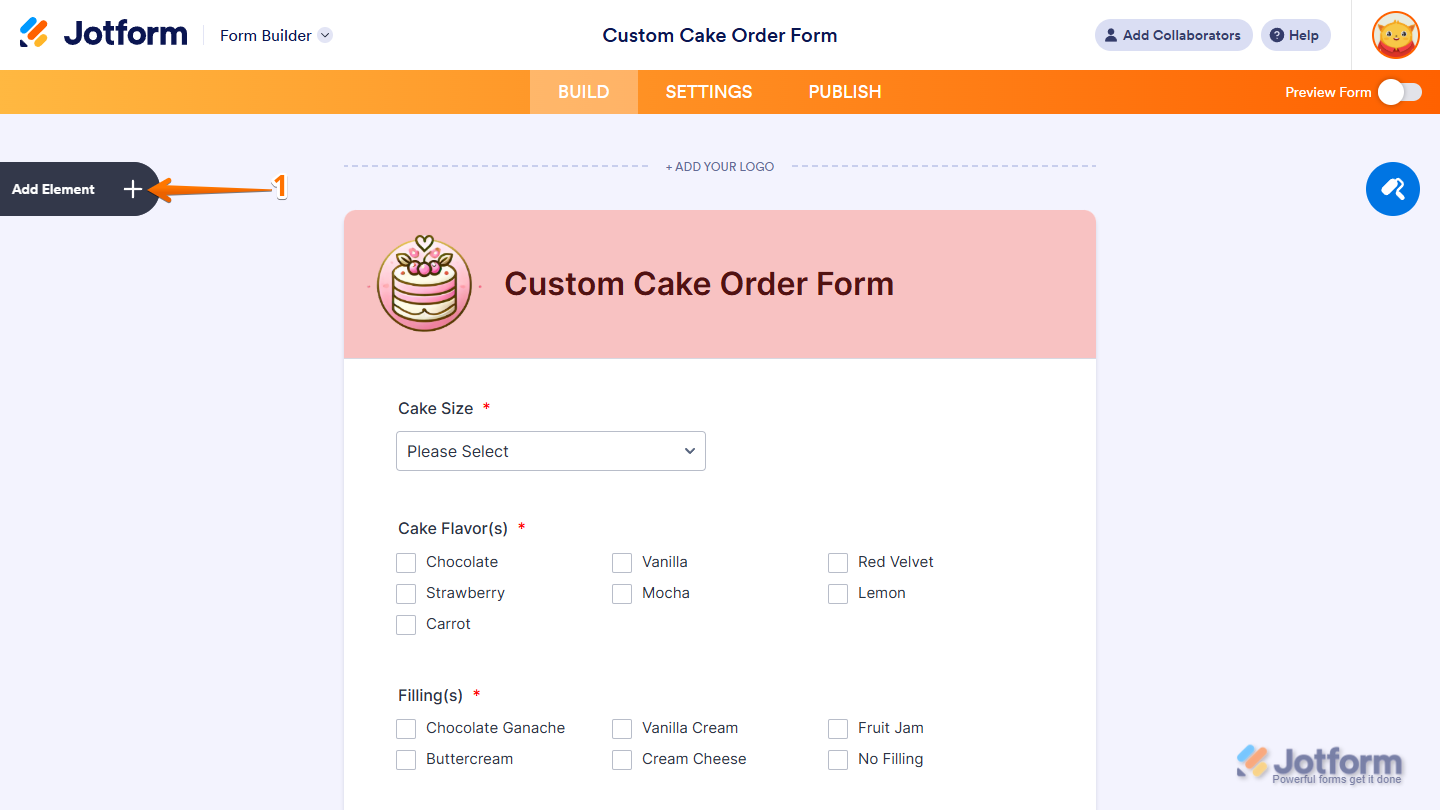
- In Form Builder, click on Add Element on the left side of the page.
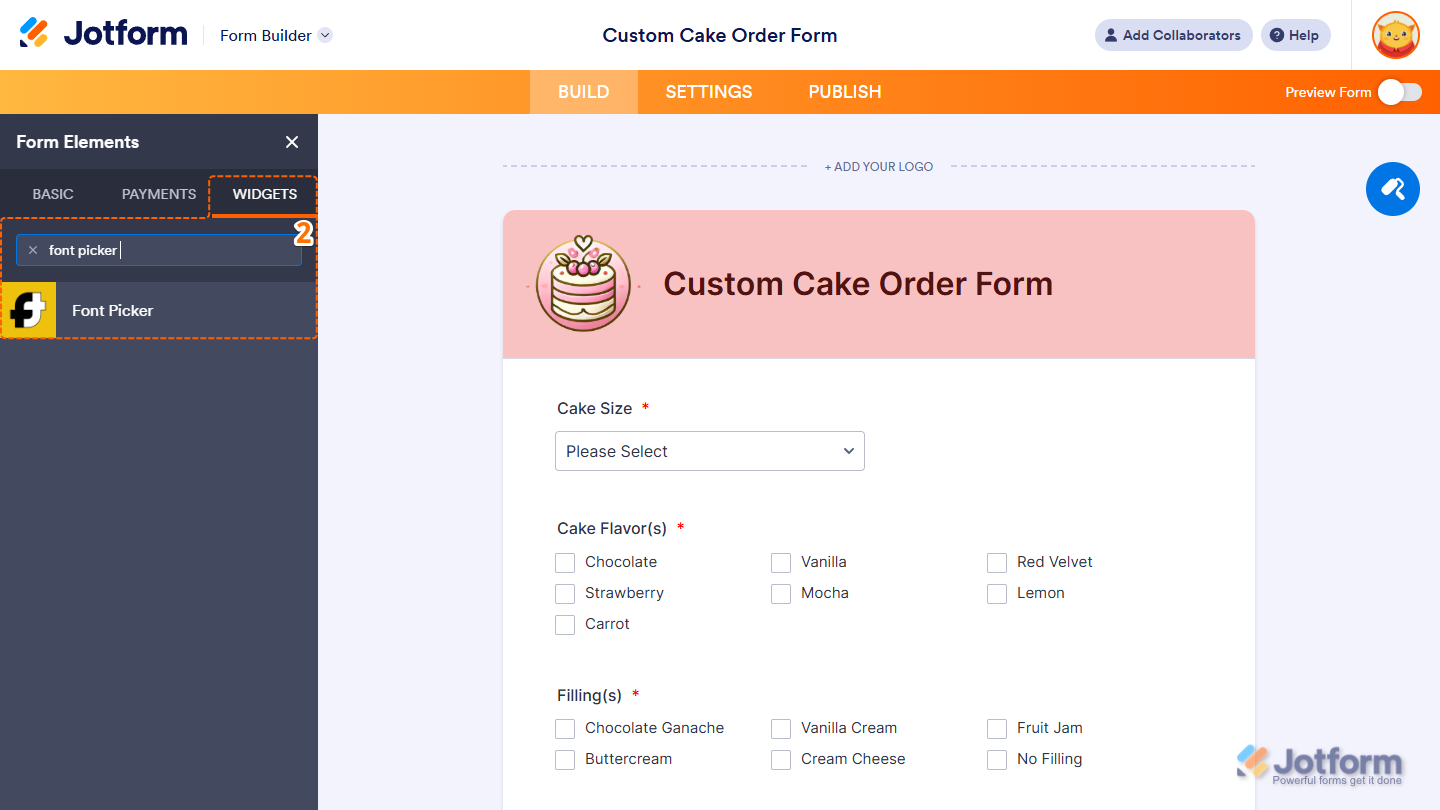
- Now, in the Form Elements menu, under the Widgets tab, search for Font Picker and click on it. Or, just drag and drop it to where you want it to be on your form.
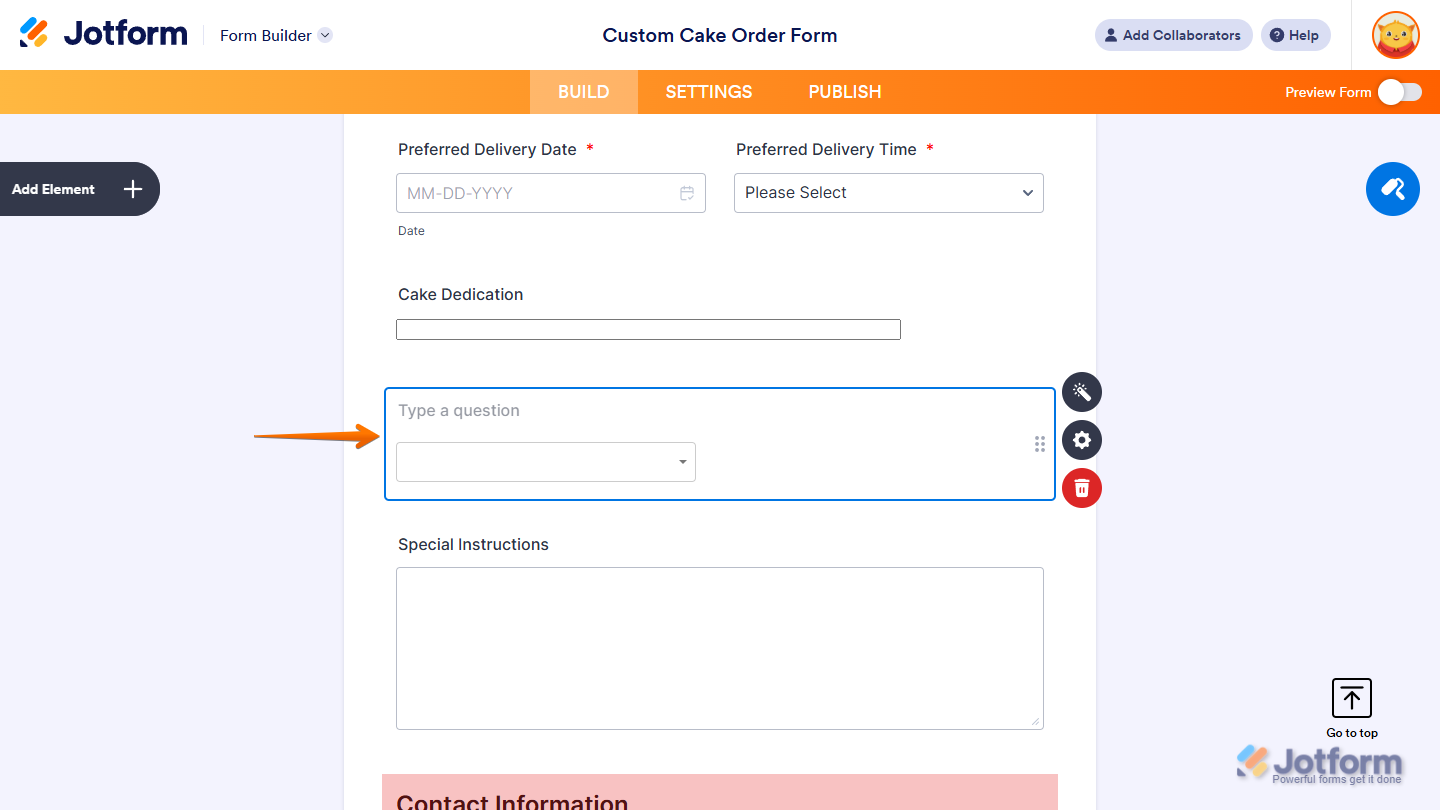
That’s it! You’ve successfully added the Font Picker widget to your form.
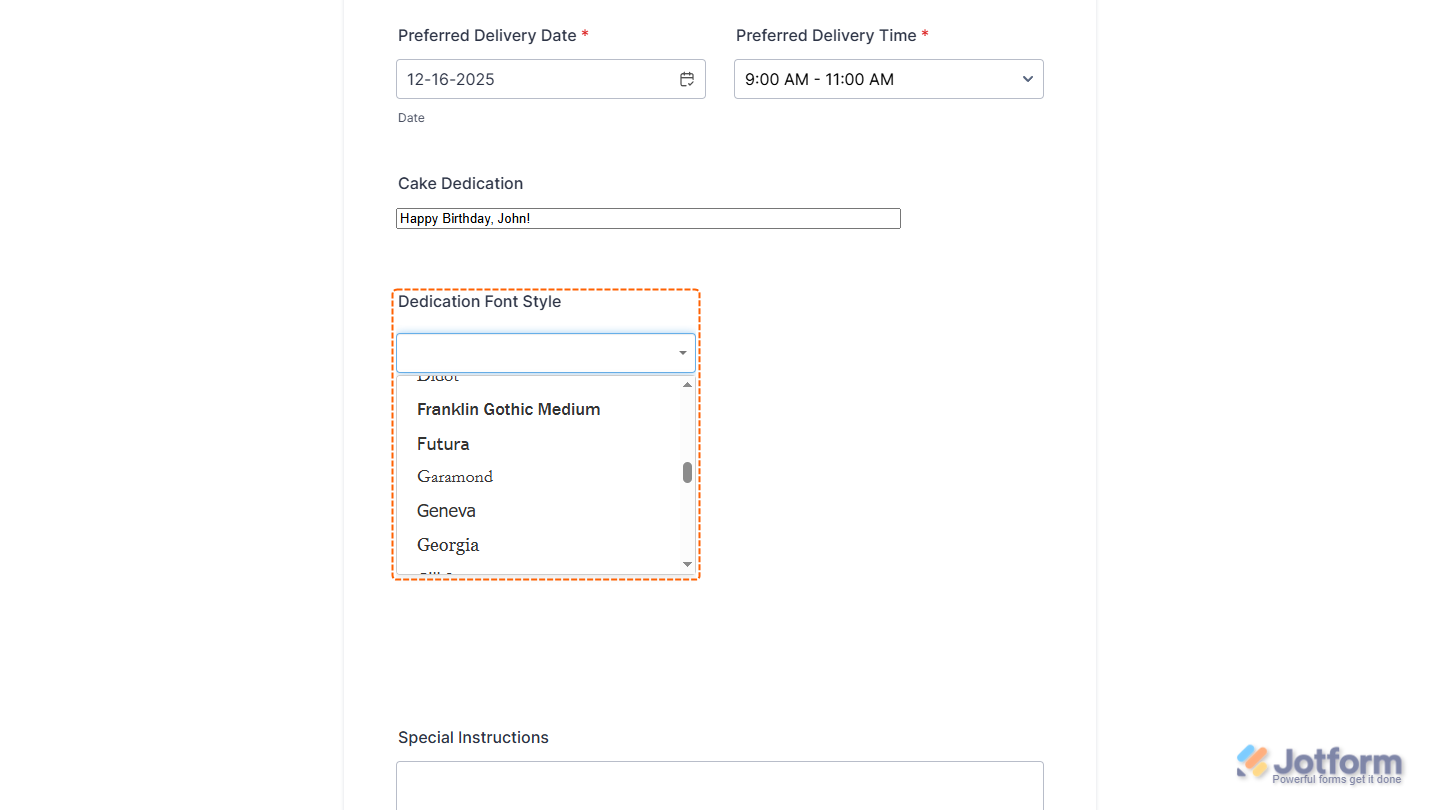
Now users can select their preferred font directly from your form, making it easy to collect font preferences in a simple and organized way. Want to see how it works? Check out this live demo form.
Notes
- For advanced styling of the Font Picker Input widget, you can add your own custom CSS code under the Custom CSS tab in the Widget Settings. Our guide on How to Inject CSS Codes to Widgets walks you through everything.
- You can also configure the widget properties, like alignment, labels, size, visibility, and more, to control how it looks and behaves on your form. Check out our guide on How to Access and Configure the Question Properties of a Widget to learn more.

Send Comment: