With Jotform, you can easily collect number ranges on your forms in a clean, intuitive way using the free Range widget. Whether you’re running surveys, gathering age brackets, or collecting any type of minimum-to-maximum value, this widget streamlines the process for both you and your respondents.
It’s a simple, flexible tool that helps people share more precise information without confusion — making your forms easier to complete and your data easier to understand.
Here are a few ways to use it:
- Collect a minimum-to-maximum range from users.
- Gather age brackets or demographic ranges for surveys.
- Let respondents choose budget ranges for quotes or estimates.
- Capture quantity ranges for orders, requests, or project planning.
- Help customers share preferred time, date, or duration ranges.
- Add clearer options to polls, questionnaires, and feedback forms.
- Make multi-step or detailed forms easier by letting users answer with flexible ranges instead of exact numbers.
Whether you’re creating a new form or updating an existing one, you can add the Range widget in a few easy steps. Here’s how to do it:
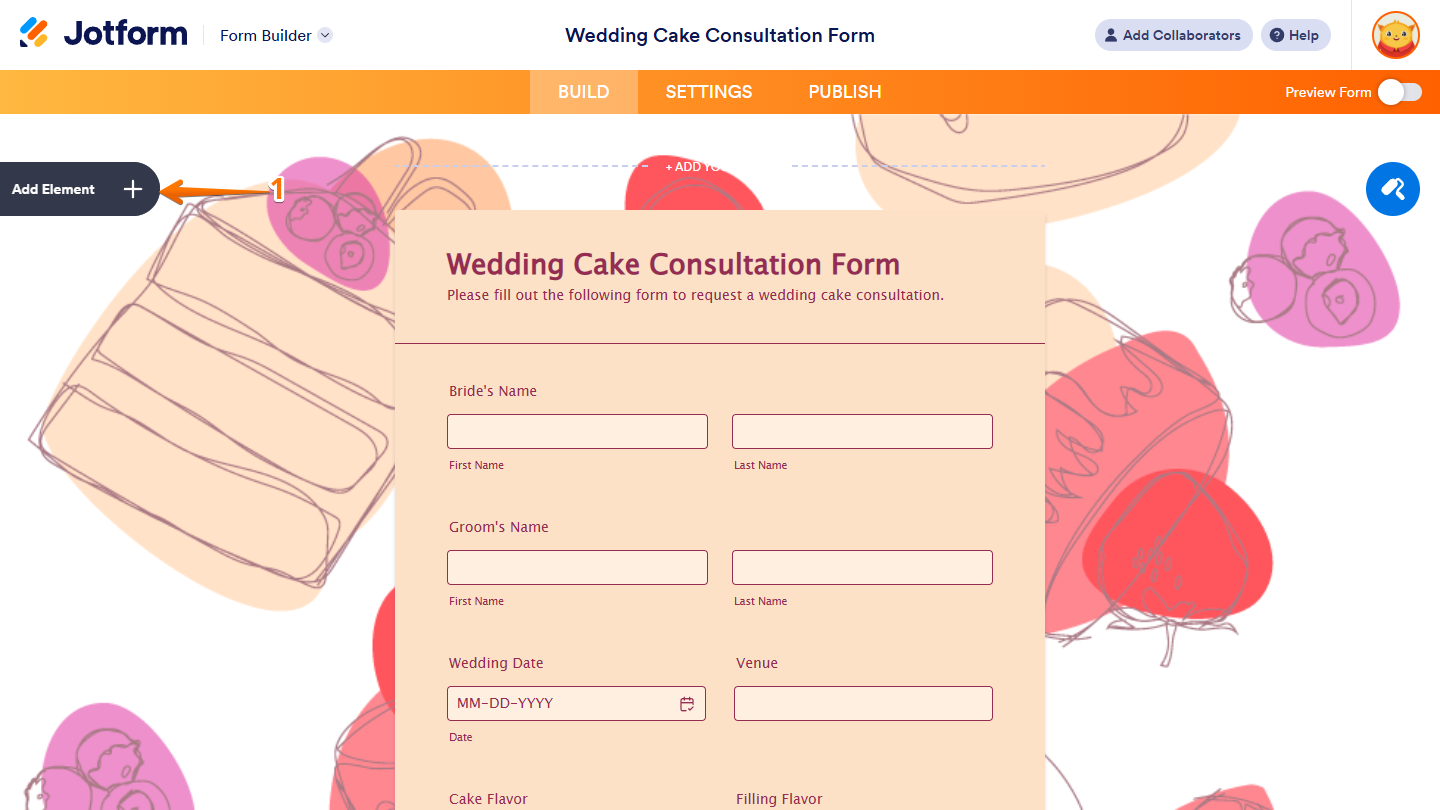
- In Form Builder, click on Add Element on the left side of the page.
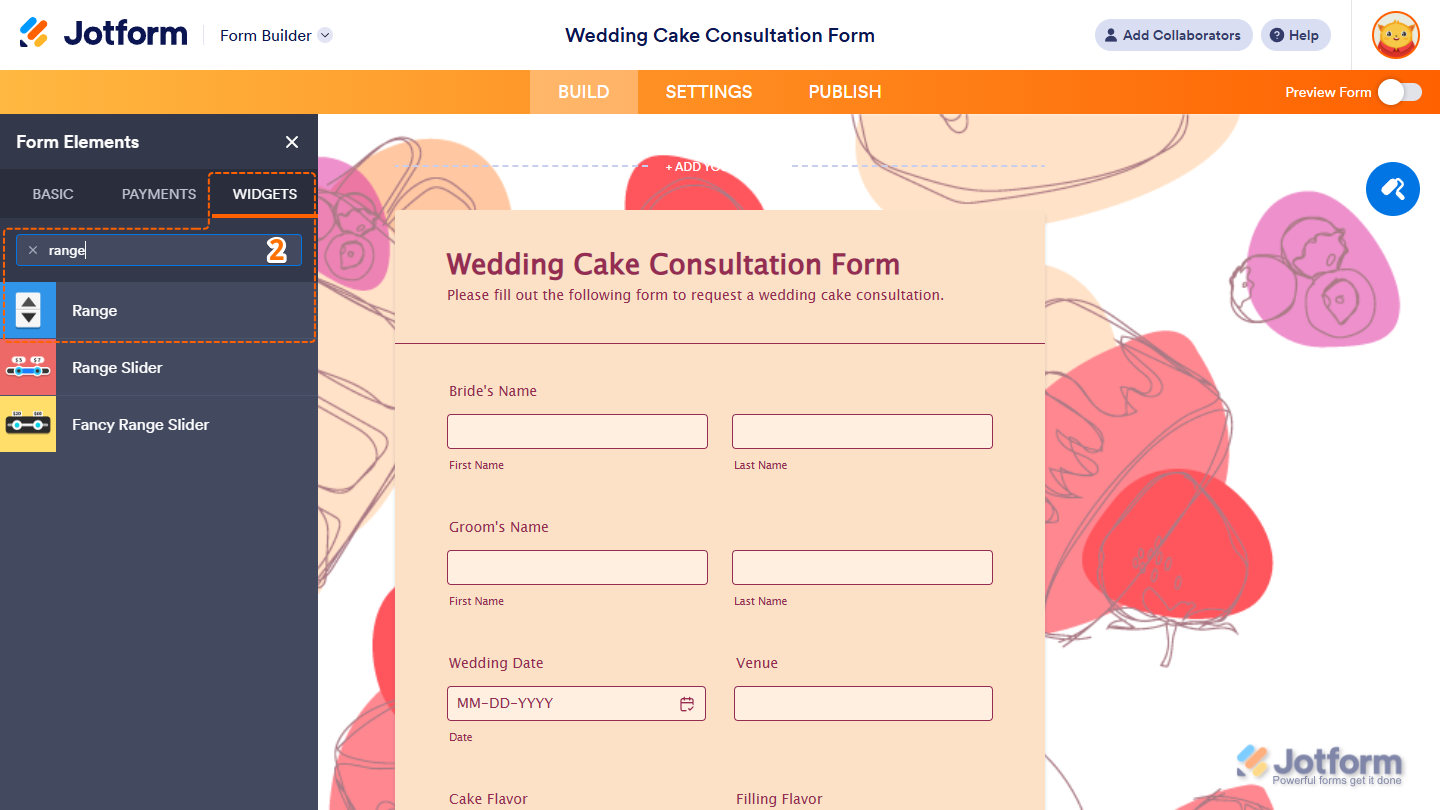
- Now, in the Form Elements menu, under the Widgets tab, search for Range and click on it. Or, just drag and drop it to where you want it to be on your form.
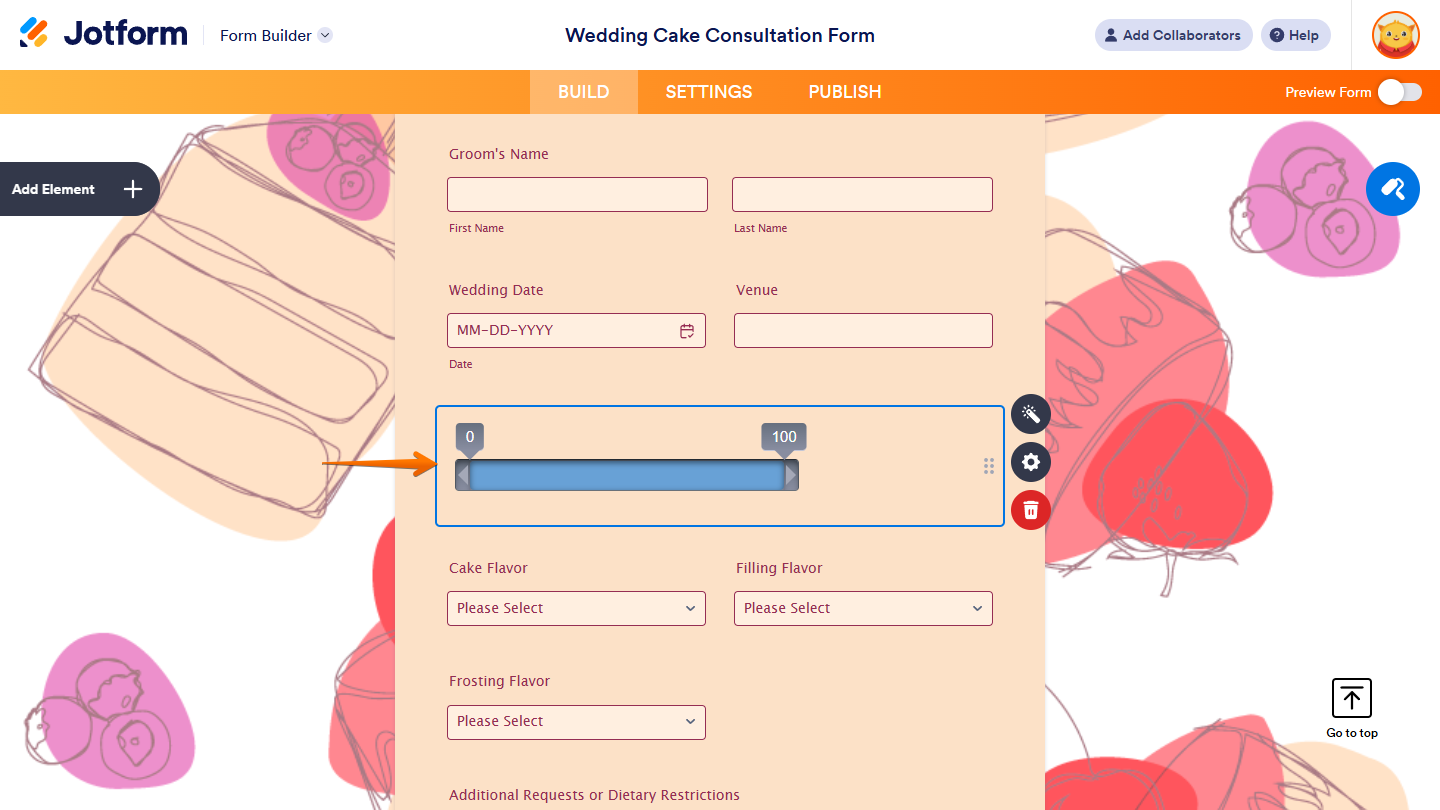
That’s it! You’ve successfully added the Range widget to your form.
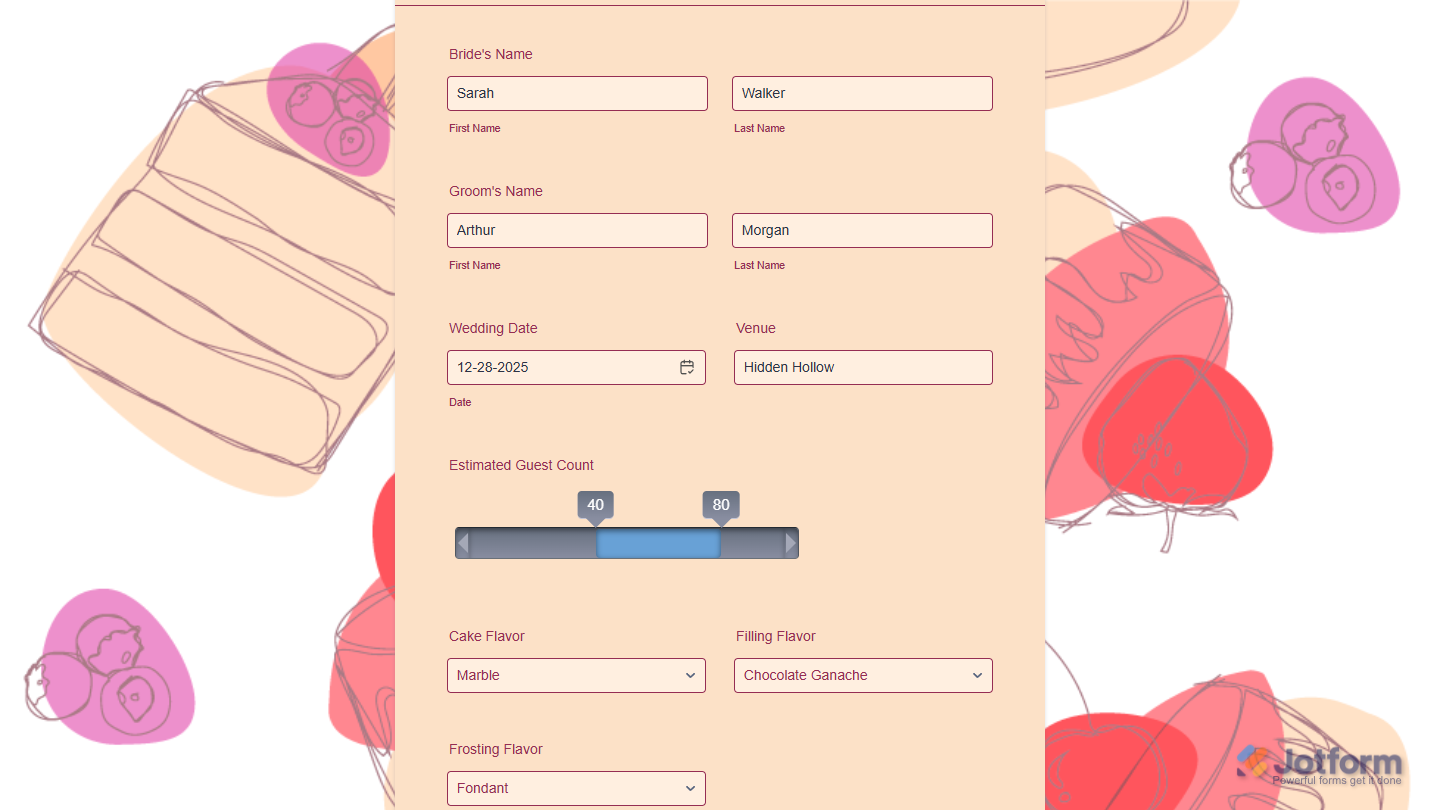
Now users can select and share number ranges directly on your form, making it easier for them to provide more precise information while keeping the form clear and easy to complete. Want to see how it works? Check out this live demo form.
Notes
- For advanced styling of the Range widget, you can add your own custom CSS code under the Custom CSS tab in the Widget Settings. Our guide on How to Inject CSS Codes to Widgets walks you through everything.
- You can also configure the widget properties, like alignment, labels, size, visibility, and more, to control how it looks and behaves on your form. Check out our guide on How to Access and Configure the Question Properties of a Widget to learn more.

Send Comment: