Jotform’s Select Country widget lets you add an intuitive, interactive country picker to your online form — so your users can simply click on a map and select their country in seconds. It’s a great way to streamline the form‑filling experience while helping you gather useful location data whenever needed. With this simple addition, forms feel more friendly and polished, and users don’t have to scroll through long dropdowns or manually type country names.
Here are a few ways to use it:
- Let users select their country quickly on registration or forms.
- Make survey and feedback forms more interactive by letting participants pick their location.
- Enhance order or checkout forms by allowing customers to choose their shipping or billing country.
- Add a visual, clickable map to travel and booking forms to simplify location selection.
- Streamline application forms for programs, memberships, or services that depend on user location.
Whether you’re creating a new form or updating an existing one, you can add the Select Country widget in a few easy steps. Here’s how to do it:
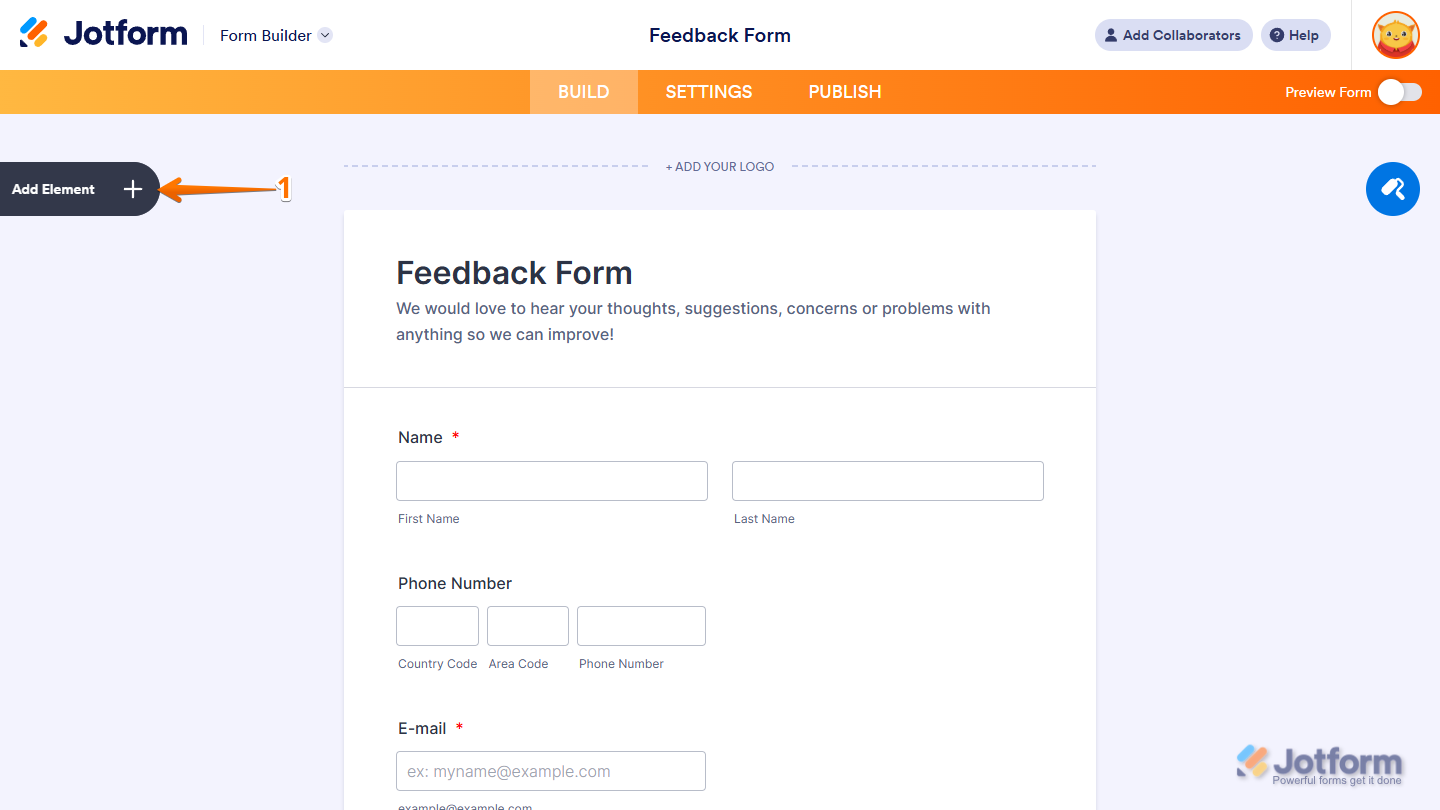
- In Form Builder, click on Add Element on the left side of the page.
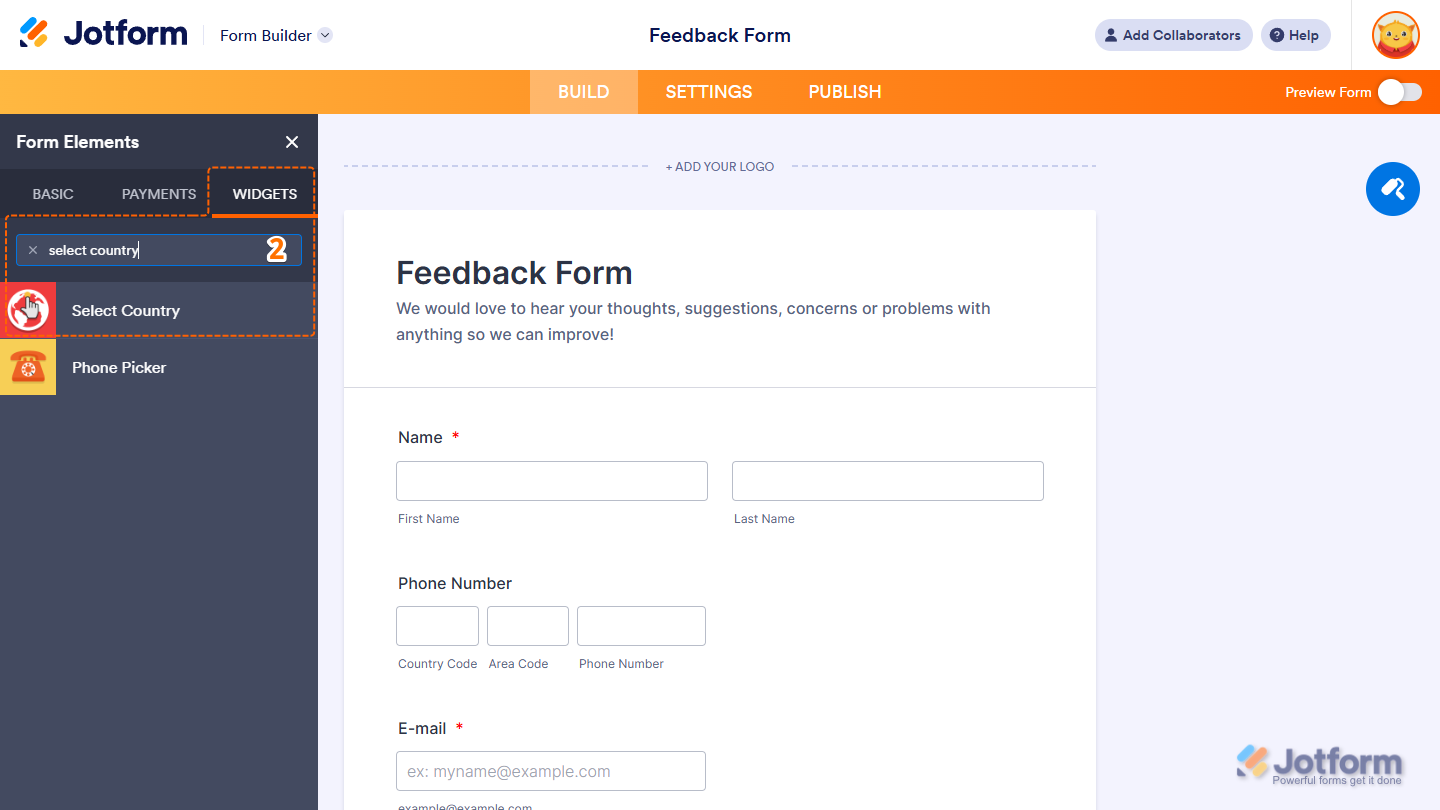
- Now, in the Form Elements menu, under the Widgets tab, search for Select Country and click on it. Or, just drag and drop it to where you want it to be on your form.
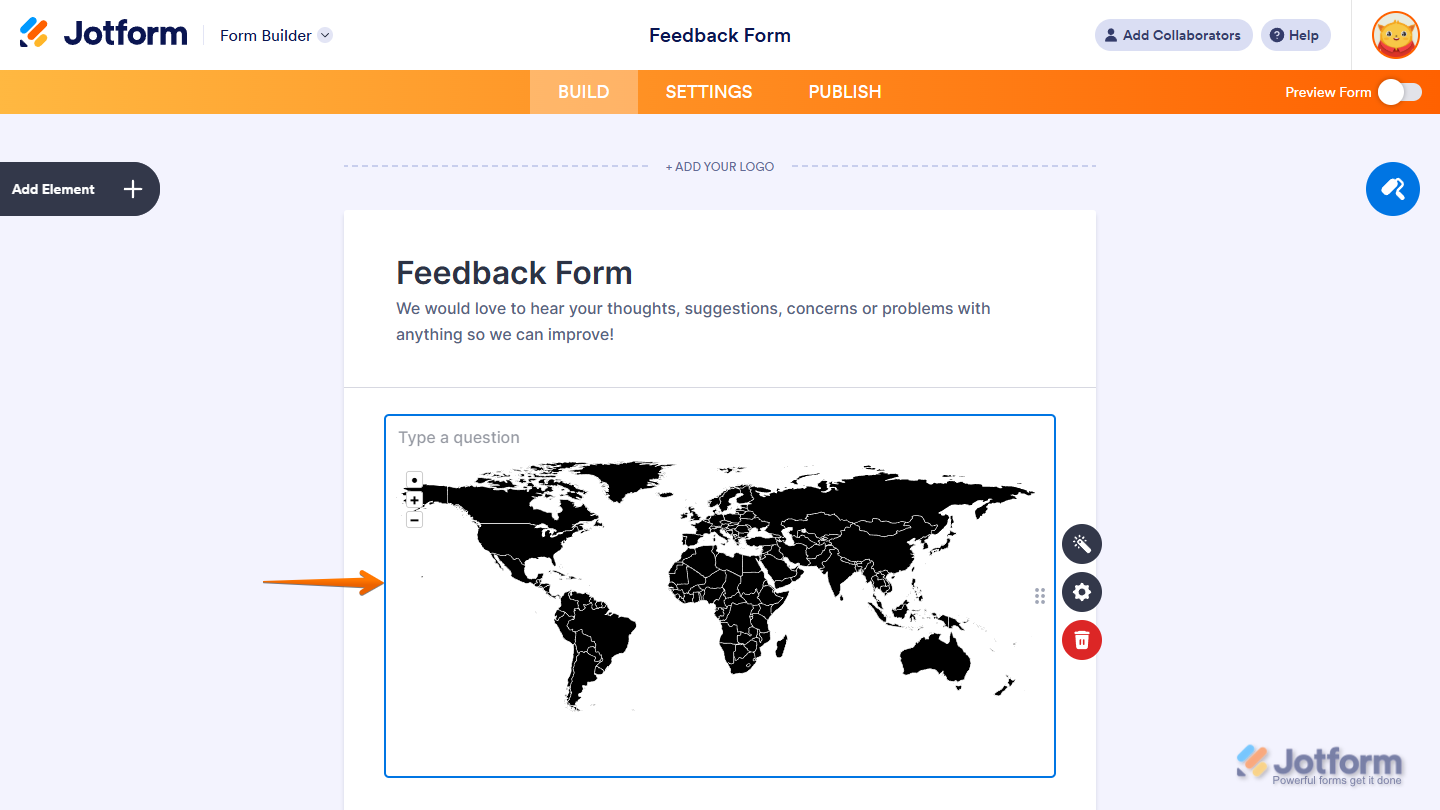
That’s it. You’ve successfully added the Select Country widget to your form.
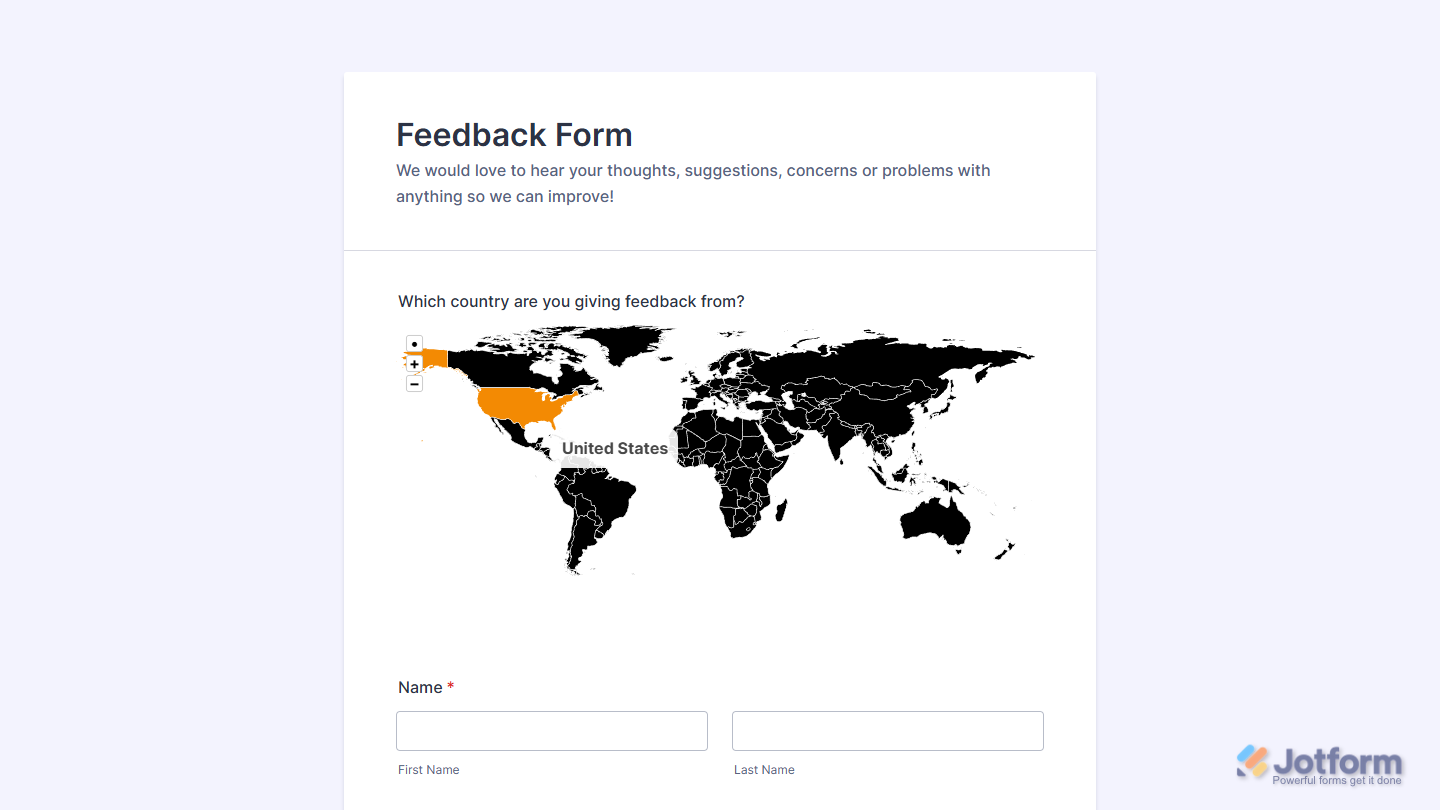
Now users can quickly select their country using an interactive map right inside your form. Want to see how it works? Check out this live demo form.
Notes
- For advanced styling of the Select Country widget, you can add your own custom CSS code under the Custom CSS tab in the Widget Settings. Our guide on How to Inject CSS Codes to Widgets walks you through everything.
- You can also configure the widget properties, like alignment, labels, size, visibility, and more, to control how it looks and behaves on your form. Check out our guide on How to Access and Configure the Question Properties of a Widget to learn more.

Send Comment: