With Jotform, you can easily keep users on track as they move through your form. The free Unfilled Fields widget displays how many questions still need attention, giving people a simple visual cue that encourages them to complete everything before submitting.
This helpful widget is especially useful for longer or more detailed forms, where it’s easy for respondents to miss a field. By showing a clear count of what’s left to fill in, it supports a smoother, more organized form-filling experience and helps users feel confident they haven’t overlooked anything.
Here are a few ways to use it:
- Show users how many fields they still need to complete.
- Help people stay aware of their progress on long or detailed forms.
- Reduce accidental skips in multi-page or multi-section workflows.
- Keep applicants on track in registration, application, or intake forms.
- Support smoother submissions for surveys, feedback forms, and evaluations.
Whether you’re creating a new form or updating an existing one, you can add the Unfilled Fields widget in a few easy steps. Here’s how to do it:
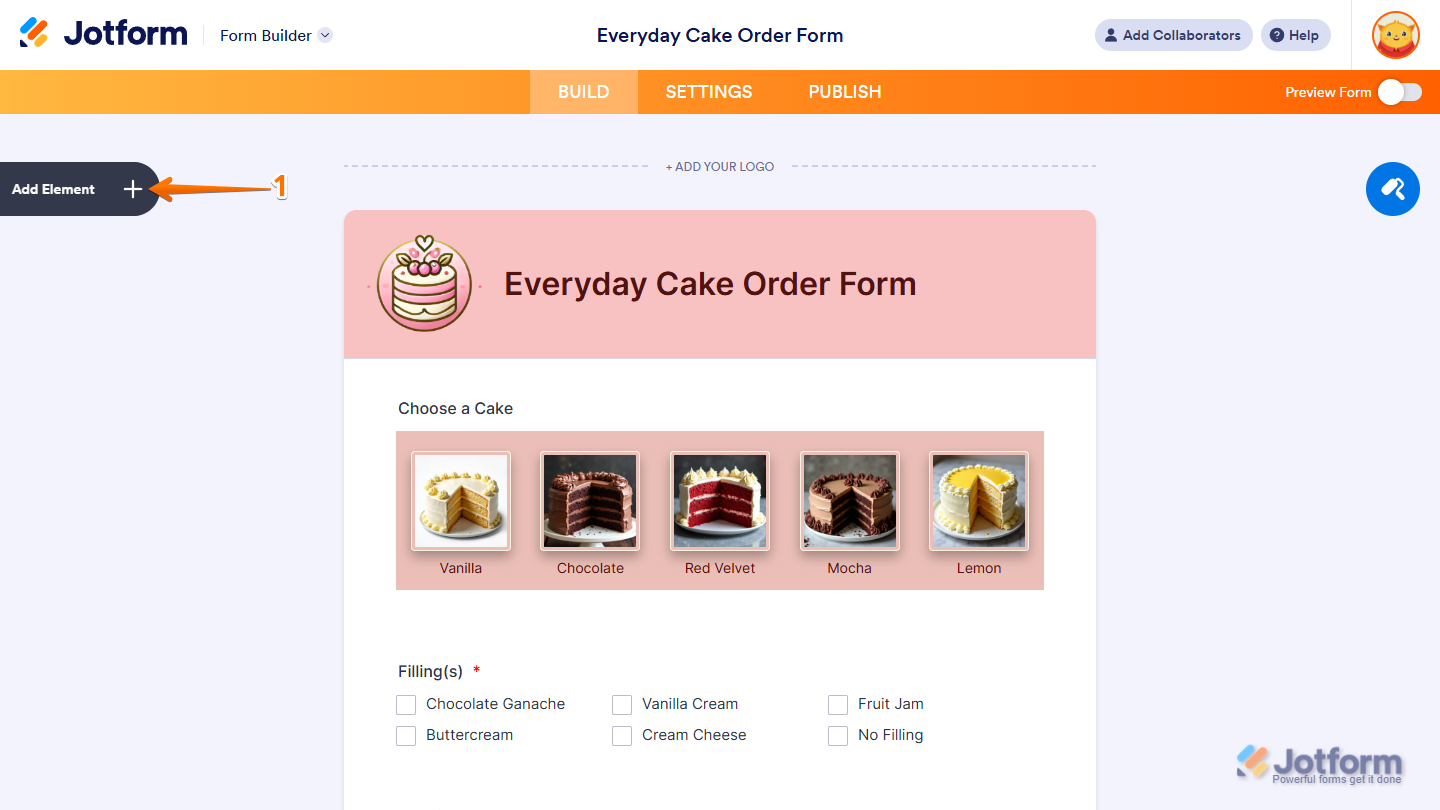
- In Form Builder, click on Add Element on the left side of the page.
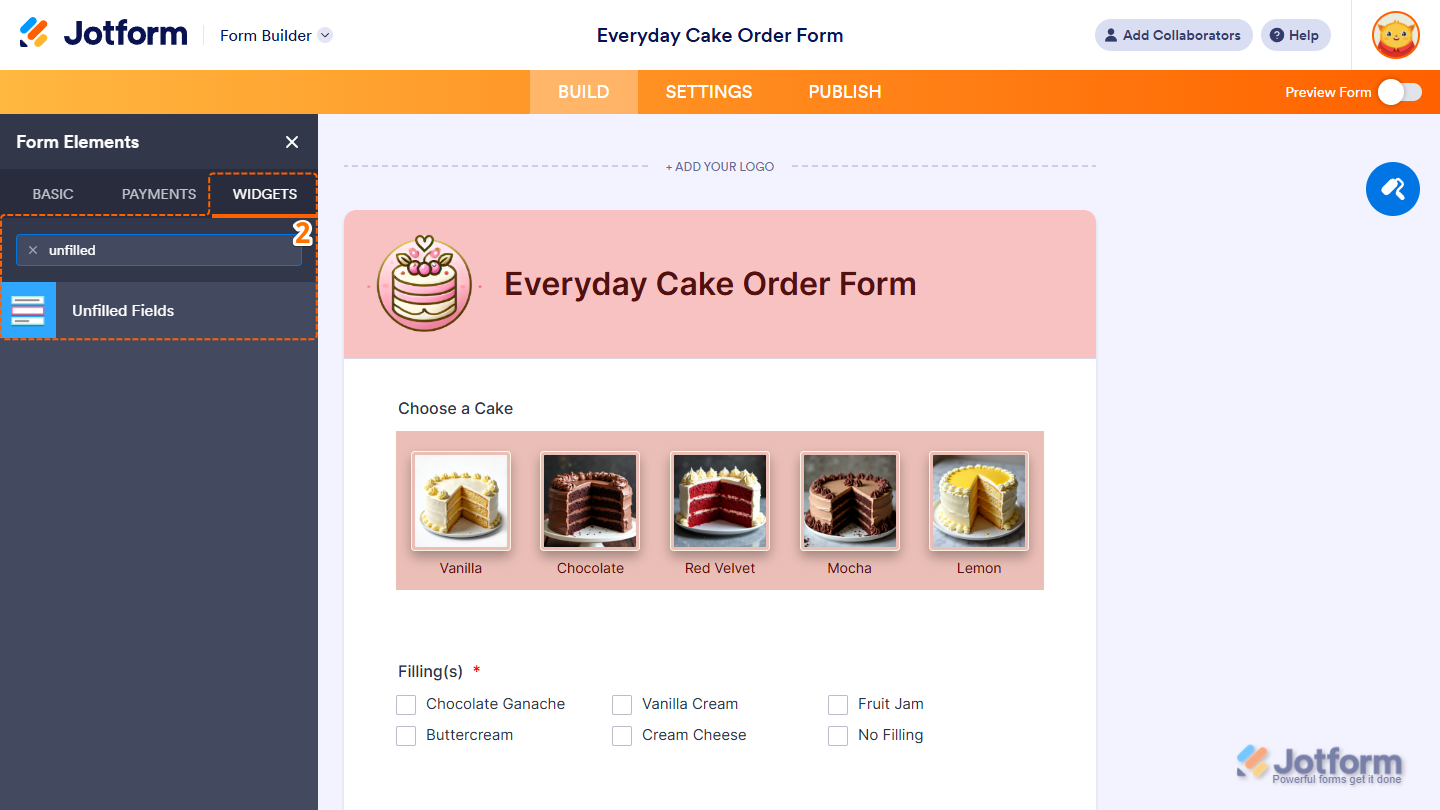
- Now, in the Form Elements menu, under the Widgets tab, search for Unfilled Fields and click on it. Or, just drag and drop it to where you want it to be on your form.
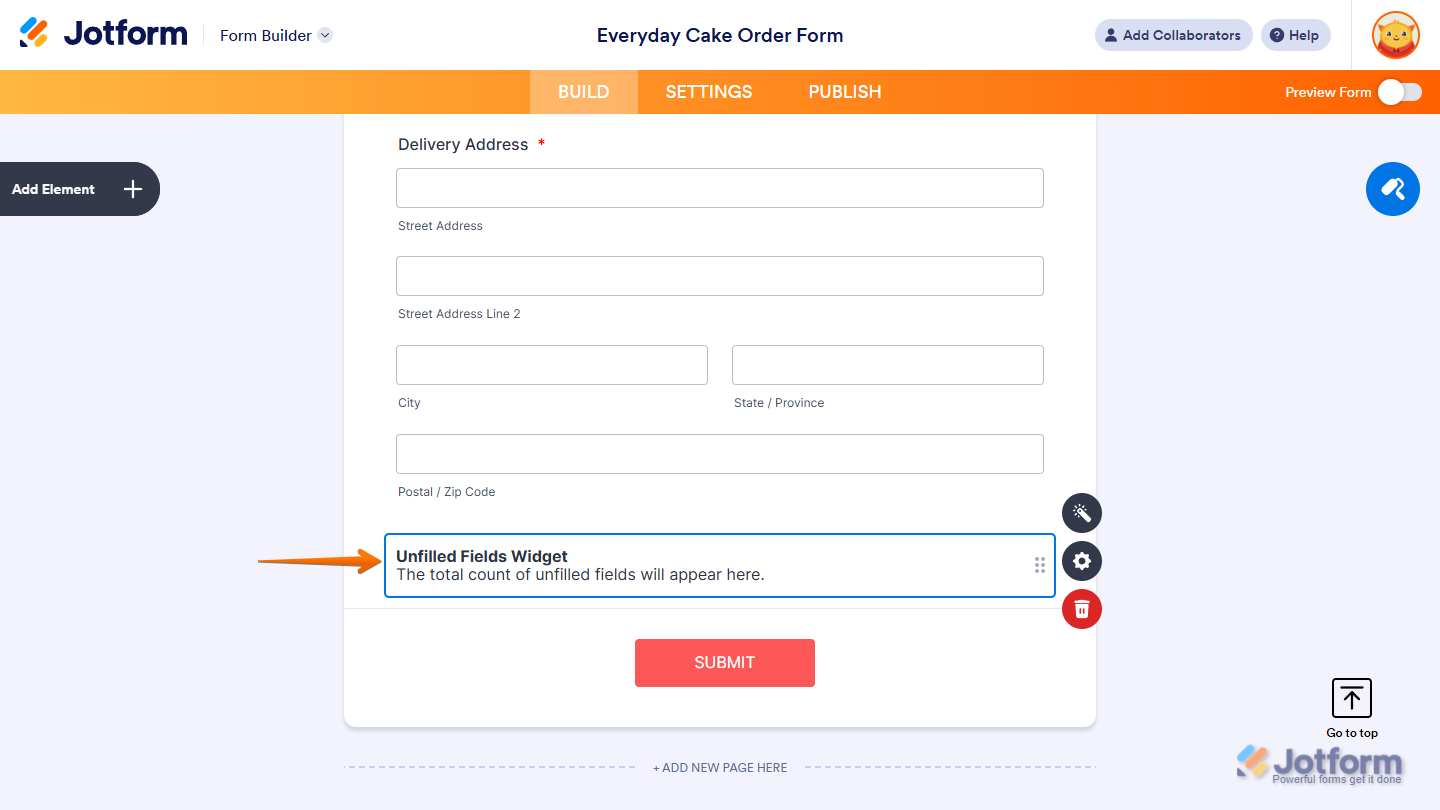
That’s it. You’ve successfully added the Unfilled Fields widget to your form.
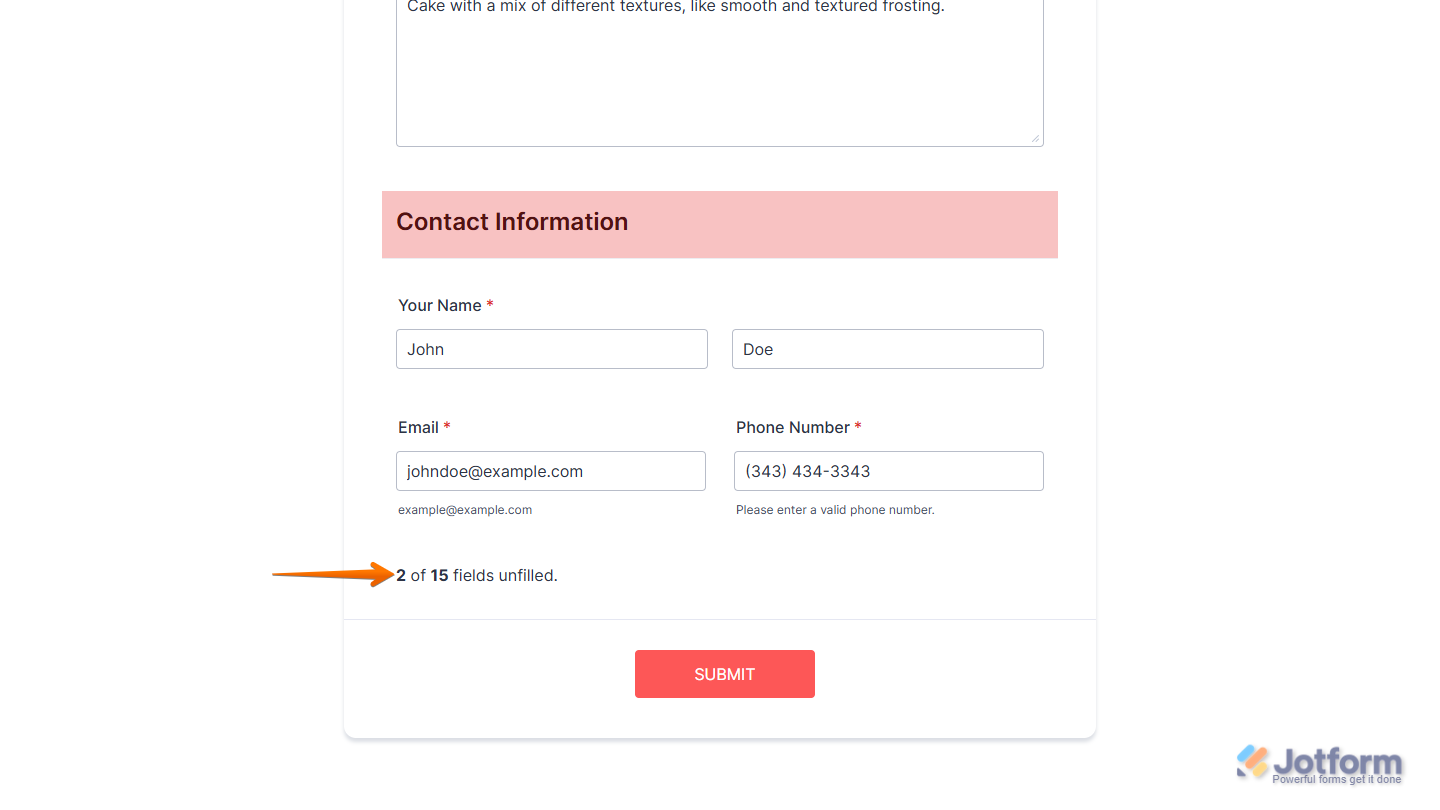
Now users can easily see how many fields are left to complete while filling out your form. Want to see how it works? Check out this live demo form.
Notes
- The Unfilled Fields widget isn’t available on the Card layout. Need help changing the layout? See our guide on How to Change Your Form Layout.
- You can also configure the widget properties, like alignment, labels, size, visibility, and more, to control how it looks and behaves on your form. Check out our guide on How to Access and Configure the Question Properties of a Widget to learn more.

Send Comment: