Jotform makes it easy to create apps that help streamline workflows, share information, collect data, and support everyday tasks. With Jotform’s AI App Builder, you can turn simple prompts into ready-to-customize apps, allowing you to generate layouts, features, and content that align with your goals in just a few moments.
Whether you’re building an app for your business, organization, team, or community, AI App Builder helps speed up the creation process and gives you a solid starting point to work from. Instead of starting with a blank canvas, you can focus on refining and personalizing your app to create an experience that meets your needs.
Creating an AI-Generated App From Your Workspace Page
Turn your idea into an app by describing what you want with AI App Builder. Follow these quick steps to get started:
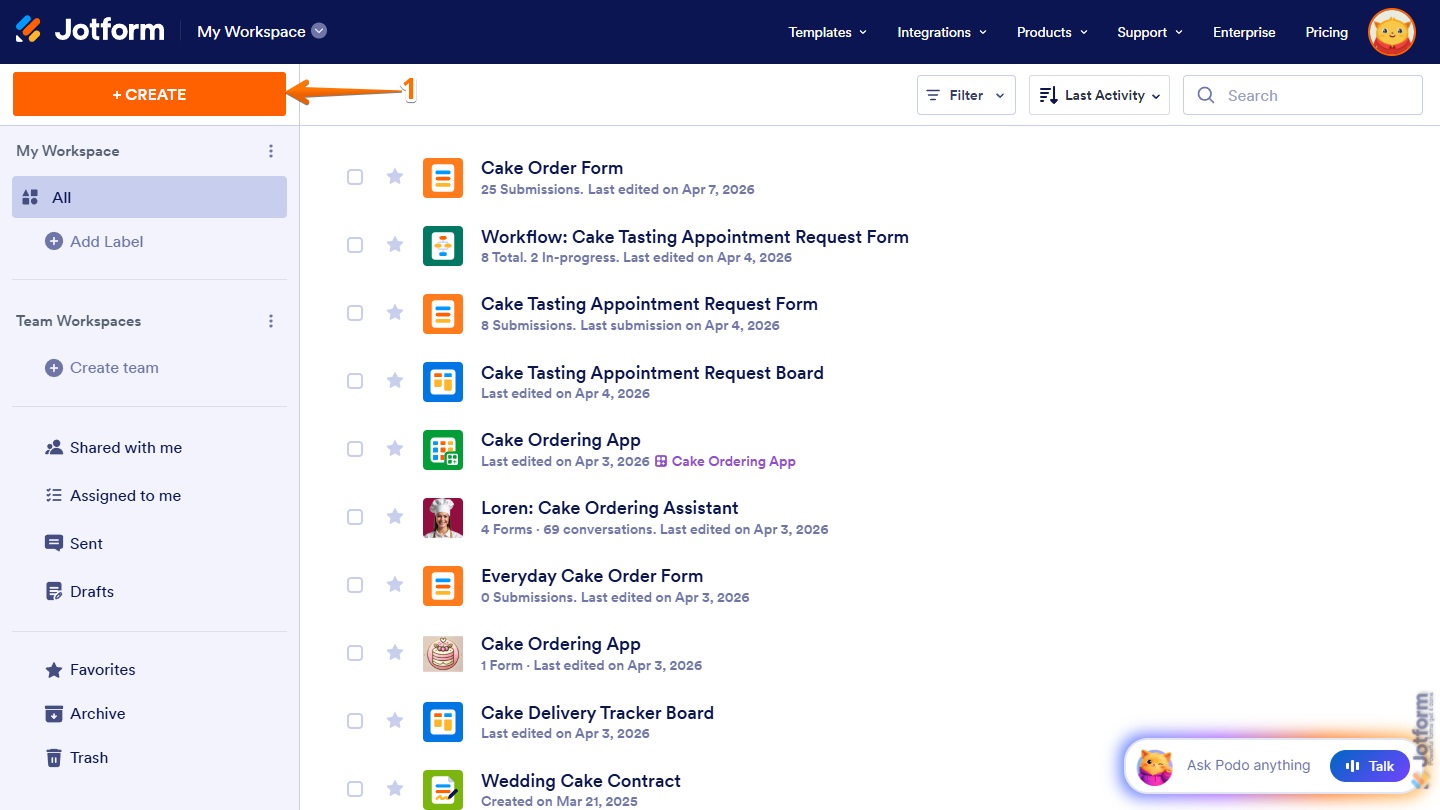
- On the top-left side of your Workspace page, click on Create.
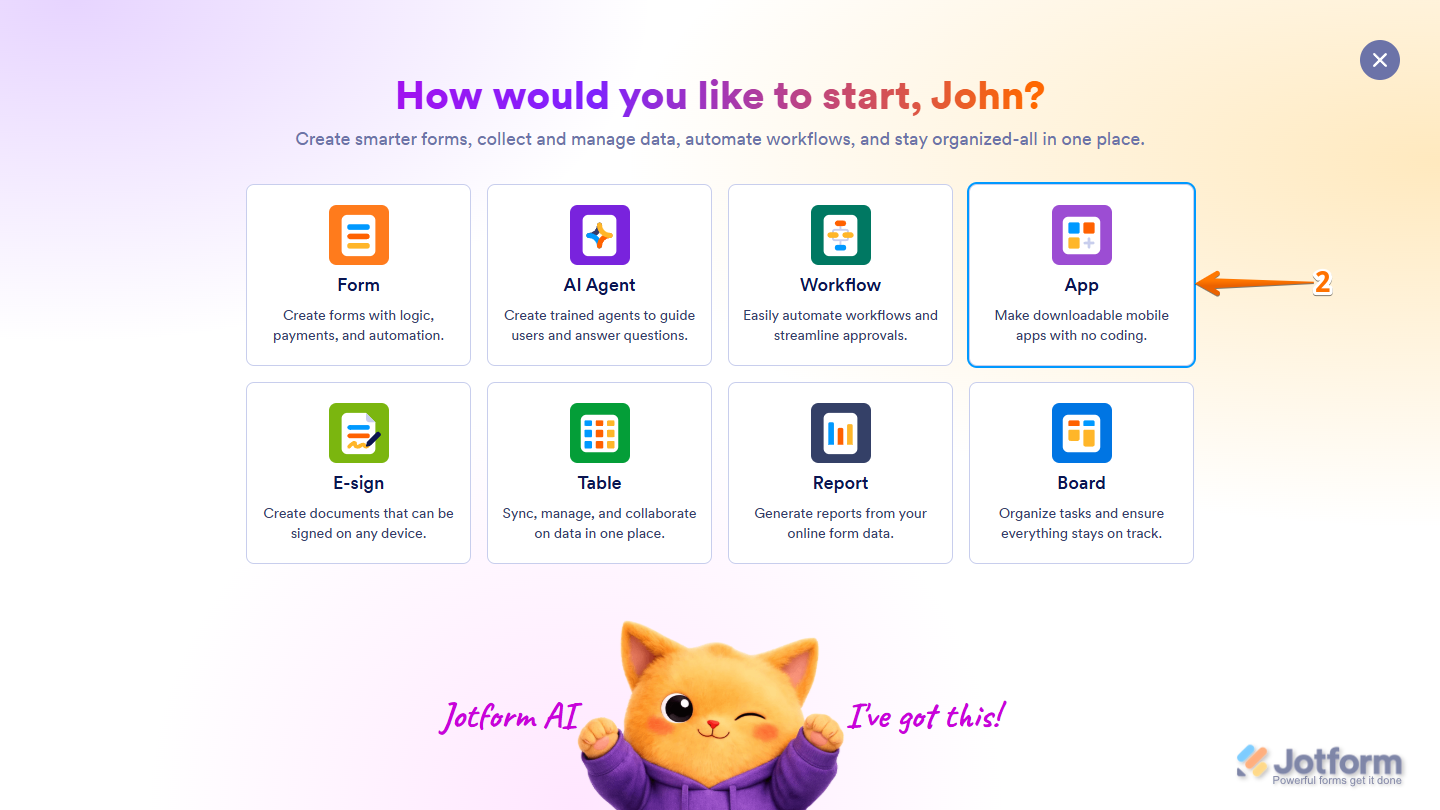
- Then, in the window that opens up, click on App.
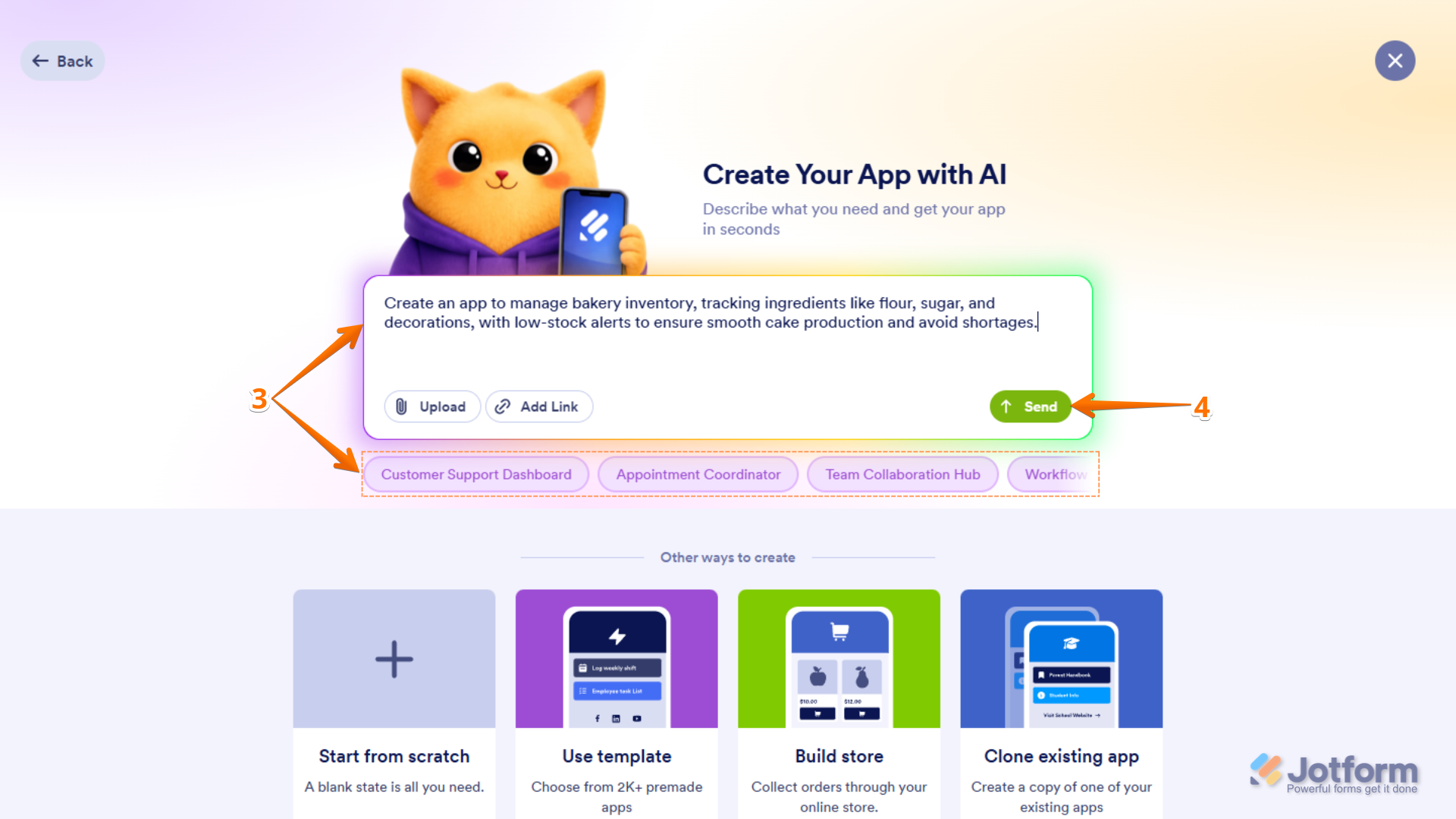
- Now, in the Prompt box in the middle of the page, enter a description of the app you want to create, or click on one of the buttons below it for a predefined one.
- Once you’re done, click on Send or press the Enter key on your keyboard.
Note
If you’d rather use voice for your prompts, just click on Talk on the right side of the Prompt box, then allow permission for your browser to access your device’s microphone. You’ll find more info in our guide on How to Build and Edit Your App Using Voice Commands with AI App Builder.
That’s it. This creates an app based on what you wrote and starts generating it on the AI Creation page, where you can see its preview and track its progress.
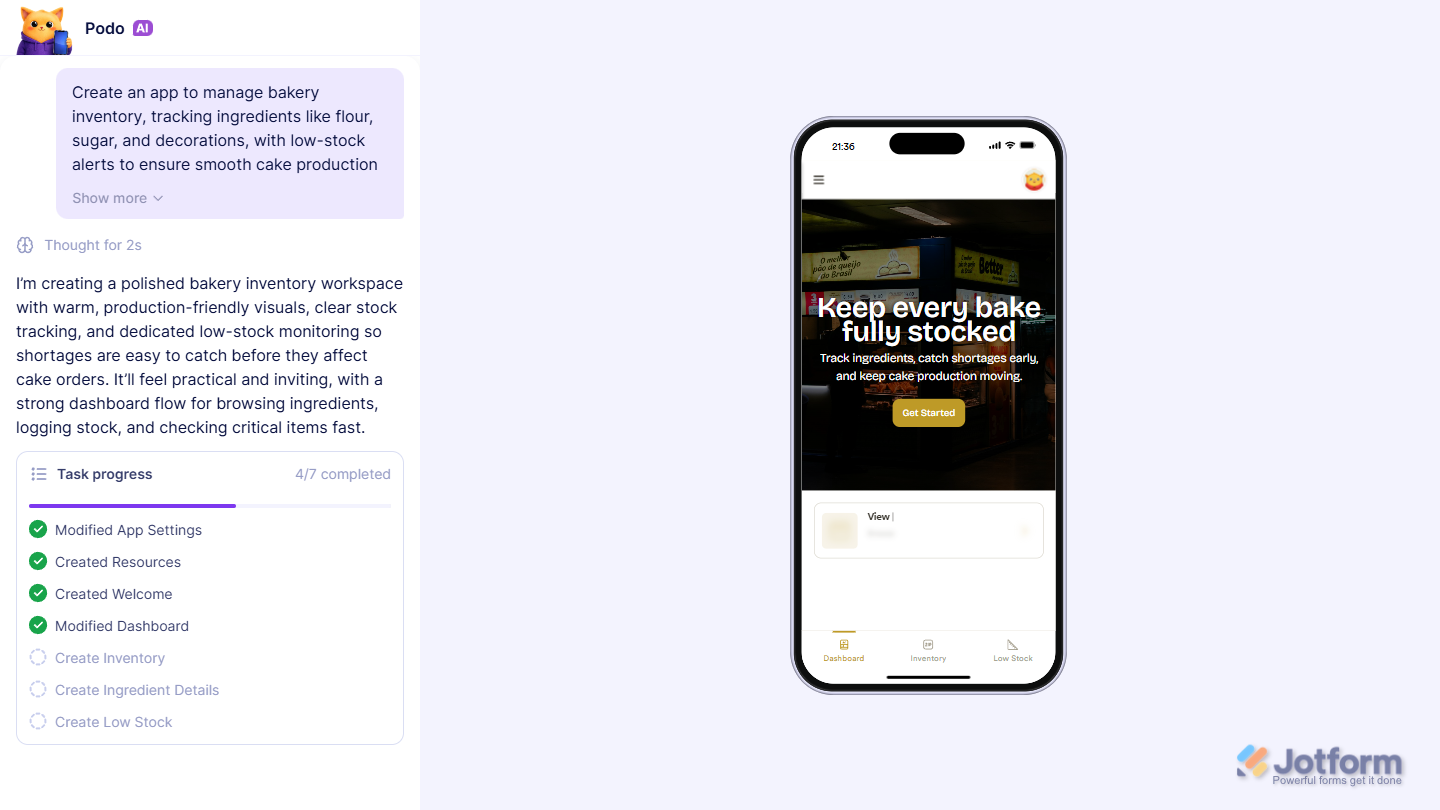
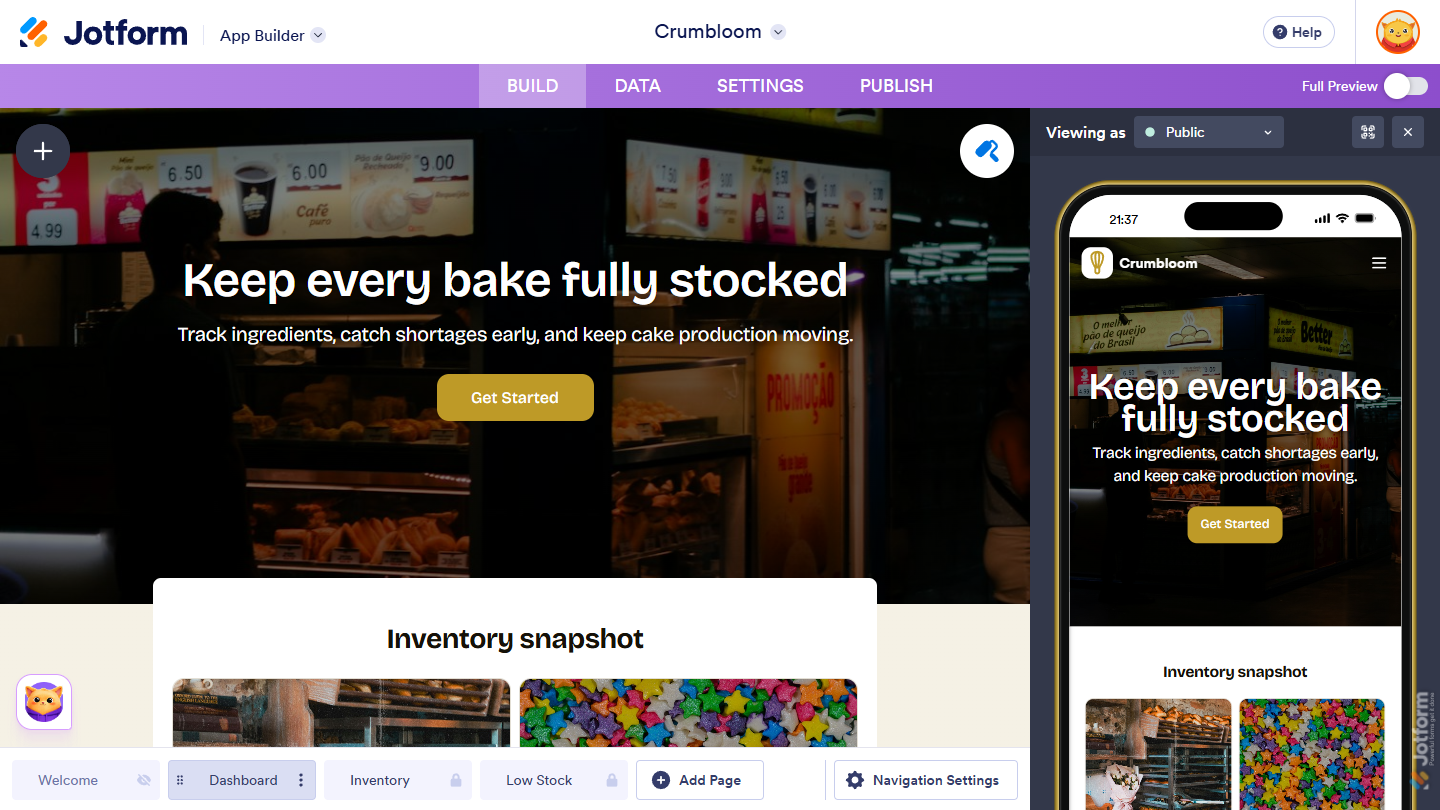
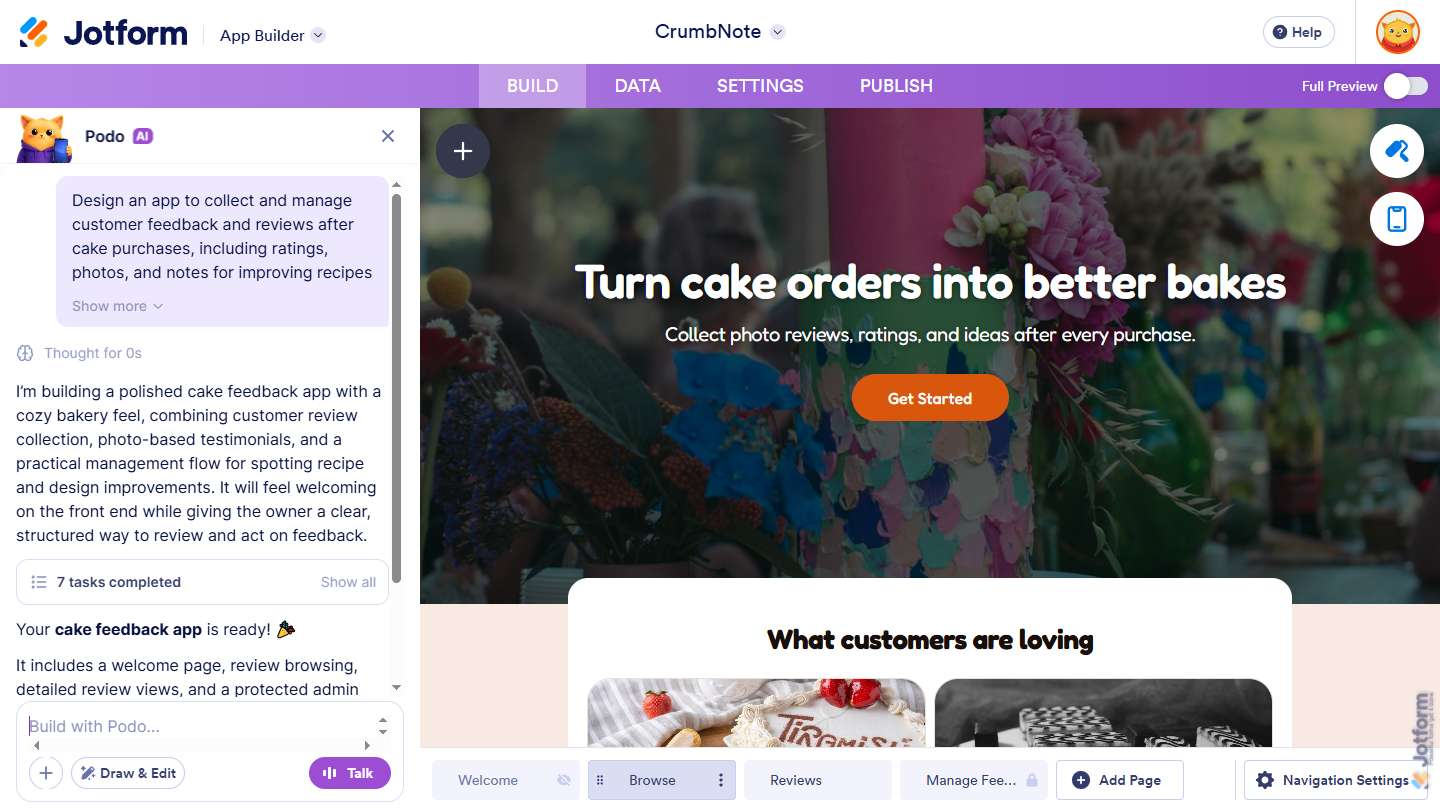
Once complete, you’ll be taken to App Builder, where you can continue working on your app.
Want to explore more ways to build and improve your app? Here are some helpful guides:
- How to Add New Elements in Jotform Apps
- How to Add Widgets to Your App in Jotform Apps
- How to Use Actions in Jotform App Builder
Building an AI-Generated App in App Builder
You can start building your app from scratch using AI App Builder by sharing your idea through chat. Here’s how to do it:
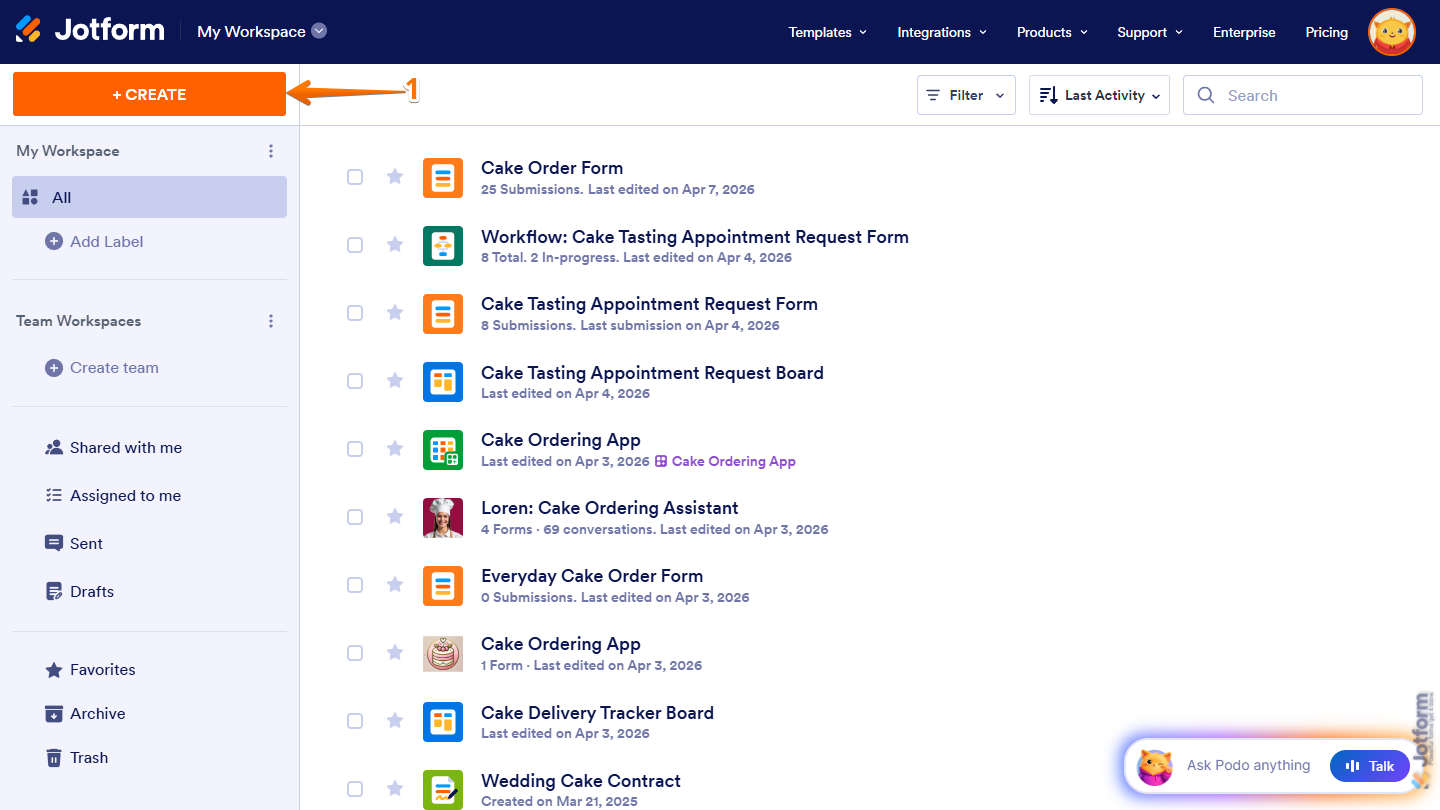
- On the top-left side of your Workspace page, click on Create.
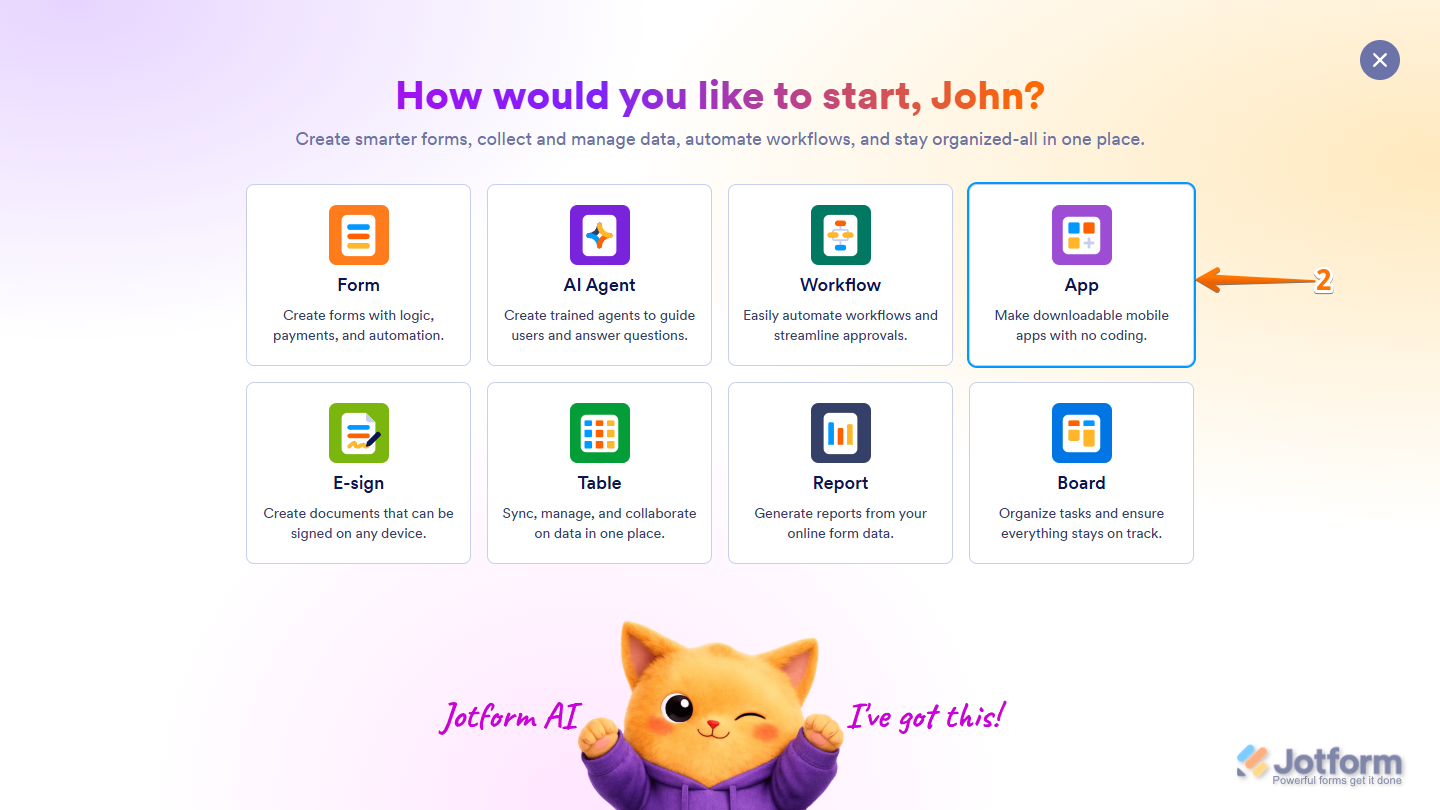
- Then, in the window that opens up, click on App.
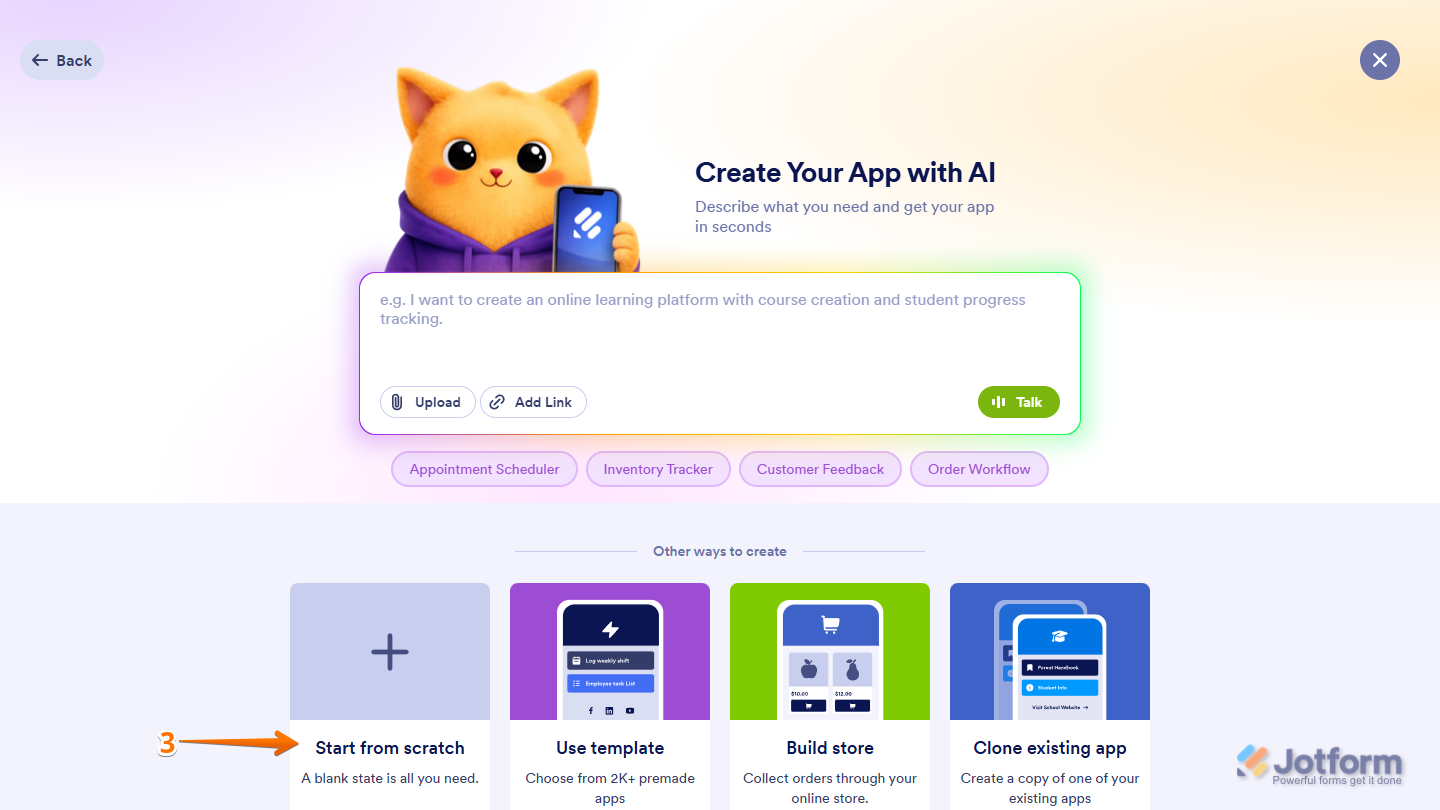
- Next, click on Start From Scratch to begin with a blank app.
- In the App Copilot AI chat window that opens automatically on the left side of App Builder, select a predefined suggestion below the welcome message to instantly generate and send a prompt to build your app.
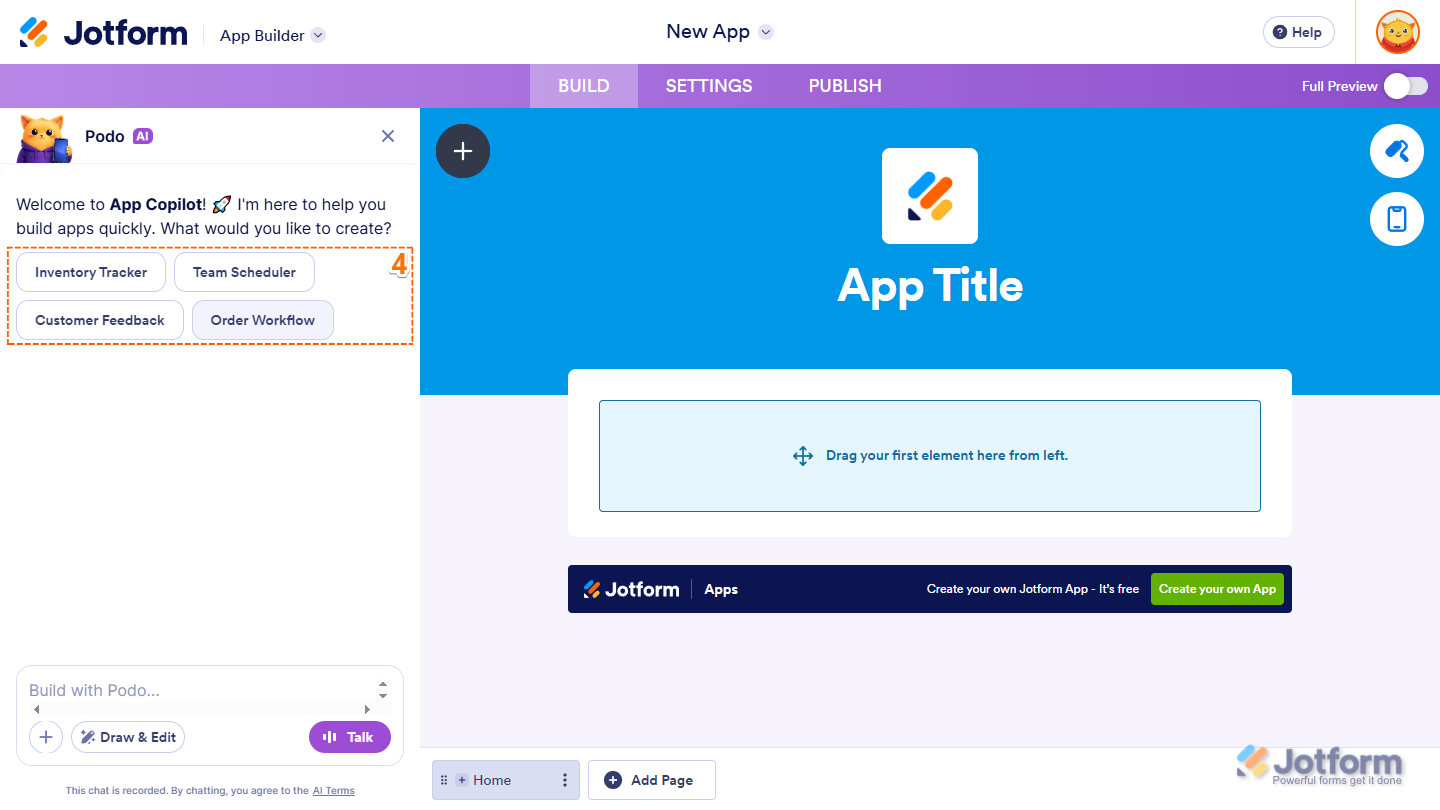
- To describe the app you want to create instead, enter its details in the chat box at the bottom of the window.
- When everything looks correct, press the Enter key on your keyboard or click on the Upward Arrow icon on the right.
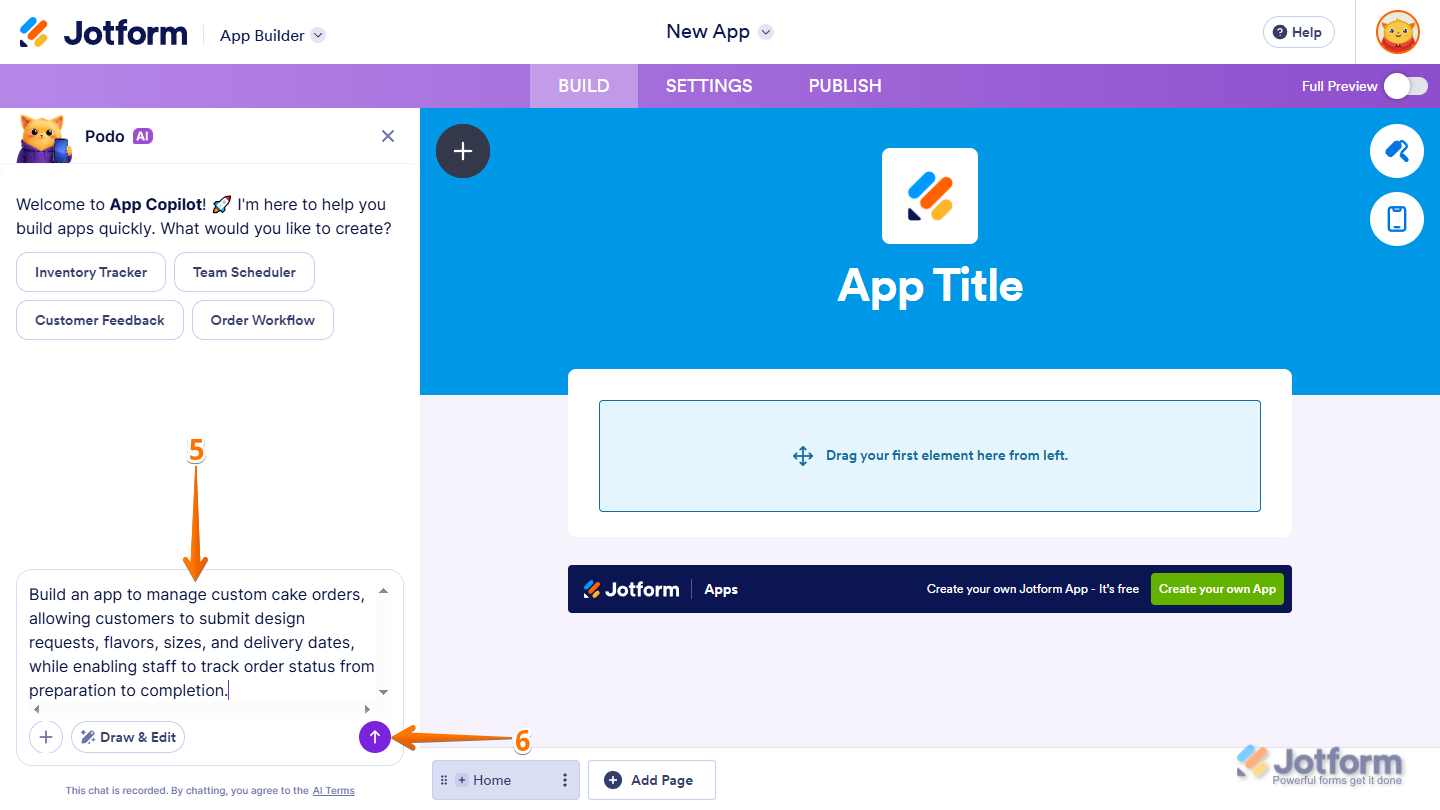
That’s it. You’ll see your app being created automatically in real time, and once it’s done, you can make any necessary changes manually or use the App Copilot AI chat window. Take a look at our guide on How to Modify Apps Using AI App Builder for more details.
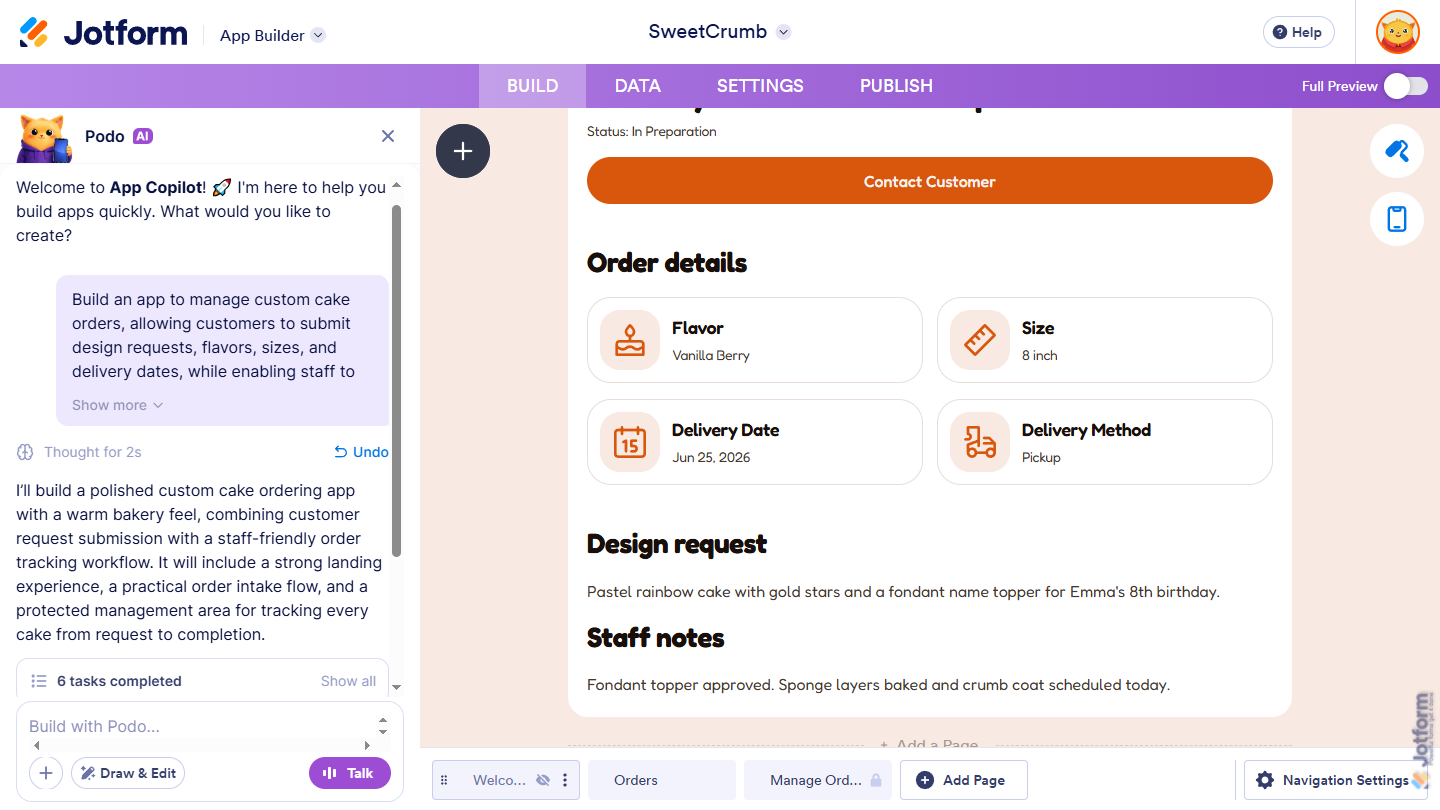
Using the AI App Generator
You can also quickly create an app using the AI App Generator. Here’s what to do:
- Go to the Jotform AI App Builder page, then in the Prompt box in the middle of the page, enter a description of the app you want to create, or click on one of the buttons below it for a predefined one.
- After confirming everything’s accurate, click Send or press the Enter key on your keyboard.
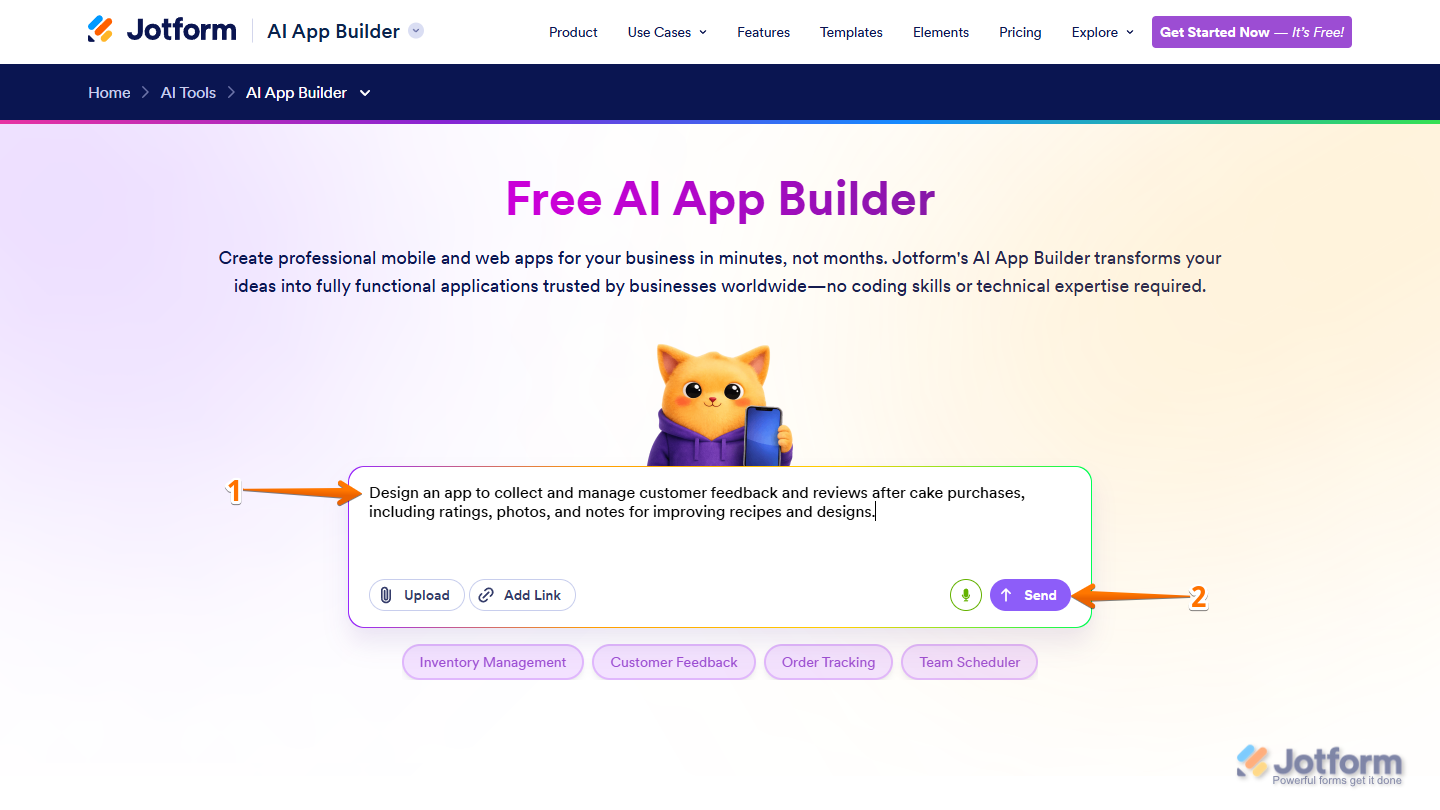
That’s it. Your app will be generated on the AI Creation page, where you can track its progress while it’s being built.
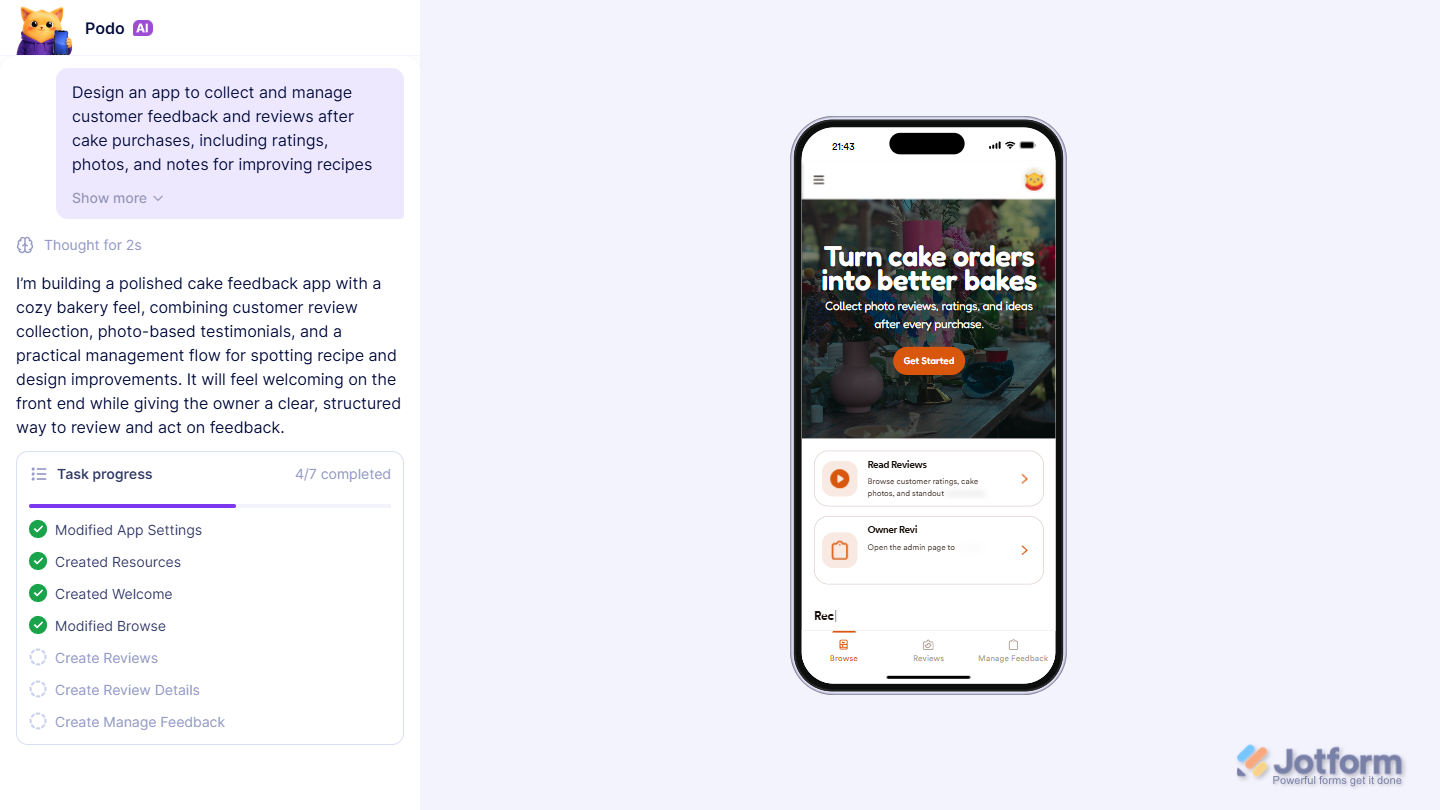
When it’s ready, your app will open in App Builder, where you can make additional changes if needed.
Pro Tips
- The more specific your prompt is, the better your results will be. Adding details helps the AI generate more accurate and relevant content for your needs.
- Before your app goes live, take a moment to review and edit it. A quick check helps ensure everything looks correct and polished. Take a look at our guide on How to Preview and Share Your App with AI App Builder for more details.
- You can also create apps using the AI App Builder by uploading files or adding URLs. To learn more, check out our guide on How to Create an App from a URL or Document Using AI App Builder.

Send Comment: