Tables provides a flexible solution for organizing and managing data with customizable columns, filters, and view options. In addition to structuring and analyzing form submissions, it offers a convenient way to access and download signed documents directly. While the Sign Inbox remains an option for managing these files, Tables lets you handle them alongside your other data, keeping everything centralized and accessible. This ensures you can efficiently manage both your submissions and signed documents in one organized space.
Accessing Sign Document Submissions in Tables
Sign Documents only provides access to the Sign Inbox. To view and manage your signed documents in Tables, follow these steps:
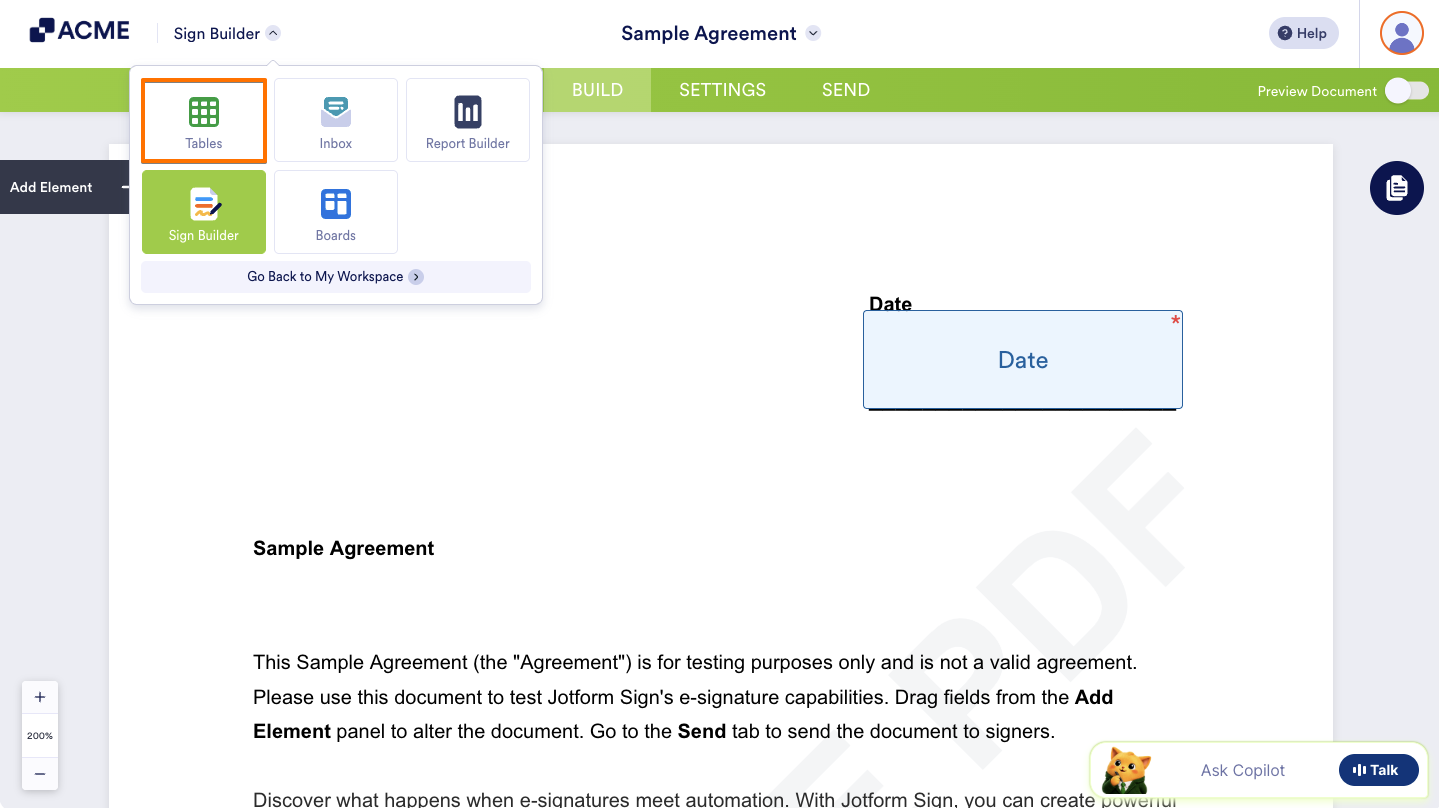
- In the Sign Builder, click on Asset Picker at the upper left side of the page.
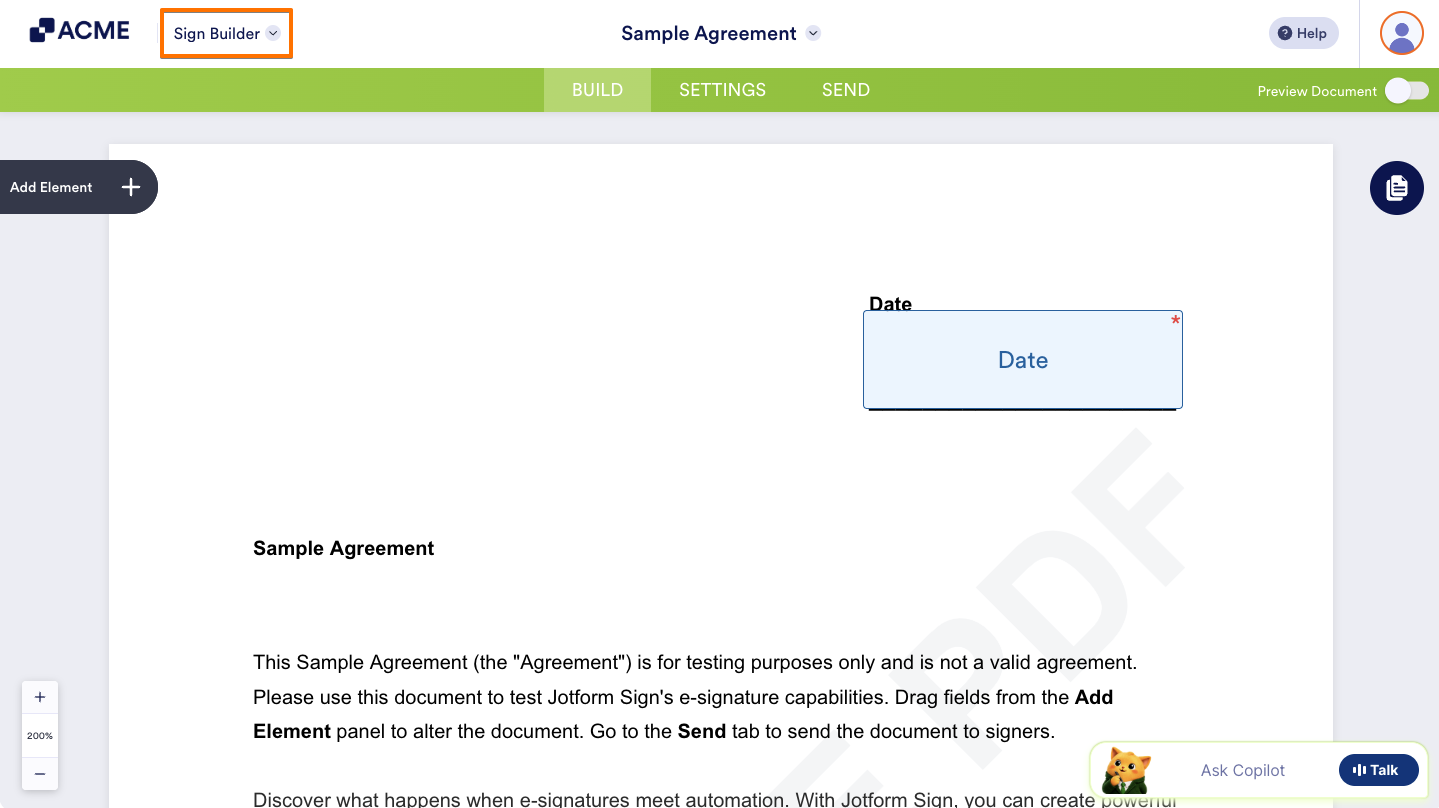
- Then, select Tables from the list.
Downloading Signed Documents
To download your signed documents in Tables, follow these steps:
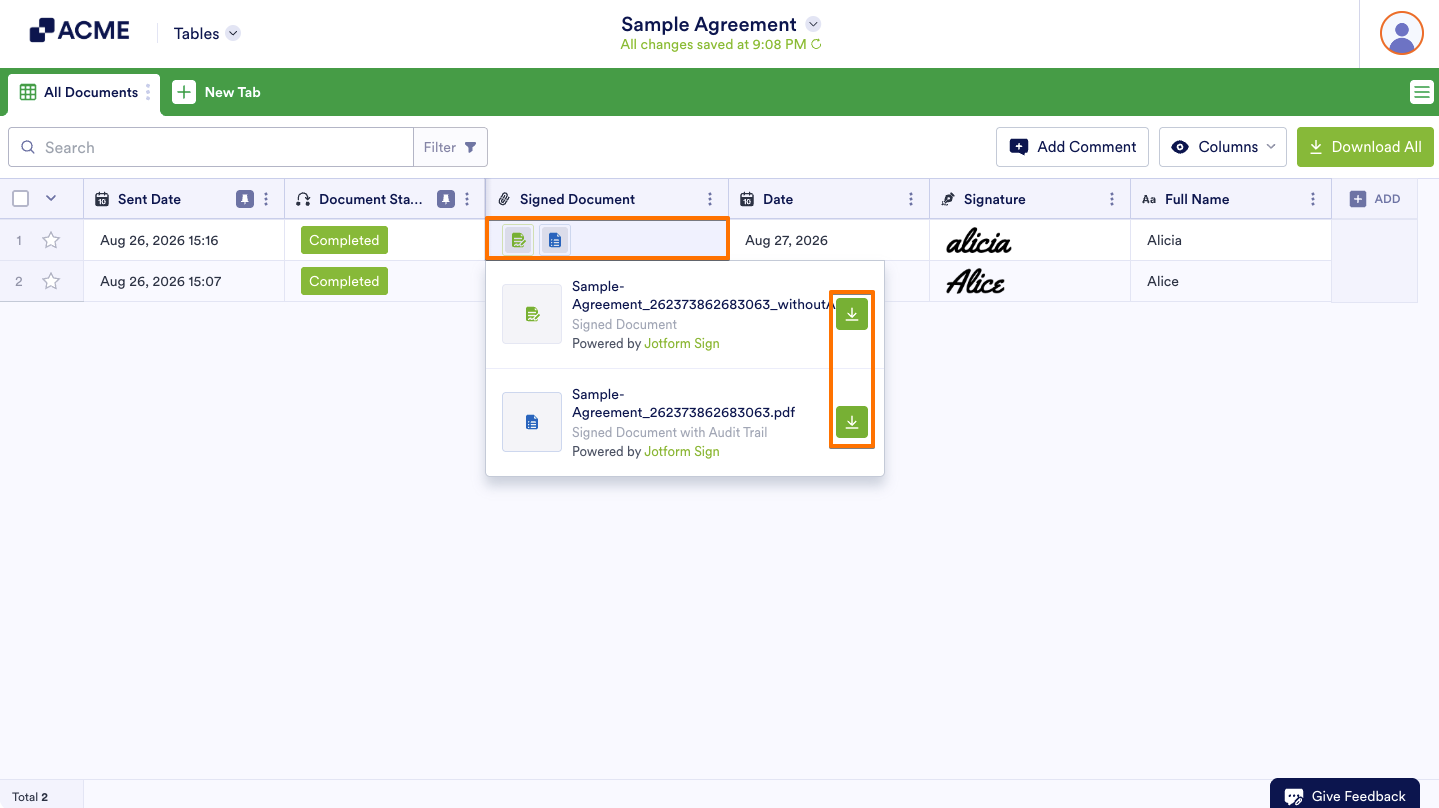
- In Tables, click on a cell under the Signed Documents column to open the list of signed documents available for download associated with that submission.
- In the list, click on the green Download icon on the right of a document to download the PDF copy to your device.
- The document with the green Checked Document icon refers to a Signed Document without an Audit Trail.
- The document with the blue Document icon refers to a Signed Document with an Audit Trail.
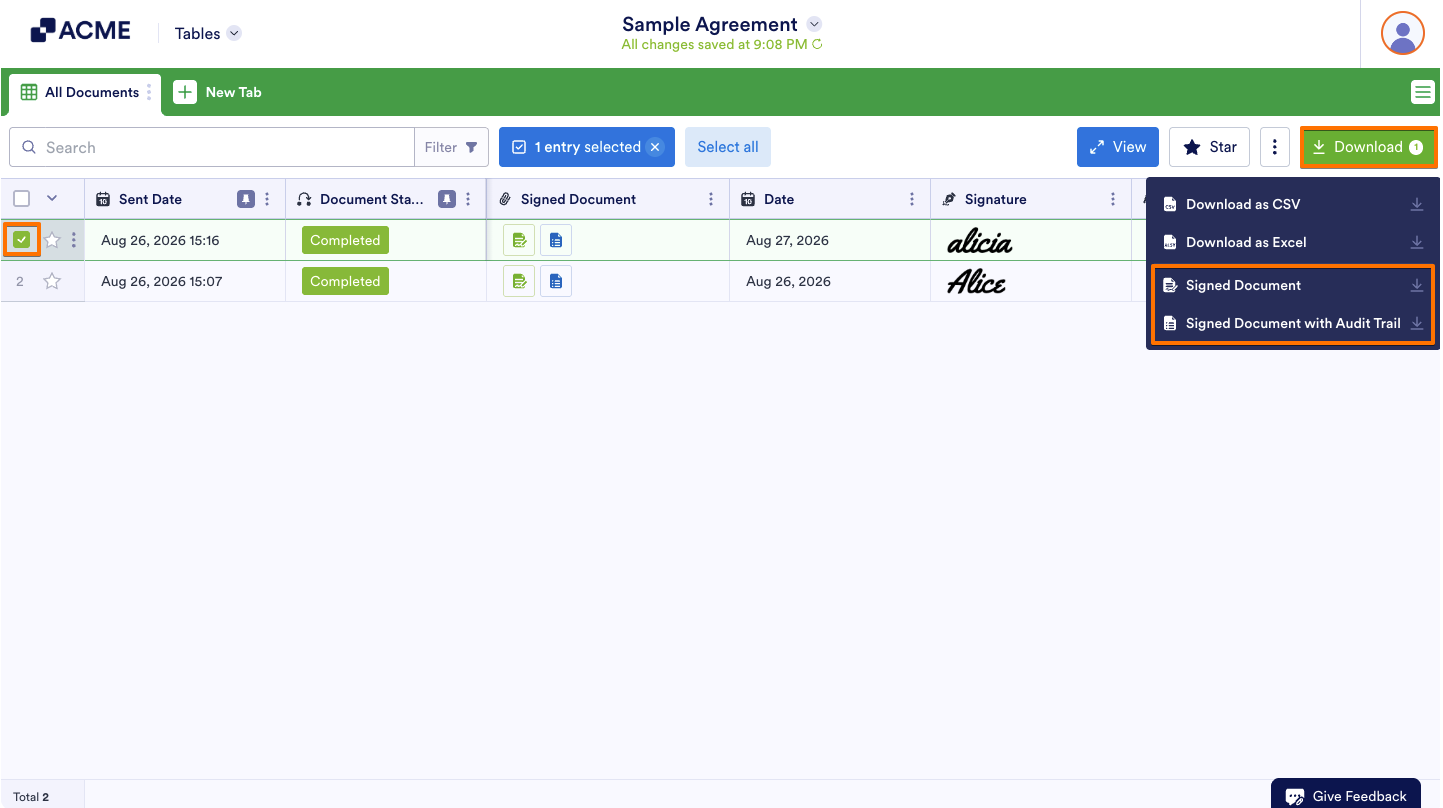
Alternatively, you can check the box on the left side of a submission and click on the Download button at the top. In the Download menu, select either the Signed Document or Signed Document with Audit Trail option.
Note
The Signed Document and Signed Document with Audit Trail options in the Download menu of Tables only appear when a single submission is checked.

Send Comment: