Weather information can be a valuable addition to many websites, helping visitors stay informed about current conditions and forecasts. Whether you’re running a travel site, event page, local business website, or community portal, a weather widget lets visitors check the forecast without leaving your site.
With Jotform’s Weather Widget, you can easily display real-time weather updates on your website without any coding knowledge. In this guide, you’ll learn how to customize the widget and embed it on your website.
Note
The Weather Widget displays weather information based on the location you select in the widget settings. Checking that the location details are accurate ensures visitors see the correct forecast.
Creating and Getting Your Weather Widget Embed Code
To add a Weather Widget to your website, you’ll first need to customize it and get its embed code. Here’s a quick walkthrough:
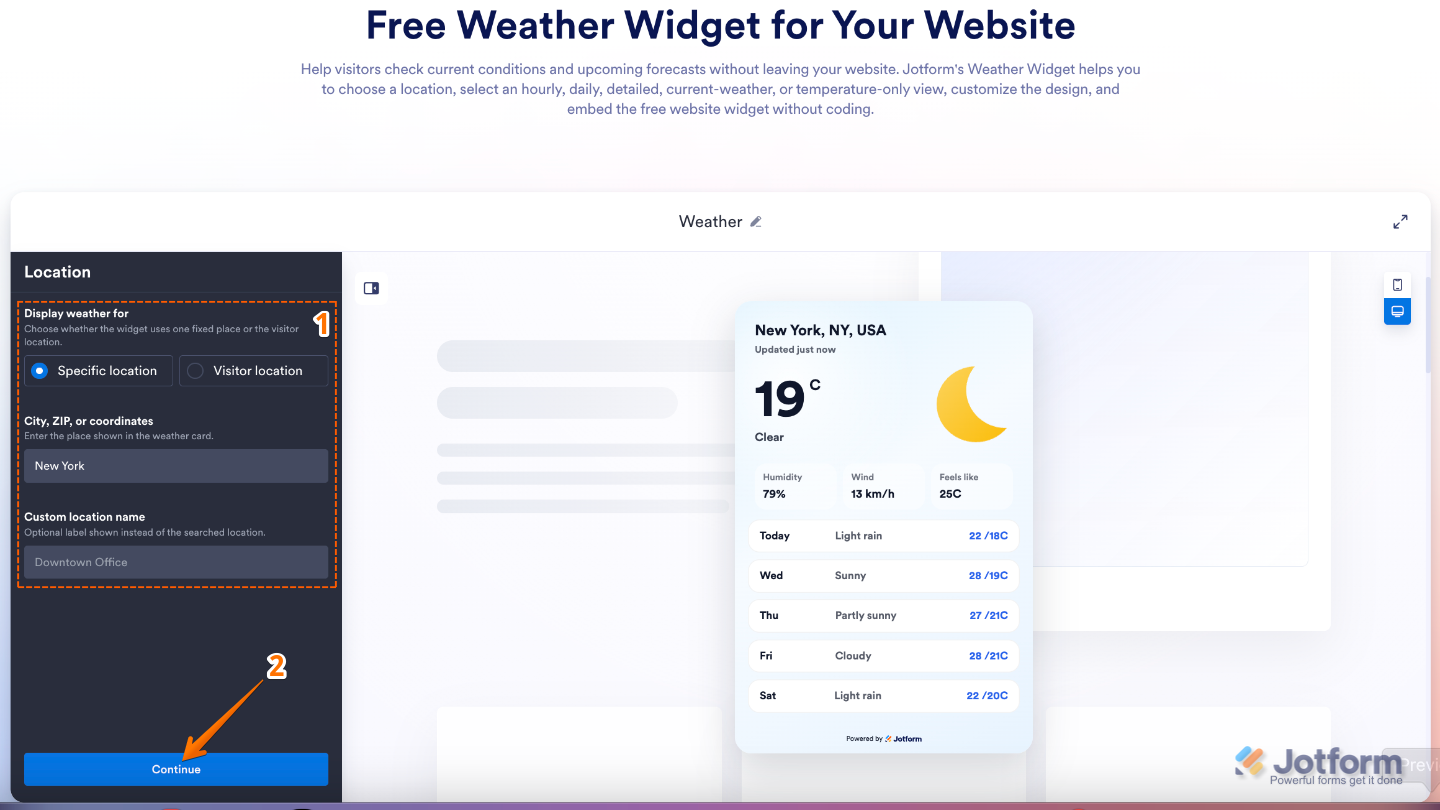
- Go to our Weather Widget page, and in the Location menu on the left, set up these things:
- Display Weather For — Select the location with the weather information you want the widget to display.
- City, Zip, or Coordinates — Enter a city name, ZIP/postal code, or geographic coordinates to specify the location for the weather forecast.
- Custom Location Name — Replace the name of the default location with your own custom label to make the widget more relevant to your audience.
- Then, click on Continue.
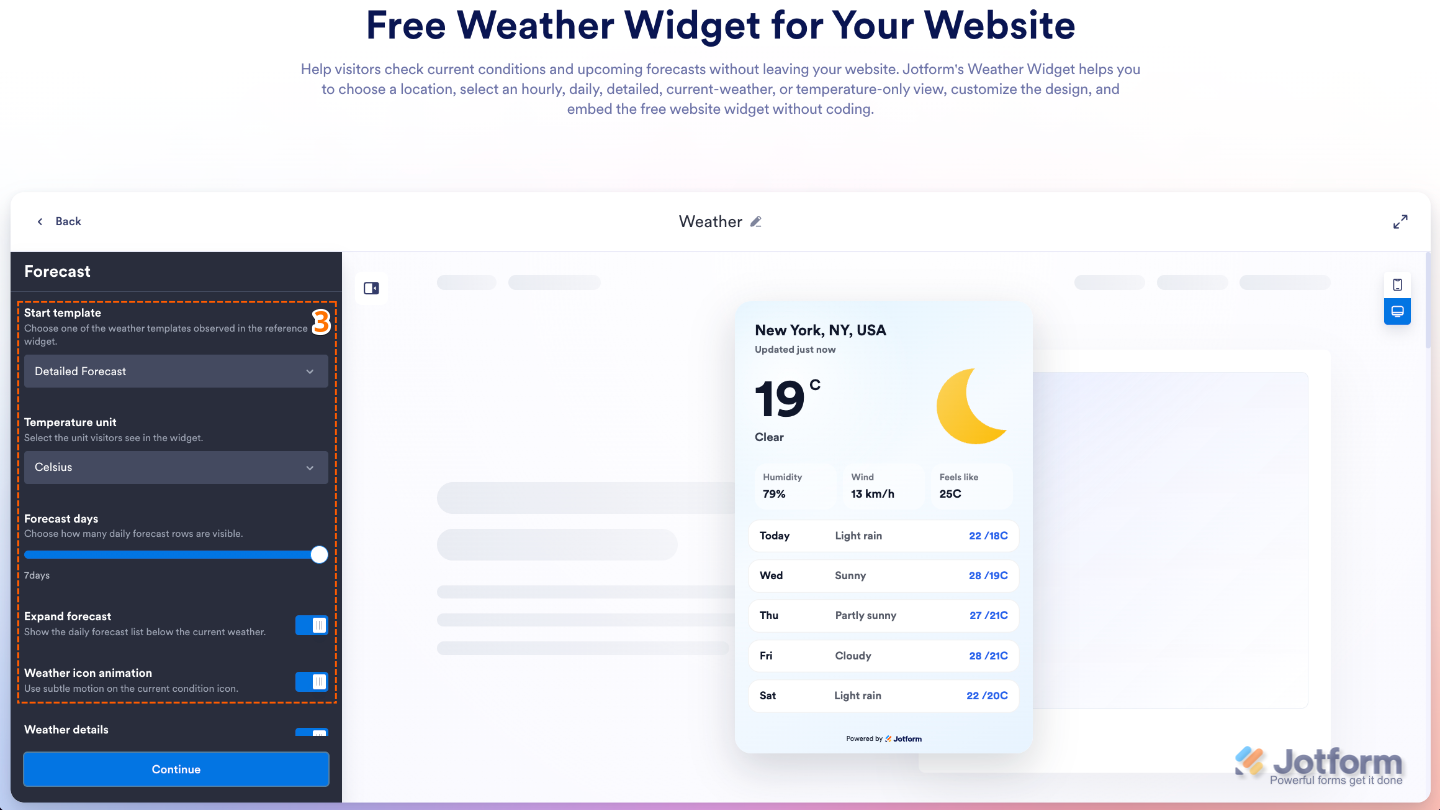
- Next, under the Forecast menu, customize these things:
- Start Template — Choose the default layout and style used to display the weather information when the widget loads.
- Temperature Unit — Select whether temperatures are displayed in Celsius (°C) or Fahrenheit (°F).
- Forecast Days — Choose how many days of weather forecast information to show in the widget.
- Expand Forecast — Display an expanded forecast view by default, allowing visitors to see more weather details without needing to interact with the widget.
- Weather Icon Animation — Enable animated weather icons to make the widget more visually engaging and dynamic.
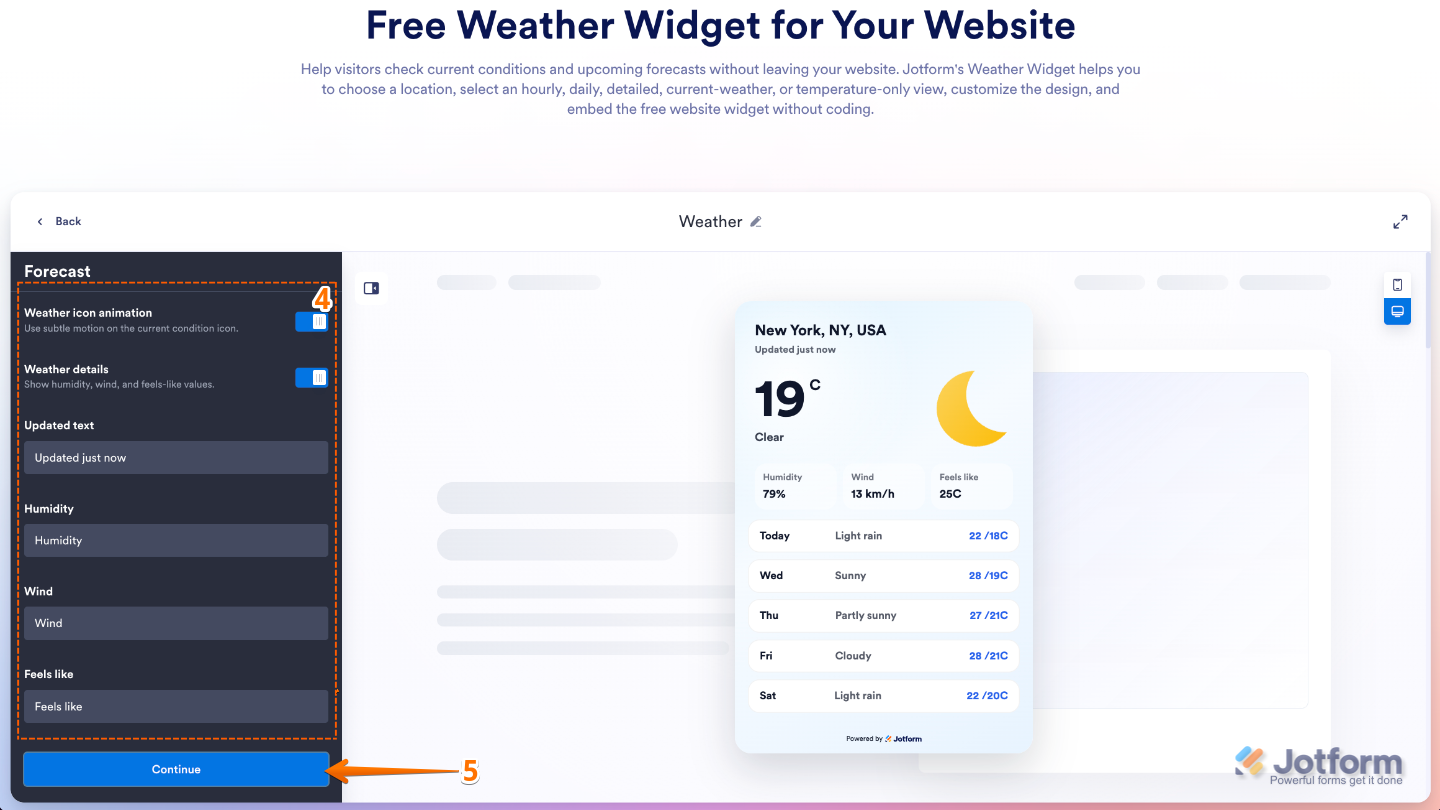
- Then, scroll down to the bottom and continue to configure these things:
- Weather Details — Choose which additional weather information to display, such as humidity, wind conditions, and the “feels like” temperature, helping visitors get a more complete view of the forecast.
- Humidity — Display the current humidity level for the selected location.
- Wind — Show current wind conditions, including wind speed and direction when available.
- Feels like — Display the perceived temperature based on factors such as humidity and wind, helping visitors understand how the weather actually feels.
- Updated Text — Show a timestamp indicating when the weather information was last refreshed.
- Weather Details — Choose which additional weather information to display, such as humidity, wind conditions, and the “feels like” temperature, helping visitors get a more complete view of the forecast.
- After that, click on Continue.
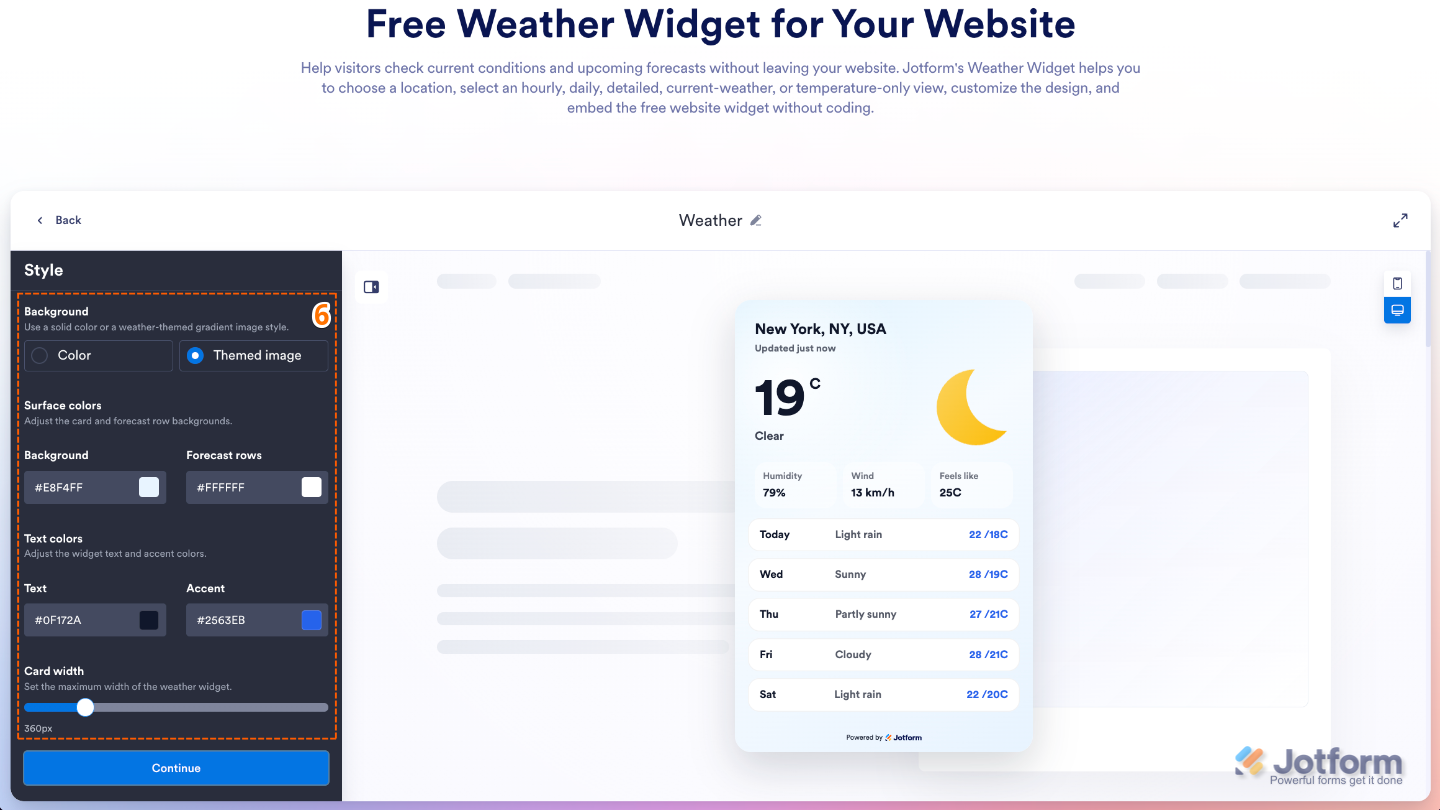
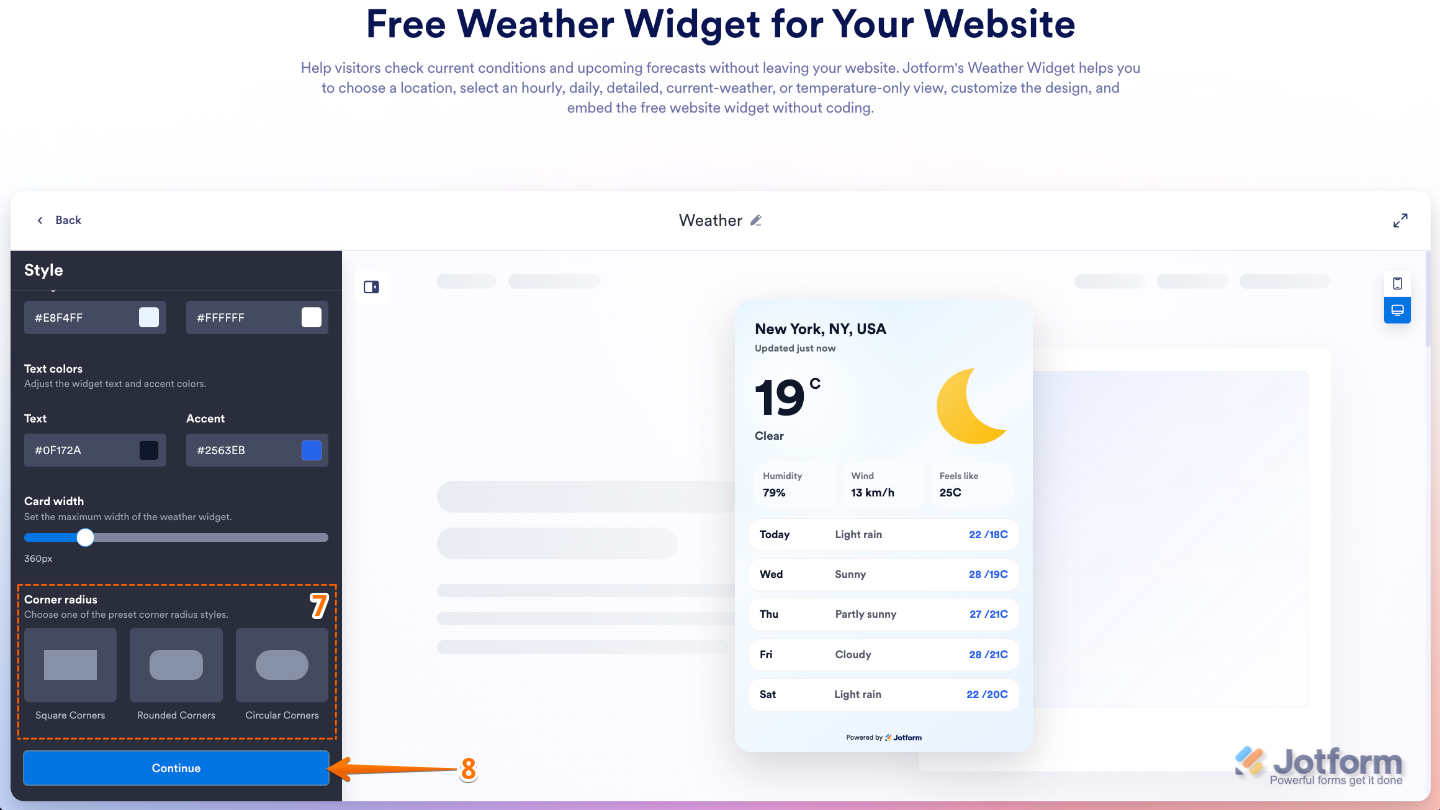
- Now, in the Styles menu, configure these settings:
- Background — Customize the overall background color or appearance of the widget.
- Surface Color
- Background — Set the color used for the widget’s main content area.
- Forecast rows — Customize the background color of the forecast rows to improve readability and match your website’s design.
- Text Colors
- Text — Choose the color used for the widget’s primary text and weather information.
- Accent — Set the color for highlighted elements, icons, and important details within the widget.
- Card width — Adjust the width of the widget to better fit your website’s layout and available space.
- After that, scroll down and set up the Corner Radius to control how rounded the widget’s corners appear, from sharp edges to a softer, more modern look.
- Once you’re done, click on Continue.
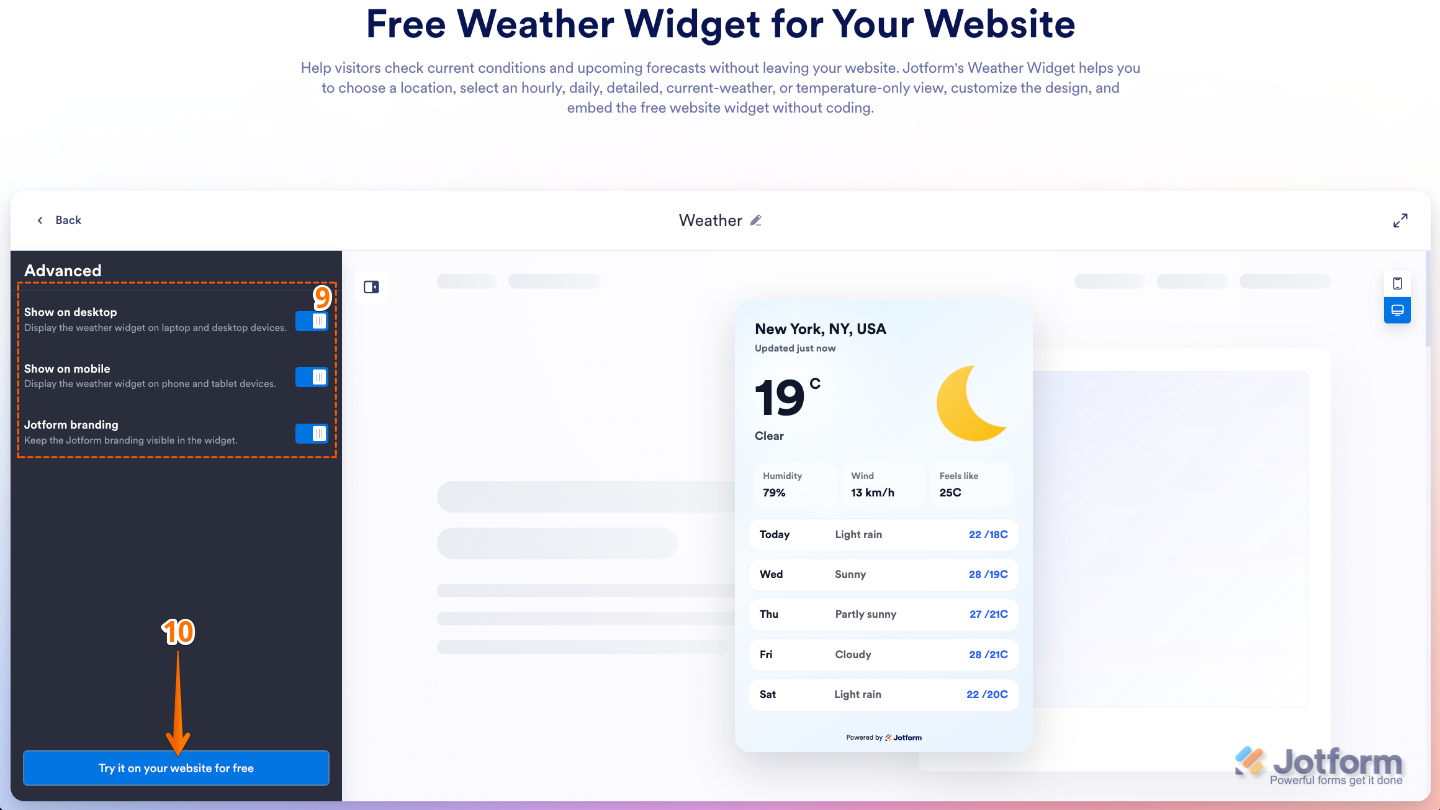
- In the Advanced menu, use any of these options:
- Show on Desktop — Choose whether the widget should be visible to visitors viewing your website on desktop devices.
- Show on Mobile — Choose whether the widget should be visible to visitors accessing your website on mobile devices.
- Jotform Branding — Show or hide Jotform branding on the widget, depending on your plan and preferences.
- Once everything’s set, click on Try it on your Website for Free.
Note
If you’re not logged in, you’ll be asked to log in to your Jotform account or sign up for one. Once you’ve done that, you’ll be able to get the embed code for your widget.
- Finally, in the Embed window that opens, click on Copy Code, and you’re done.
- Or, if your website is built on a supported platform, click on its icon in the bottom-left corner of the Embed window to view platform-specific embedding instructions.
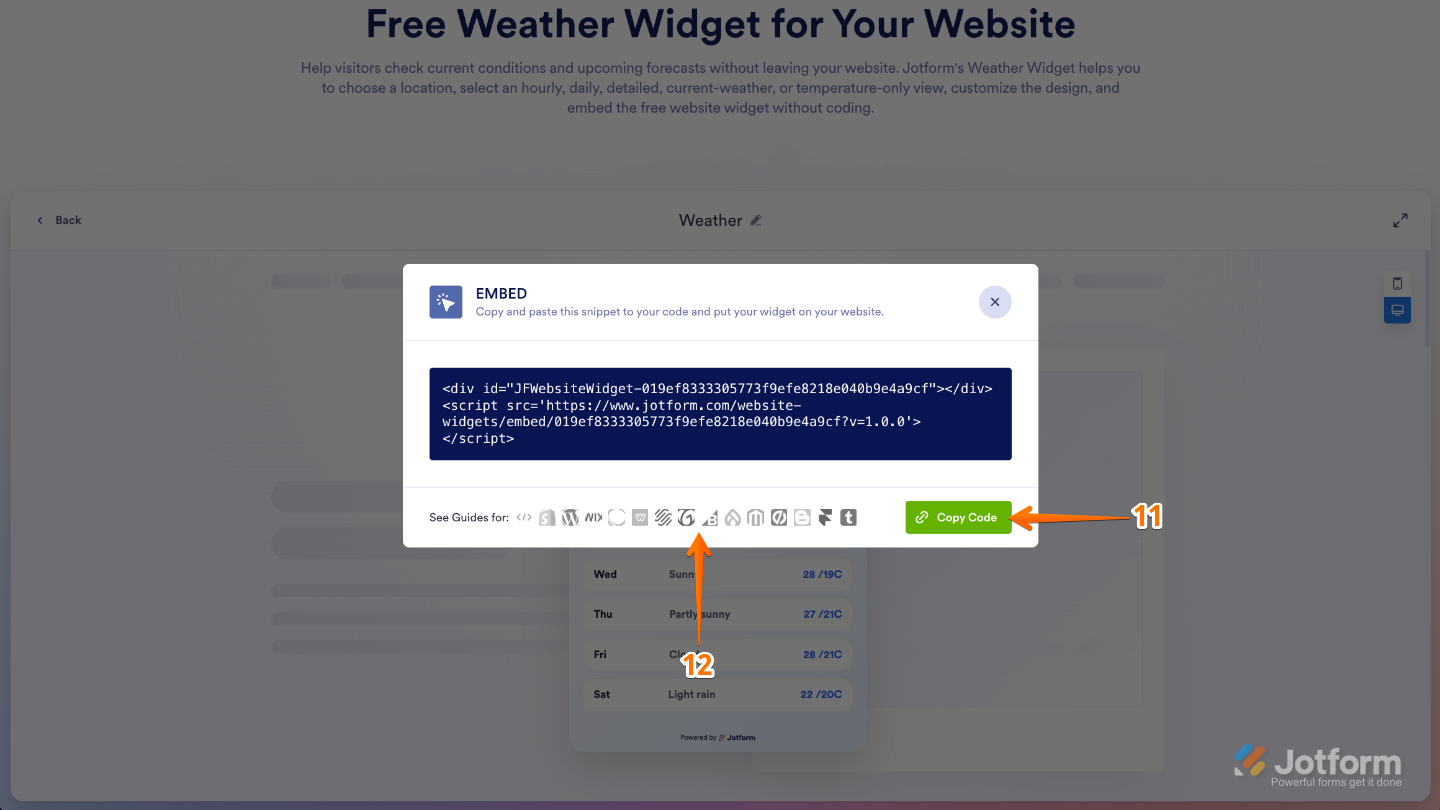
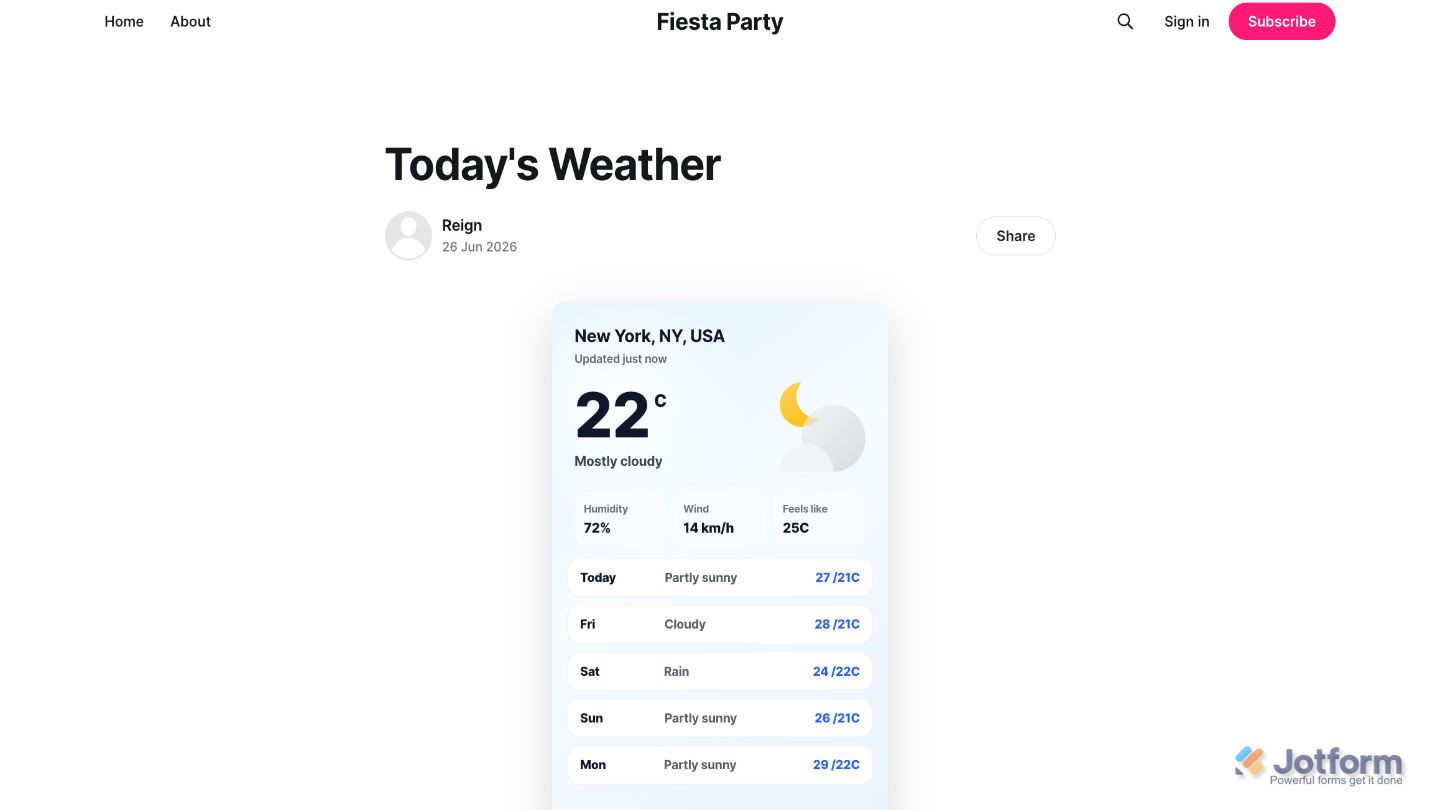
That’s it. Your Weather Widget is now ready to use. Simply copy and paste the embed code into your website, and the widget will automatically display weather information for your visitors. Take a look at the screenshot below to see how it appears on a sample website.
Note
You can manage your widget anytime from the My Widgets page. For a step-by-step guide on how to do it, check out our full tutorial on How to Manage Website Widgets.
Pro Tips
- Showing multiple forecast days can be helpful for travel, event, and tourism websites, while a shorter forecast may work better for business or local community pages where visitors only need current conditions.
- If your visitors frequently access your website on mobile devices, preview the widget on both desktop and mobile layouts to ensure it looks great on all screen sizes.

Send Comment: