With Jotform Apps, you can export your app as production-ready Android and iOS project files and publish them on Google Play and the Apple App Store under your developer accounts. You don’t need to build native mobile packages from scratch, and you stay in full control of your store listings.
Whether you want an official brand presence on Google Play or want to distribute your app on the Apple App Store, you can go from App Builder to store-ready files in minutes.
Note
- Your app must be set to Public before you can download its Android and iOS files.
- Publishing your app requires your own developer accounts for Google Play and the Apple App Store.
- To open the iOS project, you’ll need a Mac with Xcode 26 or later.
Downloading Your App Files
First, you’ll need to download your app’s project files from App Builder. Here’s how to do it:
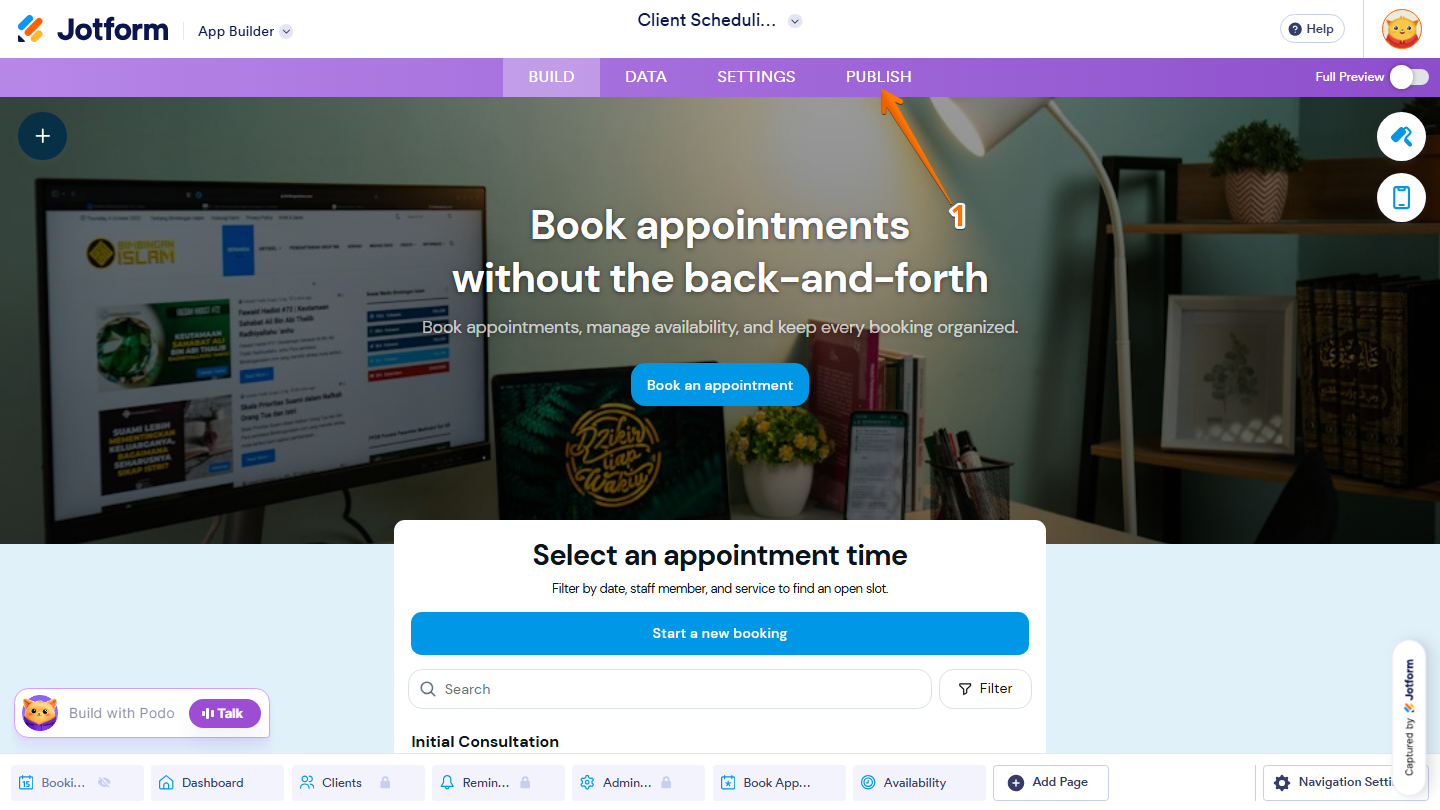
- In App Builder, in the purple navigation bar at the top of the page, click on Publish.
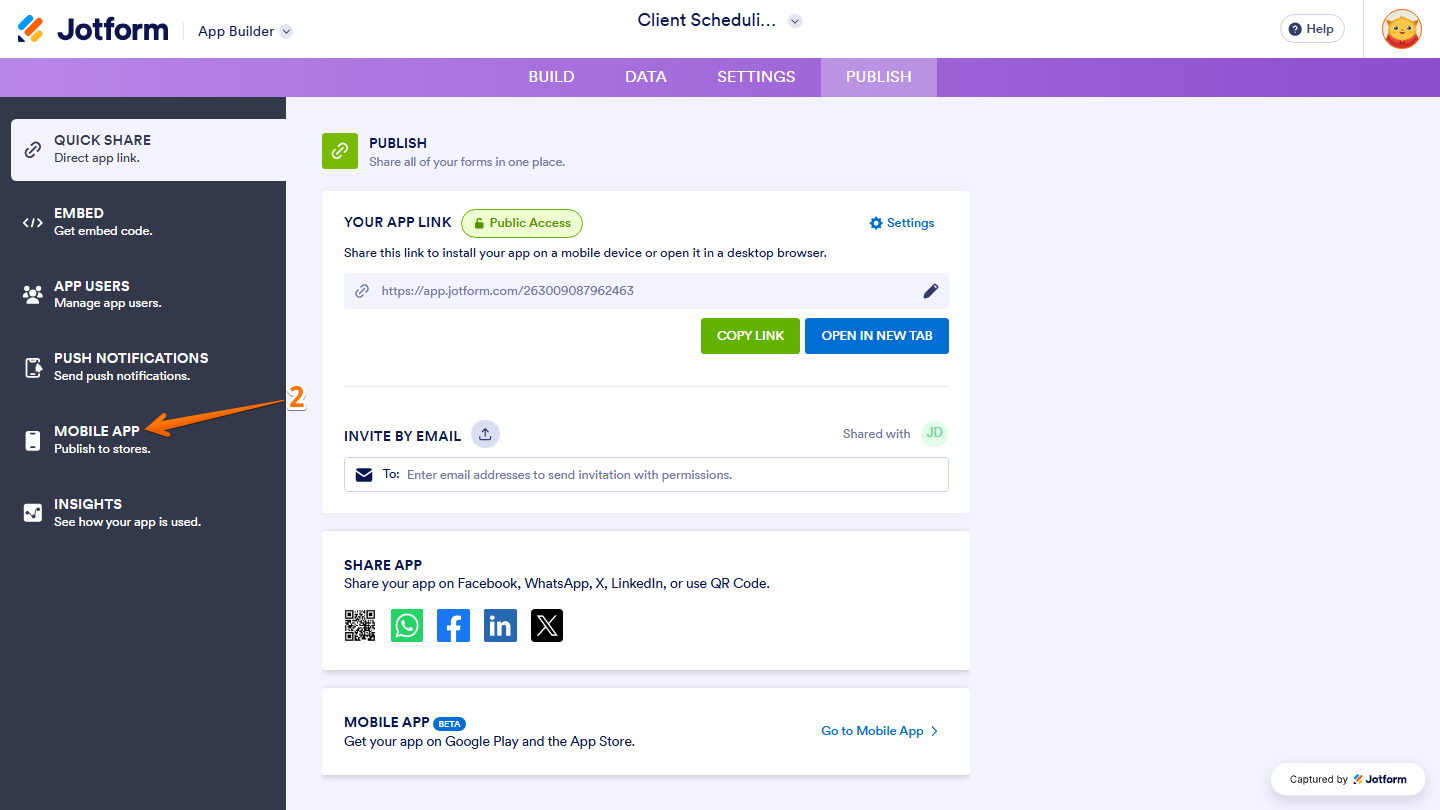
- Then, in the menu on the left, click on Mobile App.
- Now, click on the Download Android Project or Download IOS Project depending on which app store you’re publishing to.
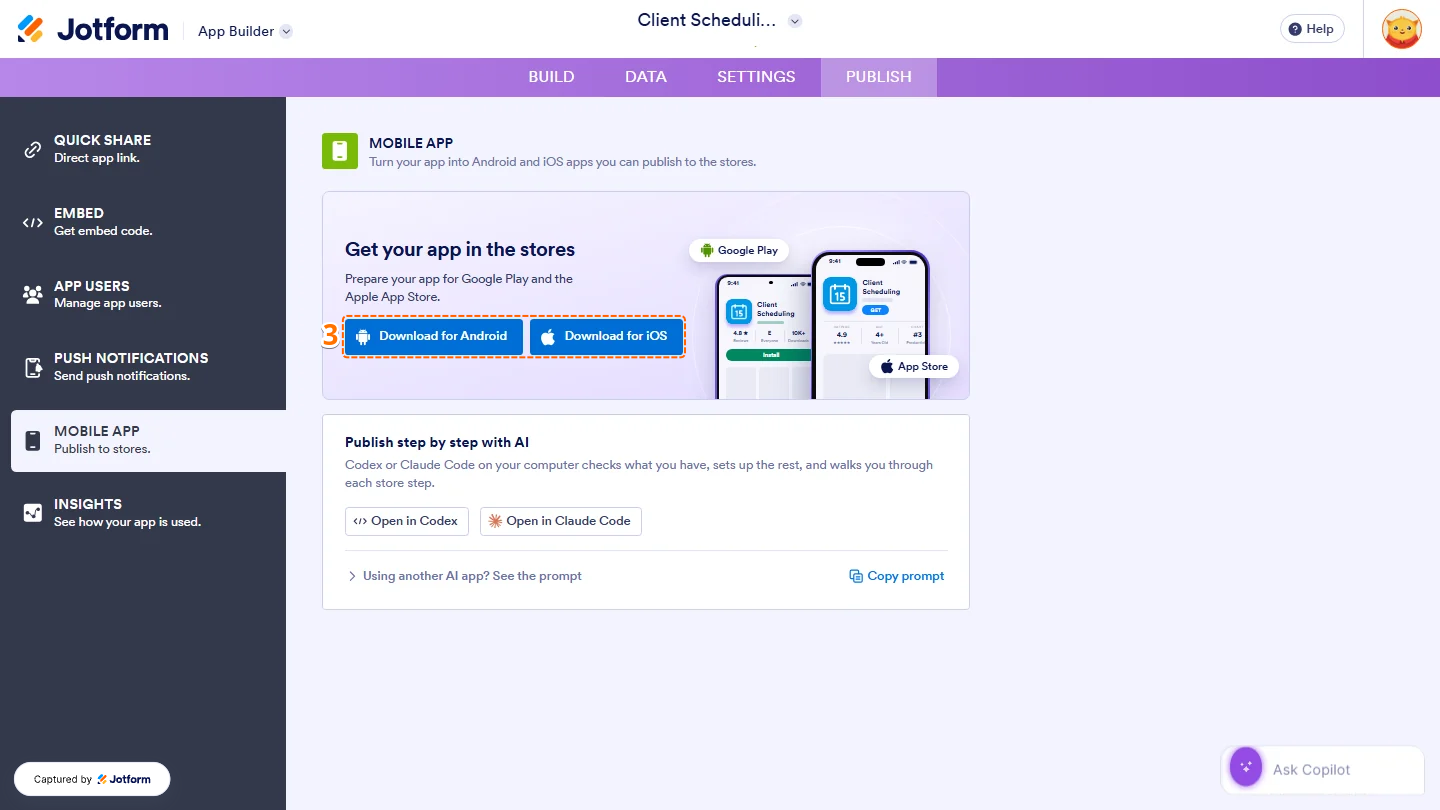
That’s it! Your app’s project files will be downloaded as a ZIP file.
Opening Your Project in Android Studio
To publish your app on Google Play, open the Android project in Android Studio. Before you start, make sure you have the following installed:
- Node.js 22 or later
- Android Studio 2025.2.1 or later
- JDK 21
- Android SDK Platform 36 and Build Tools 36.0.0
Once everything’s installed, here’s how to open your project:
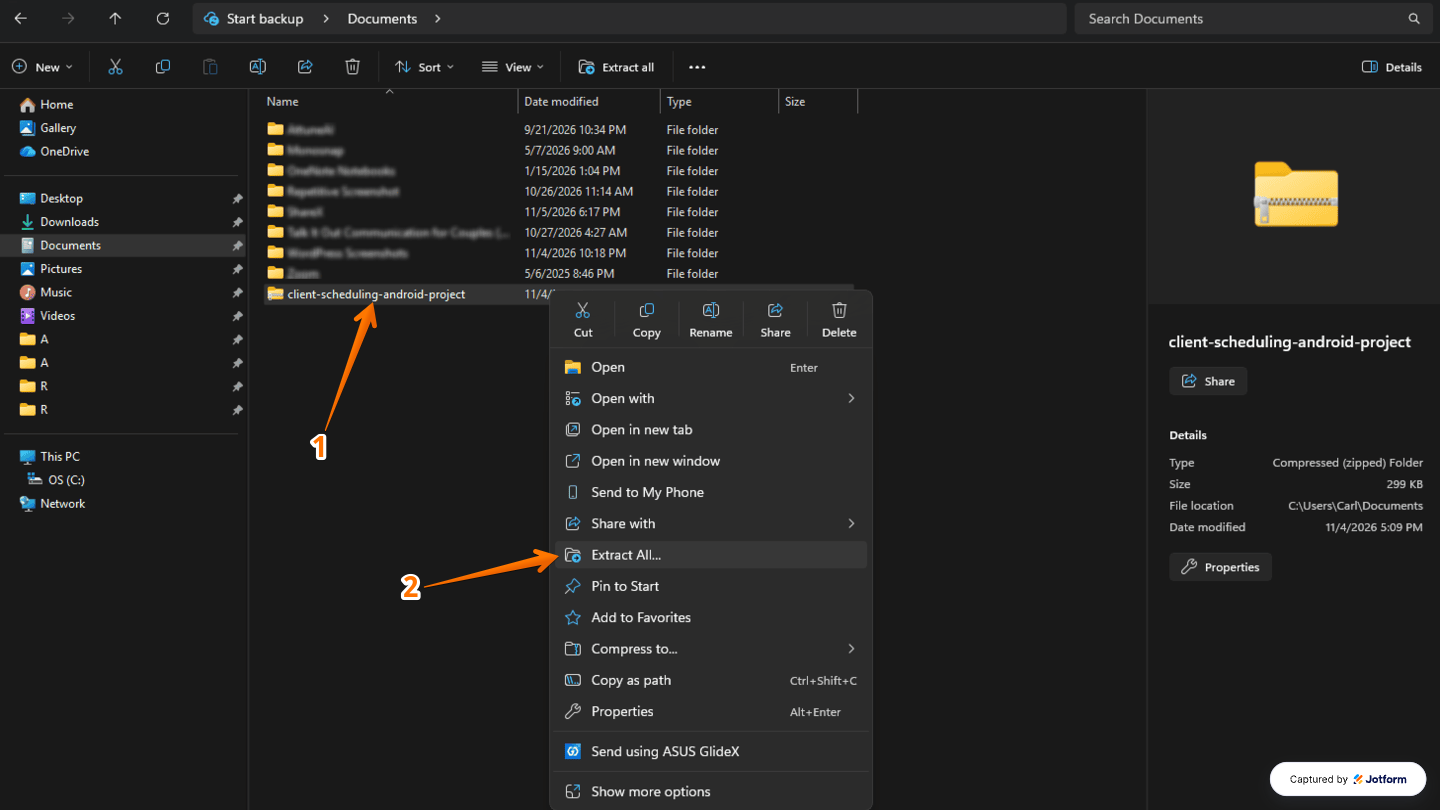
- On your computer, right-click on the ZIP file you downloaded for Android.
- Then, in the menu that opens, select Extract All.
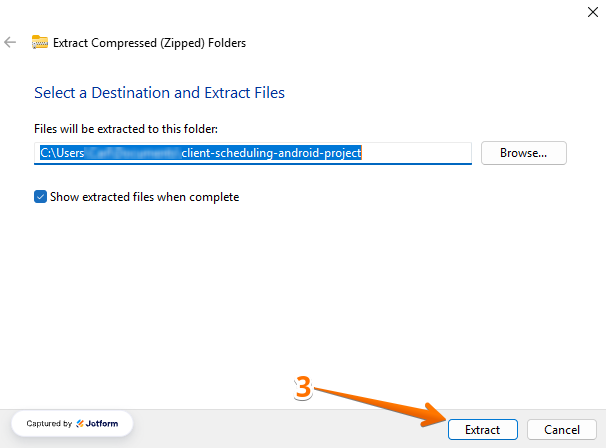
- Now, in the Extract Compressed (Zipped) Folders window that opens, click on Extract.
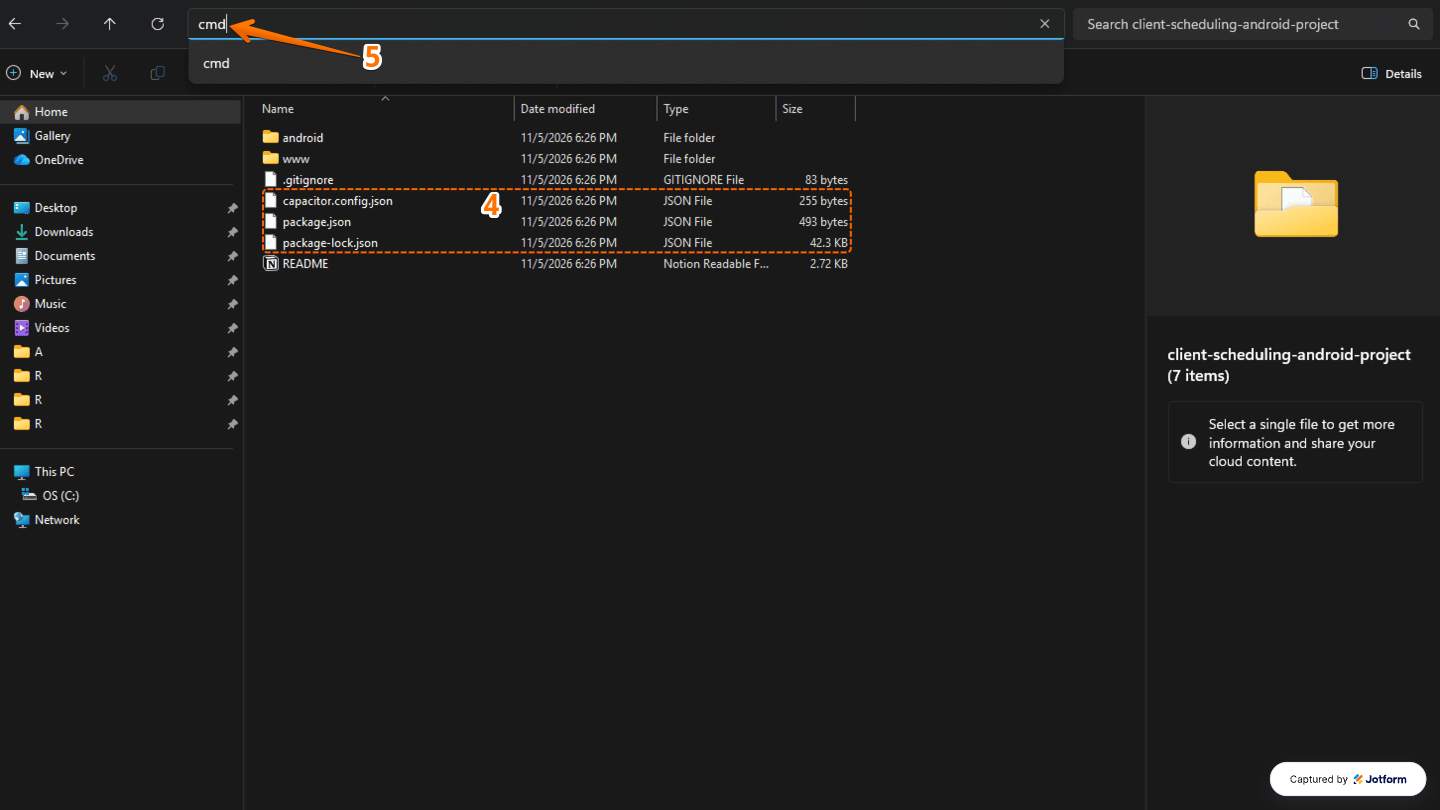
- Next, open the extracted folder and make sure it contains the package.json and capacitor.config.json files.
- Then, in the address bar at the top of the folder, type cmd and press Enter on your keyboard to open Command Prompt.
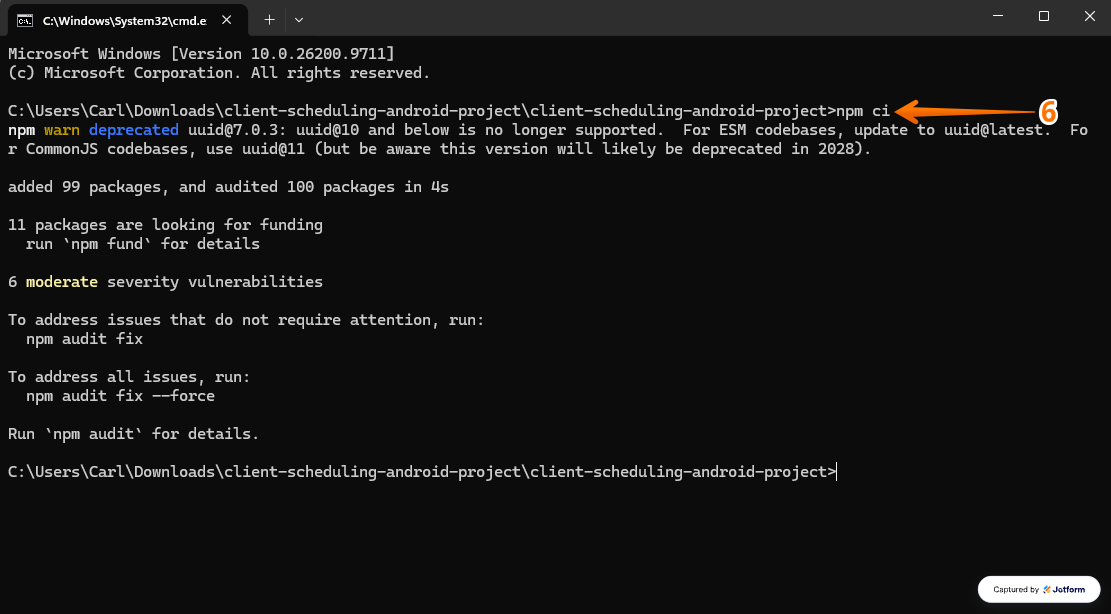
- In the Command Prompt window that opens, type npm ci and press Enter. Wait for it to finish installing the project’s dependencies.
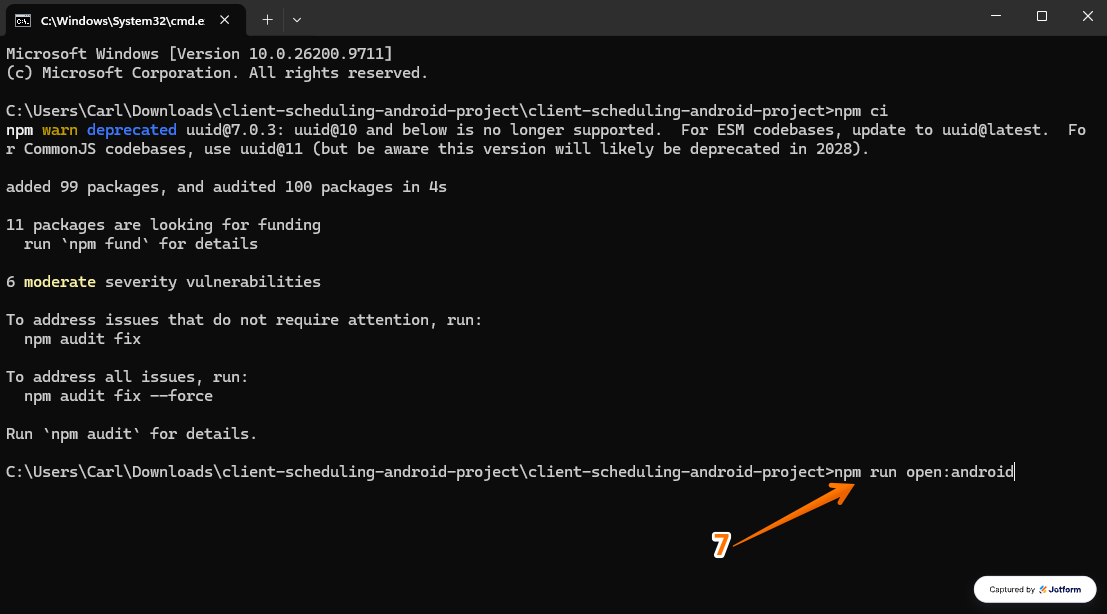
- Then, in the same window, type npm run open:android and press Enter to open your project in Android Studio.
- Once Android Studio opens, wait for the Gradle sync to finish, and install any missing SDK components if Android Studio asks you to. When the sync is done, you’ll see your project’s app module in the Project section on the left.
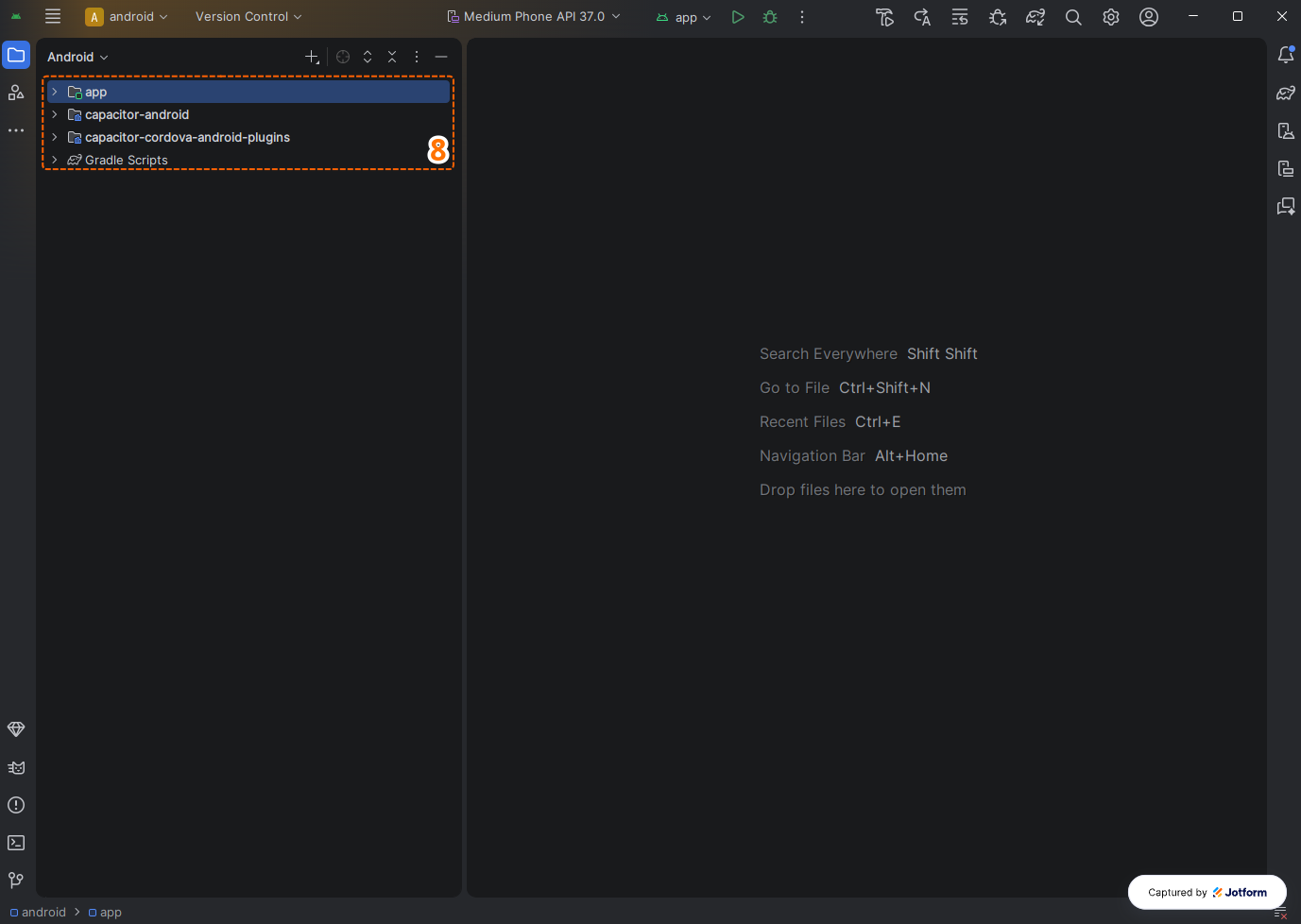
You’re all set! Your Android project is ready to build and publish on Google Play.
Notes
- Make sure the Gradle JDK in Android Studio is set to 21. The included Gradle version doesn’t support Java 25.
- You can also open the project manually. In Android Studio, select Open, and choose the android folder inside your extracted project folder. Make sure you’ve run npm ci first.
Opening Your Project in Xcode
To publish your app on the Apple App Store, open the iOS project in Xcode. You’ll need a Mac with the following installed:
- Xcode 26 or later
- Node.js 22 or later
When you’re ready, follow these steps:
- On your Mac, double-click on the ZIP file you downloaded for iOS to extract it.
- Then, open the extracted folder and make sure it contains the package.json file.
- Next, in Finder, right-click on the extracted folder and select Services > New Terminal at Folder.
- Now, in the terminal that opens, type npm ci and press Return. Wait for it to finish installing the project’s dependencies.
- Then, type npm run open:ios and press Return to open your project in Xcode.
Your iOS project is now ready to build and publish on the Apple App Store.
Pro Tip
Before submitting your app, test it thoroughly on your devices, and review the app store requirements along with the README instructions included in your exported ZIP file.

Send Comment: