Jotform makes it easy to stay updated when someone submits your form. Depending on how you want to receive notifications, you can manage submission alerts directly in the Jotform Mobile app or through your form’s Push Notification settings.
Both options help you keep track of new submissions in real time, whether you’re monitoring specific forms or managing notifications at the form level.
Enabling Forms Notifications in the Jotform App
Submission notifications can be managed directly from the Jotform Mobile app so you can stay updated on the forms that matter most. Here’s how to set it up:
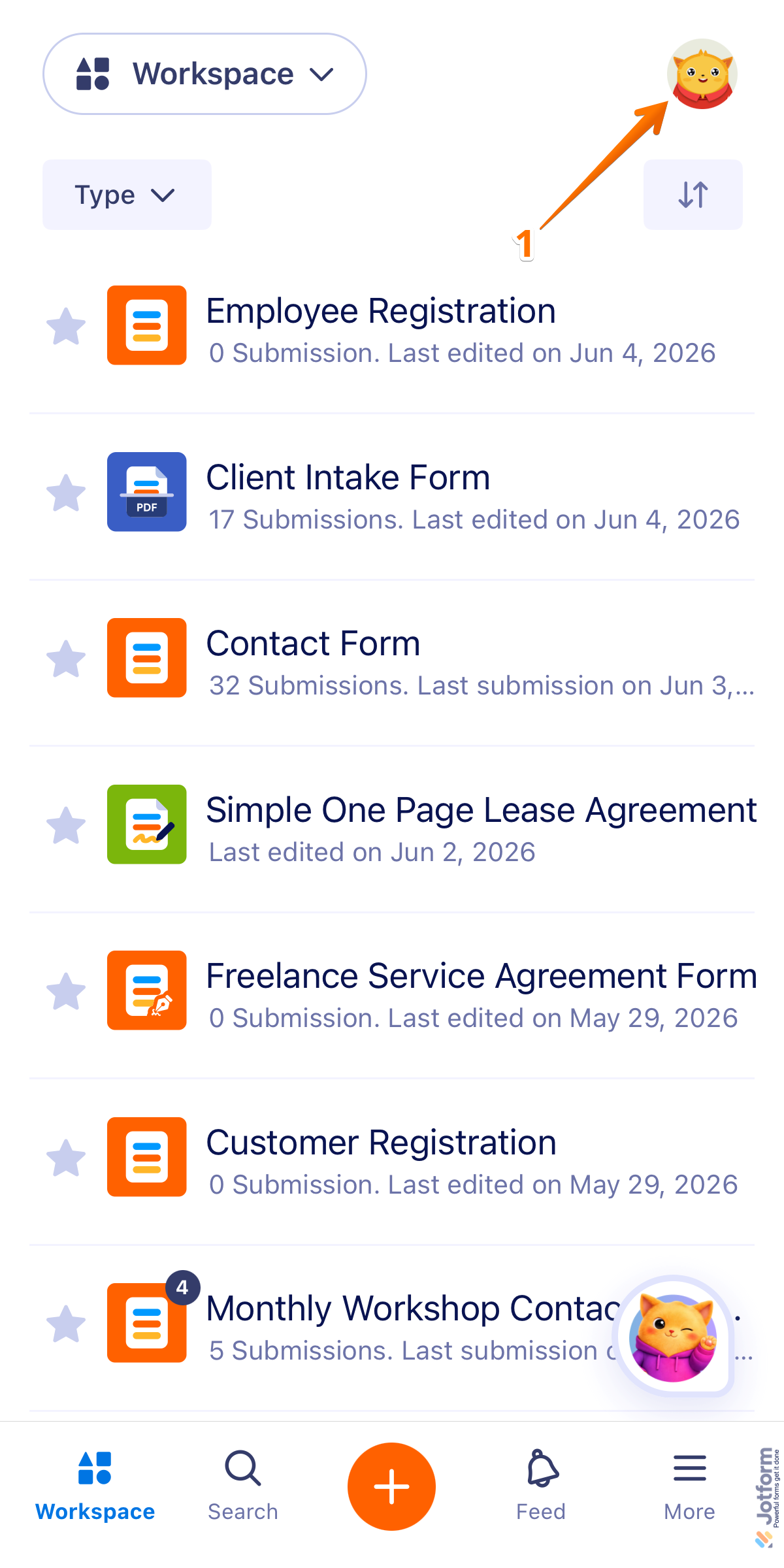
- On your Jotform Mobile App, in the top-right corner of the screen, tap your Profile Picture/Avatar icon.
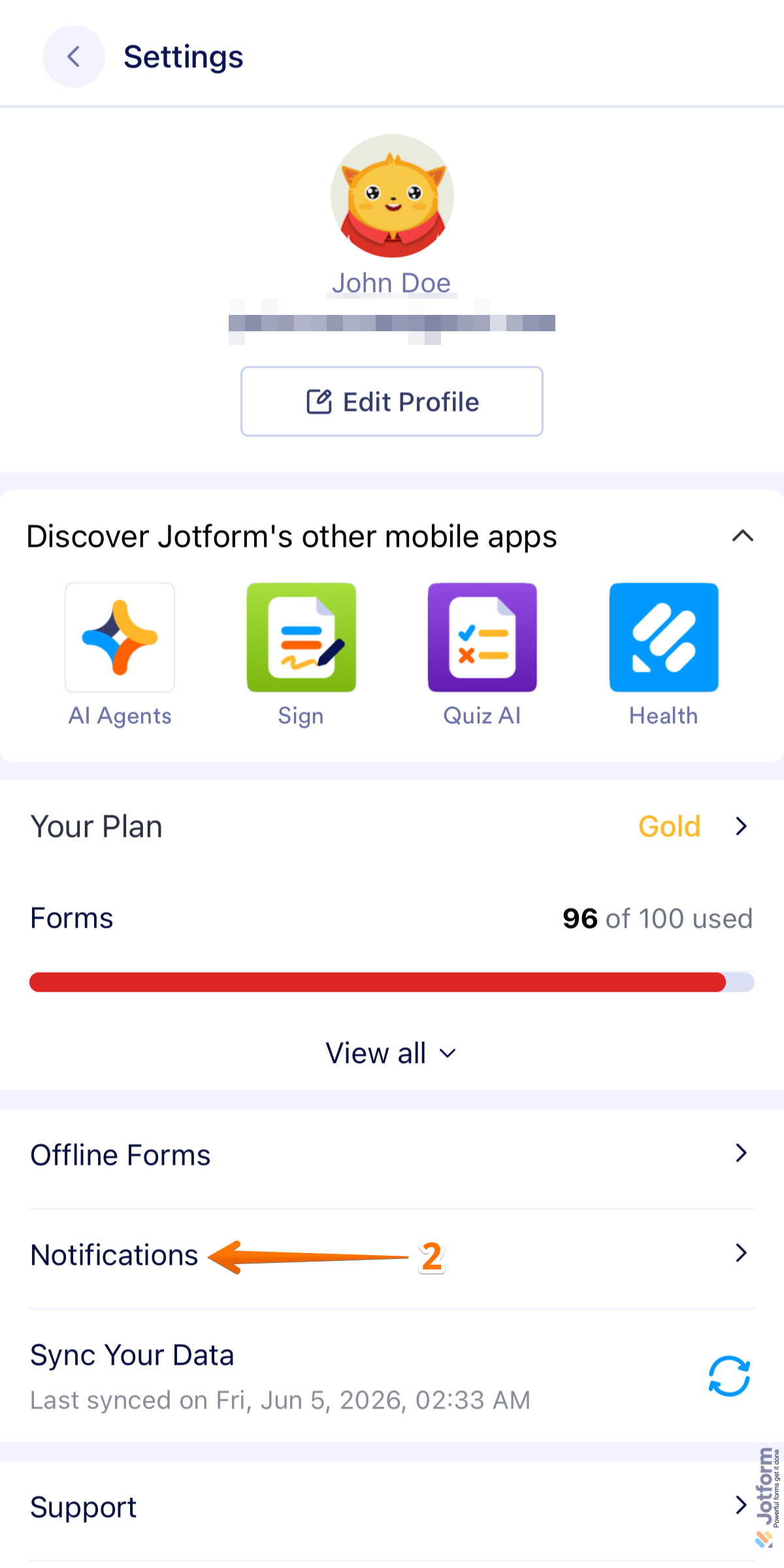
- Then, in the menu that opens, tap on Notifications.
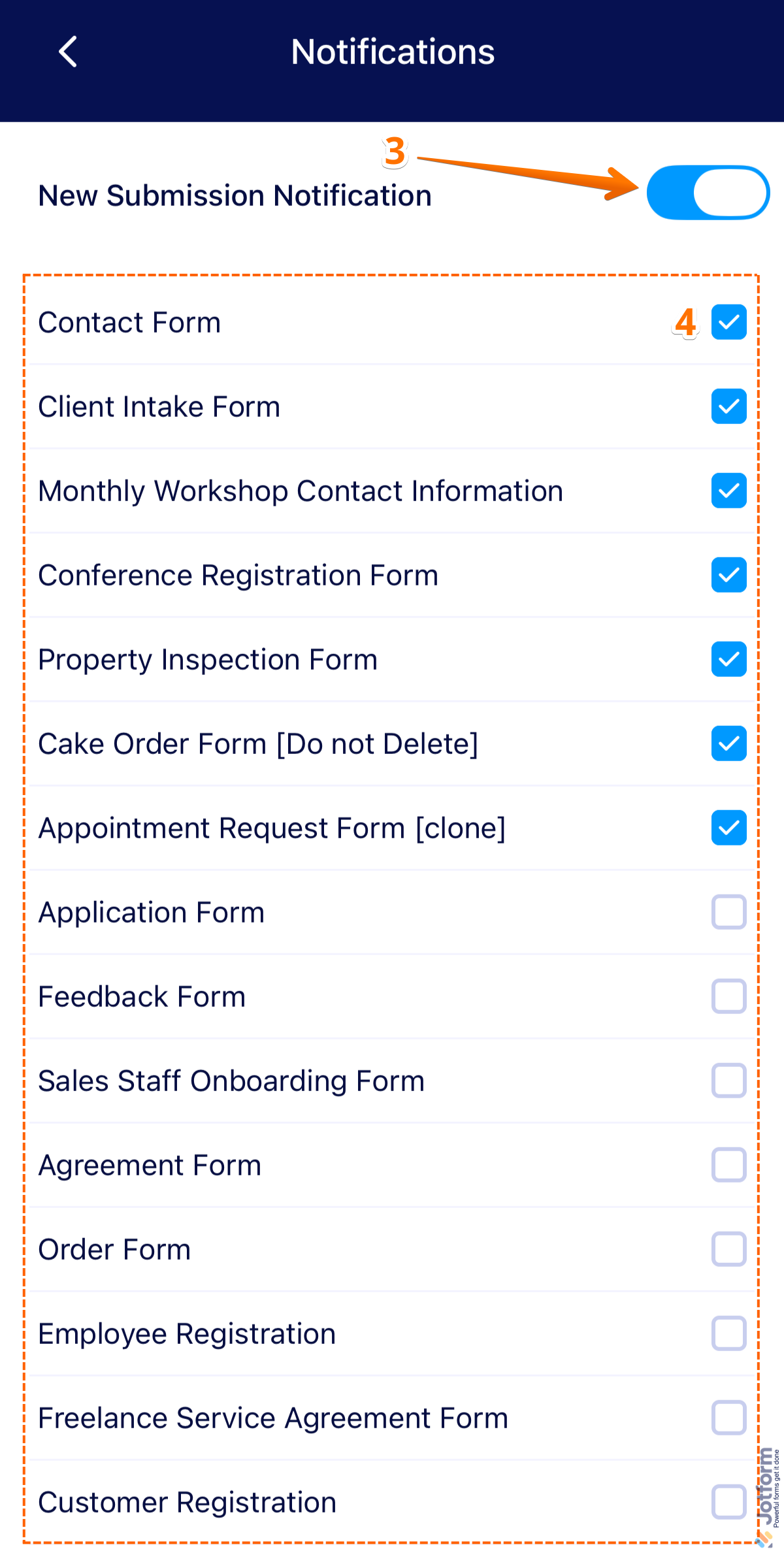
- Next, toggle on New Submission Notification to enable push notifications for form submissions.
- Now, select the forms you want to receive notifications for by checking the boxes next to them. Or, clear the boxes to stop receiving notifications for specific forms, and you’re done.
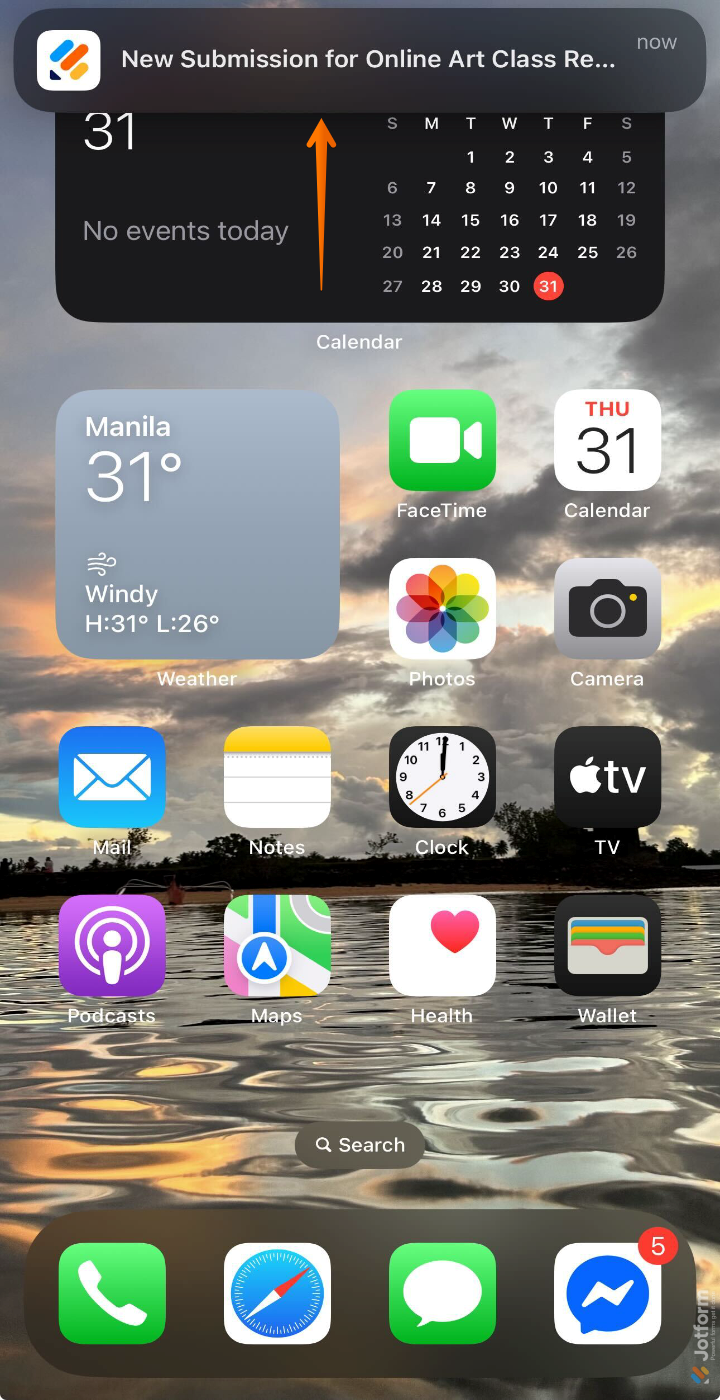
That’s it! You’ll now get a pop-up notification on your device every time someone submits one of the forms you selected.
Enabling Push Notifications for Your Form
Push Notifications are enabled by default for new forms. If they’ve been disabled, you can re-enable them from your form’s notification settings. Here’s how:
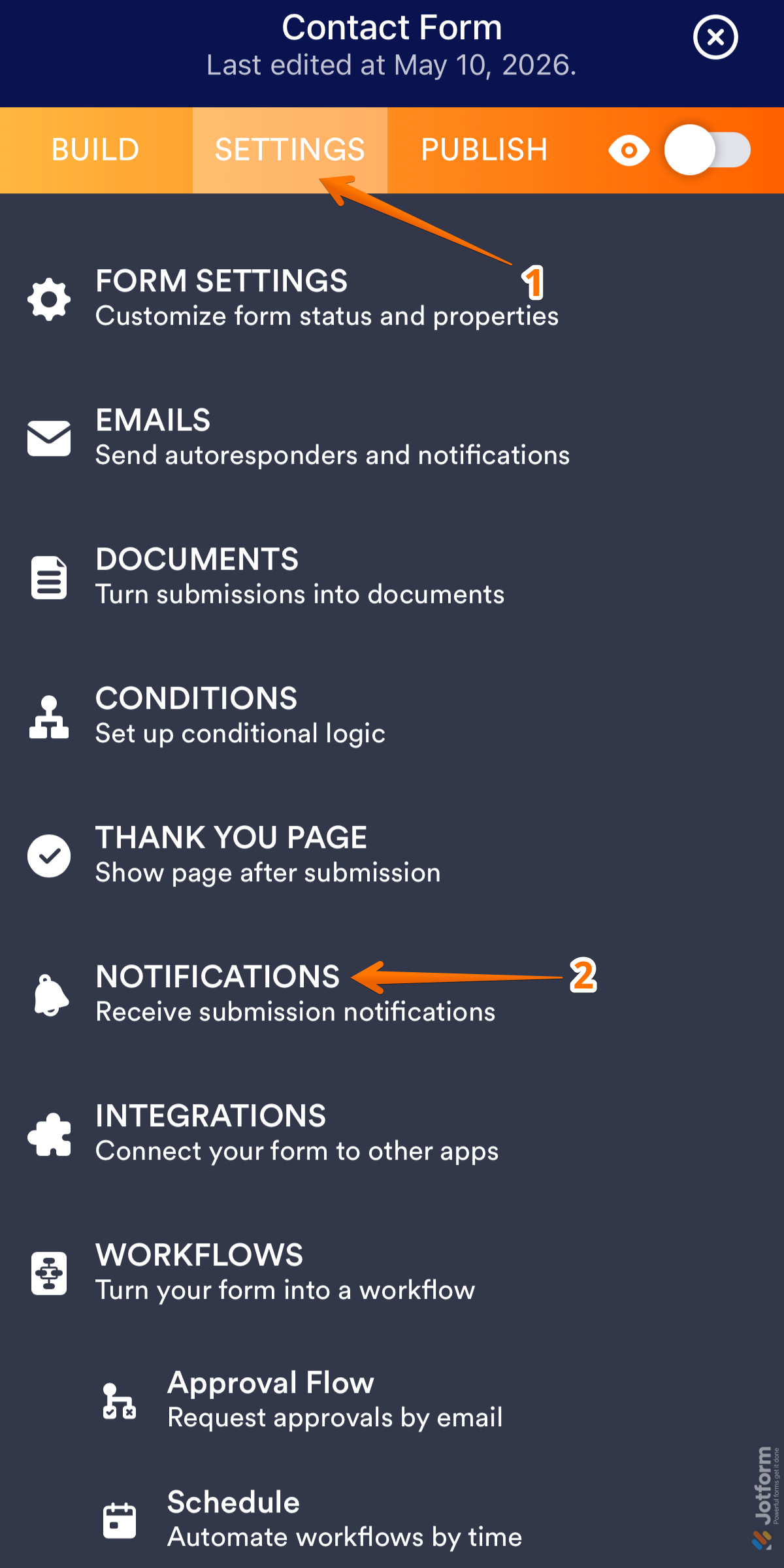
- In Form Builder, in the orange navigation bar at the top of the page, tap on Settings.
- Then, in the Settings page, tap on Notifications.
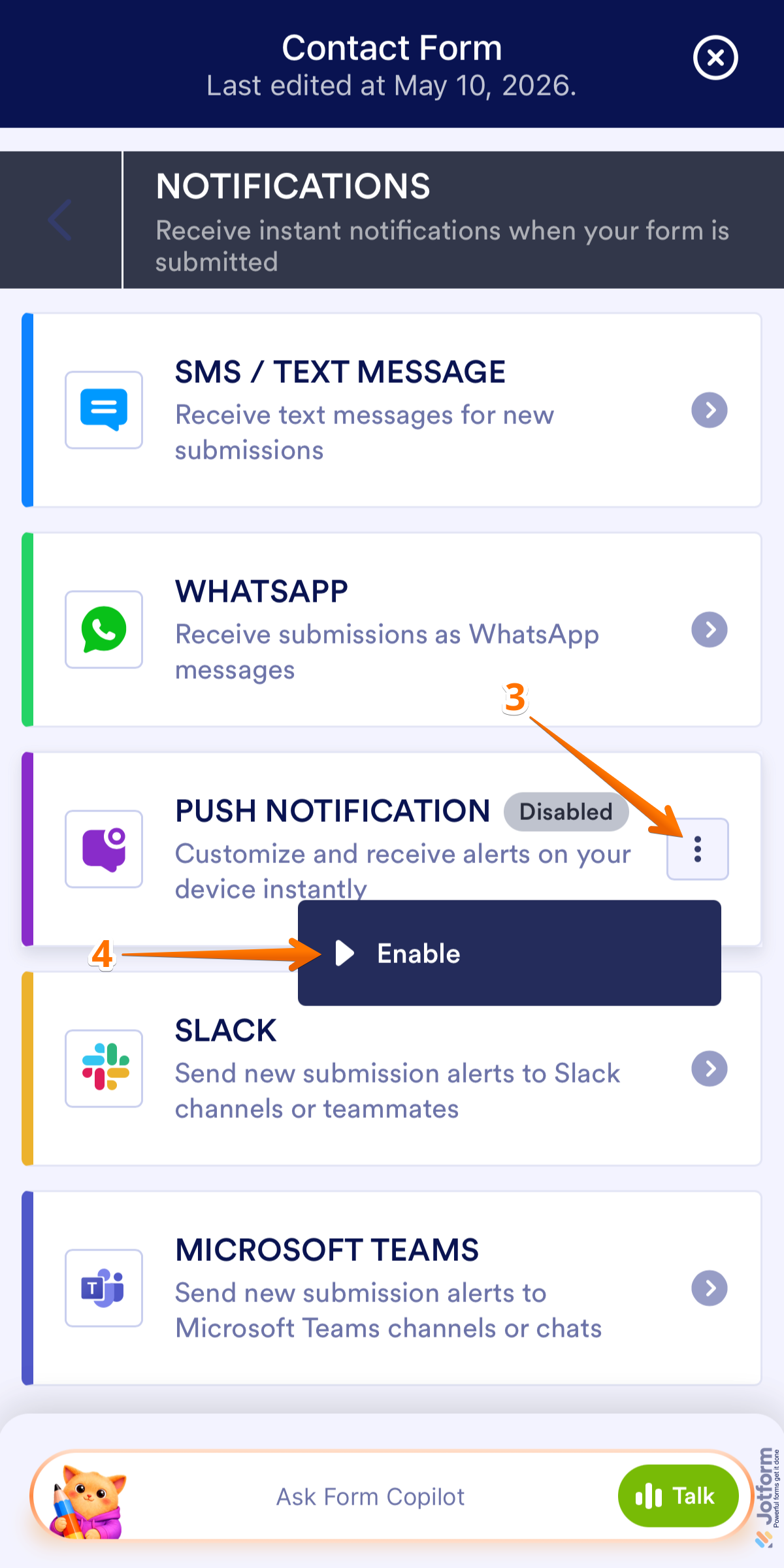
- Next, in the Push Notification option, tap on the Three Dots icon.
- Now, in the menu that opens, tap on Enable, and you’re all set.
Note
- Push Notifications are enabled by default. If you see Disable in the menu, the feature is already active for that form.
- Want to personalize the notification message that appears on your device? You can check out our guide on How to Customize Notifications in Jotform Mobile Forms to learn more.
What’s the Difference?
While both options can notify you about new form submissions, they are managed separately:
- Jotform Mobile Notifications are configured from the Jotform Mobile app.
- Push Notifications are configured from your form’s notification settings in Form Builder.
You can use either method independently or enable both, depending on how you’d like to receive submission alerts.
Note
To receive notifications through Jotform Mobile, make sure notifications are allowed for the app in your device’s settings.

Send Comment: