Jotform makes it easy to collect signatures in person with the Jotform Sign Mobile App. Whether you’re meeting a client, customer, or teammate, you can open your document on your device and have them sign right away—no printing or emailing needed. It’s a quick, secure, and paper-free way to complete agreements, contracts, or approvals on the spot.
Note
You’ll need to have the Jotform Sign Mobile App installed on your device. You can download it from the App Store (for iOS) or Google Play Store (for Android) before you begin. Our guide on How to Download and Set Up the Jotform Sign Mobile App walks you through everything.
You can easily sign in-person signatures in the Jotform Sign Mobile App in a few simple steps. Here’s how it’s done:
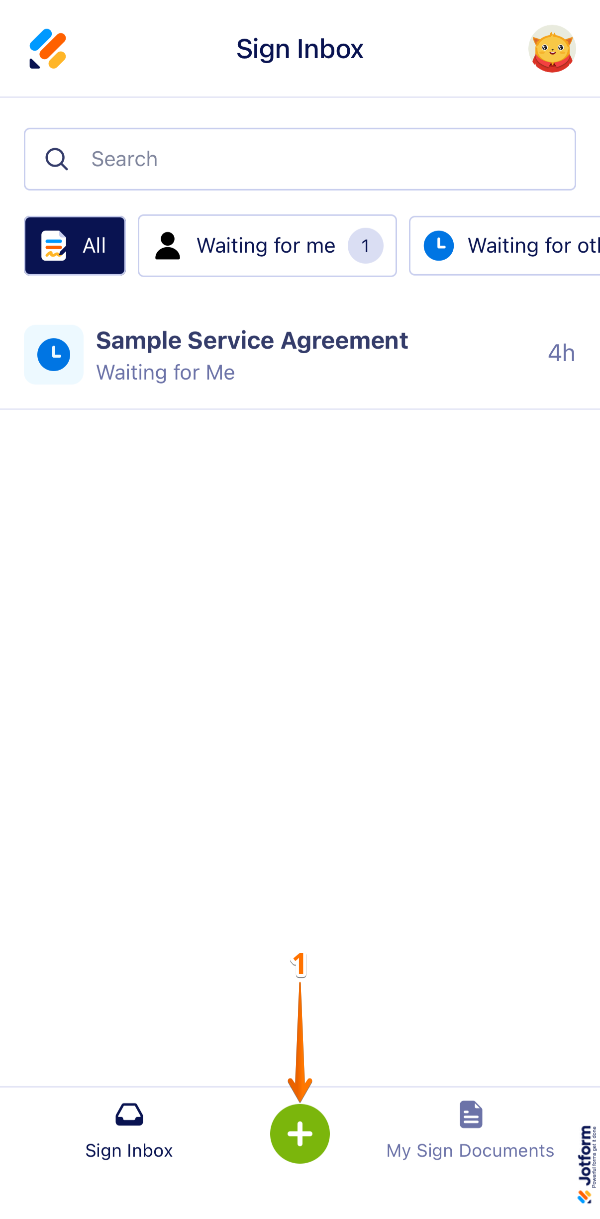
- On your Jotform Sign Mobile App, at the bottom of the screen, tap on the Green Plus icon.
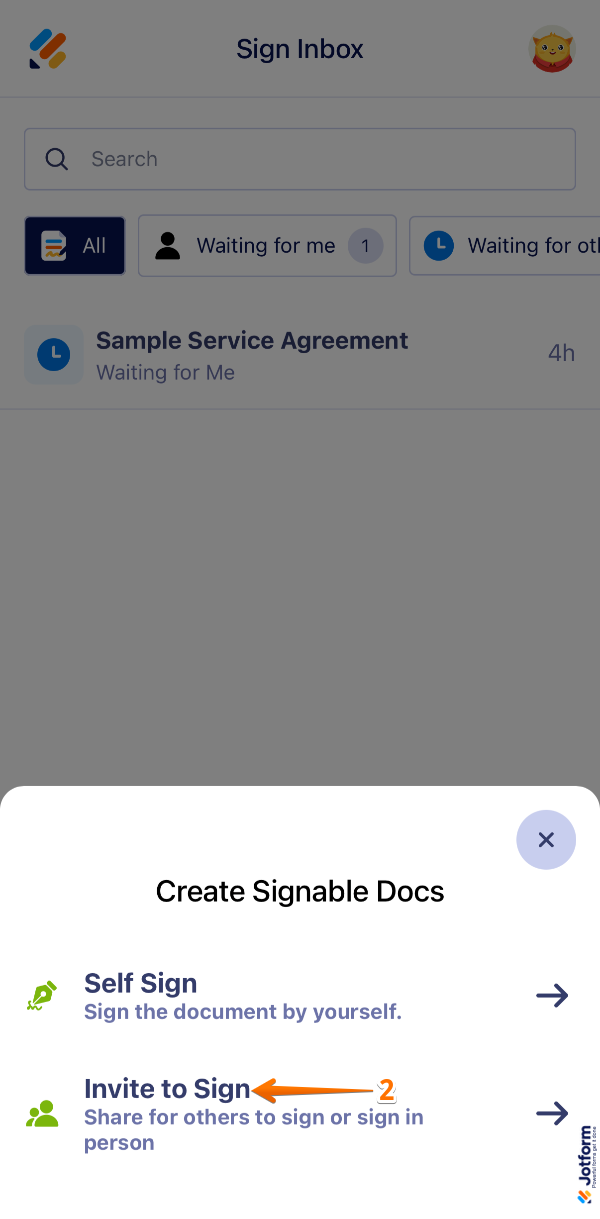
- Then, in the Create Signable Docs window that comes up, tap on Invite to Sign.
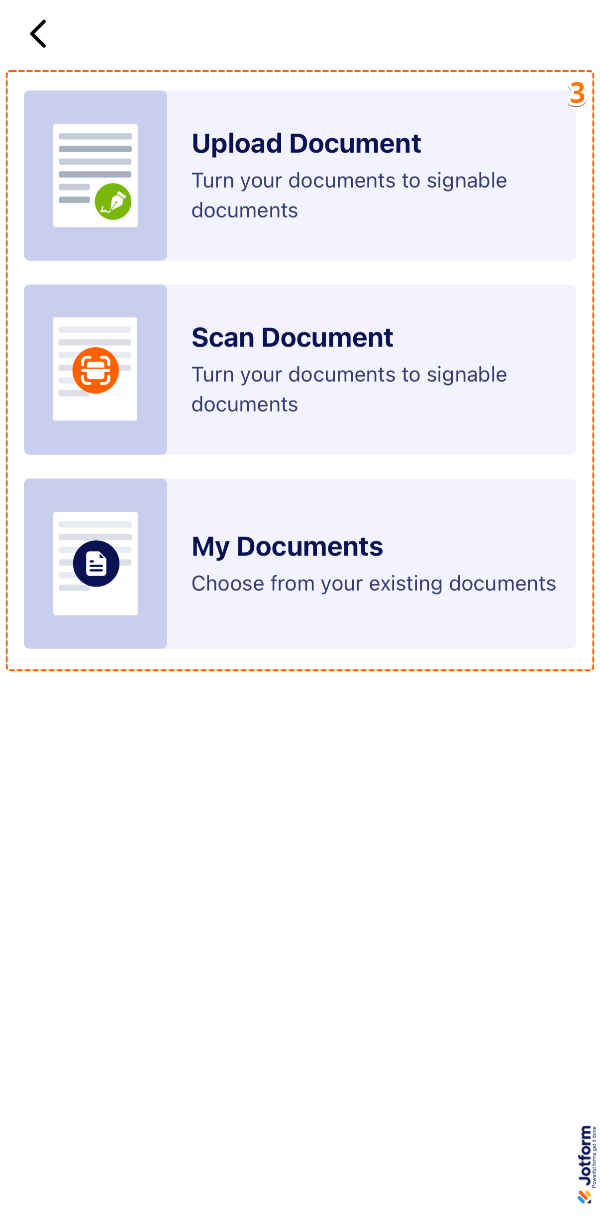
- Now, select one of the following options:
- Upload Documents — Upload a document from your device.
- Scan Document — Scan a paper document using your device’s camera.
- My Documents — Select a document you’ve previously created with Jotform Sign.
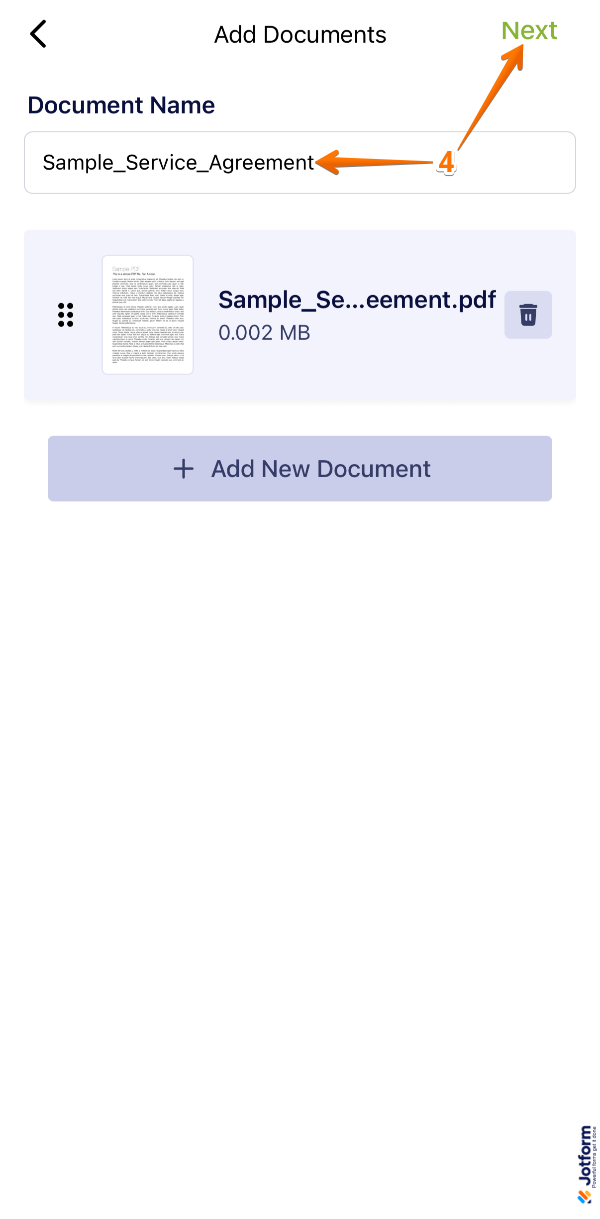
- Assuming, you selected Upload Documents, once your file is uploaded, in the Document Name field, enter your document name, and then, in the top-right corner of the screen tap on Next.
- Next, at the bottom of the screen, tap on Add Element.
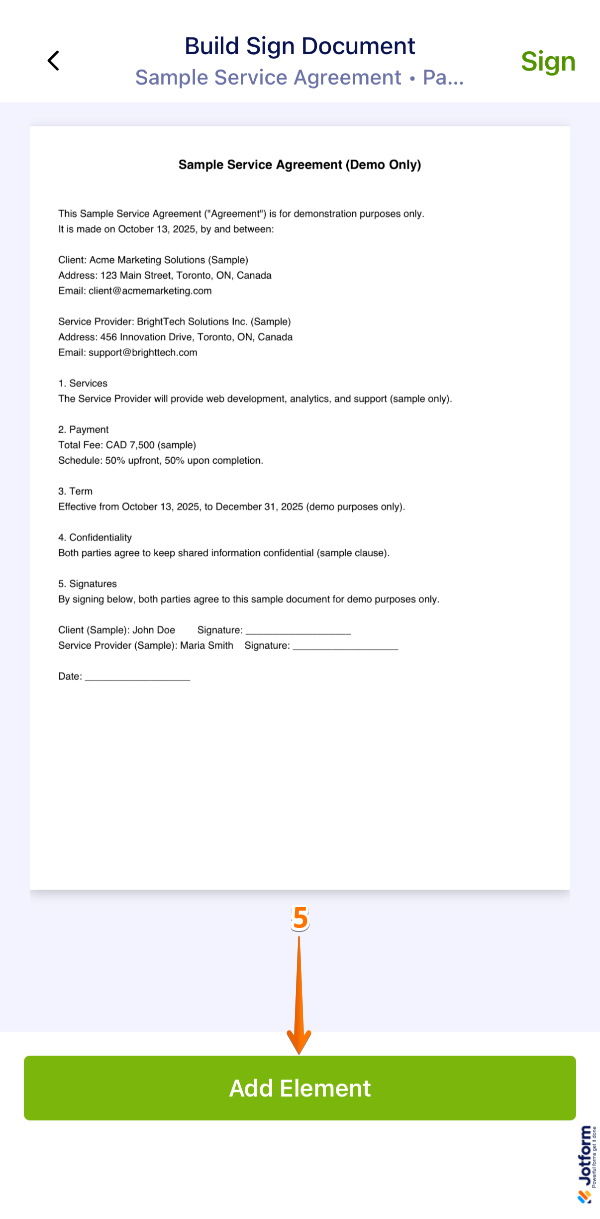
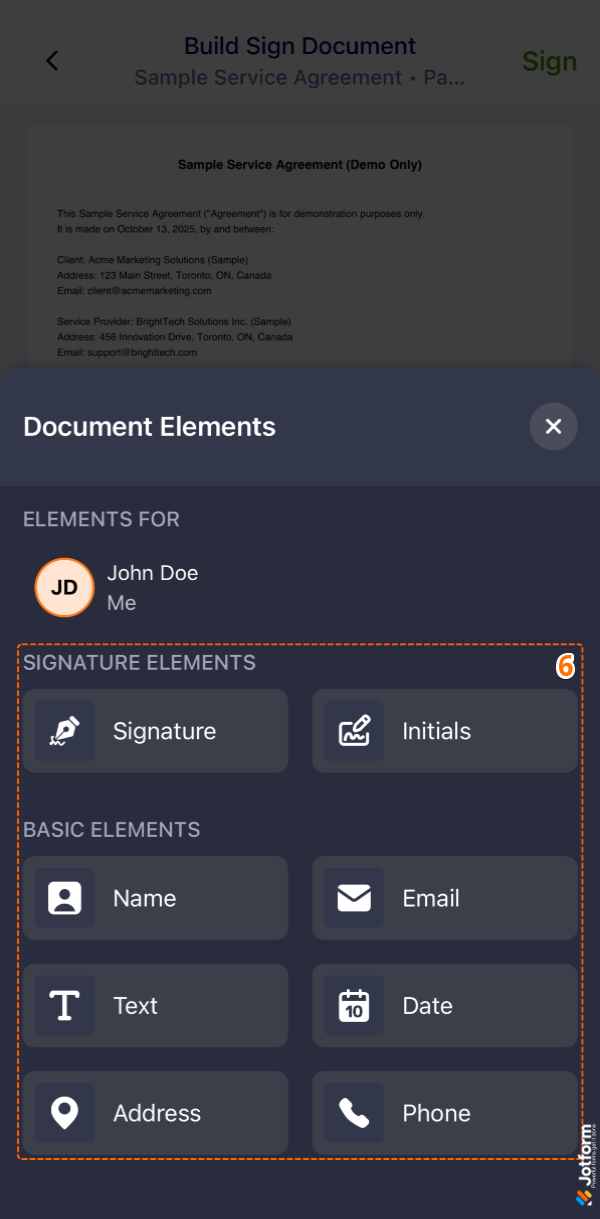
- Then, add your Document Elements as needed. For example, the Signature element.
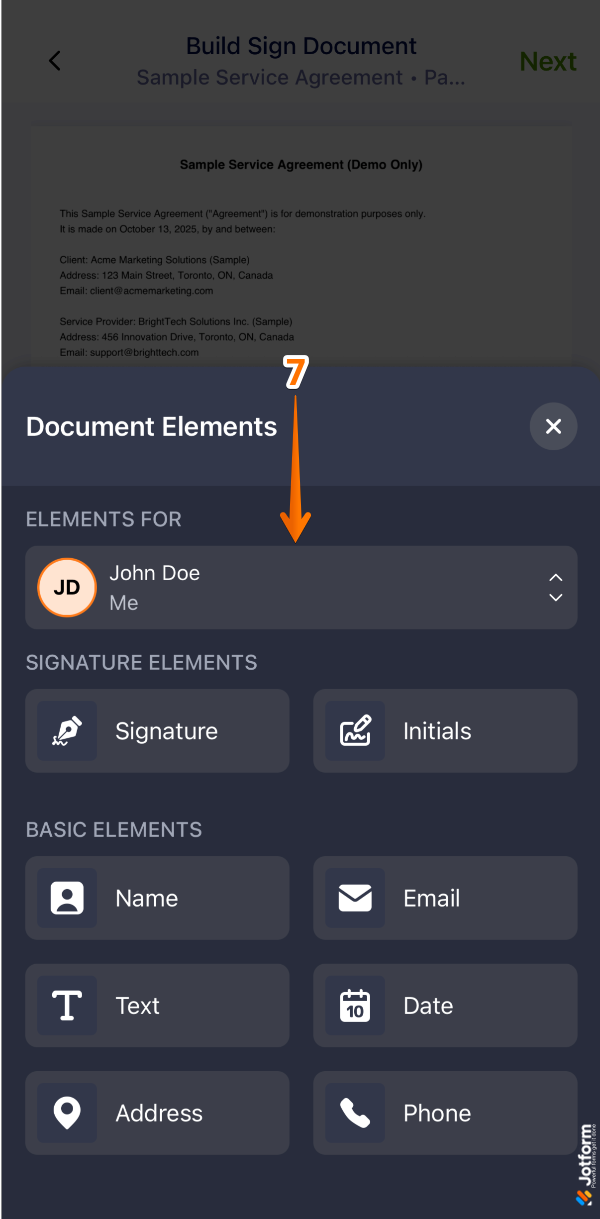
- Next, tap on Elements For.
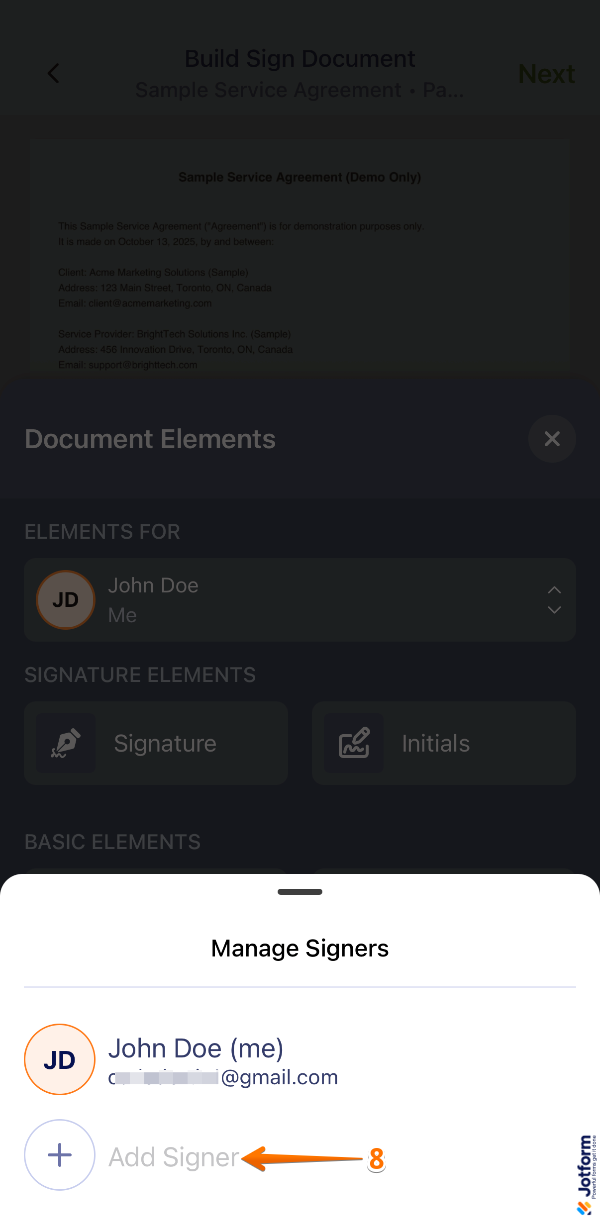
- Then, tap on Add Signer and enter the name of the signer you want to add.
- Now, select the signer you just added.
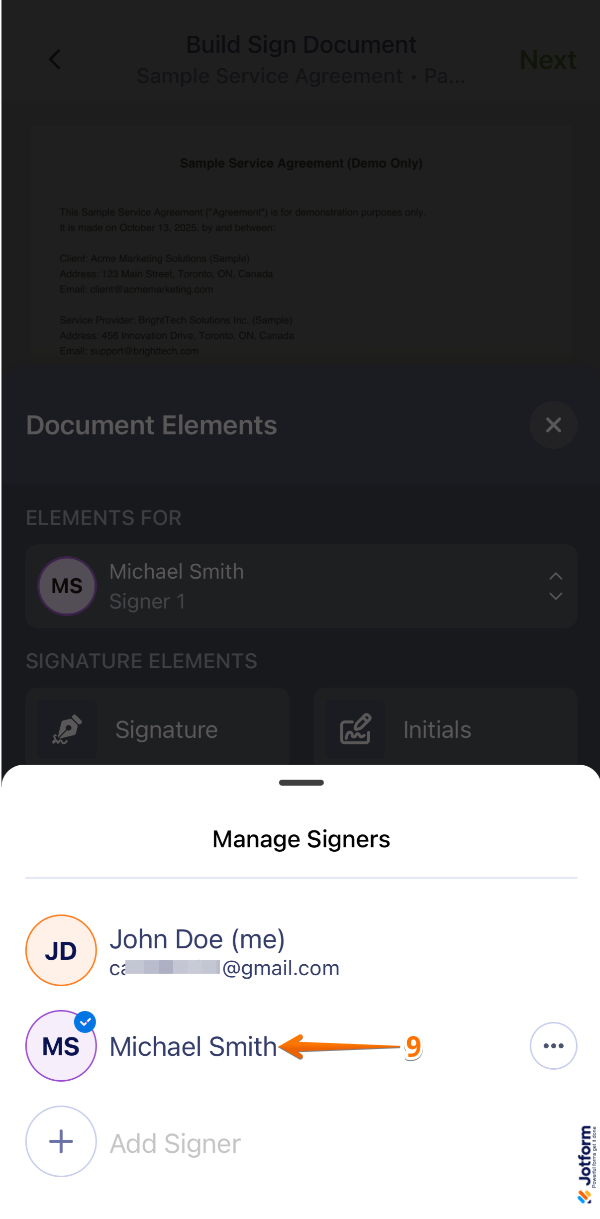
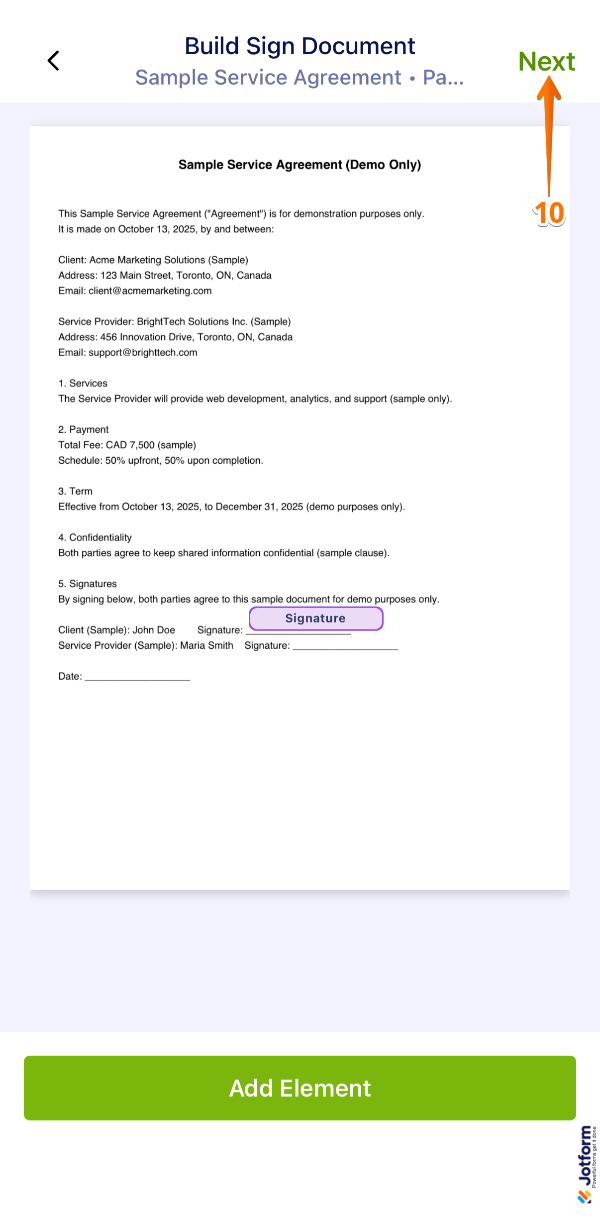
- Then, after selecting your signer, tap outside the Document elements menu to return to the Build Sign Document page, and then tap on Next.
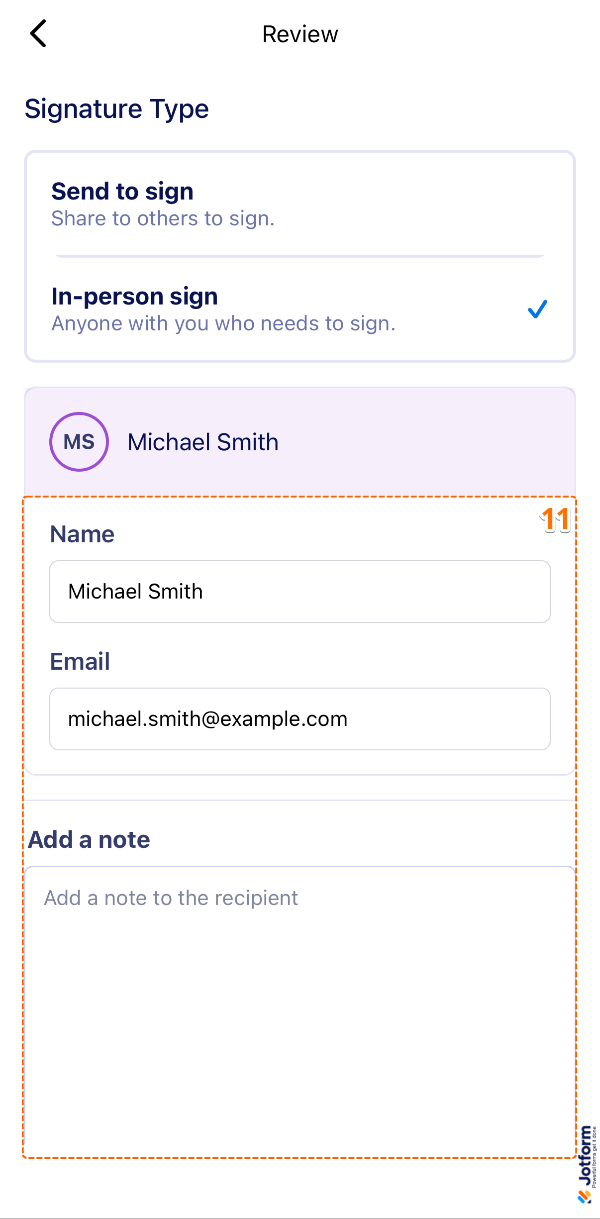
- Now, in the Signature Type section, select In-Person Sign. For example, if Michael Smith is the person who needs to sign with you in person, fill in the Email fields and add a Note if needed.
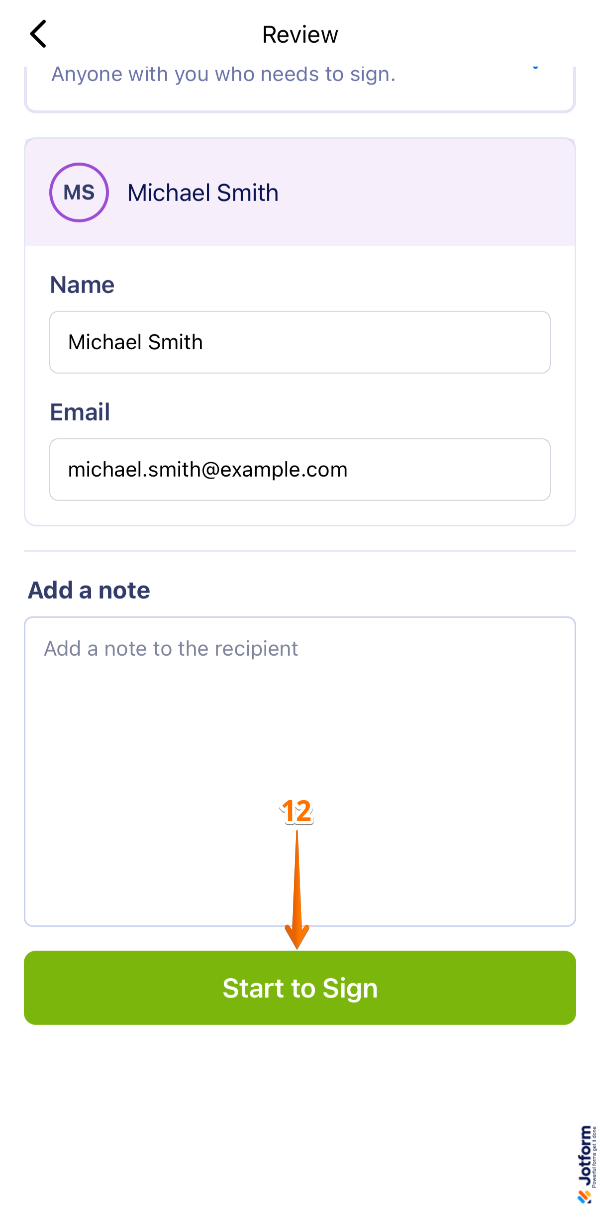
- Then, scroll down and tap on Start to Sign.
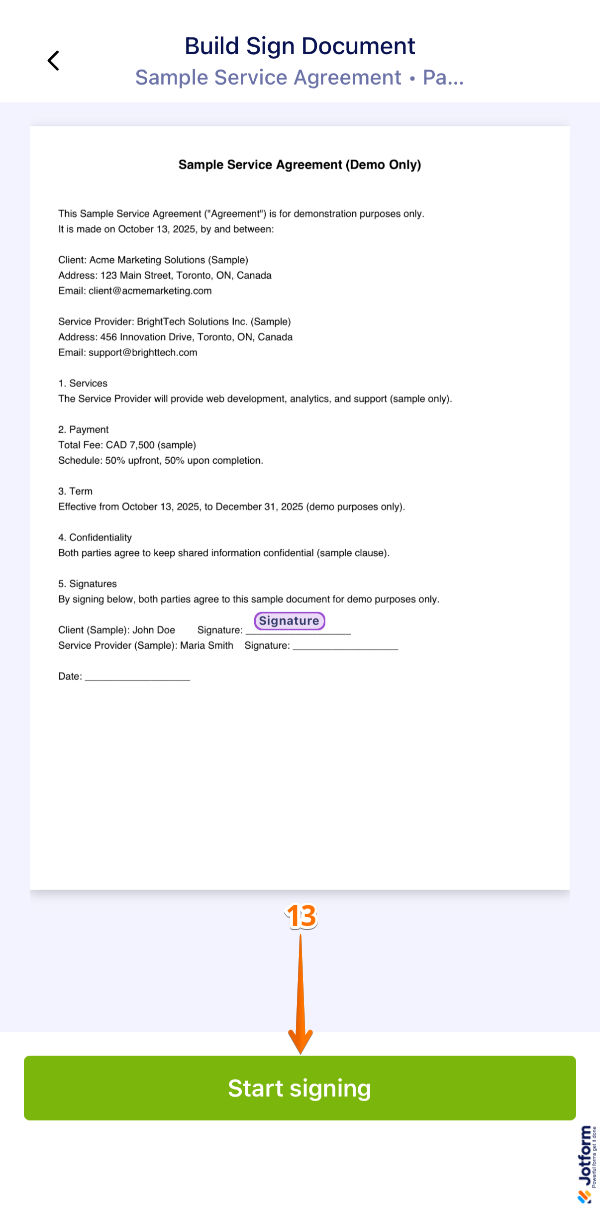
- Next, at the bottom of the screen, tap on Start Signing.
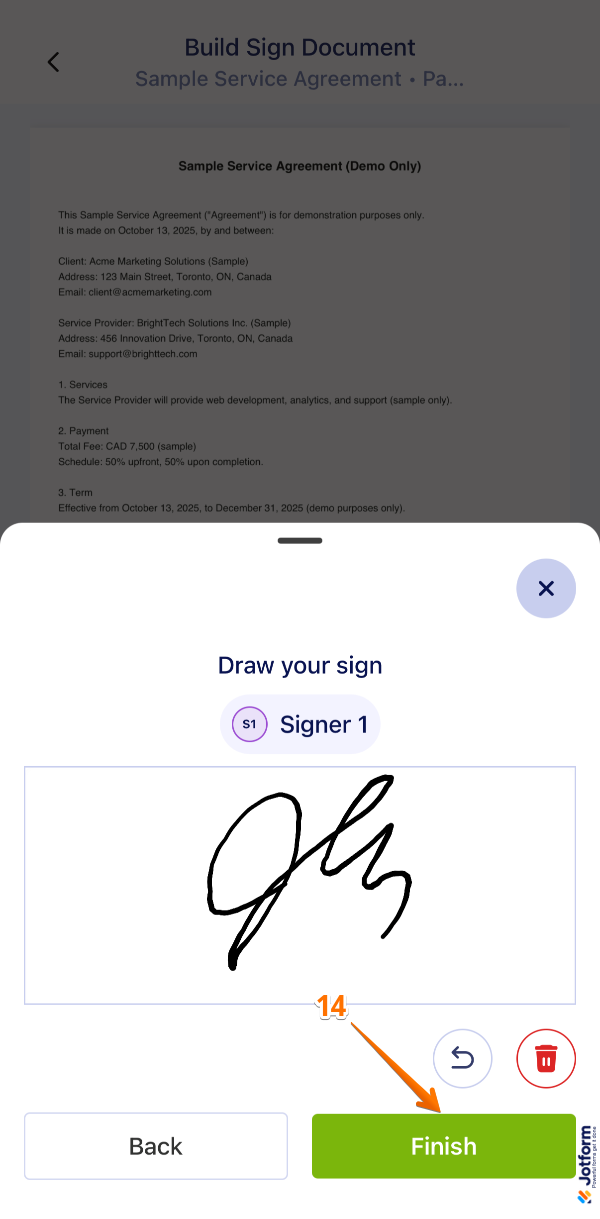
- Then, in the window that comes up, ask the signer to draw their signature, and then tap on Finish.
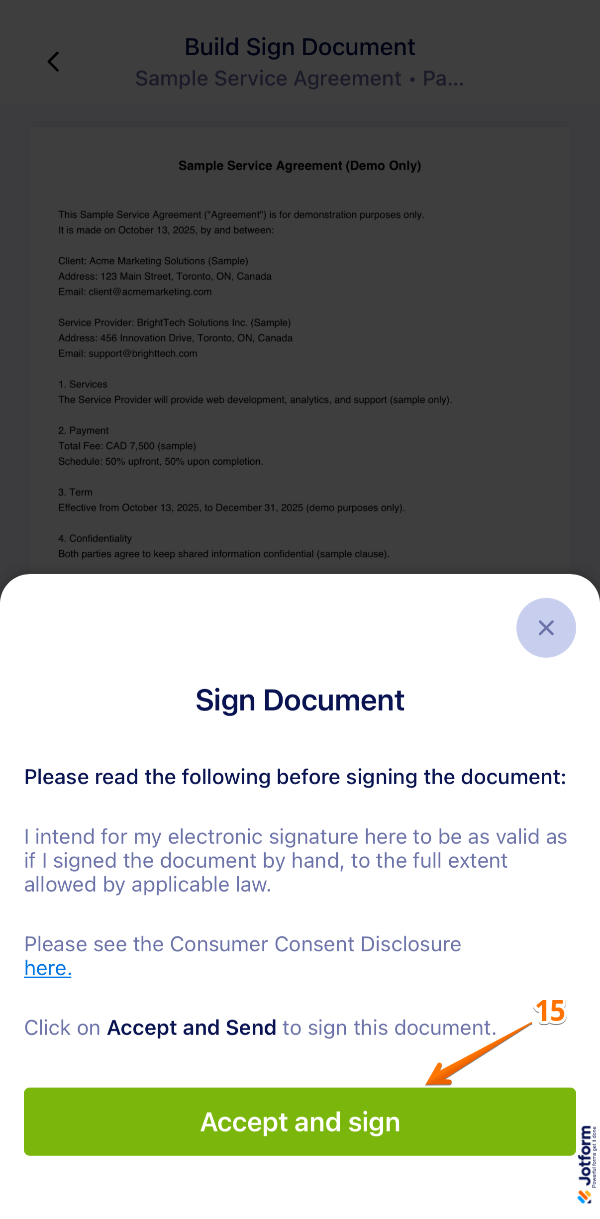
- Finally, tap on Accept and Sign, and you’re done.
And that’s it! With just a few taps, you’ve successfully collected an in-person signature. You can now easily track, manage, and share signed documents directly from the Jotform Sign Mobile App—keeping your workflow quick, secure, and completely paper-free. Take a look at our guide on How to Use the Jotform Sign Mobile App for more details.

Send Comment: