Jotform Apps lets you control the order in which items appear in your List element. By adding a sort condition, you can organize your list based on a specific field and choose whether the values appear in ascending or descending order. This makes it easier to present your list data in the order that works best for your app.
You can set the sorting order of your List element in just a few steps. Here’s how:
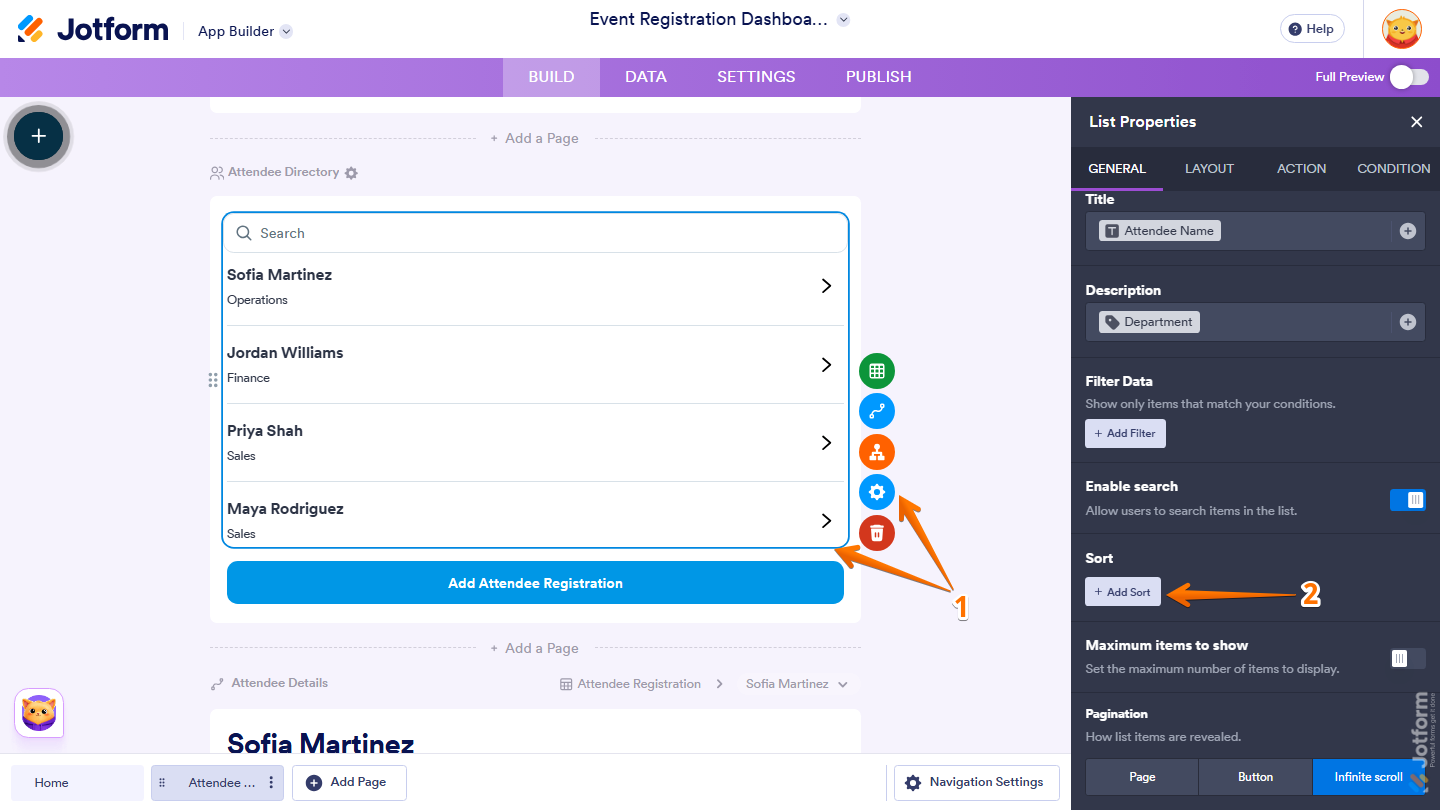
- In App Builder, select the List Element and then click on the Gear icon.
- Then, in the List Properties menu that opens on the right side of the page, under the General tab, scroll down to the Sort section and then click on Add Sort.
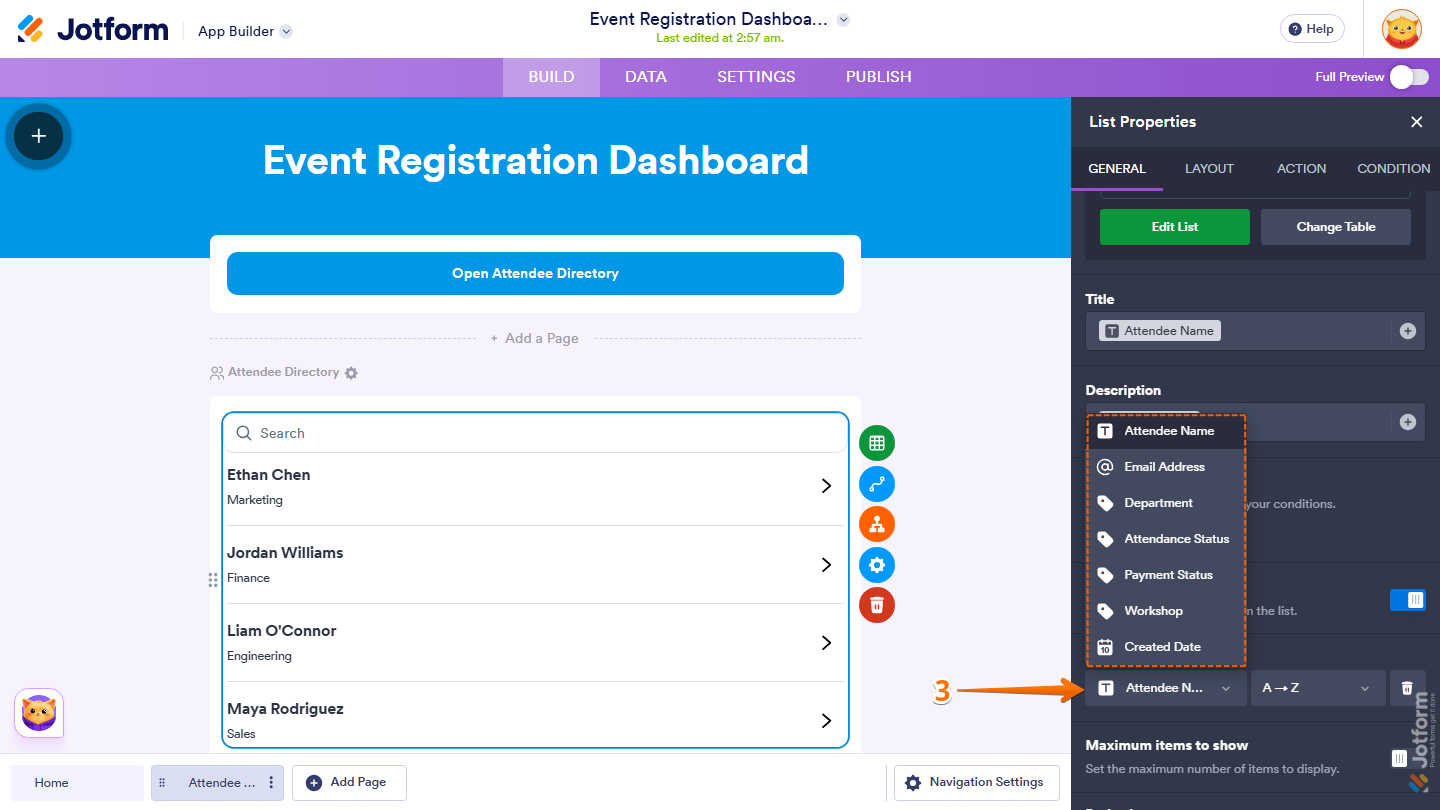
- Now, click on the first dropdown and then select the field you want to use for sorting.
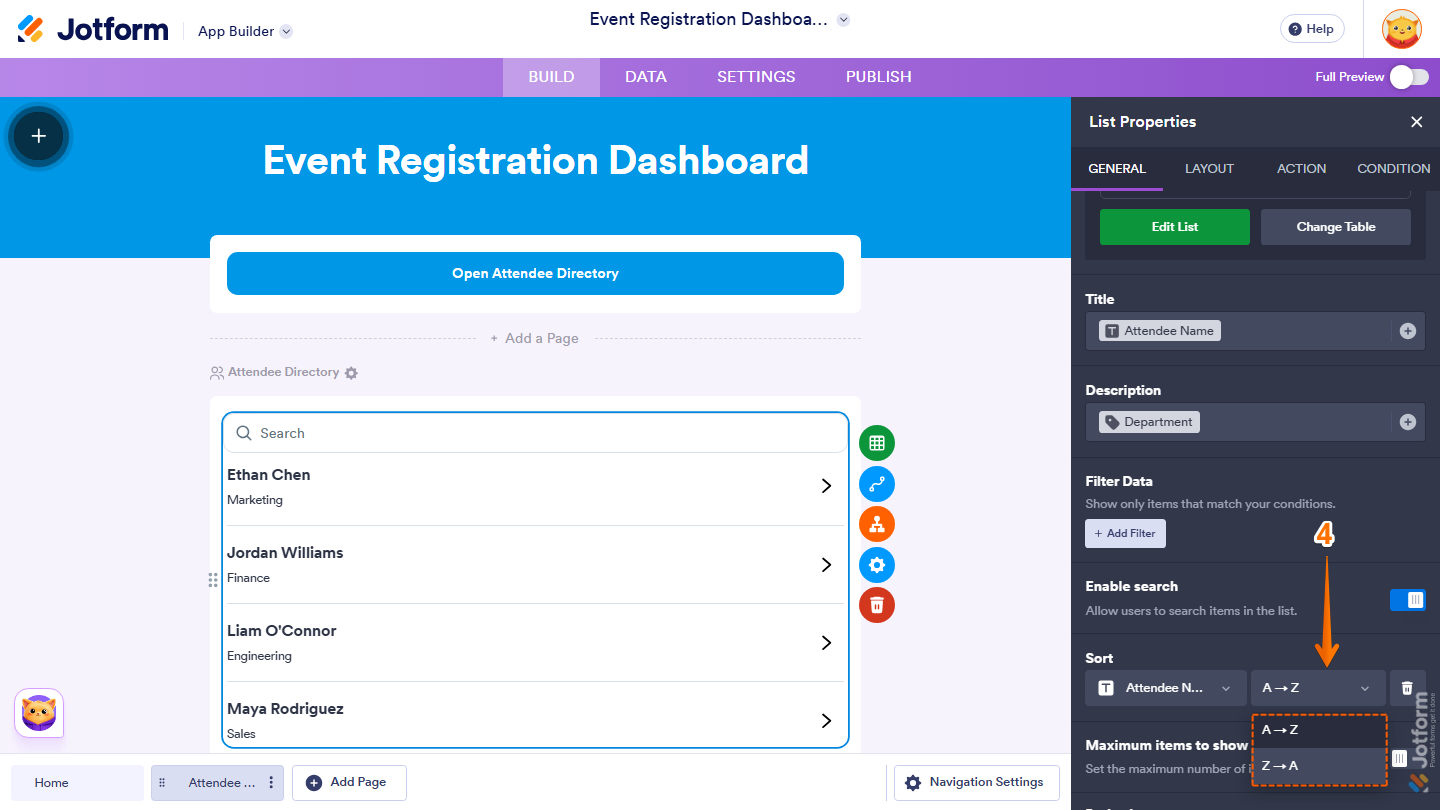
- Then, click on the second dropdown and then select the sorting order, and you’re done.
- A → Z — Sorts the selected field in ascending order.
- Z → A — Sorts the selected field in descending order.
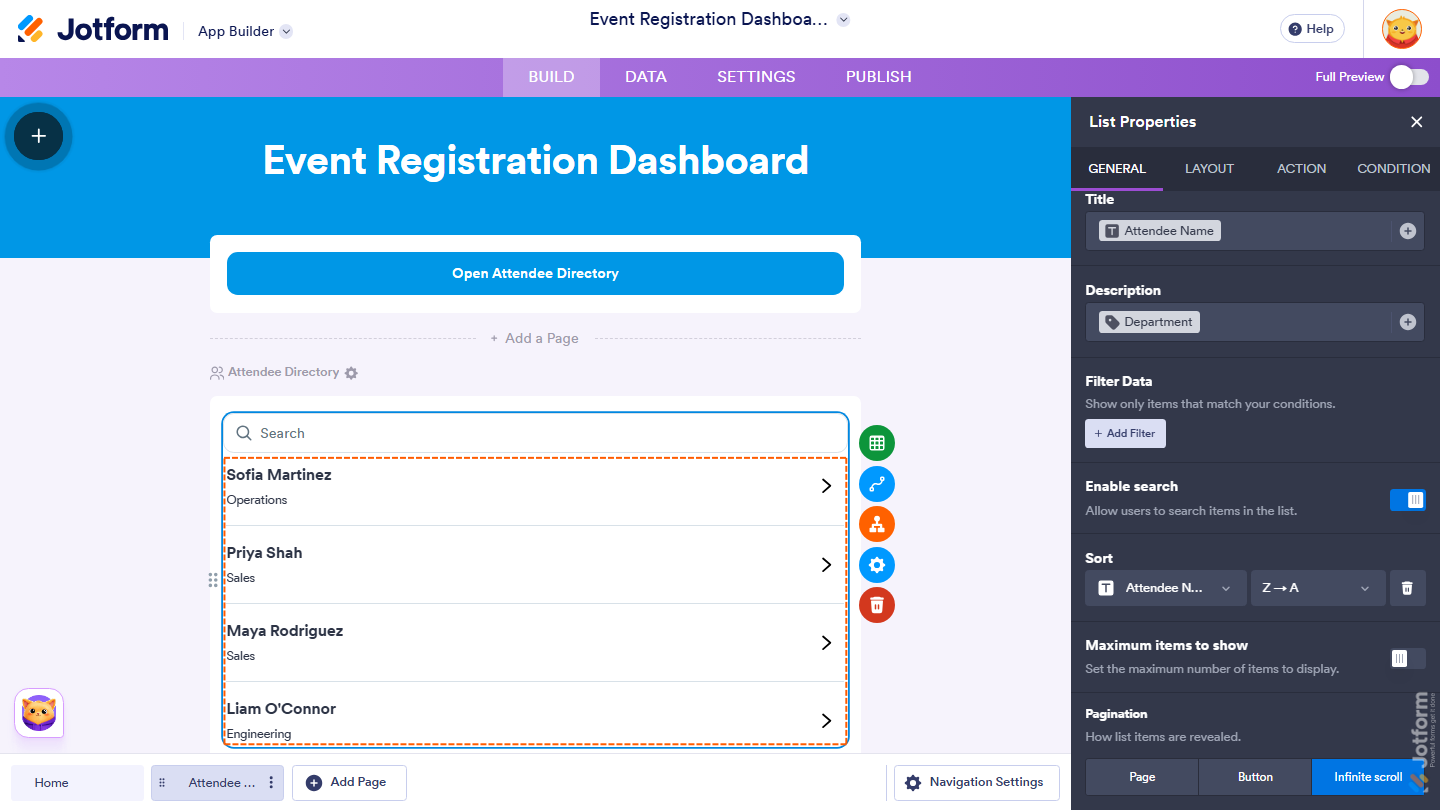
That’s it! Your List element will now display its items in the sorting order you selected.

Send Comment: