

We’re delighted to deliver two of our most requested integrations: Microsoft Excel and SharePoint. Get ready to flow submission data and files to your spreadsheets, lists, and document libraries faster than ever before.
Organizations around the world trust Jotform Enterprise and Microsoft to manage critical business functions. Whether you’re tracking inventory or juggling contracts, having a direct connection from Jotform Enterprise to Microsoft Excel and SharePoint saves time and minimizes human error.
The new integrations for Excel and SharePoint work seamlessly across the Jotform Enterprise suite of products. Here’s a quick roundup of capabilities by product.
- Forms: Send submission data to Excel workbooks or an existing SharePoint list. Upload submission PDFs and files to SharePoint.
- Jotform Sign: Route PDFs and related files to SharePoint. Send signed document data into Excel-based workflows and SharePoint.
- PDF Editor: Sync PDF-based form data into Excel. Store and organize generated PDFs in SharePoint.
- Smart PDFs: Sync and manage Smart PDF submission data in Excel. Store and share PDF documents in SharePoint.
- Workflows: Route data, files, and generated documents to SharePoint.
Plus, Jotform’s integrations with Microsoft Excel and SharePoint are HIPAA-enabled, so you can leverage Jotform’s HIPAA security features while taking advantage of new automations within Microsoft software.
Let’s explore some examples so you can see how to leverage these new integrations.
How to set up the Jotform Enterprise integration with Microsoft Excel
The first step is to enable Excel via the Admin Console. Admins can do this from the Integrations section. Simply search for Excel, and make sure it’s visible.
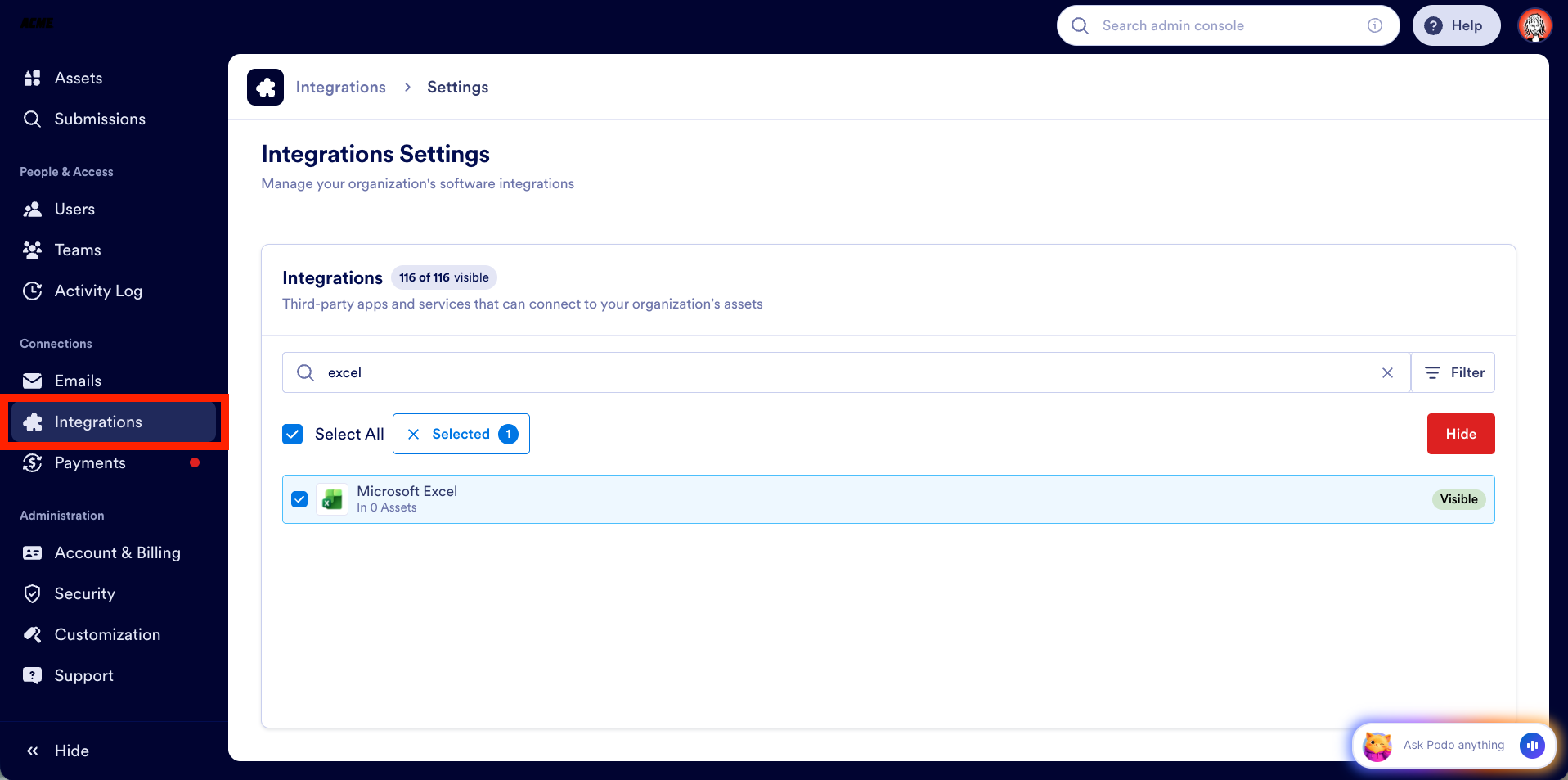
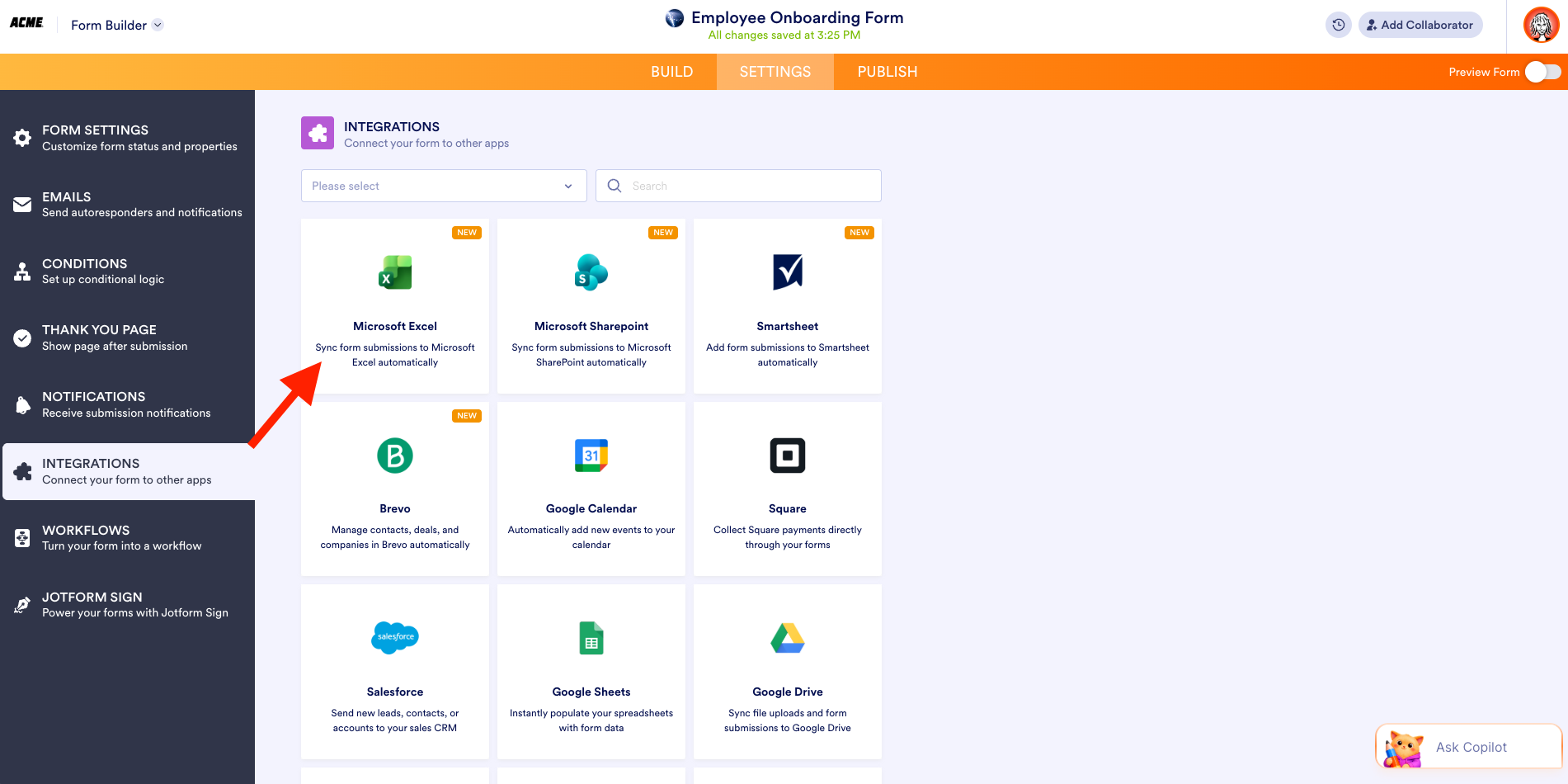
Let’s see how the integration works with a simple employee onboarding form. From the Form Builder Settings tab, select Integrations, then search for and select Microsoft Excel.
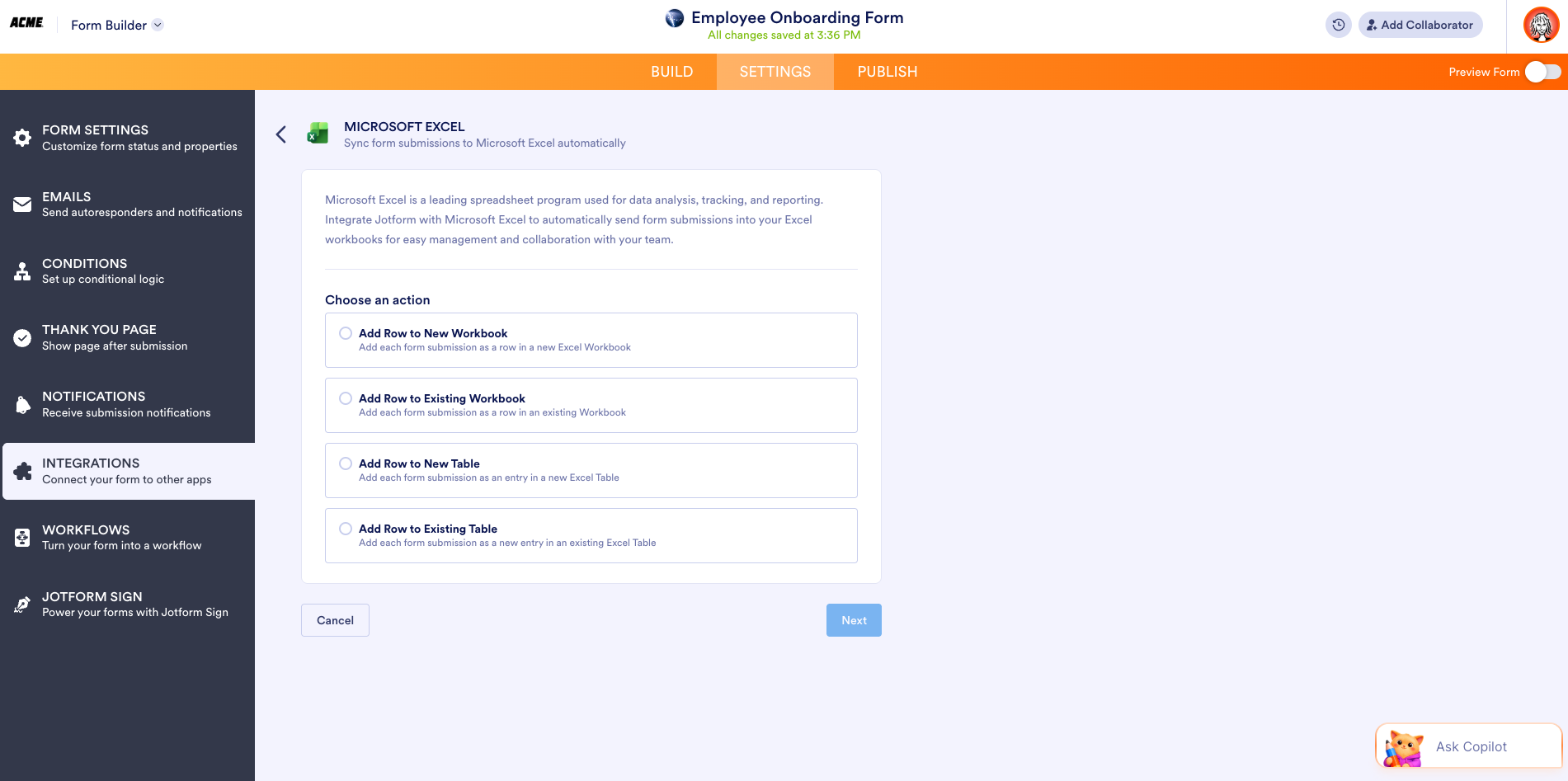
Next, pick the action you’d like to perform with each submission. You can choose
- Add Row to New Workbook to create a new workbook and add each submission as a new row.
- Add Row to Existing Workbook to add each submission as a new row in an existing workbook.
- Add Row to New Table to create a new Excel table and add each form submission as a new entry.
- Add Row to Existing Table to add each form submission as a new entry in an existing table.
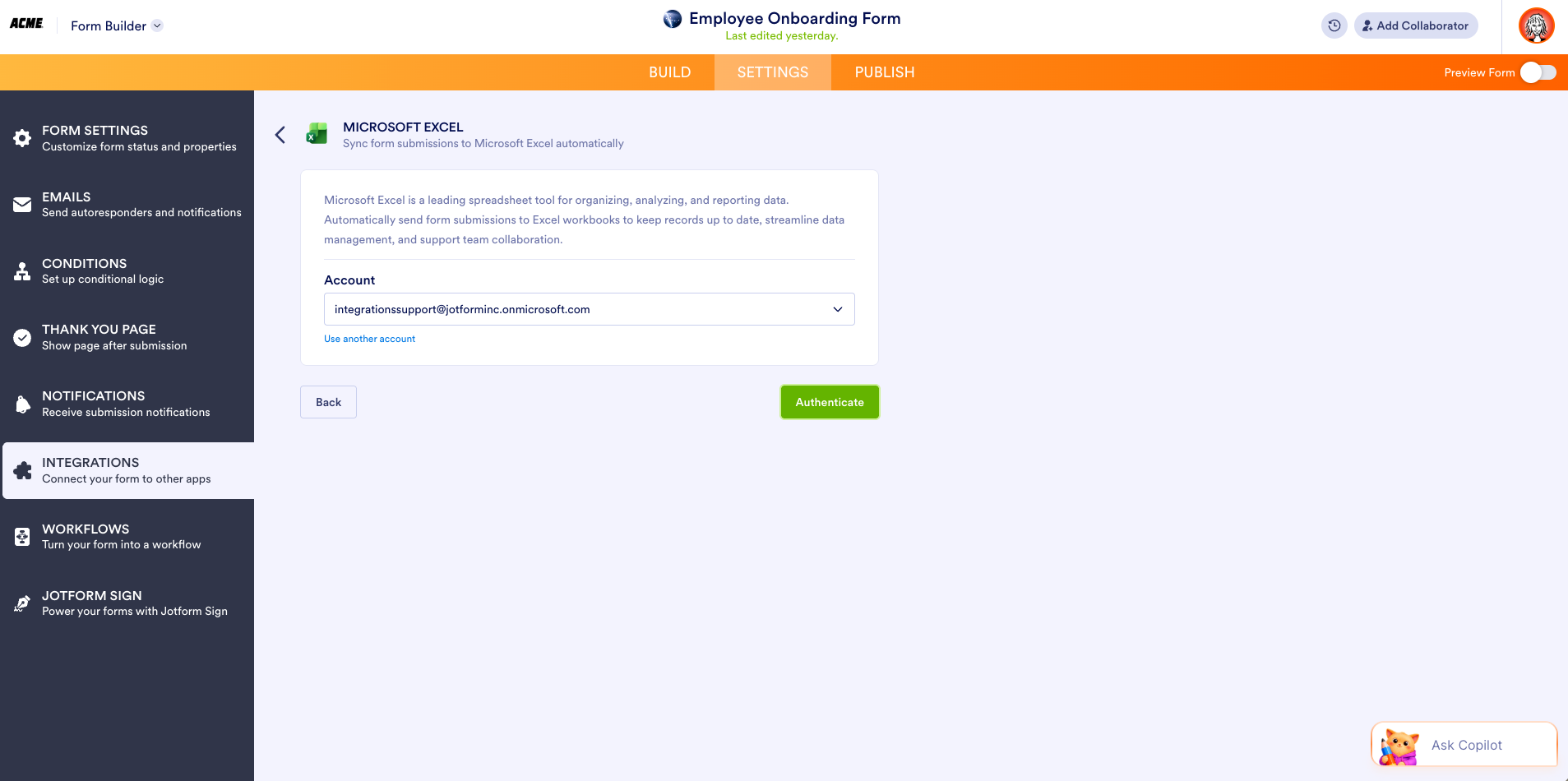
For this example, let’s add a row to a new workbook. When you click Next, you’ll be prompted to select the account associated with your form and authenticate your account.
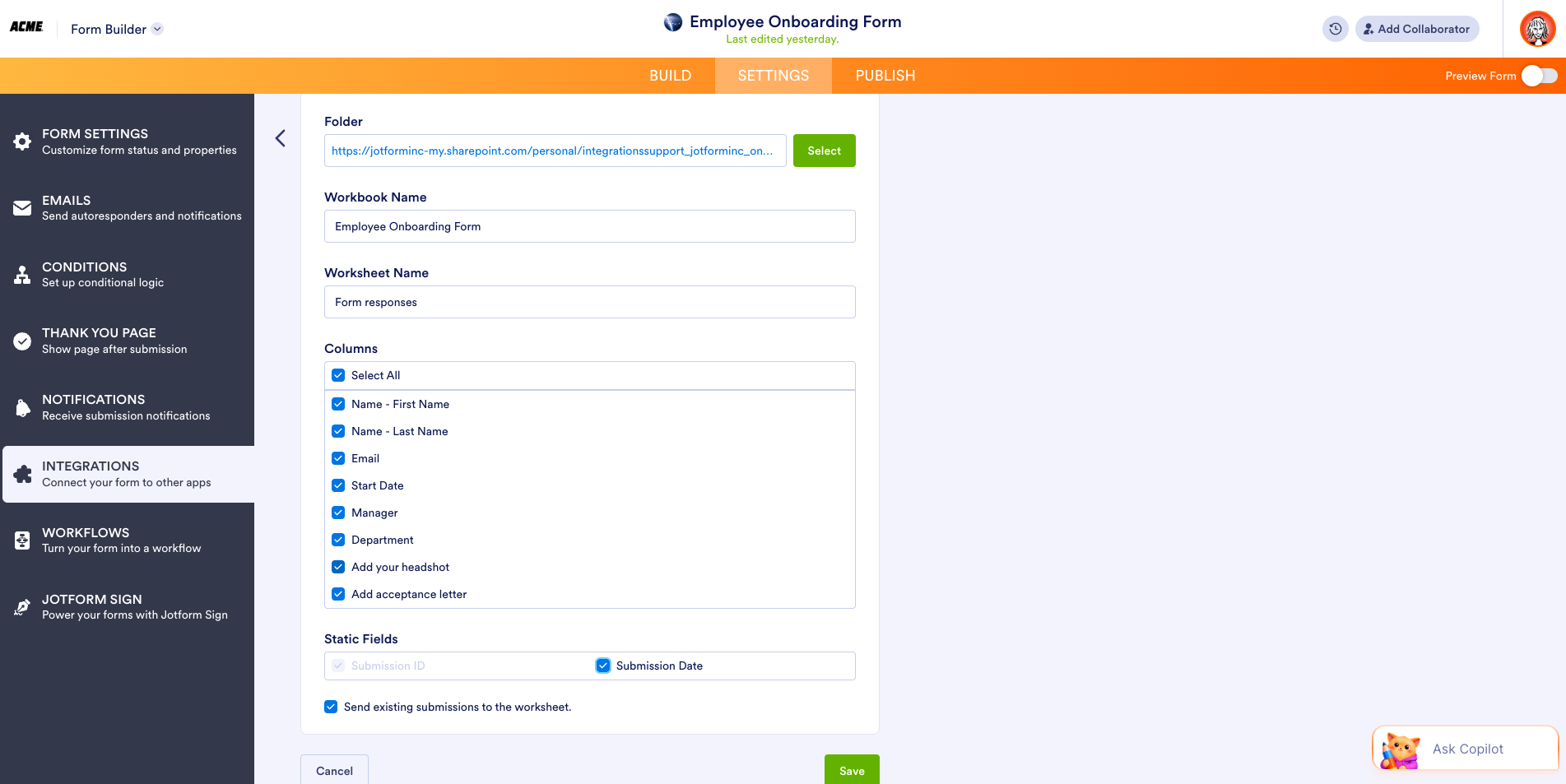
Select an existing folder or create a new one to house your Excel data. The Workbook Name and Worksheet Name are prepopulated (and editable). Once you have everything mapped out, click Save.
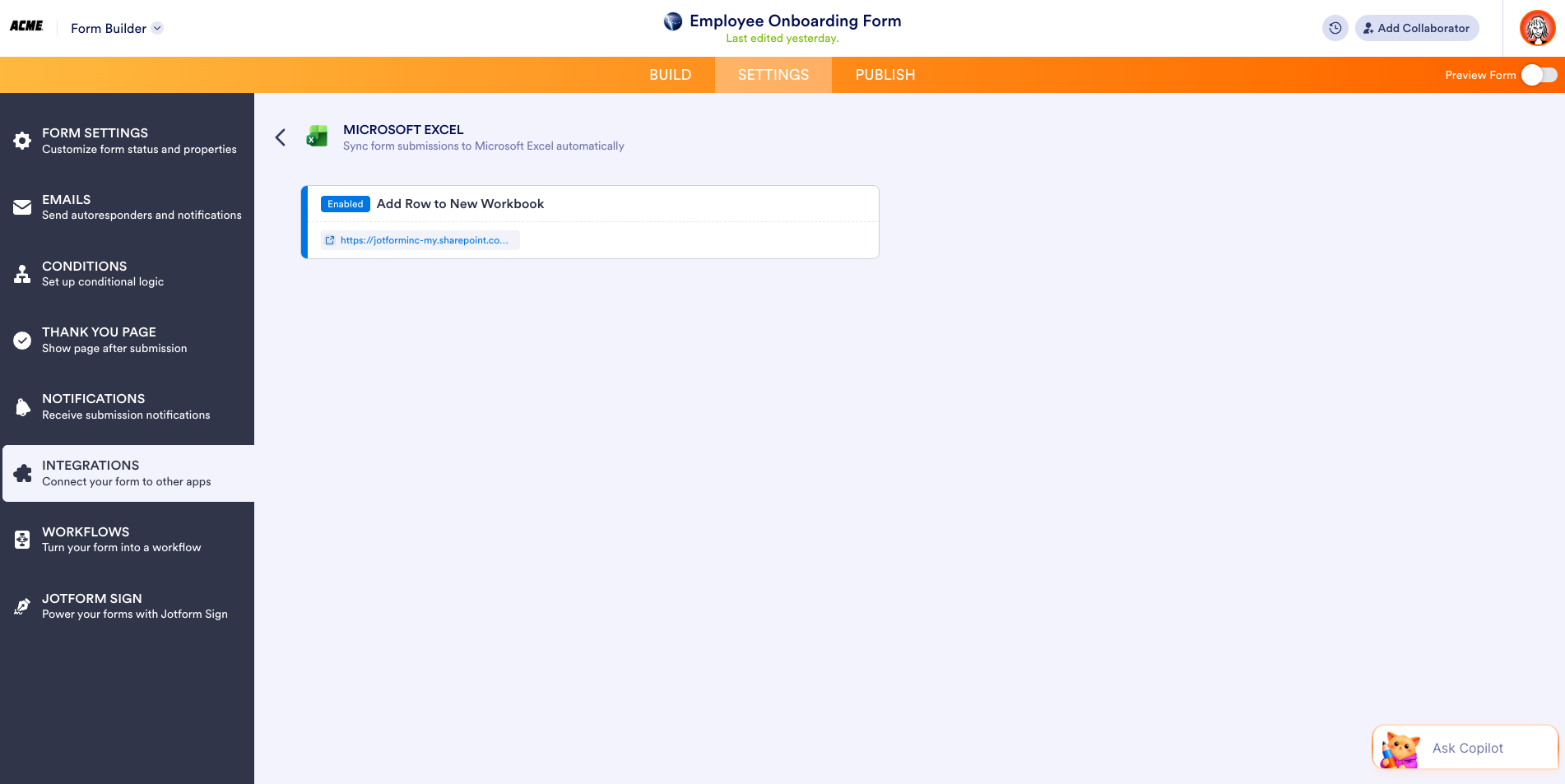
Just like that, your sync is enabled, and you can look forward to seeing data in your sheets.
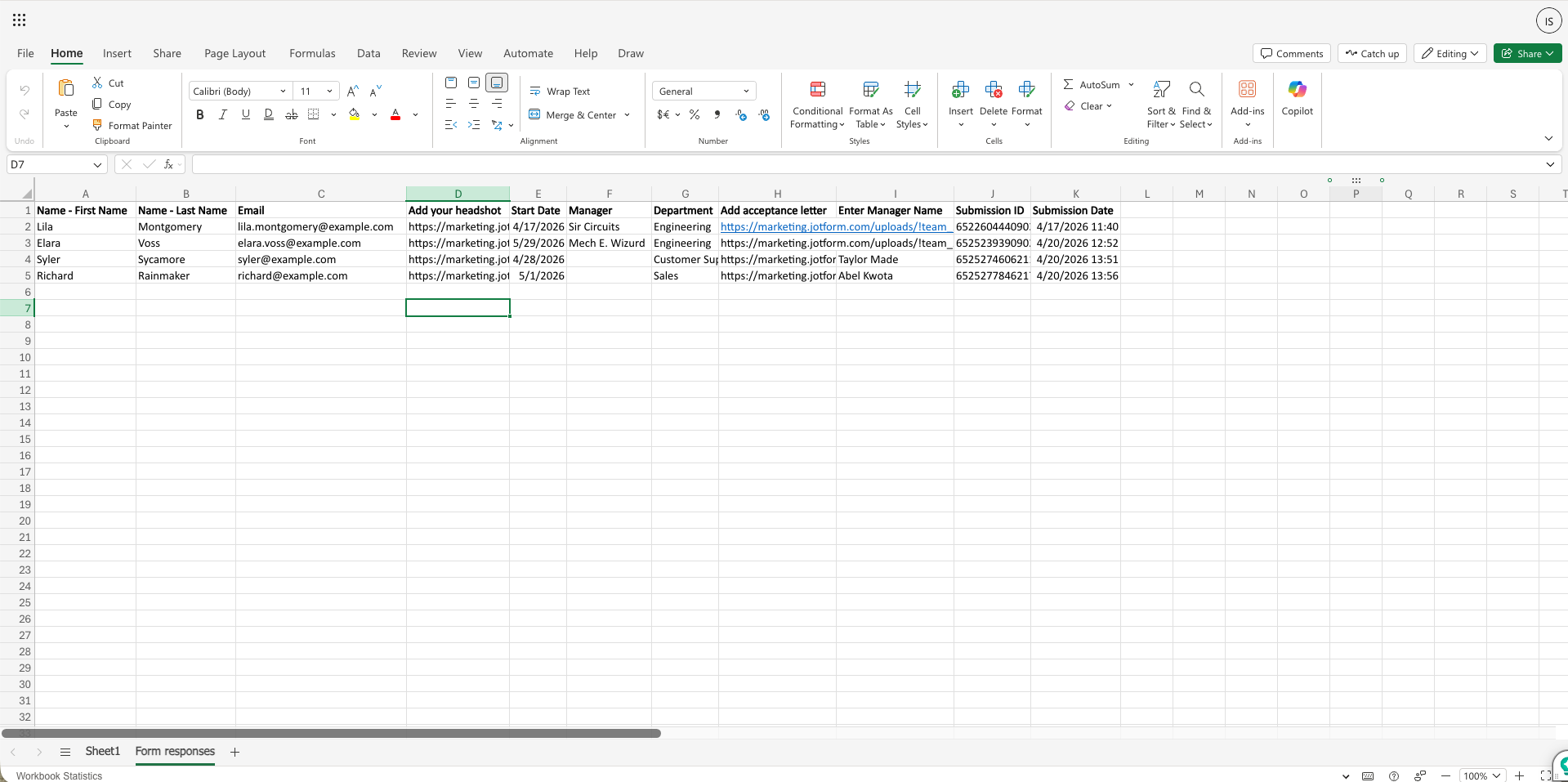
Here’s a sample dataset in an Excel worksheet.
Pro Tip
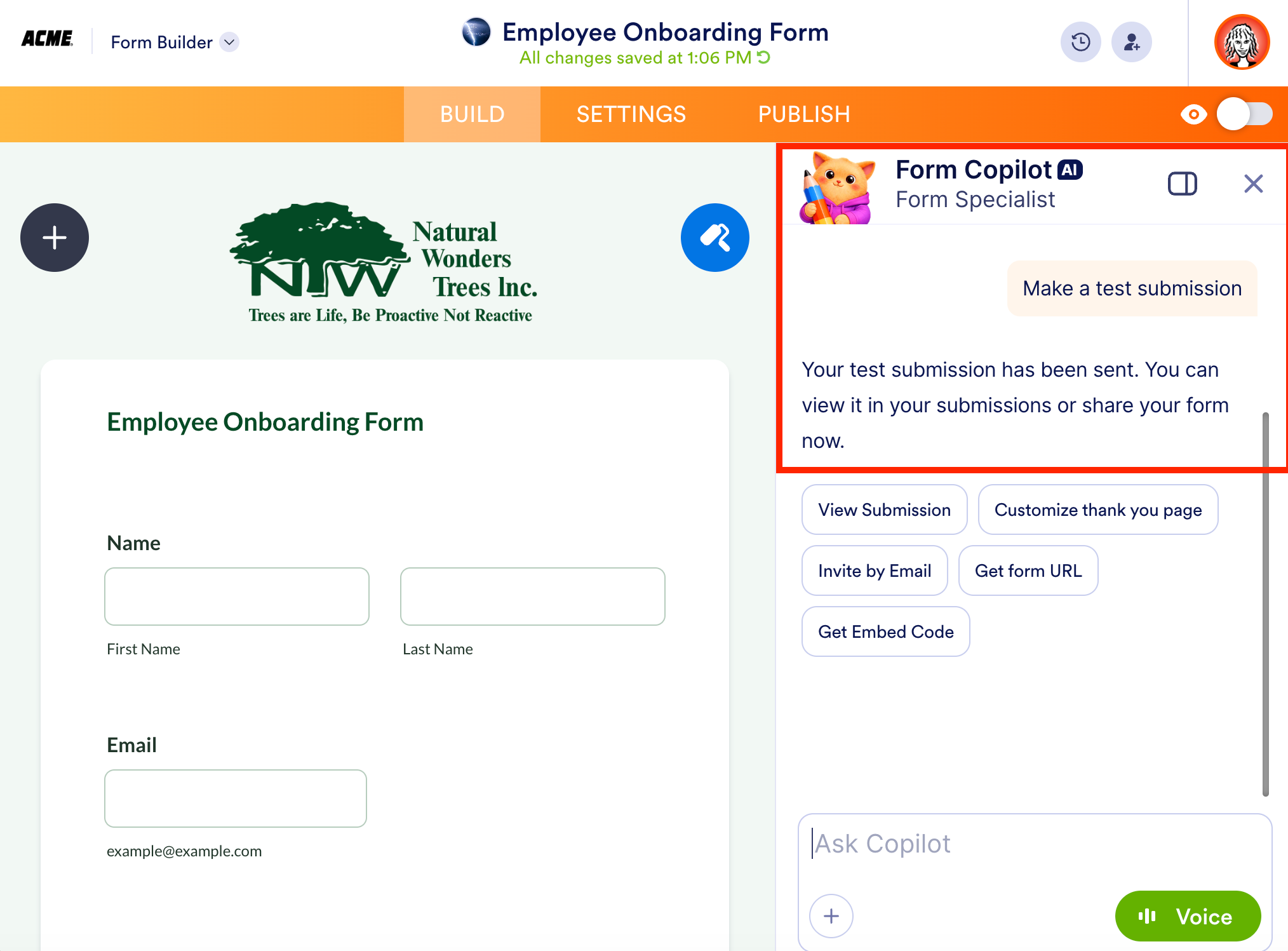
Use Jotform AI to test your integration. In the Form Builder, click on Ask Copilot and ask it to send a test submission. Jotform AI will fill out the form for you. All you have to do is refresh your Excel sheet and, voila! The test is complete.
Centralize files and structure data in SharePoint with Jotform Enterprise
A central repository for your organization’s files is a cornerstone of efficiency. Whether you’re tracking job candidates, compliance, or customer requests, having accurate, timely information is essential.
The Jotform Enterprise integration with SharePoint ensures everyone can access the most current information. No more copying, pasting, downloading, or uploading files and data.
Let’s take a look at an example with Jotform Sign.
Say you run a commercial landscaping business and need to collect employee agreements.
Using the new integrations, you can flow data from Jotform Sign documents to Microsoft Excel or SharePoint using the same steps outlined above. This time, let’s choose Send Files to walk through the process of uploading files to a SharePoint document library.
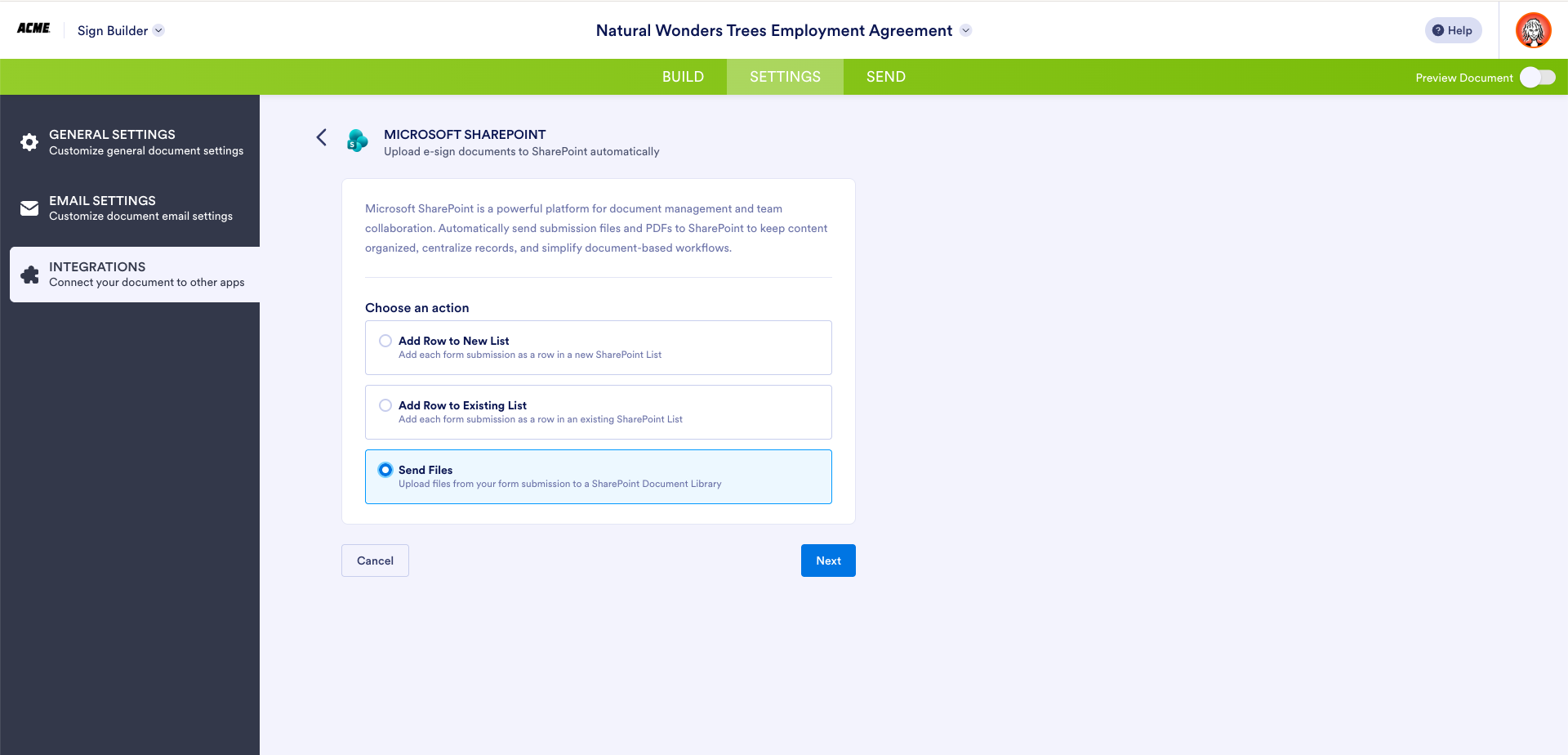
Authenticate your account, and select the specific site and folder where you want to send your files.
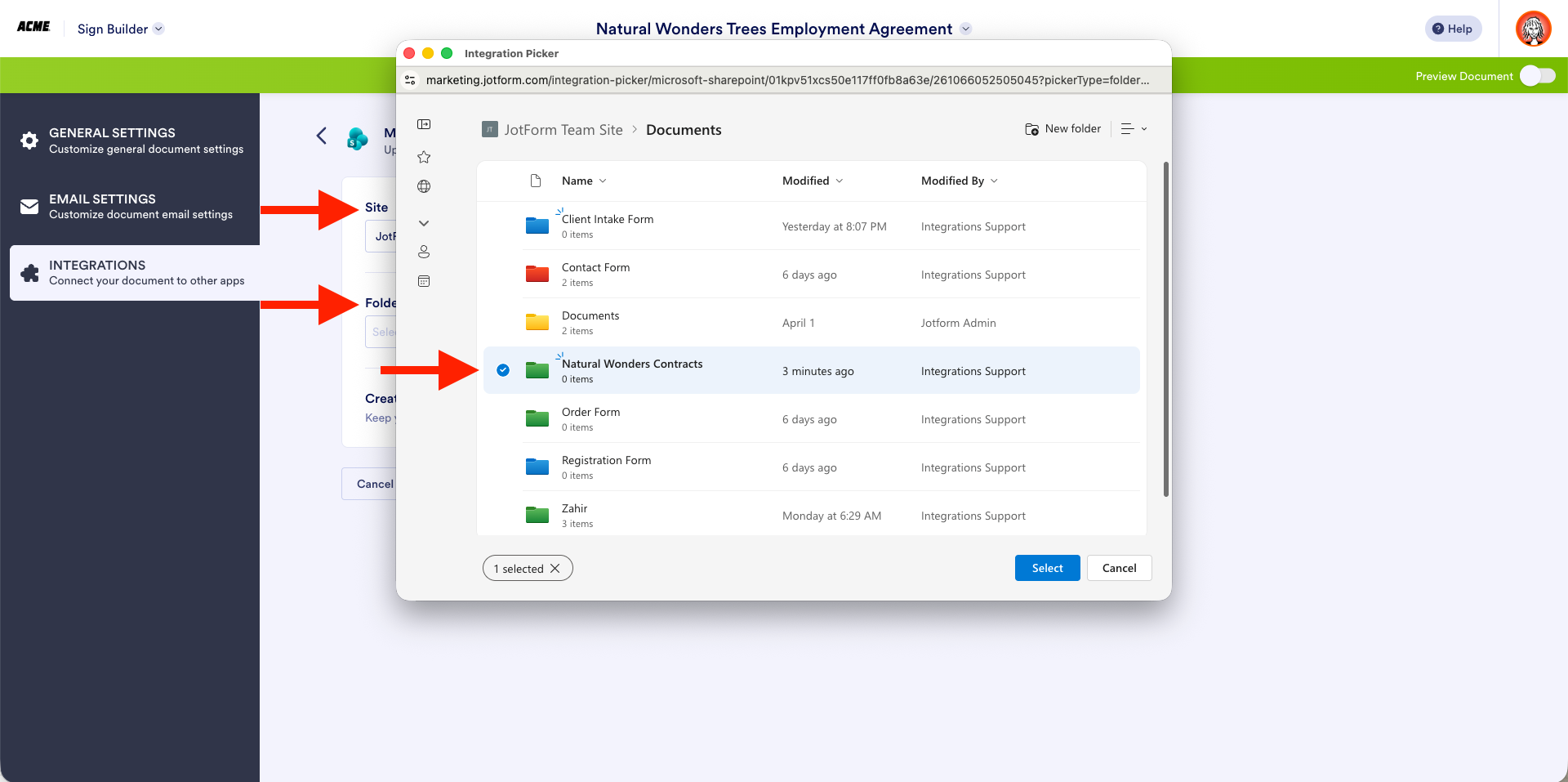
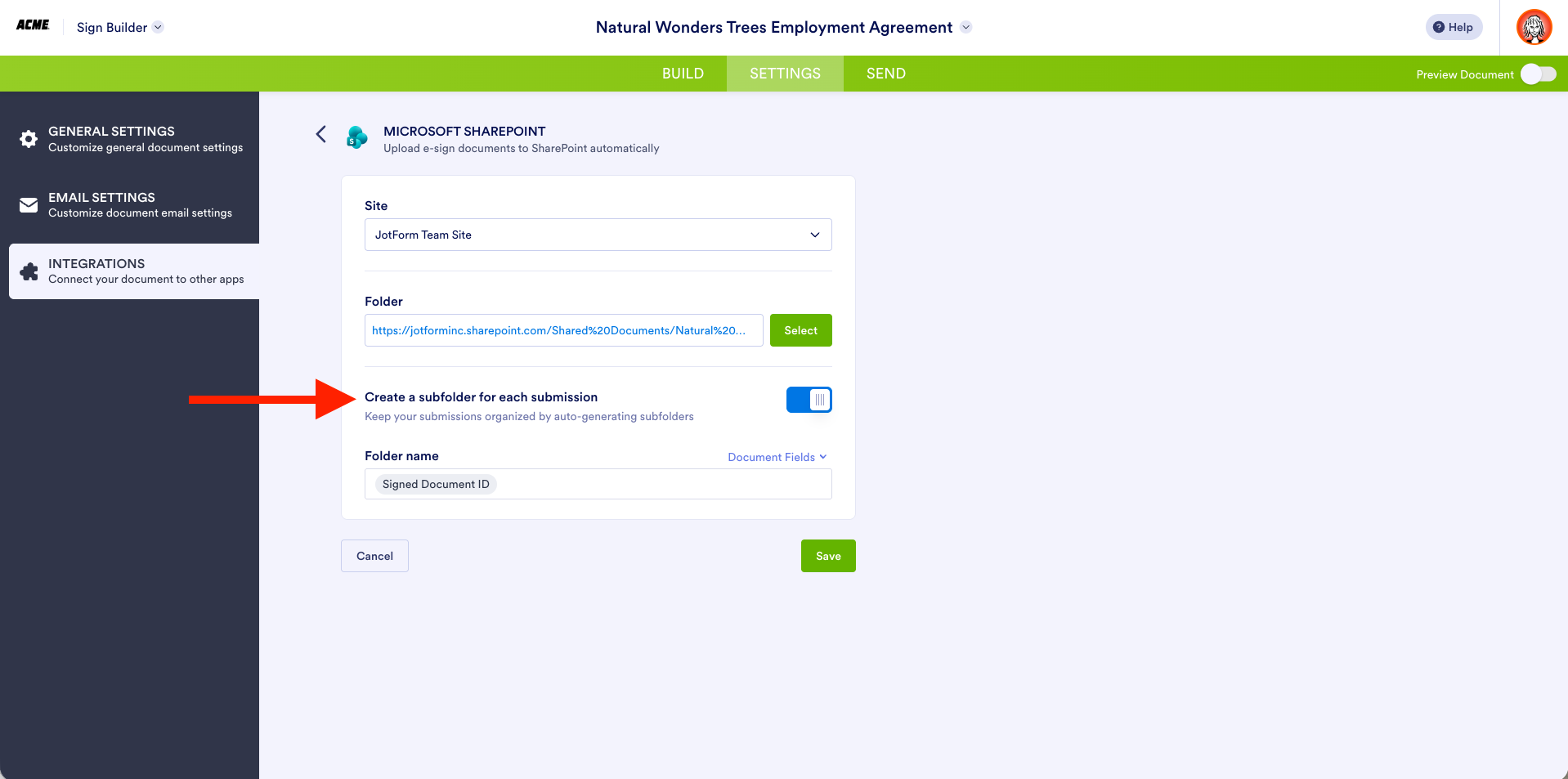
If you want, you can save each document or submission in its own subfolder and automatically label each folder based on a specific field. For this example, I’ve chosen the Signed Document ID. Click Save to finalize your setup.
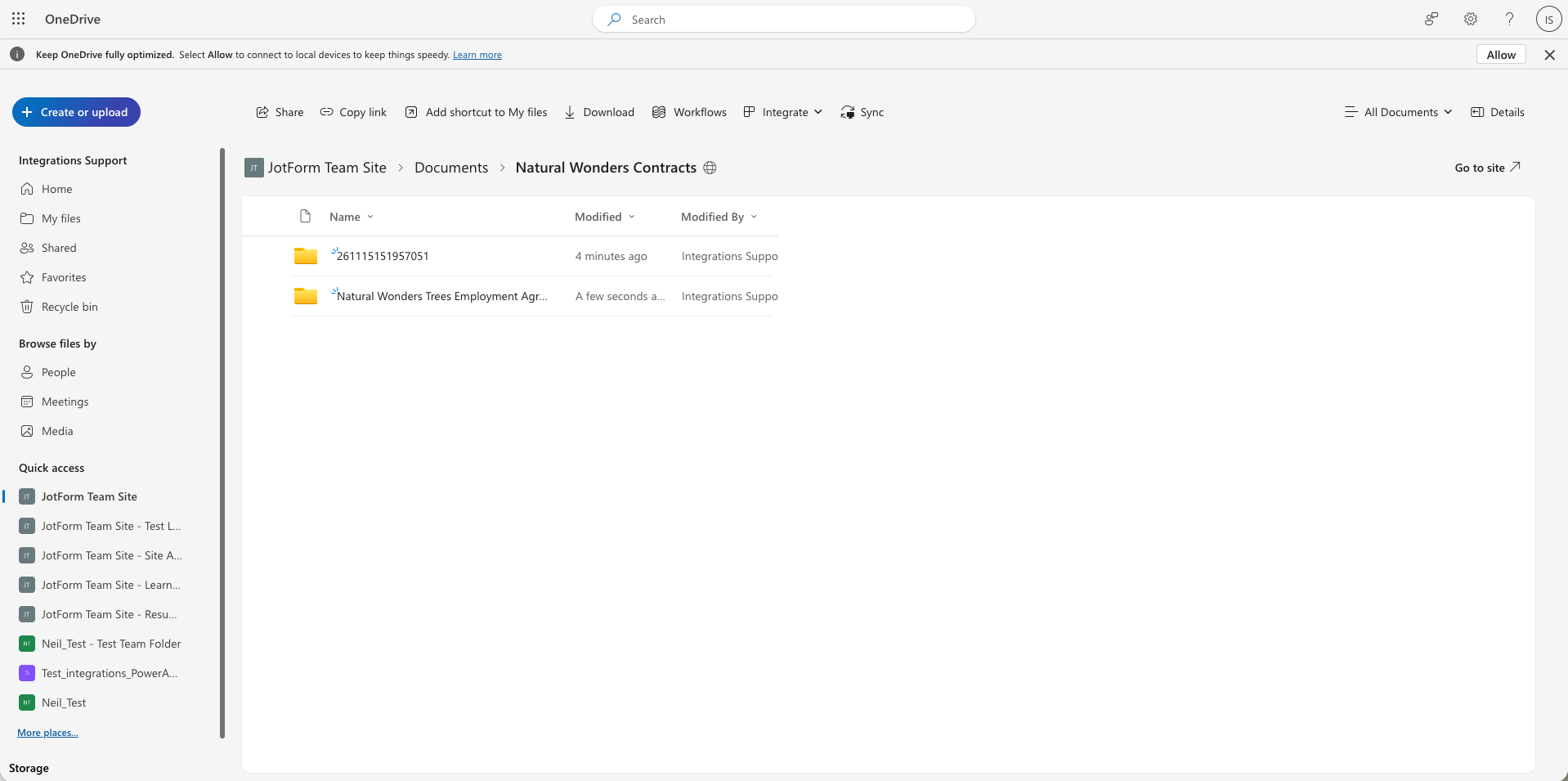
That’s it. Now you can start collecting information and signatures, and the submissions will flow directly to the folder you specified.
Align data management systems with Jotform, Excel, and SharePoint
A new era of data management is here. No more downloading, uploading, copying, pasting, and paying for third-party connectors. When you integrate Jotform Enterprise with Microsoft Excel and SharePoint, your data will flow and sync automatically, creating a unified system of record.
Ready to tap into this trifecta of technology? Start connecting your Jotform assets to Excel and SharePoint today. From forms and workflows to e-signatures and storage, your entire organization will benefit from secure, synced data across teams and systems.
Got questions? Contact your dedicated Enterprise Success Manager or check out our help guides for Excel and SharePoint to learn more.











Send Comment:
1 Comment:
April 29, 2026
This is awesome news! This is going to streamline our workflow so much.