Jotform’s TextArea Autosize widget is a smart form-enhancement tool that dynamically expands as users type, seamlessly adjusting to the input’s length to conserve vertical space and create a cleaner, more intuitive experience. It offers customization options such as setting a maximum character limit, making it ideal for both short responses and longer text entries without overwhelming your form layout.
Here are a few ways to use it:
- Let users provide detailed feedback without being limited by a fixed text box size.
- Allow applicants to write longer personal statements comfortably.
- Collect in-depth support requests or issue descriptions.
- Enable customers to share testimonials or reviews with ease.
- Provide space for detailed project briefs or service requirements.
- Let students submit essay-style responses in academic forms.
- Allow employees to write performance evaluations or reports.
- Gather comprehensive responses to open-ended questions.
- Enable vendors to clearly describe proposals or quotations.
- Improve the user experience by automatically expanding the text area as more content is added.
Whether you’re creating a new form or updating an existing one, you can add and set up the TextArea Autosize widget on your form in a few easy steps. You’ll just need to do this:
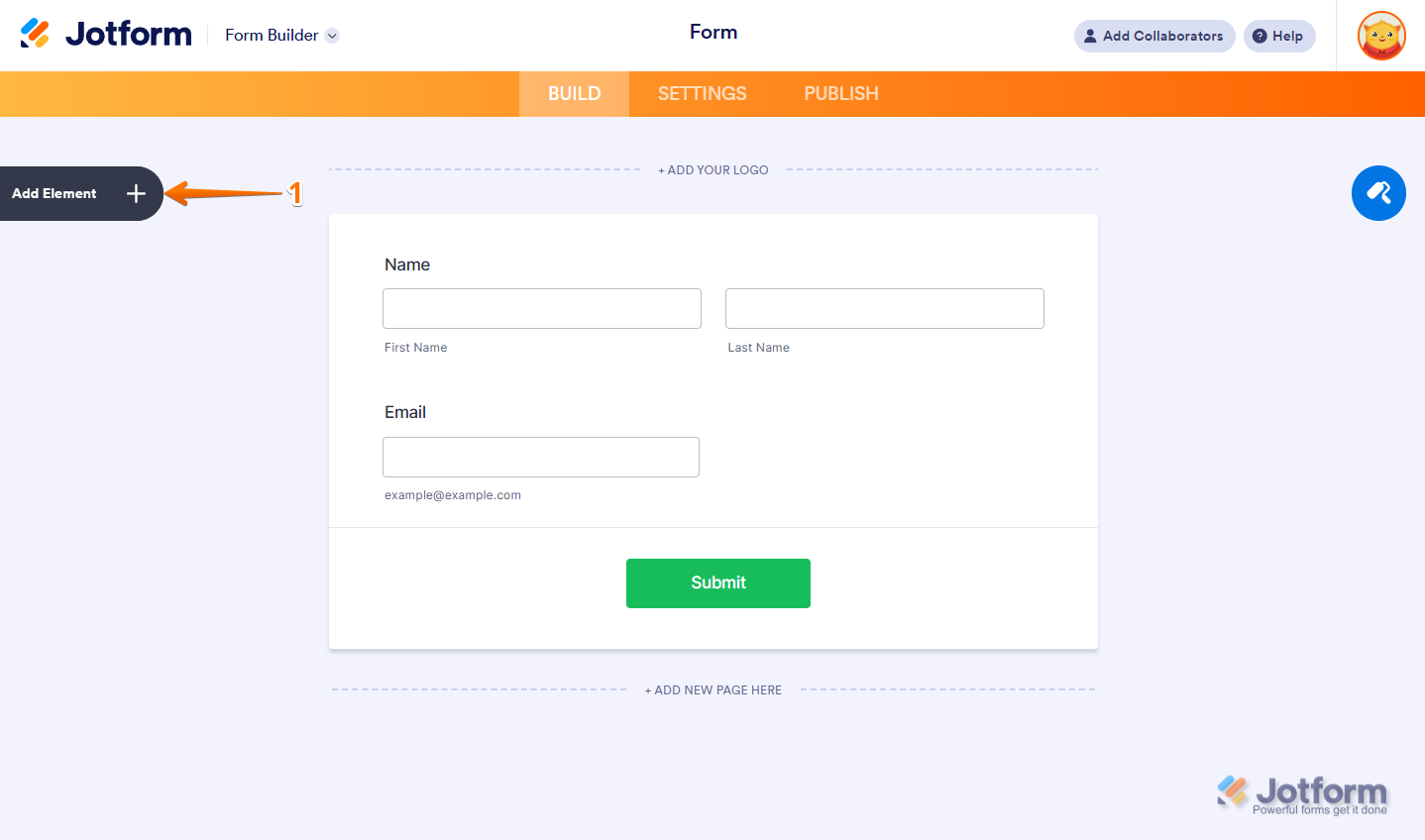
- In Form Builder, click on Add Element on the left side of the page.
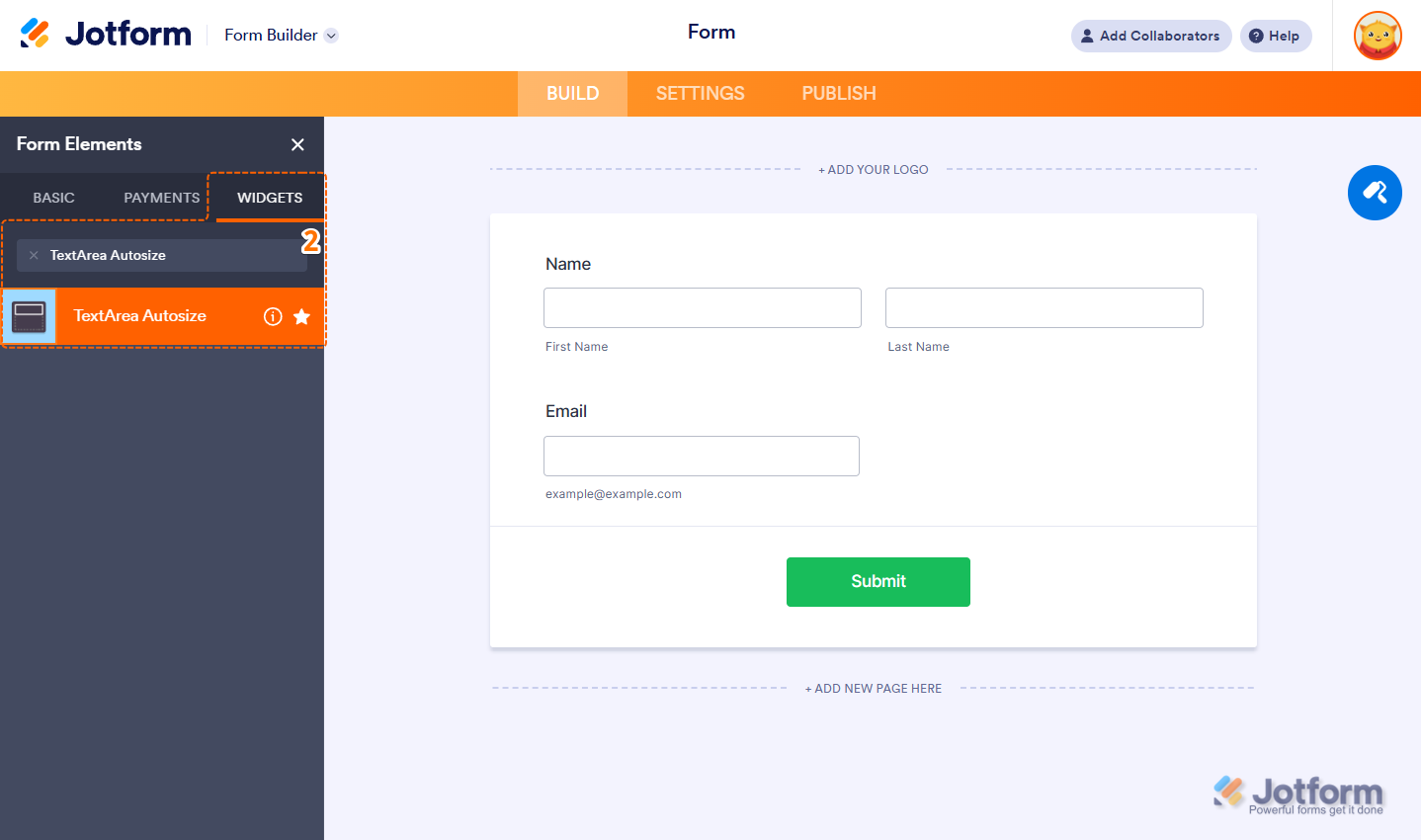
- Now, in the Form Elements menu, under the Widgets tab, search for TextArea Autosize and click on it. Or just drag and drop it to where you want it on your form.
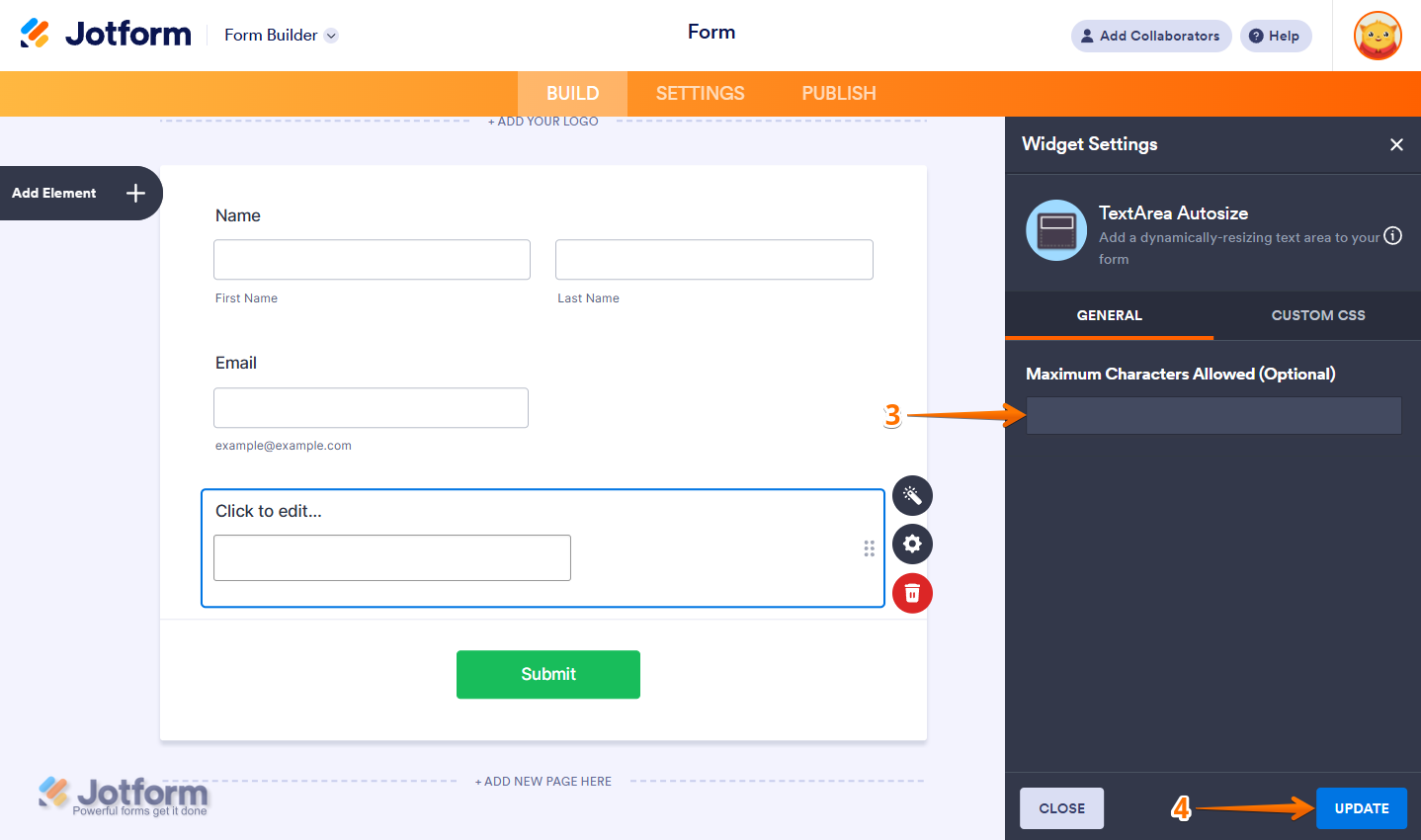
- Next, in the TextArea Autosize Widget Settings menu that opens on the right side of the page, under the General tab, enter the Maximum Characters Allowed to limit the number of characters that your users can submit in the widget, or leave it blank for optimal input.
- Once you’re done, click on Update.
That’s it! You’ve now successfully added and set up the TextArea Autosize widget to your form. Check out this demo form to see it in action.
Notes
- For advanced styling of the widget, you can add your own custom CSS code under the Custom CSS tab in the Widget Settings. Our guide on How to Inject CSS Codes to Widgets walks you through everything.
- You can also configure the widget properties, like alignment, labels, size, visibility, and more, to control how it looks and behaves on your form. Check out our guide on How to Access and Configure the Question Properties of a Widget to learn more.

Send Comment: