
A quick guide to filling out PDFs on Android devices
- You can fill many PDF forms directly on Android, but the easiest method depends on the kind of PDF you received.
- Google Drive is the simplest option for basic fillable PDFs, but it may not work with every file type.
- Adobe Acrobat is better for signatures, typed text placement, and PDFs that need Fill & Sign tools.
- Some PDFs fail on Android because they are scanned documents, XFA forms, or locked files rather than true fillable PDFs.
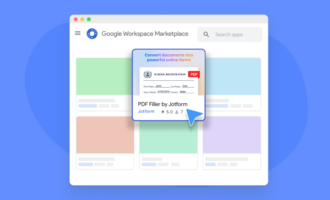
- If you regularly create and send PDFs, Jotform offers a smoother mobile experience by turning existing or new PDF files into mobile-friendly, fillable online forms
Filling out a PDF on an Android smart device without printing it out is not just possible, but also incredibly simple. Once you find your preferred app-based PDF filler, upload your form and get started.
But before you choose a solution, you’ll need to distinguish whether you’re trying to complete a fillable PDF or a locked or flat document.
For fillable PDFs, there are two key solutions Android users typically rely on: Google Drive and Adobe Acrobat. PDFs with existing interactive fields can be easily completed using Drive’s Form Filling tools. For PDFs requiring more robust form-filling capabilities — such as signatures and advanced controls — Acrobat may be the better tool.
In this guide, we’ll break down how you can use both of these tools to fill out PDFs from the convenience of your smartphone, as well as how alternatives like Jotform can help overcome the headaches that come with managing PDFs at scale and dealing with non-compatible files.
Already have a standard PDF form you send to other people?
Use Jotform Smart PDF Forms to convert your PDF into a mobile-friendly online form that is easier to complete on any smartphone while keeping the original PDF layout for completed copies.
How to fill out a PDF form on Android
The average Android user fills out a PDF form on Android with one of two solutions. Whether you use Google Drive or Adobe Acrobat will depend on the format and design of your PDF and the complexity of your field-filling needs. Before you choose, consider a few key questions:
- Does my form have existing fillable fields?
- Do I need signatures?
- Do I need to place text manually?
- Does my PDF form have advanced features like JavaScript or embedded media?
Google Drive’s basic PDF platform works well for filling out simple forms. But for more intricate documents, Adobe Acrobat may be a better fit.
Using Google Drive for basic fillable PDFs
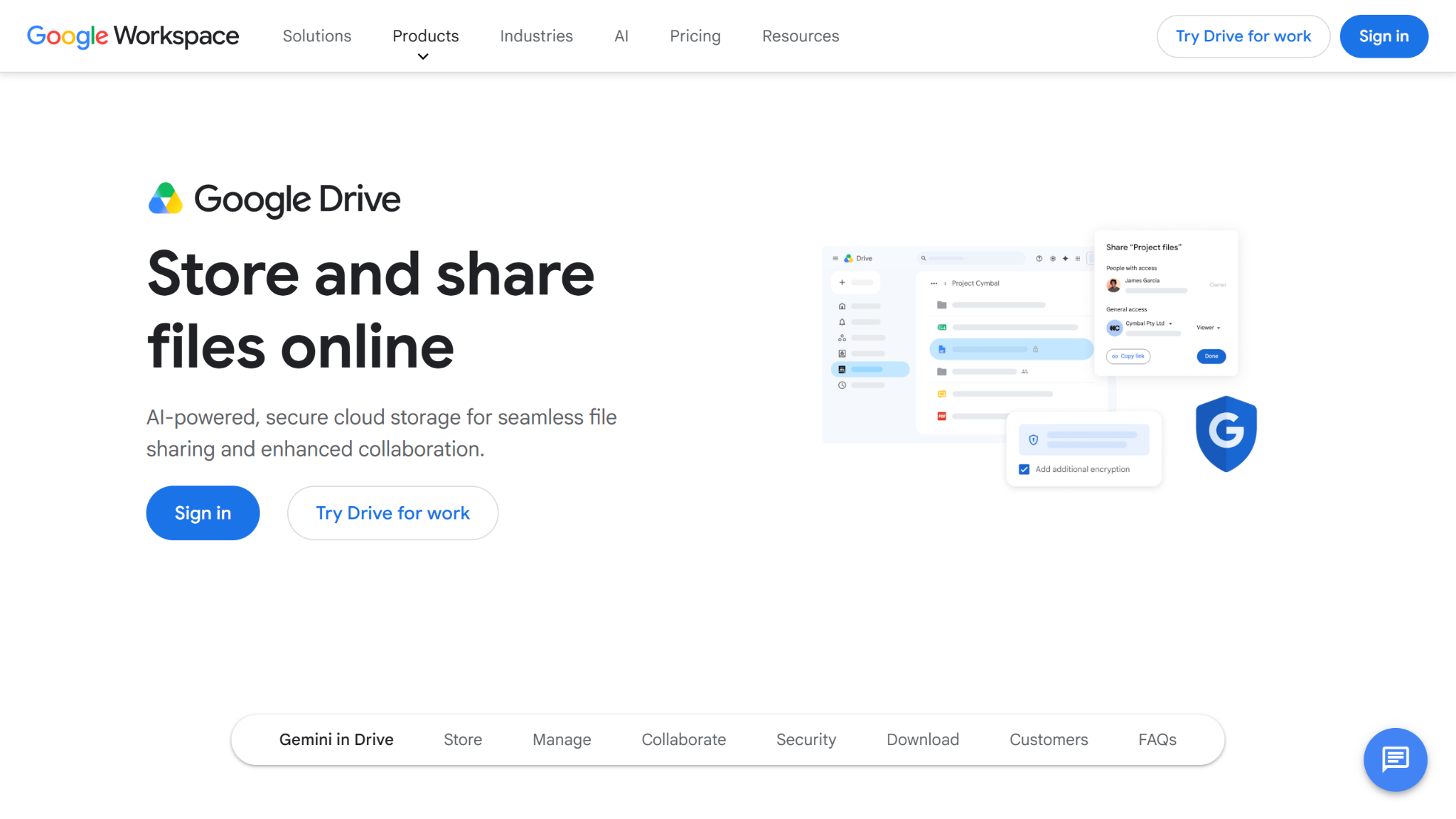
For quick, easy access to basic PDF filling tools, Google Drive is a popular and convenient option. This solution is best suited for PDFs that already contain proper fillable form fields, as Drive’s PDF platform can handle only simpler files.
Here’s how to get started:
- On your Android device, find and open the Google Drive app.
- In your Google Drive, tap the PDF you want to fill out.
- Tap Edit at the bottom right. Then tap the Form Filling icon. If you don’t see this icon, you may not be able to fill out your PDF on Drive.
- Fill out your PDF form.
- Once you’re finished, tap Save at the top right. To save a copy of your completed PDF, click More and then Save As.
While this solution simplifies filling out basic fillable PDFs, it has significant limitations compared to other methods. For example, Google Drive isn’t compatible with every type of PDF. So if you don’t see the option to fill out your form, you’re out of luck.
Google Drive also lacks advanced features like manual editing and e-signatures; hence, more complex documents require an alternative like Adobe Acrobat.
Using Adobe Acrobat when you need signatures or more control
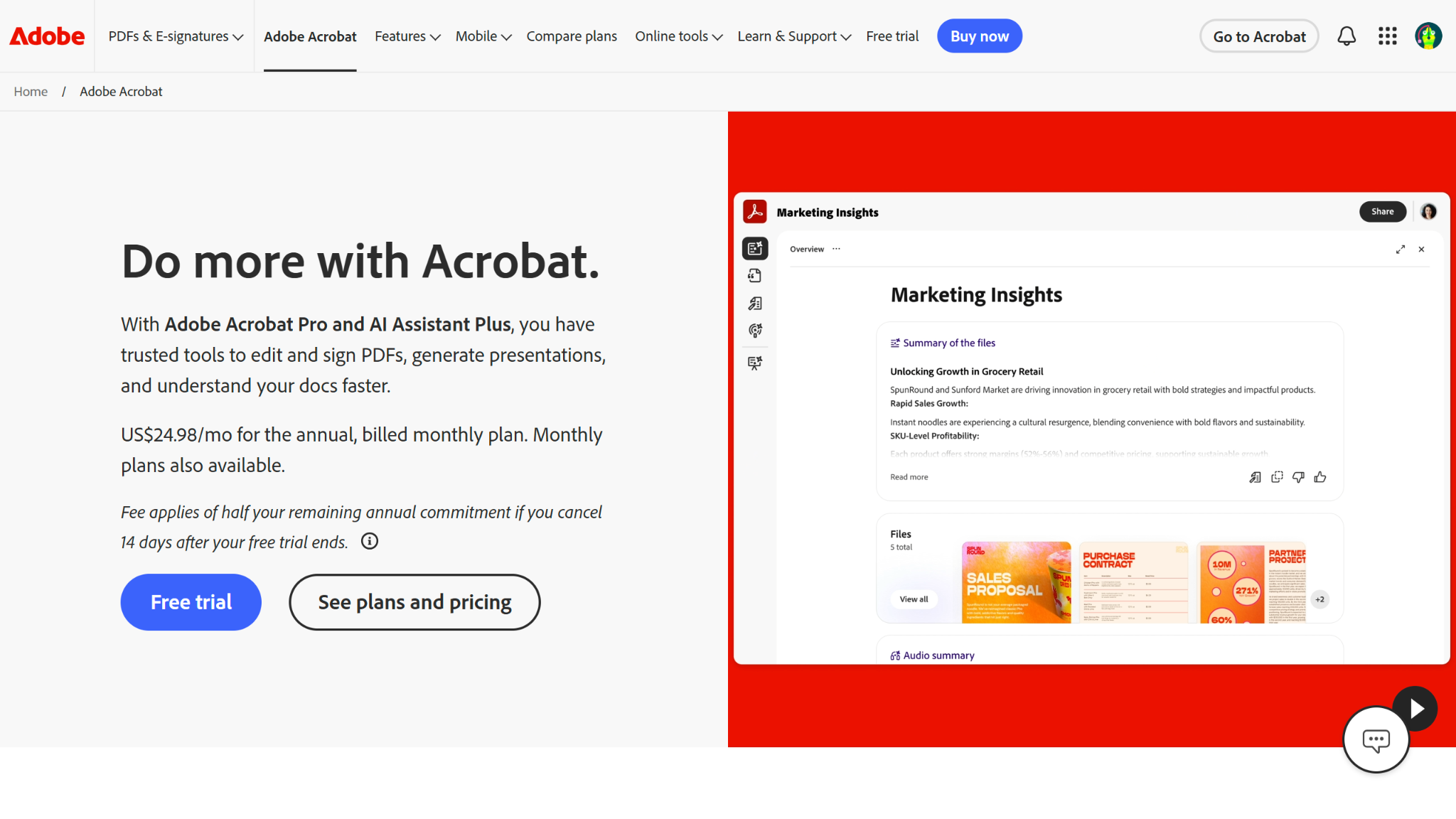
Whether you’ve discovered your PDF isn’t compatible with Drive or you need to access more advanced features, Adobe Acrobat offers a better path for complex documents. If, for instance, you need to sign a form or manually insert text into a PDF, Adobe Acrobat can do that.
Use these steps to complete a PDF form on mobile using Acrobat:
- Open the Adobe Acrobat app.
- Press the “+” symbol at the bottom of your screen.
- Tap Edit a PDF and find the form you want to fill out.
- Tap the pencil icon at the bottom of the screen and press Edit PDF.
- Fill out your form and tap Done when finished.
If you’re not sure what type of PDF you’re working with or what capabilities you may need, starting with Adobe Acrobat may be the safest option. Keep in mind that if you use Acrobat for e-signatures, you may not be able to edit your PDF signatures once you’ve signed and saved.
Looking for a sign app?
Use Jotform Sign Mobile to sign your PDFs. It’s easy, fast, and free. Finalize contracts, approvals, and forms anytime, anywhere. Zero hassle on your side, zero friction in the process.
Why some PDF forms don’t work properly on Android
Stuck trying to fill out an uncooperative PDF? Don’t worry — it’s likely because of the file itself, not your Android device. There are a few common reasons a PDF may not be compatible with one or both of these solutions:
- Your PDF may not be truly fillable. Some PDFs are just flat documents or scanned images of forms.
- Your PDF may use dynamic XFA form technology, which mobile solutions like Google Drive do not fully support.
- Your PDF may be password-protected, view-only, or restricted in a way that blocks signing or editing.
- For Acrobat specifically, your PDF may have been designed for desktop Acrobat behavior only, in which case it won’t translate cleanly to mobile.
If you believe one of these factors is preventing you from filling out a PDF on your Android device, there are steps you can take to troubleshoot the issue.
- Test to see if your cursor can land on a field to fill it in. If not, it’s likely not a fillable PDF.
- If you’re starting in Google Drive and don’t see the form fill option in the edit menu, switch to Adobe Acrobat and try again.
- If Adobe is limited or incompatible with your PDF, you may need to convert or rebuild the file from scratch to gain access to these features.
Filling out a properly formatted PDF on Android is one issue; having the right file for mobile is another. That’s where these solutions fall short. Although they can help you navigate how to fill out a PDF form on Android, they can’t help you turn clunky forms into mobile-friendly documents. For that, you’ll need a fillable PDF form creator, like Jotform.
Need a smoother mobile experience? Use Jotform instead
If you’re a power PDF user like a business team, school, HR leader, or clinics, you can’t risk working with PDFs that aren’t mobile-friendly. If you send out a PDF and respondents struggle to fill it out on their mobile devices, they may choose not to fill it out at all — or become frustrated with you when they try.
But before you give up on mobile PDFs, create a fillable PDF form using Jotform instead. Through its full suite of PDF-oriented features, Jotform reduces the friction of mobile PDF use in a few key ways:
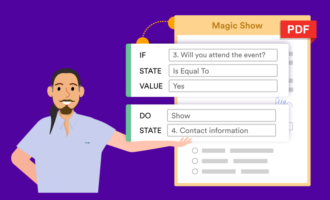
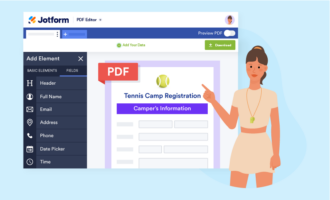
- Smart PDF Forms: With Jotform, you can upload an otherwise incompatible PDF and map your own fillable fields. Using this feature, you can transform any PDF form into a mobile-friendly online form that can be easily completed on a smart device.
- Fillable PDF creation: Jotform’s fillable PDF capabilities aren’t limited to conversion. You can also create your own custom PDF from scratch with text fields, checkboxes, and signatures that users can easily complete from their mobile devices.
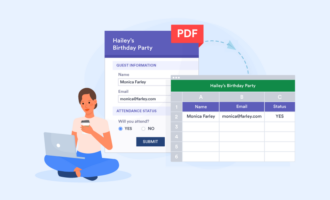
- Original layout retention: When someone completes a fillable PDF you’ve sent, their responses come back in the original PDF format. This helps you retain your document’s original setup and reduces confusion when organizing your data later on.
- Mobile-friendly by default: Rather than asking your respondents to struggle with a non-mobile-optimized document, Jotform offers a clean experience that places the power at their fingertips.
- Offline forms: No internet? No problem. PDF responses collected offline will be automatically synced to your Jotform account once you get a connection.
- E-signatures: Thanks to its native connection to Jotform Sign, you can create a signable PDF form that anyone can fill out from anywhere — not just Adobe Acrobat users.
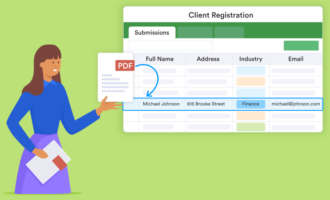
- Centralized responses: Gone are the days of chasing confirmation emails in your inbox. Jotform keeps all your PDF response data in one place so you can quickly access the information you need.
- Improved sharing: Once you create your fillable PDF form, you can distribute it to respondents using a direct link or embed code — rather than hoping your recipients have a compatible PDF app.
These capabilities make Jotform the ideal solution for PDF users looking for maximum flexibility, accessibility, and efficiency in their fillable PDF forms.
Not sure how to start building your own Smart PDF Forms?
Use our guide to Smart PDF Forms to explore features, tutorials, and other need-to-know elements about this advanced document type.
If you’re just worried about filling out a single PDF, Google Drive and Adobe Acrobat will (probably) do the job. But if you’re interested in upgrading how you build, send, and complete PDFs from your mobile device, Jotform is a better system. Try it for free today and discover how mobile PDF headaches can become a thing of the past.
FAQs about PDF forms on Android
Yes, you can fill out PDF forms on Android without downloading an app. To do so, find a web-based PDF editor that is compatible with your file, upload your file, and fill it out using the tools provided.
If you can’t type into your PDF form on Android, you are likely using a basic PDF viewer without full editing capabilities. It’s also possible that your PDF is not designed to be filled out or formatted for mobile use.
Yes, Google Drive can be used to fill out PDF forms on Android. However, Google Drive is a basic solution that will allow you to fill out only certain PDFs that are predesigned with fillable fields. For more complex forms, you may need to use Adobe Acrobat or Jotform instead.
Whether or not you can fill out a PDF form on Android in a web browser will depend on the form itself and the solution you are using to fill it out. Certain forms aren’t compatible with mobile web browsers, while others aren’t designed to be filled out whatsoever.
This article is for Android users, remote workers, students, patients, and small-business staff who receive PDF forms on their phones and need to complete them quickly without printing anything.



















Send Comment: