
A quick guide to filling out PDFs on Apple products
- Many PDF forms can be completed directly on an iPhone, especially if they already contain fillable fields.
- Apple’s built-in PDF tools are the fastest way for most users to get started.
- Markup is useful when the PDF is flat or scanned and doesn’t let users tap into real fields.
- Adobe Acrobat is often more reliable when users need stronger Fill & Sign controls or better handling for stubborn PDFs.
- If the real goal is to send or collect PDFs without mobile friction, Jotform offers a smoother path than asking people to struggle with a document on a small screen.
When you receive a PDF form via email, text, or a cloud link, you can usually complete it on your iPhone and send it back within minutes.
How smoothly this process goes, however, depends on whether you’ve received a fillable or a non-fillable PDF. Some PDFs have interactive fields you can tap and type in, which makes them easy to fill out. Others are flat or scanned, with no tap targets, so you instead must add and position your text or signature manually. Each type calls for a different approach, so identifying which one you’re attempting to fill out will help you choose the right tool.
Already have a PDF form you send to others?
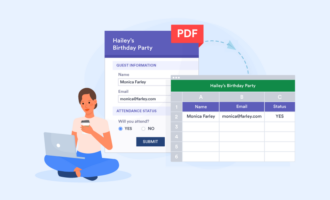
Jotform Smart PDF Forms turns your PDF into a mobile-friendly online form that’s easy to complete on any smartphone, and the original PDF layout stays in the completed copies. If you’re new to the feature, Jotform’s guide to Smart PDF Forms walks through it.
How to fill out a PDF form on an iPhone
When filling out a PDF on your iPhone, you likely have three options: Apple Preview, Apple Markup, and Adobe Acrobat. Which one you use depends on the file. When the PDF includes interactive fields, Apple’s Preview app lets you tap each field and type straight into it. When tapping isn’t an option, Markup lets you add your own text and signature on top of the page. When you need more control, such as signing a document or working with a PDF that won’t cooperate, Adobe Acrobat offers stronger Fill & Sign tools.
The following sections cover each option, starting with the fastest.
1. Using Apple Preview for fillable PDF forms
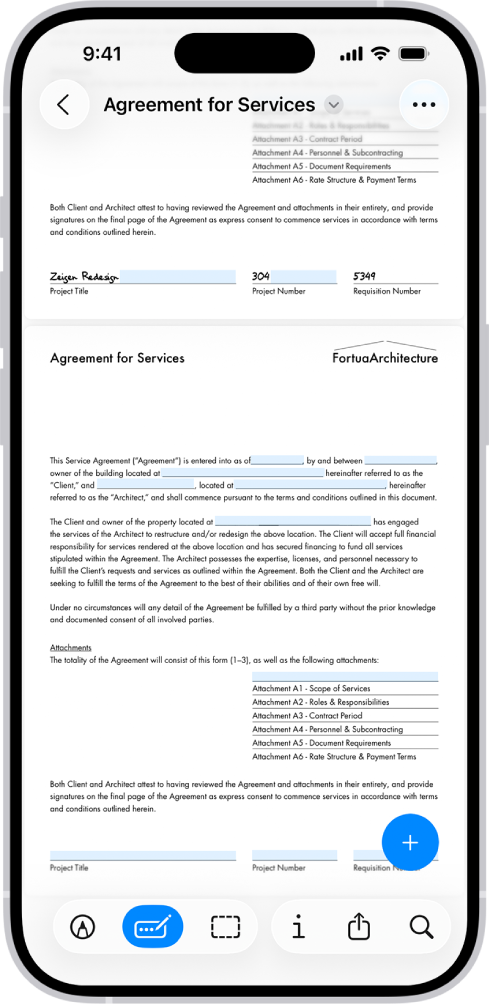
This is your fastest option for a fillable PDF on an iPhone when the file already contains proper interactive fields. Apple recommends using the Preview app to fill out and sign PDF forms, so it’s the method to try first. (Preview is a separate app as of iOS 26.0. If you’re using an older version, skip to the Markup method below.)
To fill out a PDF on an iPhone in Preview, follow these steps:
- Open the Preview app.
- Open the PDF form you want to complete. If someone emailed it to you, tap the attached file in Mail to open it directly in Preview.
- Tap a field and type your information (or tap the autofill suggestion).
- To sign or add text where there’s no field, tap the Form Filling icon (the pen drawing a dotted line).
- To add a signature or a text form box, tap the + sign on the lower-right corner of the screen.
- Review your entries, then save or share the finished form. From Mail, you can reply to the sender with the completed PDF attached.
Once your device saves your details, you can often speed things up with autofill, which suggests your contact information above the keyboard as you tap into a field. One tap fills in your name, email, or address.
This method works well only when the PDF is a true fillable form. If the file is a flat scan or a locked document, tapping a field does nothing, so you’ll want to use Markup or Adobe Acrobat instead.
2. Using Apple Markup when the PDF is not truly fillable
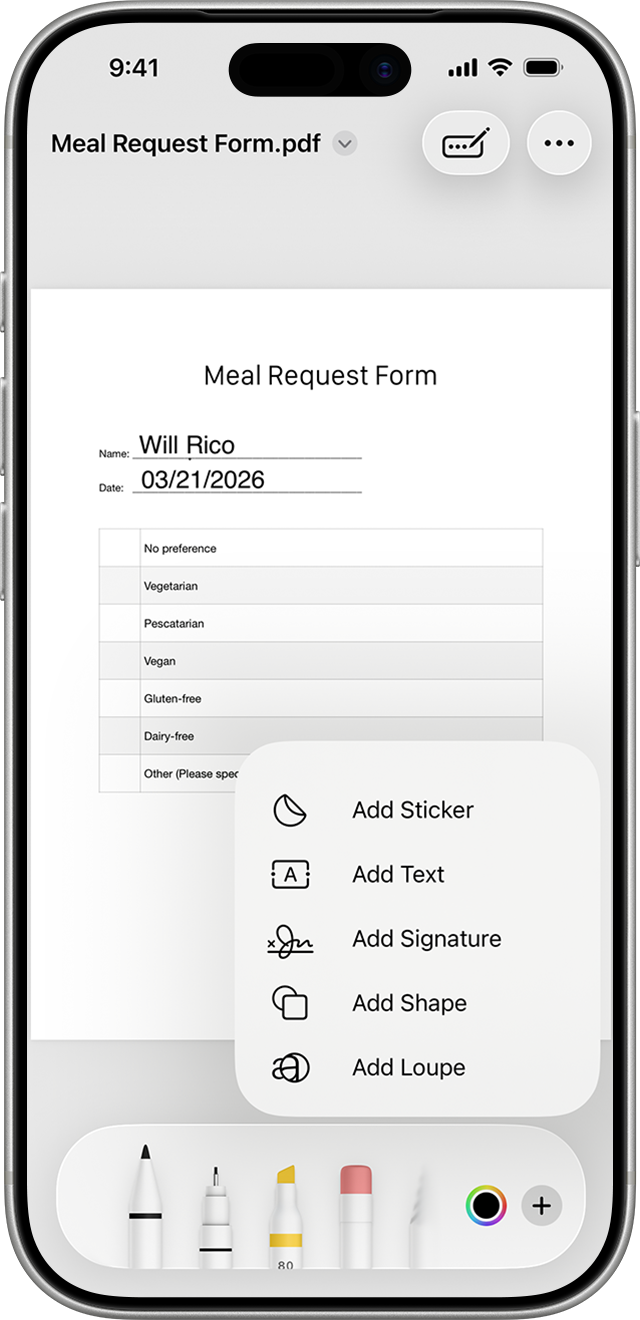
When there are no tappable fields, or when the document needs only a few quick additions, Markup is the practical fallback. It’s the workaround for flat PDFs, scanned forms, and files that look like forms onscreen but have no tappable fields. Instead of filling out fields, you’ll add your own text and signature as an additional layer on top of the page.
Here’s how to fill out a PDF on iPhone with Markup:
- Open the file in the Files app, or tap the attachment in Mail.
- Tap the Markup icon (the pen tip) at the bottom to enter Markup mode.
- Tap the + sign, then tap Add Text. Drag into place and type in the text box that appears.
- Repeat for each spot that needs information, adjusting the font and size as needed from the toolbar.
- To sign, tap the + sign, then tap Add Signature. Draw your signature with your finger or pick a saved one, then drag it where it belongs.
- Tap Done in the top right, then share the completed PDF through Mail, Messages, or AirDrop.
Markup is flexible, but the trade-off is that it’s entirely manual. You position and resize every text box yourself, and your text won’t automatically align to the form’s lines or boxes. That’s fine for a short document or a few signatures, but it gets tedious on longer or more structured forms, where lining everything up by hand takes too much time.
3. Using Adobe Acrobat when you need signatures or more control
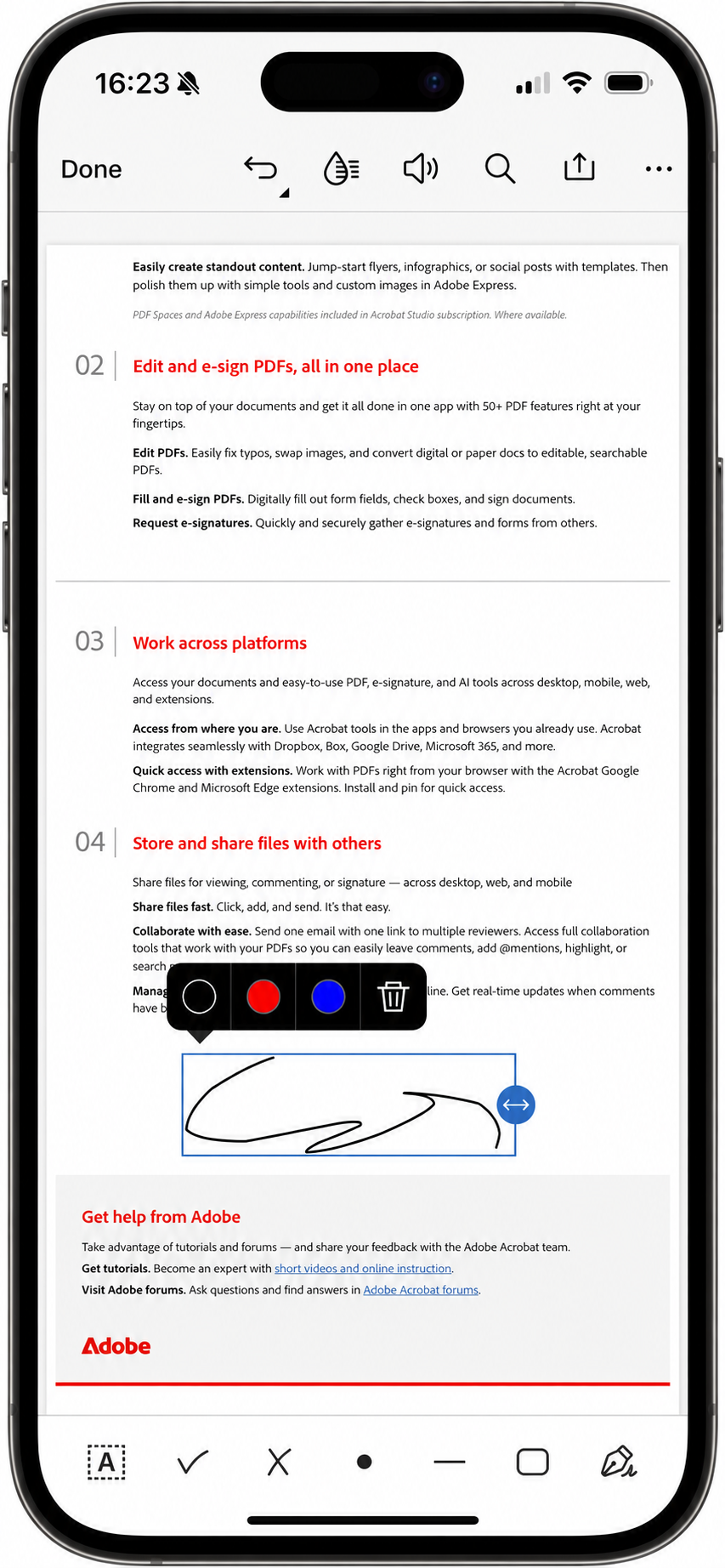
When you need to sign a document, place text exactly where you want it, or work with a PDF that won’t fill in correctly using Apple’s native tools, Adobe Acrobat Reader is the stronger option. It handles both standard form fields (Acroforms) and Fill & Sign–style placement, which lets you tap anywhere on the page to drop in text or a signature, so it works whether or not the PDF has real fields. Adobe also supports filling out and signing offline, so you don’t need an internet connection to complete a form.
Here’s how to fill out a PDF on an iPhone with Acrobat:
- Install the free Adobe Acrobat Reader app and open it.
- Tap the + sign on the bottom right, tap Open File, and select your file.
- Tap Fill & Sign.
- Tap a field or anywhere on the page to add text, then type your information.
- To sign, tap the signature tool (icon farthest to the right in the toolbar at the bottom), tap Add Signature, then draw, type, or add an image of your signature and drag it into place.
- Tap Done to save, and then share.
Once you add a signature and save the file, you usually can’t edit or move that signature, so place it carefully before saving. That caveat aside, Acrobat tends to handle stubborn PDFs better than Apple’s tools because Adobe created the PDF format, so its app can read field types and layouts that other apps struggle with.
Looking for a simpler way to sign?
Use Jotform Sign Mobile to sign your PDF. It’s fast and free, so you can finalize contracts, approvals, and forms from anywhere with no hassle.
Why some PDF forms don’t work on an iPhone
If a PDF won’t cooperate on your iPhone, the problem is usually the file, not your phone. PDFs are made in many different ways, and some simply aren’t set up for tapping and typing on a mobile screen.
Here are the most common reasons a form can give you trouble on an iPhone:
- It’s flat or scanned: A form that started as a paper document or an image has no interactive fields, so there’s nothing to tap into. It only looks like a fillable form.
- It’s restricted or view-only: Some PDFs are password-protected or locked against editing, which blocks you from adding text or a signature until those permissions are removed.
- It uses unsupported field types: Forms made with specialized field types (such as XFA forms from older enterprise software) often don’t render correctly in mobile apps, so the fields fail to respond.
- It was made for desktop: A form laid out for a large screen often shrinks awkwardly on a phone, with tiny fields and cramped spacing that make it difficult to tap the right spot.
Once you know the cause, the fix is usually quick:
- If the fields are tappable, start with Preview.
- If the file opens but the fields aren’t interactive, use Markup.
- If a signature or text placement keeps behaving oddly, switch to Adobe Acrobat, which handles difficult files best.
- If you intend to send the form to many people, the better fix is to change the workflow itself rather than having everyone deal with a clunky PDF. Converting it to an online form removes friction for everyone who fills it out.
Need an easier, iPhone-friendly PDF workflow? Use Jotform
Filling out a single PDF on your iPhone is manageable once you know which tool to use. Collecting completed PDFs from other people is where the usual approach falls apart. When you send a PDF to customers, patients, employees, or clients, you’re asking each of them to download the file, fight with it on a small screen, and email it back. Plenty of them may give up partway through. Jotform fixes that by changing what you send.
With Jotform Smart PDF Forms, you upload a PDF, and Jotform turns it into a mobile-friendly online form. The people you send it to fill it out on any phone or tablet the way they’d use any well-made web page, with no pinching, zooming, or nudging text into place. Once someone submits the form, their answers flow back into your original PDF layout, so the document you save or print still looks exactly the way you need it to, even though it was completed online.
When you send a PDF via Jotform, recipients can preview the filled-in form to check their work before submitting. After they submit, you can download or email completed forms as PDFs, so everyone keeps a clean copy. And each response is collected in one organized place, so you can stop digging through your inbox for attachments.
If your workflow depends on getting and tracking signatures or approvals, Jotform Sign manages the entire process from send to completion, and it’s easy to create a signable form from an existing document. Your forms are accessible across desktop, tablet, and mobile, which means recipients can sign on the go through their browser or with Jotform Sign for mobile.
If you need offline forms, the app also saves collected responses without a connection and automatically syncs them to your account once you’re back online, so a weak signal at a front desk or event table never costs you a submission.
If you need to complete only one PDF on your own iPhone, Apple’s tools or Adobe Acrobat are enough, and there’s no reason to add anything else. But if your goal is an iPhone-friendly PDF process that other people can complete easily, Jotform is the better path, because it removes the small-screen obstacle entirely. You can even use its fillable PDF form creator to turn a static document into a form people can complete on any device.
FAQs about filling out PDF forms on an iPhone
If the PDF has tappable fields, open it in Preview, tap a field, and type. If it doesn’t, open it in the Files app, tap the Markup icon, and use the plus button to add a text box you can position and type in. Both methods work without printing.
Yes, in Preview or Markup, tap the plus button, choose Signature, then draw your signature with your finger and drag it into place. Adobe Acrobat offers the same with more control. For a smoother signing workflow you can share with others, Jotform Sign handles it across devices.
Usually, the file is the reason, not your phone. Flat or scanned PDFs have no real fields to tap, and password-protected, view-only, or specialized enterprise forms often won’t respond on mobile. In those cases, use Markup or Acrobat to add text on top of the page.
Yes, tap the attachment in the Mail app to open it, then fill it in with Preview or Markup. When you’re done, you can reply to the sender with the completed PDF attached, without leaving Mail or printing anything.
This article is for iPhone users who receive PDF forms by email, text, cloud storage, or download links and need to complete them quickly without printing anything.




















Send Comment: