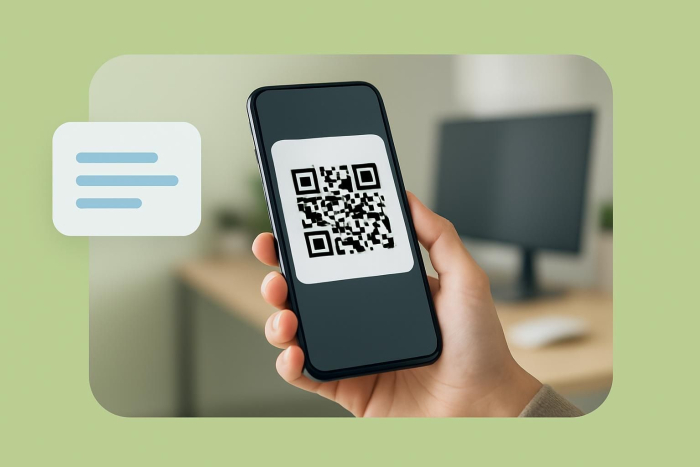
Shopify gives you a few different ways to create QR codes. You can use the free Shopify QR code generator, the native Shopcodes app in your admin dashboard, or even third-party integrations — whichever works best for your setup.
And it’s not just for products. You can generate QR codes for any URL: your homepage, a specific collection, a landing page, a blog post, or a sale campaign. Anywhere you’d send a customer, a QR code can get them there faster.
For Shopify merchants specifically, the opportunity is in bridging the gap between wherever a customer physically is and the exact product or offer you want them to land on.
Let’s walk through how to create a QR code for your Shopify store in less than 90 seconds.
3 ways to create a QR code for Shopify (step by step)
There are three methods with three different levels of control.
Method 1: Shopify’s free QR code generator
- Best for: Quick one-off codes linking to any URL — like your homepage, a product page, a campaign landing page, or a discount URL
- Cost: Free
- Limitation worth knowing: This tool generates static QR codes — once you create and print one, the destination is locked
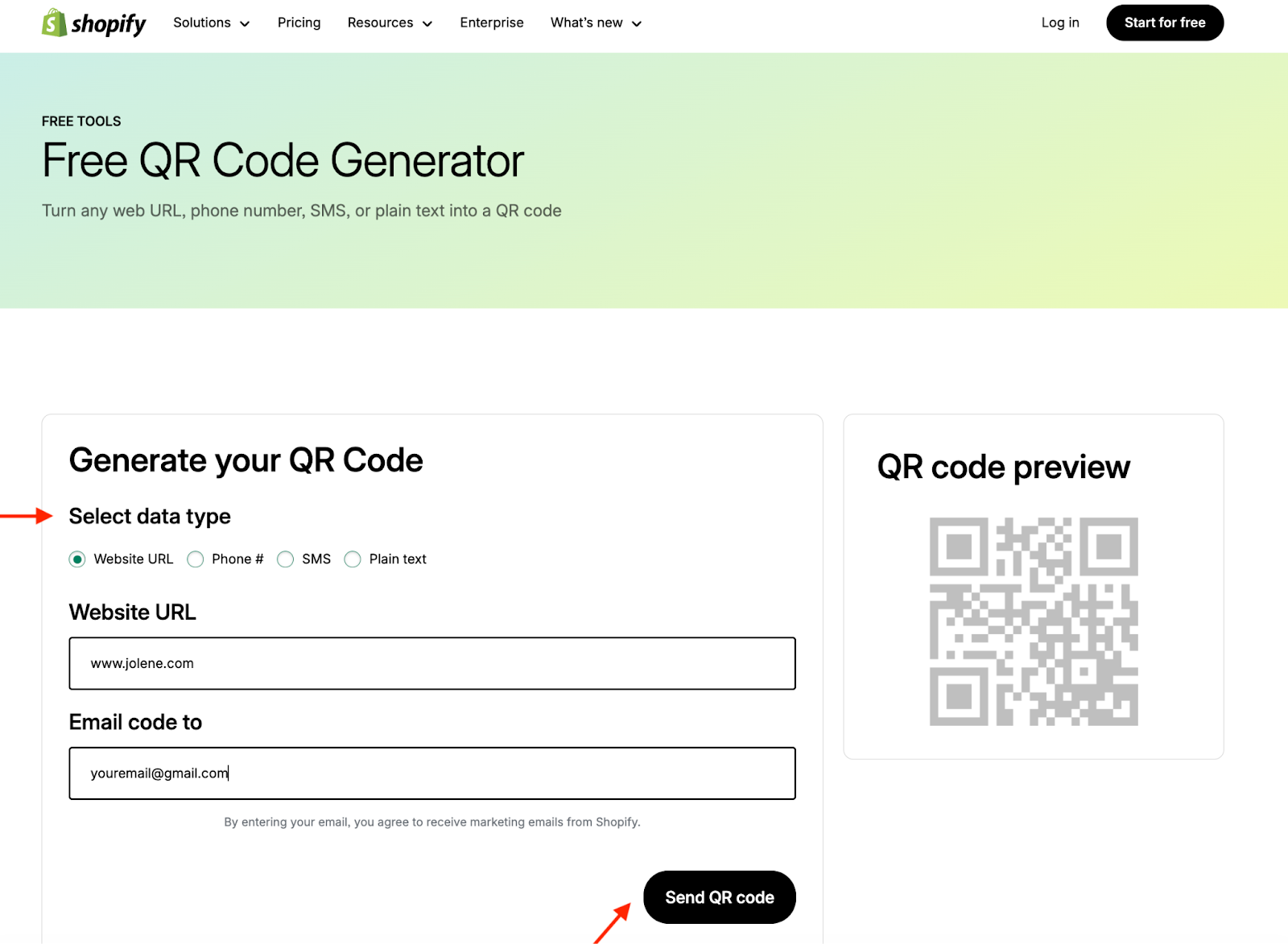
Shopify’s free QR code generator supports four content types: website URL, phone number, SMS, and plain text. The code gets emailed to you as a downloadable file. Here’s how it works:
- Go to Shopify QR code generator.
- Select your content type (website URL is the most useful for store links).
- Paste in your URL — your product page, homepage, collection, or any other destination.
- Enter your email address.
- Click Send QR code.
- Check your inbox, download the file, and deploy it.
That’s it. The code never expires and has no scan limit.
Method 2: Shopcodes (Shopify’s native app)
- Best for: Product-specific QR codes that link directly to a product page or a pre-loaded checkout, with an optional discount code baked in
- Cost: Free, but requires a Shopify account
- Limitation worth knowing: Shopcodes generates standard QR codes with very little visual control — you can’t add branding elements like logos or custom colors, which makes the codes harder to integrate into branded packaging or campaigns
Shopcodes lives inside your Shopify admin. You can also create a Shopcode directly from a product’s details page without ever leaving the product view: go to Products, open the product, click More actions, and select Create a Shopcode.
Codes download as a zip file containing both a PNG for digital use and an SVG for print.
- In your Shopify admin, go to Apps and search for Shopcodes.
- Click Install.
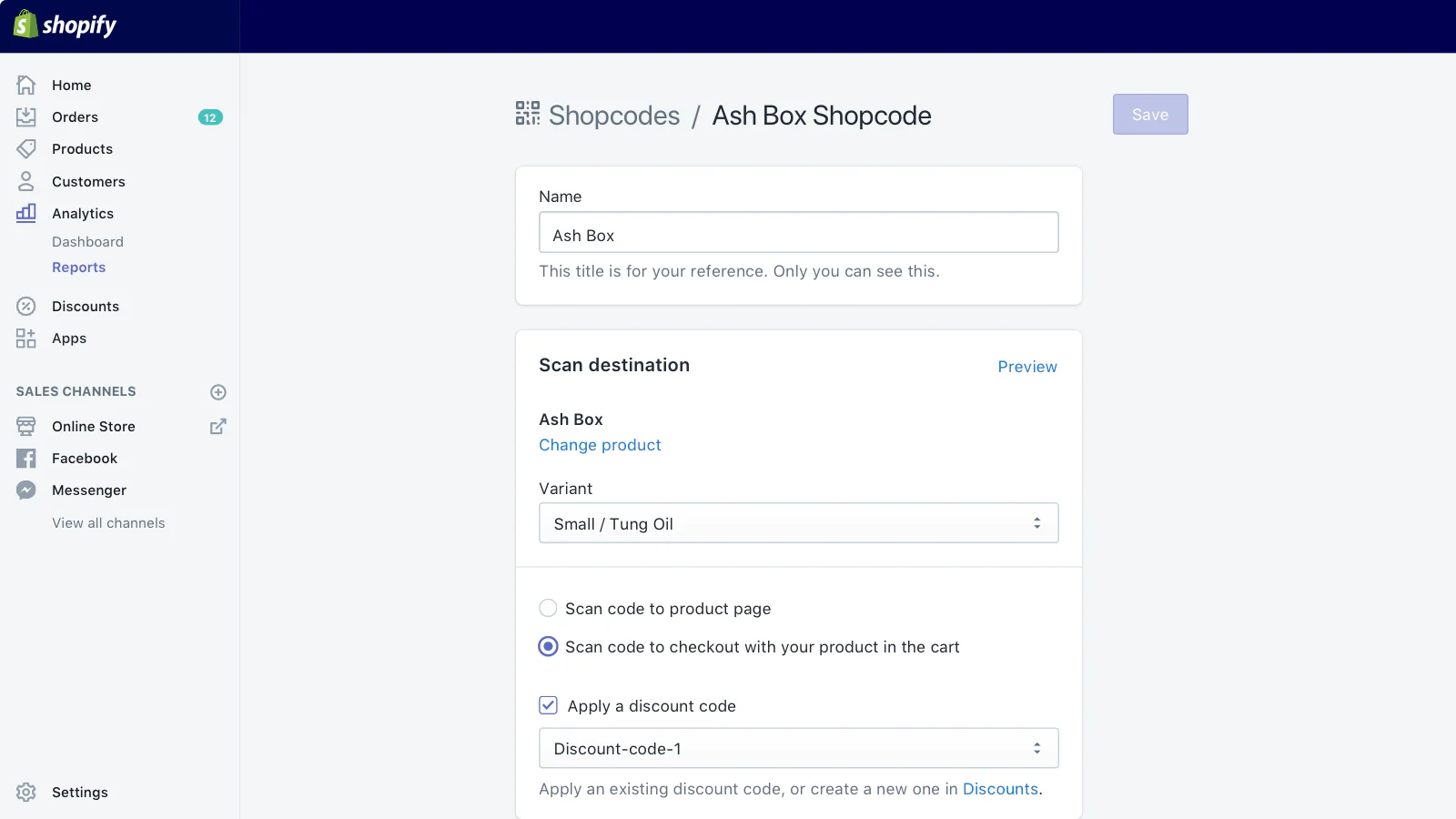
- Open the Shopcodes app and click Create Shopcode.
- Enter a title for the code — this is internal, so name it something you’ll recognize later.
- Under Scan Destination, choose either:
- Link to a product page: Sends the customer to the product listing.
- Link to checkout page with product in cart: Skips browsing entirely.
- If you choose checkout, optionally select a specific product variant.
- To attach a discount, select one from the Discount section.
- Click Save.
- Click Download to get your PNG and SVG files.
Method 3: Third-party QR code apps
- Best for: Dynamic codes, scan analytics, branded designs, bulk generation, and UTM tracking
- Cost: Most have a free plan, paid plans typically start around $8–$10 per month
- Limitation worth knowing: Some QR apps generate codes externally rather than deeply integrating with Shopify data — that means codes may not automatically sync with store analytics, products, or inventory updates.
Here are a few Shopify QR code apps worth considering:
- o2o – QR Codes Unlimited (4.4 ⭐, 118 reviews): Dynamic codes with customizable branding, bulk creation, discount integration, and detailed scan analytics. Free plan available.
- Spice QR Codes Generator (4.8 ⭐, 15 reviews): All QR codes are dynamic by default. Can link to anything in your store and automatically generate UTM codes so your scans show up correctly in Google Analytics. Also supports automatic QR codes on invoices, packing slips, and post-purchase emails.
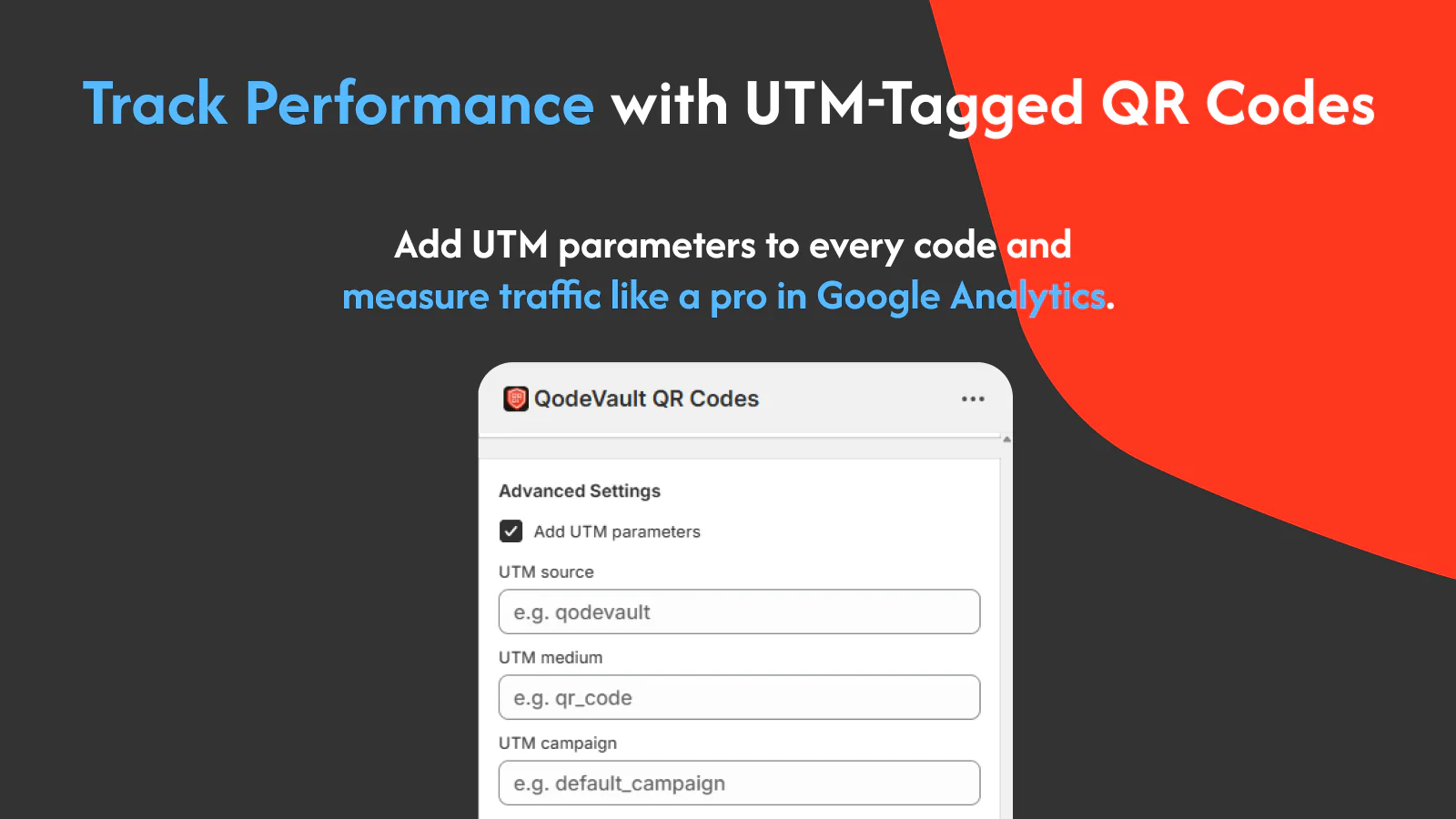
- QodeVault QR Code Generator (5 ⭐, 67 reviews): Built for merchants who need bulk generation, real-time scan analytics, and Shopify POS integration. Automatically generates a QR code for every order.
For each third-party app, the setup should look something like this:
- Find your chosen app in the Shopify App Store and click Install.
- Once installed, open the app from your admin and click Create QR code (or equivalent).
- Select your destination — product page, checkout, collection, custom URL, or cart.
- Customize the design if the app supports it — add your logo, adjust colors, and set a frame.
- For dynamic codes, confirm the destination is editable post-creation.
- Set up UTM parameters if you want scan data to flow into your analytics.
- Download the QR code in your preferred format and test before deploying.
The three methods above cover QR codes that point to your store pages. But if you’re collecting information — like orders, customer feedback, event registrations, and wholesale inquiries — you can take it a step further and link a QR code directly to a form.
Why use QR codes for your Shopify store?
During Drake’s 2023 North American tour, his team and Shopify had a plan: project a giant QR code — what fans started calling the “bat signal” — onto the walls of concert venues. Fans who scanned the code could download the Shop app, access a Drake Related product page, enter their shipping address, and claim a surprise gift.
Some lucky fans walked away with unreleased NOCTA x Nike sneakers, full NOCTA outfits, and $1,000 CAD on top of the merchandise.
The mechanic is simple: a physical moment, a scannable code, and a direct line to your store. The five use cases below work on exactly the same principle:
- Direct traffic to exactly the right product page: Every extra click between interest and product page is a place a customer can leave. A 2024 GS1 US consumer survey found that 79 percent of shoppers are more likely to purchase a product when a scannable QR code provides the information they want.
- Promote limited-time discounts without extra friction: This works particularly well on packaging inserts, event handouts, or direct mail. According to Bitly’s 2025 QR code report, 51 percent of marketing QR codes link to promotional offers or coupons.
- Get customers from scan to checkout in one step: For reorder-heavy products like supplements or skincare, a QR code on the packaging takes customers straight back to a pre-loaded checkout.
- Track campaign performance with dynamic QR codes: Static QR codes are a black box. Dynamic ones let you see how many people scanned, when, and from where. Plus, you can update the destination URL without reprinting anything. According to Bitly, marketers rank unique users (54 percent), conversion rate post-scan (52 percent), and total scans (50 percent) as their most valuable QR code performance metrics.
- Bridge in-store and online without losing the customer: According to Uniqode’s 2025 State of QR Codes report, customer journeys that blend physical and digital show 2x higher engagement than single-channel interactions. The QR code is what makes the handoff effortless.
How to add a QR code to your Shopify store using Jotform
Jotform’s Shopify integration lets you embed forms directly onto your store pages, so customers who scan your QR code land on the form without ever leaving your store experience.


Jotform has a library of customizable templates covering the forms most Shopify merchants need, including
So, you’re not building from scratch — you’re adjusting a template to fit your store, then generating a QR code for it.
Jotform’s free QR Code Generator handles the QR code creation side. You can customize the design, track scans, and update the destination without regenerating the code.
Create QR Codes in Minutes
To create your first QR code with Jotform, follow these steps:
- Create a free account with Jotform and select a template or build a form from scratch.
- In Jotform’s Form Builder, go to Publish > Platforms, and select Shopify.
- Copy the embed code, then paste it into the relevant page in your Shopify admin under Online Store > Pages.
- Once the form is live and has its own URL, go to Jotform’s QR Code Generator, paste in the form URL, customize the design, and download it.
- Deploy the code wherever a customer might encounter it, like on a receipt or a thank-you card.
But let’s take it a step further.
Jotform Shopify AI Agents answers customer questions and moves them forward in the same breath. Say a customer asks about returns — the agent responds with a scannable QR code linking directly to the return form.

Ask about a product, and it can recommend relevant items from your catalog. The agent runs 24-7, installs through the Shopify App Store, and can be enabled in your store without custom code.
Paul Parker, a creative artist based in the UK, says: “I was getting tired of trying chat AI agents, having tested many. This one actually works amazingly well. It learns very well and outshines its competitors.”
Drake’s team projected a 10-foot QR code onto a stadium wall. Yours might just need to make it onto a thank-you card — and Jotform can build the form behind it in minutes. Get started for free today.
Shopify QR code FAQs
Not exactly. For U.S.-based merchants, you can create and purchase return labels with USPS directly from the Shopify admin. Those labels are standard carrier labels, not scannable QR codes for ecommerce stores.
However, Shopify merchants can generate a Shopify product QR code or Shopify discount QR code using the Shopcodes app to link customers to a product page, checkout page, or promotional offer instead.
Shopify’s native Shopcodes app allows merchants to create QR codes for products at no additional cost.
But if you need advanced features like Shopify QR code tracking, branding, or dynamic QR code Shopify capabilities, many third-party apps in the Shopify App Store charge a subscription fee for analytics, bulk creation, or campaign management tools.
The biggest limitation for QR codes for Shopify checkout and marketing use is the static vs dynamic gap. Static QR codes embed data directly into the pattern and don’t require a redirect service or subscription, but once printed, the destination is locked.
Read more about the 7 QR code alternatives redefining real-world interactions.
Shopcodes — Shopify’s native app — generates static codes by default, but with one useful exception: If you change the destination on an existing Shopcode, it automatically redirects already-printed codes without needing to reprint.
That’s partial dynamic behavior, but it’s not full dynamic QR code Shopify functionality. For true dynamic codes with Shopify QR code tracking, scan analytics, UTM parameters, and branded design, you need a third-party app.
This article is for Shopify store owners, ecommerce marketers, and online retailers who want to generate and use QR codes to drive traffic, track campaigns, and connect offline customer interactions directly to their store.
































Send Comment: