With Jotform’s Review Before Submission feature, users can double-check their answers—helping them catch mistakes and submit with confidence. Whether you’re collecting important details or just want to help users feel confident about their entries, this feature lets them double-check everything on a single summary screen before hitting the final submit button.
Note
This guide is just for Card Forms. If you’re using a Classic Form layout and want to add a similar feature, you can use the Review Before Submit widget instead. If you need help with adding a widget, we have a guide about How to Add a Widget to Your Form that you can check out.
The Review Before Submission feature is a great way to help users catch any missing or incorrect information before they submit the form—allowing you to collect more accurate data. Here’s how to set it up:
- On your Workspace page, click on Type at the top and in the Dropdown menu that opens, uncheck the boxes next to all the assets except Forms, so only they’ll be shown on the page.

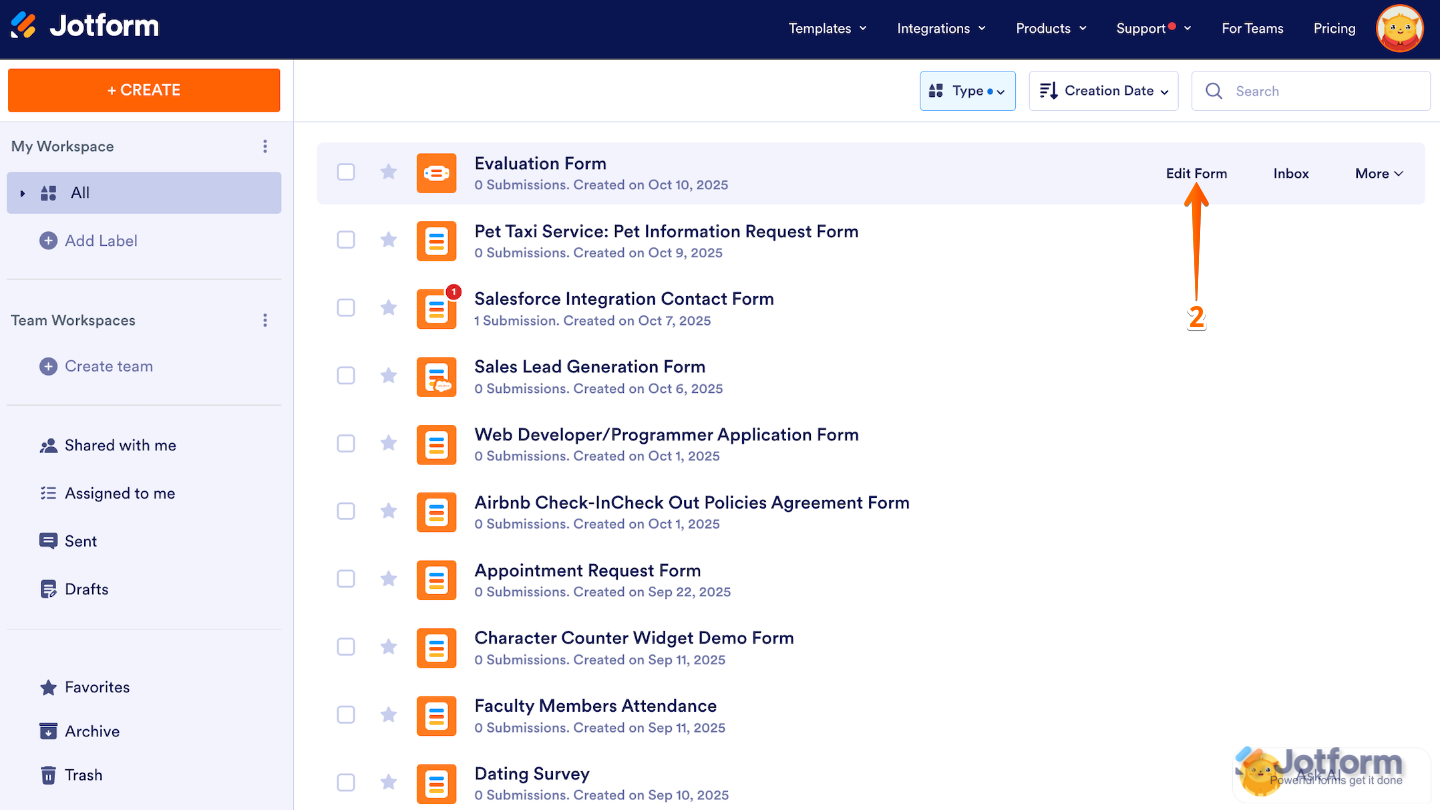
- Now, hover your mouse over the form you want to manage, and click on Edit Form on the right side of the page.
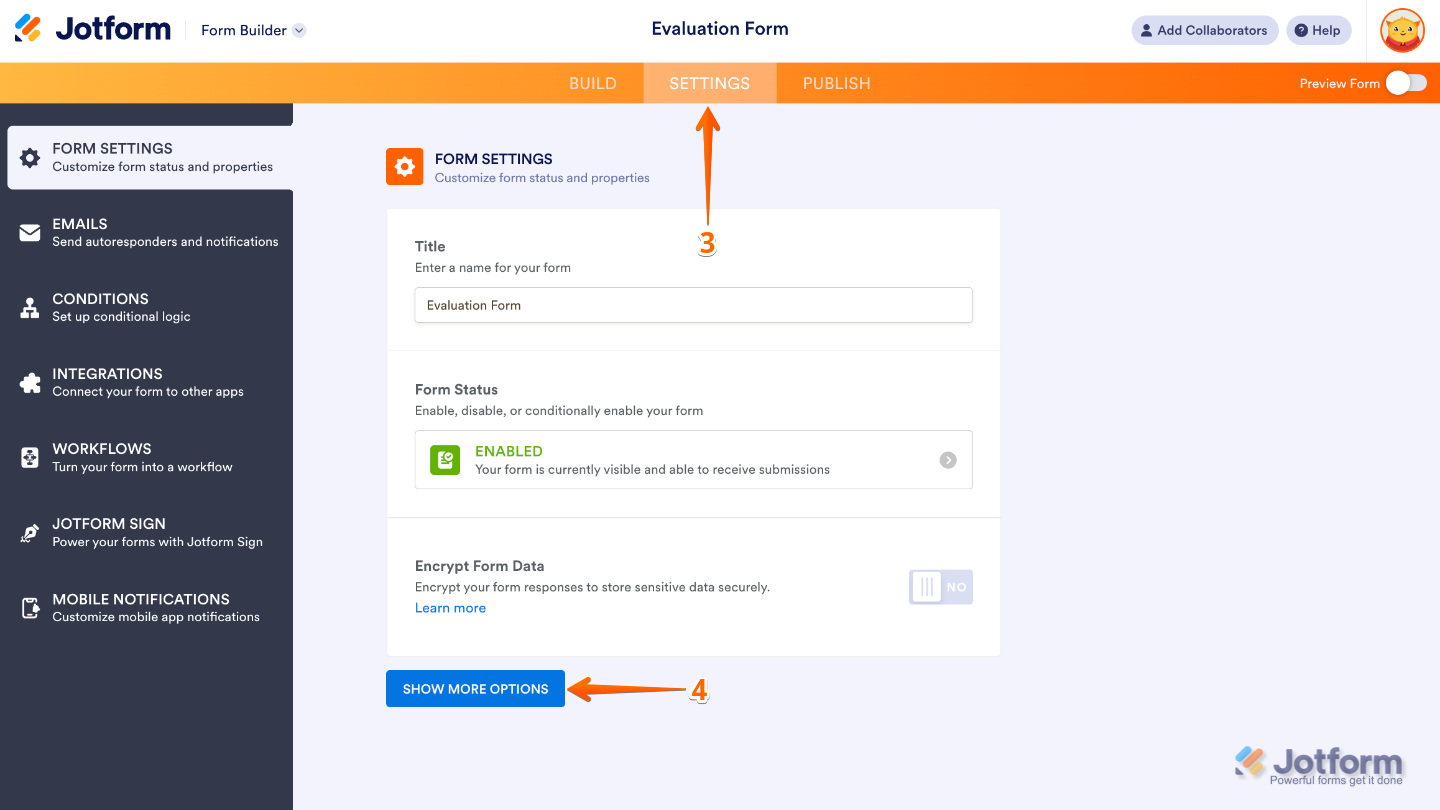
- Next, in Form Builder, in the orange navigation bar at the top of the page, click on Settings.
- Under Form Settings, click on Show More Options.
- Then, scroll down to the Review Before Submission section, click on the Downward Arrow icon, and select Yes.

That’s it. Once enabled, the Review Before Submit feature acts as a summary page that’ll appear after the last question on your card form. Here’s an example:
Pro Tip
- Use clear field labels so users can quickly scan their responses in the review step.
- If your form includes payment fields, this is a great opportunity for users to double-check their total before paying.
- Pair this feature with Required Fields to ensure all important info is captured before submission.



Send Comment:
4 Comments:
February 7, 2025
Can we customize how the review page looks or which text to show/not show?
July 27, 2022
Hello, it is not available for my forms.
not as a widget and not in the settings
February 19, 2022
It is now available as a widget that you can add to your form.
February 9, 2022
This option is not available on my forms in the areas shown above. Has this option moved somewhere else? See Loom video for example of what I see in my plan.