Jotform Smart PDF Forms lets you turn your PDF document into an online form. You can import your PDF, map your form fields, and collect responses. You can also download the submitted data in your PDF document.
Converting your PDF into an online form is easy. Here’s how to do it:
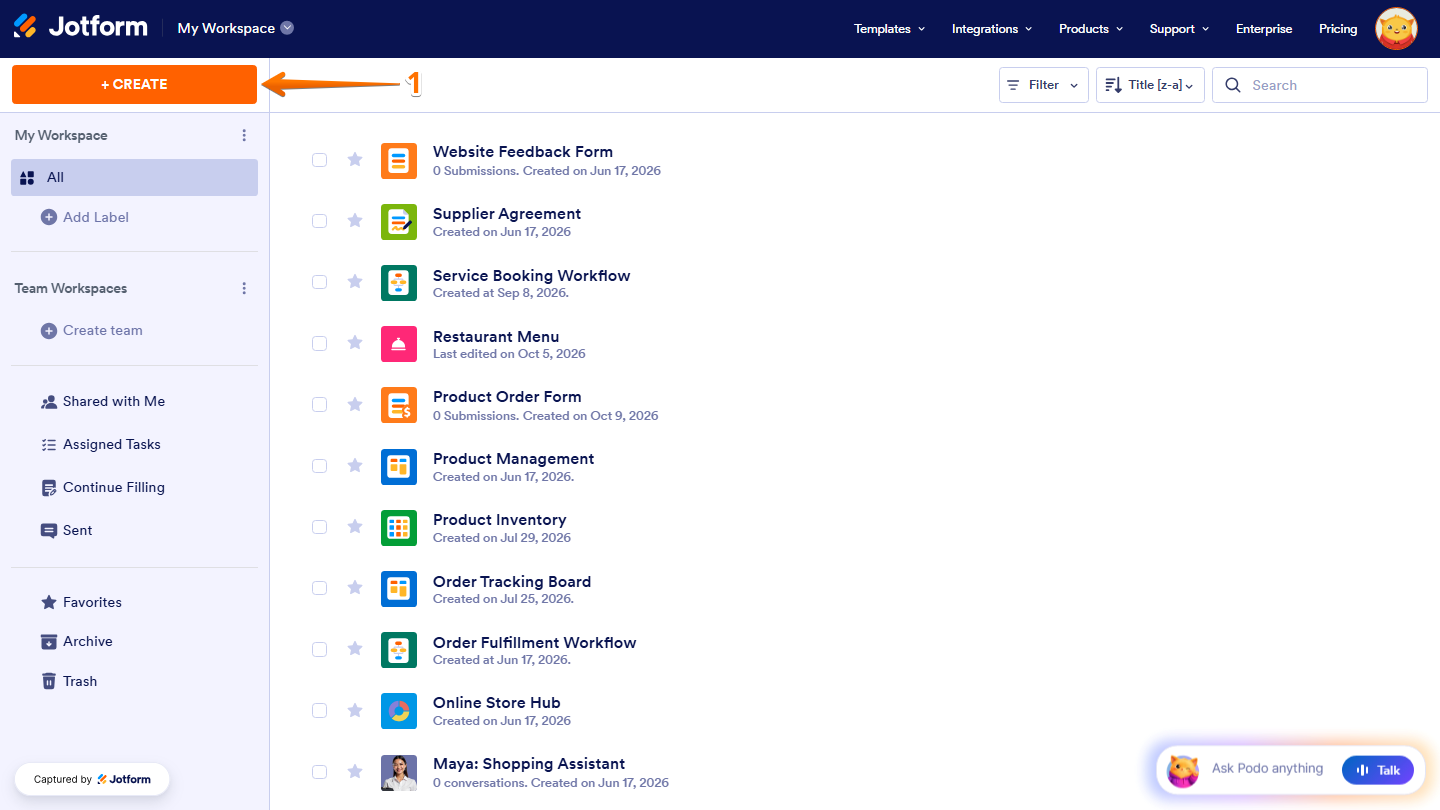
- On the top-left side of your Workspace page, click on Create.
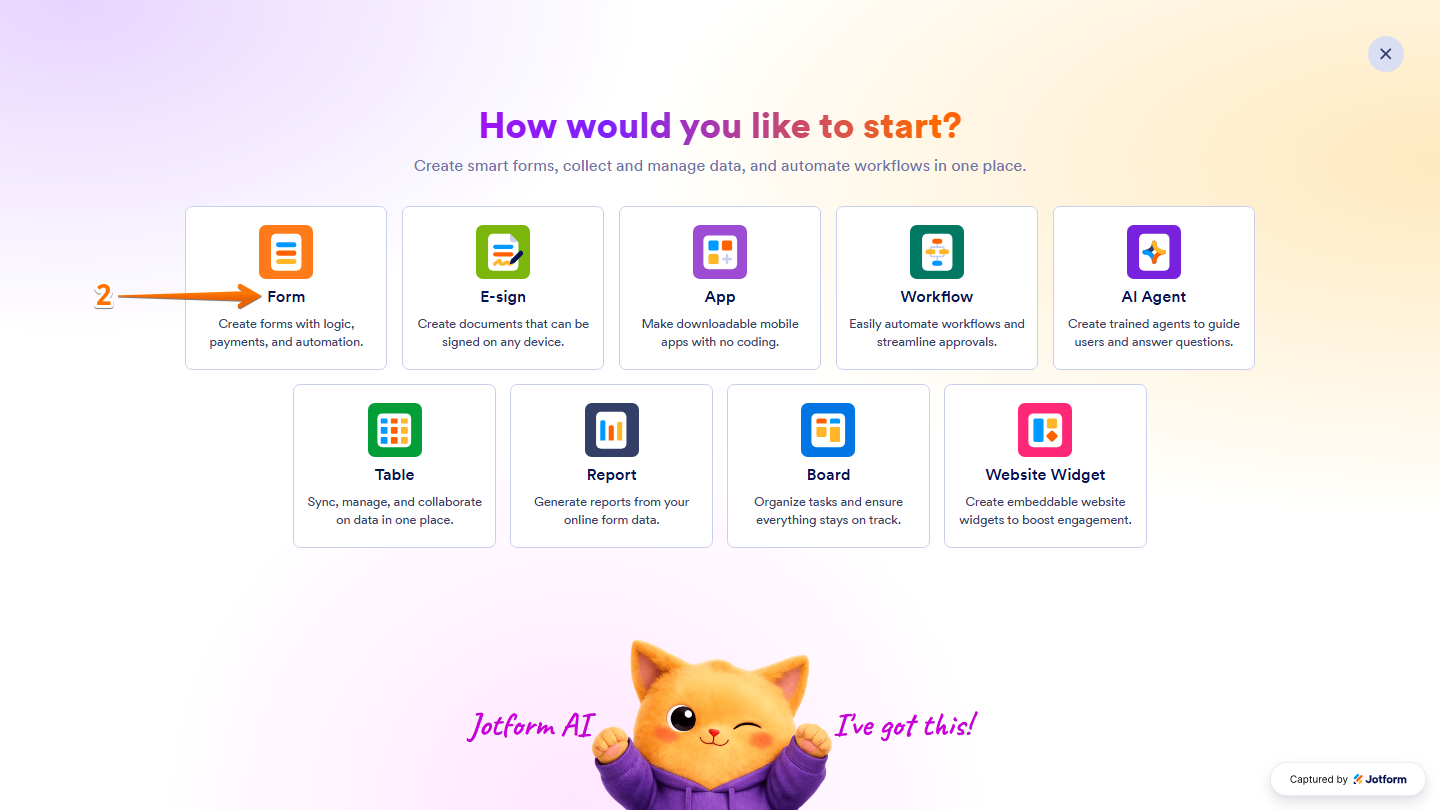
- Then, in the menu that opens up, select Form.
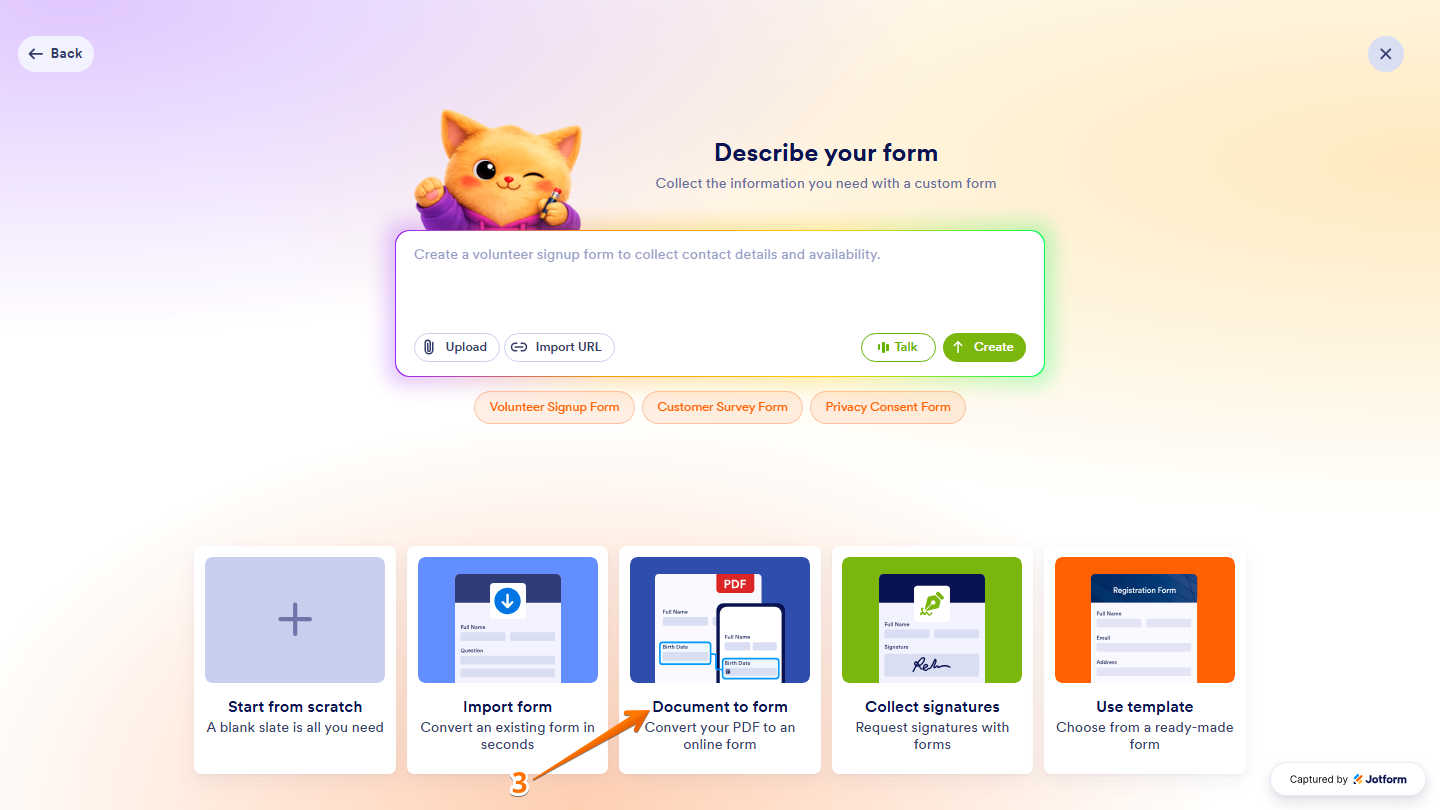
- Next, select Document to Form.
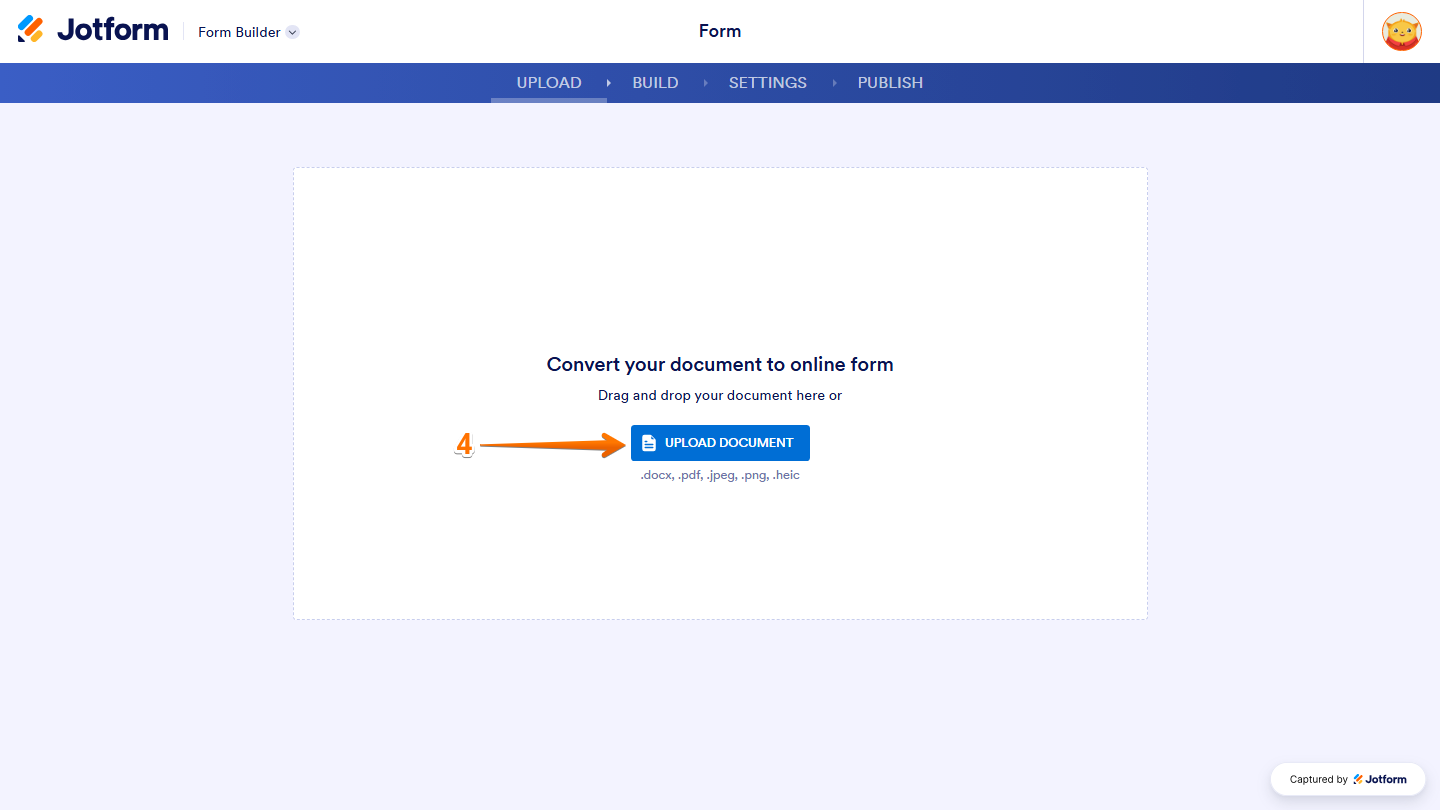
- Now, click on Upload Document and upload your PDF file.
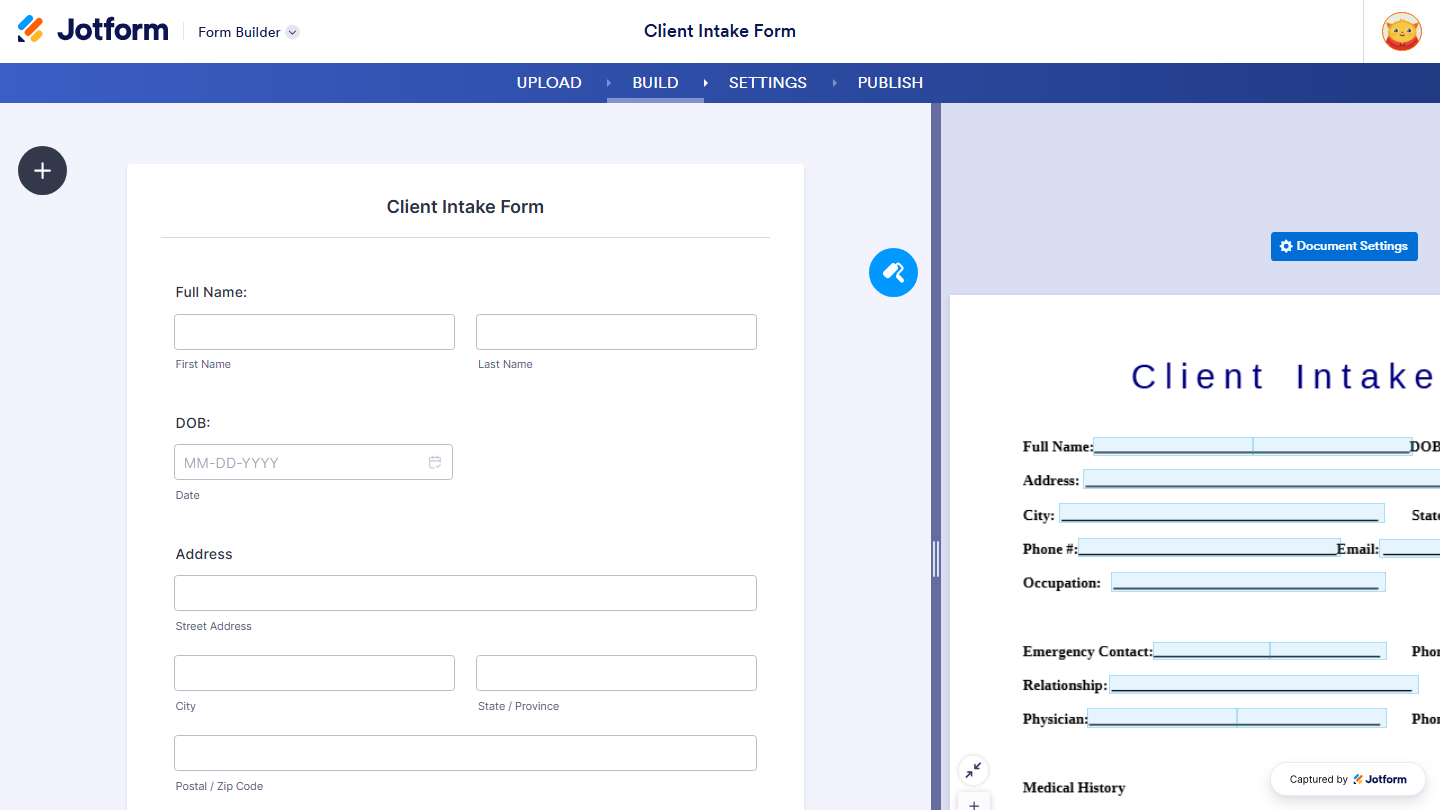
Once you’re done, you’ll see your imported PDF along with the online form created from it. The screenshot below shows how it’ll look:
Note
Your online form may not look exactly like your imported PDF. Jotform will try to detect and copy the form fields from your PDF.
You can then map the fields on your online form to your PDF document. Take a look at our guide on How to Link Your Online Form Fields with PDF Through Smart PDF Forms for more details.


Send Comment:
7 Comments:
February 15, 2025
So, my PDF consists of Tables and when the form creates, it does not generate a table but yet it breaks the formatting of the PDF and only places the text in a broken format. How would you deal with this issue in the instance?
September 10, 2023
Is there a way to select multiple fields on the PDF form when mapping items?
August 22, 2023
Is there a page limit for the import? Also, can multiple PDFs be uploaded as a way to segment the form?
July 24, 2023
Which elements on the form builder are compatible with Smart PDF?
March 17, 2023
Hi,
my PDF is 4 pages and i have been waiting for over 40 mins and it still hasnt uploaded? how long does it take?
January 9, 2023
I tried creating a smart pdf form but the system didn't fetch and clone the form fields in my original PDF file. It didn't recognize any of the fields. How can I make the system recognize the fields in my pdf? I'm using Chrome and I have adobe if that makes a difference
December 6, 2021
Can I connect an exiting form?