Jotform Mobile Forms makes it easy to capture photos and attach them directly to your form submissions. With the Take Photo widget, you can take a picture from within the Jotform Mobile Forms app without switching to your device’s camera.
This feature is especially useful for inspections, reports, surveys, and other forms that require visual documentation.
Adding the Take Photo Widget to Your Form
Before you can take photos through your form, you need to add the Take Photo widget. Here’s how:
- In the Jotform Mobile App Form Builder, on the bottom-left corner, tap on the Plus icon.

- Now, in the Form Elements menu, under the Widgets tab, click on Take Photo. Or, just drag and drop it to where you want it to be on your form.

- Next, in the Widget Settings window that opens on the right side of the screen, under the General tab, you’ll see this list of settings you can configure:
- Camera Facing — Choose whether to use the front or rear camera.
- Take Photo Button — Customize the text for the Take Photo button.
- Retake Photo Button — Change the text for the Retake Photo button.

- Then, scroll down to the bottom and continue to set up these settings:
- Update Photo Button — Edit the text for the Update Photo button.
- Notification — Set up the text that’ll show up when the user successfully adds the photo.
- Once you’re done, click on Update.

Pro Tip
For advanced styling of the Take Photo widget, you can add your own custom CSS code under the Custom CSS tab in the Widget Settings. Our guide on How to Inject CSS Codes to Widgets walks you through everything.
Taking and Uploading Photo
After adding the widget, users can take photos while filling out the form. This is how it’s done:
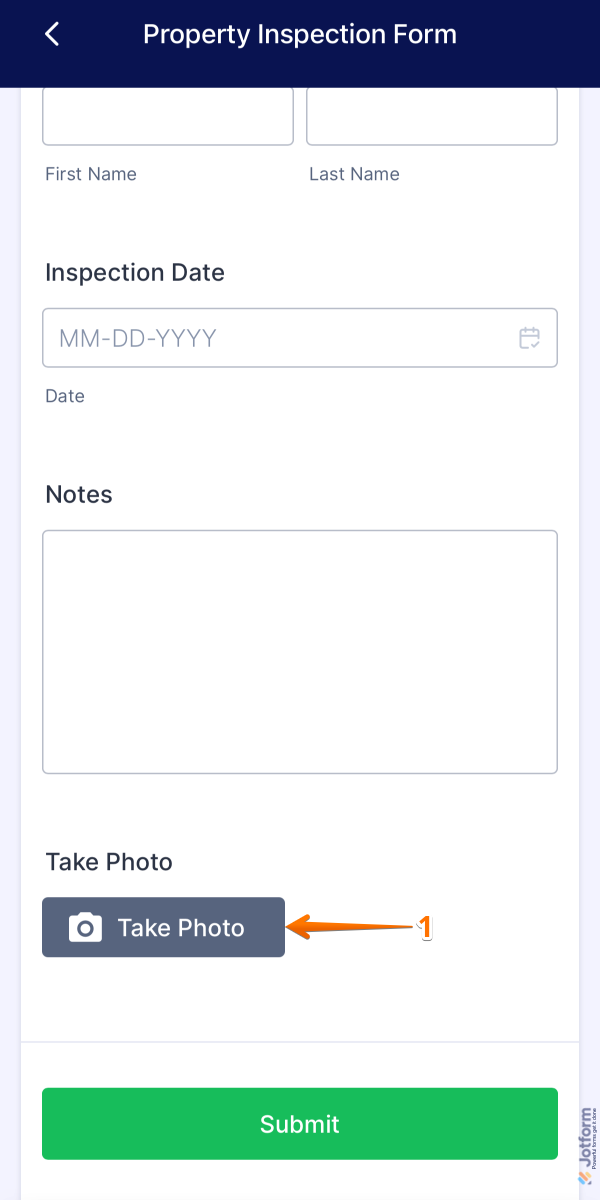
- Open the form in the Jotform Mobile Forms app and tap on Take Photo.
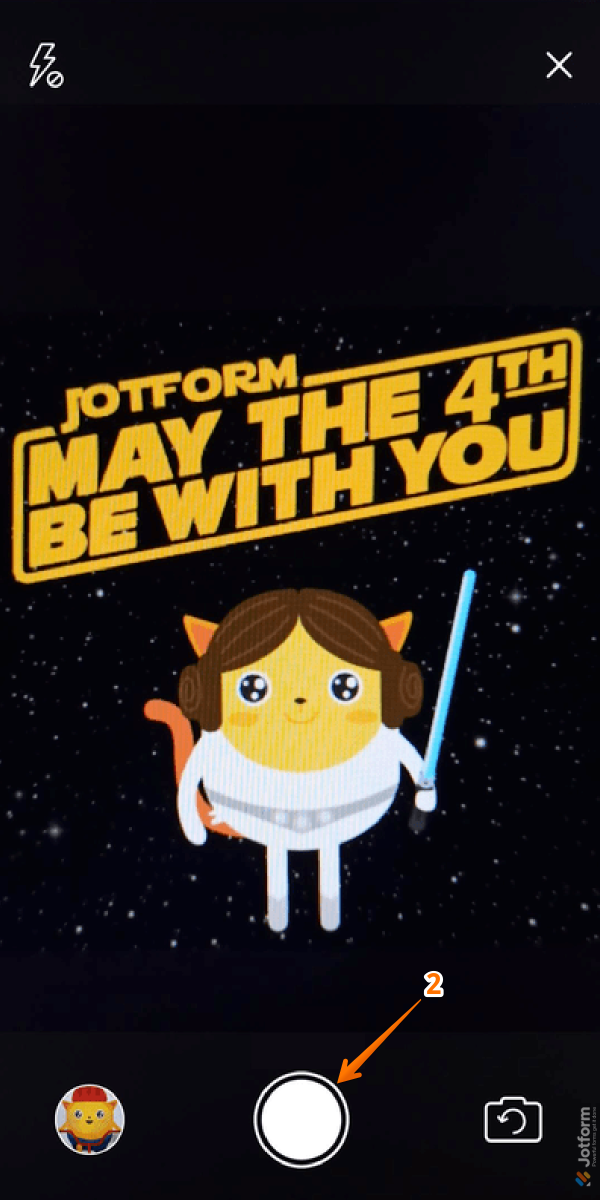
- Next, tap the Capture button on your camera.
- Now, once the image has been uploaded, tap on the Submit button, and you’re done.

Note
The Take Photo widget requires permission to access your device’s camera. If camera access is denied, users won’t be able to capture photos within the form.

Send Comment:
31 Comments:
July 16, 2026
Hello there,
I am using this app to take photos as part of feedback but when I receive them on my email there are no pics and it's frustrating that I have to go into jotform website to see these photos?
If you could help why am not able to see them on emails?...
May 21, 2026
Is it possible to have a take photo/upload photo button? A number of my field reps will take photos throughout the day and save them on their camera roll and then they want to be able to select those photos later when they complete their daily reports rather than take every photo in "real time"
April 15, 2026
Hi, is it possible to set a maximum file size? Some cameras take big pictures but we can only store up to 6MB. Please, if possible, make this a new setting.
February 18, 2026
Hi! Is there any way to edit picture format?
February 10, 2026
Buenas tardes puede el que rellena subir foto del DNI
November 24, 2025
Is it possible to configure this widget so it can either take photo or upload one previously taken on the device?
October 24, 2025
If the user rotates their phone from vertical to horizontal while taking a photo, all previously entered data is cleared. It appears the form reloads when the Take Photo widget detects the orientation change. So beware.
You can add a notification the the Hover Text field of the control located above the Take Photo widget that says:
Rotating the phone after clicking the "Take Photo" button will cause all data fields already entered on this form to be cleared.
The Take Photo widget does not have it's own Hover Text field.
April 23, 2025
Hi, Is there a way to save the photos to the camera roll at the same time?
February 13, 2025
does this only work on mobile? How is this widget handled if viewing the form on desktop?
November 14, 2024
I have the same problem as a previous commenter - photos are black, and even in my phone while I'm trying to take the photo it just shows up as a black box. I'm using the form on a Huawei (Android) using Duckduckgo as the browser.
July 3, 2024
Is there any way to add photos with a time and date stamp?
May 22, 2024
Hi There,
I am using this app to take photos but when I receive them on my email and on connected app that is on slack there are no pics and it's frustrating that I have to go into jotform app to see these photos?
If you could help why am not able to see them on emails and slack app?...
January 10, 2024
is it possible to have a self-timer, when taking a photo in a survey?
January 8, 2024
Consigo incluir um take photo na lista configurável?
April 12, 2023
is there a way of uploading more than one image?
April 5, 2023
Hi, are the photos taken with the widget secure? Say we ask for a picture of a Photo ID for example.
April 3, 2023
Hi!
How long the Pictures taken are stored on the DB and can be displayed, is there a period for their availability?
Thank you.
March 26, 2023
Hi.
I've tried a few times when completing a jotform form to take a pic of myself which is a requirement on the form, it says 'image uploaded', however it shows up black.
How do I change or correct that, so it doesn't happen going forward.
Tx
February 28, 2023
I really wish this feature was more sophisticated. I want to record documents but the quality is really low and blurry, and it is .png format which doesnt open on all devices.
We really need a scanner option so we can take photos in .pdf format
January 31, 2023
Hi, I'm looking to have the photo added as an attachment to the email notification? How could I do this?
January 7, 2023
I need to send a picture to jot form in order to enter an art contist. The picture is in my drive but I don't know how to drag and drop it to the jog form. Can you please help me do that?
December 2, 2022
I cannot view the photos in table upload view. The take photo field image is also not visible as an option. I would like all the photos to be visible when the table button is clicked in the app.
September 28, 2022
My form on my mobile isn't allowing me to take a photo - i've then tried using a different form on the same phone & the take photo works fine.
Any suggestions? I've checked it's set as rear facing camera & again, it works on one form but not on a different form (it was working at one point)
September 7, 2022
Can you add an option to upload Photos as well if there's no internet at the time you need to take photos? In that way, you can upload the photos you have captured on a later time.
September 3, 2022
I need to be able to export photos from the take photo widget to forward to an external website for player registration. How can I do this? Why can I see the photos in table view?