Jotform’s Calculated Score Meter widget lets you display a calculated score visually on your form. It gives respondents an easy way to see their results at a glance based on the answers they provide.
Here are a few ways to use it:
- Show quiz or assessment scores.
- Display a calculated rating based on a user’s answers.
- Show progress toward a target score.
- Give respondents a visual summary of their results
Whether you’re creating a new form or updating an existing one, you can add and set up the Calculated Score Meter widget in a few easy steps. Here’s how to do it:
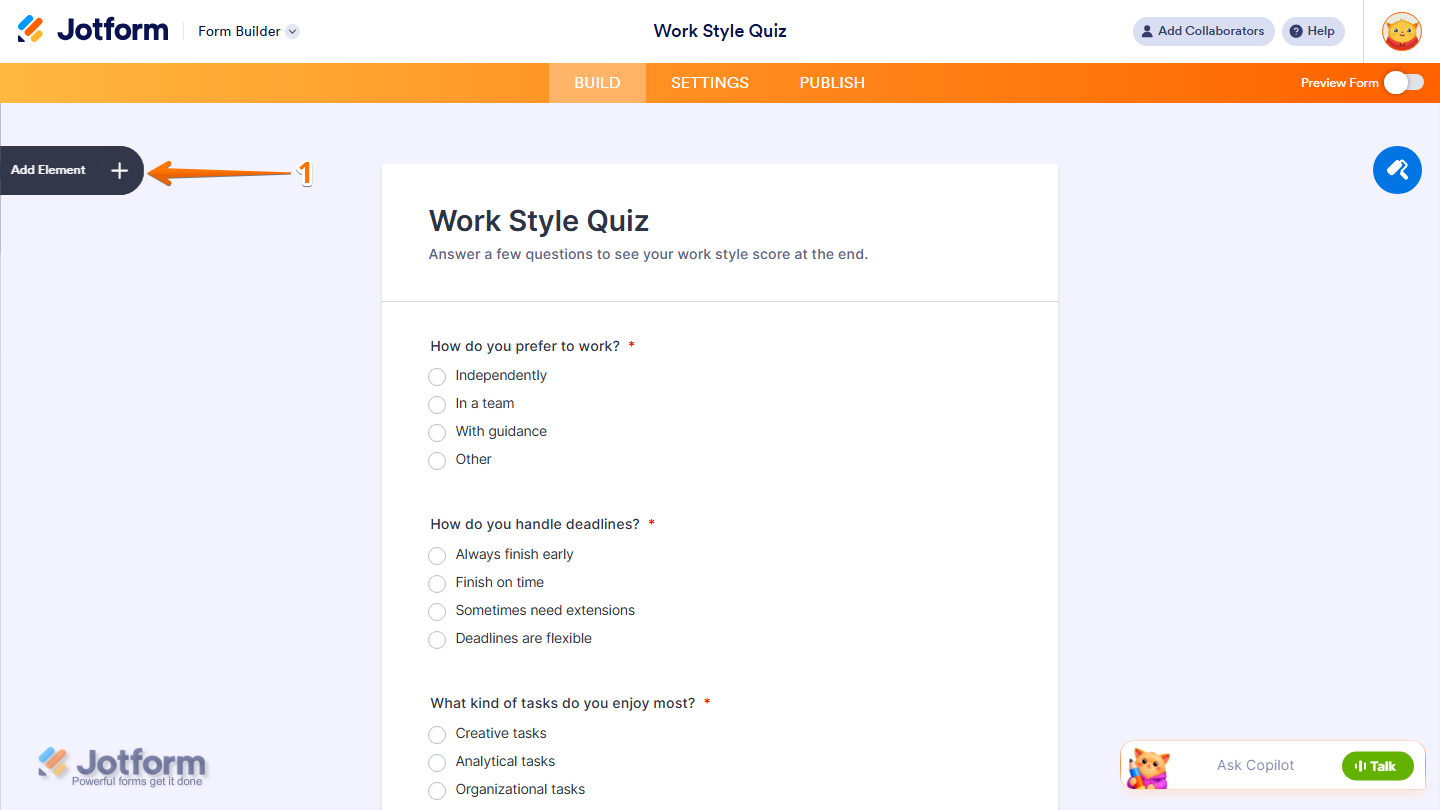
- In Form Builder, click on Add Element on the left side of the page.
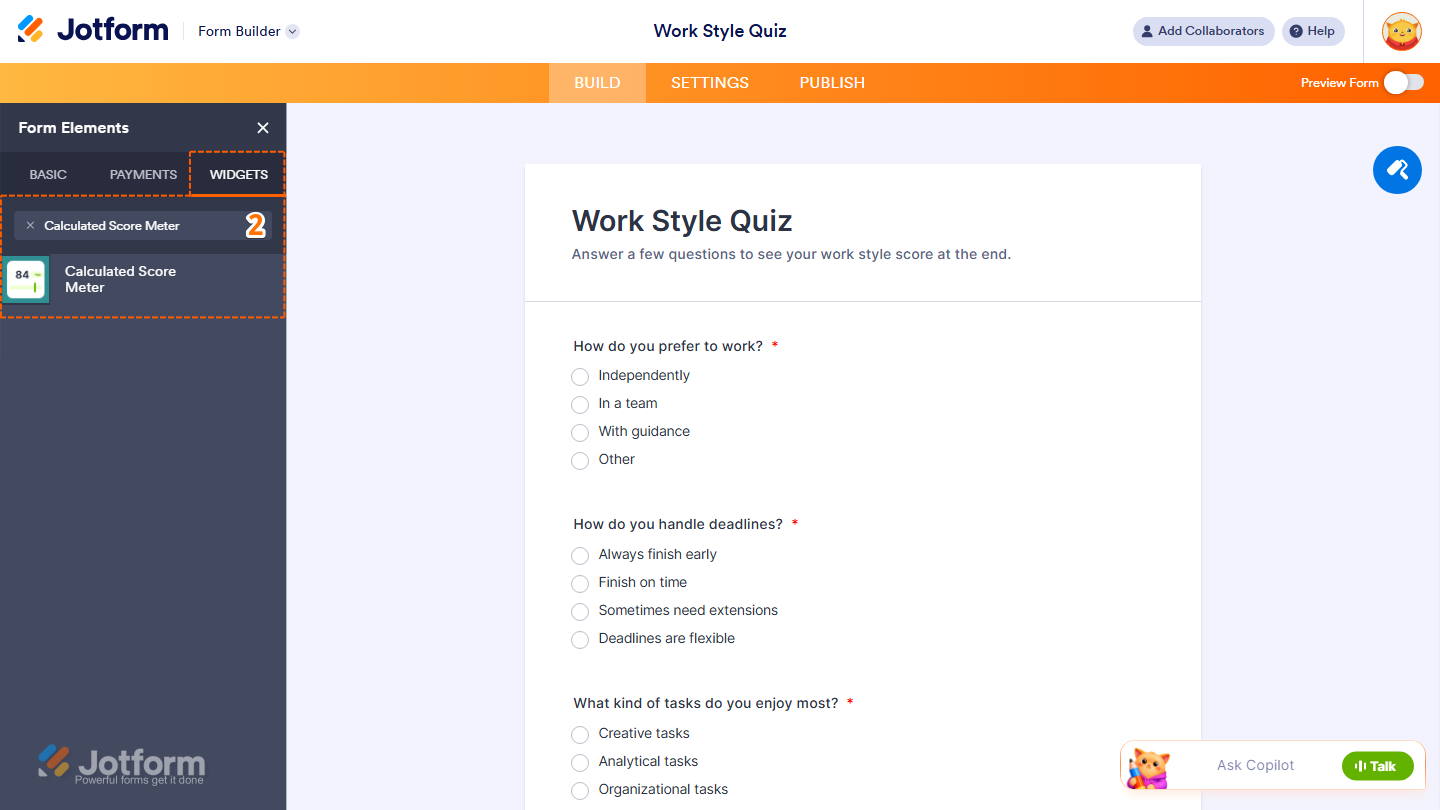
- Now, in the Form Elements menu, under the Widgets tab, search for Calculated Score Meter and click on it. Or, just drag and drop it to where you want it to be on your form.
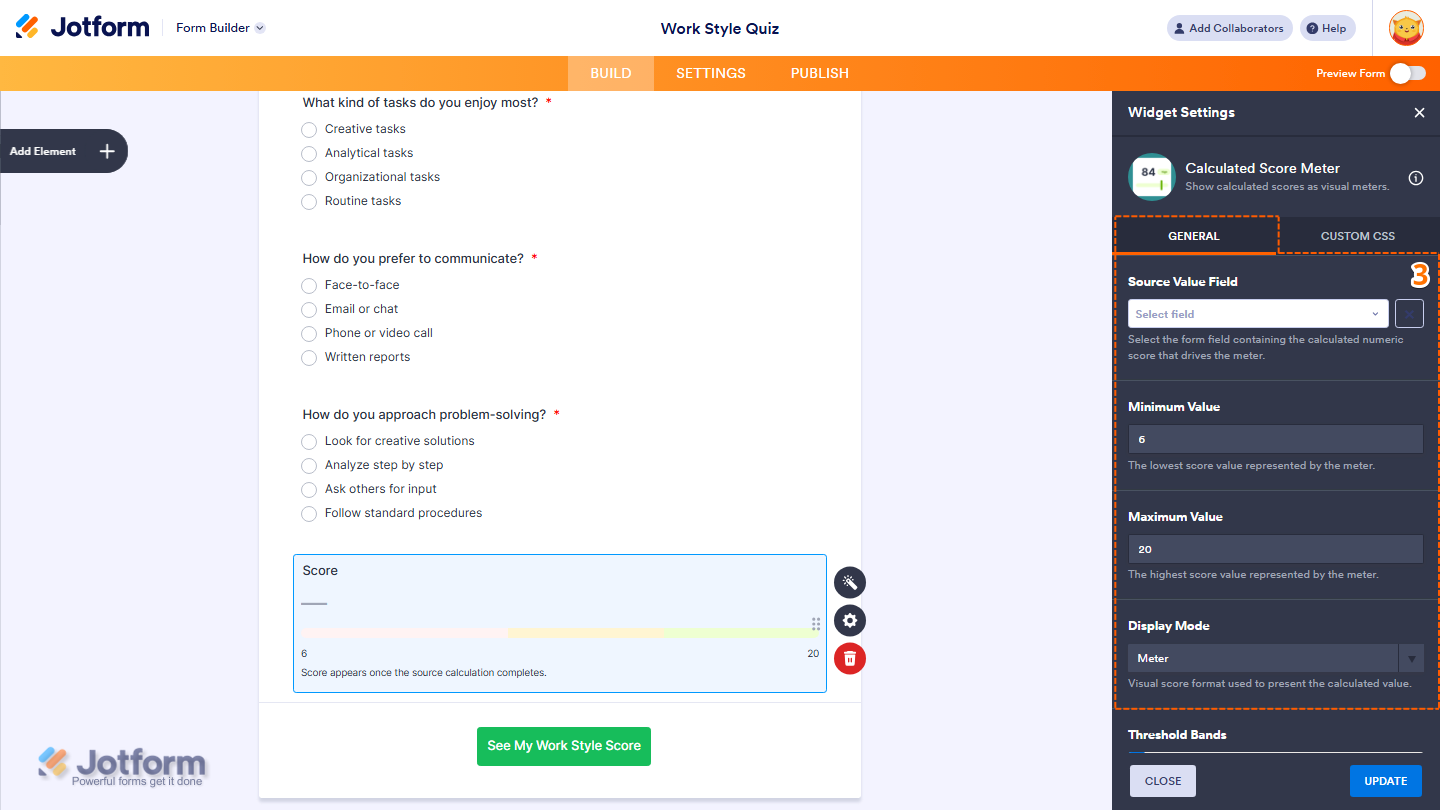
- Next, in the Widget Settings menu that opens on the right side of the page, under the General tab, you’ll see this list of settings you can configure:
- Source Value Field — Select the form field containing the calculated numeric score that drives the meter.
- Minimum Value — Enter the lowest score value represented by the meter.
- Maximum Value — Enter the highest score value represented by the meter.
- Display Mode — Select how to display the calculated score.
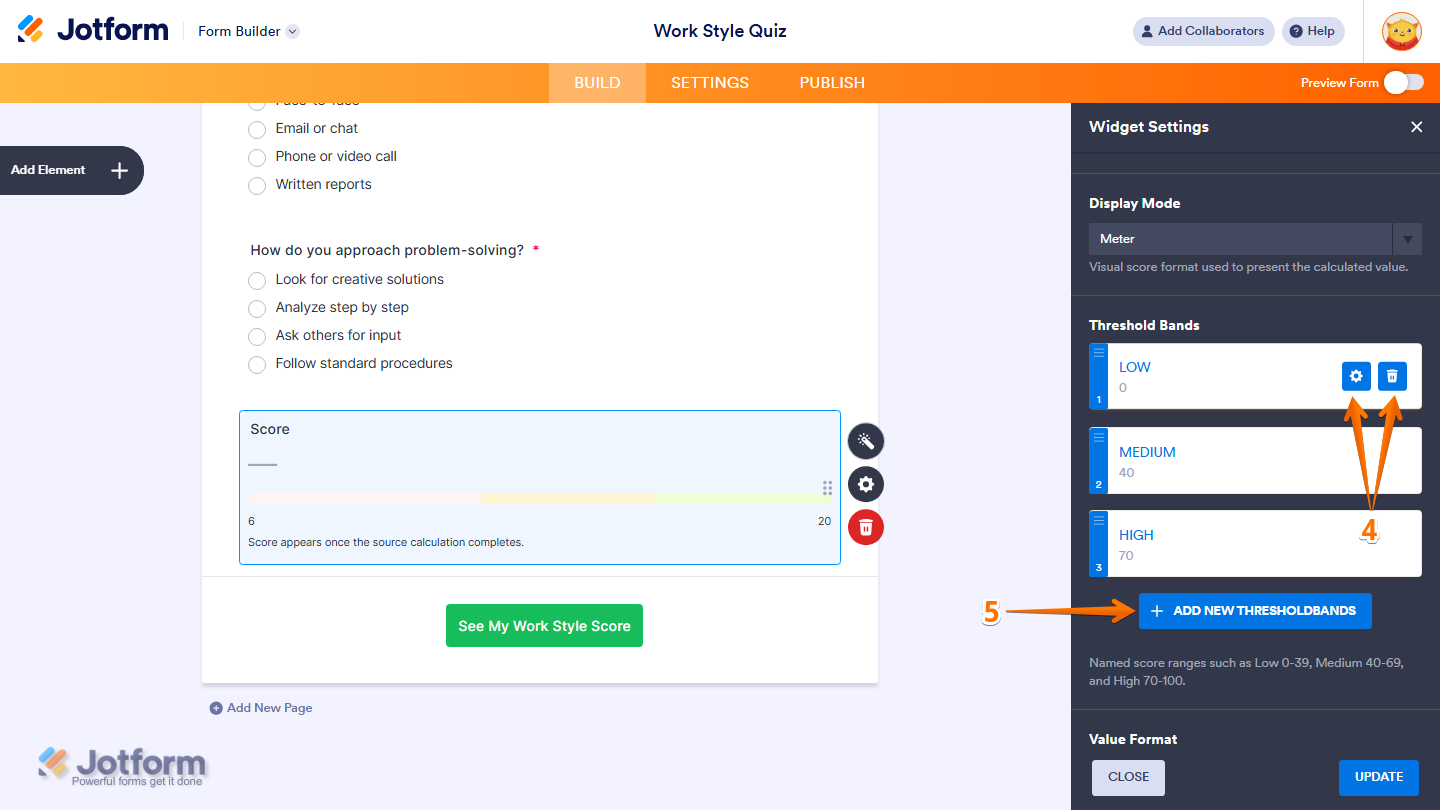
- Then, scroll down, and under the Threshold Bands section, hover over a threshold band to reveal the following options:
- Gear Icon — Edit the threshold band.
- Trash Can Icon — Delete the threshold band.
- To add another threshold band, click on Add New Threshold Bands.
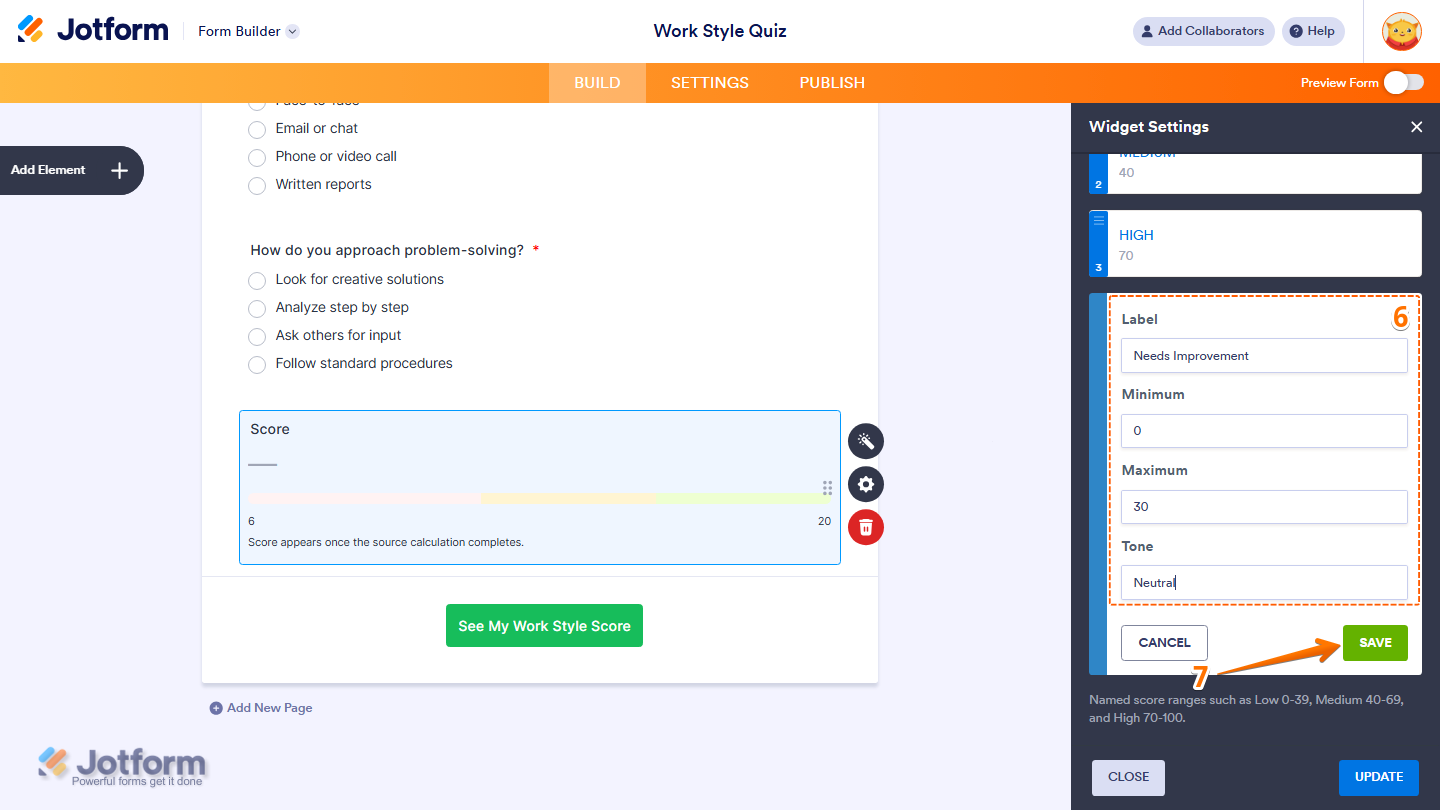
- Now, fill in these details:
- Label — Enter a name for the threshold band.
- Minimum — Enter the lowest score included in the threshold band.
- Maximum — Enter the highest score included in the threshold band.
- Tone — Enter the tone to associate with the threshold band.
- Then, click on Save.
- Next, scroll down to the bottom and continue to configure these things:
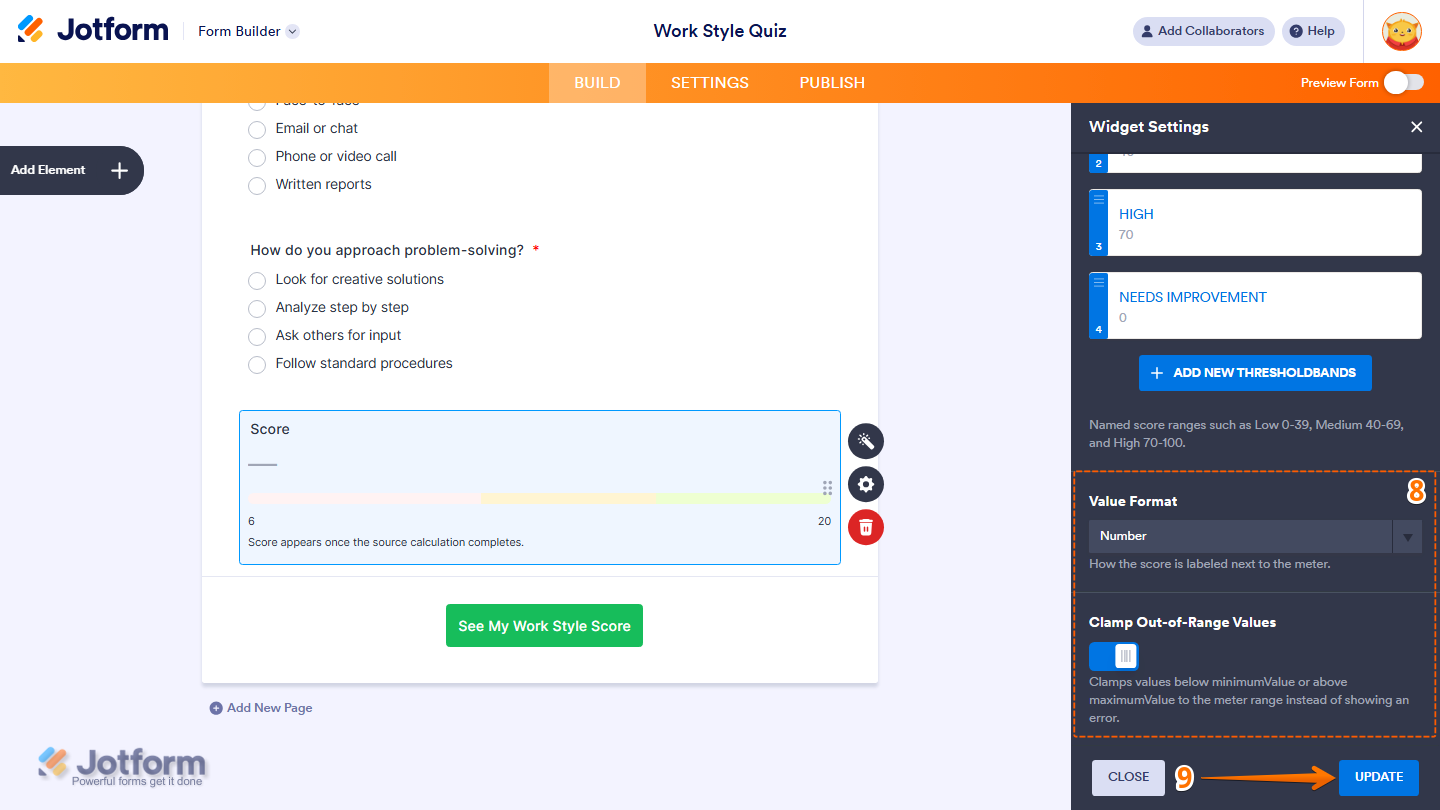
- Value Format — Select how the score is labeled next to the meter.
- Clamp Out-of-Range Values — Toggle this on to keep values below the minimum or above the maximum within the meter range instead of displaying an error.
- Once everything’s set, click on Update.
That’s it. You’ve successfully added and set up the Calculate Score Meter widget on your form.
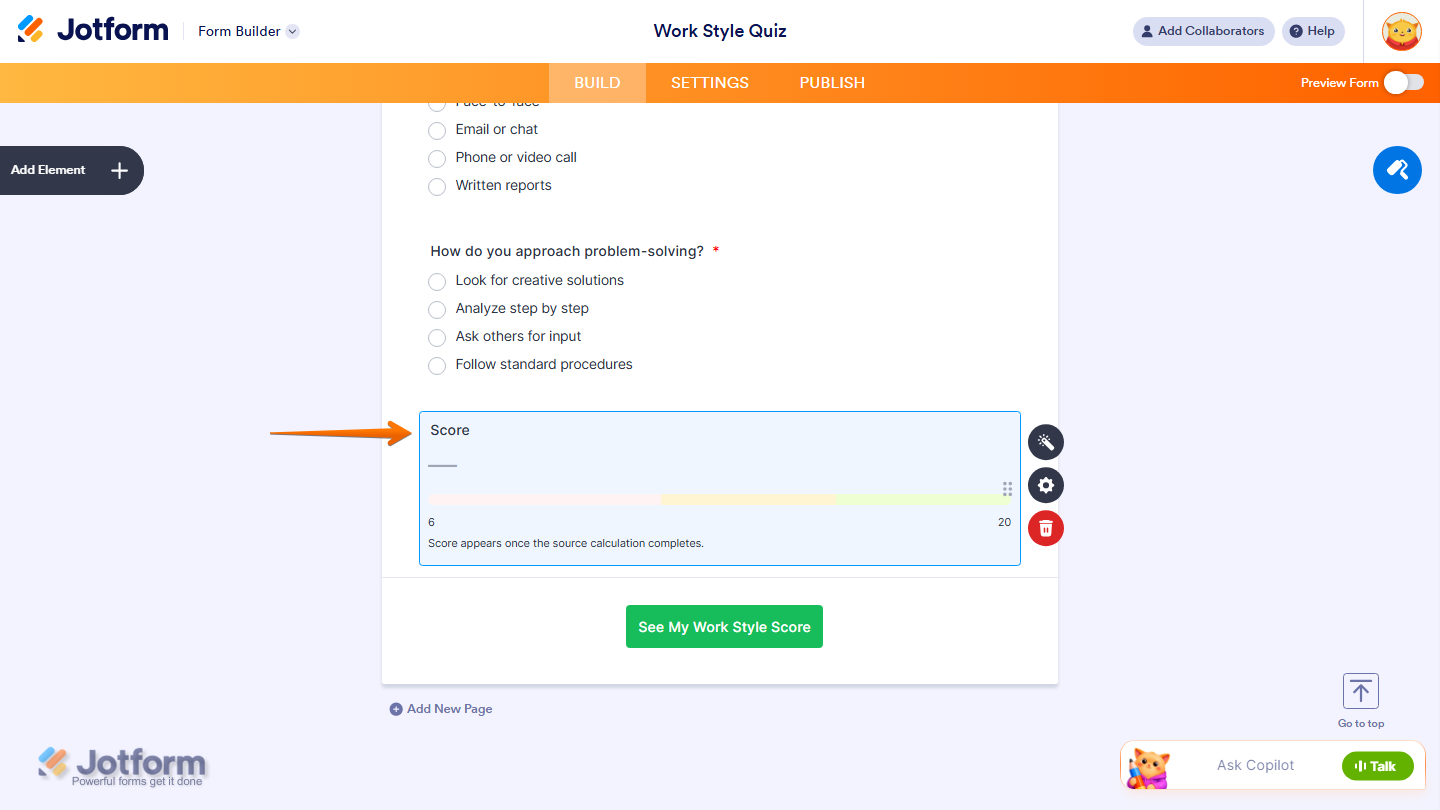
You can explore how it looks with this demo form.
Note
- For advanced styling of the Calculated Score Meter widget, you can add your own custom CSS code under the Custom CSS tab in the Widget Settings. Our guide on How to Inject CSS Codes to Widgets walks you through everything.
- You can also configure the widget properties, like alignment, labels, size, visibility, and more, to control how it looks and behaves in your form. Check out our guide on How to Access and Configure the Question Properties of a Widget to learn more.

Send Comment: