Jotform’s Add Options widget lets respondents add extra text boxes to a form, making it useful when users may need to provide multiple suggestions, items, instructions, or other entries. Instead of limiting respondents to a fixed number of fields, you can let them add more as needed.
Here are a few ways to use it:
- Let customers add multiple items to a purchase order.
- Collect additional suggestions on a feedback form.
- Let members add other payment options.
- Allow job applicants to list additional skills and hobbies.
- Give respondents space to provide multiple entries or instructions.
Whether you’re building a new form or editing an existing one, you can add and configure the Add Options widget in just a few steps. This is how it’s done:
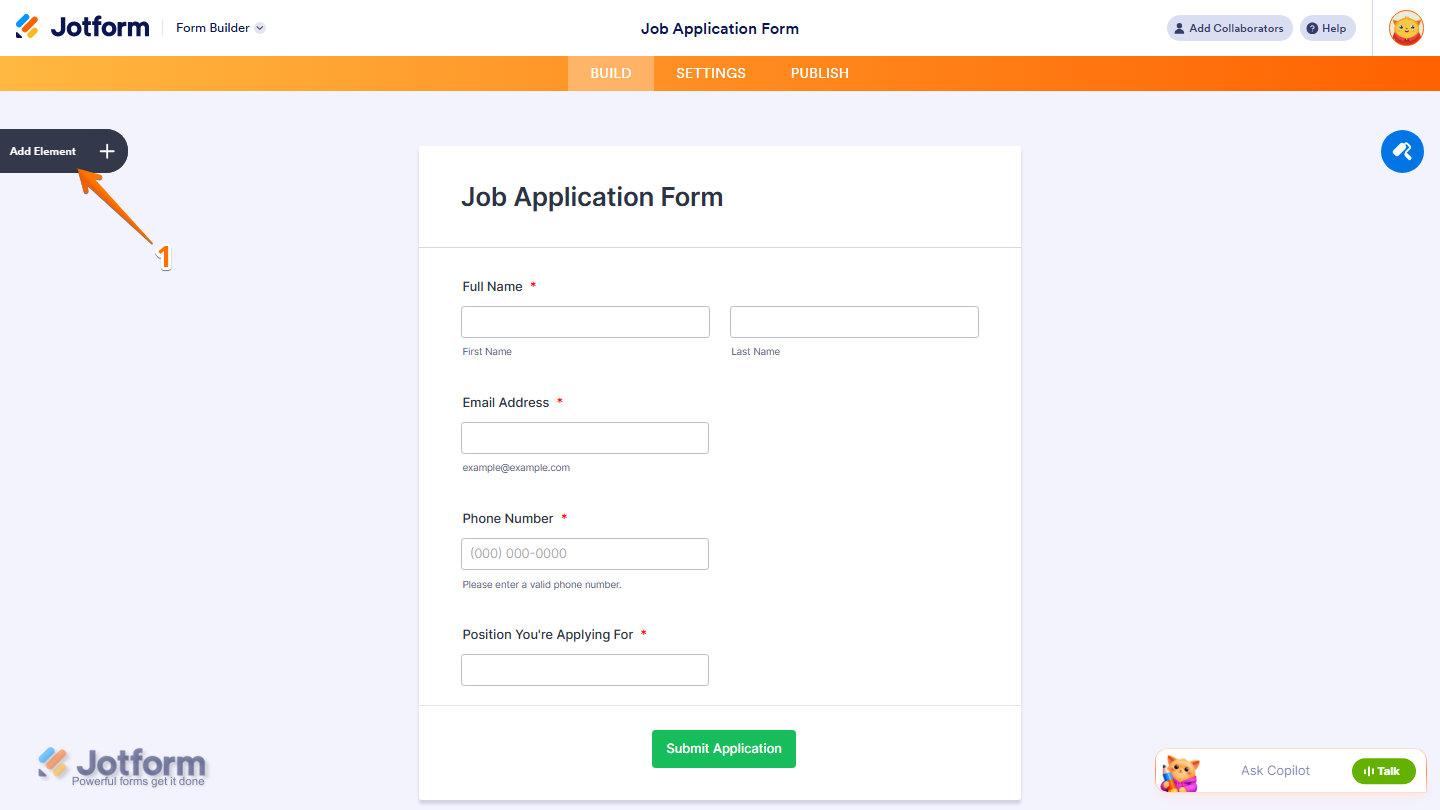
- In Form Builder, click on Add Element on the left side of the page
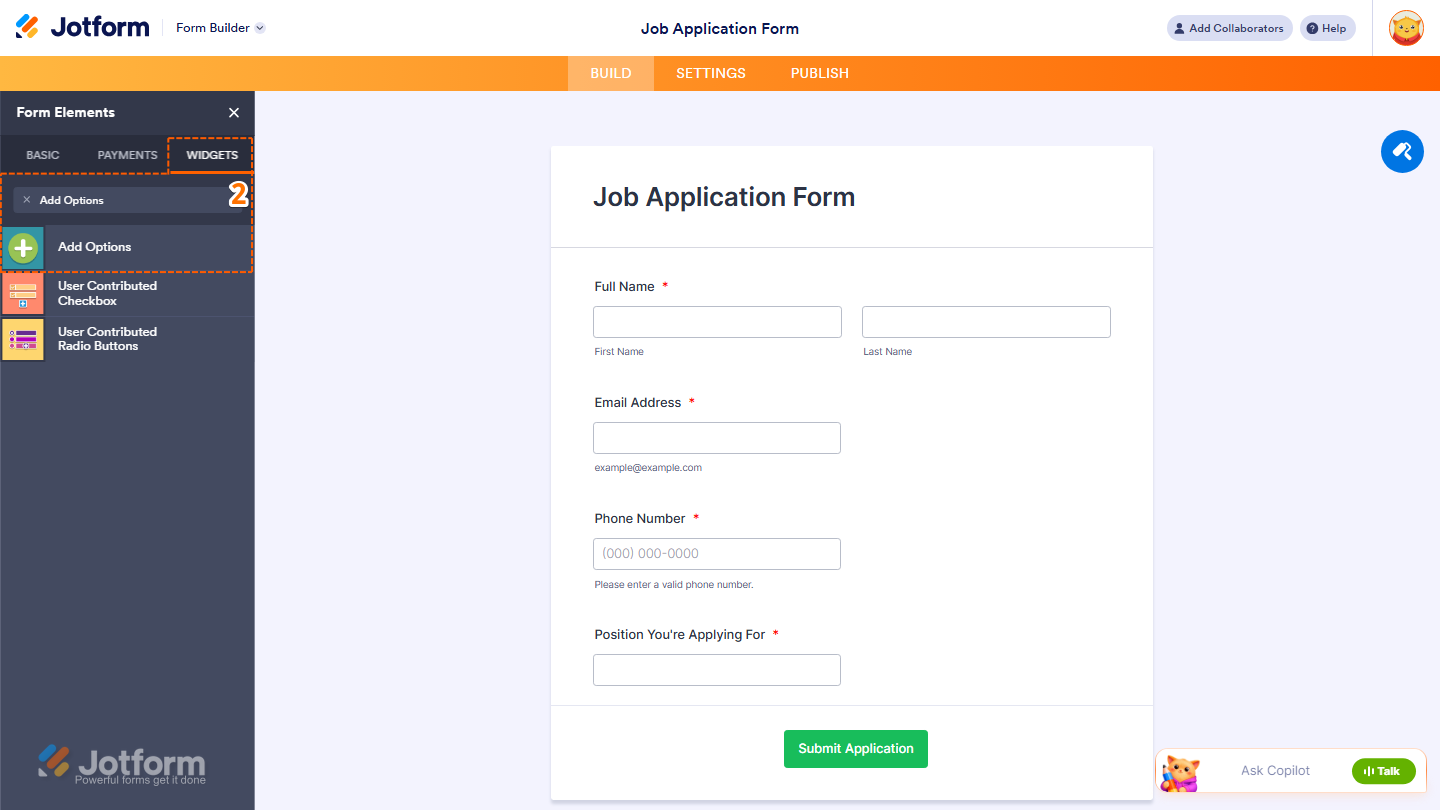
- Now, in the Form Elements menu, under the Widgets tab, search and click on Add Options. Or, just drag and then drop it to where you want it to be on your form.
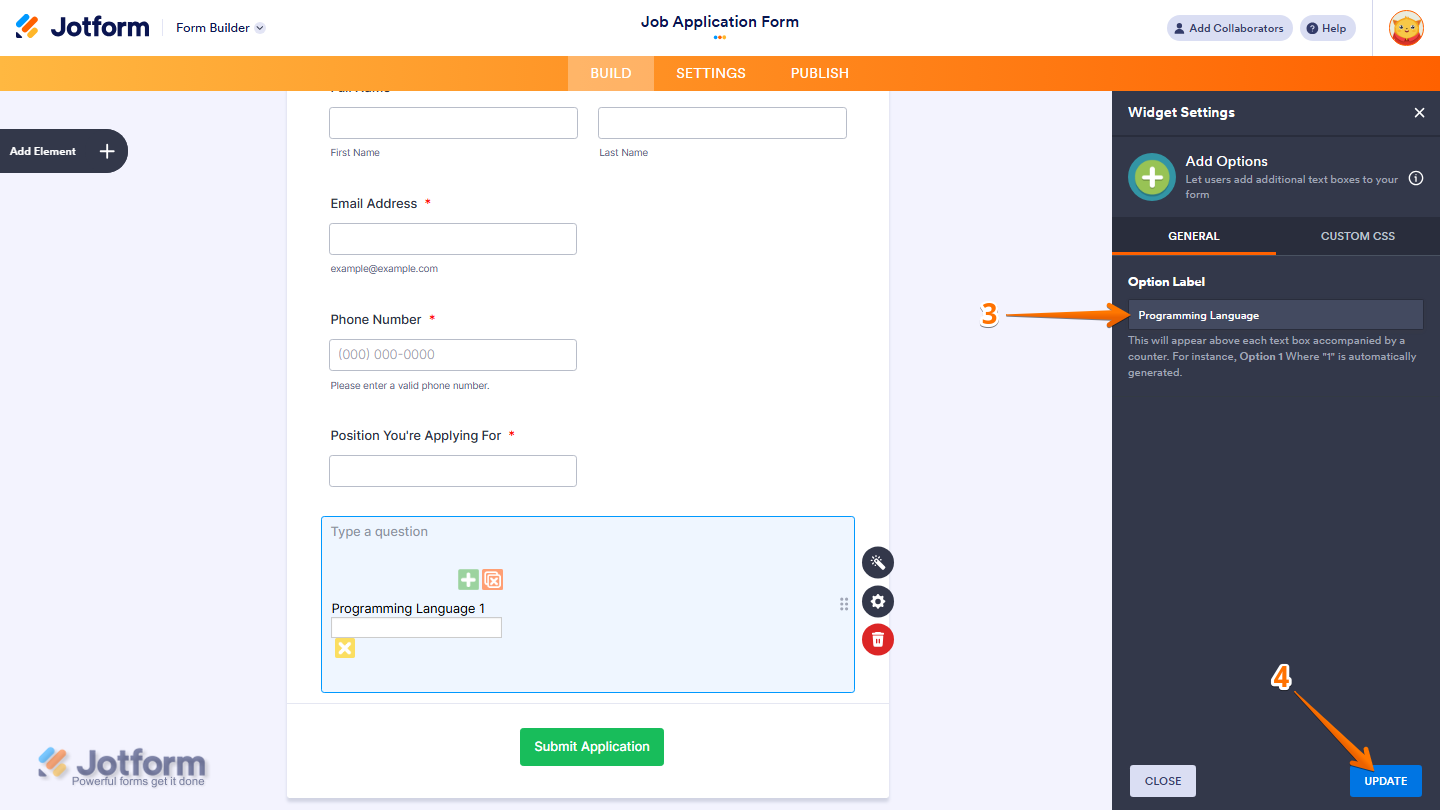
- Next, in the Widget Settings window that opens on the right side of the page, enter the label you want to add in Option Label.
- Once you’re done, click on Update.
Note
This will appear above each text box, accompanied by a counter. For instance, Option 1 Where “1” is automatically generated.
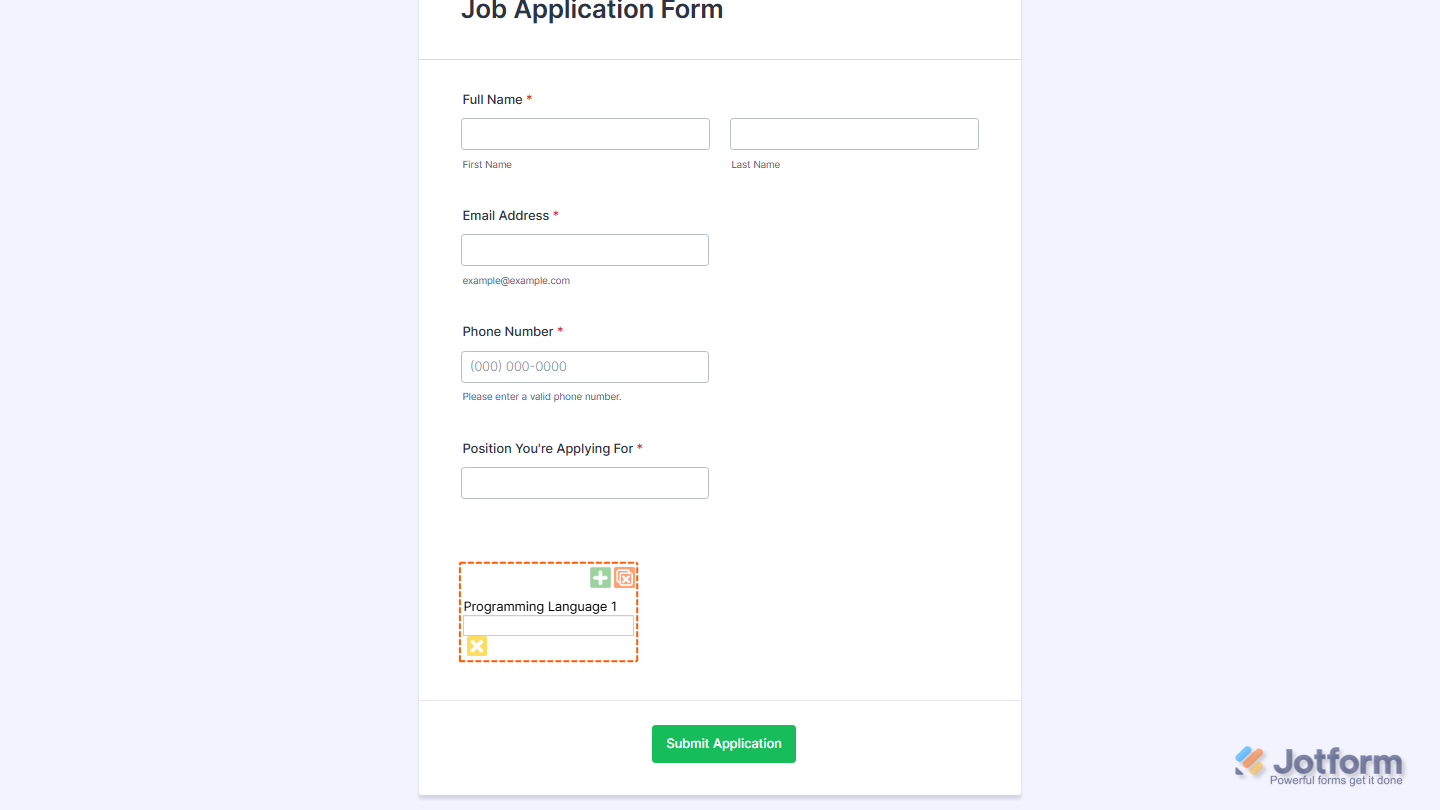
And that’s it! You’ve now successfully added and set up your Add Options widget on your form. When filling out the form, users can do the following actions:
- Green + button — Adds a new entry field.
- Yellow X button — Removes a specific entry field.
- Red X button — Clears all added fields at once.
Want to see how it works? Check out this live demo form.
- For advanced styling of the Add Options widget, you can add your own custom CSS code under the Custom CSS tab in the Widget Settings. Our guide on How to Inject CSS Codes to Widgets walks you through everything.
- You can also configure the widget properties, like alignment, labels, size, visibility, and more, to control how it looks and behaves in your form. Check out our guide on How to Access and Configure the Question Properties of a Widget to learn more.

Send Comment: