Jotform’s Dynamic Textbox widget is the perfect solution when a single text field just isn’t enough. Instead of asking users to squeeze everything into one box, this widget lets them add as many responses as they need—whether it’s a list of names, favorite items, step-by-step instructions, or anything else. It keeps your form clean and organized while still giving users the freedom to share all the information they want. Plus, it’s super easy to use—just click to add another box and keep going.
Here are a few ways to use it:
- Registration Forms — Perfect for collecting multiple participant names, guest lists, or team members—all in one tidy section.
- Project Submission Forms — Makes it super easy for team members to quickly list items or assets without scrolling endlessly.
- Order Forms — Ideal for feedback forms or surveys where people can share as many suggestions, improvements, or ideas as they like.
- Step-by-Step Instructions — A great choice for forms that need detailed steps, processes, or task breakdowns without feeling cluttered.
Note
All text fields added with the Dynamic Textbox widget share the same label, so be sure to use a clear and helpful label that lets users know exactly what to enter.
Adding and Setting Up the Dynamic Textbox Widget
It’s easy to add a field to your form that lets users enter multiple responses in one expandable section, and you can customize it to suit your needs perfectly. Get started like this:
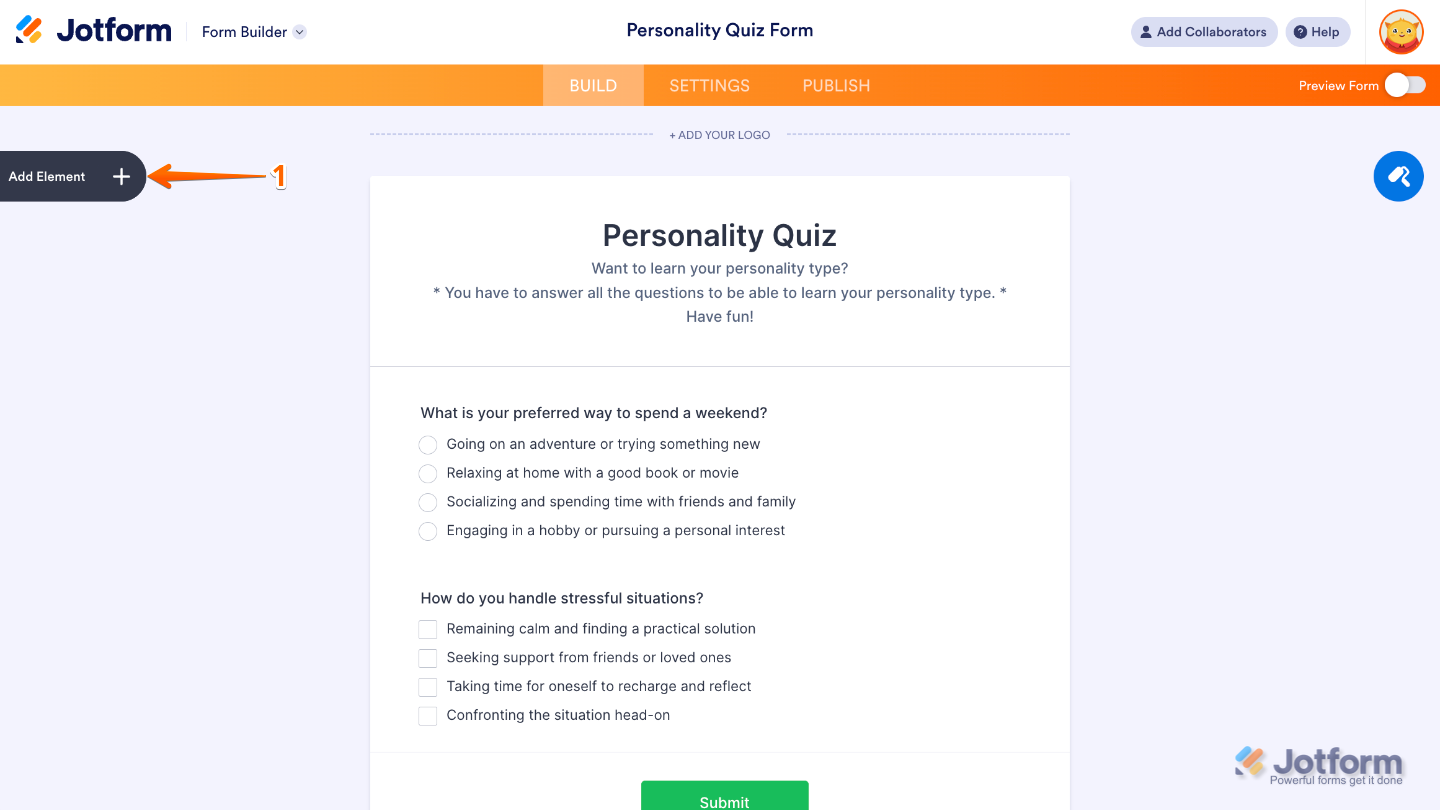
- In Form Builder, click on Add Element on the left side of the page.
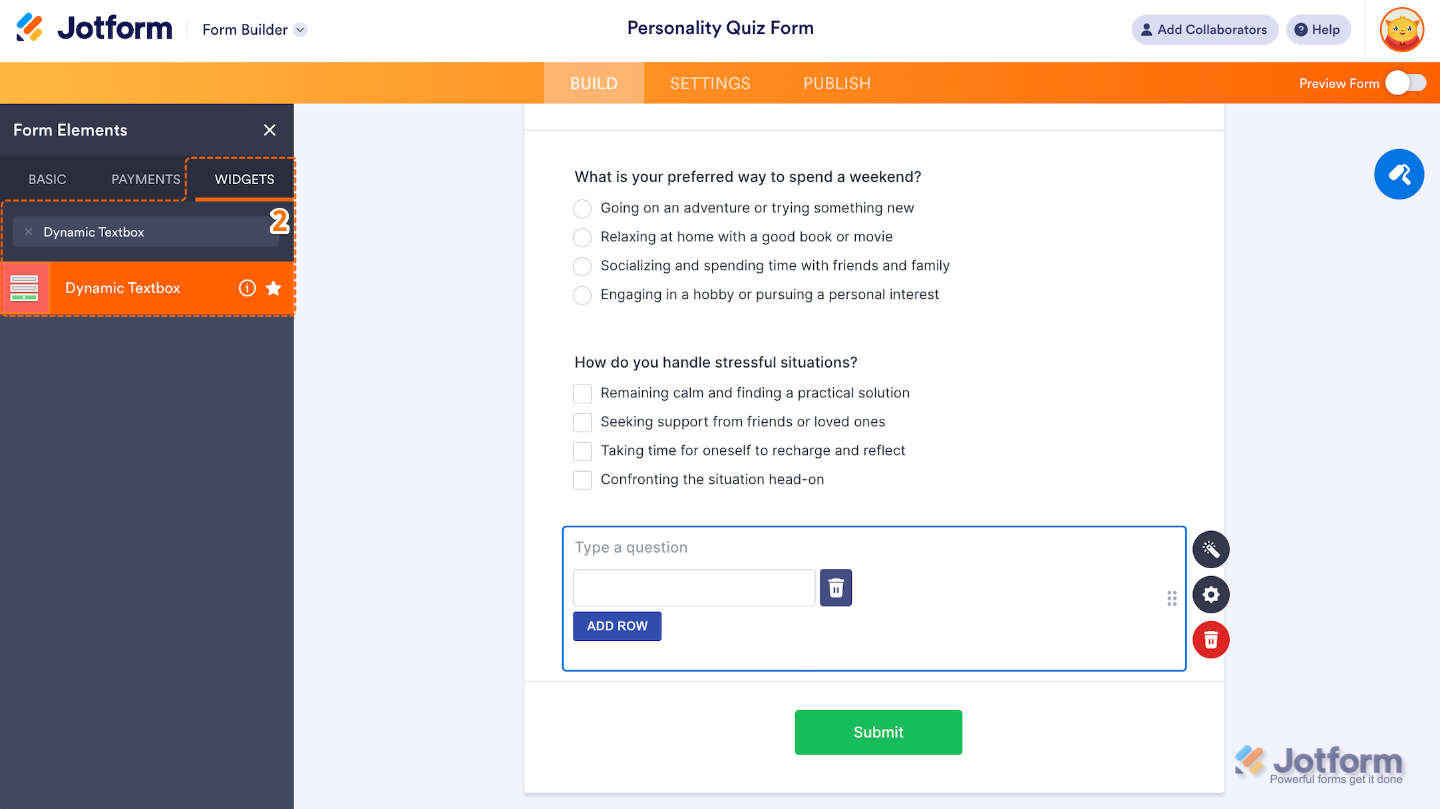
- Now, in the Form Elements menu, under the Widgets tab, search for Dynamic Textbox and then click on it. Or, just drag and drop it to where you want it to be on your form.
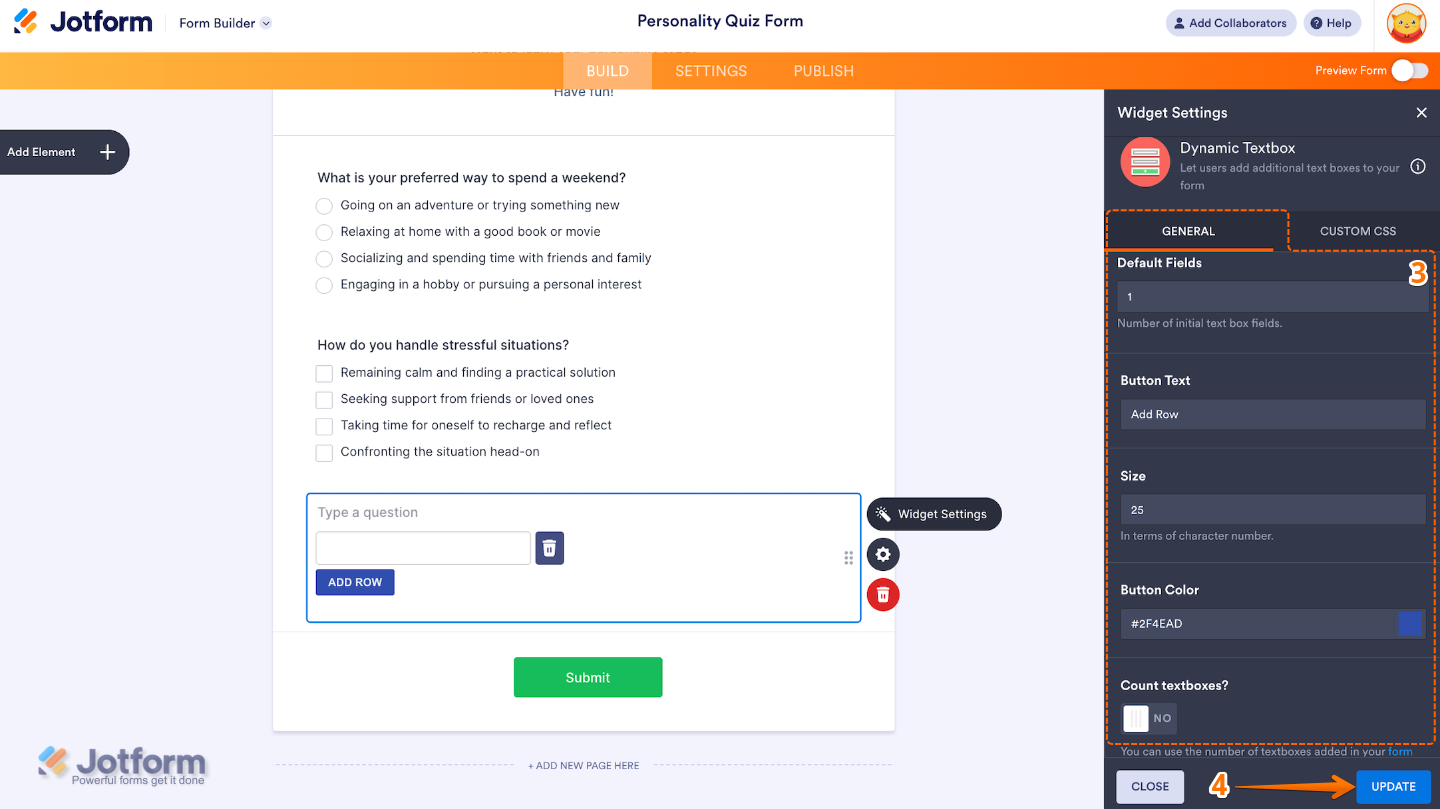
- Next, in the Widget Settings window that opens on the right side of the page, under the General tab, set up the following options:
- Default Fields — This sets the number of textboxes that are visible when the form first loads.
- Button Text — Set this up to customize the label for the Add Row button that users click to create more textboxes.
- Size — This option lets you control the width of the textboxes.
- Button Color — Choose the color of the Add Row button here.
- Count Textboxes? — When enabled, this will count the number of textboxes added. Useful for Form Calculation.
- Once you’re done, click on Update.
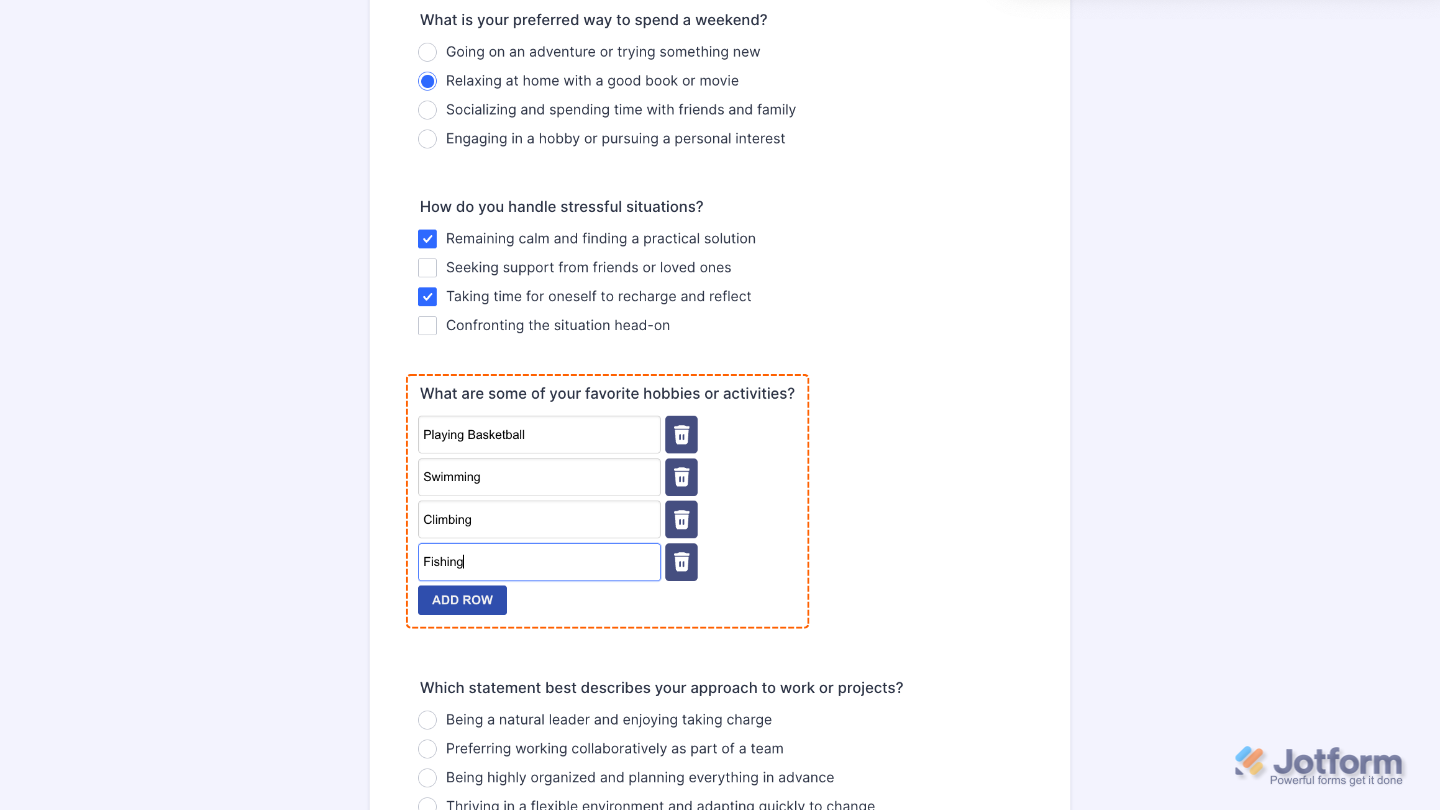
That’s it. You’ve successfully added and set up the Dynamic Textbox widget to your form. Now, your users can add as many text fields as they need to a specific question. Ready to see it in real time? Have a look at this Demo Form.
To further customize the appearance of your Dynamic Textbox field, just click on the Gear icon to open its properties.
Note
For advanced styling, you can add your own custom CSS under the Custom CSS tab in the widget settings and style the Dynamic Textbox field. Our guide on How to Inject CSS Codes to Widgets walks you through everything.
Pro Tips
- Combine the Dynamic Textbox with conditional logic to show or hide other fields based on how many entries a user provides.
- Rename the Add and Remove button labels in the widget settings to better match your form’s tone or instructions. For example, Add Name or Remove Item.
- Consider using Form Collapse or Page Break elements to organize sections that use Dynamic Textboxes.

Send Comment: