Jotform’s Fancy Checkboxes widget lets you replace standard browser checkboxes with stylish, customizable checkboxes on your form. It’s a simple way to make multiple-choice selections more visually appealing while letting you add as many options as needed and arrange them vertically or horizontally.
Here are a few ways to use it:
- Let customers select their preferred products or services.
- Collect multiple preferences on a survey or feedback form.
- Allow event attendees to choose activities or sessions.
- Let users select their interests or areas of expertise.
- Create a more engaging way for respondents to choose multiple options.
Whether you’re creating a new form or updating an existing one, you can add and set up the Fancy Checkboxes widget in a few easy steps. Here’s how to do it:
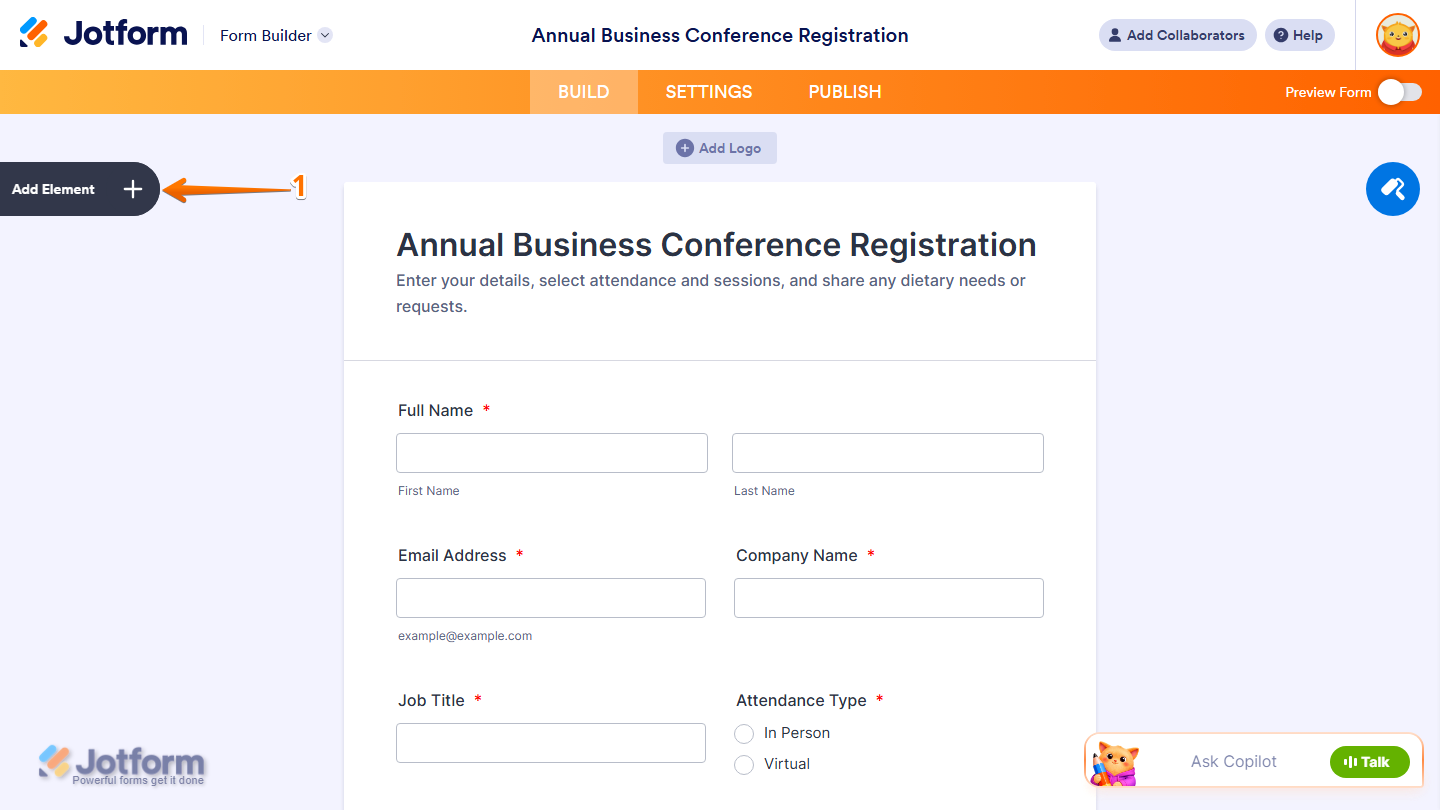
- In Form Builder, click on Add Element on the left side of the page.
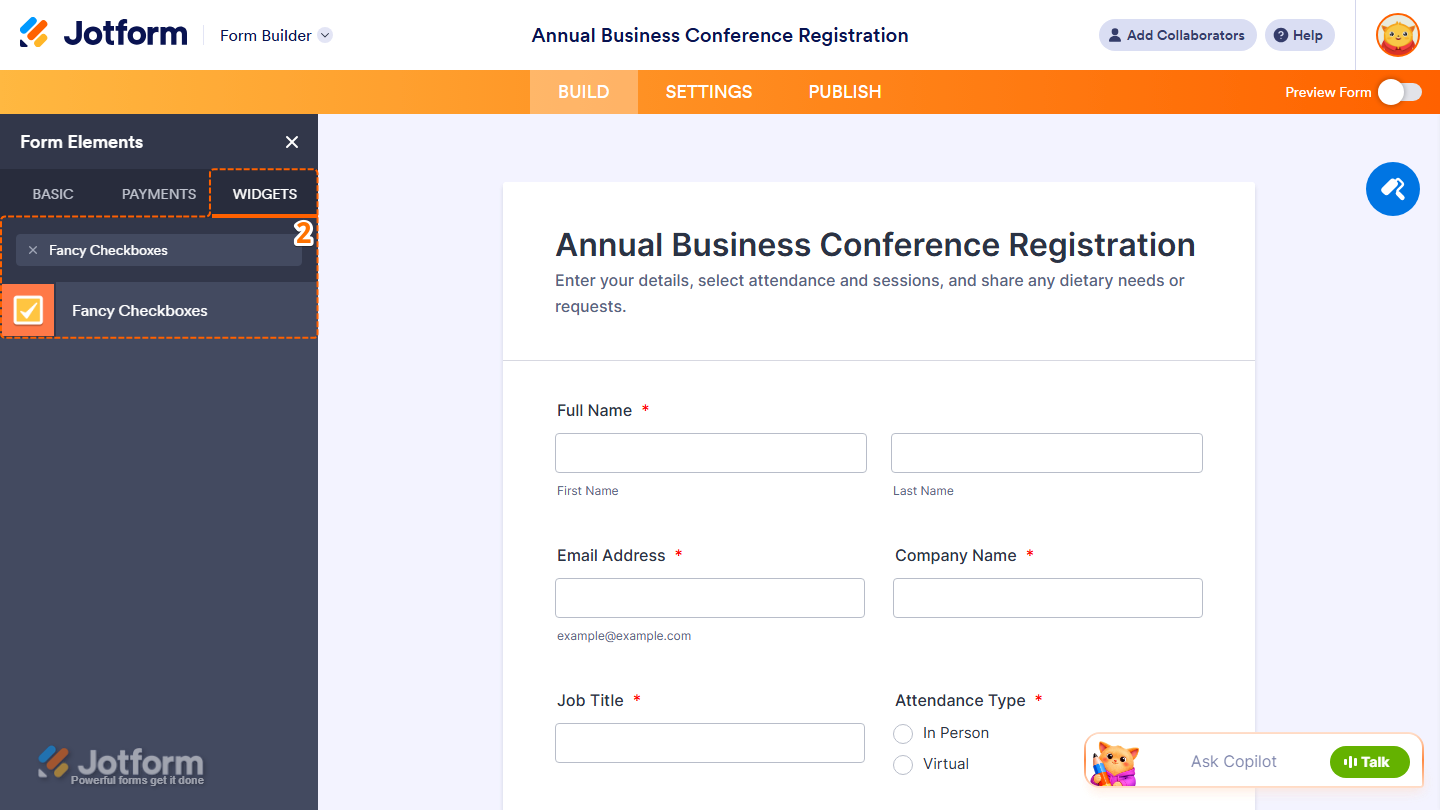
- Now, in the Form Elements menu, under the Widgets tab, search for Fancy Checkboxes and click to add it to your form. Or, just drag and then drop it to where you want it to be on your form.
- Next, in the Widget Settings window that opens on the right side of the page, under the General tab, set up these options:
- Options — Add your choices, putting each one on a new line.
- Default values — Enter the options you want to be selected by default when the form opens, one per line.
- New line for each button — Turn this on to show each option on its own line.
- Once you’re done, click on Update.

That’s it. You’ve successfully added and set up the Fancy Checkbox widget on your form.
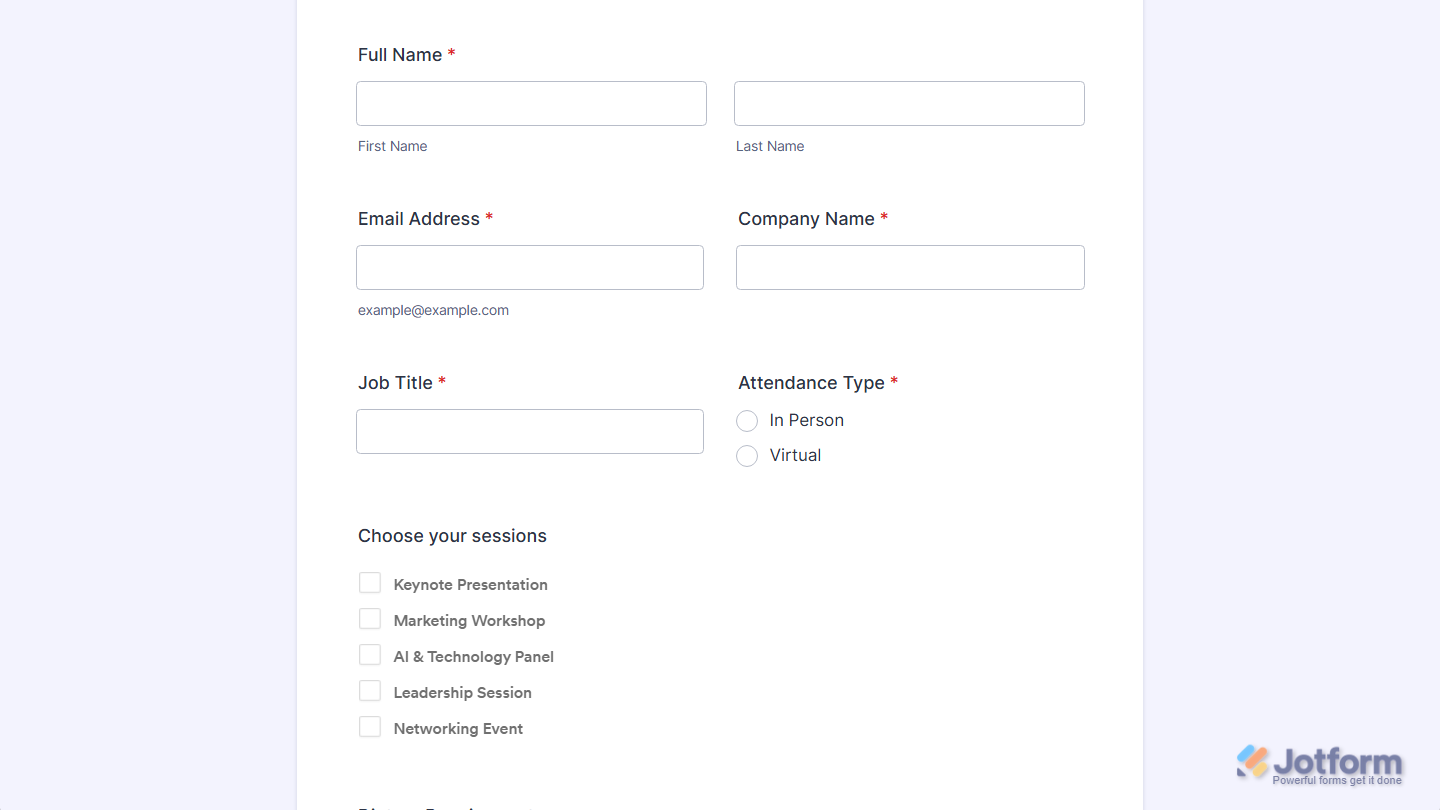
You can explore how it looks with this demo form.
Note
- For advanced styling of the Fancy Checkboxes widget, you can add your own custom CSS code under the Custom CSS tab in the Widget Settings. Our guide on How to Inject CSS Codes to Widgets walks you through everything.
- You can also configure the widget properties, like alignment, labels, size, visibility, and more, to control how it looks and behaves in your form. Check out our guide on How to Access and Configure the Question Properties of a Widget to learn more.

Send Comment: