Jotform makes it easy to add a custom banner to your form with the free Fit Text widget, which automatically adjusts your header text to fit your form’s width and lets you customize fonts and colors so you can quickly create a clean, eye-catching form that looks great on any device.
Here are a few ways to use it:
- Make your forms more visually appealing with custom banners and headers
- Grab users’ attention as soon as they open your form
- Create a polished look that matches your brand
- Highlight important announcements or instructions at the top of your form
Whether you’re building a new form or updating an existing one, it only takes a minute to set it up—here’s how:
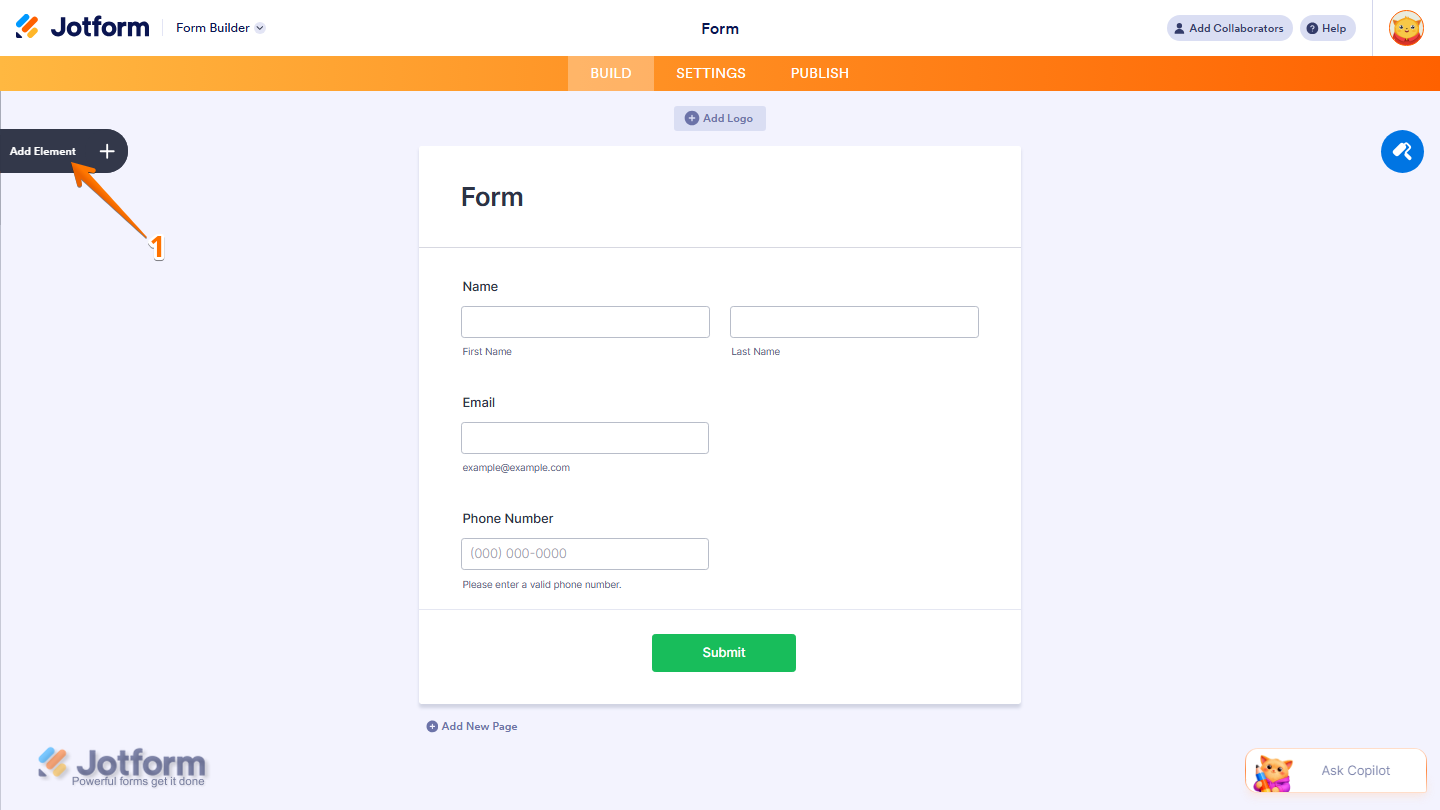
- In Form Builder, click on Add Element on the left side of the page.
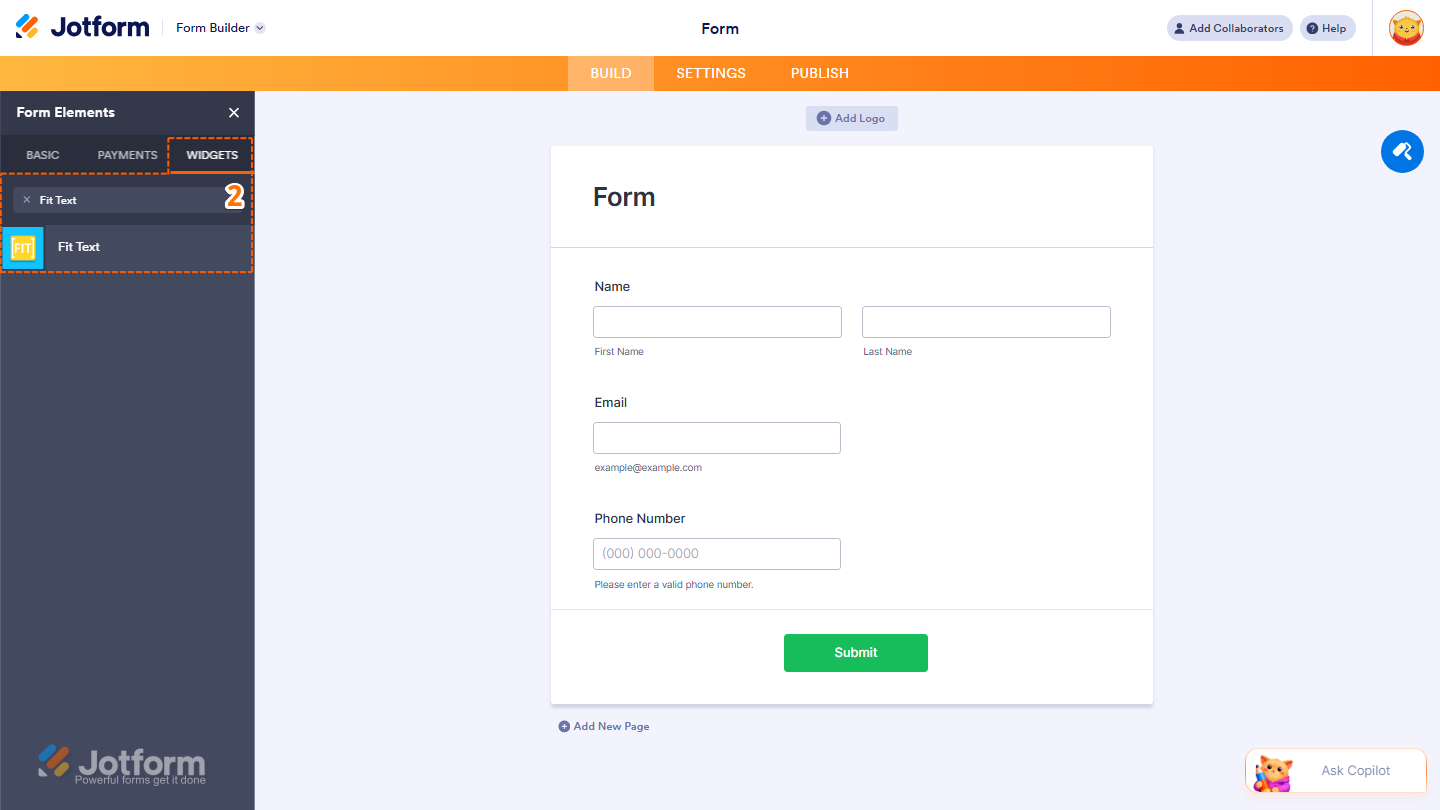
- Now, in the Form Elements menu, under the Widgets tab, search for Fit Text and click to add it to your form. Or, just drag and then drop it to where you want it to be on your form.
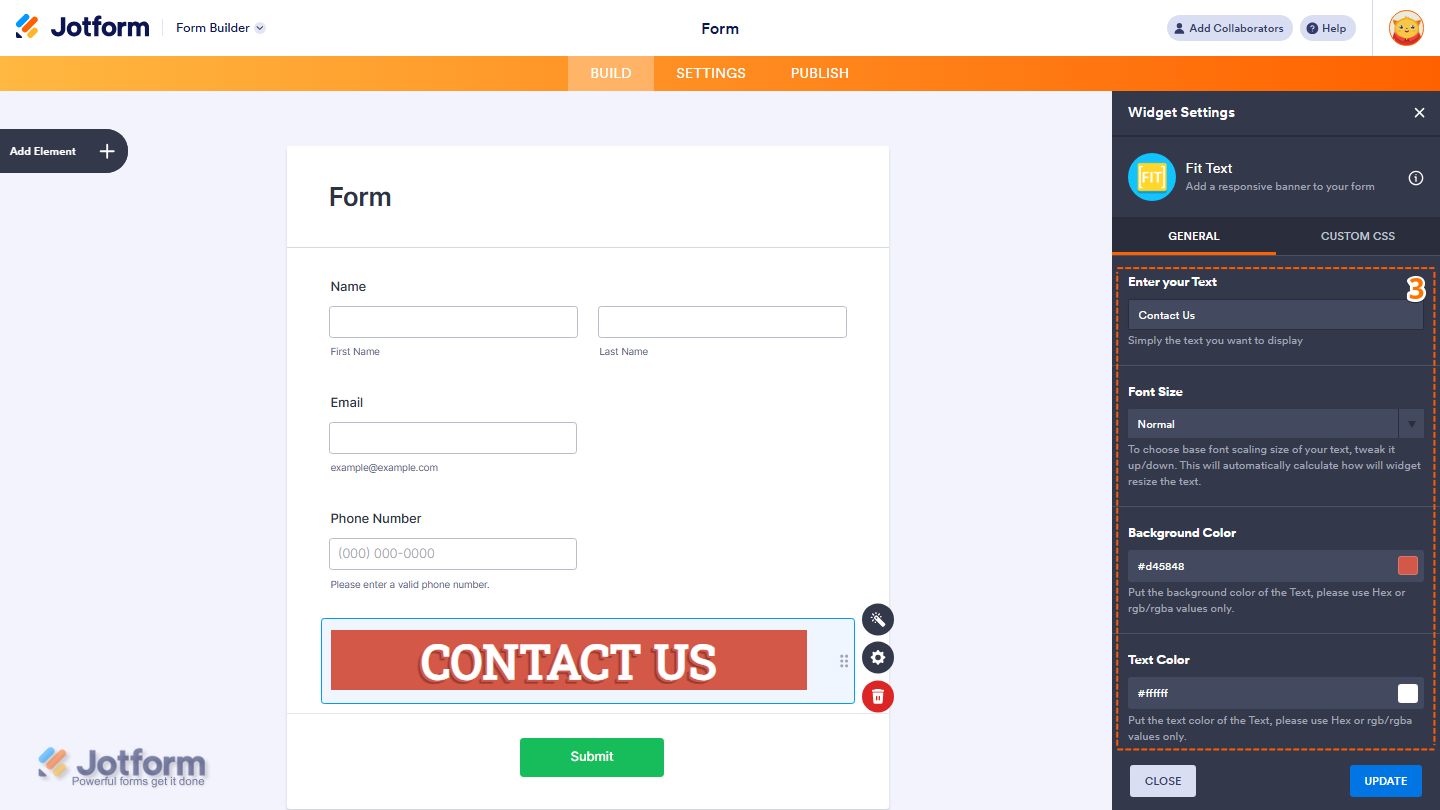
- Next, in the Widget Settings window that opens on the right side of the page, under the General tab, set up these options:
- Enter your Text — The text you want to display.
- Font Size — Adjust the base font size. The widget will automatically resize the text based on this.
- Background Color — Set the background color using a Hex or RGB/RGBA value.
- Text Color — Set the text color using a Hex or RGB/RGBA value.
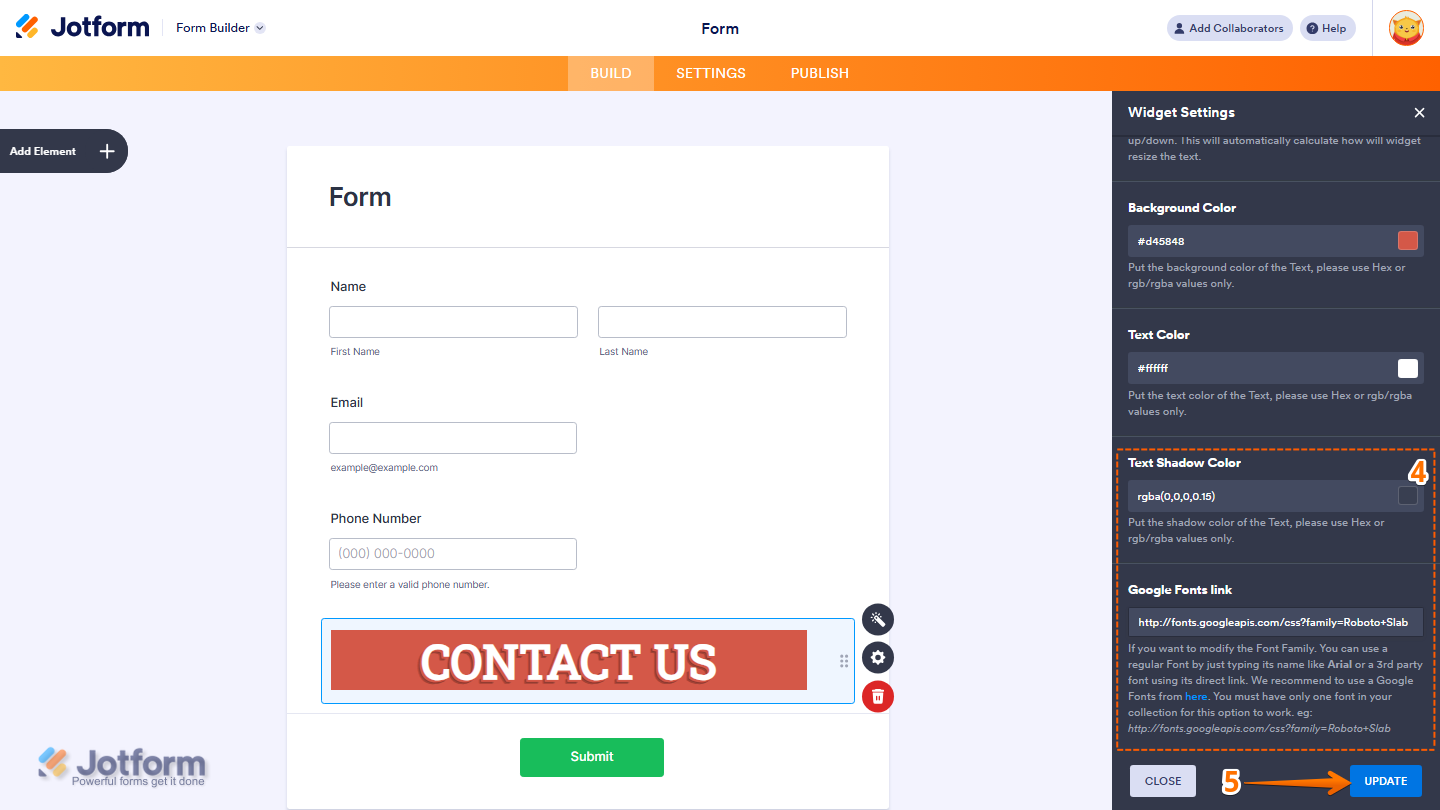
- Then, scroll down to the bottom and continue to set up these settings:
- Text Shadow Color — Set the shadow color using a Hex or RGB/RGBA value.
- Google Fonts Link — To change the font family, enter a standard font name (like Arial) or a direct link to a third-party font. We recommend using Google Fonts for best results. Just make sure your collection only includes one font. For example: http://fonts.googleapis.com/css?family=Roboto+Slab.
- Now, click on Update, and you’re all set.
That’s it! You’ve successfully added and set up the Fit Text widget on your form. Want a quick preview? This Demo Form shows how it works.
Note
- To style the fields and labels, you can inject custom CSS into the Custom CSS tab in the Widget Settings. To learn how it’s done, see our guide on How to Inject CSS Codes to Widgets.
- You can also configure the widget properties, like alignment, labels, size, visibility, and more, to control how it looks and behaves in your form. Check out our guide on How to Access and Configure the Question Properties of a Widget to learn more.

Send Comment: