With Jotform, you can easily give users more control over how their content appears on your form. The Font Size Picker widget lets respondents choose their preferred font size from a simple dropdown, making it a great fit for forms that involve customization, such as print orders, engraving requests, or label designs.
It helps create a more flexible and user-friendly experience by letting people select what works best for them, while giving you consistent and structured input for your workflow. Whether you’re collecting design details or personal preferences, this widget makes it easier to gather exactly what you need in a clear and organized way.
- Let users choose their preferred font size directly on your form.
- Collect consistent font size selections for print and design requests.
- Avoid unclear or inconsistent size entries from open-text responses.
- Simplify forms by replacing manual font size input with predefined options.
- Support workflows that require accurate font size selection for production.
- Improve form clarity when asking for text styling preferences.
Whether you’re creating a new form or updating an existing one, you can add and set up the UK City Picker widget in a few easy steps. Here’s how to do it:
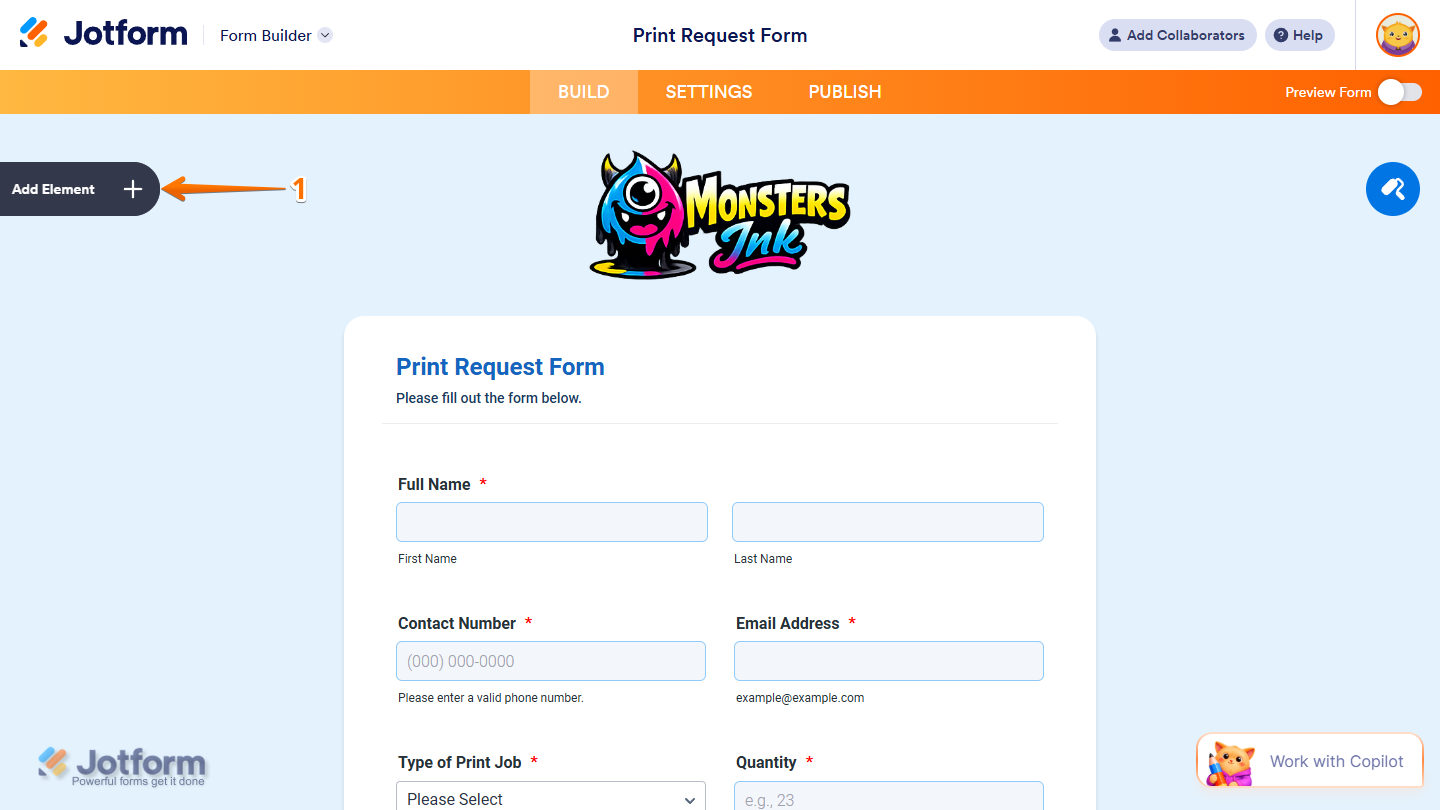
- In Form Builder, click on Add Element on the left side of the page.
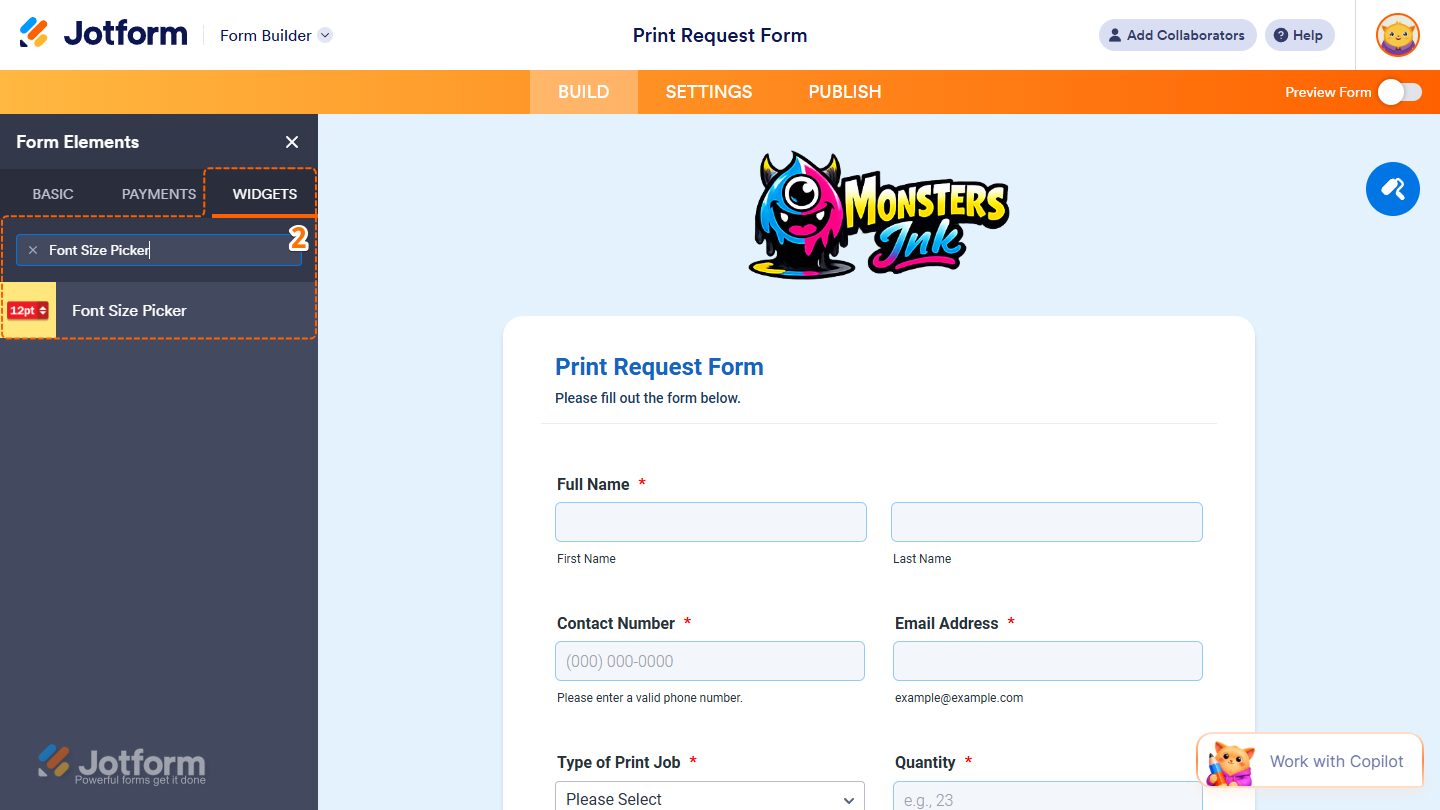
- Now, in the Form Elements menu, under the Widgets tab, search for Font Size Picker and click on it. Or, just drag and drop it to where you want it to be on your form.
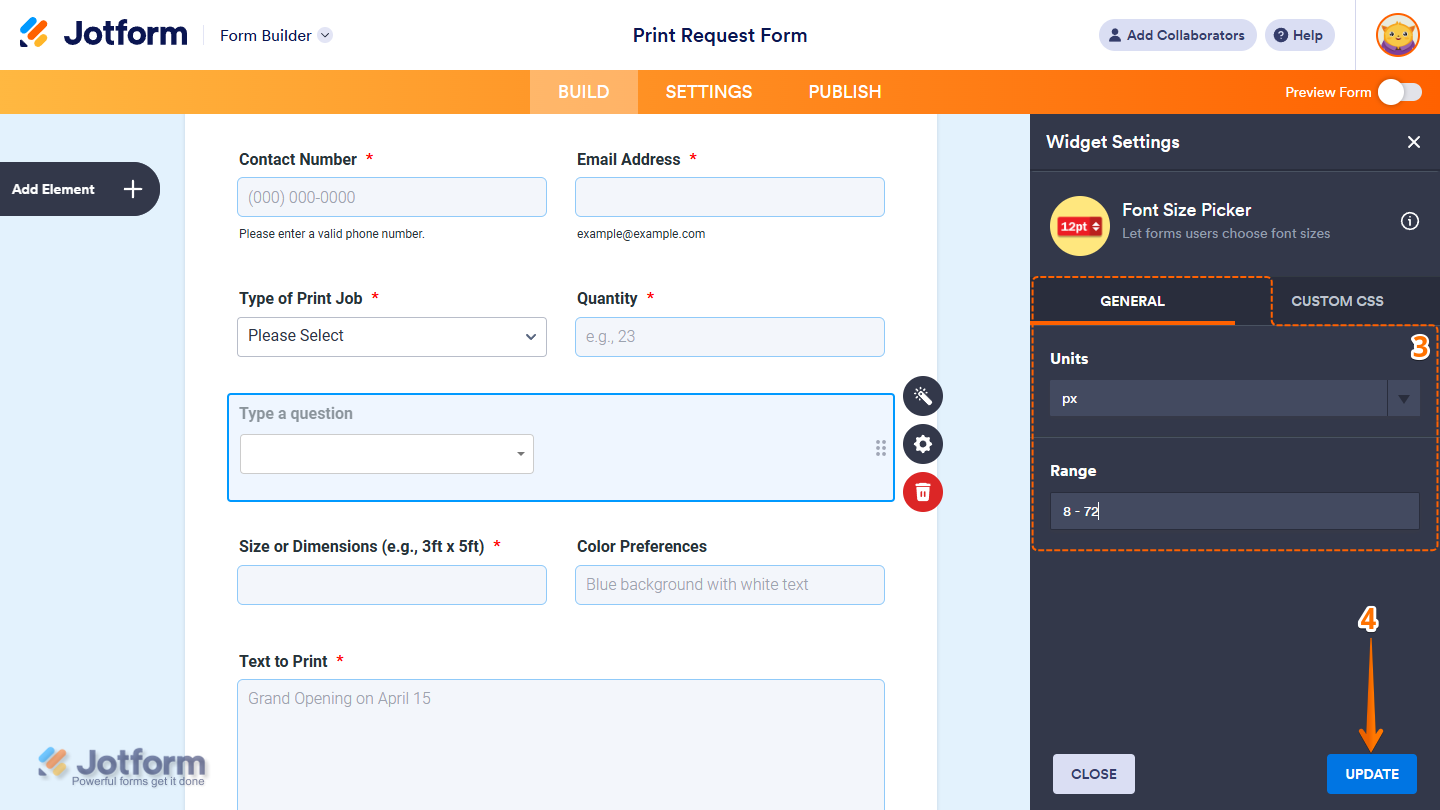
- Next, in the Widget Settings menu that opens on the right side of the page, under the General tab, you’ll see this list of settings you can configure:
- Units — Select em if you want users to choose font sizes in relative units. You can keep it set to px to use standard pixel values.
- Range — Enter the smallest and largest font sizes users can choose, separated by a dash. This sets the available size options in the dropdown.
- Once everything’s set, click on Update.
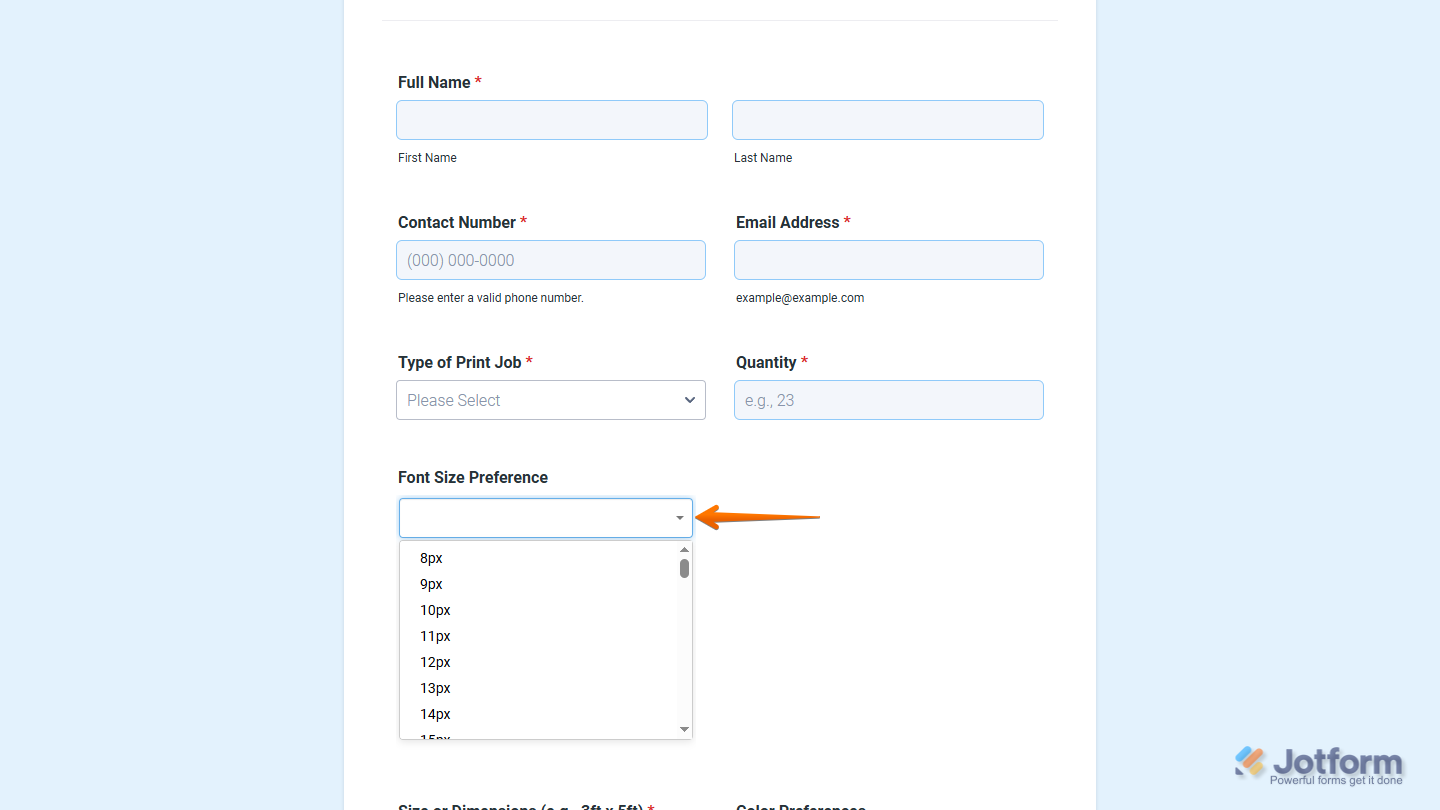
That’s it. You’ve successfully added and set up the Font Size Picker widget on your form. You can test it on this demo form.
Notes
- For advanced styling of the Font Size Picker widget, you can add your own custom CSS code under the Custom CSS tab in the Widget Settings. Our guide on How to Inject CSS Codes to Widgets walks you through everything.
- You can also configure the widget properties, like alignment, labels, size, visibility, and more, to control how it looks and behaves on your form. Check out our guide on How to Access and Configure the Question Properties of a Widget to learn more.

Send Comment: