Jotform’s IBAN Validator widget helps you verify International Bank Account Numbers (IBANs) instantly, making it easier to collect accurate banking details in your forms. It automatically checks whether the entered IBAN follows the correct format and structure, helping reduce errors, failed transactions, and incomplete submissions. Ideal for payment, invoicing, and banking-related forms, this widget adds an extra layer of validation to improve data accuracy and user confidence.
Here are a few ways to use it:
- Collect valid international bank account numbers securely through your forms.
- Verify payment and refund banking details before submission.
- Minimize errors in finance, billing, and onboarding workflows.
- Gather accurate banking information for vendors, suppliers, or employees for international transactions.
Pro Tip
The IBAN Validator widget is available in both Classic and Card Forms. You can check out our guide on When to Use Card Forms to learn more.
Whether you’re building a new form or editing an existing one, you can add and configure the IBAN Validator widget in just a few steps. This is how it’s done:
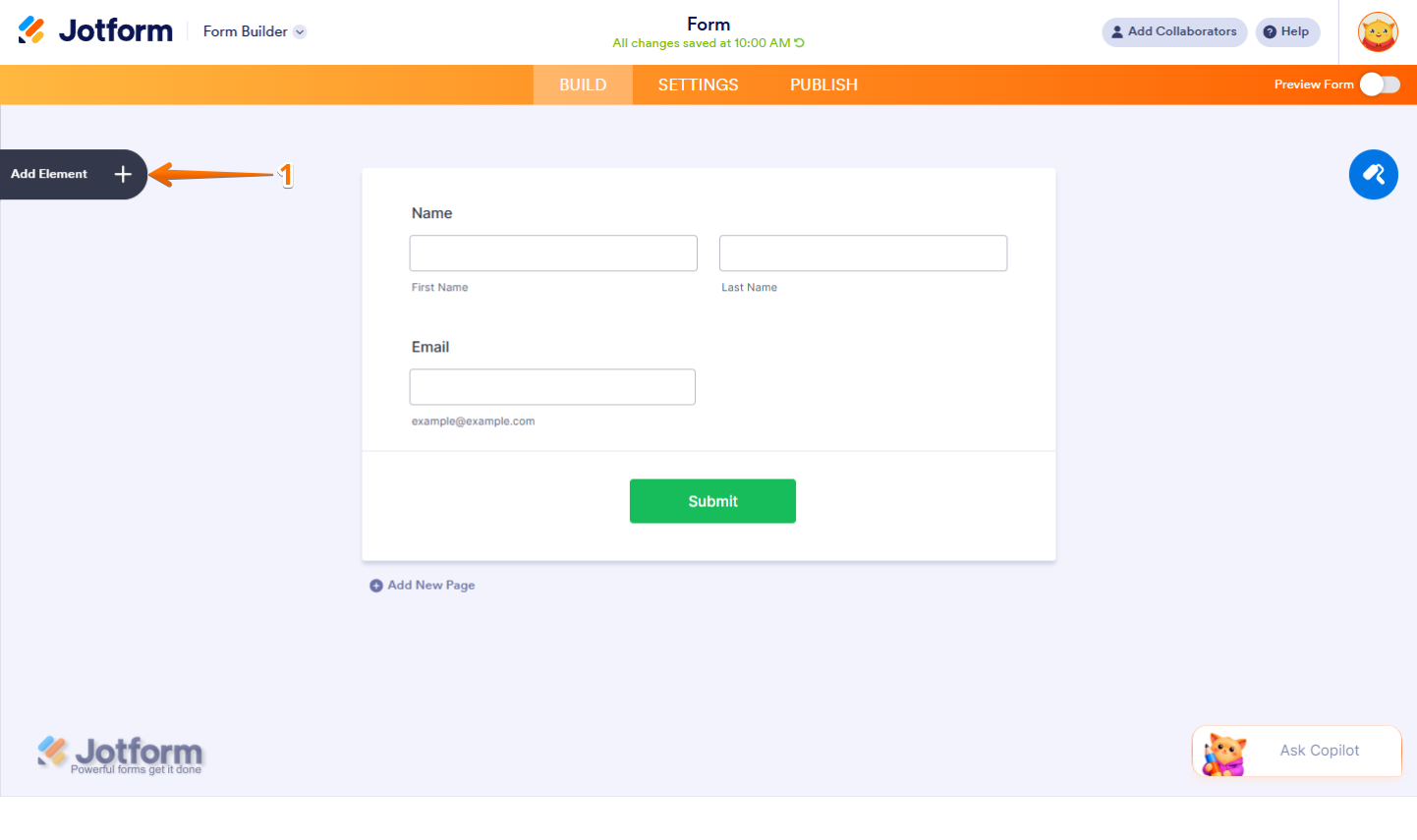
- In Form Builder, click on Add Element on the left side of the page.
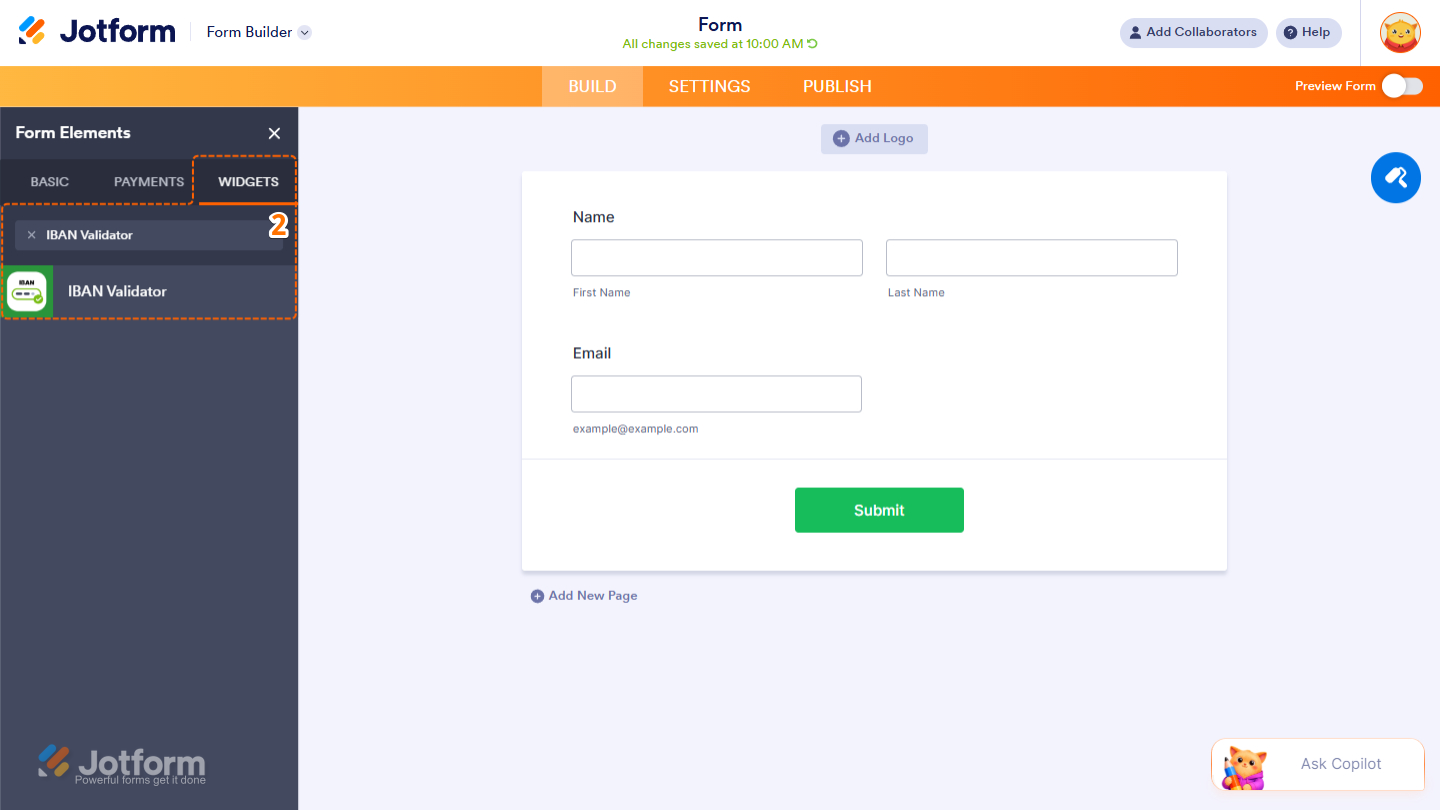
- Now, in the Form Elements menu, under the Widgets tab, search for IBAN Validator and click on it. Or just drag and drop it to where you want it on your form.
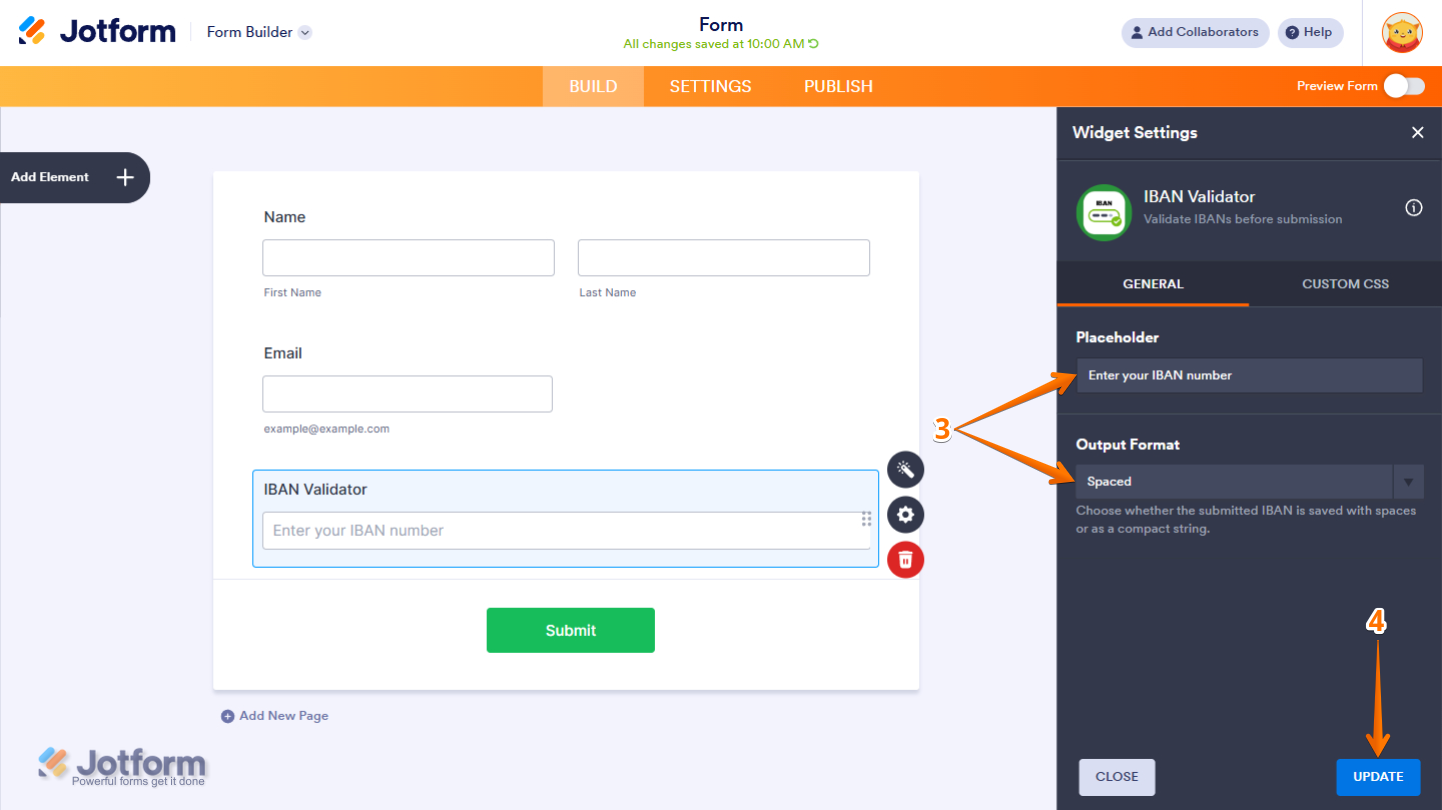
- Next, in the Widget Settings window that opens on the right side of the page, under the General tab, set up these things:
- Placeholder — Set the helper text displayed inside the IBAN input field before users enter their account number.
- Output Format — Select how the submitted IBAN will be stored, either with spaces for readability or as a continuous compact string.
- Once everything’s set, click on Update.
That’s it. You’ve successfully added and set up the IBAN Validator widget on your form. Curious how it works on a live form? Check out this demo.
Pro Tip
- For advanced styling of the IBAN Validator widget on a Classic Form layout, you can add your own custom CSS code under the Custom CSS tab in the Widget Settings. Our guide on How to Inject CSS Codes to Widgets walks you through everything.
- You can also configure the widget properties, like alignment, labels, size, visibility, and more, to control how it looks and behaves on your form. Check out our guide on How to Access and Configure the Question Properties of a Widget to learn more.

Send Comment:
1 Comment:
June 25, 2026
How to change language of errors messages ?