The Math Graphs widget helps you turn math expressions into clean, interactive graphs right inside your form—perfect for making tricky concepts easier to understand at a glance. It’s a great tool for teachers, students, or anyone who wants to show how values connect visually instead of relying on plain text.
Sometimes, seeing a formula in graph form makes all the difference. With just a few quick steps, you can display clear, accurate graphs that boost understanding, add visual clarity, and create a more engaging experience for the people using your form.
Here are a few ways to use it:
- Visualize Calculations Instantly — Instead of showing users plain numbers, the Math Graphs Widget turns data into clear, visual graphs. This helps users quickly understand results, patterns, or relationships without doing any mental math.
- Support Learning and Education — Perfect for teachers and trainers, this widget lets students see math concepts come to life. Whether it’s plotting equations, showing trends, or visualizing functions, graphs make learning more intuitive and less intimidating.
- Explain Data in Research or Studies — If your form is part of a survey or experiment, you can use graphs to display outcomes or calculations visually. It makes findings easier to interpret and keeps participants engaged.
- Show Results From Calculators or Formulas — Pair the widget with form calculations to show results in real time. For example, you can graph cost estimates, score changes, or projected totals as users enter values.
Adding and Setting Up the Math Graphs Widget
Adding the Math Graphs widget to your form lets you display equations and data visually through clear, interactive graphs. Setting it up takes no time at all—here’s how:
- In Form Builder, click on Add Element on the left side of the page.

- Now, in the Form Elements menu, under the Widgets tab, search for Math Graphs and then click on it. Or, just drag and drop it to where you want it to be on your form.

- Next, in the Widget Settings menu that opens on the right side of the page, set up these options:
- Range — Enter two numbers separated by a comma to set the x-axis range for your graph. Think of it as choosing the starting and ending points you want to show along the horizontal line.
- Functions —Enter the mathematical functions you want the widget to plot.
- Once you’re done, click on Update.
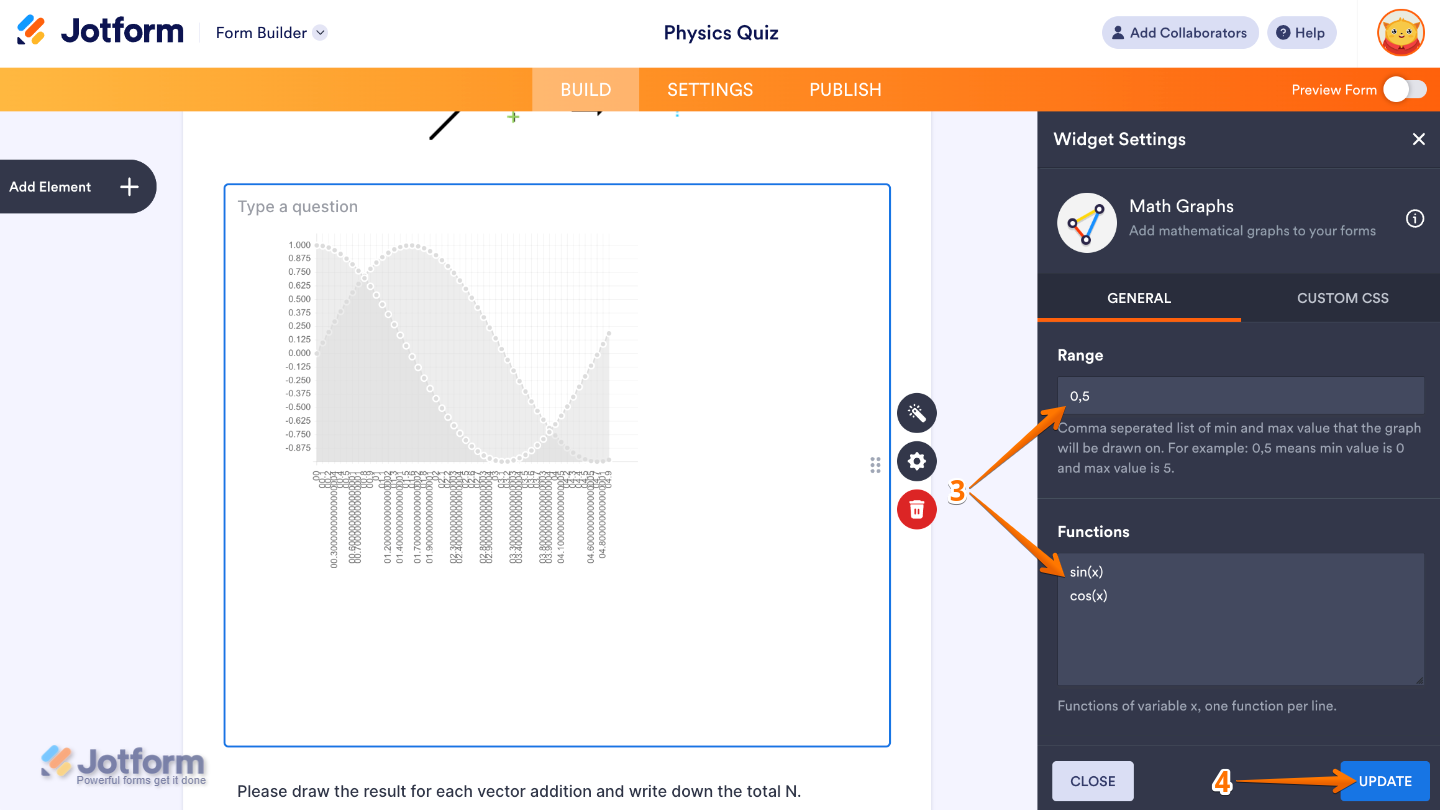
That’s it. You’ve successfully added and set up the Math Graphs widget on your form. Now you can present equations and data in clear, visual graphs, making complex information easier for users to understand and explore. Curious how it works on a live form? Check out this Demo Form.
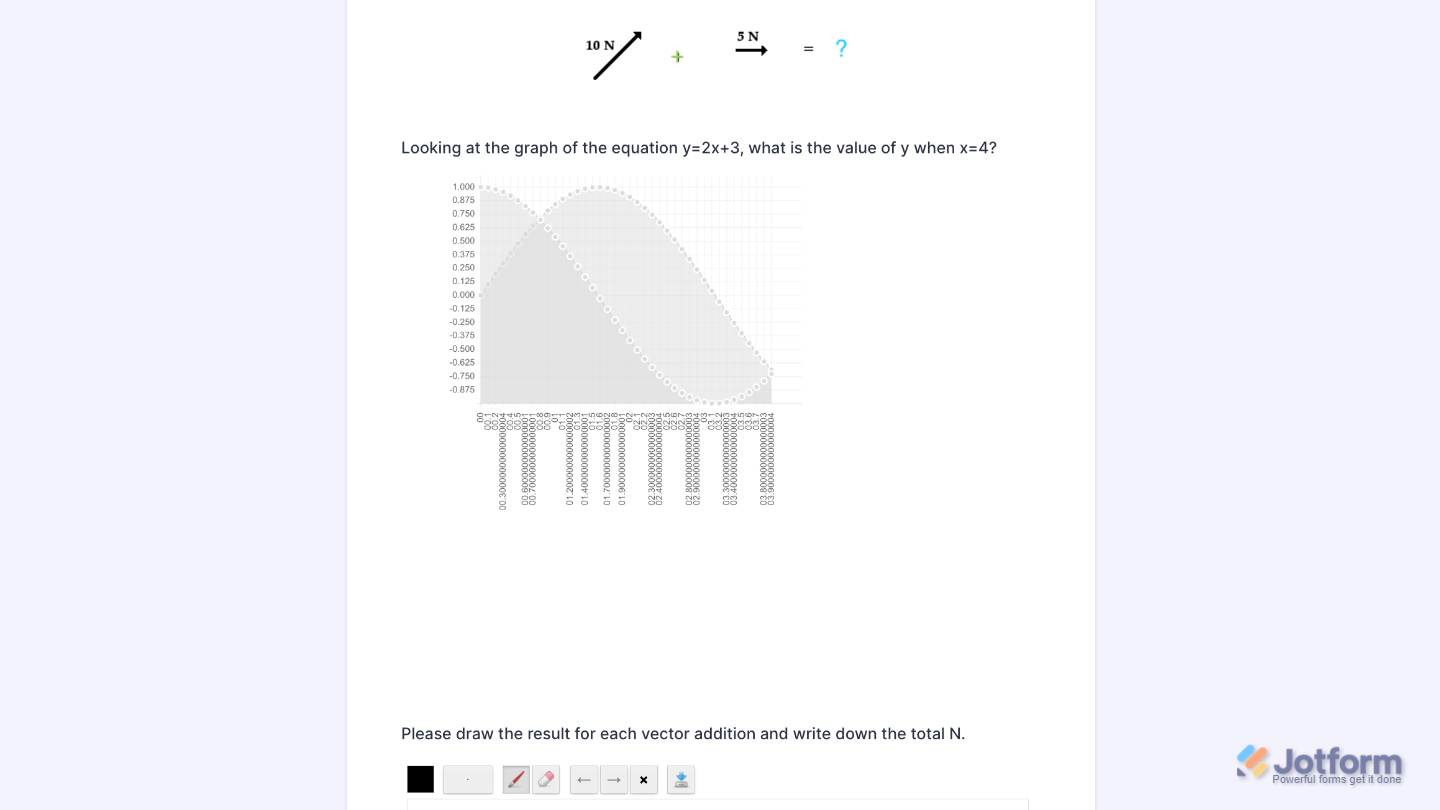
You can also configure the widget properties, like alignment, labels, size, visibility, and more, to control how it looks and behaves on your form. To learn how it’s done, see our guide on How to Access and Configure the Question Properties of a Widget.
Note
For advanced styling of the Math Graphs widget, you can add your own custom CSS code under the Custom CSS tab in the Widget Settings. Our guide on How to Inject CSS Codes to Widgets walks you through everything.
Pro Tips
- Complex equations can look intimidating. Start with simple, easy-to-read functions to help users understand the graph at a glance.
- Adjust the X and Y ranges to focus on the most important part of the graph. Zooming too far out can make key details hard to see.
- Graphs can display differently on mobile and desktop. Make sure the graphs remain readable and interactive across all screen sizes.

Send Comment: