Jotform’s French SIREN Validator lets you verify French SIREN numbers directly in your form. It checks the format and local checksum of the 9-digit French business identifier and, when registry confirmation is enabled, can also verify company records and identify closed businesses.
Here are a few ways to use it:
- Verify prospective customers during French B2B registration.
- Check supplier identifiers before procurement review.
- Confirm company records during business onboarding.
- Support compliance checks for French legal entities.
Whether you’re creating a new form or updating an existing one, you can add and set up the French SIREN Validator widget in a few easy steps. Here’s how to do it:
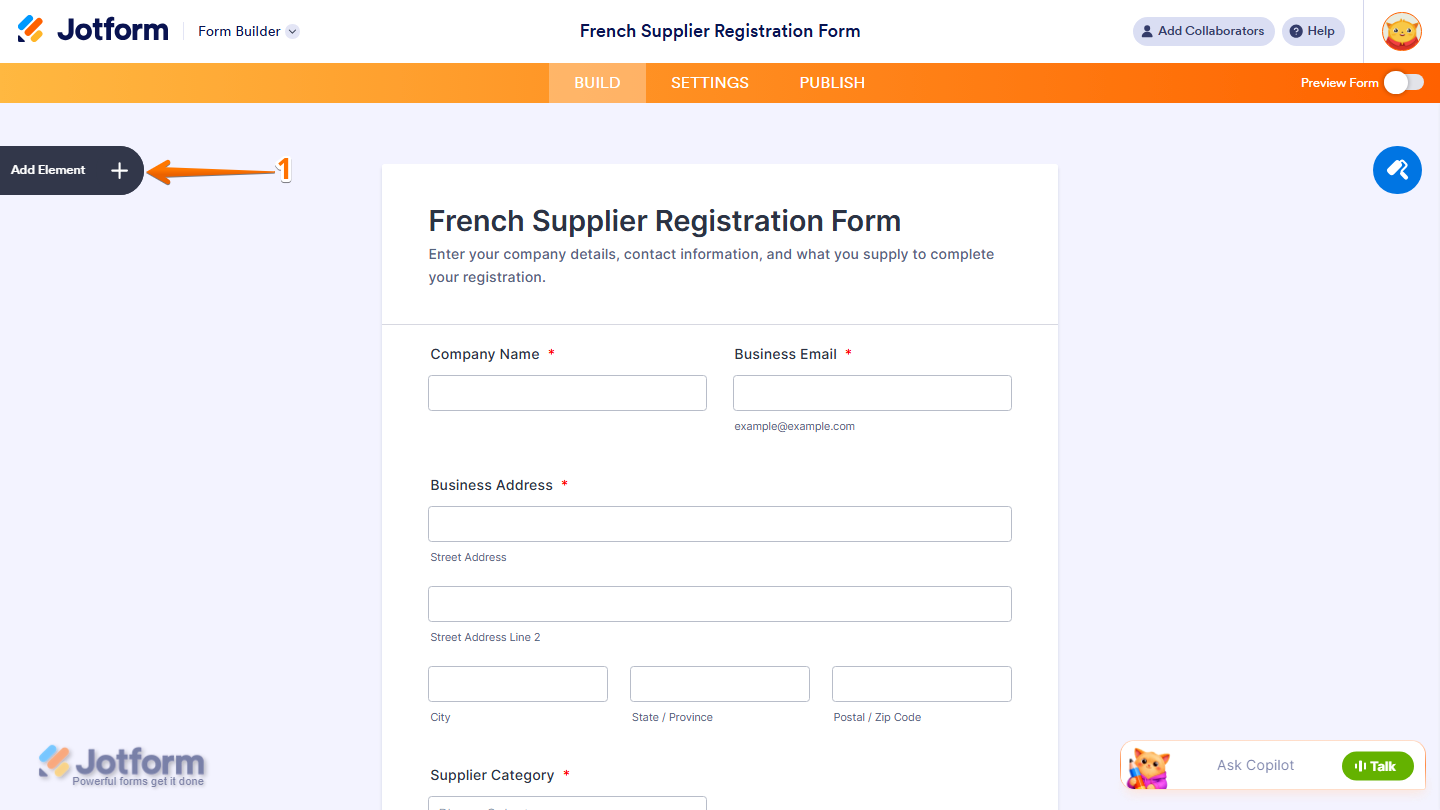
- In Form Builder, click on Add Element on the left side of the page.
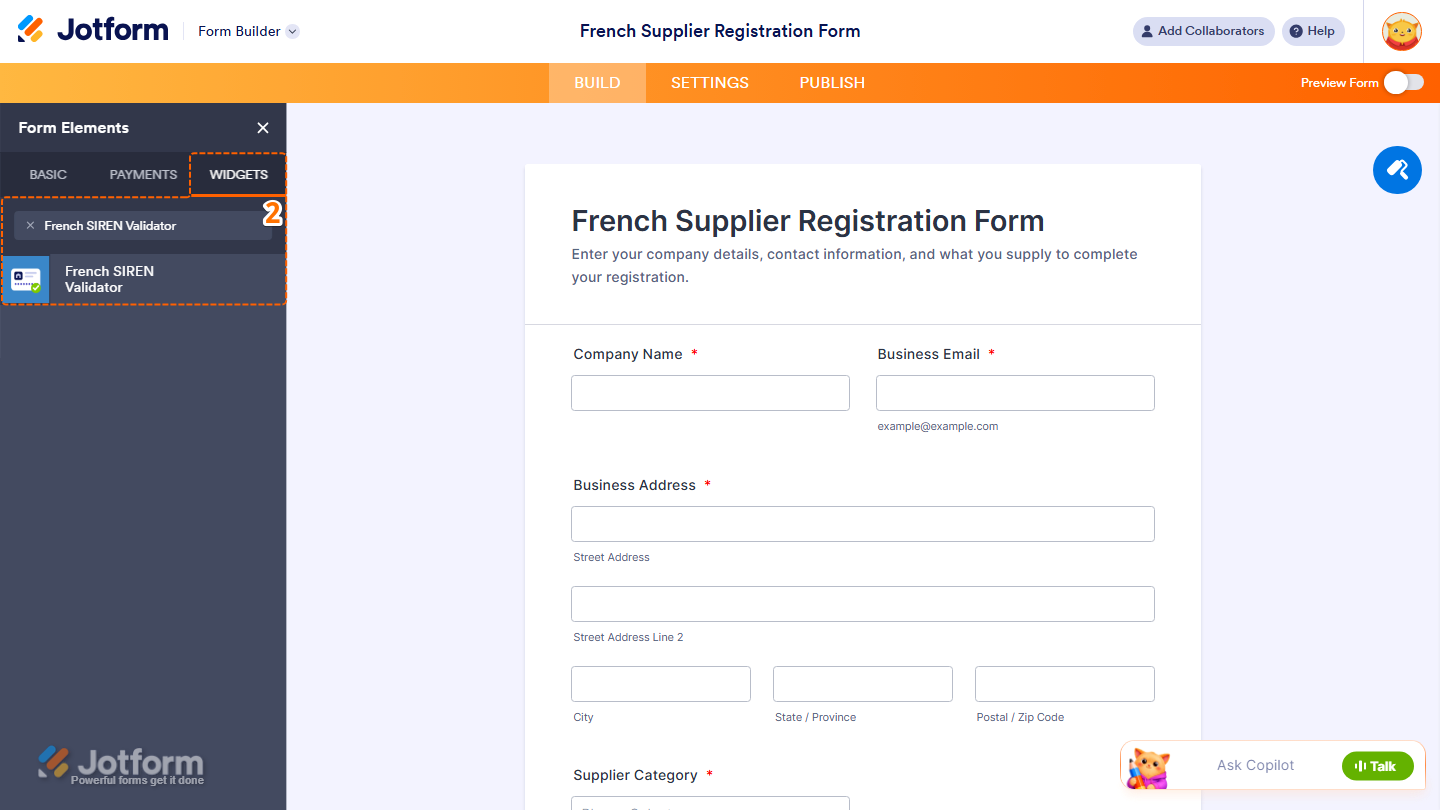
- Now, in the Form Elements menu, under the Widgets tab, search for French SIREN Validator and click on it. Or, just drag and drop it to where you want it to be on your form.
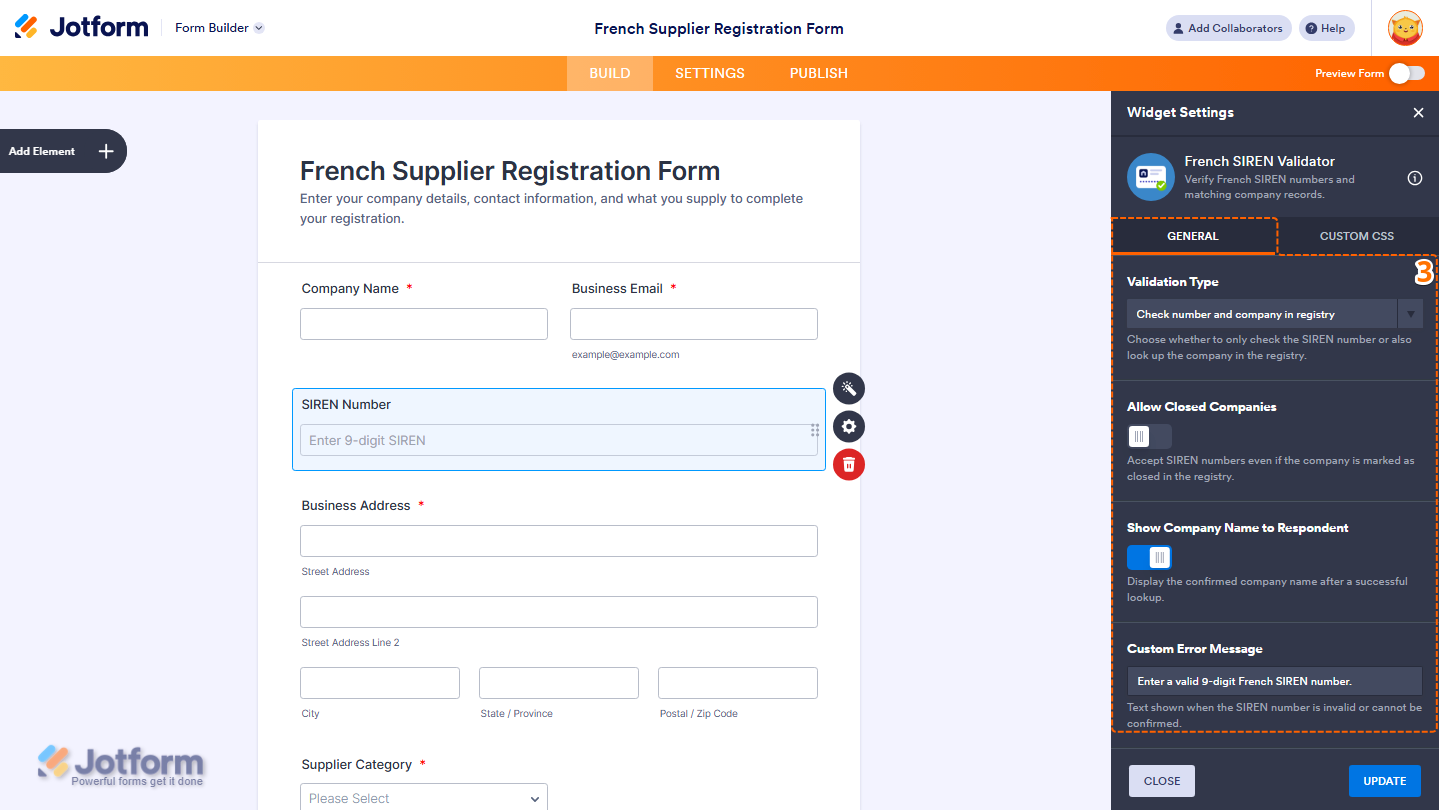
- Next, in the Widget Settings menu that opens on the right side of the page, under the General tab, you’ll see this list of settings you can configure:
- Validation Type — Select the type of validation you want to use when checking the entered company information.
- Allowed Closed Companies — Enter the closed companies that you want to allow when validating company information.
- Show Company Name to Respondent — Keep this on to display the company name to the respondent, or toggle it off to hide it.
- Custom Error Message — Enter the message you want to display when the entered company information cannot be validated.
- Then, scroll down and continue to configure these things:
- API Key (Optional) — Enter your API key to connect the widget to the service used for company validation.
- Placeholder Text — Enter the placeholder text you want to display in the input field.
- Help Text — Enter the text you want to display to help respondents understand what information to enter.
- Once you’re done, click on Update.

That’s it. You’ve successfully added and set up the French SIREN Validator widget on your form.
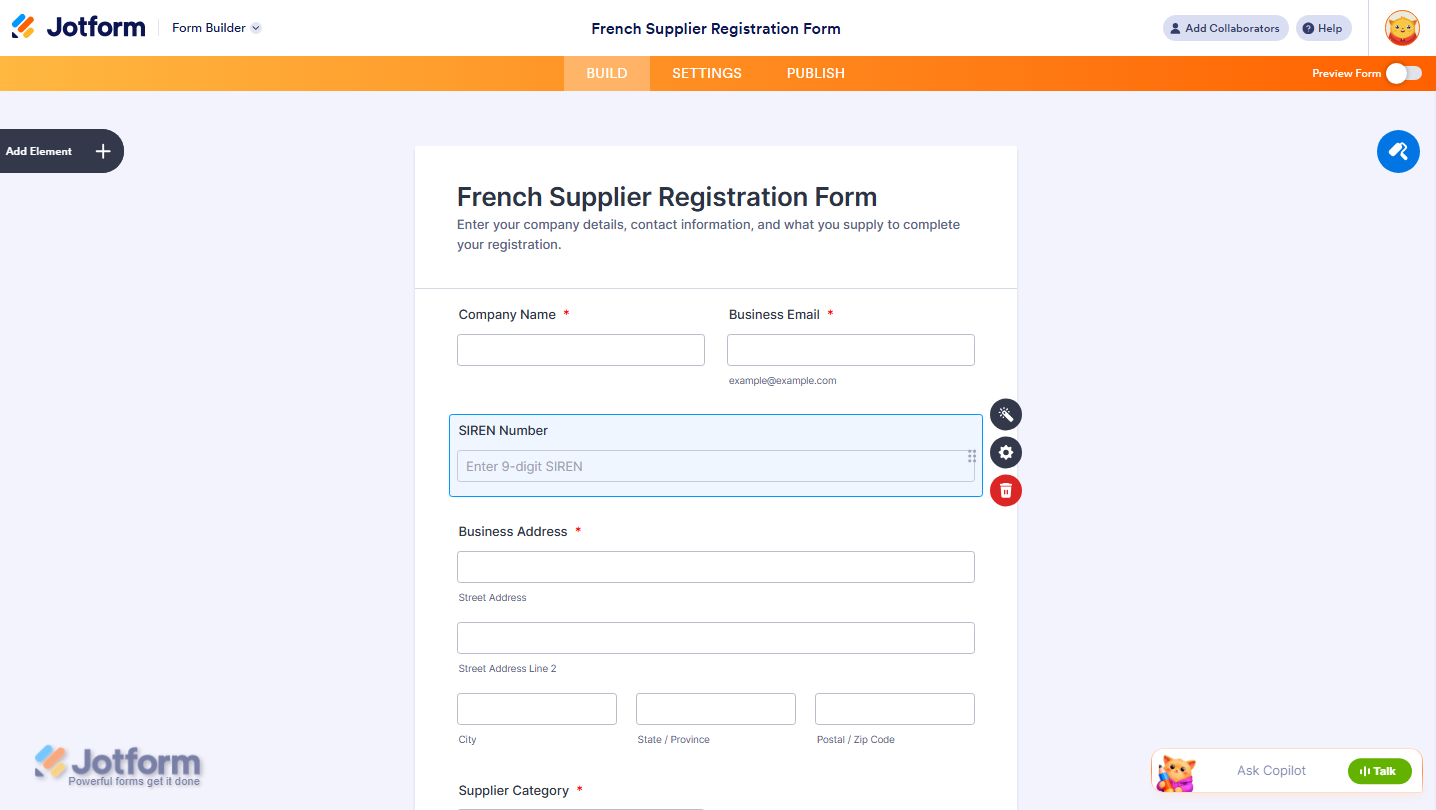
Wondering how it looks in action? Check out this demo form.
- For advanced styling of the French SIREN Validator widget, you can add your own custom CSS code under the Custom CSS tab in the Widget Settings. Our guide on How to Inject CSS Codes to Widgets walks you through everything.
- You can also configure the widget properties, like alignment, labels, size, visibility, and more, to control how it looks and behaves in your form. Check out our guide on How to Access and Configure the Question Properties of a Widget to learn more.

Send Comment: