Jotform’s Route Planner Map widget lets you plan multi-stop journeys directly on your form using an interactive map-based route preview. By adding an origin, destination, and optional stops, you can review the route order, distance, estimated travel time, and details for each leg before submitting the form.
The widget supports OpenStreetMap routing without an API key, while Google Maps is also available for creators who have a configured premium provider. Whether you’re coordinating deliveries, scheduling service visits, or planning travel itineraries, this tool makes it easier to organize routes and review important journey details in one place.
Here are a few ways to use it:
- Plan delivery and pickup routes — Organize multiple stops for couriers, drivers, or logistics teams.
- Schedule service visits — Map routes for technicians, inspectors, or other field teams.
- Build travel itineraries — Arrange multiple destinations and review the order of each stop.
- Review journey details — Check total distance, estimated travel time, and information for each leg.
- Coordinate dispatch routes — Help teams organize planned stops before submitting the form.
Whether you’re creating a new form or updating an existing one, adding and setting up the Route Planner Map widget is easy. You can get started like this:
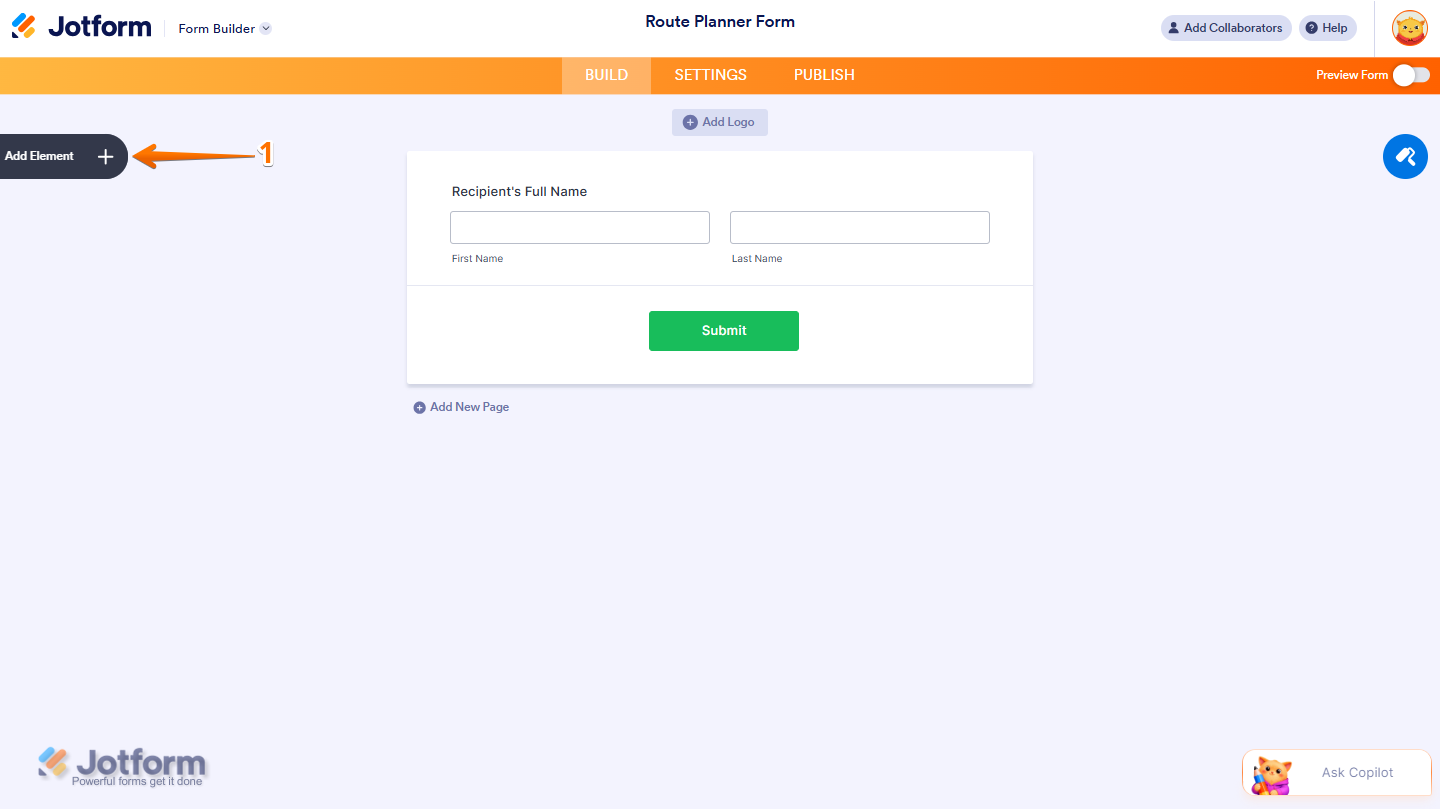
- In Form Builder, click on Add Element on the left side of the page.
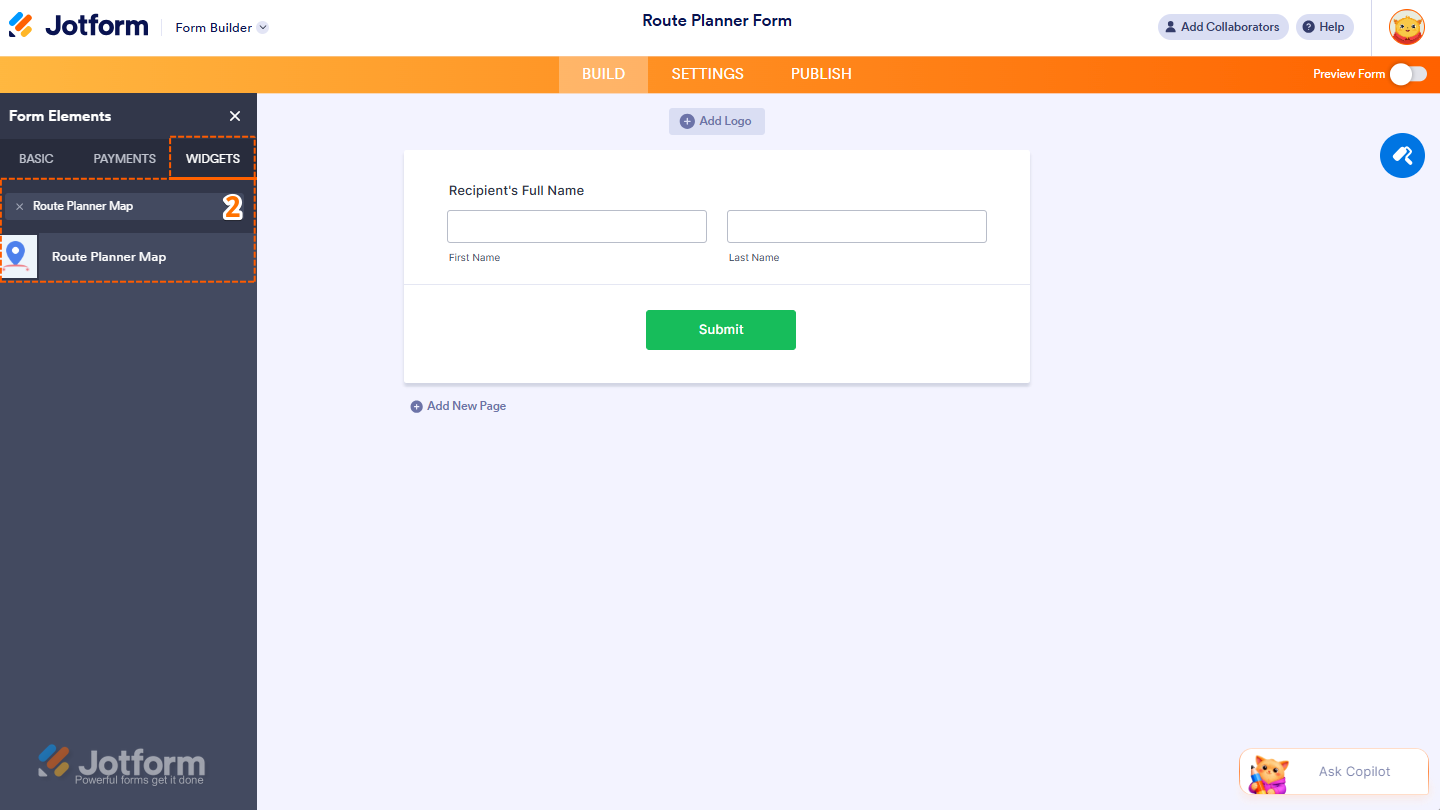
- Then, in the Form Elements menu, under the Widgets tab, search for Route Planner Map and then click on it. Or, drag and drop it to where you want it to be on your form.
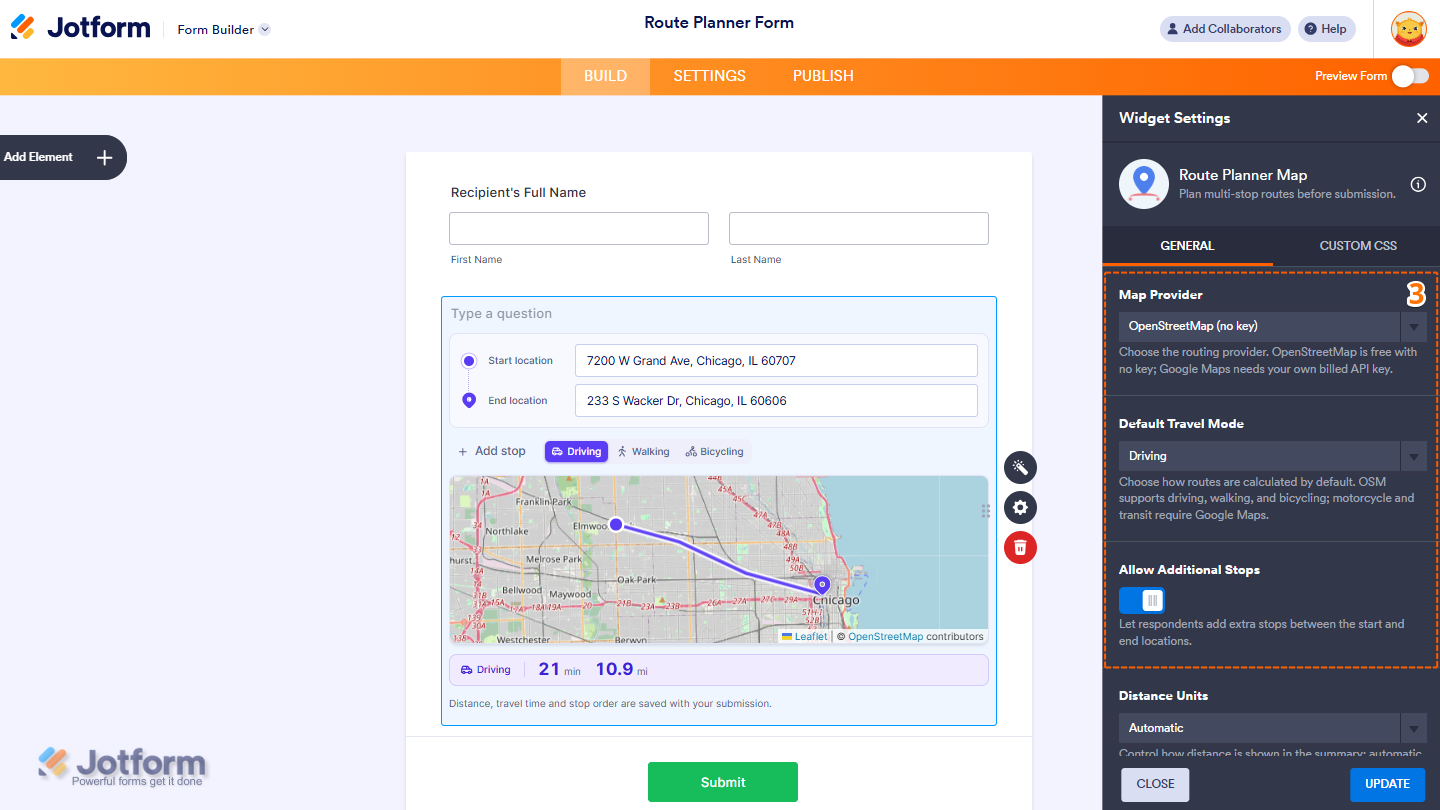
- Next, in the Widget Settings menu that opens on the right side of the page, configure these settings:
- Map Provider — Click on the Dropdown menu and choose the routing provider. OpenStreetMap is free and doesn’t require an API key, while Google Maps requires your own billed API key.
- Default Travel Mode — Click on the Dropdown menu and choose how routes are calculated by default. OpenStreetMap supports driving, walking, and bicycling, while motorcycle and transit require Google Maps.
- Allow Additional Stops — Keep this toggled on to let respondents add extra stops between the start and end locations.
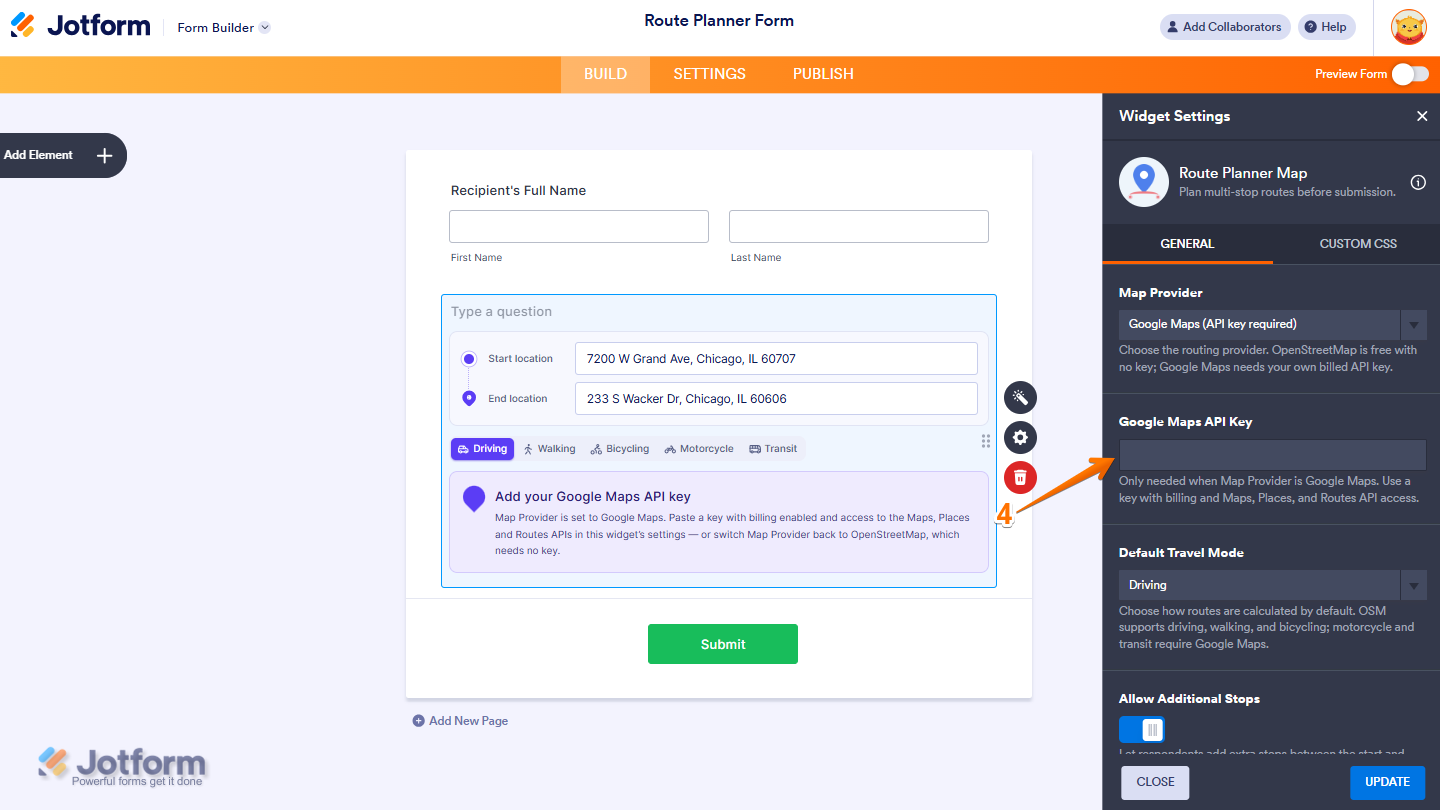
- When you select Google Maps from the Map Provider Dropdown menu, in the Google Maps API Key section, add the Google Maps API Key that you want to use.
- Now, scroll down to the bottom and then continue setting up these options:
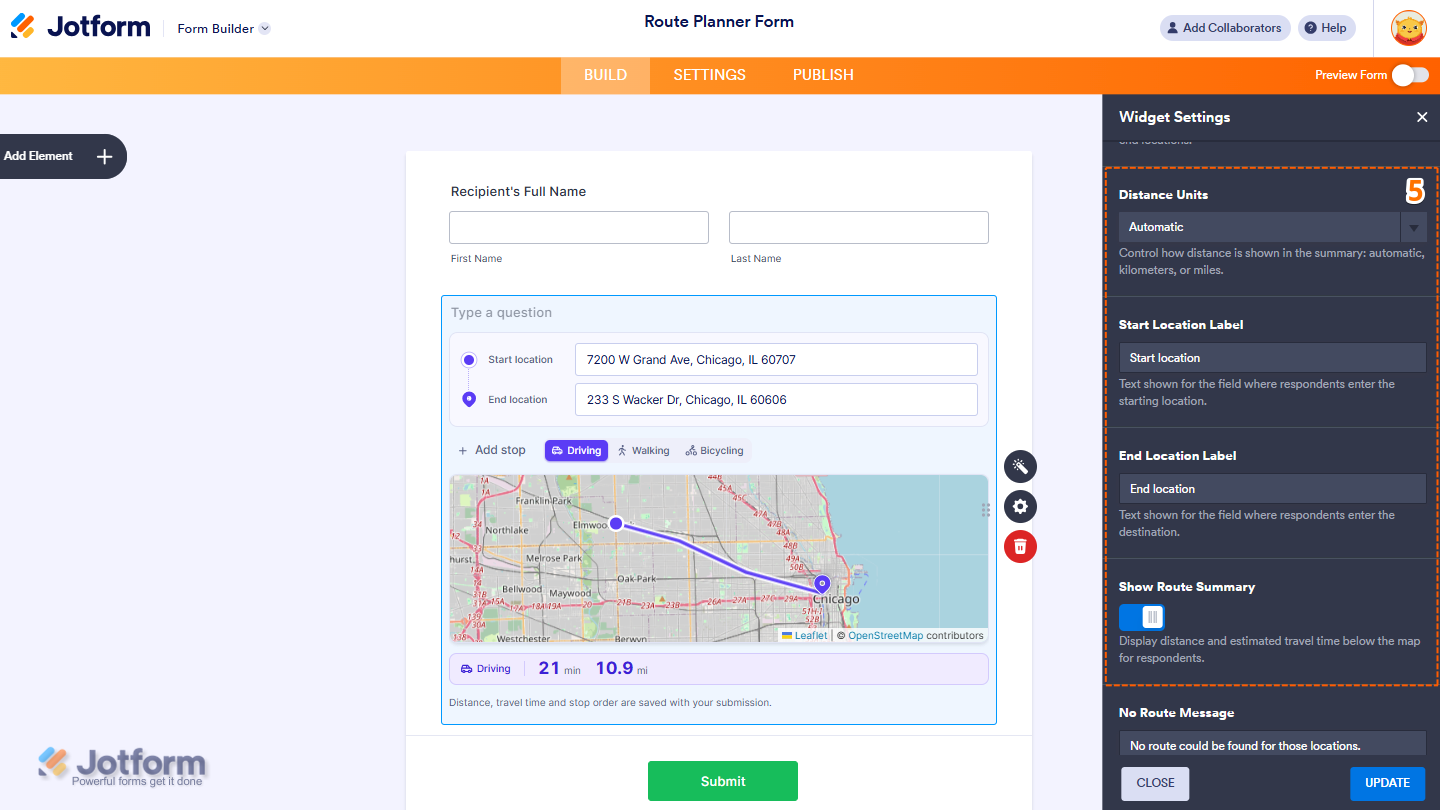
- Distance Units — Click on the Dropdown menu and select Automatic, Kilometers, or Miles to control how distance is shown in the route summary.
- Start Location Label — Enter the text you want to display for the field where respondents enter the starting location.
- End Location Label — Enter the text you want to display for the field where respondents enter the destination.
- Show Route Summary — Keep this toggled on to display the distance and estimated travel time below the map for respondents.
- Then, scroll down to the bottom again and continue setting up the following options:
- No Route Message — Enter a custom message to display when no route can be found for the entered locations.
- Address Placeholder — Set a placeholder to display in the start, stop, and end location fields.
- Once you’re done, click on Update at the bottom of the page.
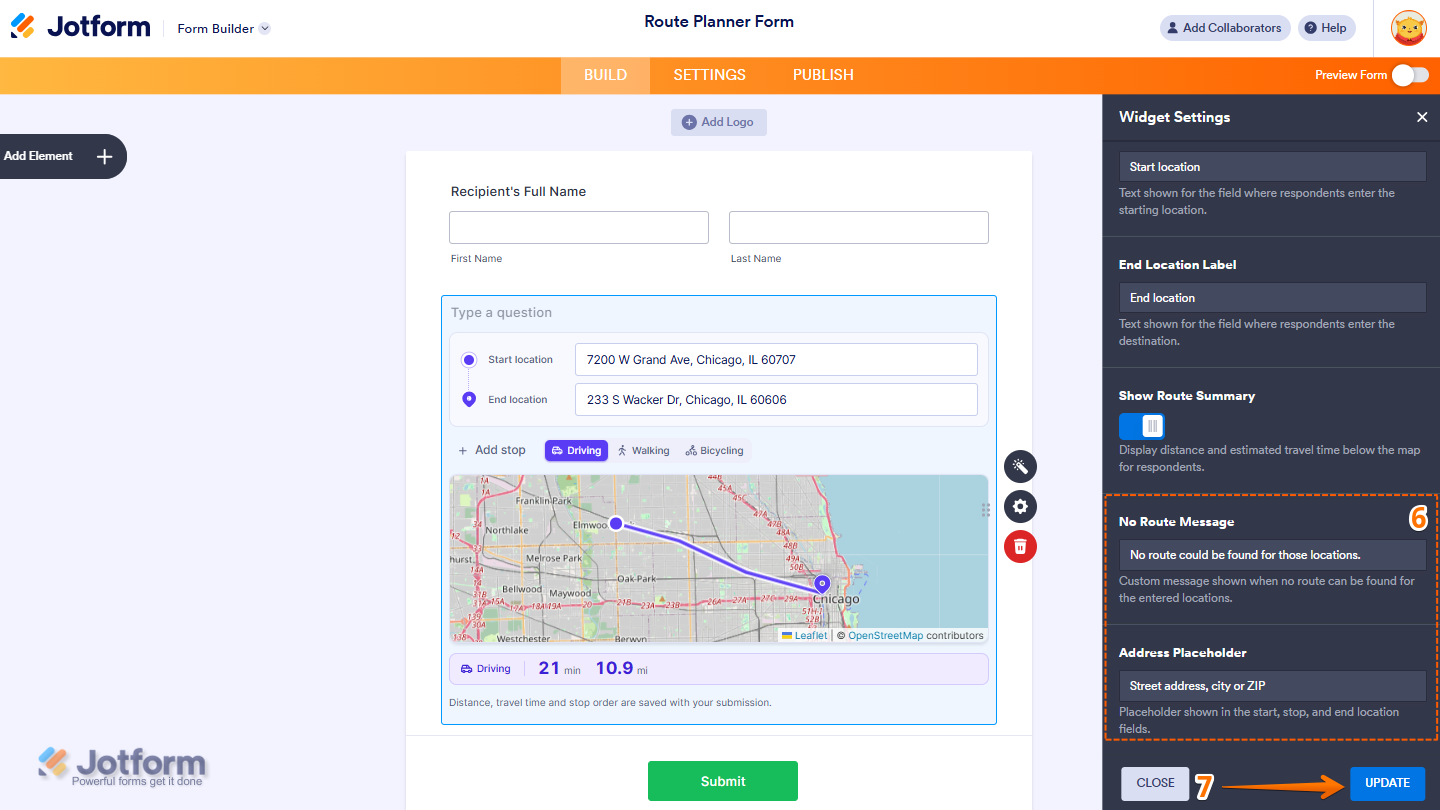
That’s it! You’ve now successfully added and set up the Route Planner Map widget on your form. Check the screenshot below showing how the widget looks:

Want to see it in action? Take a look at this demo form.
Notes
- The Route Planner Map Widget requires a Google Maps API Key to work. You can check out our guide on How to Get Google Maps API Key for Jotform Mapping Widgets to learn more.
- For advanced styling of the widget, you can add your own custom CSS code under the Custom CSS tab in the Widget Settings. Our guide on How to Inject CSS Codes to Widgets walks you through everything.
- You can also configure the question properties widget, like labels, alignment, size, visibility, and more, to control how it looks and behaves on your form. Check out our guide on How to Access and Configure the Question Properties of a Widget to learn more.

Send Comment: