Email communication plays a vital role in how users get their form submissions, notifications, and autoresponders. When emails bounce, that is, when our servers have repeatedly tried to deliver messages but fail within a set time frame. This can disrupt your workflow, lead to missed opportunities, and create confusion.
Knowing the common reasons why emails bounce and how to identify and fix them can help prevent delivery issues and ensure your messages get where they’re going easily. Here’s how to do it:
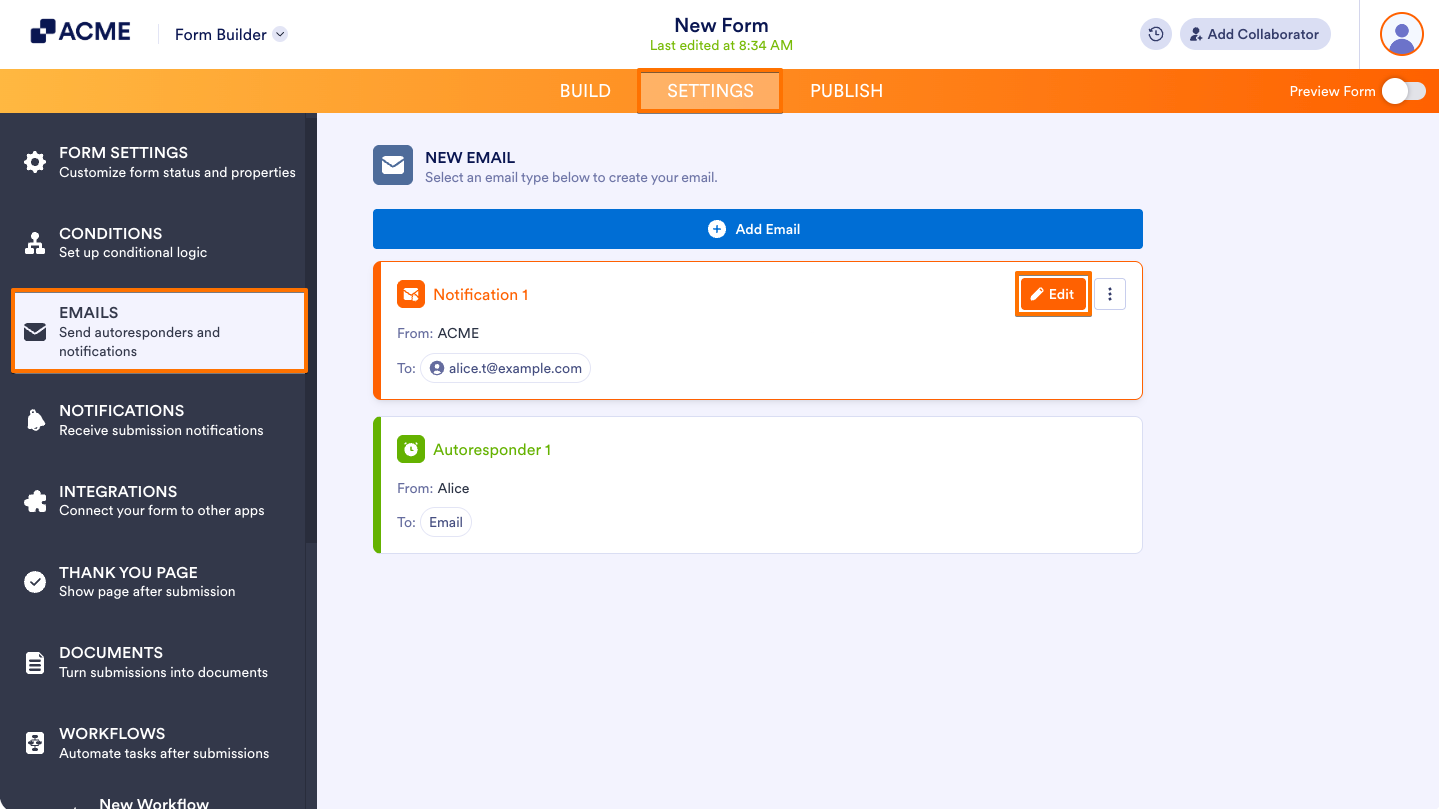
- In Form Builder, in the orange navigation bar at the top of the page, click on Settings.
- In the menu on the left side of the page, click on Emails.
- Hover your mouse over the Notification Email and click on the Pencil icon.
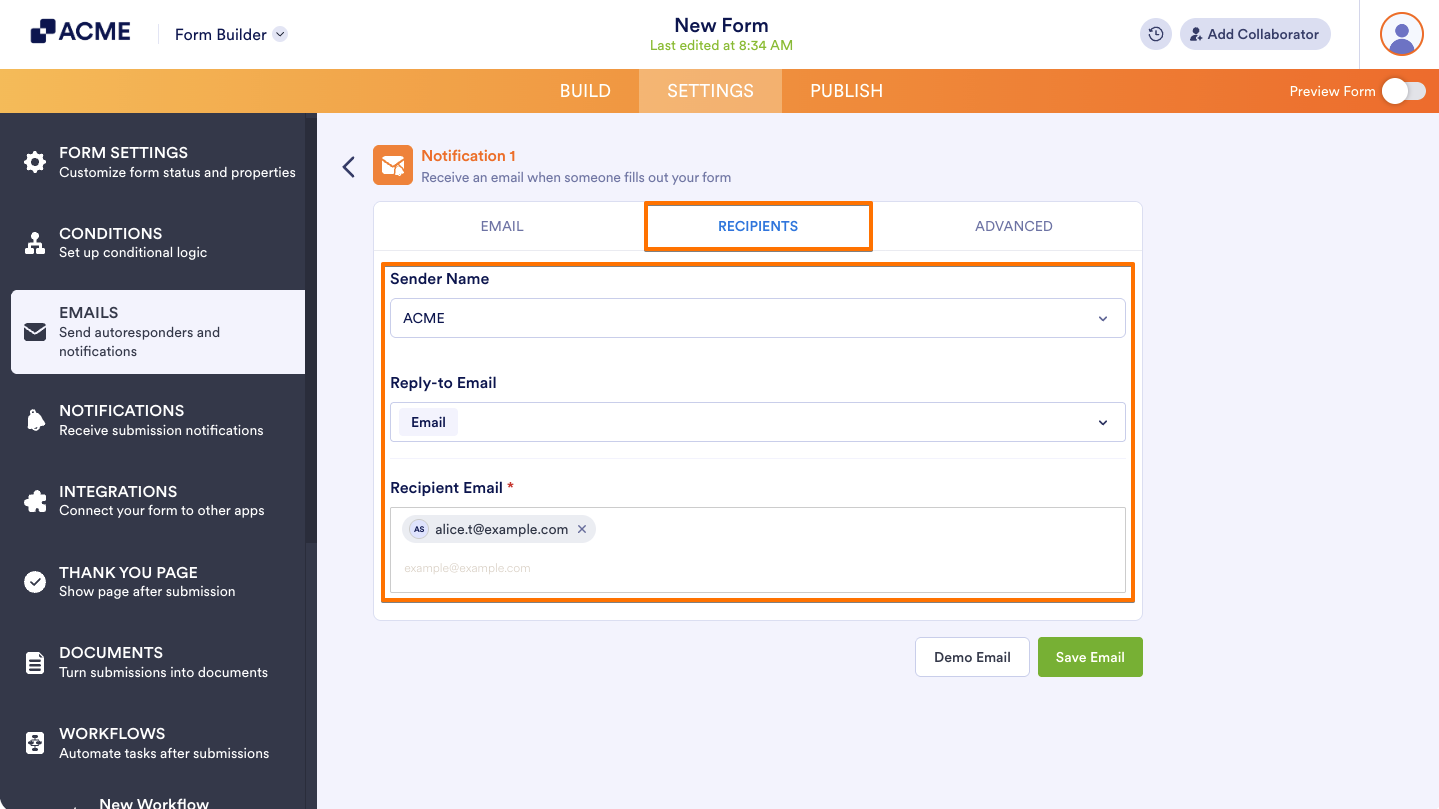
- Then, click on the Recipients tab.
- Now, fill in the Sender Name, Reply-to Email, and Recipient Emails sections.
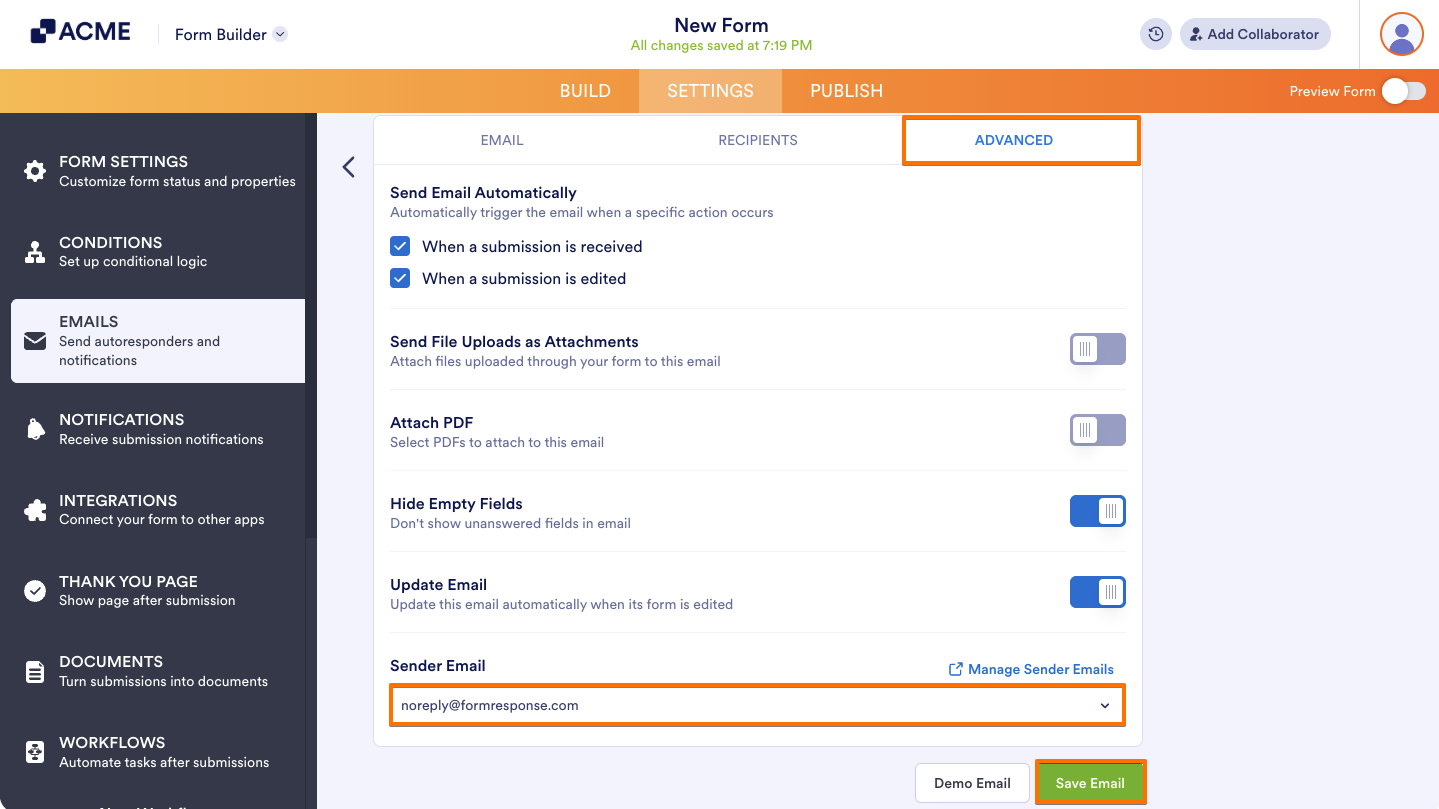
- After that, go to the Advanced tab.
- Scroll down to the Sender Email section and select an email from the Dropdown menu.
- Then, click on Save Email at the bottom of the page.
That’s it. We recommend that you make a test submission to your form to get a sample email because clicking on the Test Email button on the Notification Wizard only sends emails to the email address associated with your account, the primary email address.
If the issue continues or you don’t want to use noreply@formresponse.com as the Sender Email, you can use your own email server instead by setting up SMTP. See the How to Set Up a Custom Sender Email with SMTP guide for instructions.
Note
We recommend that you add noreply@formresponse.com to your email Contact List. If you’re using an email address with a custom domain, it would be best to ask your IT team or your Email Provider to whitelist Jotform’s IP addresses and domain names. You can find the complete list of those in our guide about Whitelisting Jotform IP Addresses and Domains.

Send Comment: