Preventing emails from landing in Gmail’s spam folder ensures that important submission alerts are not missed. This guide shows how to create a custom filter to prevent system sender emails from being incorrectly classified as spam.
To prevent the emails from landing in Gmail’s spam folder:
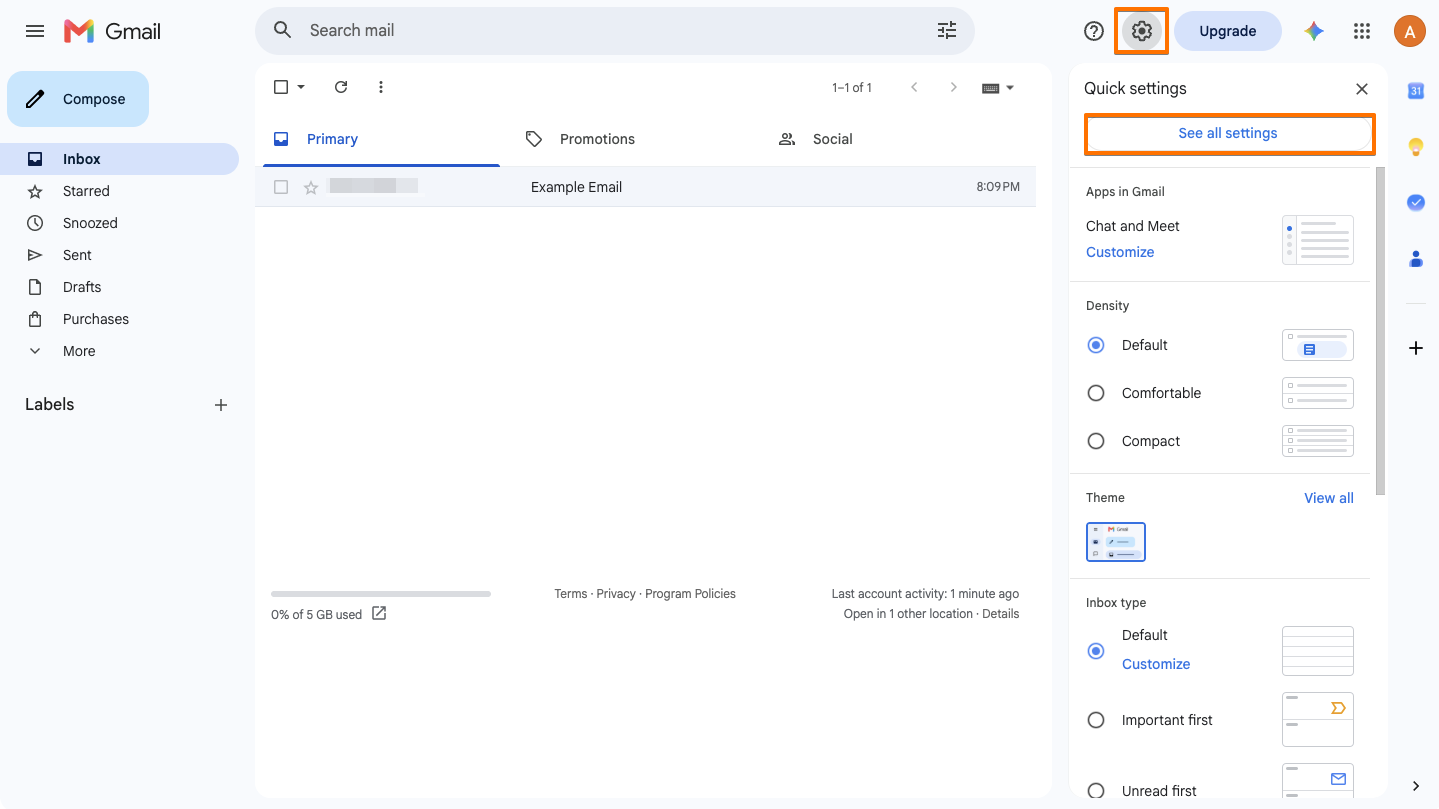
- Log in to your Gmail account and select the gear icon in the upper-right corner.
- In Quick settings, select See all settings.
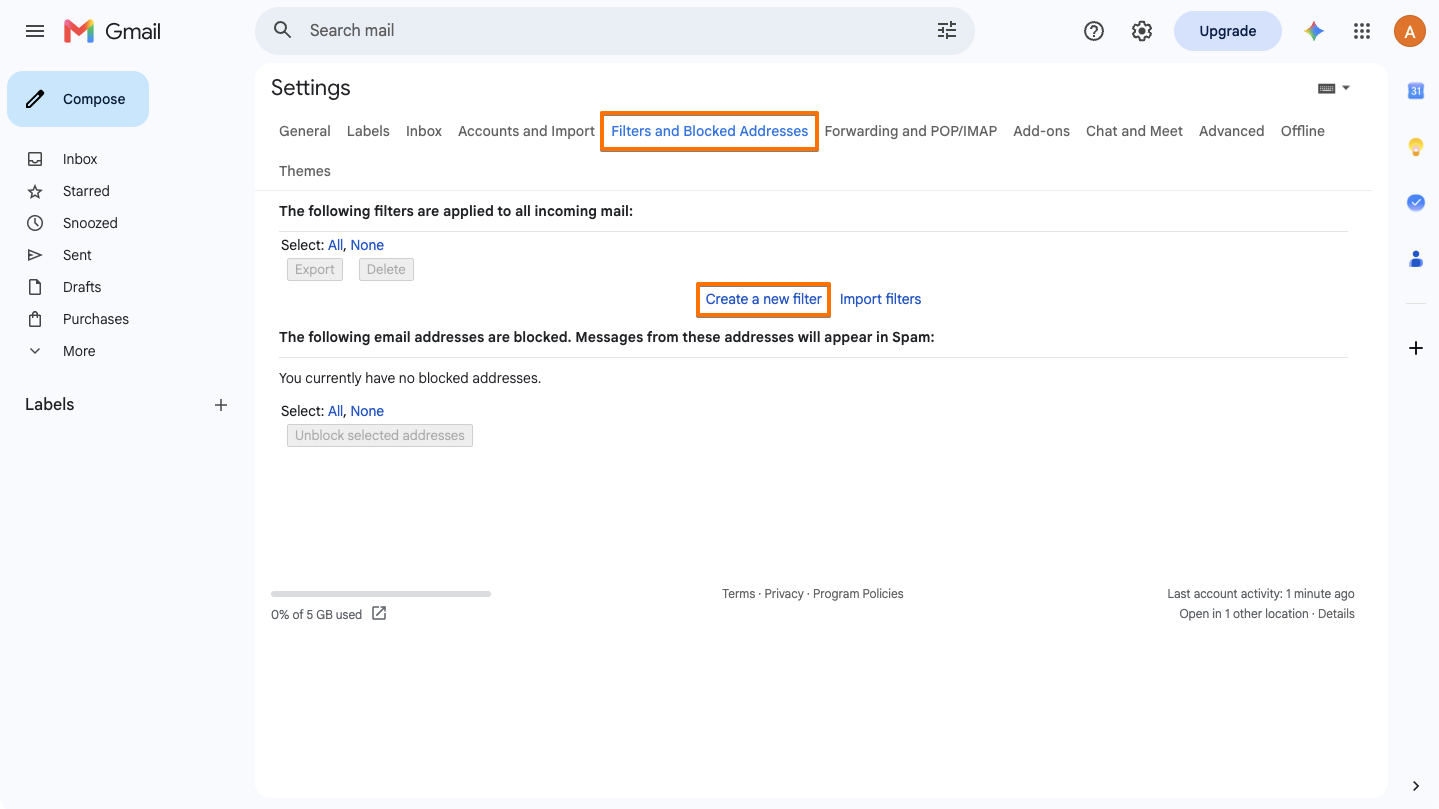
- On the next page, go to Filters and Blocked Addresses at the top, then select Create a new filter.
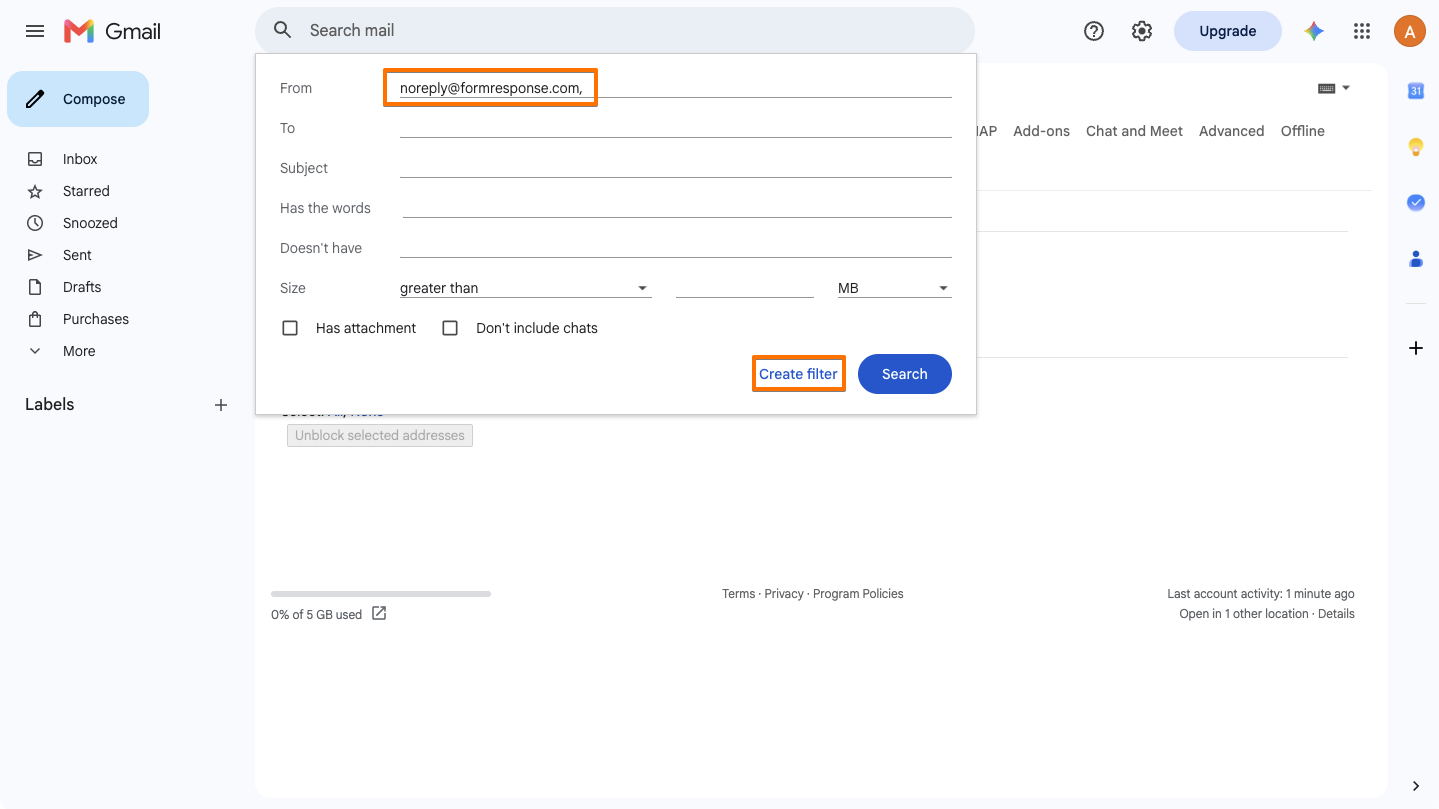
- Enter the system sender email in the From field, then select Create filter at the bottom.
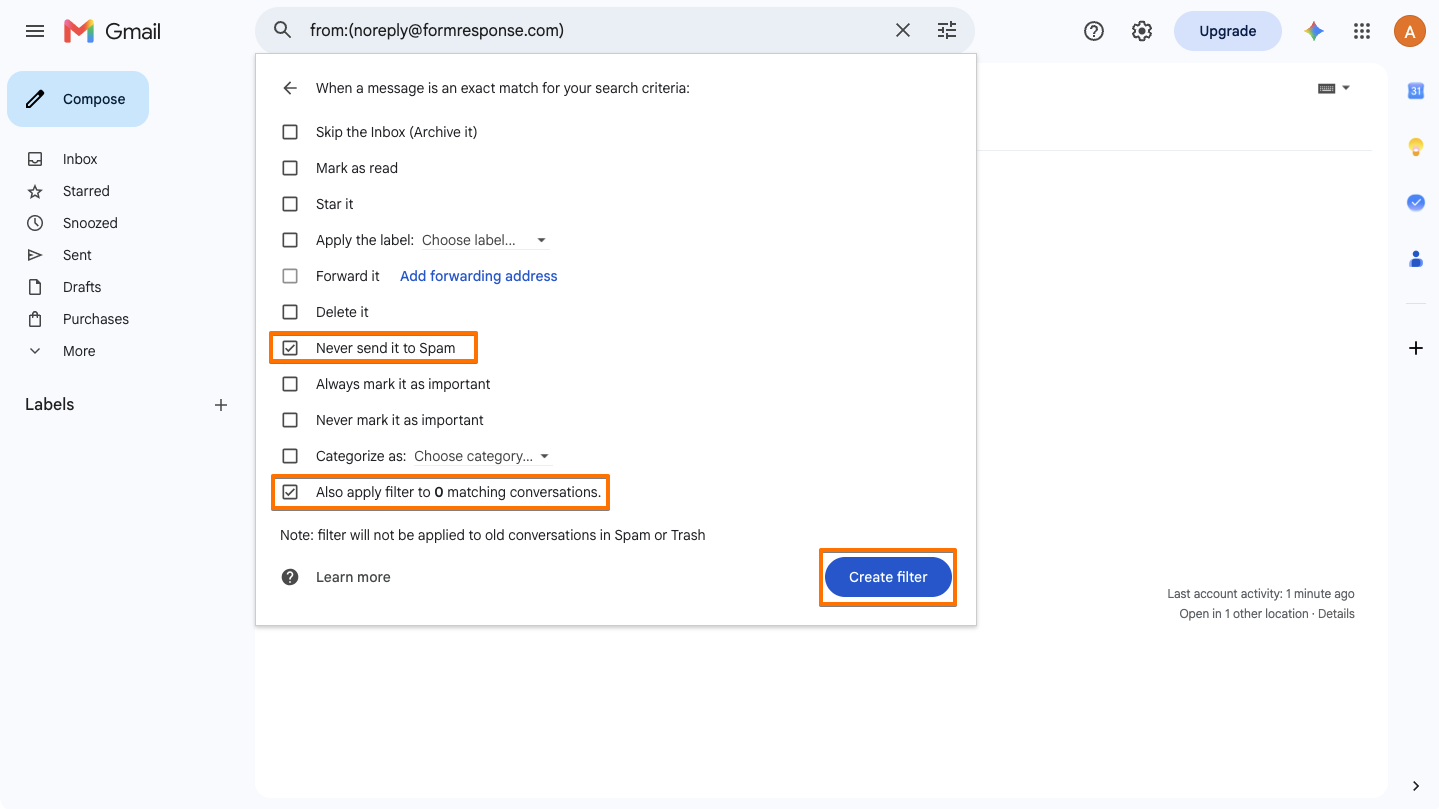
- Turn on Never Send to Spam and also apply filter to matching conversations.
- Select Create filter at the bottom to complete the setup.
You can also apply a specific label to the filtered emails. Once configured, the filter should send all emails from the system sender email to your Inbox and never to your Spam folder. Adding the sender email to your Contact can also help. For better results, create the same setup for the noreply@formresponse.com email address.

Send Comment: