Jotform’s Digest Emails give you a quick, easy-to-read summary of your form activity—like submission stats, charts, and detailed entries—all delivered right to your inbox. You can choose how often you get them, so you never miss an important update.
There are several ways to start creating Digest Emails—you can set them up from your Workspace page or directly through the Emails tab in Form Builder.
Creating Digest Emails From Your Workspace Page
The quickest and easiest way to create Digest Emails is from your Workspace page. You can either select multiple forms at once or start with just one. Here’s how to do it:
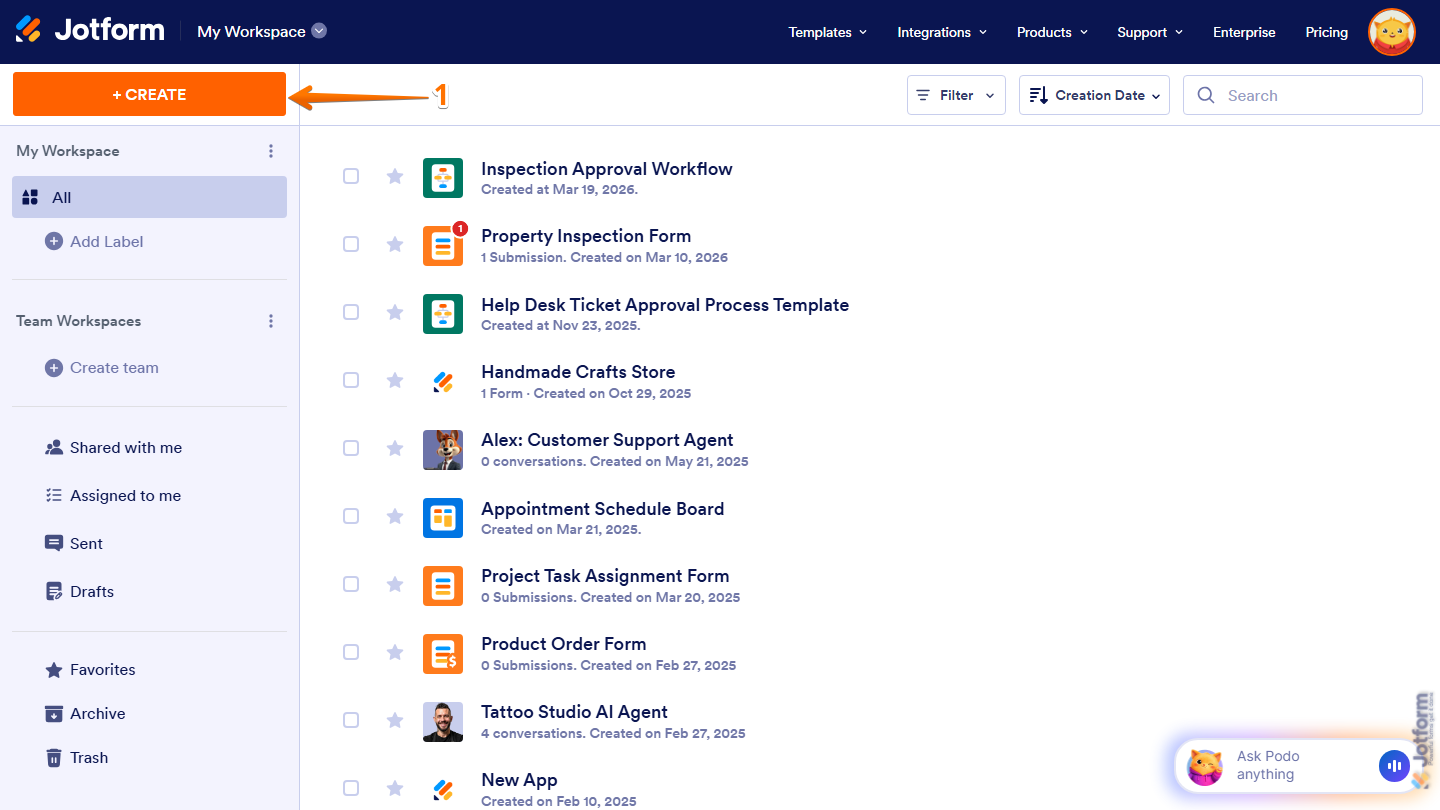
- On your Workspace page, click on Create on the top-left side of the screen.
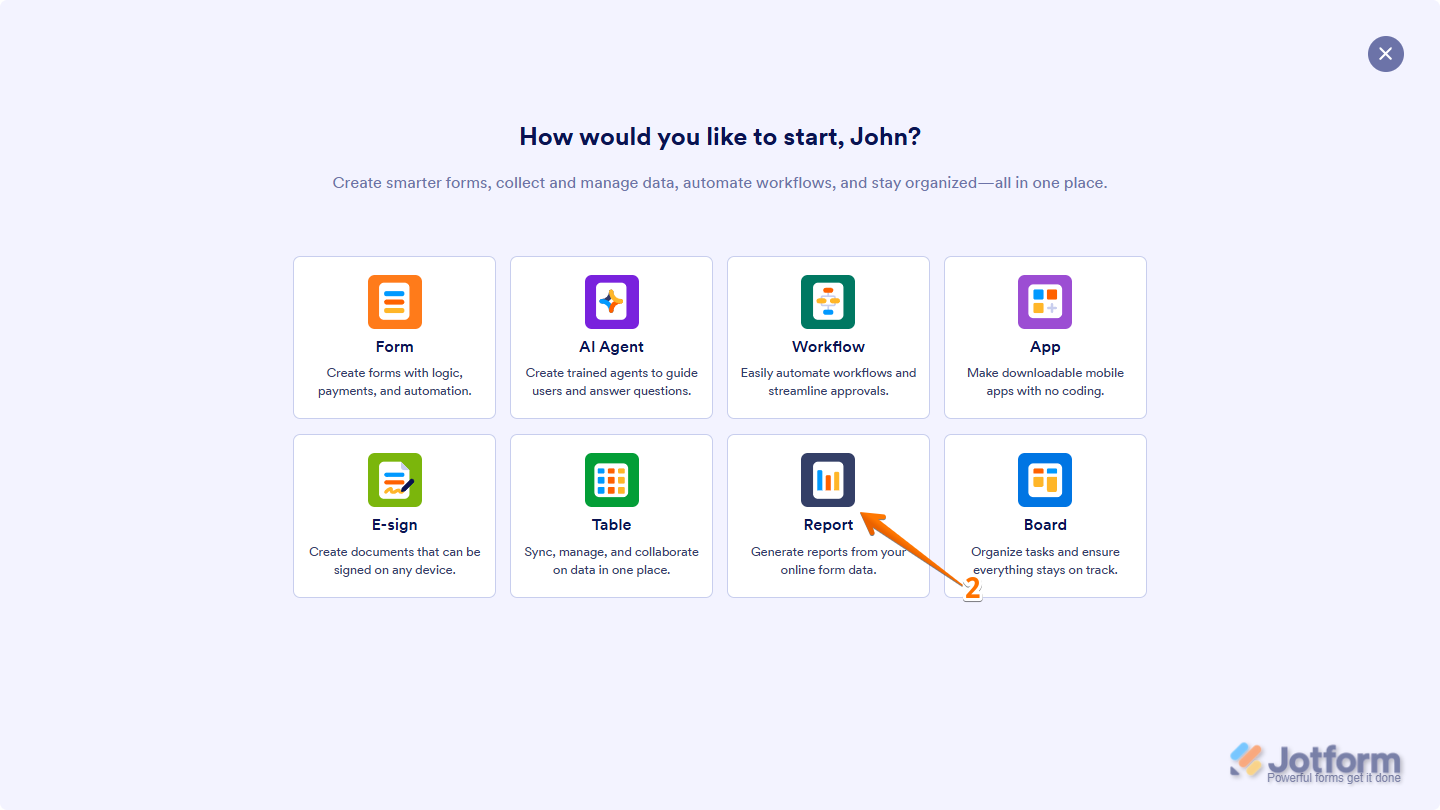
- In the window that opens up, click on Report.
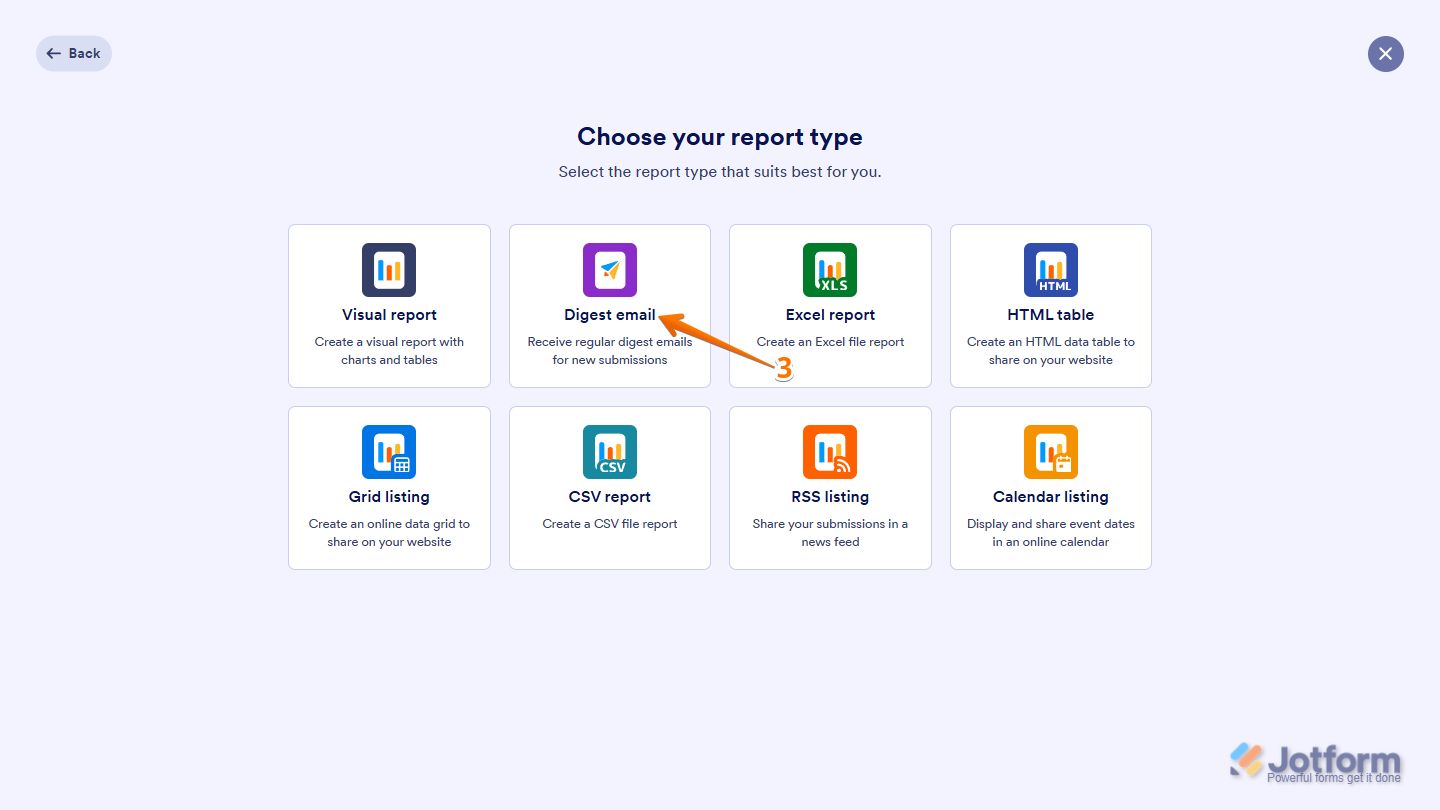
- Then, click on Digest Email.
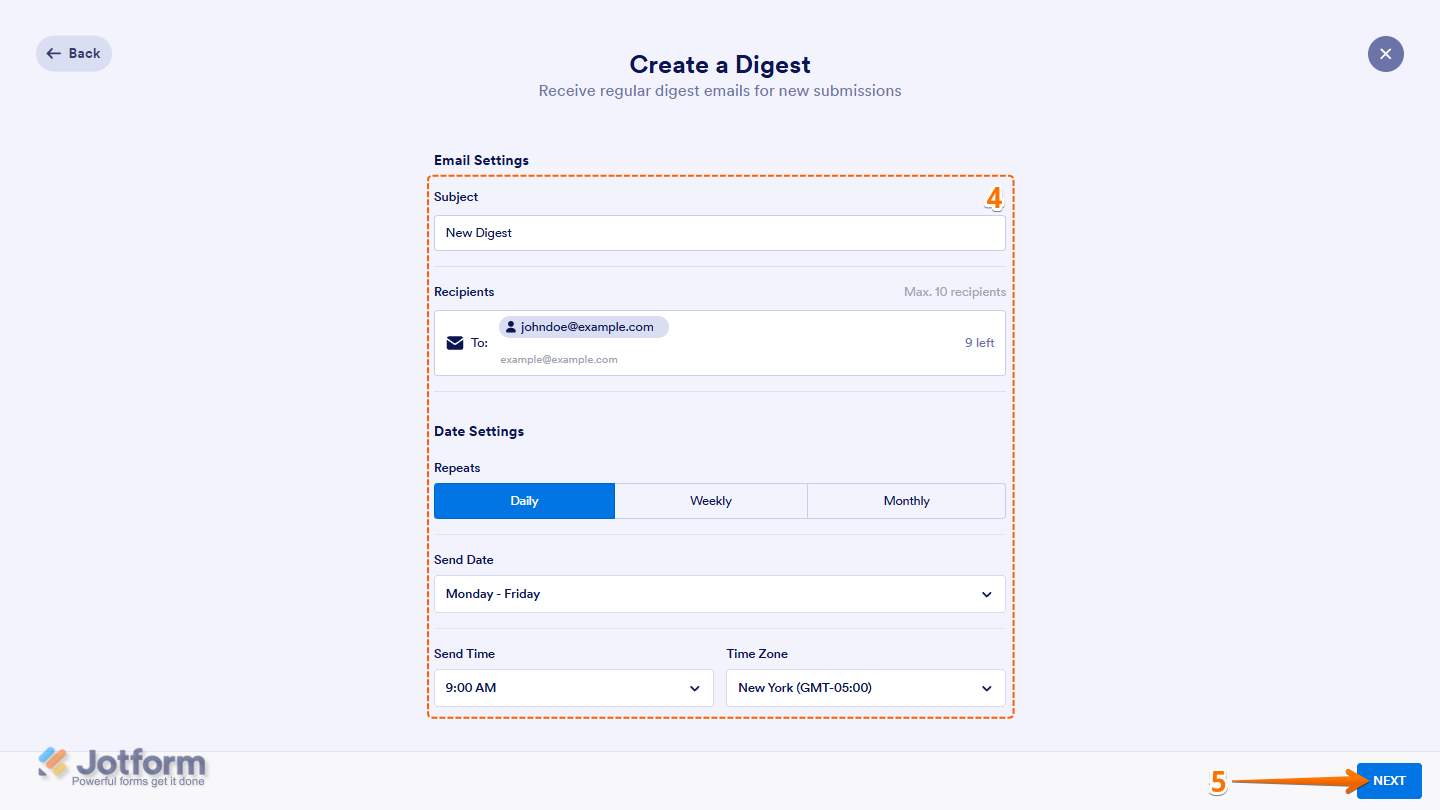
- Next, set up these things:
- Subject — Enter a subject line for it.
- Recipients — Add the recipient’s email address.
- Repeats — Choose how often to send it: daily, weekly, or monthly.
- Send Date — Select when to send it. The options will change depending on how often you choose to send it.
- Send Time — Select the best time to send it.
- Time Zone — Choose the time zone for it. The default is based on your Account Time Zone Settings.
- Then, click on Next.
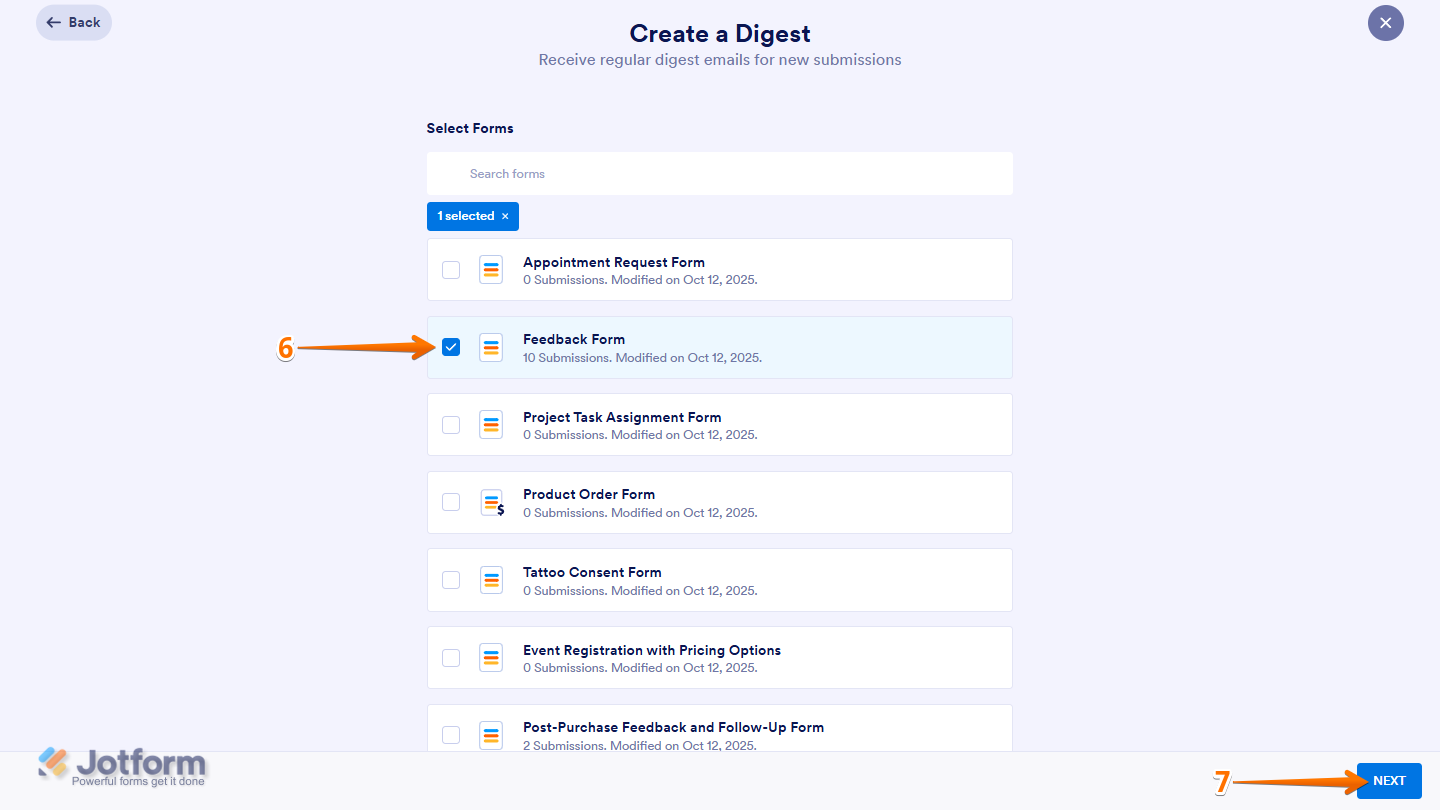
- Now, select the form you want to create a digest email for. For example, Feedback Form.
- Then, in the bottom-right corner of the page, click on Next.
Note
You can select multiple forms to create a Digest Email for at the same time.
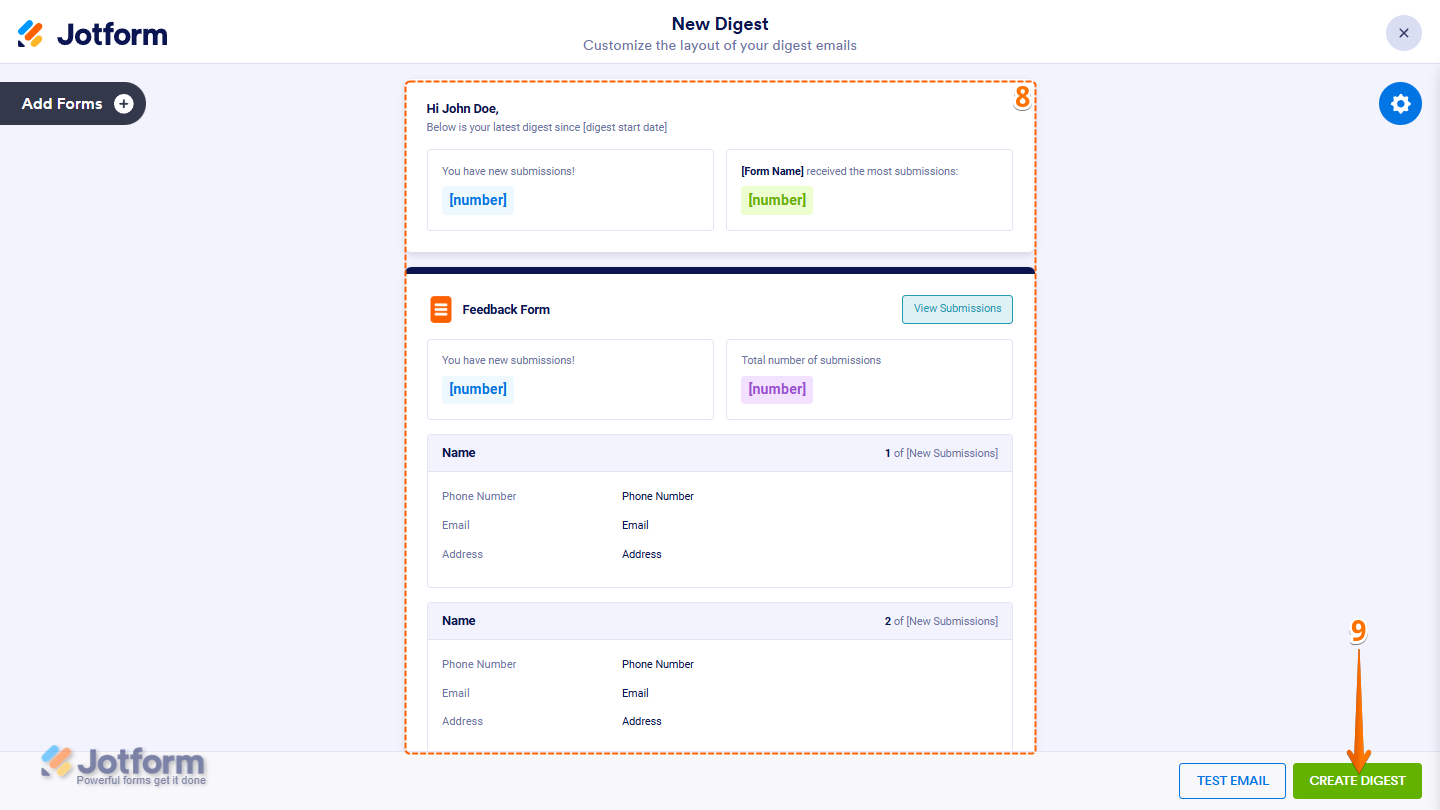
- Now, set up and Personalize the Content for Your Digest Email.
- Then, click on Create Digest in the bottom-right corner of the page.
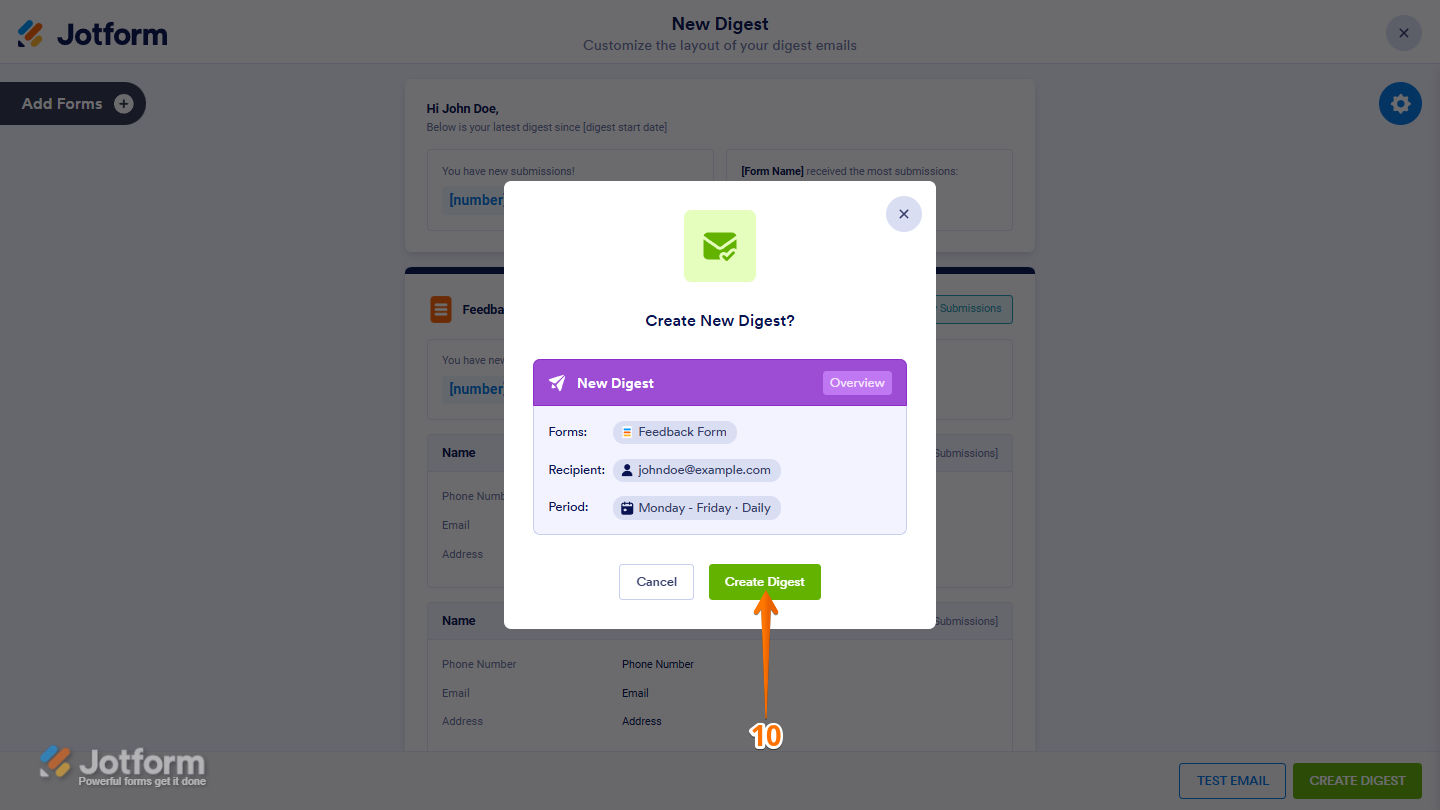
- Finally, in the Confirmation window that opens, click on Create Digest, and you’re all set.
Creating Digest Emails Through the Email Section of the Form Builder
If you’re in Form Builder, you can also create Digest Emails in the Email section. You won’t see it until you choose to create a new email template. Let’s do it:
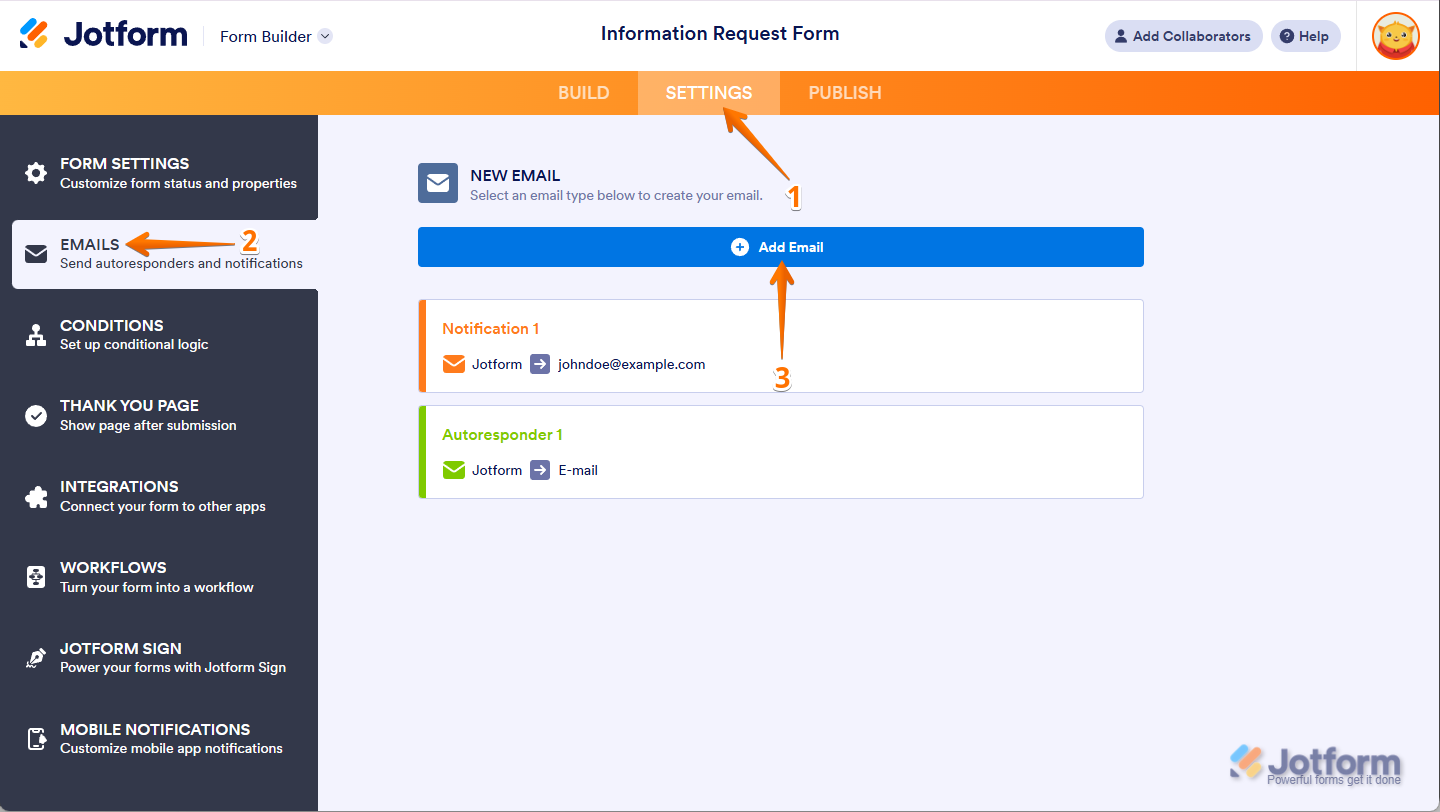
- In Form Builder, in the orange navigation bar at the top of the page, click on Settings.
- In the menu on the left side of the page, click on Emails.
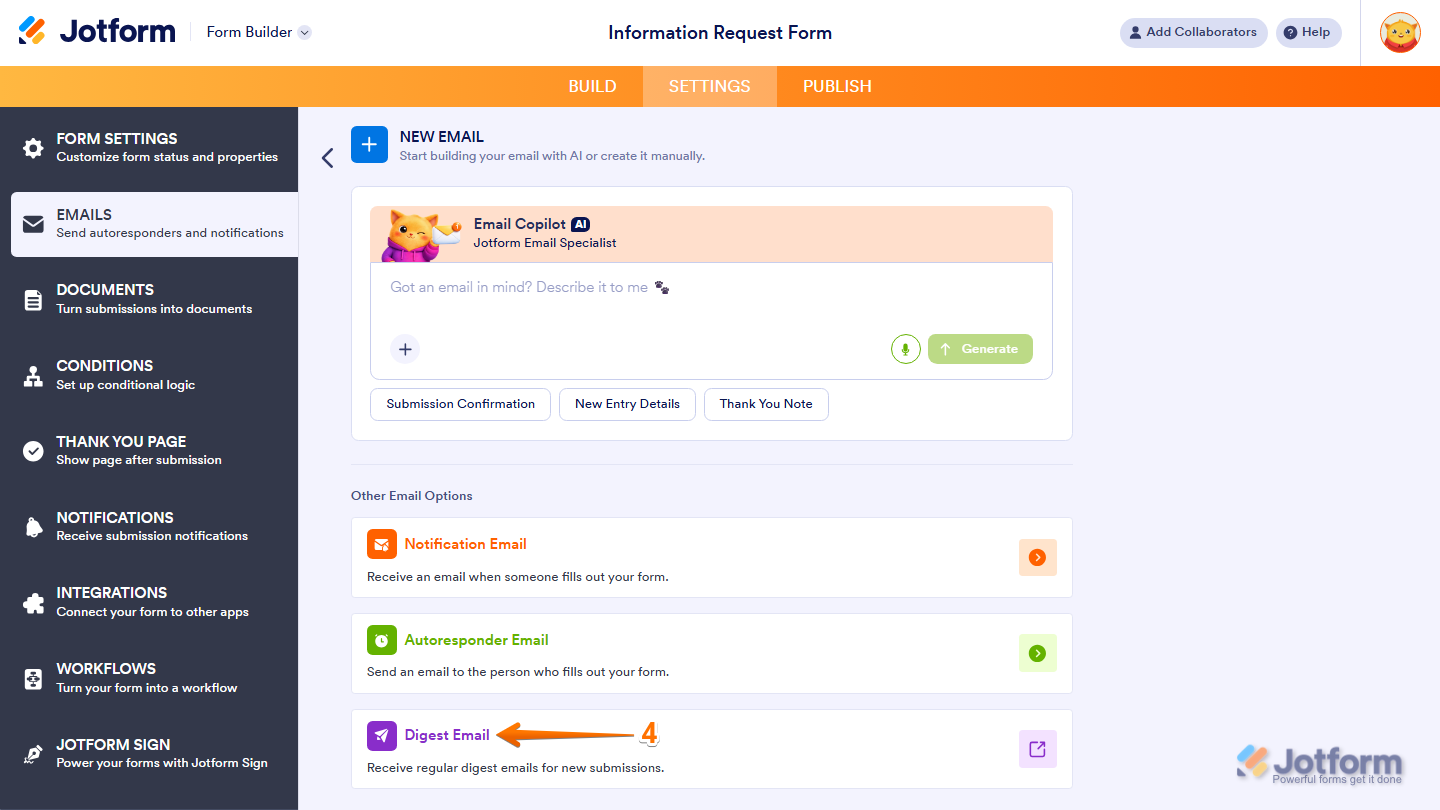
- Now, click on Add Email.
- In the list that comes up, select Digest Email.
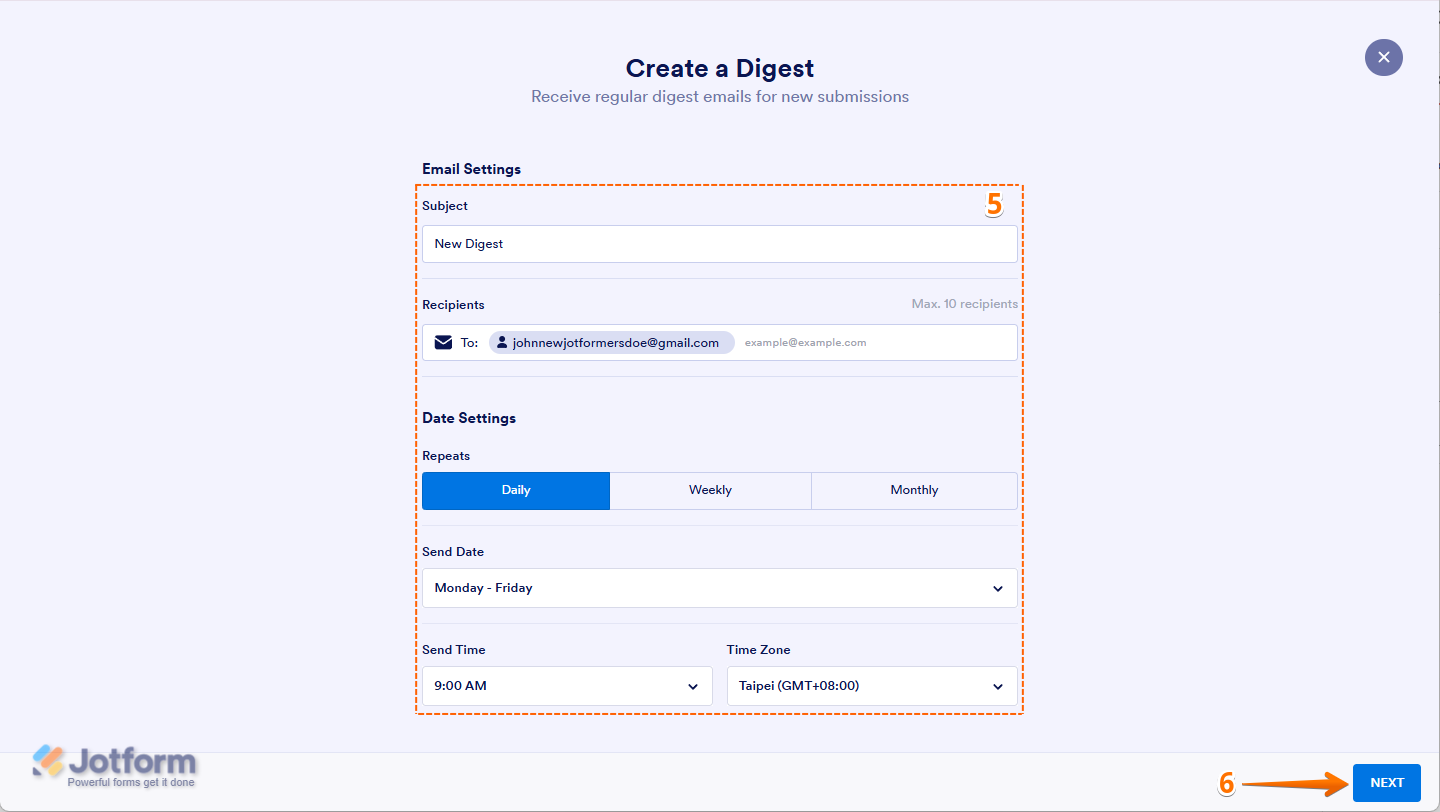
- Next, set up these Digest Email options:
- Subject — Enter a subject line for it.
- Recipients — Add the recipient’s email address
- Repeats — Choose how often to send: daily, weekly, or monthly.
- Send Date — Select when to send. The available options will change depending on how often you choose to send it.
- Send Time — Select the best time to send it.
- Time Zone — Choose the time zone for it. The default is based on your Account Time Zone Settings.
- Then, click on Next.
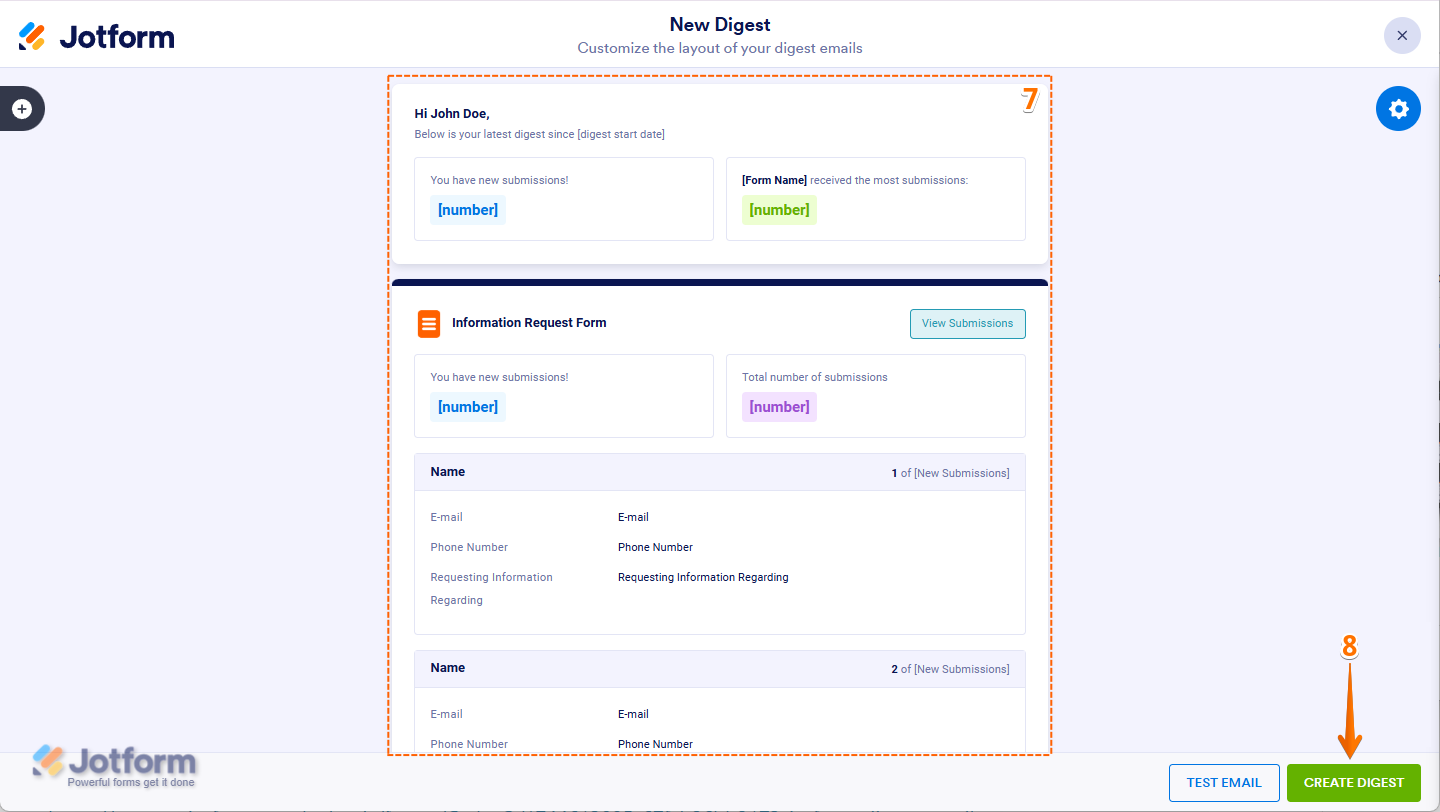
- Now, set up and personalize the content for it. Check out these guide about How to Personalize Digest Emails for more details.
- Then, click on Create Digest in the bottom-right corner of the page.
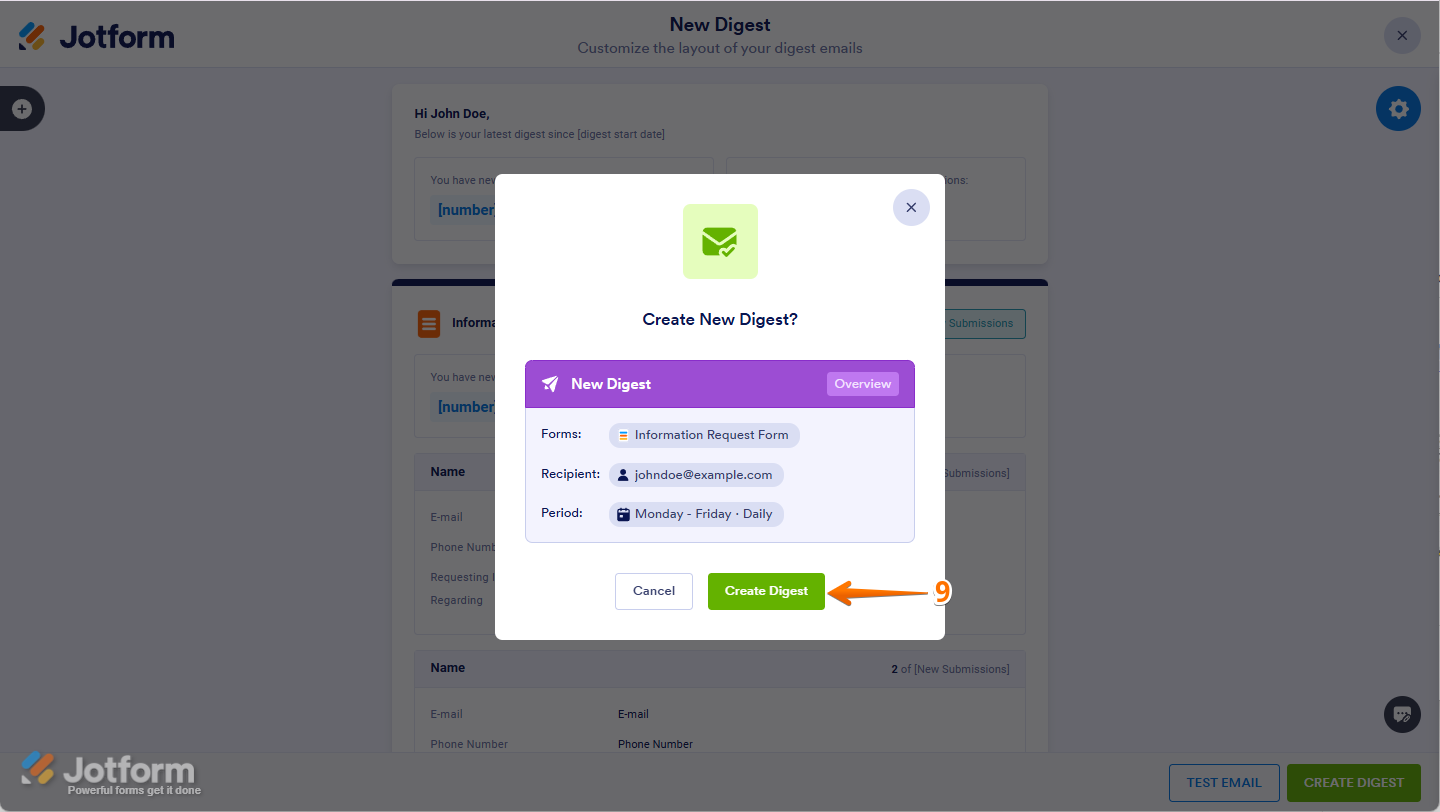
- Finally, in the Confirmation window that opens, click on Create Digest, and you’re all set.
That’s it! Now, you’ve successfully set up your Digest Email! You’ll get a summary of your form activity based on the frequency and settings you selected. This is a great way to keep track of your submissions without constantly checking your forms.


Send Comment:
6 Comments:
December 29, 2025
Does it only allow it to send to 10 people per digest?
August 8, 2024
how do I STOP sending the digest. the form is no longer enabled but I'm still getting digests
March 25, 2024
Can the Digest Email information go to someone that is not able to log in to my Jotform account?
January 26, 2024
Would I be able to send an auto reply to a customer inquiry that would be a PDF with pricing and choices of packages for them to choose from?
We are selling digital marketing display adds and have numerous locations that house our monitors.
Also looking for automated payment system for customers to enter their credit card info to be billed for the number of months they sign up for, which is typically 3-6 months on average.
August 11, 2023
Does the digest only include what is new since the last digest was sent? Or does it just continue to grow and grow in size and length? I'm expecting to receive many submissions each day and ideally only want to see the previous days submissions in each daily email digest.
June 22, 2023
Can I set up digest emails so they will only send if there is new submission data?