A clear structure is like a map for your form. For users who cannot see the layout, headings and lists act as landmarks that allow them to jump to the sections they need. If these landmarks are out of order, the “map” becomes confusing and difficult to follow.
When you run a scan, you may encounter warnings about the Heading Hierarchy. This happens when headings are skipped or used in an order that doesn’t make sense to a screen reader.
Heading Levels Out of Order
If the scanner flags that “Headings should not skip levels,” it means you have moved from a large heading directly to a small one. To fix this:
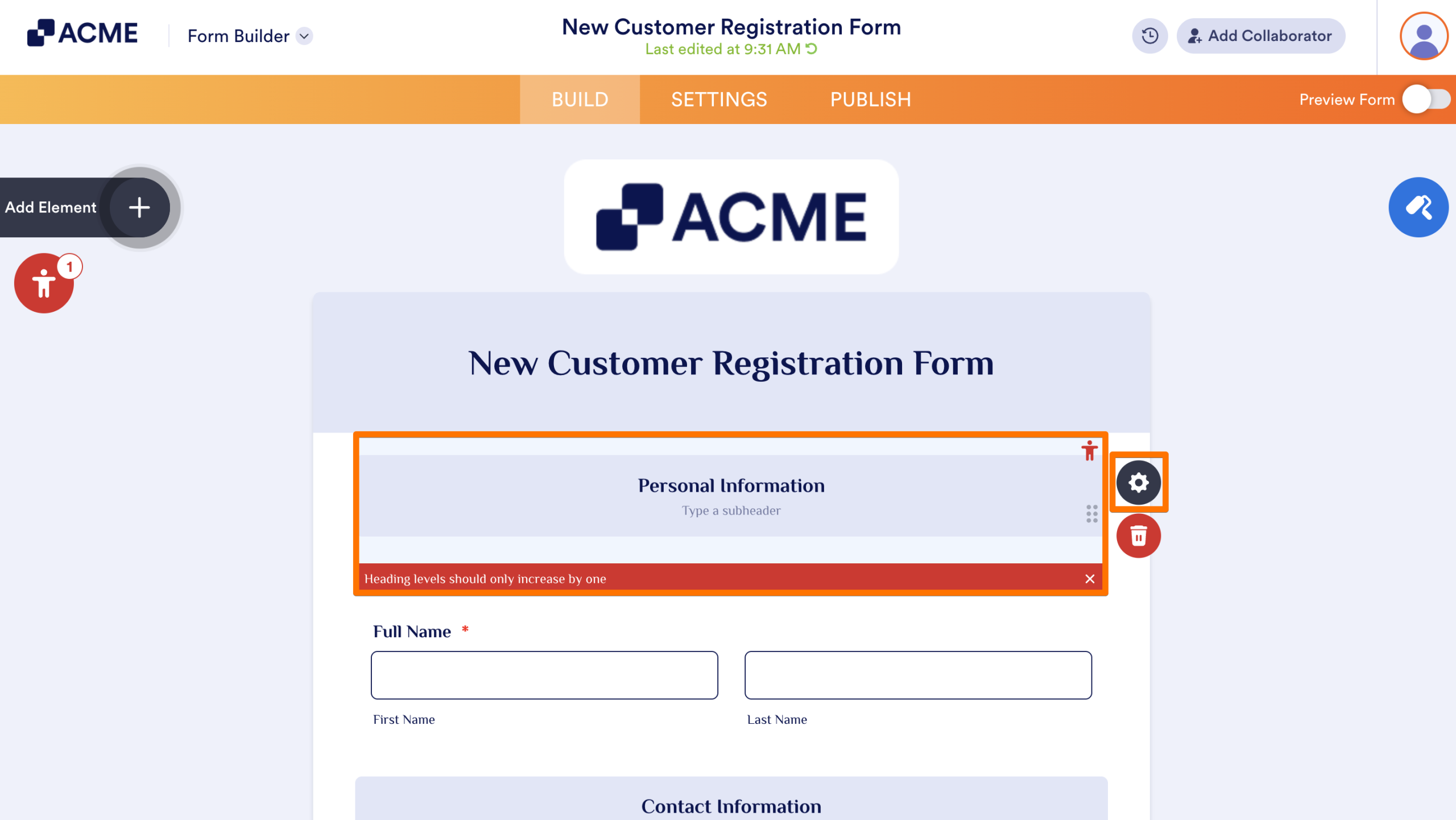
- In the Form Builder, select the Heading element flagged by the scanner.
- Click on the Gear icon to open properties.
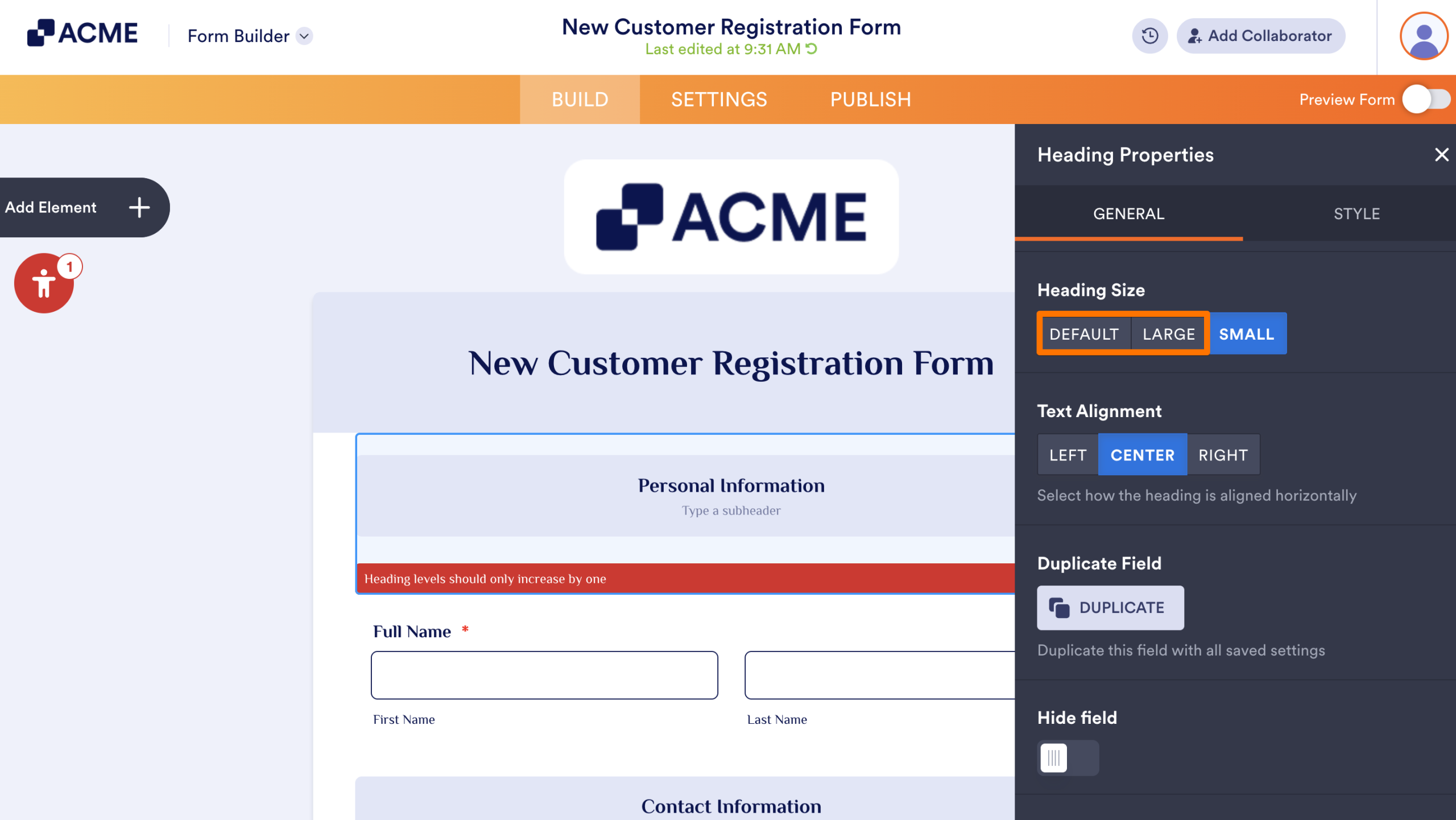
- Under the General tab, change the Heading Size into Default or Large.
Note
When moving deeper into sub-sections, you must follow the sequence without skipping a level. However, you can jump up to any higher level at any time to start a brand-new section.
See also:

Send Comment: