Build forms that welcome every user. An accessibility scan helps you find and remove barriers that might stop someone from completing your form. By using this tool, you receive instant feedback to ensure your design is clear, easy to navigate, and professional for everyone.
Enable Accessibility in Form Settings
To start a scan, first activate the feature within your form:
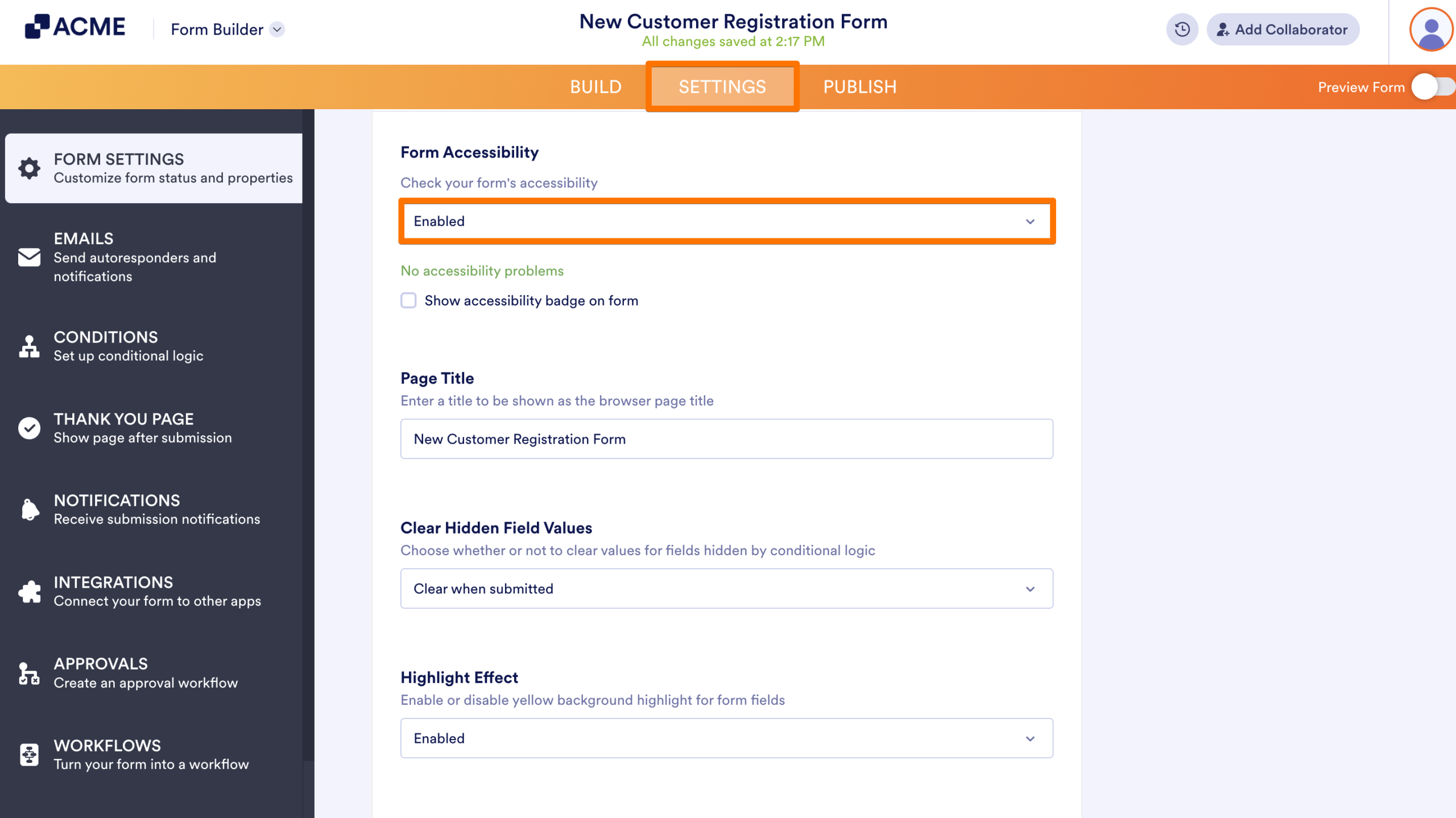
- In the Form Builder, in the orange navigation bar at the top of the screen, select Settings.
- Next, scroll down to Form Accessibility and select Enabled from the dropdown.
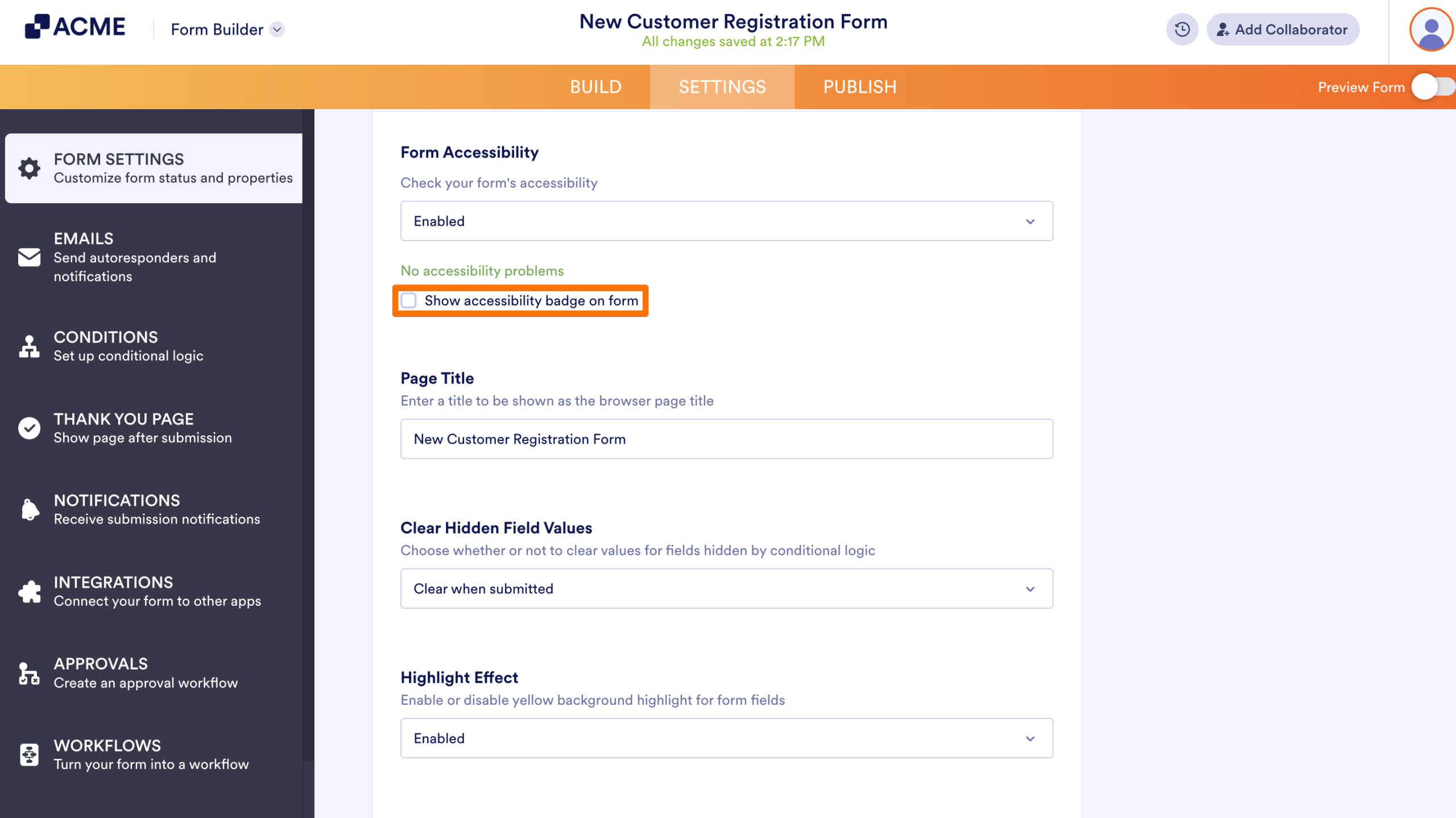
- Finally, select Show accessibility badge on form if you want to display a badge at the bottom right.
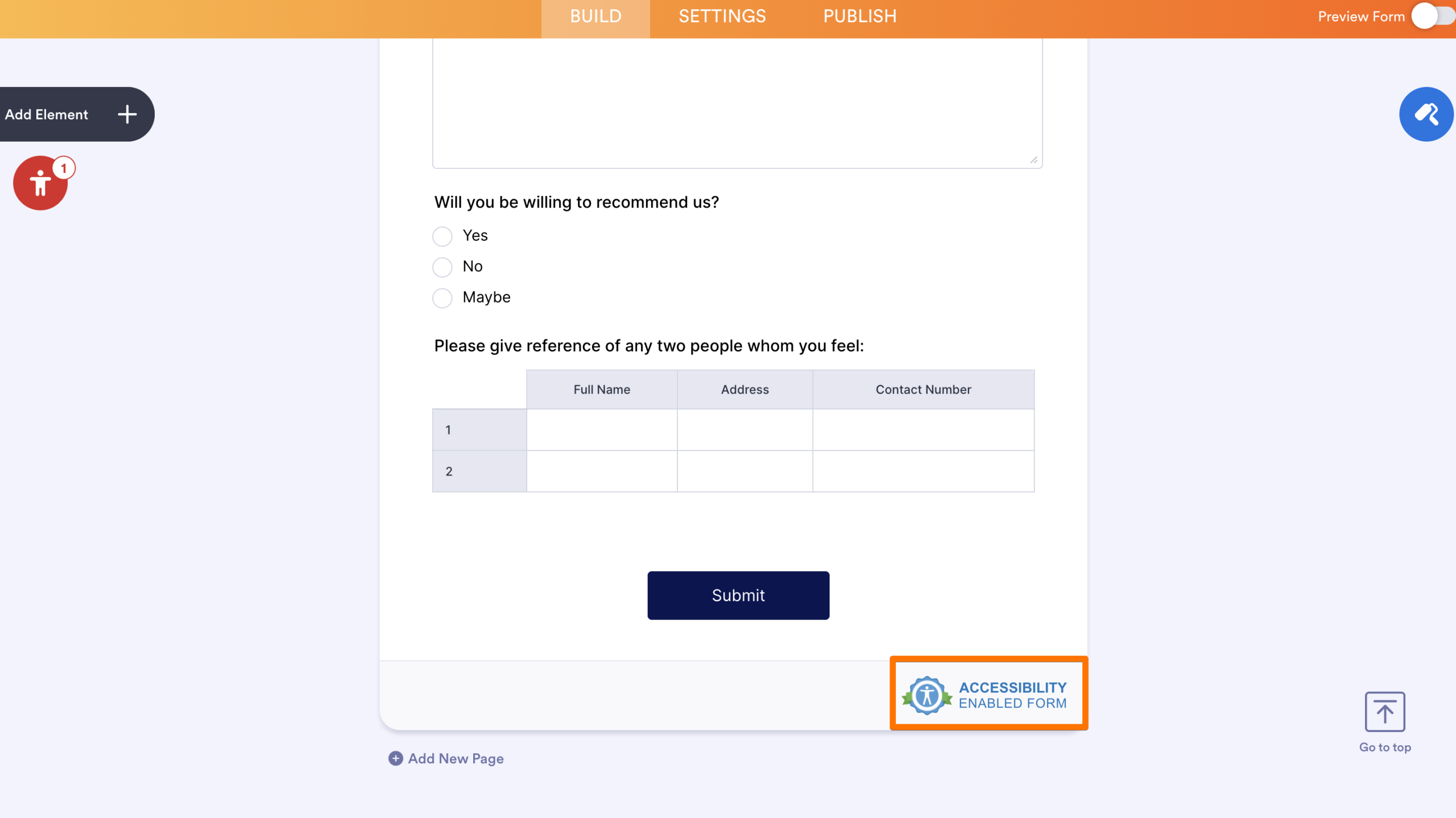
This is how the badge in your form will look like:
Running the Accessibility Scan
Once active, the tool automatically scans your form and flags any detected issues. Use this real-time checker to audit your work and ensure a smooth experience for all users.
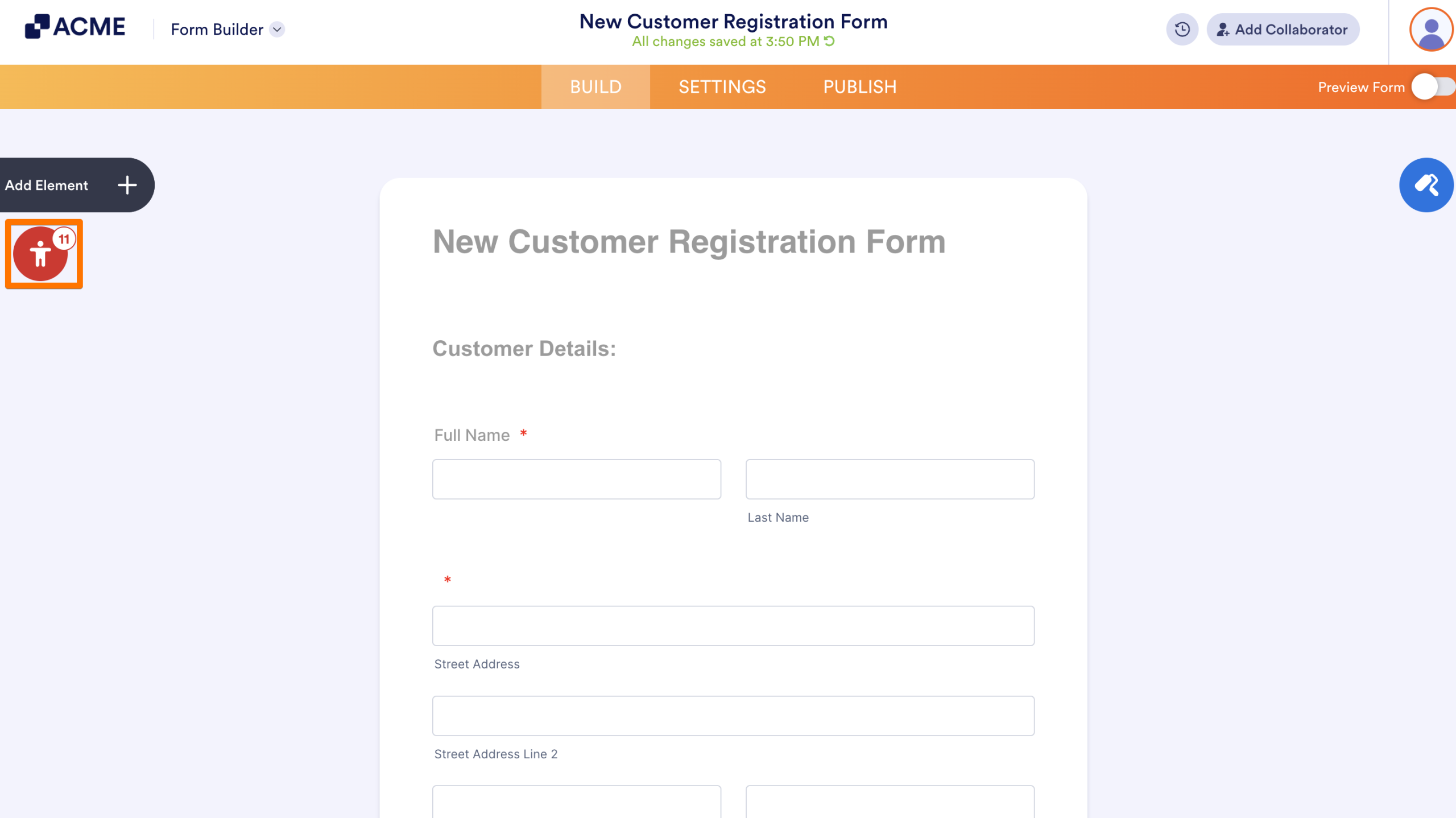
- In the Form Builder, click on the red Person icon below the Add Element button.
- Once you have the Accessibility Scanner open, click on the issue you want to resolve.
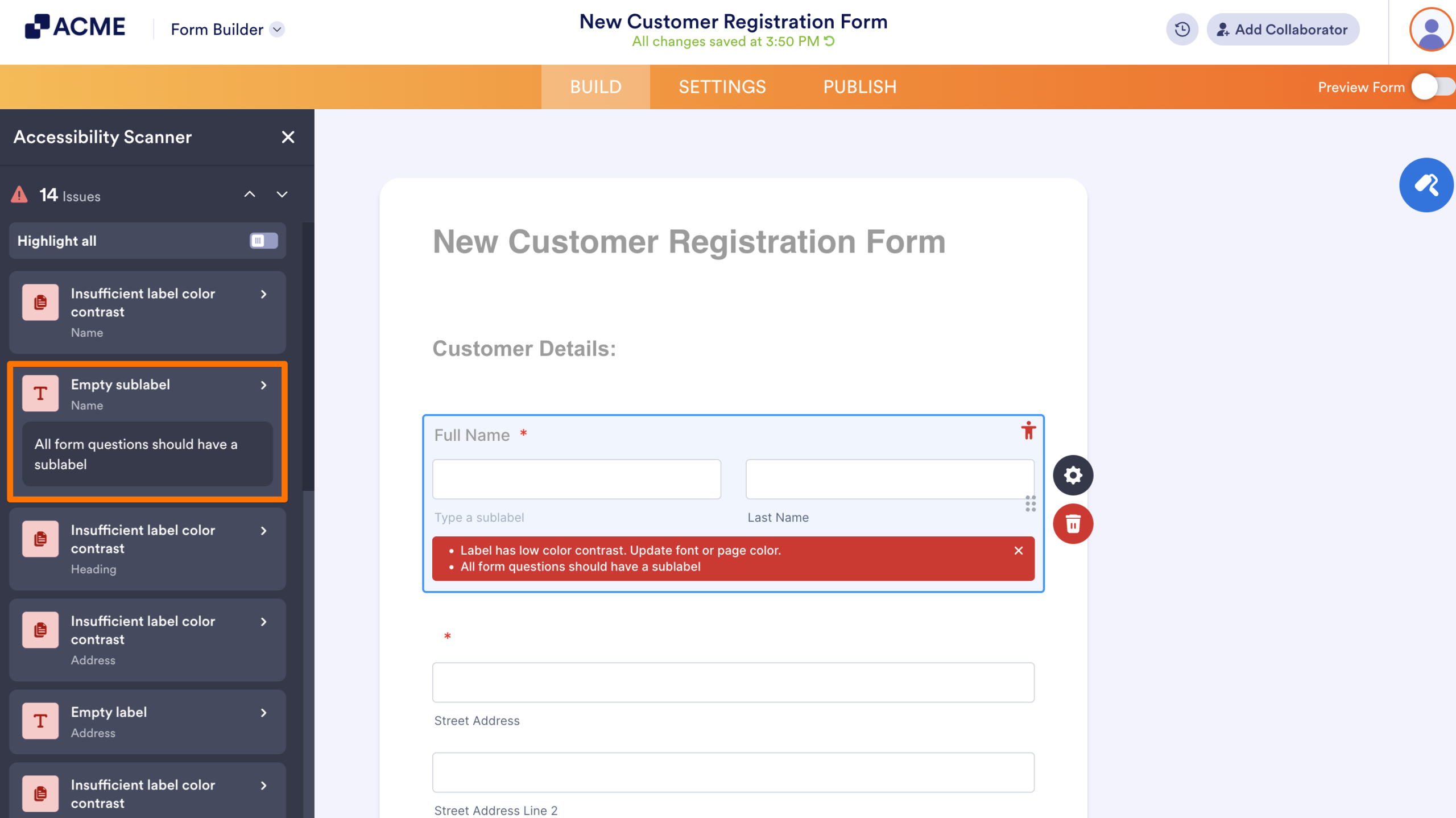
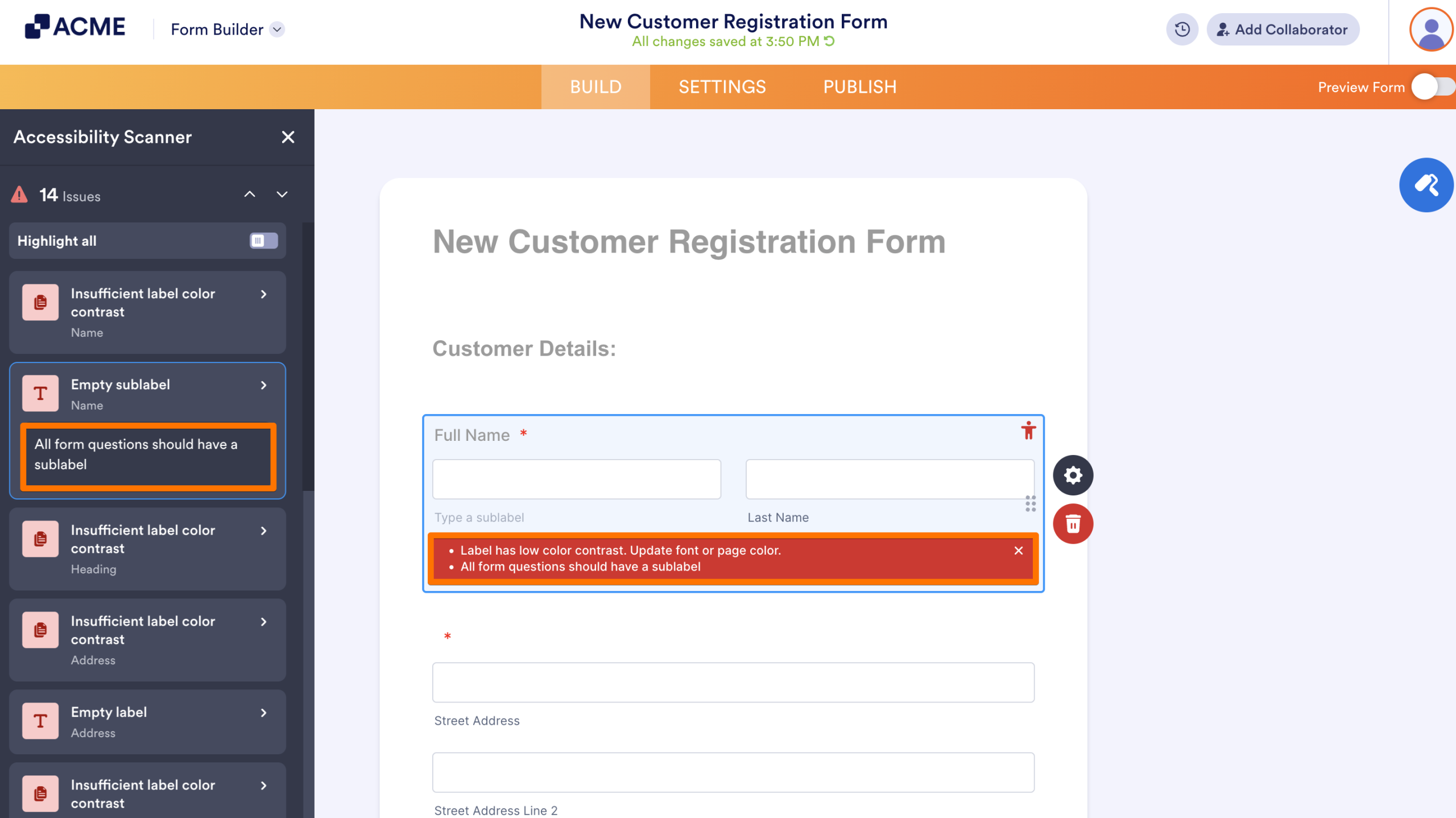
- Review the explanation provided within the scanner panel or the alert box at the bottom of the specific field and update the field to be more accessible.
Tip
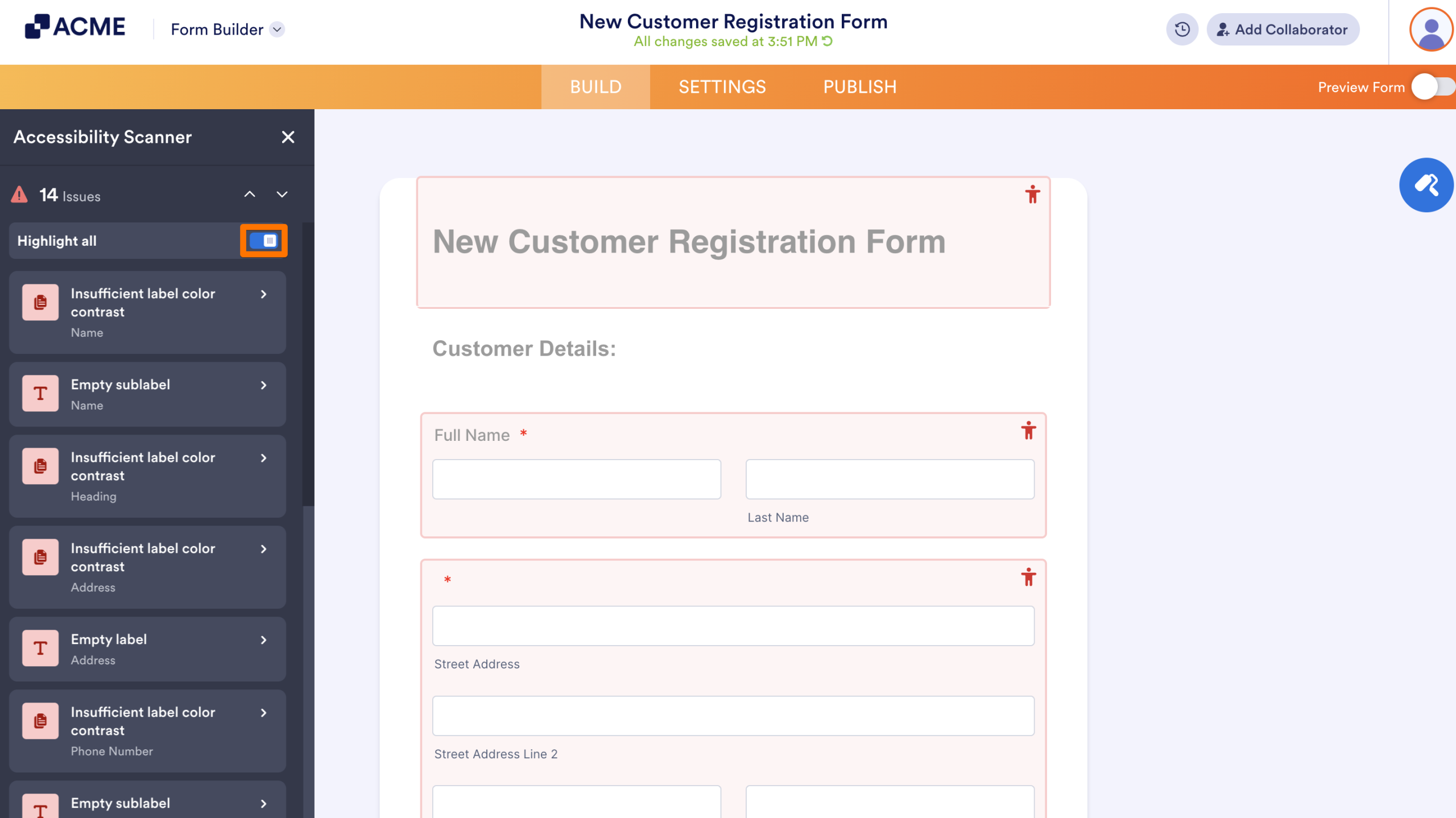
You can switch on the Highlight all toggle at the top of the scanner to see every issue clearly marked across your entire form at once.
See also:

Send Comment: