With Jotform Sign, you can automate the way you collect electronic signatures and simplify your workflow. It comes with features like Signing Order, letting you send documents to multiple signers in a set order. This helps you skip the hassle of chasing down wet signatures—saving time and effort every step of the way.


Creating Signable Document
Creating a Signable Document from your Workspace page is simple. You can do it in just a few steps:
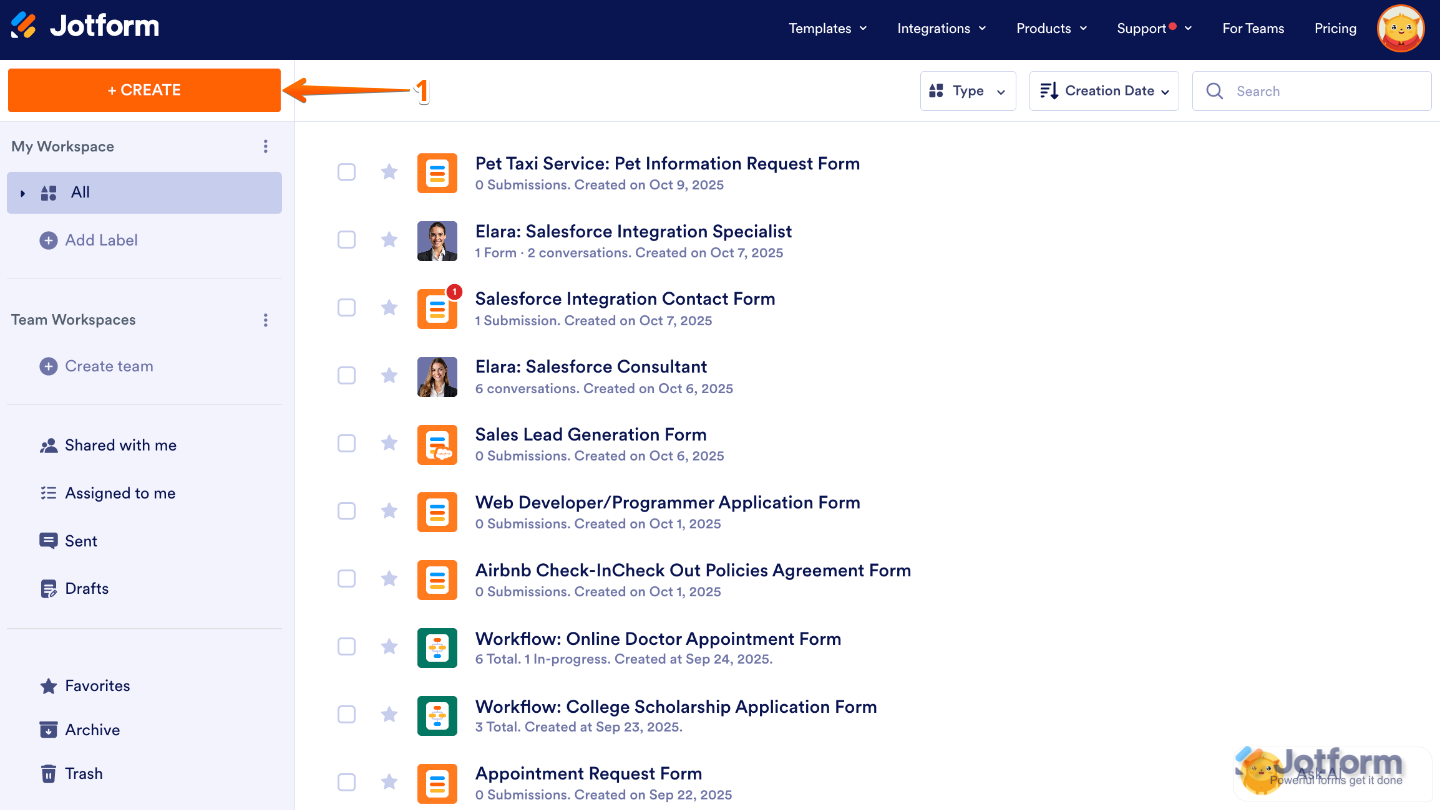
- On your Workspace page, click on Create on the top-left side of the screen.
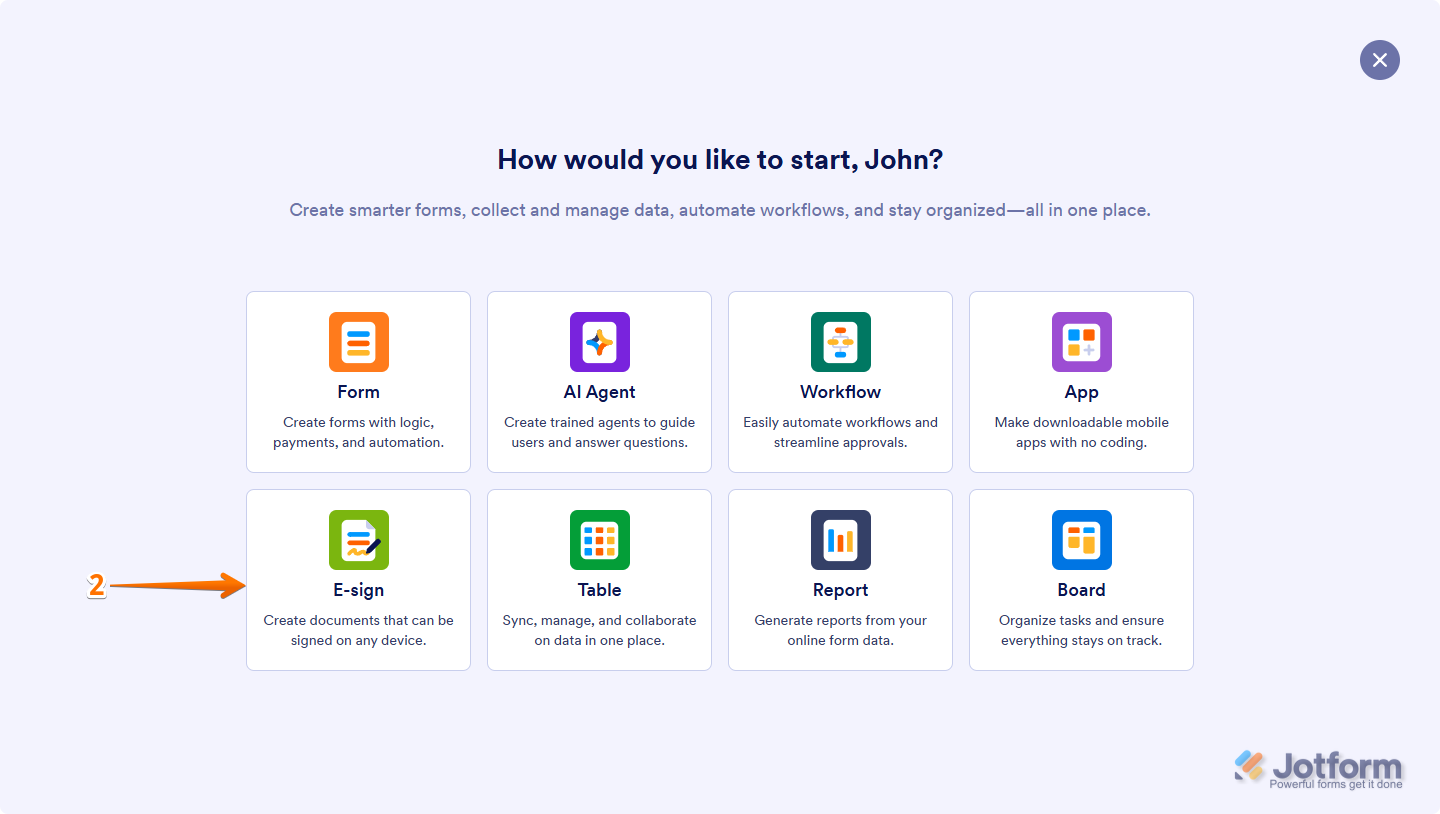
- In the window that opens up, click on E-Sign.
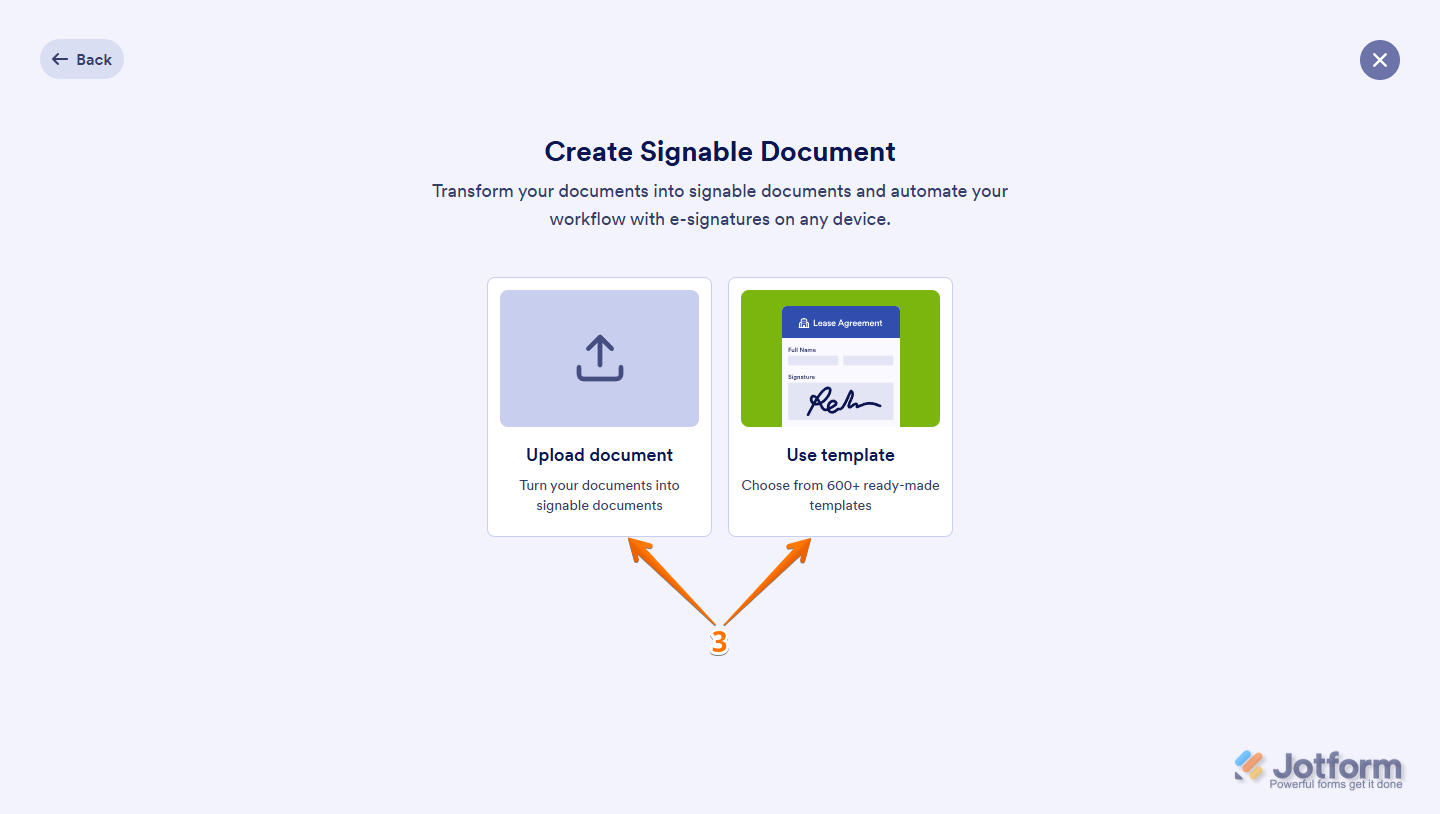
- Now, select what you want to do:
- Upload Document — Upload your PDF or DOCX file to turn it into a signable document.
- Use Template — Choose from hundreds of ready-made e-signature templates for contracts, NDAs, consent forms, and more.
If you choose to upload a document, you’ll see the option right on the page. You can either drag and drop a file from your computer or click Upload Document to select one. If you’d like to test it first, you can click Try Document before uploading your own file.

If you choose to use a template, you’ll be taken to the Sign Document Templates page, where you can select from over 800 ready-made options. Simply click on Use Template to start creating your signable document.

Building the Signable Document
After you upload your document, Jotform Sign Builder scans it and automatically detects fields that may need to be filled or signed. To continue working on your document, follow these steps:
- In Sign Builder, click on Detect Fields on the window that shows up right after the Sign Builder has loaded the document.

- Once the Sign Builder has detected the fields, click on the Add Element menu on the left side of the page.

- In the Document Elements menu, add any fields you want to include or that weren’t automatically detected by the Sign Builder.

- Next, click on each field, for example, the Signature field, then click on the Dropdown icon and assign it to the signer you want. If needed, you can also click on Add New Role to create another signer role for your document. And that’s it!

Pro Tip
Use the Preview Document button in the top-right corner of the Sign Builder to see how your document looks before assigning it.
Adjusting Signable Document Settings
You can customize some optional settings before sending your signable document. These let you control the title, email message, and app integrations. Here’s how to access them:
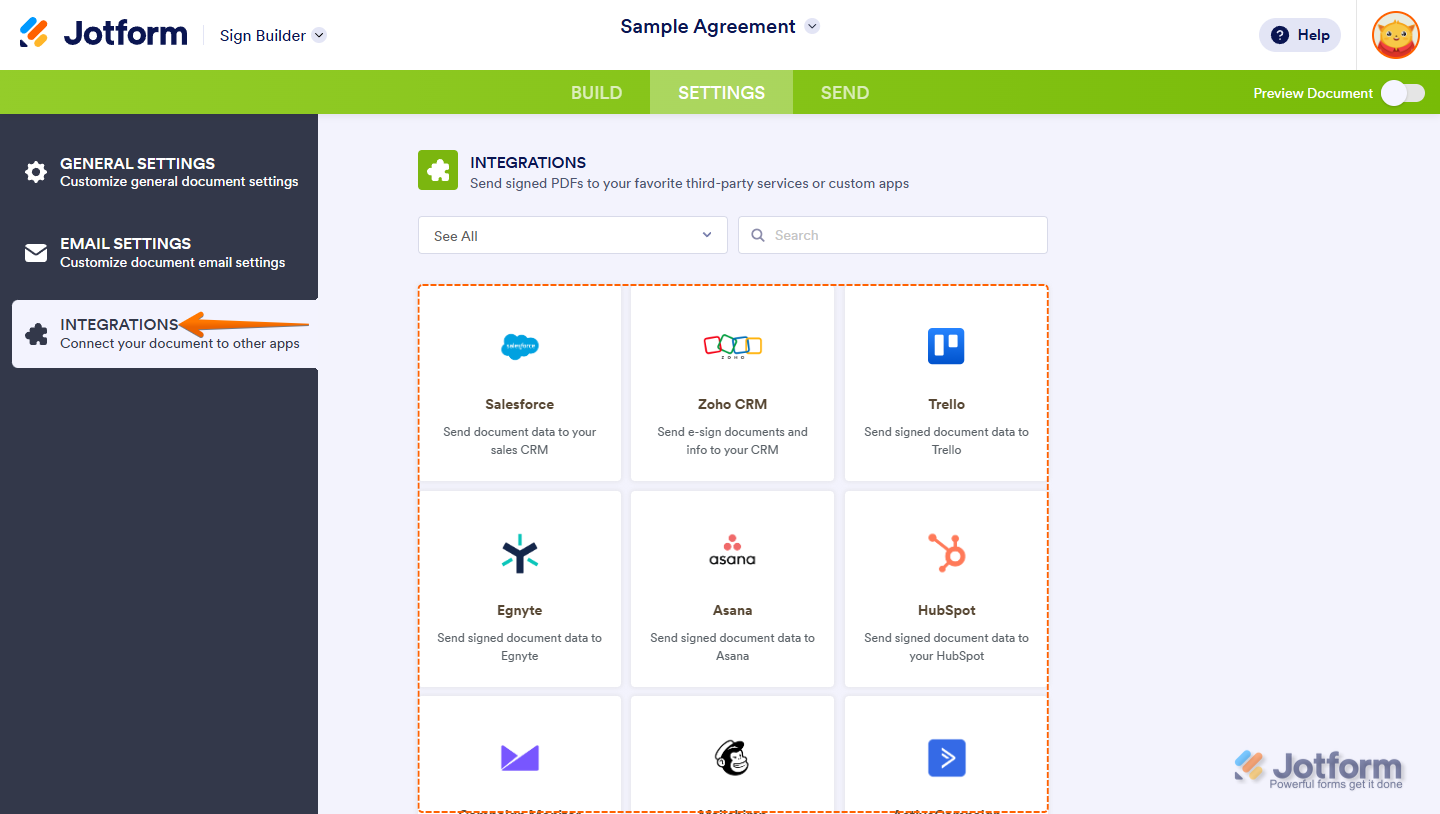
- In Sign Builder, in the green navigation bar at the top of the page, click on Settings.
- Then, from here, you can find the following settings:
- General Settings
- Email Settings
- Integrations

Let’s discuss each setting below.
General Settings
In the General Settings tab, you can set or update your document title. This title will show up in email notifications and on your Sign Documents dashboard.

Email Settings
In the Email Settings tab, you can customize the email subject and message sent to your signers. You can also choose if you want to send an audit trail to them after the document is completed

Integrations
In the Integrations tab, you can link your document to apps like Google Drive, Dropbox, and more to make your workflow easier and automate document handling.
Sharing the Signable Documents with Signers
Once your signable document is ready, you can send it to your signers directly from the Sign Builder. There are a few ways to do this, and it’s easier than you think:
- In Sign Builder, in the green navigation bar at the top of the page, click on Send.
- Then, from here, you can find the following settings:
- Send to Sign
- Share with Link
- Embed

Let’s go over each setting below in this guide.
Send to Sign
Once your signable document is ready, the last step is to send it to your recipients for signing. This is how it’s done:
- While you’re still on the Send tab, in the Send to Sign section, under the Recipients tab, add your signers information:
- Name — Enter the signer’s full name.
- Email Address — Enter the email address where the document will be sent.
- Then, click on Send to Sign to send your document securely to the recipients.

You’ll also find some extra options to customize the signing process:
- Signing Order — Turn this on to set the order in which signers get and sign the document.

- Key Icon — Click this to add extra security by making signers enter a code before they can view the document.
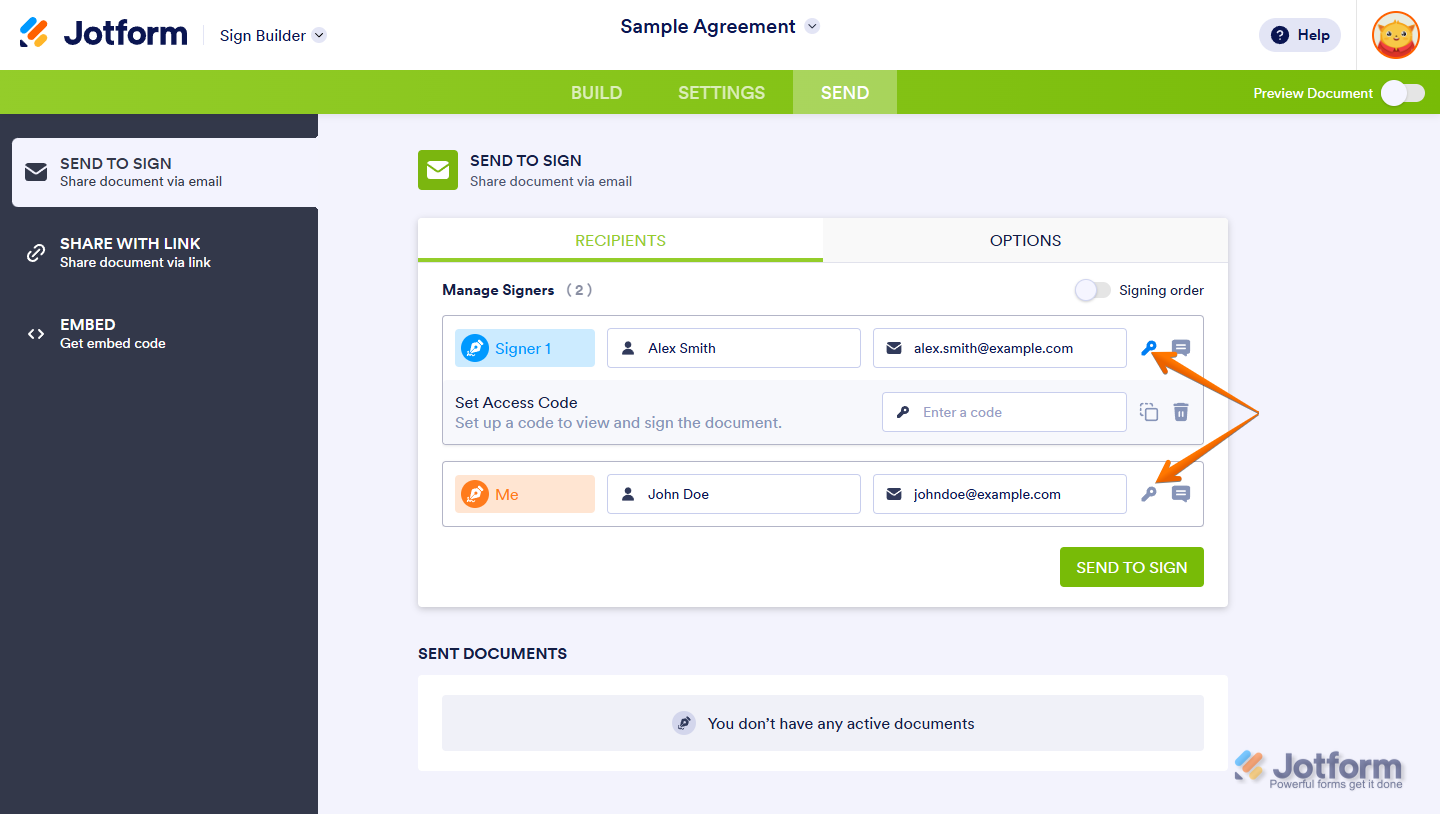
- Message Icon — Click this to customize the email message sent to each signer.

When you go to the Options tab, you can set up these things as needed:
- Expiration Date — Set a deadline for signing. After this, the document link won’t work.
- Automated Reminder Emails — Turn this on to automatically remind signers before the deadline.
- Signer Delegation — Let signers pass the document to someone else if they’re not the right person to sign. This is on by default.
- CC Recipients — Add people who should get a copy of the finished document but don’t need to sign.

Share with Link
If you don’t want to send your document by email, you can share it with a direct link instead. Here’s a quick how-to:
- While you’re still on the Share tab, click on Share with Link in the menu on the left.
- Then, click on the Select Role Dropdown menu and select your Signers

- Now, in the Specify other Signers, provide or enter the information for other roles, such as Name and Email Address.
- Then, click on Create Link.

- Now, click on Copy Link, and you’re all set.

That’s it! Now you can share the link through any messaging app or email.
Embed
The embed option works with the Share with Link feature. Signing starts with the first signer and then moves on to the others. Here’s how to generate an embed code:
- While you’re still on the Share tab, click on Embed in the menu on the left.
- Then, click on Generate.

- Now, click on Copy Link to copy the embed code, and you’re done.

Tracking Documents
Tracking documents is important because it lets you see where they are in the process. You can spot any delays, know who to follow up with, and make sure all signatures get completed. You’ll just need to do this:
- While you’re still on the Share tab, in the Send to Sign section, hover over to the sent document that you want to track, and click on Track.

Send my document for signature
File type is not allowed.
Maximum file size limit exceeded. (5MB)
Something went wrong.
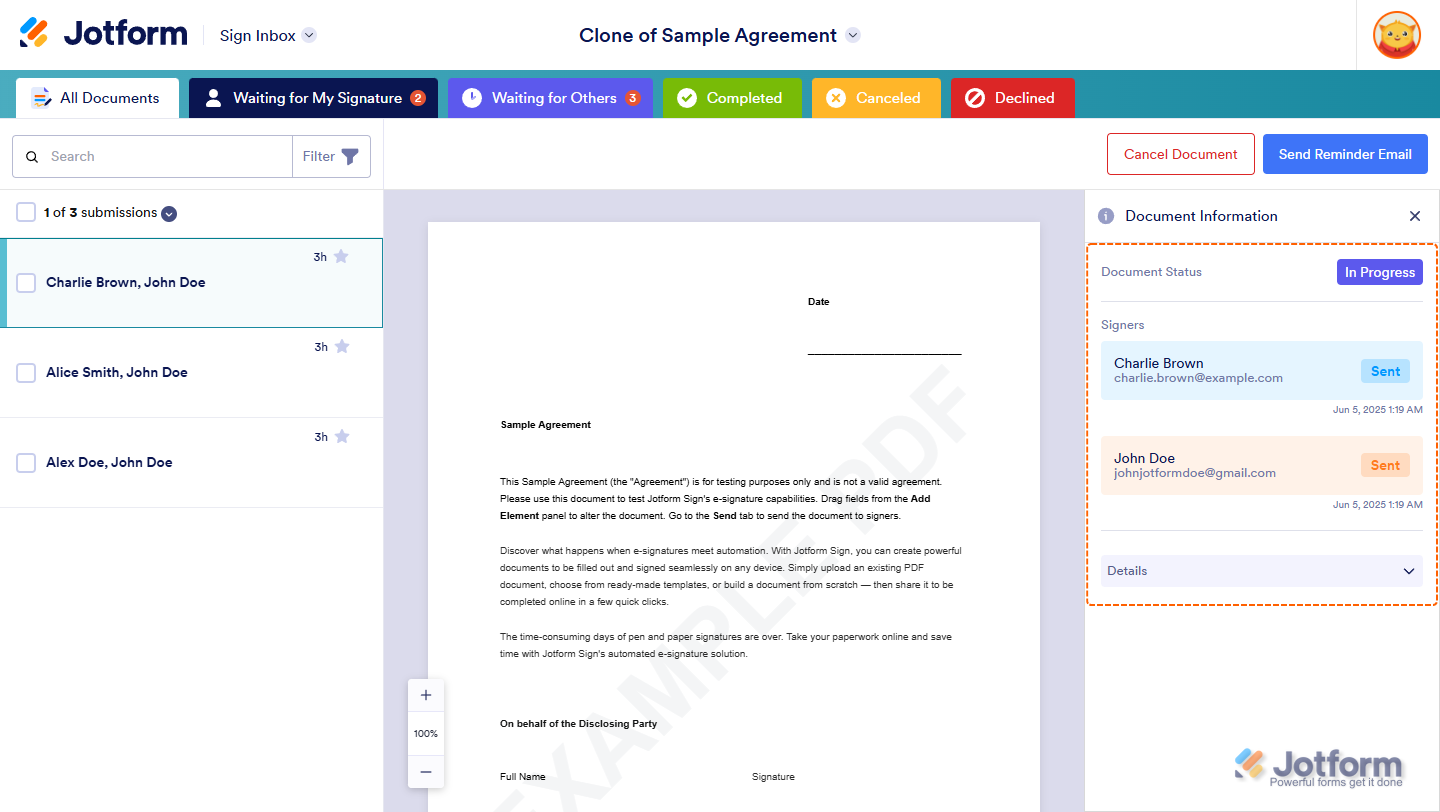
And that’s it! You’ll be taken to the Sign Inbox where you can track your documents’ progress.
Viewing the Audit Trail
When the workflow is complete, everyone involved receives a confirmation email with an audit trail—a quick record of who signed and when. This helps you stay on top of things and ensures all signatures are collected. You can also view the audit trail anytime in the Sign Inbox.

Disclaimer: The information provided in this guide is for general informational purposes only and is not intended to constitute legal advice. While we strive to keep the information accurate and up-to-date, laws and regulations vary by jurisdiction and can change frequently. Should you have specific legal questions about any of the information on this site, you should consult with a licensed attorney in your area.



Send Comment:
19 Comments:
October 15, 2025
Hi we would like to be able to use jotform including its signature option, do we have to sign to a paid membership?Thanks
August 27, 2025
We have document where the name needs to be added 5 times. Is there a way to add the same name automatically, once it has been entered once?
August 17, 2025
Can signatures be collected in Jotform without emailing signatory?
August 1, 2025
Is there a way to customize the confirmation email that someone receives when they submit the form? Specifically, I would like to change who receives the notification email when completed.
December 31, 2024
If I set myself up as the second signer, is there any way to sign the document other than through the email notification that the first signer completed. At first I wasn´t even getting an email that someone had signed the document, and I can´t seem to find a way to sign those documents without the email prompting me to.
December 4, 2024
Any option to adjust the space between the signature and the signed date in the PDF?
July 24, 2024
how to delete an unwanted signed document
April 8, 2024
Is it possible to delete signed forms once you no longer need them to help clean up the inbox? Or a way they can be moved into a file folder or something?
March 8, 2024
1. When I send invitation to Jotform Sign, can I change the sender name and email address to my business name and official email address?
2. Can I change the email content of the invitation email and after signing it successfully? Like I can do it for Jotform forms.
January 25, 2024
QUAL A QUANTIDADE DE ASSINATURA MÁXIMA UM ÚNICO DOCUMENTO PODE TER?
January 2, 2024
When does the signature go back to zero each month. I hit 100 tonight so when does it go back down?
January 1, 2024
Hi. How can I upload my signature from an image file, or copy it as an image into the document. I don't want to write my signature via the mouse pad.
Thank you
October 17, 2023
Is it possible to set up it up to not send everyone a copy once it is signed. I need the people who have signed it to not have access to the completed document.
October 5, 2023
How does this change with HIPAA accounts? There are some rules and requirements that don't apply or are different.
September 7, 2023
Is there a way to customize the confirmation email that someone receives when they submit the form?
March 10, 2023
Is there a way to set a limit on Signed Form submissions, like you can within your Form settings?
February 2, 2023
Recipient receives email from "Jotform" and is reluctant to click on any links for possible phishing. Anyway to change the sender's email instead of it saying "Jotform?" Can I change it to my company name?
January 27, 2023
this looks good, but what about reading e-mail addresses & names from a table to avoid typing into the form.
January 26, 2023
what we need to do at alesi for this training is to have multiple students sign a SINGLE document, a 'sign-in' sheet.
does jotform sign support this?