
With around two billion users worldwide, Google Drive has become synonymous with storing, syncing and sharing files.
Many of those users enjoy having the ability to sign PDFs in Google Drive because it makes document handling faster, more secure, and more convenient — especially in modern digital workflows. Plus, it supports centralized PDF management, team collaboration, and control version history — all with decreased environmental impact.
In this article, we’ll provide step-by-step instructions on how to sign a PDF in Google Drive using Jotform’s Sign PDF tool. We’ll also share directions for an alternative method so that you can sign PDFs offline.

How to sign a PDF in Google Drive with add-ons
Users can easily sign PDFs in Google Drive using one of several third-party applications. Popular Google Marketplace add-ons include
- Sign PDF
- Sign.Plus
- DocHub
- SignRequest
- BoloForms Signature
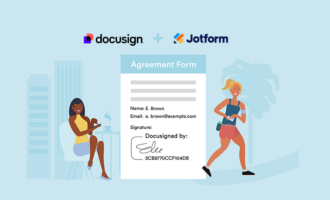
Of all these options, Sign PDF by Jotform is the ultimate user-friendly tool to automate your workflow with documents. Its embed and public link features allow you to share a document and collect signatures automatically from several people with a single link.
Sign PDF by Jotform also allows you to
- Streamline your document process across workspaces and users.
- Get instant notifications about signer actions.
- Download signed documents and print them if needed.
- Send reminder emails to additional signers.
Whether you’re in healthcare, government, education, or business, Sign PDF provides electronic signature solutions that enhance any workflow.
How to sign a PDF in Google Drive using Jotform Sign PDF
If you don’t have the Sign PDF app, installing and accessing it from Google Workspace is simple. Here’s how:
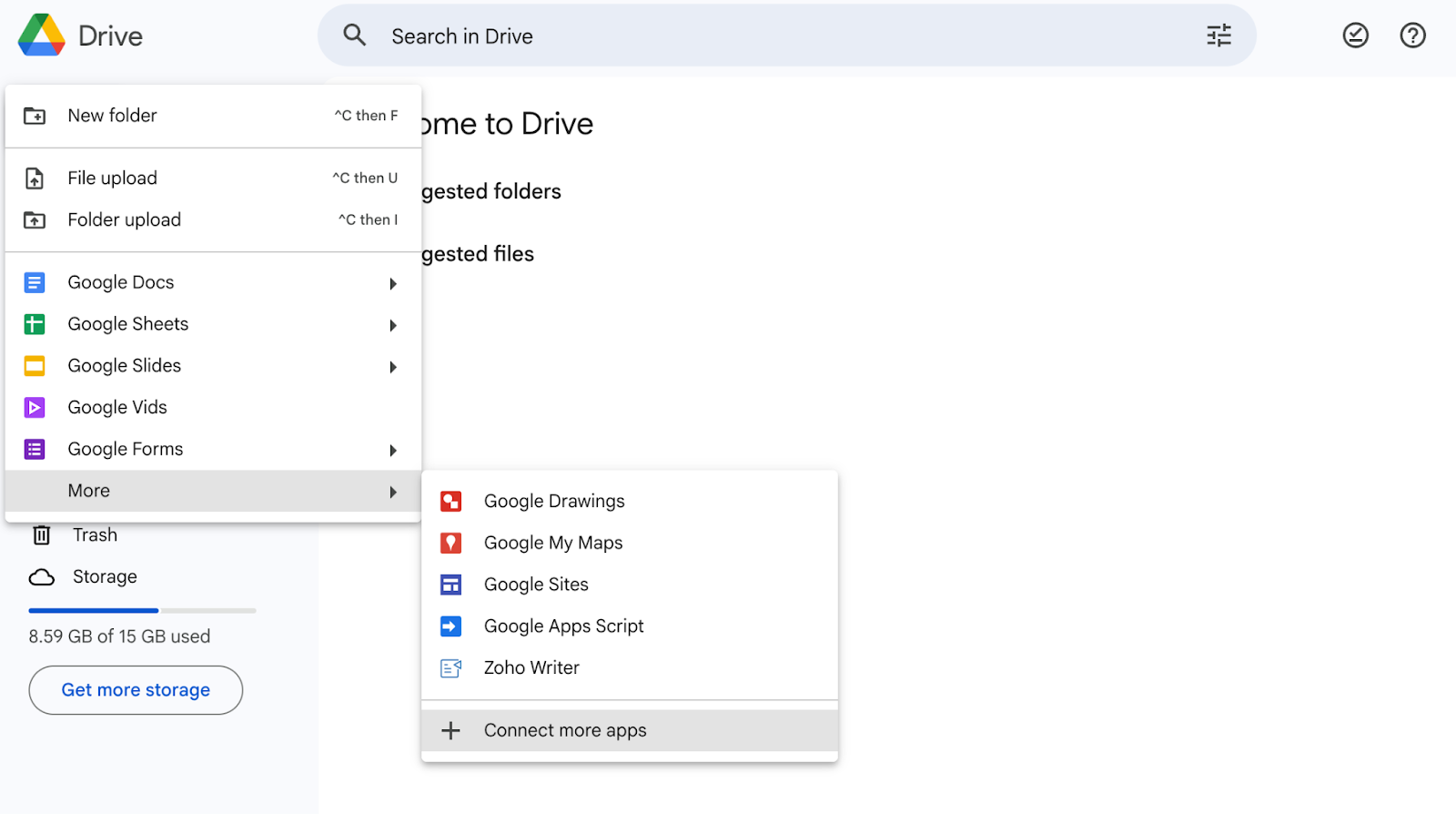
- In the top left corner of your Google Drive, click on the Drive icon to open the menu. Scroll to the bottom “More” option, and select Connect more apps.
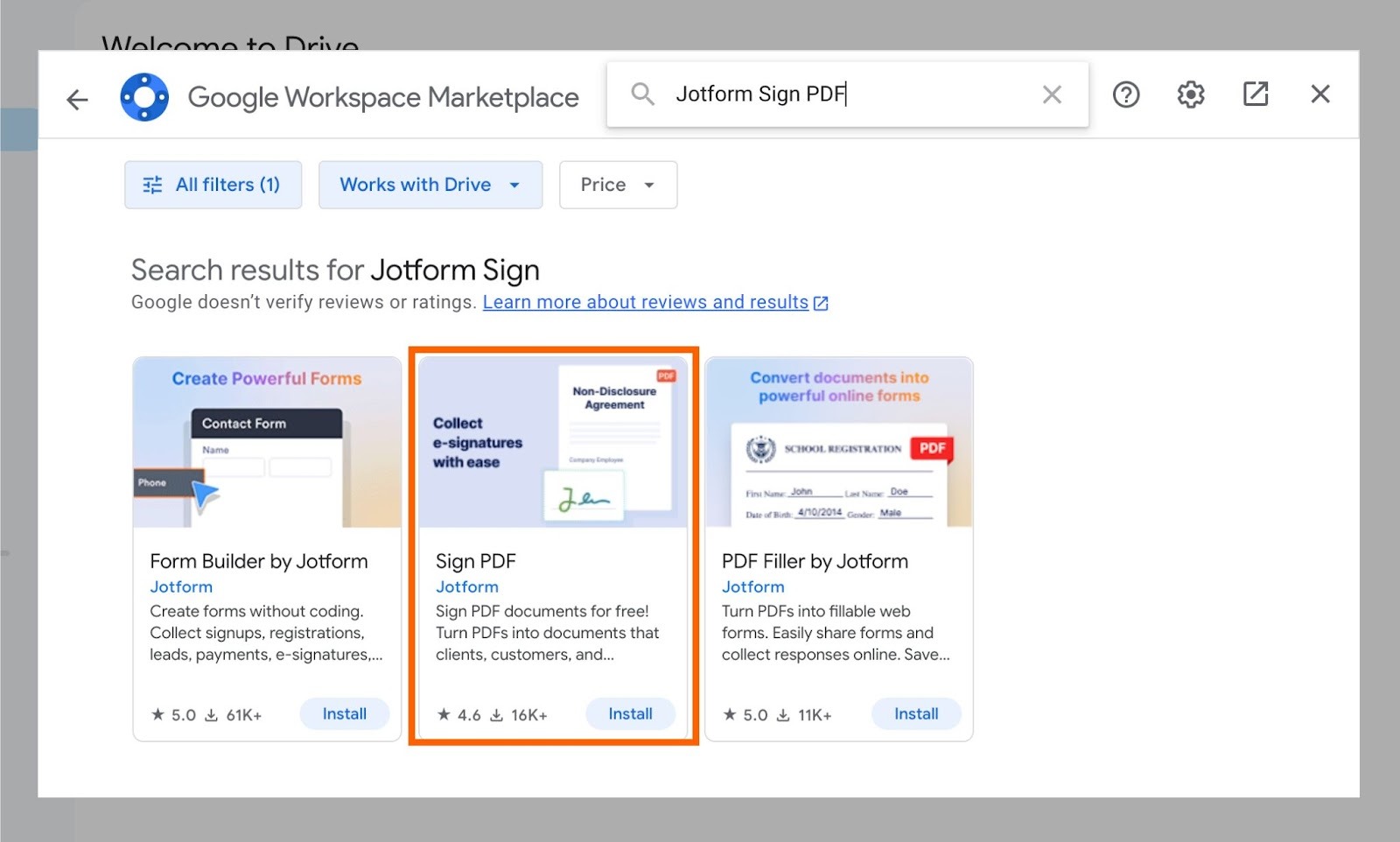
- In the Google Workspace Marketplace search bar, type in “Jotform Sign PDF.” Click Install in the Sign PDF box.
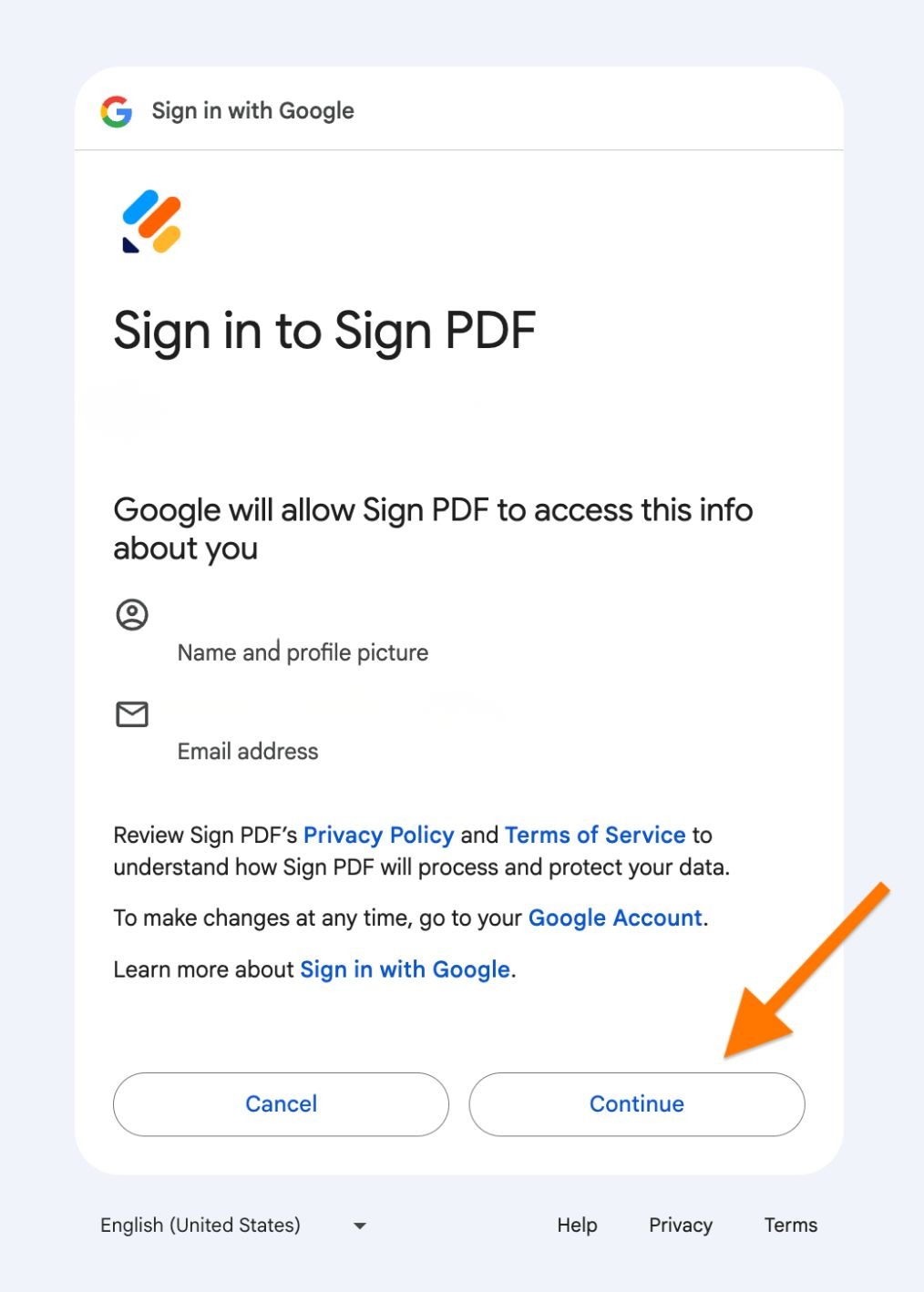
- Click Continue to give Google permission to sign in to Sign PDF.
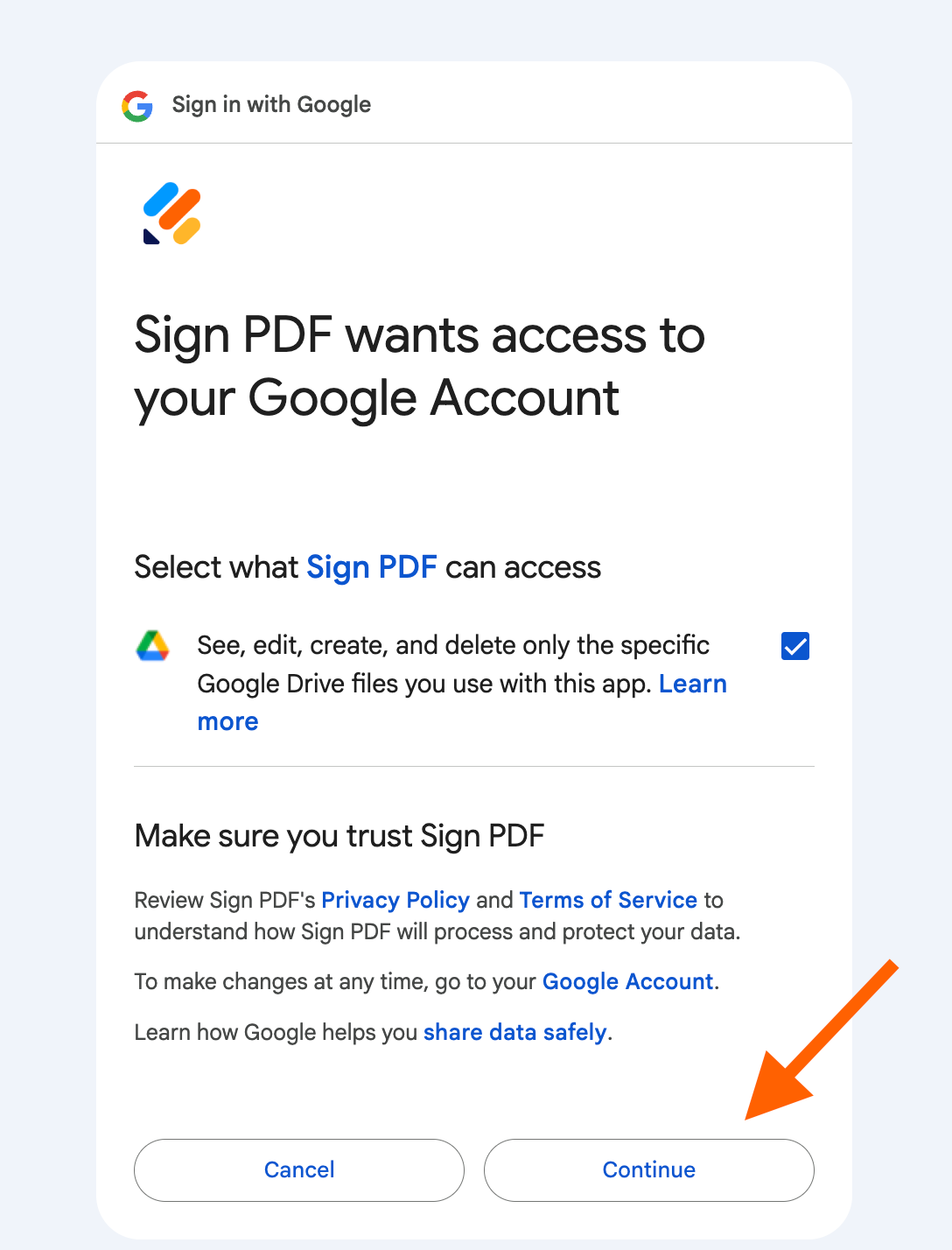
- Click Continue to give Sign PDF permission to access your selected Google account.
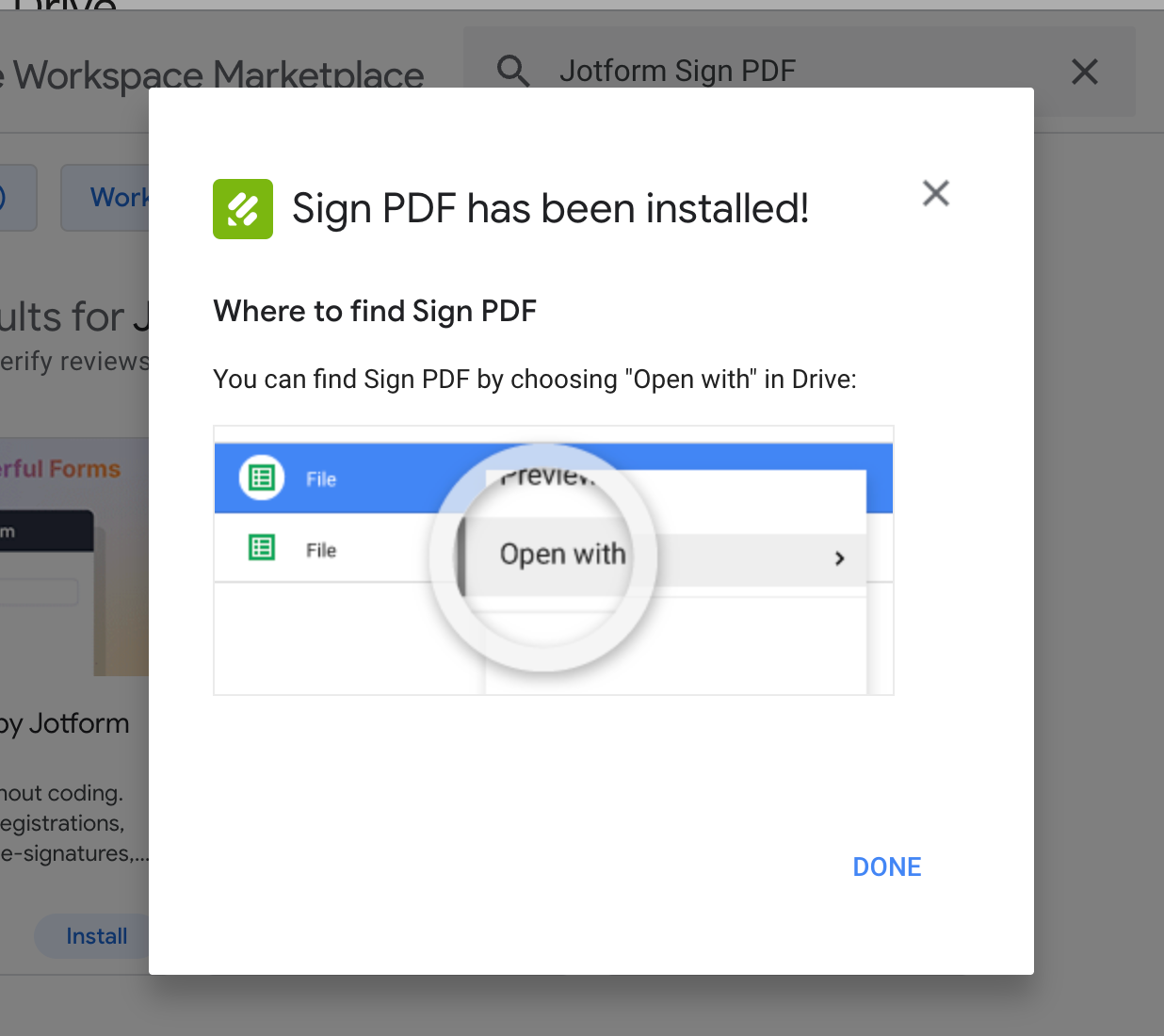
- Once you’ve allowed permissions, click OK on the install screen to close the window. You’ll see a window behind it showing you where to find Sign PDF in Google Drive. Click Done to close all windows.
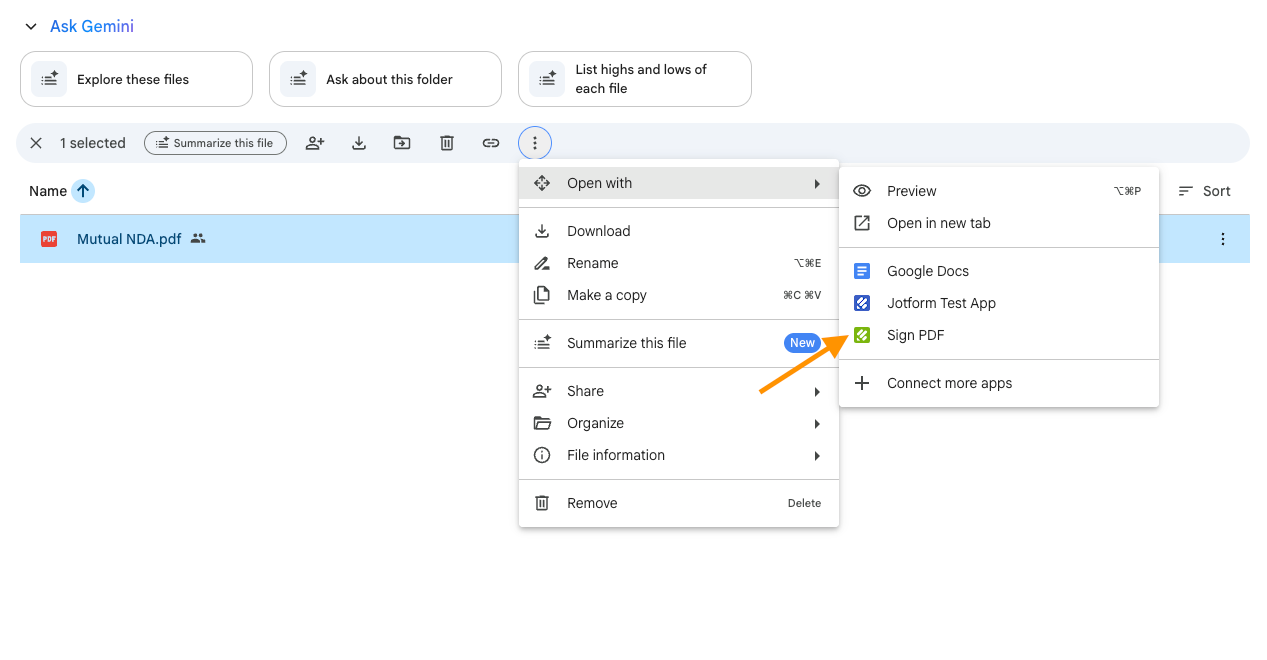
- To start signing, look for the PDF file you want to use. Right-click on the file to open file options and hover your cursor over Open with. Select Sign PDF to open Jotform.
- Select which Google account you want to use with the app and click Continue.
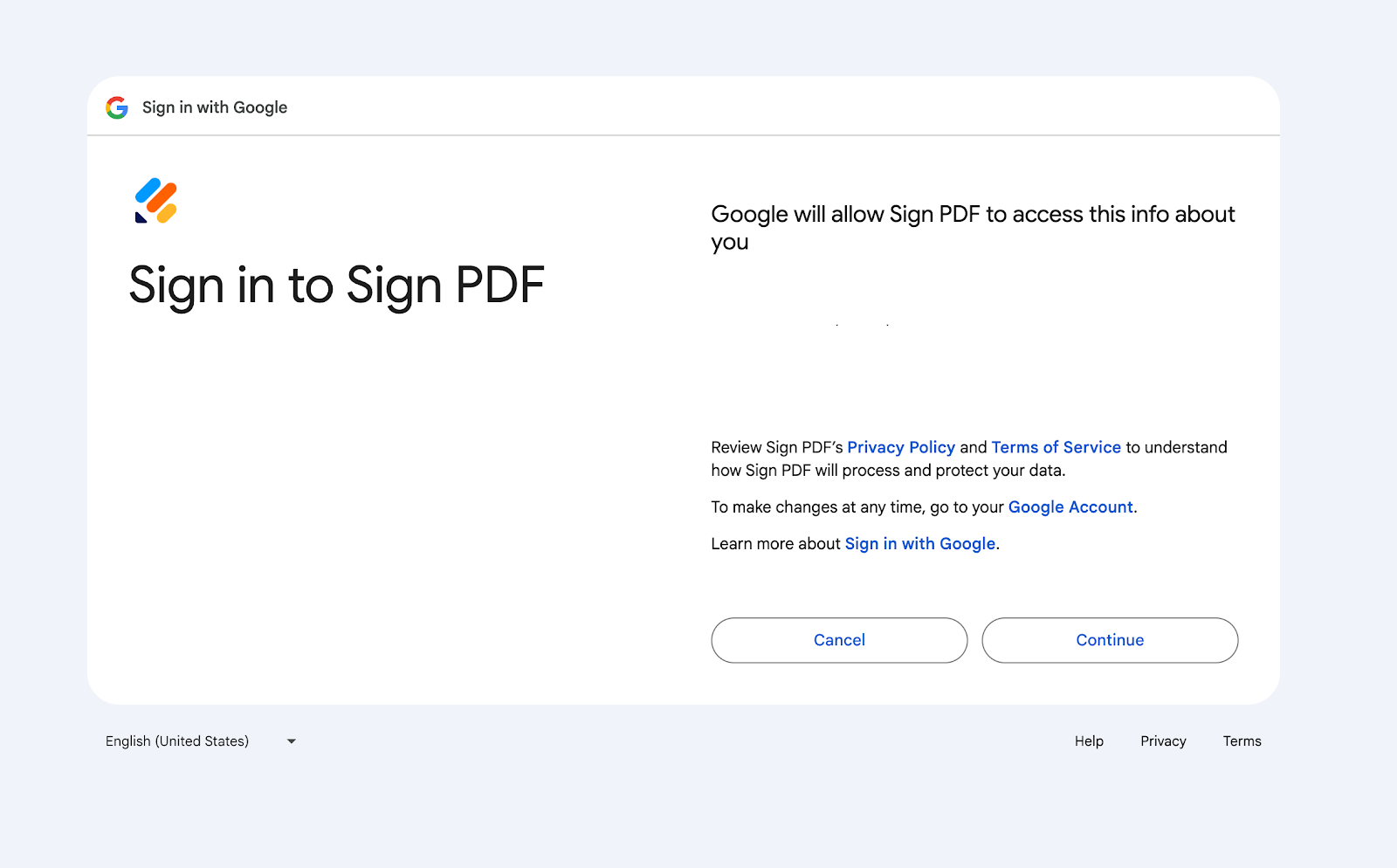
- When Google informs you about the permissions you’re granting Jotform, click Continue.
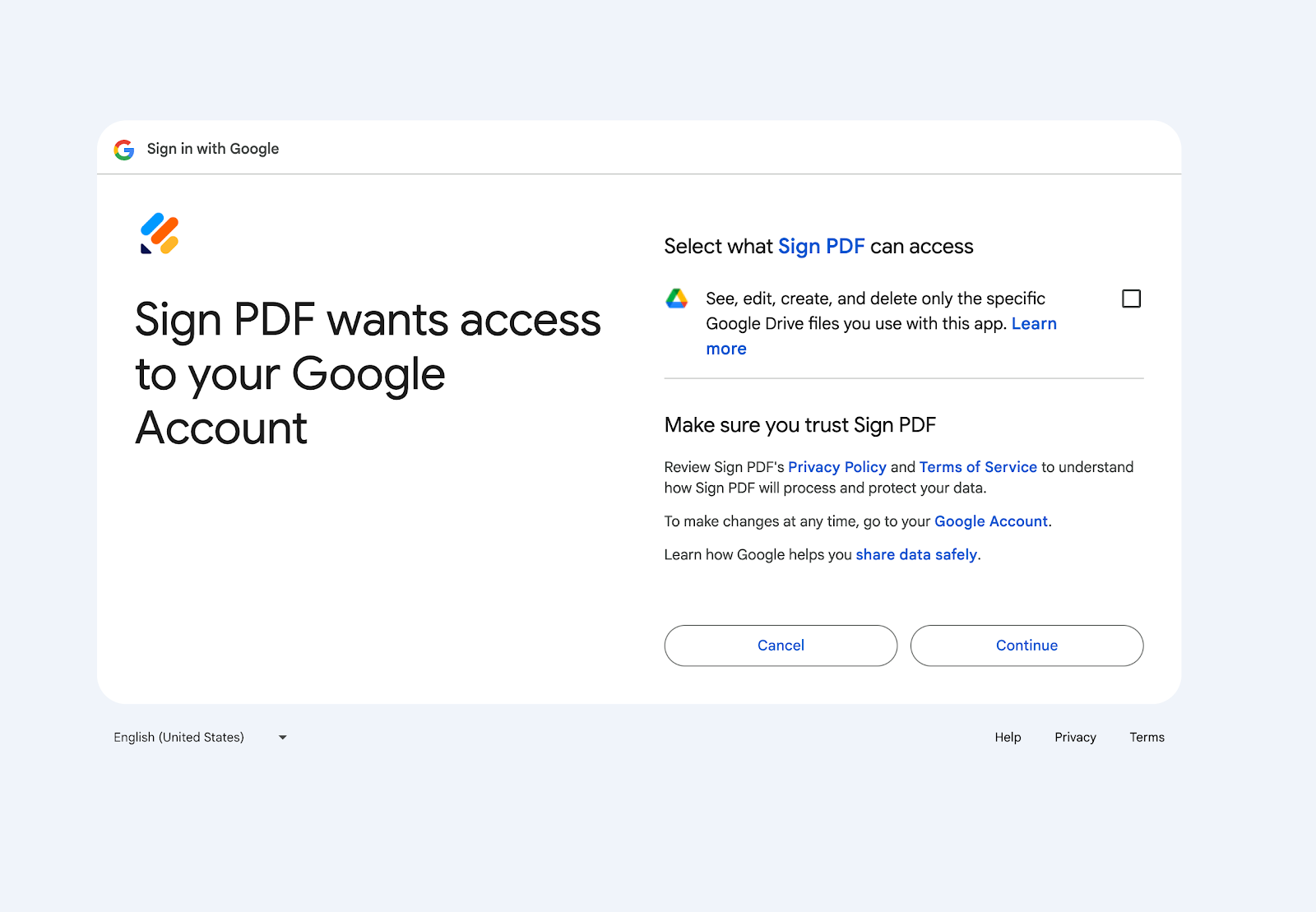
- Once your PDF file has been imported into Jotform, open the Elements menu by clicking the Add Elements button to the left of your document.
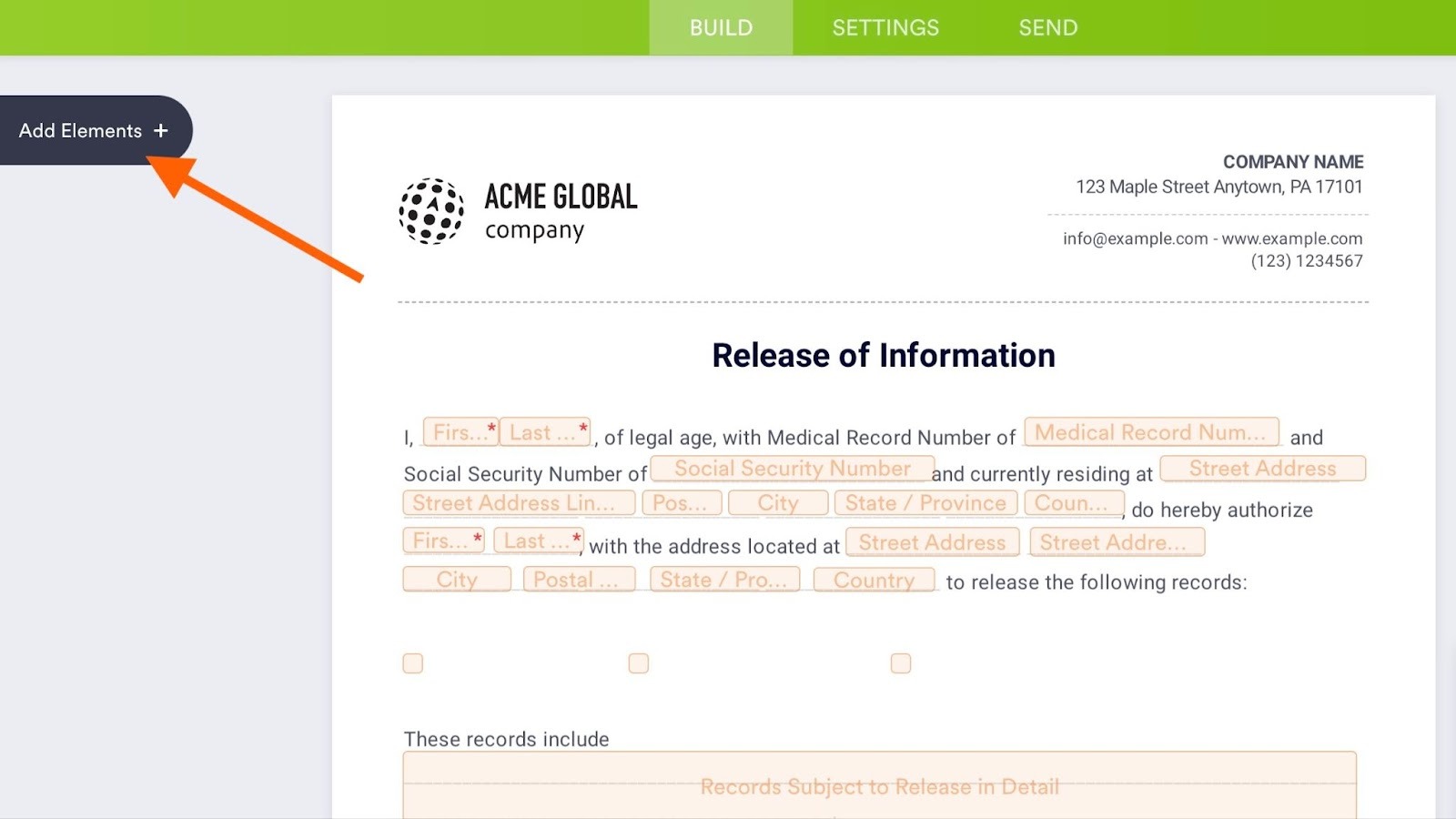
- Select Signature to add a signature field to your file.
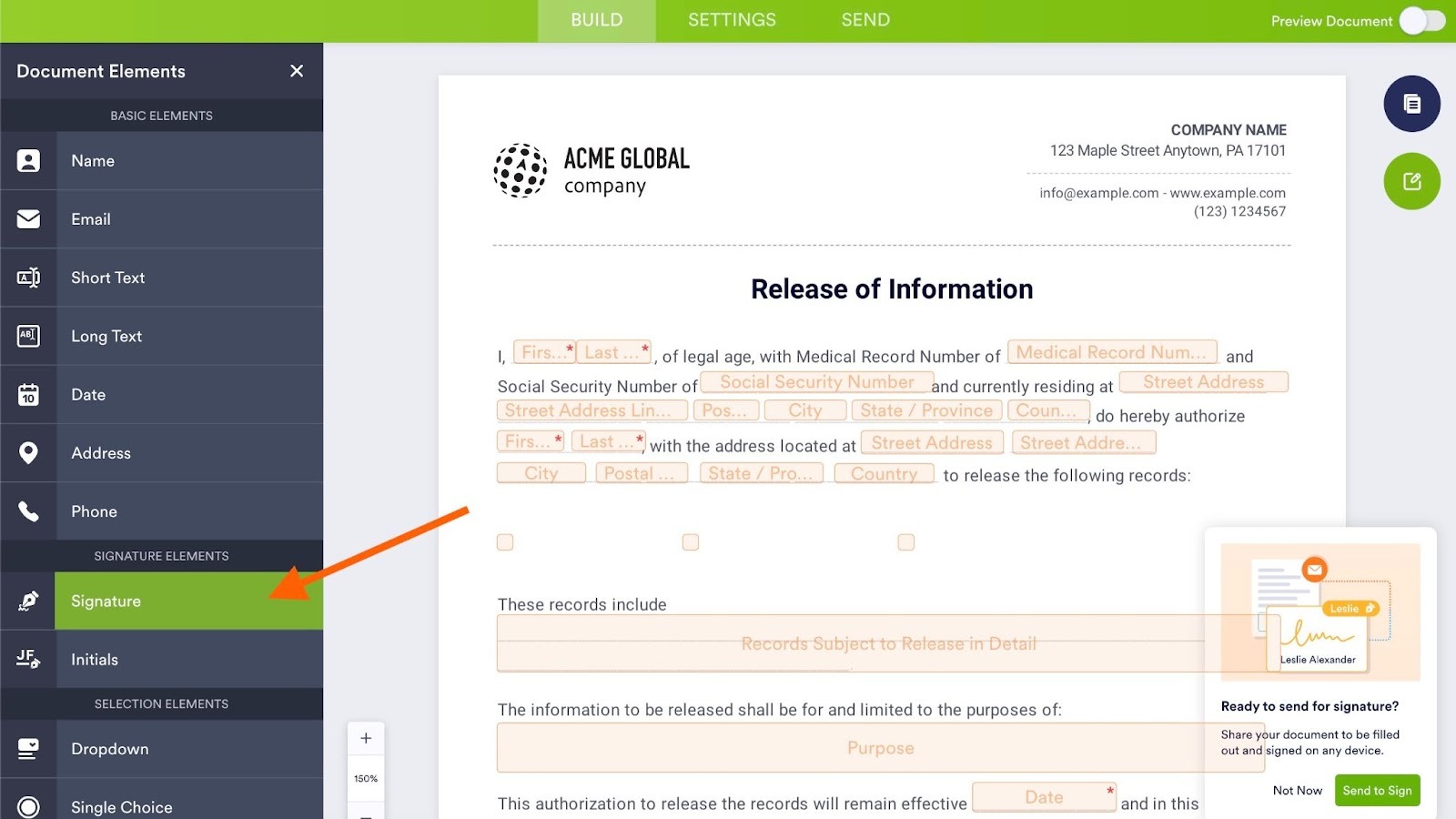
- Add other elements like Name, Email, Date, and more to your form as necessary.
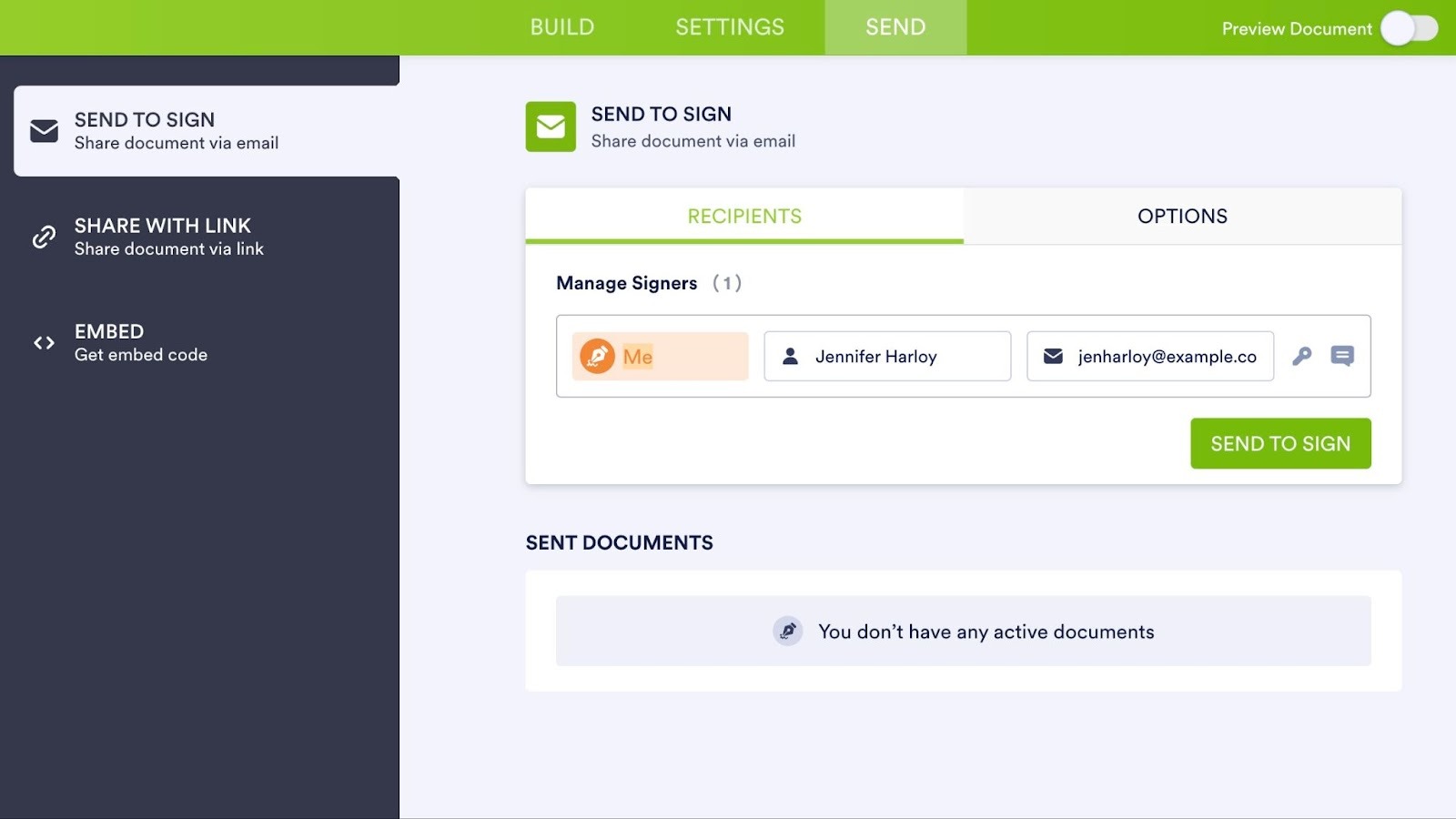
- Click Send in the top bar menu. Choose an option from the left to indicate whether you want to send your document to signers via email, share via link, or get an embed code. Share it with your signers and you’re set.
Additional ways to sign PDFs in Google Drive
Use Google Drive’s native PDF signing tool
You can also sign PDFs with Google Drive’s native tool.
- Go to drive.google.com and sign in to your Google account.
- Click New, File upload, and then select the PDF you want to sign. You can skip this step if your file is already in Drive.
- Double-click the PDF to open it in Google Drive’s preview window.
- If the signing tool is available, click Sign or eSignature at the top of the screen. If it’s not, click Open with and Google Docs.
- In Google Docs, click Insert, Drawing, and then New. Draw your signature using the mouse or touchpad, or type your name and choose a handwriting-style font.
- Click Save and Close, and then move the signature to the correct spot on the document.
- Download the signed PDF by clicking File, Download, and PDF. Alternatively, share the document directly from Google Drive.
Use third-party apps to sign PDFs offline
If you’re on the go and without an internet connection, you can also use offline software to sign PDF documents.
Adobe Acrobat Reader is a free tool you can use to attach your signature to PDF documents without an internet connection. Here’s how it works:
- Download the PDF. The document must be downloaded and saved onto your device in order to operate.
- Open it in Adobe Acrobat Reader.
- Select Fill & Sign.
- Add your signature (draw, type, or image).
- Save the file.
You can then upload it when you reconnect to the internet, and email or send it as needed. Other tools like Wondershare PDF element also allow you to attach your signature to your PDF documents without an internet connection.
In most cases, using Jotform Sign PDF is your best bet for signing a PDF in Google Drive. It provides a streamlined, secure, and all-in-one solution for signing PDFs without relying on multiple third-party apps. Its seamless integration with forms, automation features, and user-friendly interface save time, reduce errors, and offer greater control over document workflows compared to external tools.
FAQs on how to sign a PDF in Google Drive
Sign PDF automatically scans for all the fillable fields in your PDF and identifies how many exist. That way, you can rest assured every page that needs a signature is being accounted for.
If a field isn’t recognized, you can easily adjust the field and field type, and then add the signature to the field.
Jotform Sign Mobile is the simplest way to sign, send, and track documents from your phone. This free mobile e-signature app helps you finalize contracts, approvals, and forms — anytime, anywhere.
Simply upload or scan your document as a paper copy, add signers and fields, and then track, notify, and finalize. Once signing is complete, your document is securely stored and accessible in your Jotform account.
Otherwise, you can use specific tools to sign on your phone. Android phones offer native Google sign capabilities; for iPhone users, Google Drive doesn’t support drawing signatures directly, but you can still sign by markup.
AS ALWAYS, CONSULT AN ATTORNEY BEFORE RELYING ON ANY INFORMATION ON THIS PAGE. THE CONTENT ABOVE IS FOR INFORMATIONAL PURPOSES ONLY. JOTFORM IS NOT PROVIDING LEGAL, FINANCIAL OR OTHER ADVICE.
This article is for professionals and everyday users who store, share, and sign PDFs in Google Drive, especially teams seeking faster, secure, collaborative document workflows using Jotform’s Sign PDF tools and offline alternatives effectively today.





































































Send Comment: